How to Migrate cPanel Email to Zoho Mail?

So you want to migrate cPanel email to Zoho Mail, and that’s why you are looking for a reliable way to perform this migration. Recently, I had to transfer all my emails from a cPanel webmail account to Zoho Mail, and I faced the same questions you probably have right now.
At first, I was unsure whether the process would be complicated. I was also worried about losing important emails, attachments, or folder structure during the transfer. Since email data is important for both personal and professional communication, choosing the right method was very important.
After trying multiple solutions, I finally found the most effective approach. In this guide, I will explain how to migrate cPanel email to Zoho Mail using both a manual approach and a professional method.
Let’s first understand why many users are switching from cPanel email hosting to Zoho Mail.
Why Switch from cPanel to Zoho Mail?
cPanel webmail works well for basic email usage, but many users eventually decide to move to a cloud email platform like Zoho Mail.
One of the main reasons is that cPanel email depends on hosting storage. Once the hosting storage gets full, emails stop arriving, and managing mailbox space becomes difficult.
Another issue is that webmail clients like Roundcube or Horde offer limited collaboration features compared to modern email services.
Because of these limitations, I started looking for a more secure and professional email solution.
That’s when Zoho Mail became the best option for me.
Zoho Mail offers:
- A clean and ad-free email interface
- Better security and privacy
- Cloud-based access from anywhere
- Built-in collaboration tools like calendar, tasks, and notes
- Reliable email hosting for business communication
- After switching, managing emails became much easier and more organized.
Now the question becomes, how do you migrate emails from cPanel to Zoho Mail?
Let’s first look at the manual approach.
How to Migrate cPanel Email to Zoho Mail Manually?
Before using any automated solution, you can also migrate your cPanel emails to Zoho Mail manually using the IMAP migration feature. Zoho Mail provides a built-in migration option that allows users to import emails from other email services like cPanel webmail.
However, before starting the migration, make sure that IMAP is enabled in your cPanel email account and that you have the correct server settings.
- Log in to your cPanel account.
- Go to the Email Accounts section.
- Select the email account you want to migrate.
- Check the IMAP server settings provided by your hosting provider.
- Open Zoho Mail and log in to your account.
- Go to the Zoho Mail Control Panel.
- Navigate to Data Administration.
- Click on Migration.
- Click on Add Migration.
- Select IMAP Migration as the migration type.
- Enter the cPanel IMAP server details you collected earlier.
- Provide the email address and password of the cPanel account.
- Set the maximum connection limit if required.
- Save the migration configuration.
- Assign the cPanel email accounts to the migration setup.
- Click on Start Migration.
Zoho Mail will begin importing emails from your cPanel mailbox.
Once the process is completed, all your selected cPanel emails will appear in your Zoho Mail account.
Limitations of the Manual Method
Although this method works, it also has some drawbacks:
- Requires correct IMAP server configuration.
- Migration may take a long time for large mailboxes.
- Sometimes emails may fail to sync properly.
- Difficult to migrate multiple email accounts at once.
Because of these limitations, many users prefer using an automated solution for faster and safer migration.
How to Transfer Emails from cPanel to Zoho Mail Instantly?
To migrate cPanel emails to Zoho Mail, you can use the Xtraxtor on your Windows PC to complete the process quickly and safely. The software is specially designed to transfer emails from cPanel webmail to Zoho Mail in just a few simple clicks without losing any data. With this tool, users can move all emails including attachments, email headers, and folder structure easily.
The software also provides advanced filter options, allowing you to migrate only selected emails based on date, subject, or sender. It supports bulk migration, which means you can transfer multiple cPanel email folders to Zoho Mail at once.
Download the software and try its free demo version to perform the cPanel to Zoho Mail migration process smoothly.

Steps to Migrate cPanel Email to Zoho Mail
Step 1. Launch the Xtraxtor Software on your system.
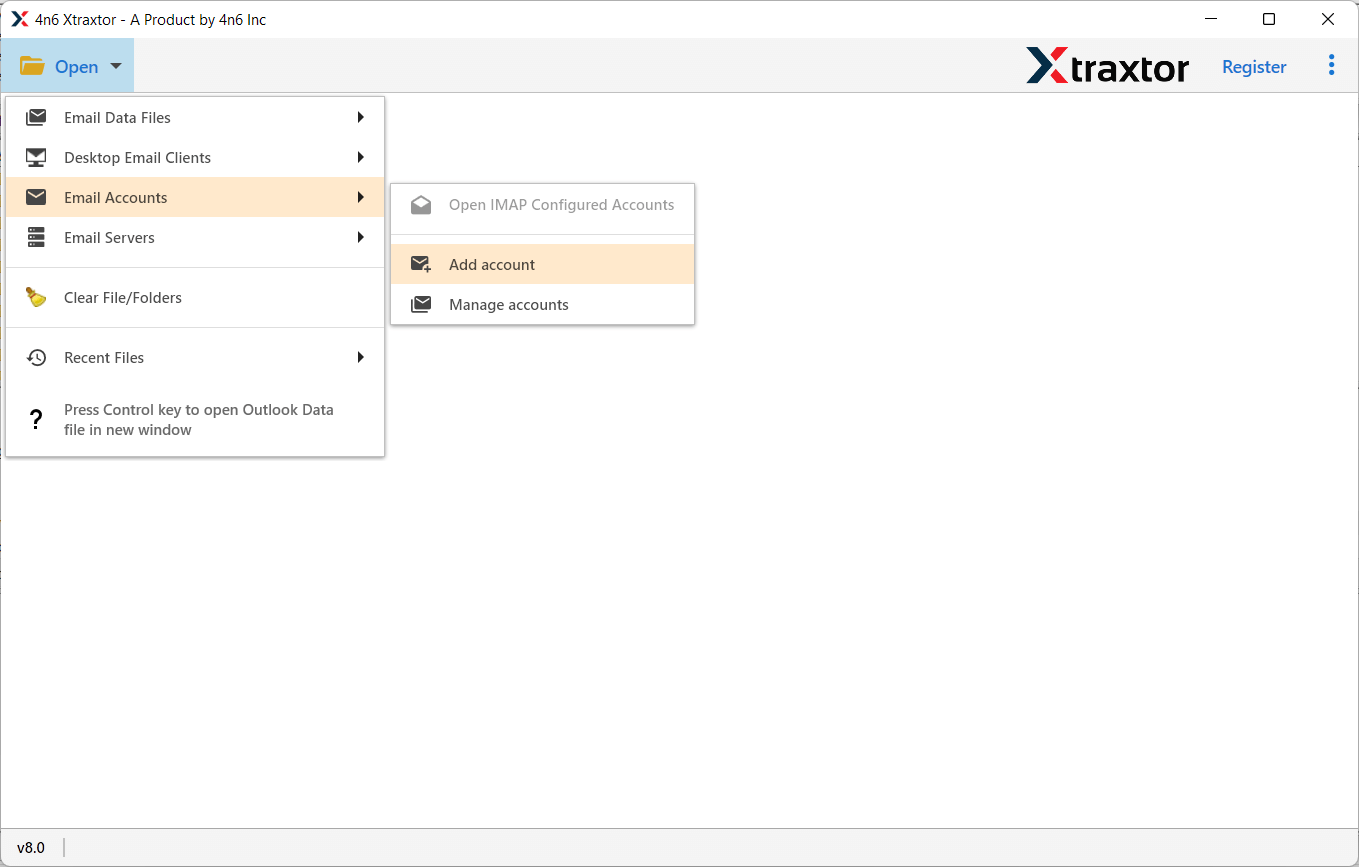
Step 2. Click on Open >> Email Accounts >> Add Account.
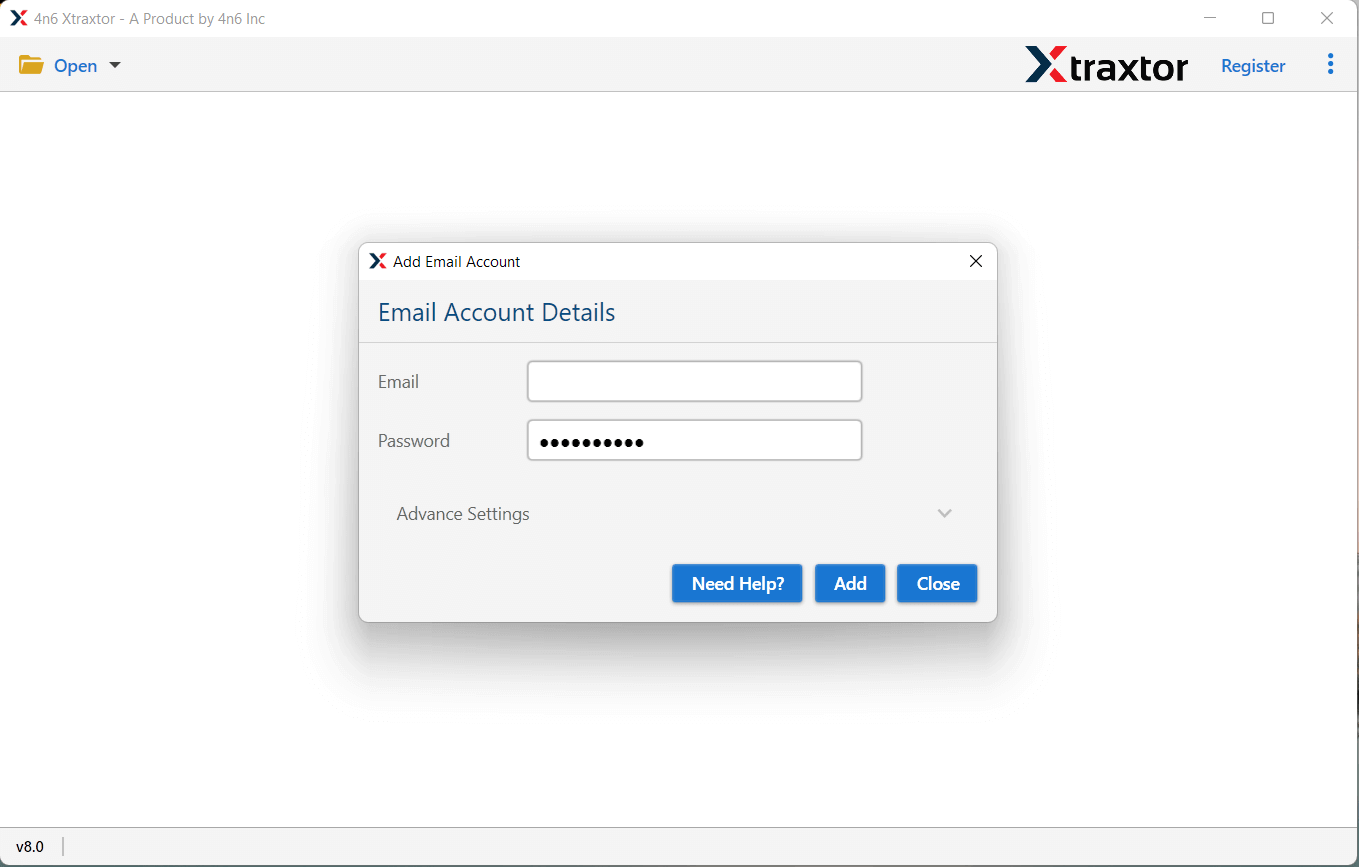
Step 3. Enter your cPanel webmail account login details and click on the Add button.
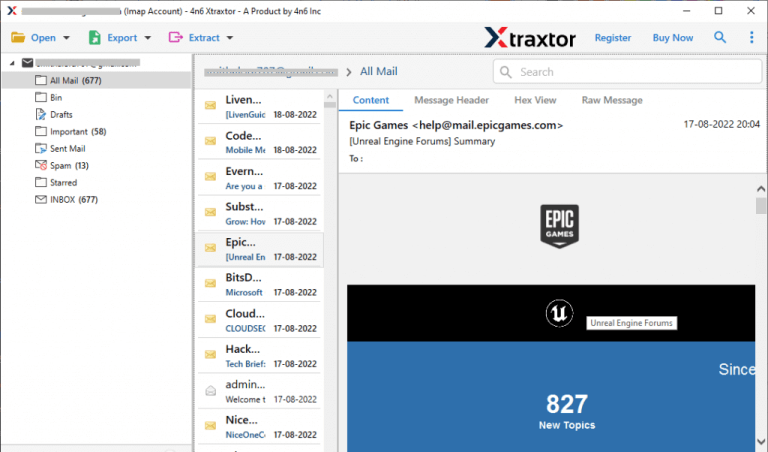
Step 4. The software will load and display all cPanel mailbox folders, allowing you to preview emails before migration.
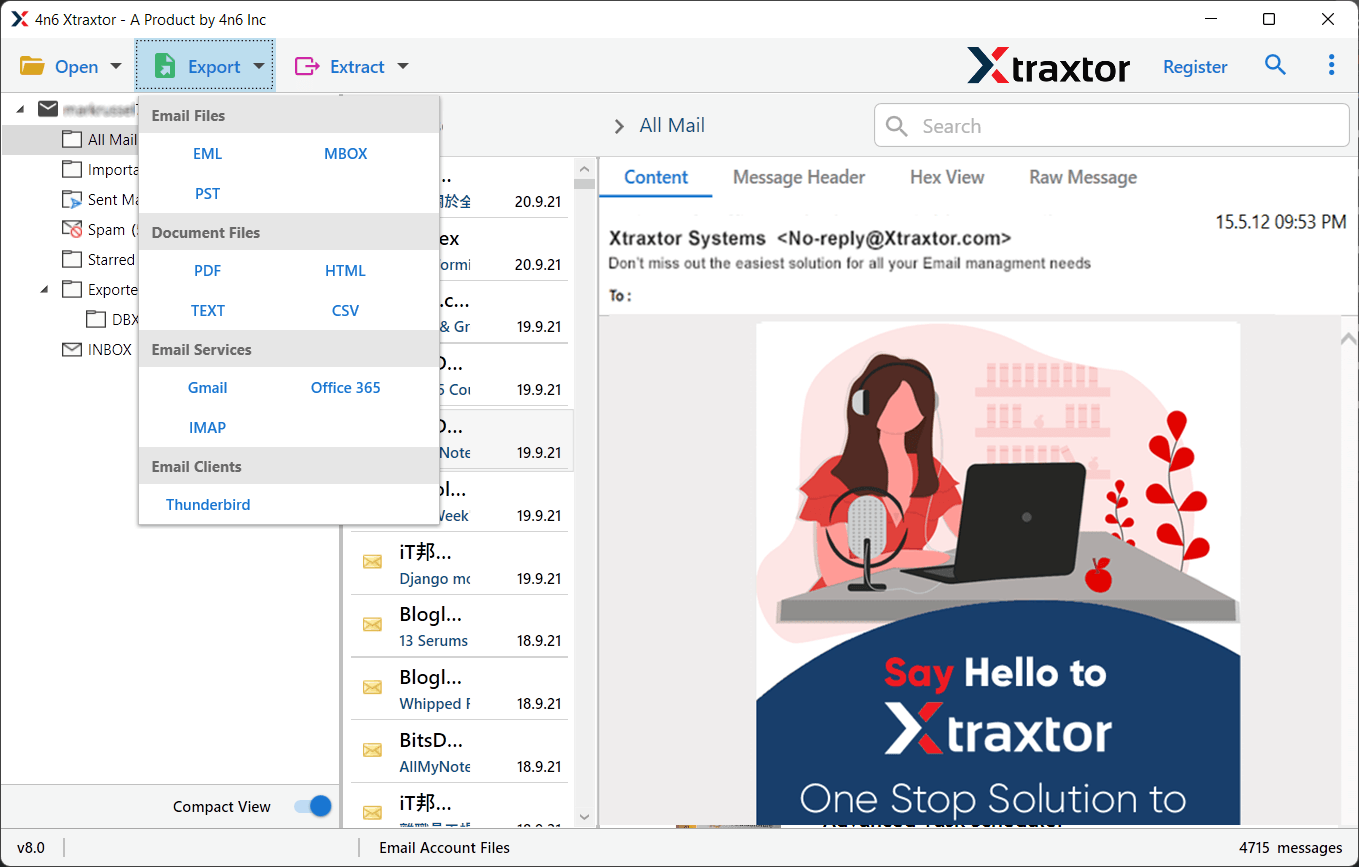
Step 5. Now click on Export and choose IMAP from the list of email services.
Step 6. Select the cPanel folders that you want to migrate into your Zoho Mail account.
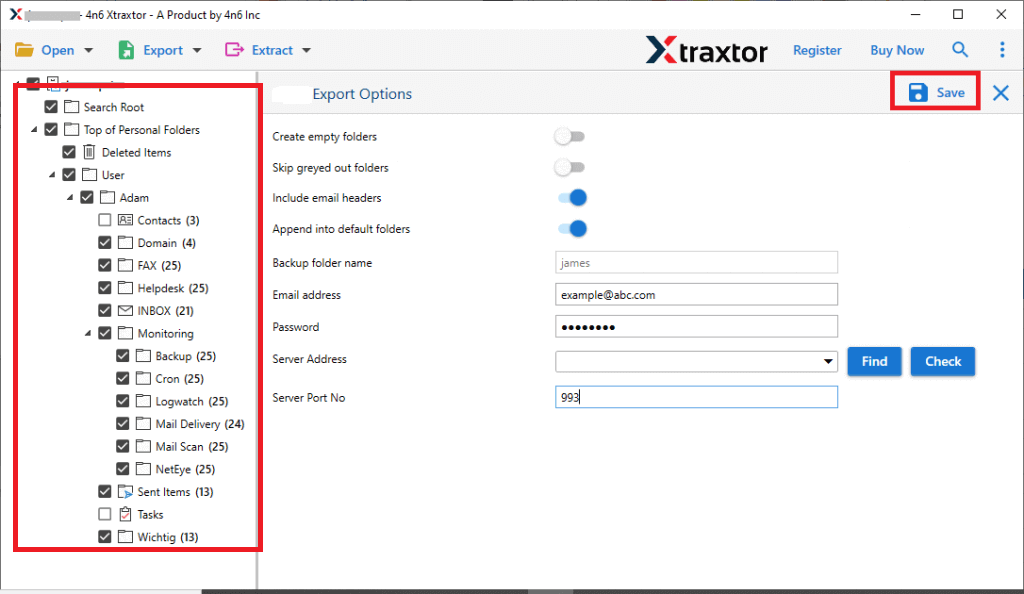
Step 7. Enter your Zoho Mail login credentials and click Save to start the migration process.
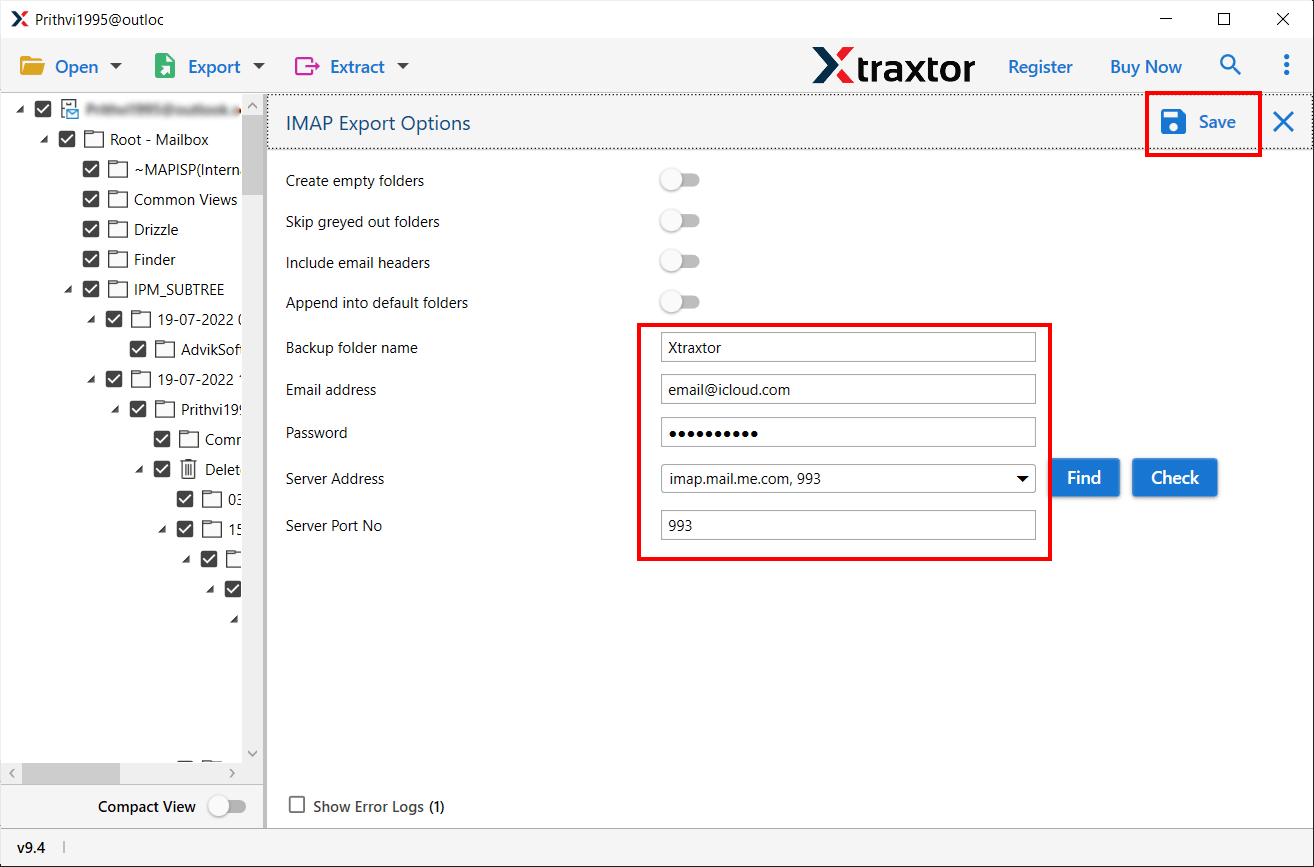
Once the process is finished, all selected emails from cPanel will be successfully migrated to your Zoho Mail account. The software simplifies the entire process and ensures a secure email migration.
Conclusion
Now I believe all the confusion about how to migrate cPanel email to Zoho Mail should be clear. In this guide, we discussed both the manual method and the automated solution.
Although manual email forwarding works, it is slow and impractical for large mailboxes because you need to move emails one by one. To save time and avoid data loss, using a professional migration tool like Xtraxtor is the best option. It allows you to migrate complete mailbox data safely and quickly.
By choosing the right method, you can transfer your cPanel emails to Zoho Mail without any hassle and start enjoying a more secure and organized email experience.
