How to Import PST to SquirrelMail?

This informative article explains the complete process to import PST to SquirrelMail using both manual and professional methods. If you are searching for a reliable way to open PST files in SquirrelMail webmail, this guide will help you perform the migration without facing any difficulties.
PST is a file format used by Microsoft Outlook to store emails, contacts, calendars, attachments, and other mailbox data. On the other hand, SquirrelMail is a web-based email client that allows users to access their email accounts through a web browser. Many users want to import PST files into SquirrelMail so they can access their Outlook emails online.
Since PST files cannot be imported directly into SquirrelMail, users need to follow certain methods to transfer Outlook data into a SquirrelMail email account.
Why Import PST to SquirrelMail?
There are several reasons why users want to import Outlook PST files into SquirrelMail.
Cloud Accessibility: Outlook stores PST files locally on your computer. After importing PST emails into SquirrelMail, you can access your emails online from anywhere using any device.
Better Data Security: PST files stored on a local system may become corrupted or damaged. When emails are imported into SquirrelMail, they are stored safely on the mail server, providing better protection.
Easy Email Management: SquirrelMail allows users to manage emails through a web browser without installing any application. After importing PST files, users can read, send, and organize emails easily.
Remote Access: Outlook works as a desktop email client and is limited to a specific computer. With SquirrelMail, users can access emails remotely from different locations.
You can manually import PST files into SquirrelMail by configuring your SquirrelMail email account in Microsoft Outlook using IMAP.
How to Open PST Files in SquirrelMail Account?
Follow these steps carefully:
- Start the Microsoft Outlook application on your system.
- Go to, File >> Info >> Add Account
- Enter your SquirrelMail email account credentials and configure it using IMAP settings.
- Now go to, File >> Open & Export >> Import/Export
- Select Import from another program or file and click Next.
- Select Outlook Data File (.pst) and click Next.
- Browse and choose the PST file from your computer.
- Choose the configured SquirrelMail IMAP account as the destination.
- Click Finish to start the import process.
Outlook will begin synchronizing PST emails with your SquirrelMail account. Once the process is completed, you can log in to SquirrelMail and view the imported emails.
Drawbacks of the Manual Method
Although the manual solution works, it also has several limitations:
- Microsoft Outlook installation is required
- Requires proper IMAP configuration knowledge
- Very slow for large PST files
- No option to filter selected emails
- Risk of sync errors or incomplete migration
How to Move PST Files into SquirrelMail with Attachments?
Now, try Xtraxtor software to easily import Outlook PST files directly into SquirrelMail accounts using IMAP credentials. It securely transfers all emails along with their attachments, metadata, and folder structure without any data loss. The tool also allows users to preview PST mailbox data before starting the migration and supports bulk PST file transfer. With its simple interface and advanced filter options, users can easily move complete or selected PST emails into SquirrelMail in just a few simple steps.
Get started with the free version to understand its functionality.

Steps to Import PST to SquirrelMail
Follow these simple steps to import PST files into SquirrelMail using the automated tool:
Step 1. Install and launch the software on your system.
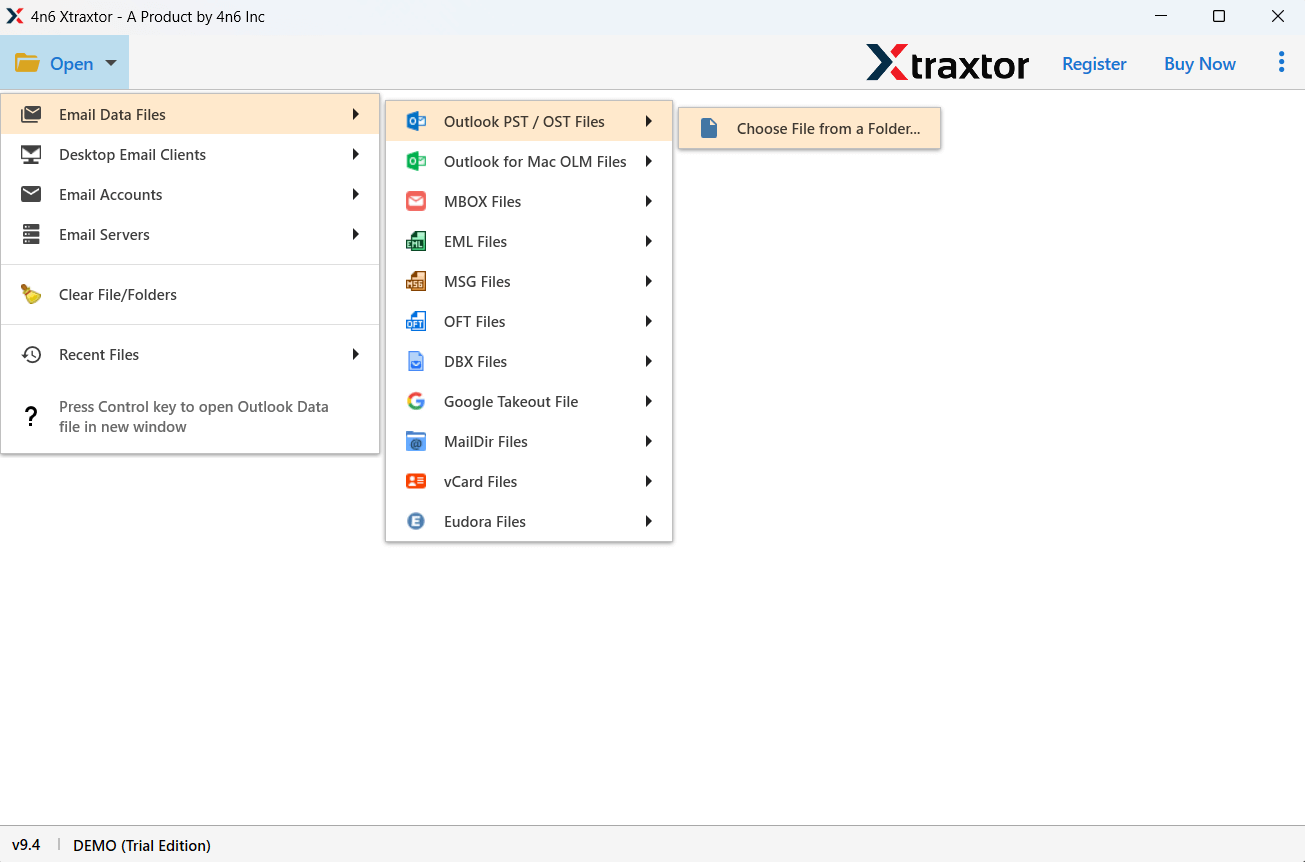
Step 2. Click on Open >> Email Data Files >> PST Files to upload Outlook PST files.
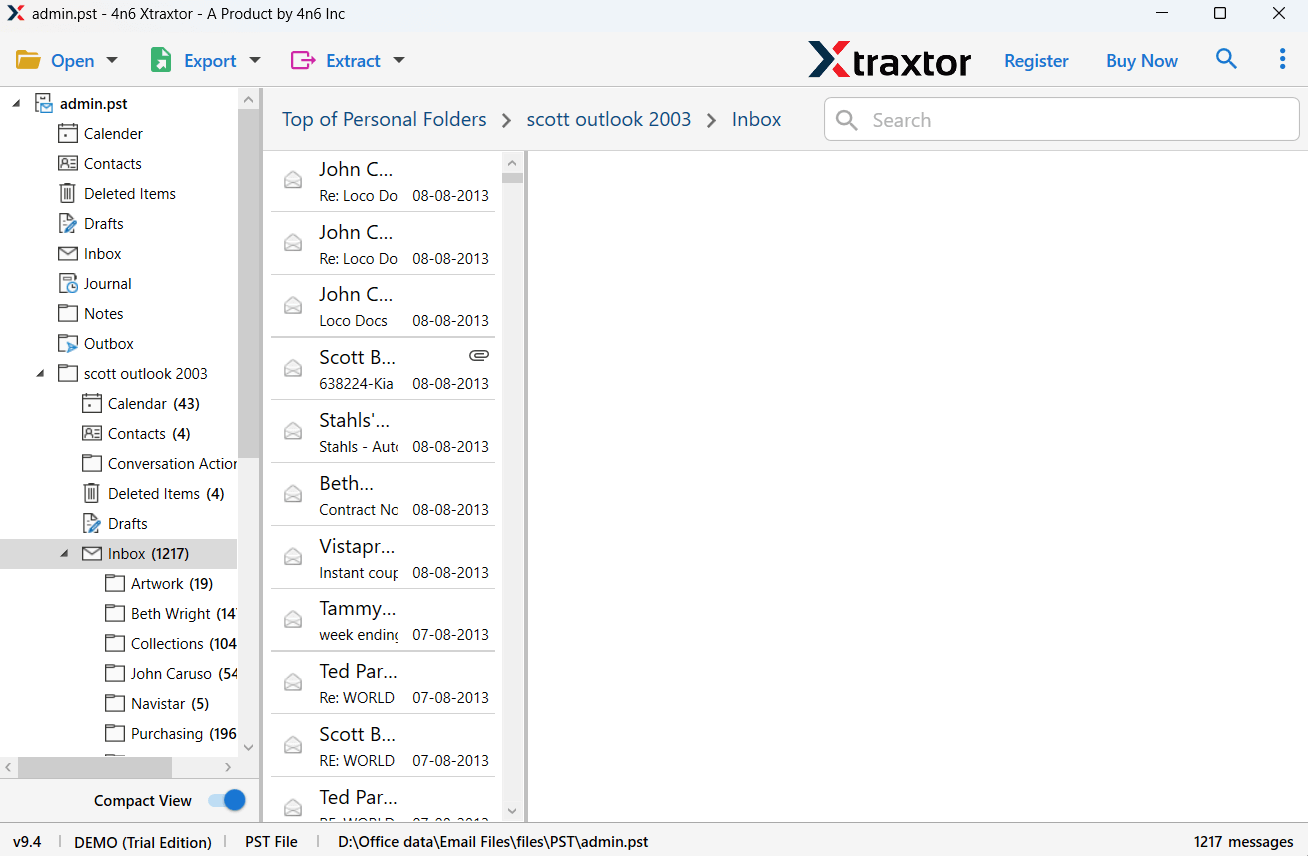
Step 3. The software will load all mailbox folders and allow you to preview emails before migration.
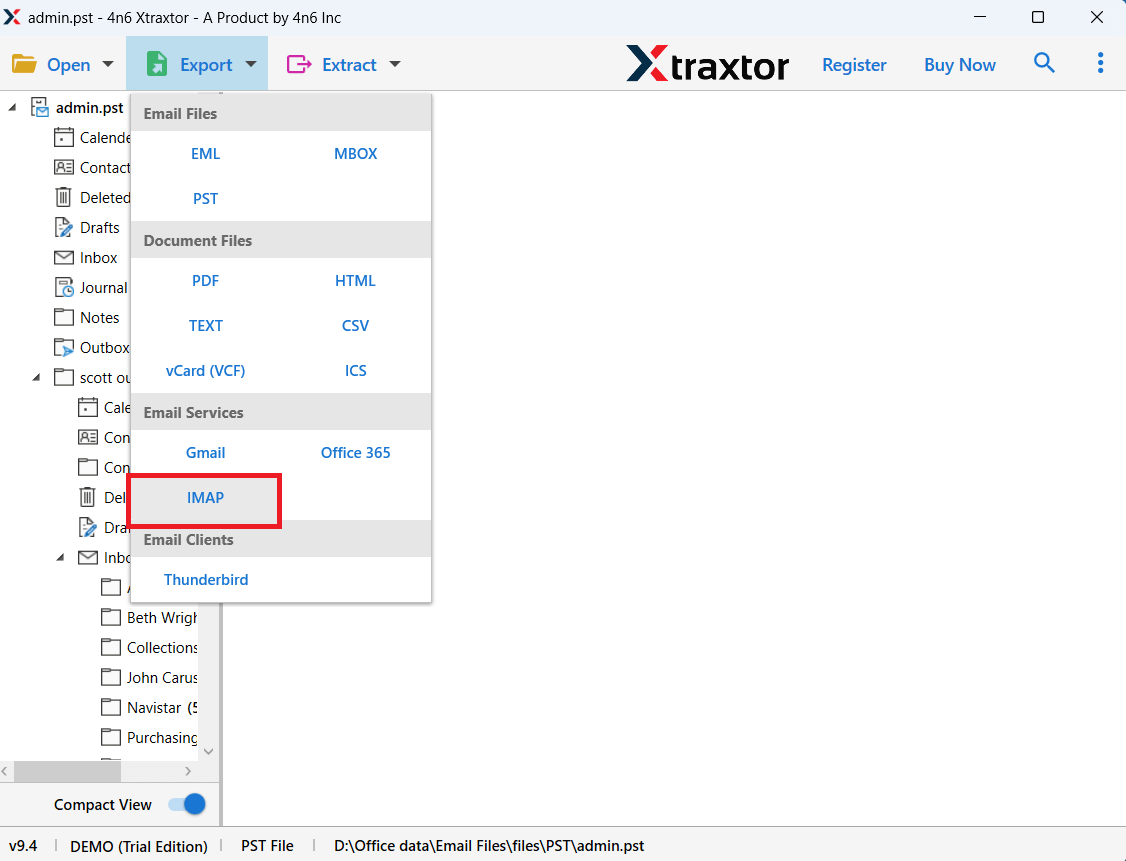
Step 4. Click on Export and choose IMAP as the saving option.
Step 5. Enter your SquirrelMail IMAP account credentials and server details.
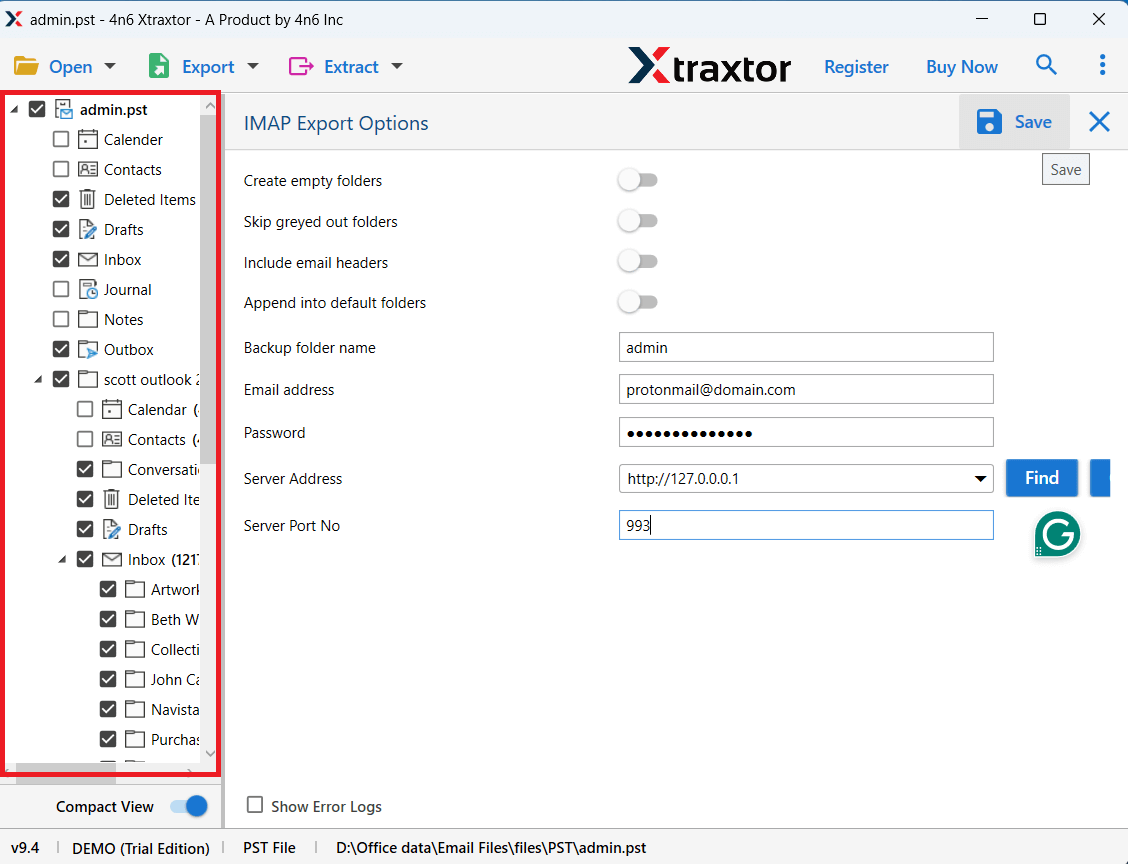
Step 6. Select the PST folders you want to import.
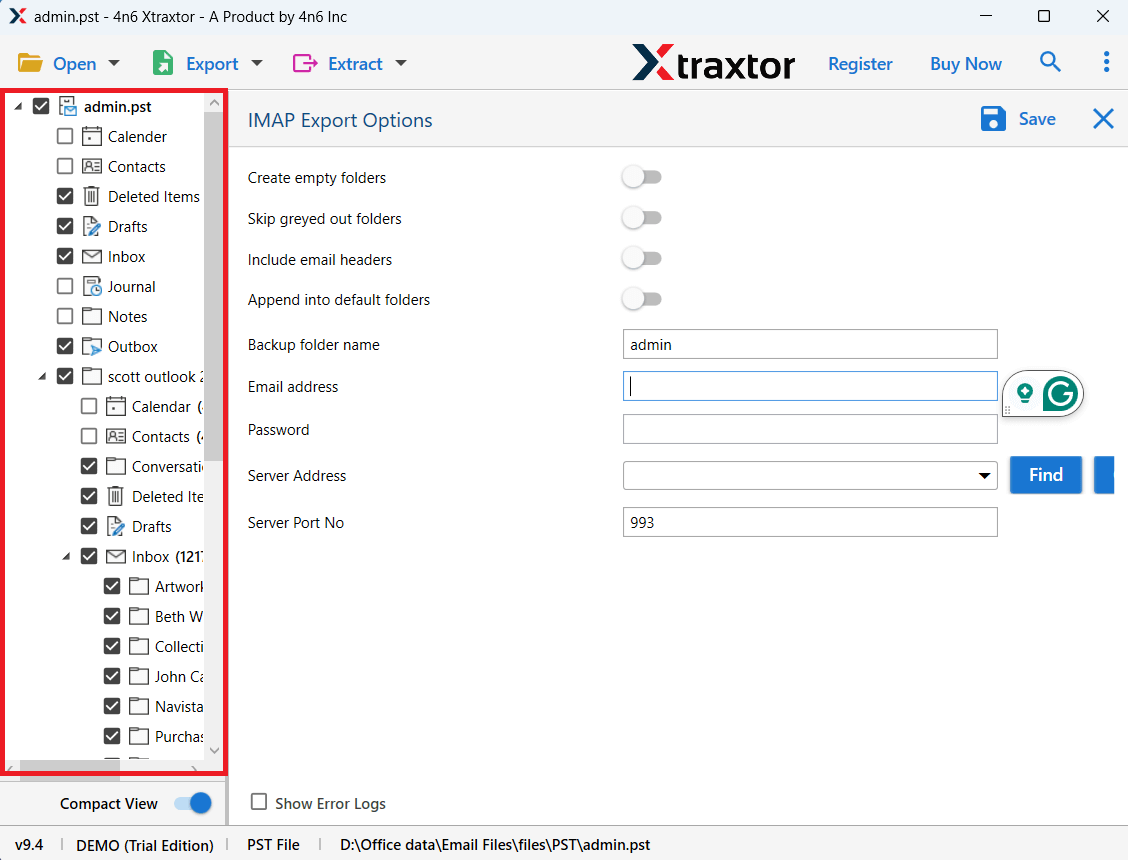
Step 7. Click Save to start the PST to SquirrelMail import process.
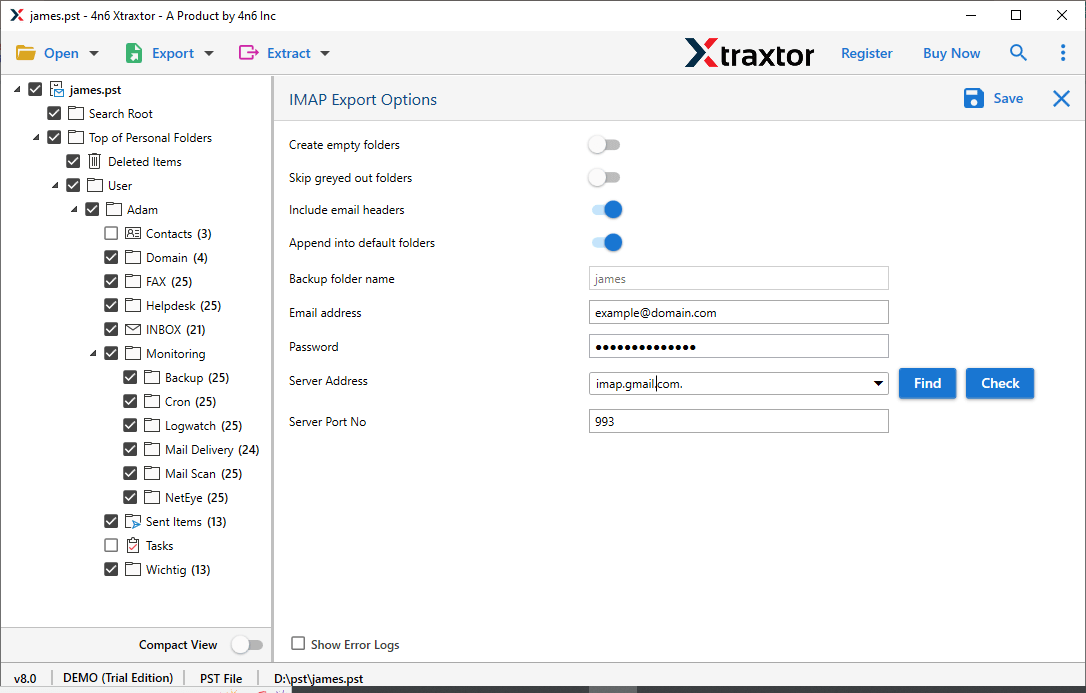
Once the process is completed, log in to your SquirrelMail account and access all imported emails.
Conclusion
In this article, we discussed two methods to import PST to SquirrelMail: manual and automated. The manual solution requires Outlook installation and technical configuration, which may take more time and effort. On the other hand, the professional tool offers a faster and safer solution for importing PST files into SquirrelMail without complications. Therefore, users dealing with large PST files or multiple accounts should prefer the automated method.
