How to Import PST to OrangeMail? Step-by-Step Guide

In this guide, we will explain the best ways to import PST to OrangeMail without losing any data. Whether you are an individual user or managing company email data, this step-by-step guide will help you move your PST emails easily.
Importing emails from a PST file to OrangeMail is helpful when you want to access your old Outlook data in a webmail account. Many users switch from desktop-based email platforms to cloud email services, but their important emails remain stored in PST files. These files contain emails, contacts, calendars, and attachments that need to be transferred safely.
However, OrangeMail does not support direct PST file import. Because PST is a file format used by Microsoft Outlook, it cannot be uploaded directly to most webmail services. Therefore, you need to use Outlook with IMAP configuration or a professional tool to complete the migration.
Don’t worry! In this article, we will show you both manual and automated methods to import PST file to OrangeMail mailbox in a simple and secure way.
Why Import PST File to OrangeMail?
Importing PST emails to OrangeMail offers several benefits:
Access Emails Anywhere: After importing PST emails, you can access them from any device using OrangeMail webmail.
Secure Email Storage: Cloud email services keep your emails safe and protected from system crashes or data loss.
Better Email Management: Organize your emails easily using folders and search options.
Backup of Outlook Data: Moving PST data to OrangeMail ensures that your old emails remain available even if Outlook is not installed.
How to Import PST to OrangeMail Manually?
You can use Microsoft Outlook as a bridge to move PST emails to OrangeMail. For this method, Outlook must be installed on your system.
Follow these steps carefully:
- Open Microsoft Outlook on your computer.
- Go to File >> Add Account.
- Enter your OrangeMail email address and choose Manual Setup.
- Select IMAP as the account type.
- Enter the OrangeMail IMAP server details and login credentials.
- After configuration, Outlook will start syncing your OrangeMail mailbox.
- Now go to File >> Open & Export >> Import/Export.
- Choose Import from another program or file.
- Select Outlook Data File (.PST) and load your PST file.
- Once the PST file is added, drag and drop emails or folders into your OrangeMail mailbox folders.
After some time, Outlook will sync the emails, and your PST data will appear in OrangeMail.
However, this method can be slow and complicated, especially when dealing with large PST files.
How to Transfer PST File to OrangeMail Without Outlook?
If you want a faster and easier solution, you can use Xtraxtor software. This professional tool allows users to import PST emails directly into IMAP-based accounts such as OrangeMail without installing Outlook.
The tool safely transfers emails, attachments, contacts, and folders while maintaining the original data structure. It also supports selective migration using advanced filters.
You can download the demo version of the tool to understand how the import process works.

Steps to Import PST to OrangeMail Account
Step 1. Install and run the software on your Windows computer.
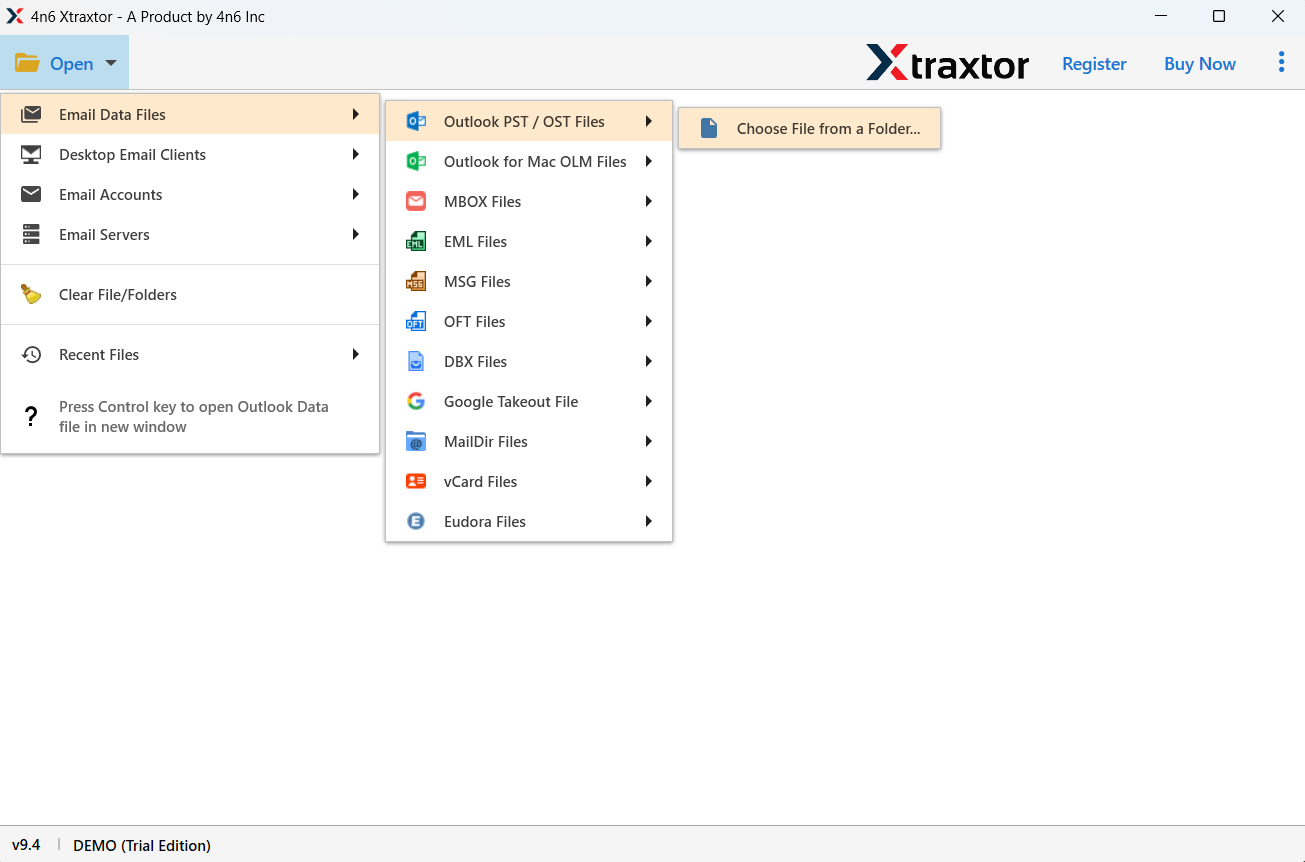
Step 2. Click Open >> Email Data File >> PST File and select the PST file from your system.
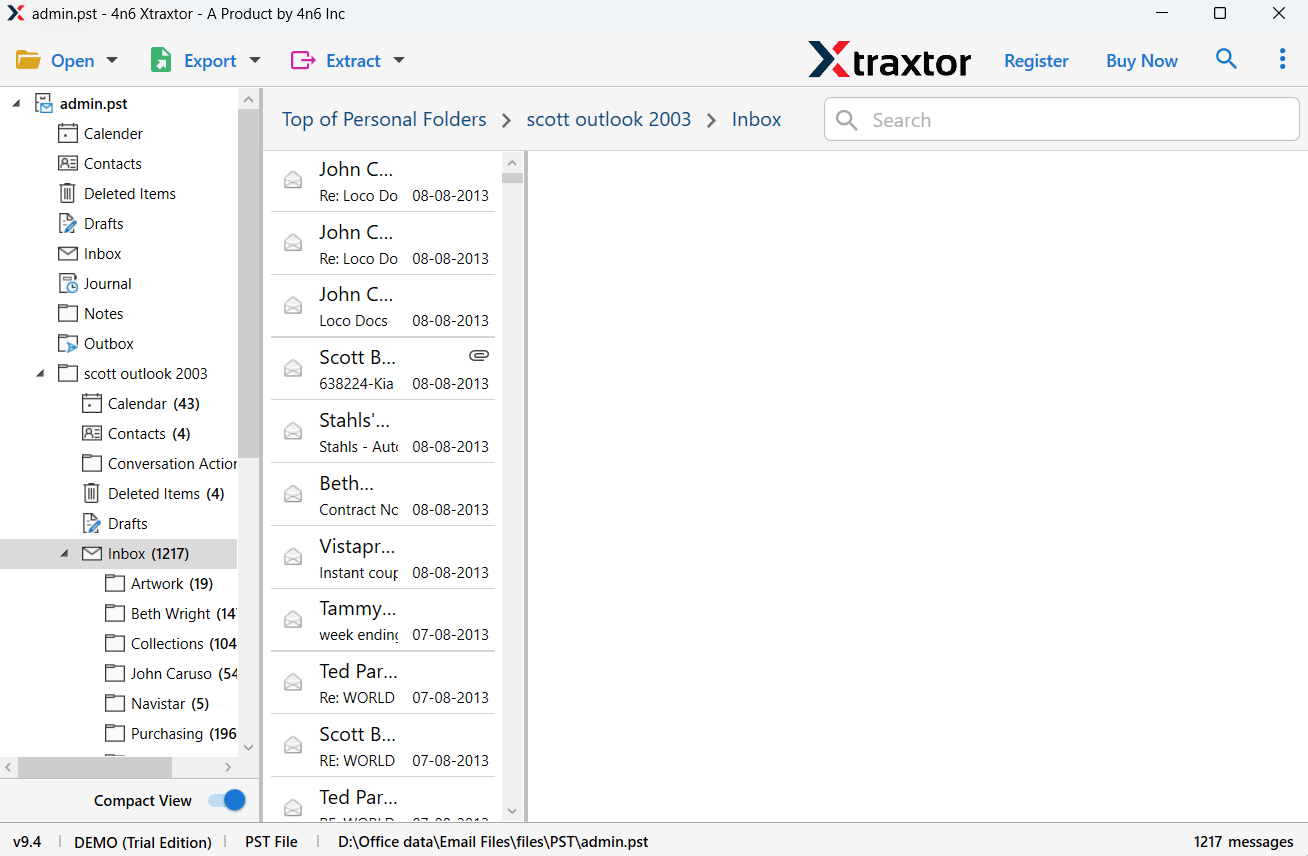
Step 3. The software will display all emails and folders stored in the PST file.
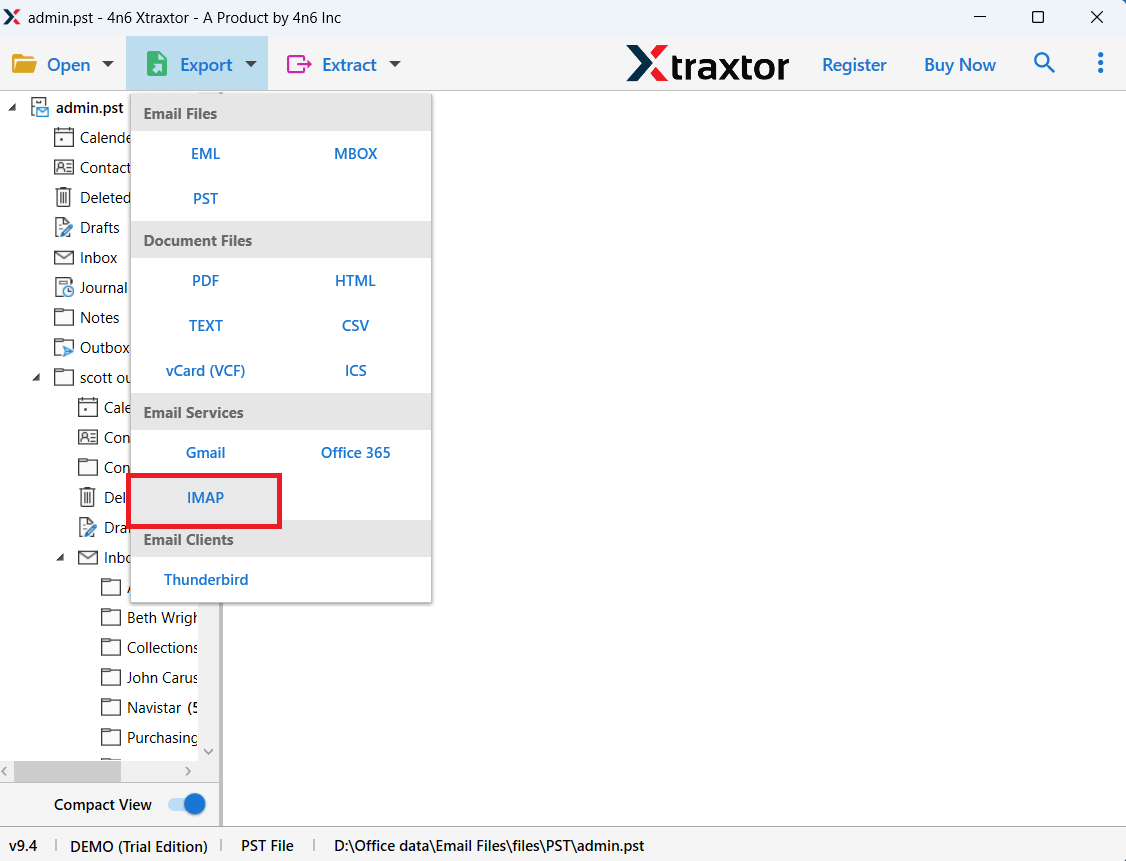
Step 4. Click on Export and choose the IMAP option.
Step 5. Select the email folders that you want to import.
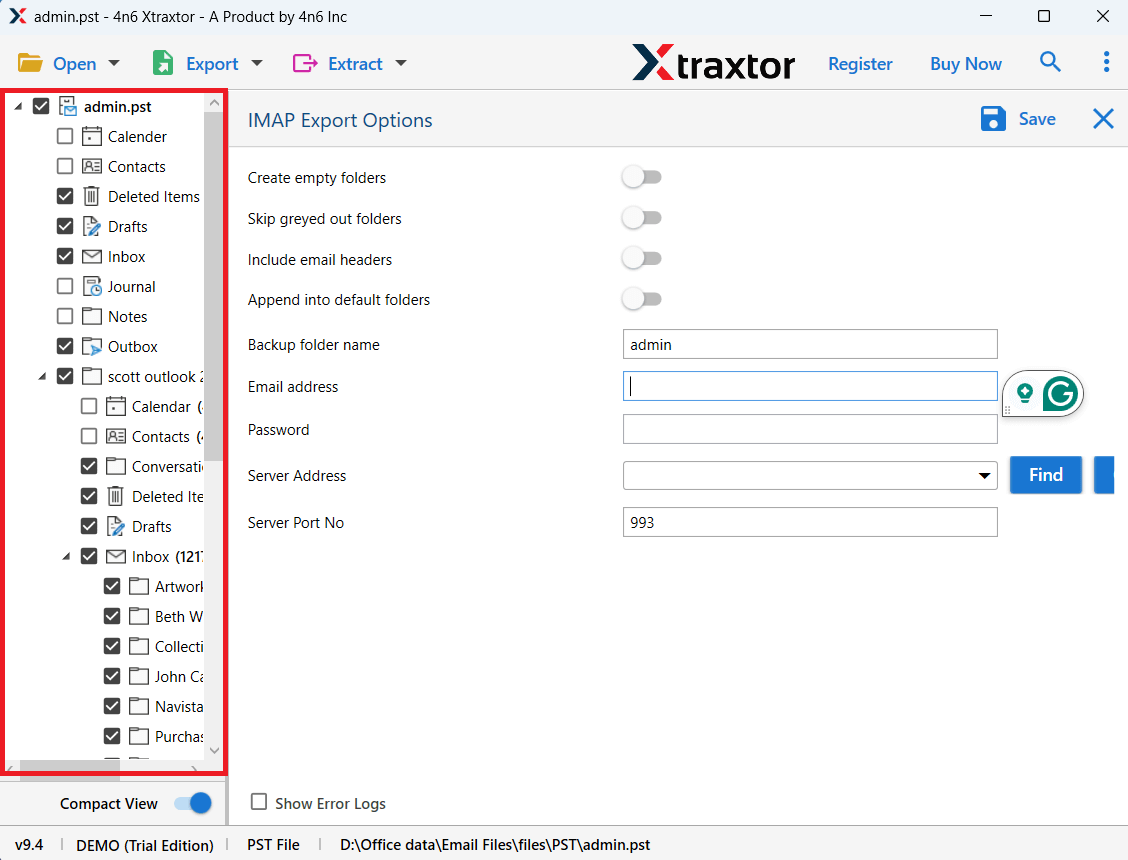
Step 6. Enter your OrangeMail login credentials and click Save to begin the process.
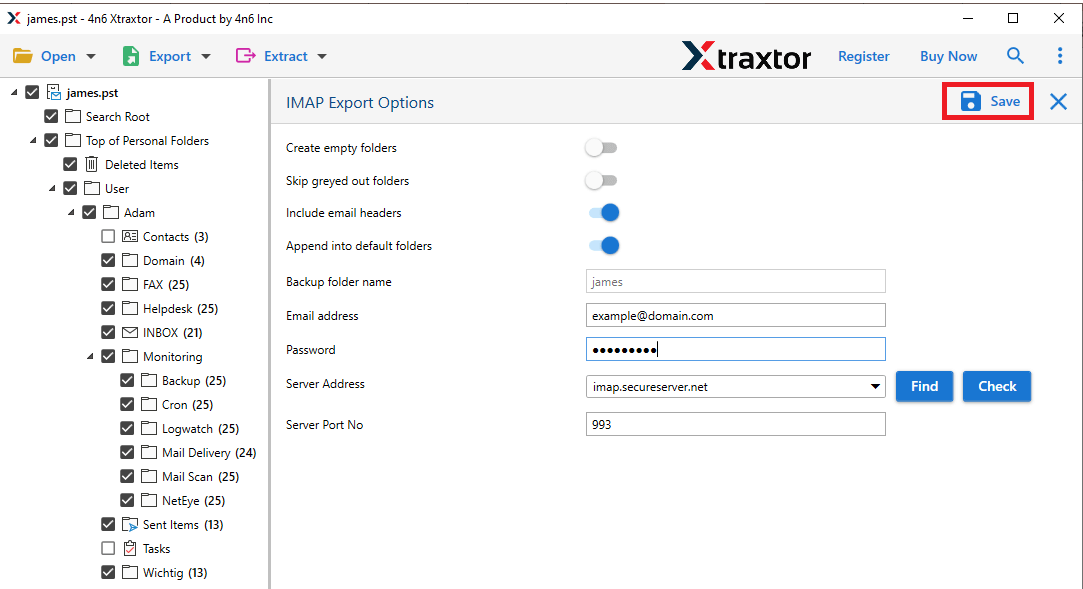
Done! The tool will import all selected PST emails to your OrangeMail mailbox without any data loss.
Benefits of Using PST to OrangeMail Import Tool
This software provides several advanced features to simplify PST email migration:
- Maintains Email Properties: The tool preserves email elements such as To, From, Subject, Date, Attachments, and Formatting.
- Import PST to Multiple Webmail Services: Apart from OrangeMail, you can also import PST emails to Gmail, Yahoo Mail, Office 365, Zoho Mail, iCloud, and other IMAP accounts.
- Advanced Email Filters: Users can migrate only selected emails using filters like date range, sender, receiver, subject, or attachments.
- Convert PST to Multiple Formats: The tool also allows users to convert PST to PDF, MBOX, MSG, EML, CSV, and other formats.
- Simple User Interface: Designed for both technical and non-technical users.
- Supports All Windows Versions: Works smoothly on Windows 11, 10, 8, 7, and older versions.
- Extract Data from PST Files: Users can extract email addresses, attachments, phone numbers, and contacts from PST files.
Conclusion
In this article, we explained both manual and professional methods to import PST to OrangeMail. The manual method works using Outlook and IMAP configuration, but it can be slow and complicated for large PST files.
If you want a quick, secure, and easy solution, using an automated tool is a better option. It allows you to import PST emails directly into OrangeMail while maintaining complete data integrity.
You can also try the free demo version of the software to understand the process before purchasing.
Frequently Asked Questions
1. Can I import PST file directly to OrangeMail?
Ans. No, OrangeMail does not support direct PST import. You need to use Outlook with IMAP or a professional tool.
2. Will attachments also be imported with emails?
Ans. Yes, the tool imports emails along with attachments and maintains the original formatting.
3. Can I import only selected folders from PST file?
Ans. Yes, the tool allows you to select specific folders and apply filters before importing.
4. Is Outlook required for importing PST files?
Ans. If you use the manual method, Outlook is required. However, the automated tool works without Outlook.
5. Is there a free version available?
Ans. Yes, the software provides a demo version that allows users to test the PST import process.
