How to Import PST File to MDaemon Server Mailbox?

In this technical blog post, you will learn the complete step-by-step process to import PST file to MDaemon server mailbox easily. If you want to move your Outlook data to the MDaemon email server, this guide will help you understand the available methods. Read the blog carefully and transfer all PST emails to your MDaemon mailbox without losing important data.
What is MDaemon Server, and Why is PST Import Difficult?
PST files are created by Microsoft Outlook to store emails, contacts, calendars, and other mailbox data in a single file. These files are designed only for Outlook and cannot be opened or imported directly into most email servers.
On the other hand, MDaemon Email Server is a popular mail server used by businesses for managing email communication. It allows users to access emails through webmail, mobile devices, and email clients.
However, MDaemon does not provide a direct option to import PST files into user mailboxes. Therefore, users must either use Outlook as an intermediary method or rely on a professional tool.
Let’s look at both methods in detail.
How to Import PST File to MDaemon Server Using Outlook?
This manual method uses Microsoft Outlook as a bridge to transfer emails from PST file to the MDaemon Email Server mailbox.
Follow these steps:
- Open Microsoft Outlook on your computer.
- Add your MDaemon email account in Outlook using IMAP settings.
- Enter the server details and login credentials of your MDaemon mailbox.
- Go to File >> Open & Export >> Open Outlook Data File.
- Browse and select the PST file that you want to import.
- The PST mailbox will appear in the Outlook panel.
- Select the emails or folders from the PST file.
- Drag and drop them into the MDaemon mailbox folders.
Wait until Outlook completes the synchronization process.
Once the syncing process is finished, all emails from the PST file will appear in your MDaemon mailbox.
How to Import PST File to MDaemon Server Automatically?
To simplify the process, you can use the Xtraxtor software. This software allows users to directly import PST files into the MDaemon mailbox without complicated steps.
The tool transfers emails along with attachments while maintaining the original folder hierarchy and email formatting. You only need to add the PST file and enter your MDaemon account credentials, and the software will complete the import process automatically.
You can also download the demo version to check how the software works before purchasing the full version.

Steps to Import PST File to MDaemon Server
Step 1. Install and run the software on your system.
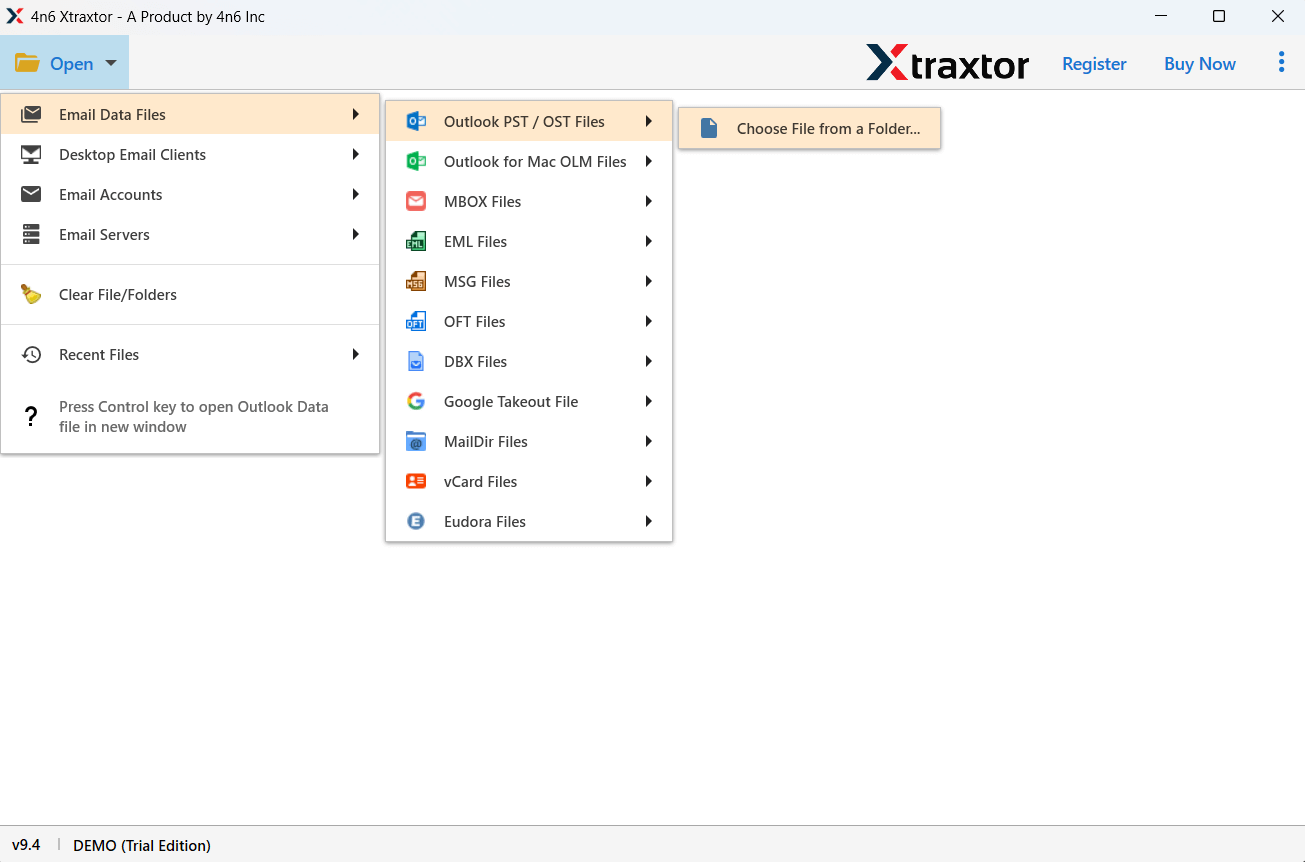
Step 2. Click on Open >> Data File >> PST File and add the PST file you want to import.
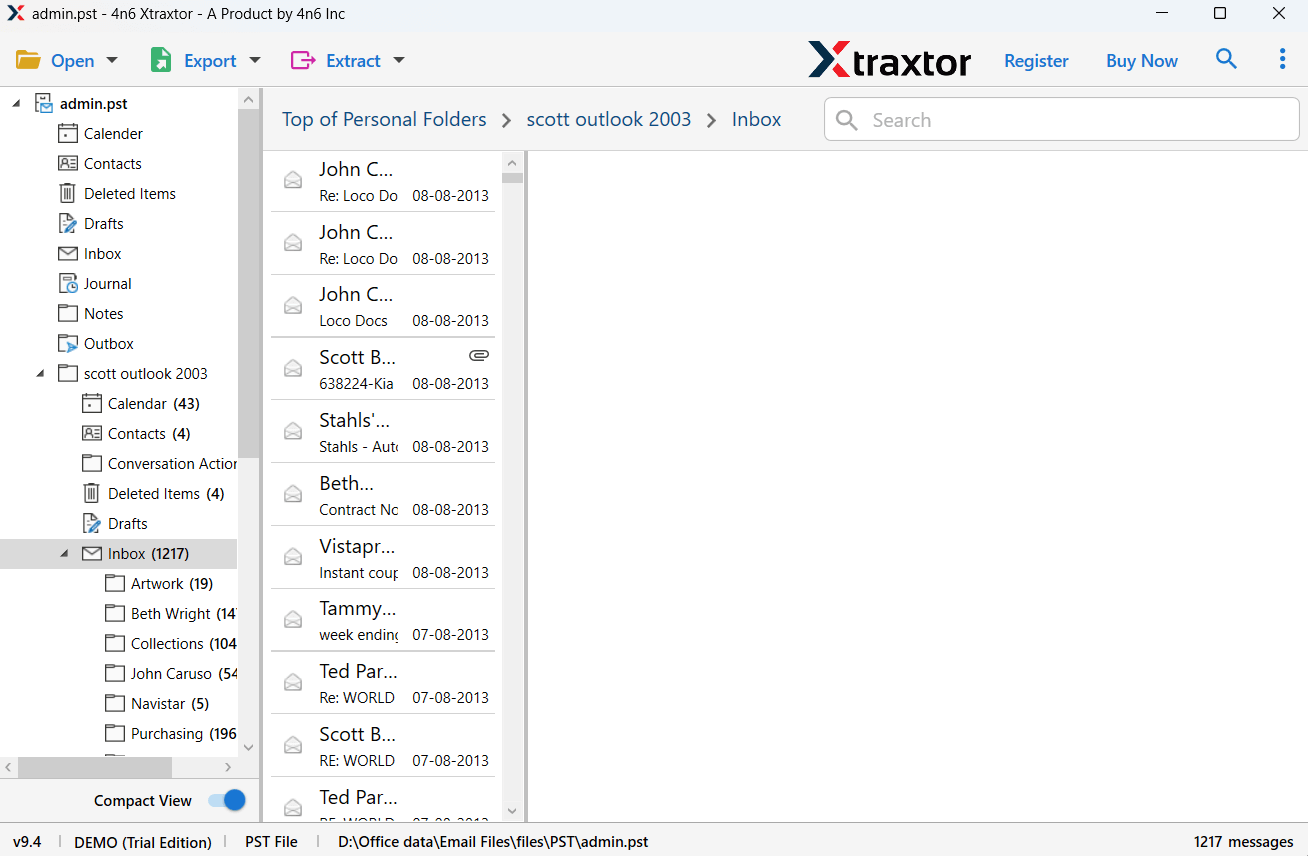
Step 2. See a preview of your PST file data before importing.
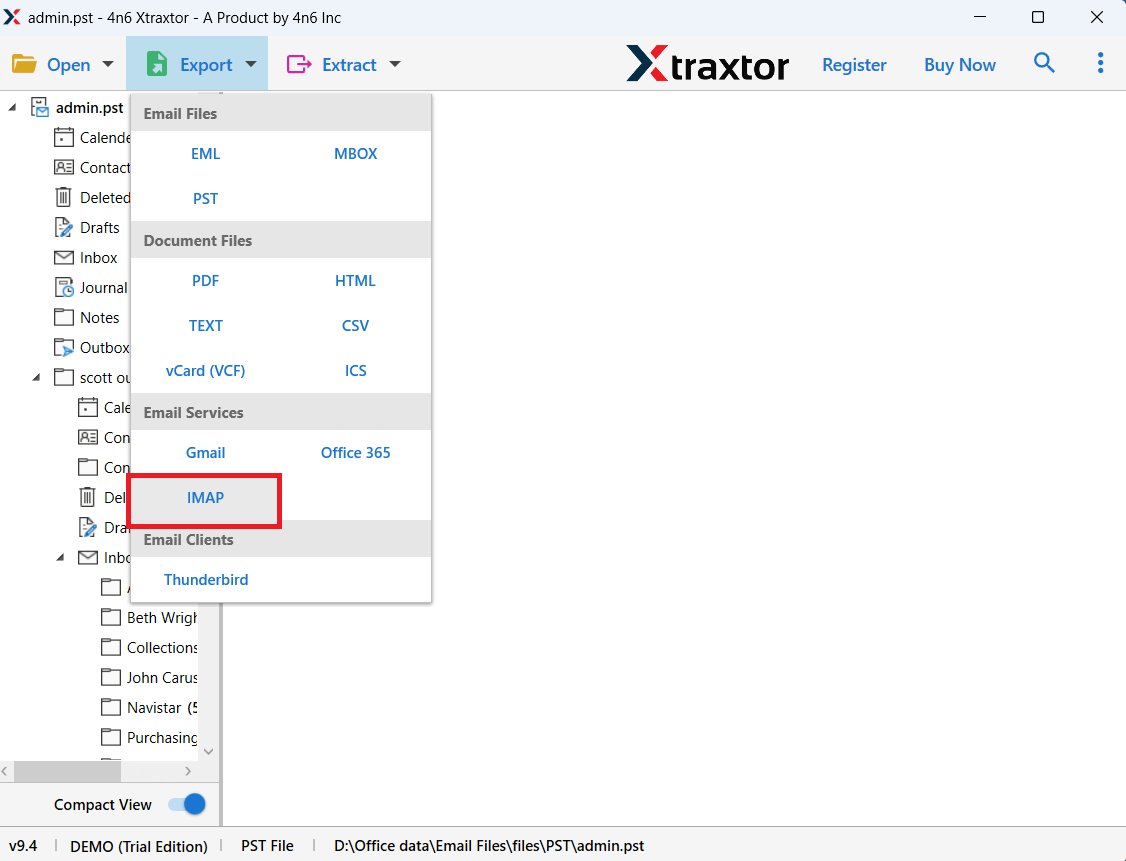
Step 3. Click on the Export option and choose IMAP from the list.
Step 4. Select the email folders you want to transfer.
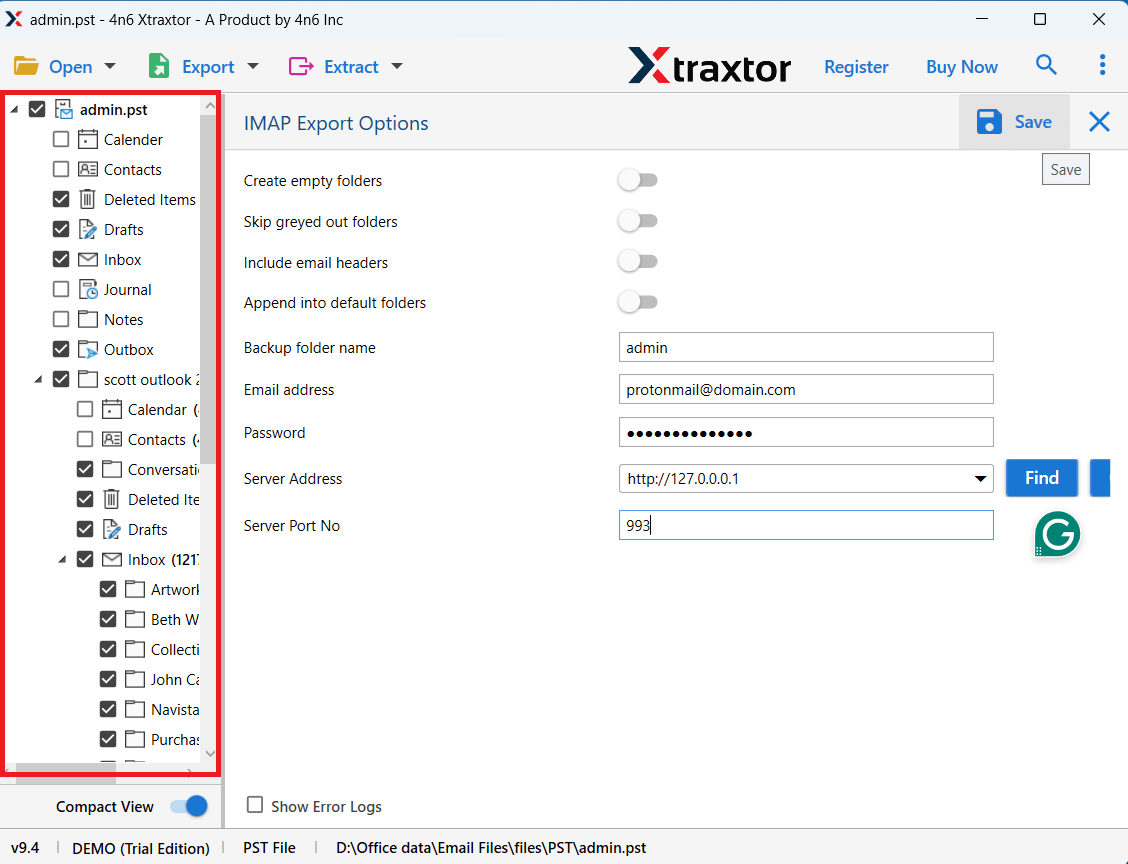
Step 5. Enter your MDaemon mailbox login details and click the Save button.
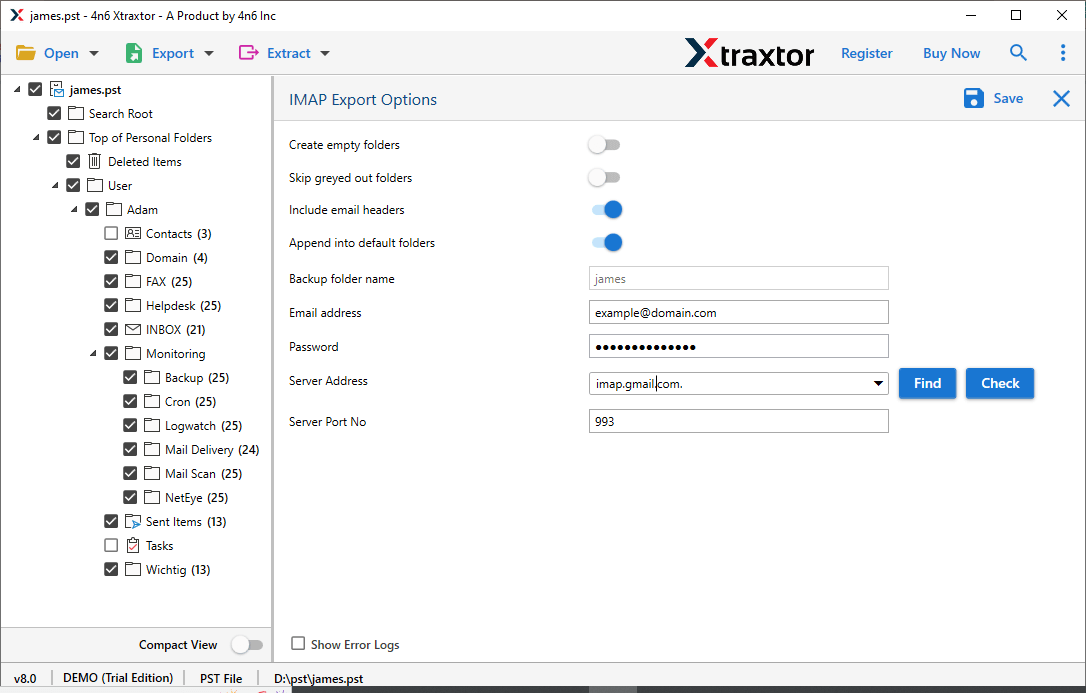
Now the tool will start importing PST emails into the MDaemon mailbox. After the process is completed, you can log in to your account and access all the imported emails.
Why Use Xtraxtor Software for PST to MDaemon Migration?
This tool offers several helpful features:
- Import PST files to MDaemon mailbox with attachments.
- Transfer PST emails to Gmail, Office 365, Zoho Mail, and other webmail services.
- Preview emails before starting the migration process.
- Convert MDaemon to PST, PDF, EML, MSG, MBOX, DOC, and more.
- Maintain original email formatting and metadata.
- Import only selected folders from PST files.
- Simple interface suitable for both technical and non-technical users.
- Works smoothly on Windows 11 and earlier versions.
- Supports PST files created by Outlook 2019, 2016, 2013, and older versions.
Conclusion
In this blog, we explained how to import PST file to MDaemon server mailbox using both manual and automated methods. The manual method works through Outlook but can be time-consuming and requires technical steps.
If you want a faster and more reliable solution, using the Xtraxtor is a better option. It allows users to transfer PST emails to the MDaemon server easily while maintaining complete data and attachments. You can also try the demo version to test the tool before using the full version.
