How to Import PST to Hostinger Email Account?

Many users look for a reliable way to import PST to Hostinger email account without losing important emails. If you have Outlook PST files and want to access them in your Hostinger mailbox, you need a proper solution to move your data safely. PST files store Outlook emails, contacts, attachments, and other data, so importing them correctly is very important.
In this guide, we will explain simple ways to import PST to Hostinger email without complications. You will learn about the manual method as well as a professional solution that helps you complete the task quickly and safely.
Benefits of Using Hostinger Email
Many users prefer Hostinger email because it provides several useful advantages for managing emails online.
- Access Emails Anywhere: Hostinger email works on the cloud, so you can log in from any device and check your emails anytime.
- No Device Limitation: When PST files are stored locally, you can only open them on the same system. After importing them to Hostinger email, you can access them from anywhere.
- Better Data Security: Emails stored on cloud servers are safer because hosting providers maintain regular backups and security systems.
- Easy Email Management: Once PST files are imported to Hostinger, all your emails are stored in one mailbox and can be managed easily.
These benefits encourage many users to import PST files into Hostinger email accounts.
How to Import PST to Hostinger Email Manually?
You can manually upload PST emails to Hostinger using Microsoft Outlook with IMAP configuration.
- Open Microsoft Outlook on your system.
- Click on File and select Add Account.
- Enter your Hostinger email address and click Connect.
- Select IMAP configuration.
- Enter Hostinger IMAP details and finish the setup.
- Next, Open Outlook again.
- Go to File >> Open & Export >> Import/Export.
- Select Import from another program or file.
- Choose Outlook Data File (.pst) and click Next.
- Browse and select the PST file you want to import.
- Choose the Hostinger mailbox folder where you want to import the data.
- Click Finish to start the import process.
Outlook will start syncing PST emails with your Hostinger mailbox automatically.
Limitations of the Manual Method
Although the manual method works, it has several limitations:
- Requires Microsoft Outlook installation
- Takes a lot of time for large PST files
- Risk of data loss if syncing fails
- Folder structure may not remain the same
- Difficult for non-technical users
- Internet connection must remain stable
Because of these limitations, many users prefer using a professional tool.
How to Transfer PST Files to Hostinger Email Account?
To simplify the process, you can use a professional tool like Xtraxtor. This software helps users directly import PST to Hostinger email account without complicated steps.
Unlike manual methods, this tool does not require Outlook configuration or technical knowledge. It safely transfers emails, attachments, contacts, and other mailbox data from PST files to the Hostinger account.
The software also maintains the original folder structure and email properties such as To, From, Subject, Date, and attachments. With just a few clicks, users can upload complete PST files to Hostinger mailbox without errors.
Click the free download button to explore all working steps.

Steps to Import PST to Hostinger Mailbox
Follow the simple steps below:
Step 1. Download and install the software on your Windows system.
Step 2. Launch the software and click Open >> PST File.
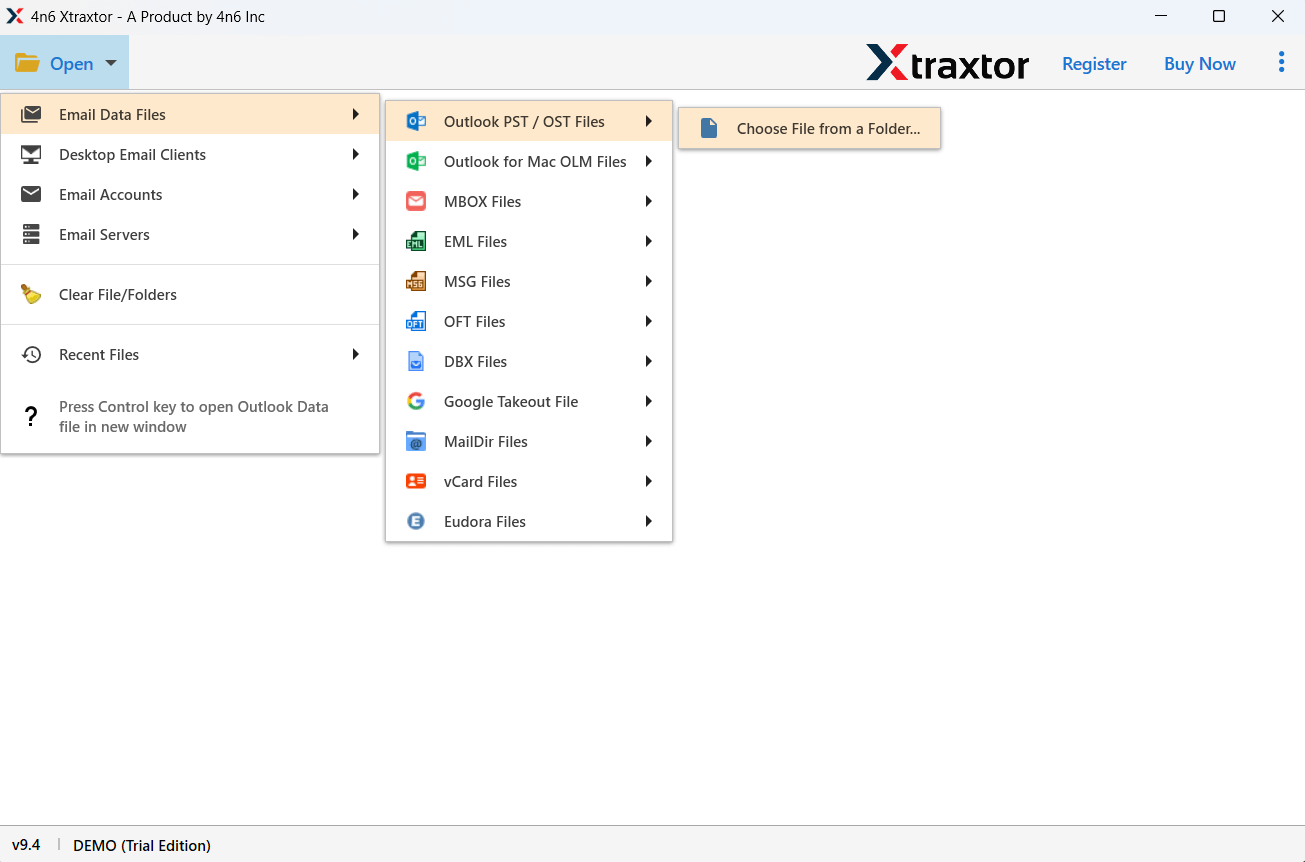
Step 3. Browse and add the PST files that you want to import.
Step 4. Preview all emails and select the folders you want to migrate.
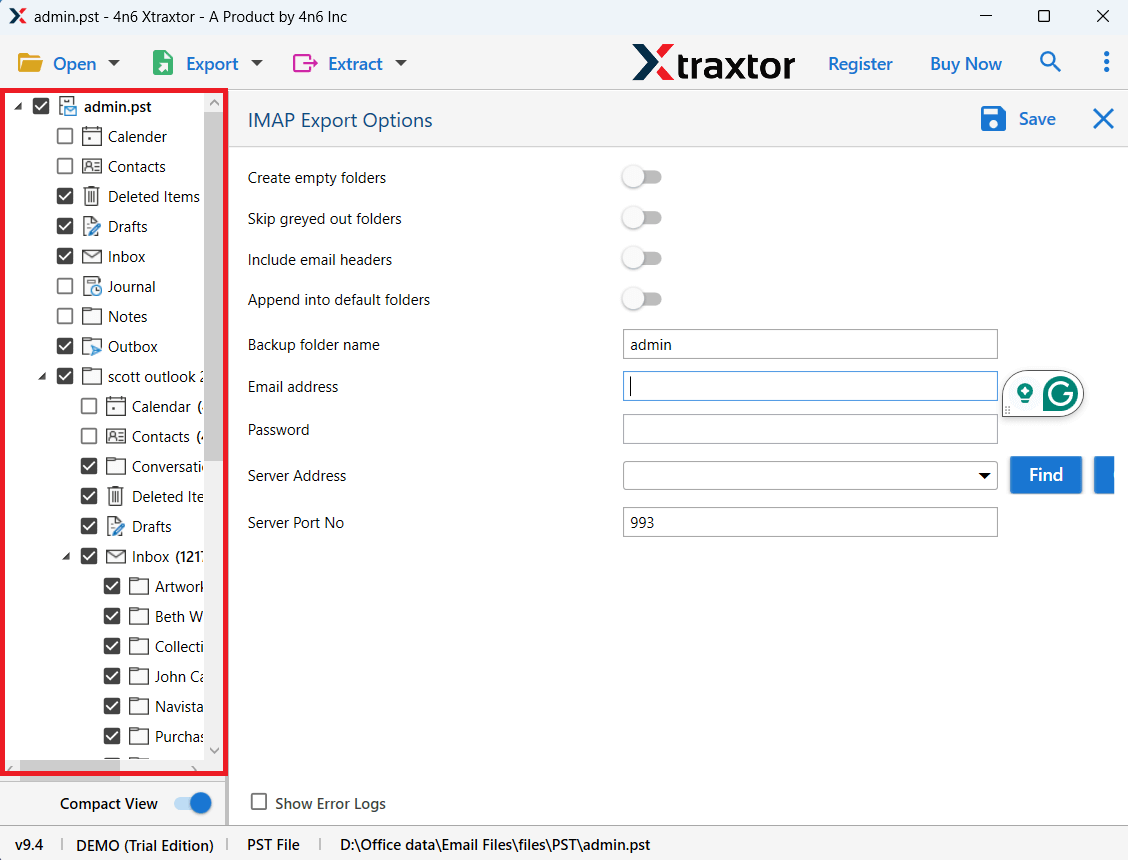
Step 5. Click Export and choose IMAP / Email Account from the list.
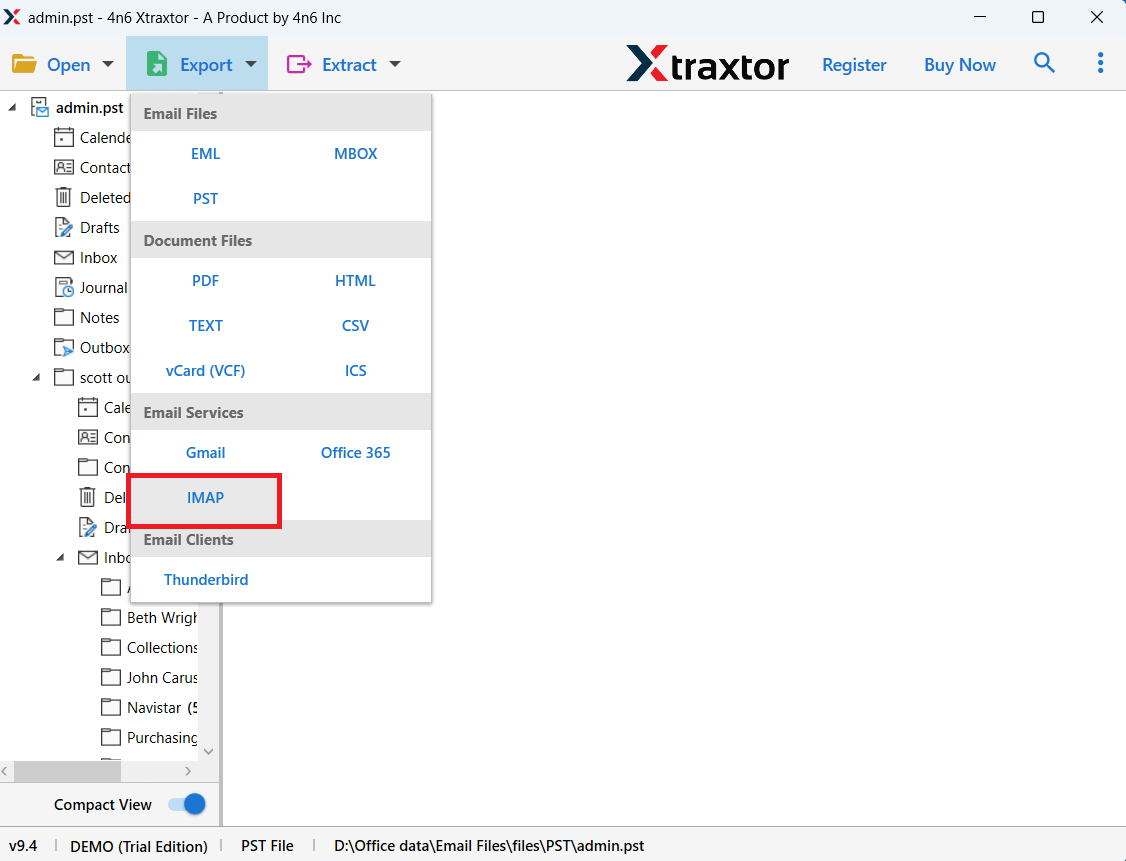
Step 6. Enter your Hostinger email login details.
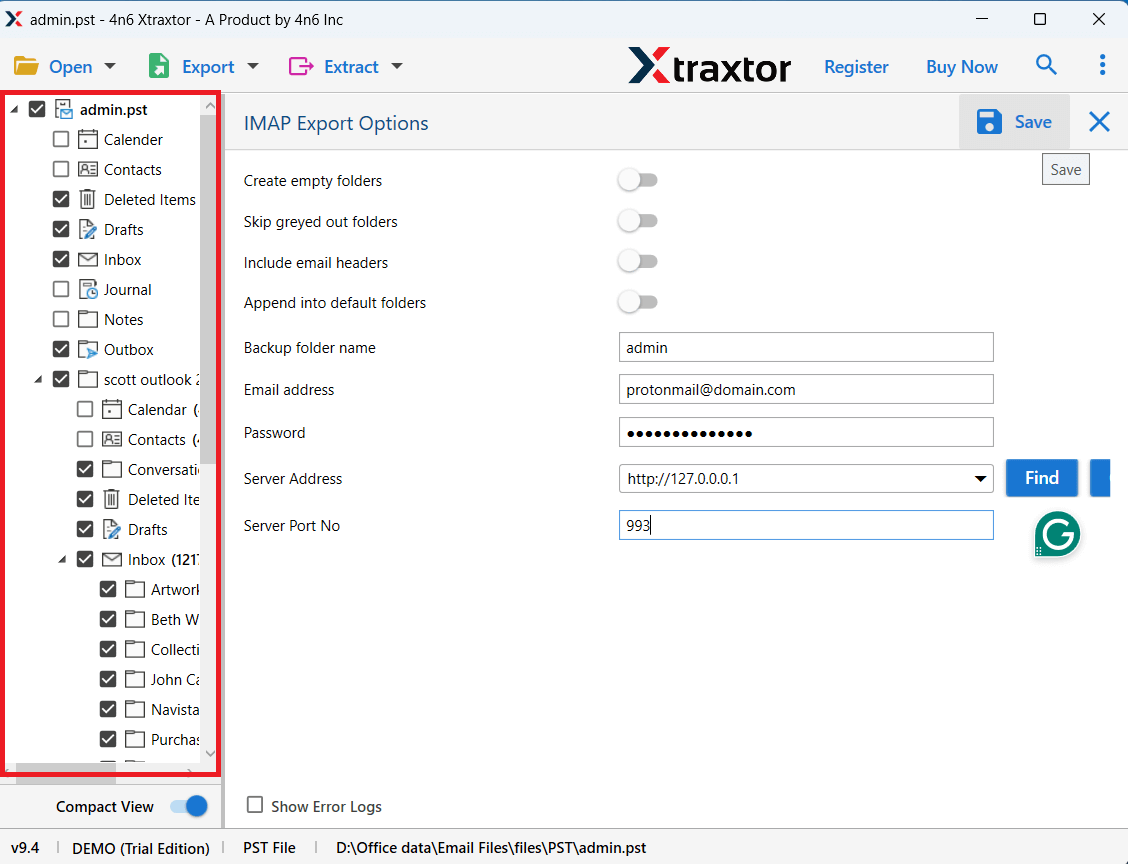
Step 8. Click Save to start importing PST to Hostinger mailbox.
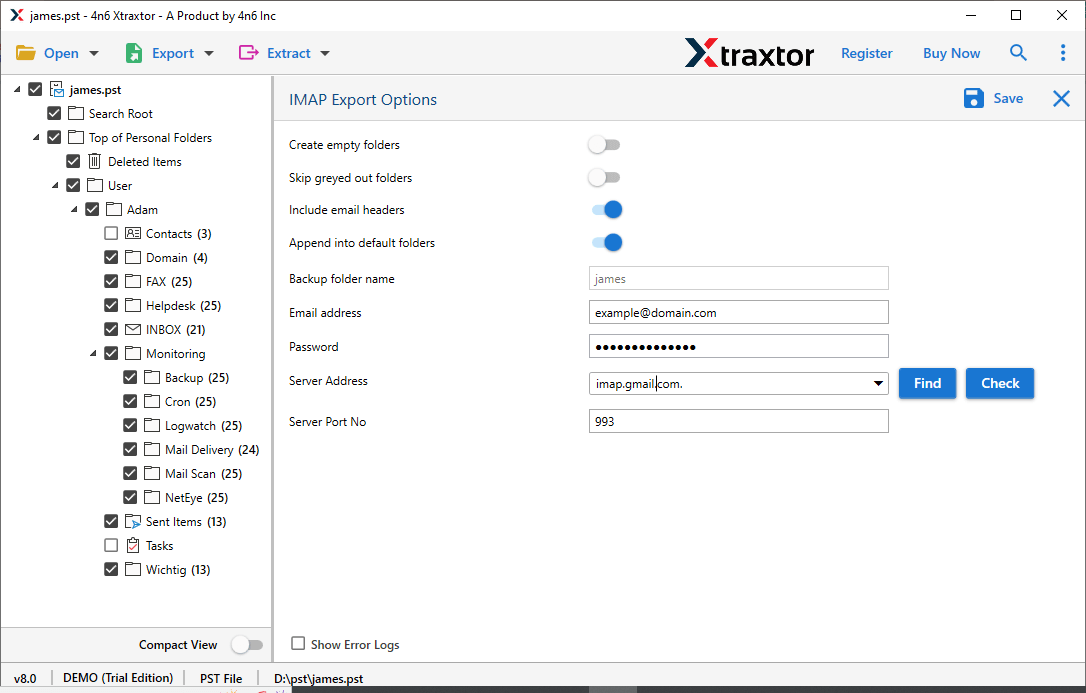
After a few minutes, all your PST emails will appear in your Hostinger email account.
Key Features of PST to Hostinger Import Tool
- The tool provides a direct way to import PST to Hostinger email without using Outlook.
- Users can upload multiple PST files to Hostinger mailbox at once.
- Advanced filters allow you to import emails based on date, sender, subject, and other fields.
- The tool keeps the original folder hierarchy during the migration process.
- All email properties, such as attachments, formatting, and metadata remain unchanged.
- Users can view PST emails before importing them to Hostinger email.
- The software supports Windows 11, 10, 8.1, 8, and earlier versions.
Conclusion
Importing PST files to a Hostinger email account helps users access Outlook data from anywhere. While the manual method can work for small PST files, it requires Outlook configuration and may take a lot of time. To avoid these issues, using a professional solution is a better option. It provides a simple and secure way to import PST to Hostinger email account while keeping all emails, attachments, and folder structure safe.
