How to Import PST to HostGator with Attachments?

Today, email platforms are constantly changing. Many users move from desktop email applications like Microsoft Outlook to web hosting email services such as HostGator. During this transition, users often need to import PST to HostGator email account. However, transferring PST files directly into HostGator webmail can be difficult because PST is a file format created for Outlook only.
PST files store emails, attachments, contacts, and other mailbox items locally. But HostGator email works on IMAP servers and webmail platforms. Because of this difference, users often look for a reliable method to import PST to HostGator with attachments safely.
In this guide, we will explain both manual and professional methods to transfer PST emails to HostGator without losing attachments or important data.
Why Do Users Need to Import PST to HostGator?
PST files are mainly used by Microsoft Outlook to store mailbox data on a local computer. But many businesses and individuals move to hosting services like HostGator because of better accessibility and cloud storage.
Here are some common reasons why users want to import PST files to HostGator:
- To access old Outlook emails through webmail anywhere.
- To store all email communication in one place.
- To migrate from desktop Outlook to web hosting email.
- To keep attachments and important records safe in the cloud.
- To manage business emails directly from the HostGator server.
However, PST files cannot be uploaded directly to HostGator email accounts. Therefore, users need a proper solution to complete the migration.
There are mainly two ways to import PST files to a HostGator email account:
- Manual method using Outlook and IMAP configuration.
- Professional Tool for direct migration.
Both methods are explained below so that you can choose the most suitable one.
How to Open PST File in HostGator?
This method requires the installation of Microsoft Outlook on your system and correct IMAP settings of your HostGator account.
- Open Microsoft Outlook on your computer.
- Go to File and click Add Account.
- Enter your HostGator email address and configure it using IMAP settings.
- Once the HostGator mailbox appears in Outlook, go to File >> Open & Export.
- Click Import/Export.
- Choose Import from another program or file.
- Select Outlook Data File (.pst) and browse your PST file.
- Import the PST file into Outlook.
After importing, drag the PST folders into your HostGator mailbox folders.
Wait until Outlook finishes syncing all emails and attachments to the server.
Limitations of the Manual Method
Although this method works, it has several drawbacks:
- Requires installation of Microsoft Outlook.
- Large PST files take a long time to upload.
- Internet interruption can stop the syncing process.
- Folder structure may not remain the same.
- Not suitable for beginners or non-technical users.
- Difficult to migrate multiple PST files at once.
How to Transfer PST File to HostGator Email Account?
To avoid manual complications, users can use Xtraxtor software. This tool allows users to upload PST files directly to their HostGator email account without installing Outlook. The tool securely transfers emails along with attachments, metadata, and folder hierarchy. It also supports bulk PST file migration, which saves time and effort. The software is designed with a simple interface so both technical and non-technical users can complete the migration without difficulty.
Try the free download to understand the step-by-step process.

Steps to Import PST to HostGator Account
Follow these simple steps to import PST to HostGator with attachments:
Step 1. Download and install the software on your computer.
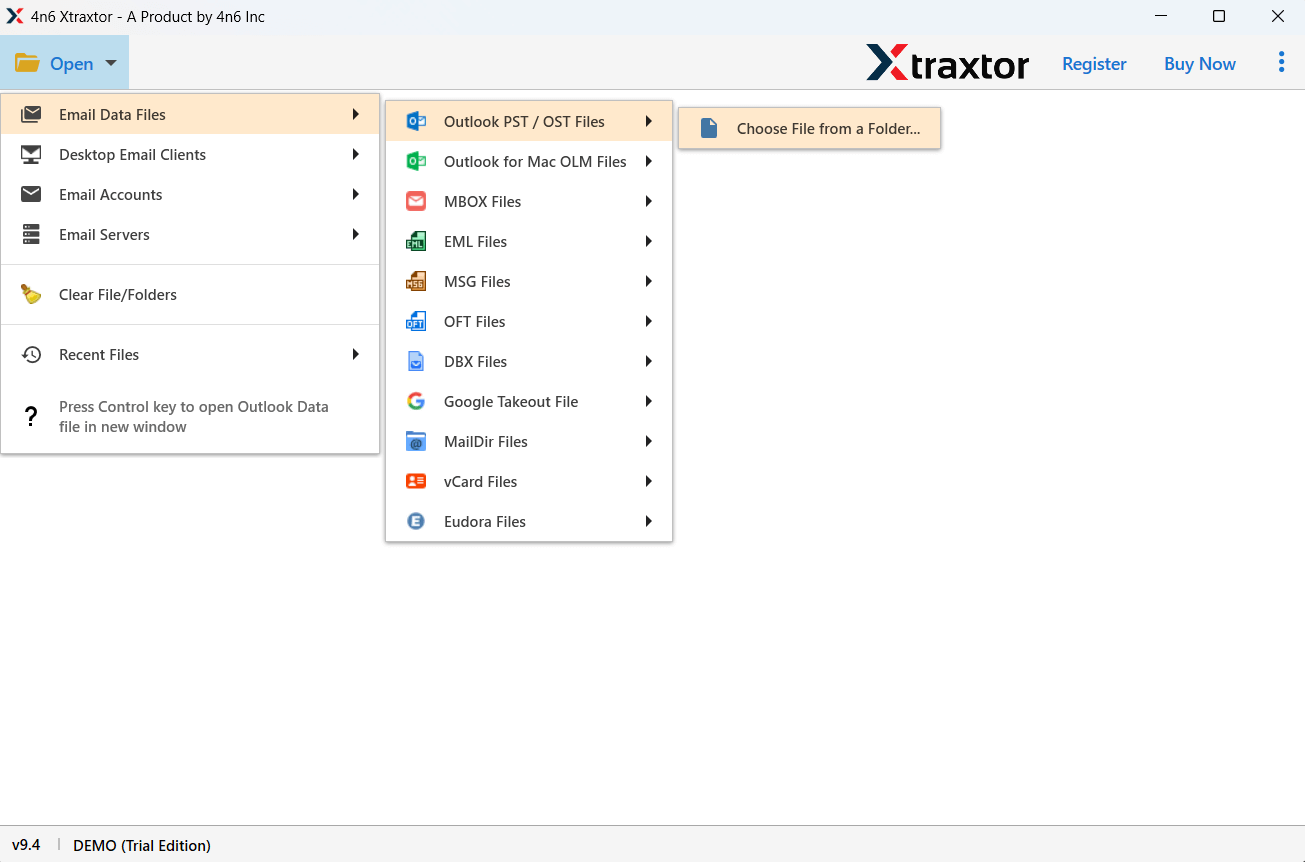
Step 2. Next, click Open >> Email Data File >> PST File >> Select File from Folder.
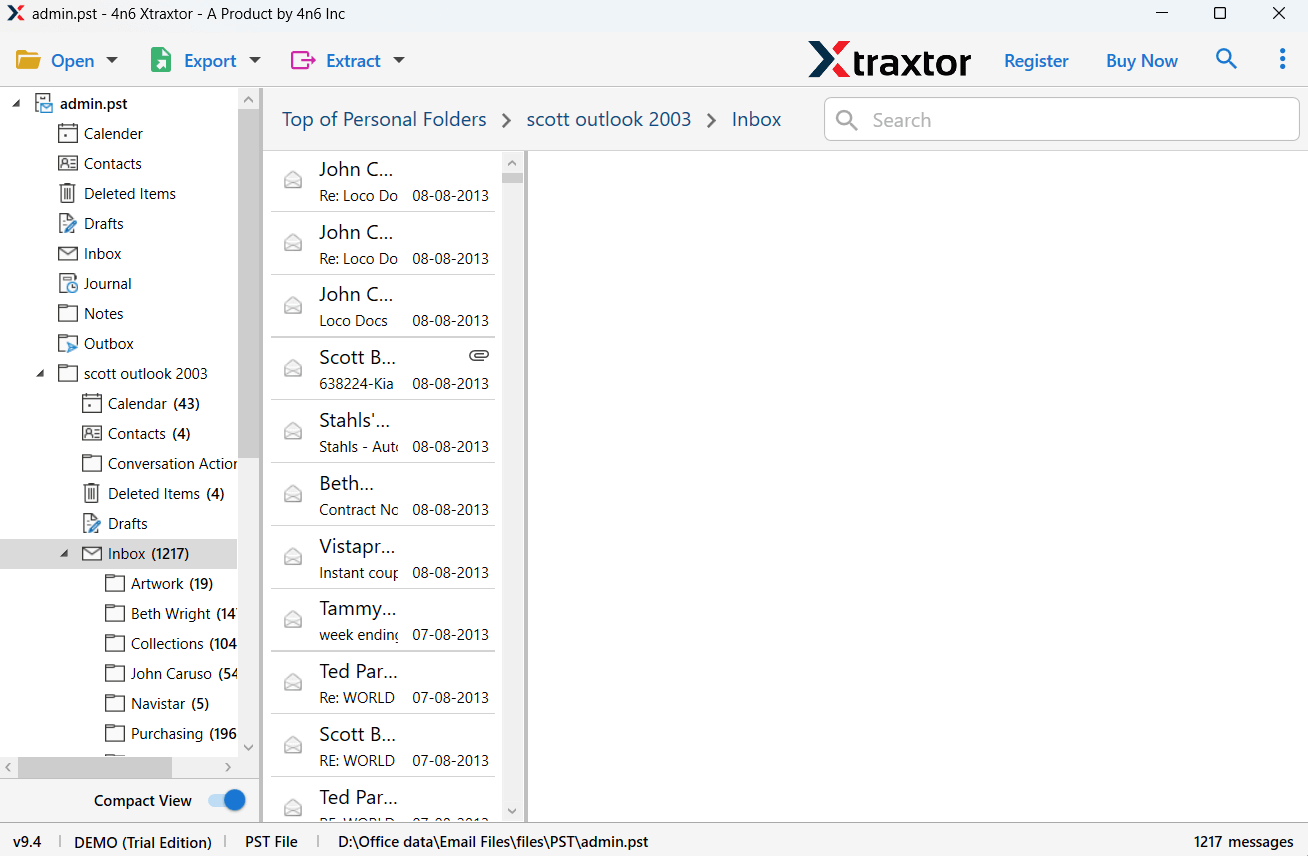
Step 3. Preview emails and select the required folders.
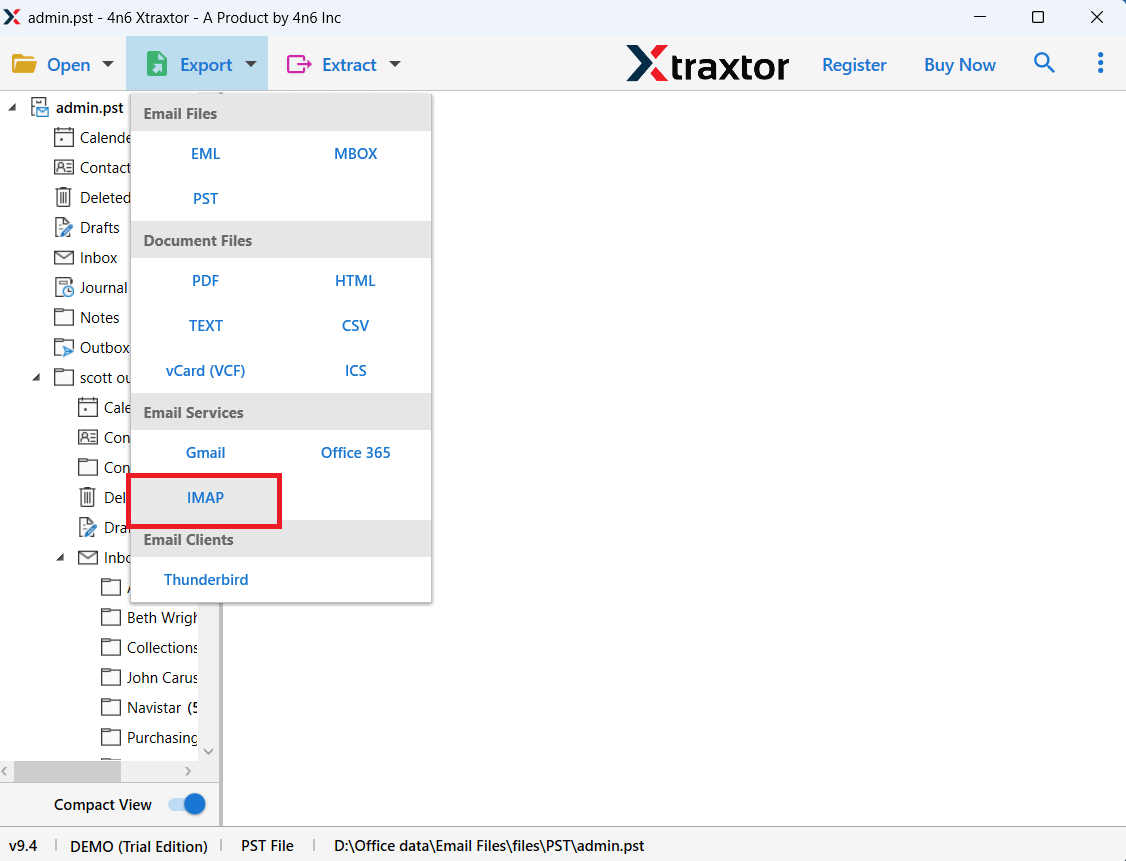
Step 4. Click Export and choose IMAP as the saving option.
Step 5. Enter HostGator login credentials and click the Save button.
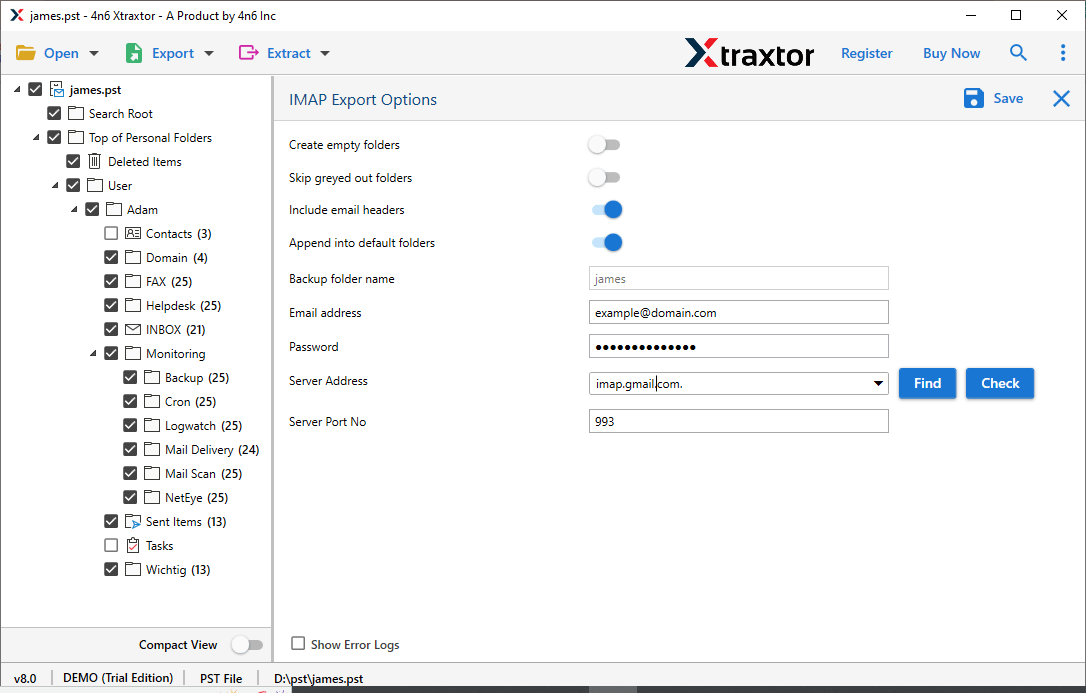
The tool will upload all PST emails and attachments to your HostGator mailbox.
Once the process is completed, you can log in to your HostGator webmail account and access all imported emails.
The professional tool provides several advantages:
- Import PST to HostGator directly without Outlook installation.
- Transfer emails with attachments, contacts, and metadata.
- Supports bulk PST file migration.
- Maintains original folder hierarchy during conversion.
- Allows preview of emails before migration.
- Works on all Windows versions.
- Simple interface suitable for all users.
Conclusion
Importing PST files to HostGator account can be challenging because PST files are created for Microsoft Outlook only. While the manual method can help move emails through Outlook and IMAP configuration, it requires technical knowledge and can take a lot of time.
To make the process easier, using professional software is a better option. It allows users to import PST to HostGator with attachments safely and quickly without complicated steps. Users can also try the demo version of the tool to check its performance before purchasing the full version.
