How to Import PST to BlueHost Email Account?

This write-up explains the complete procedure to import PST to a BlueHost email account easily. If you want to access Outlook PST emails in your BlueHost webmail account, this guide will help you migrate all PST files without facing any difficulties. In this blog, we will discuss the best solution to complete this task quickly and safely.
PST files are used by Microsoft Outlook to store emails, contacts, calendars, attachments, and other mailbox data. When users move from Outlook to a BlueHost email account, they often need to import PST files to continue accessing their old emails.
BlueHost provides webmail services so that users can manage emails online through a browser. However, BlueHost webmail does not directly support PST files. Therefore, users need a reliable method to import PST emails into BlueHost accounts.
Since PST cannot be uploaded directly into BlueHost webmail, users must use a professional solution to complete the migration.
Why Do Users Want to Import PST to BlueHost Email?
There can be several reasons why users want to migrate PST files to BlueHost email accounts.
- Easy Email Access: After importing PST emails into BlueHost, users can access their emails from any device and location using a web browser.
- Centralized Email Management: It becomes easier to manage all emails in one account instead of keeping them stored locally in PST files.
- Secure Email Storage: Emails stored in a BlueHost email account are securely stored on the server, reducing the risk of PST file corruption.
- Web-Based Email Access: BlueHost allows users to access emails through webmail platforms, making it convenient to manage emails without installing Outlook.
- Backup of Outlook Data: Importing PST files into BlueHost helps users keep a backup of important Outlook emails on the cloud server.
How to Migrate PST Files to BlueHost Email Automatically?
The Xtraxtor software is one of the best solutions to migrate PST files into a BlueHost email account. This powerful utility allows users to transfer PST emails to BlueHost using IMAP credentials without losing any data. The software supports bulk PST migration, allowing users to import multiple PST files at once. It also maintains email formatting, attachments, and folder hierarchy during the migration process.
The tool is designed with a simple interface so both technical and non-technical users can easily perform PST to BlueHost migration.
Download the free version to explore how the software works.

Before starting the migration process, make sure you have the correct BlueHost email IMAP details.
Incoming Server: mail.yourdomain.com
IMAP Port: 993 (SSL) or 143 (Non-SSL)
Username: Your BlueHost email address
Password: Your email account password
These details are required to connect your BlueHost account with the migration software.
Steps to Import PST to BlueHost Email Account
Step 1. Download and install the software on your computer.
Step 2. Launch the software and click Open >> Email Data Files >> PST Files.
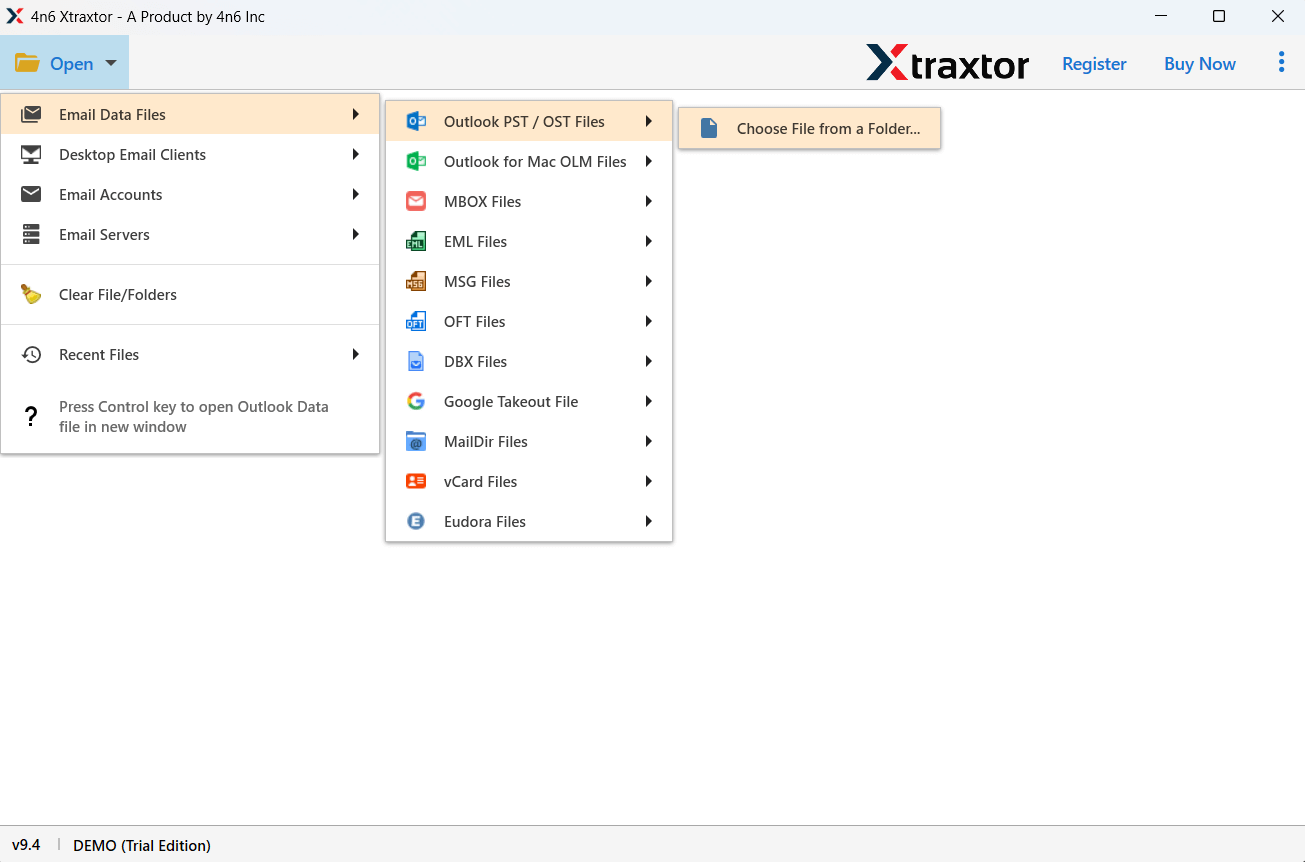
Step 3. The tool will load and display all mailbox folders and allow you to preview emails before migration.
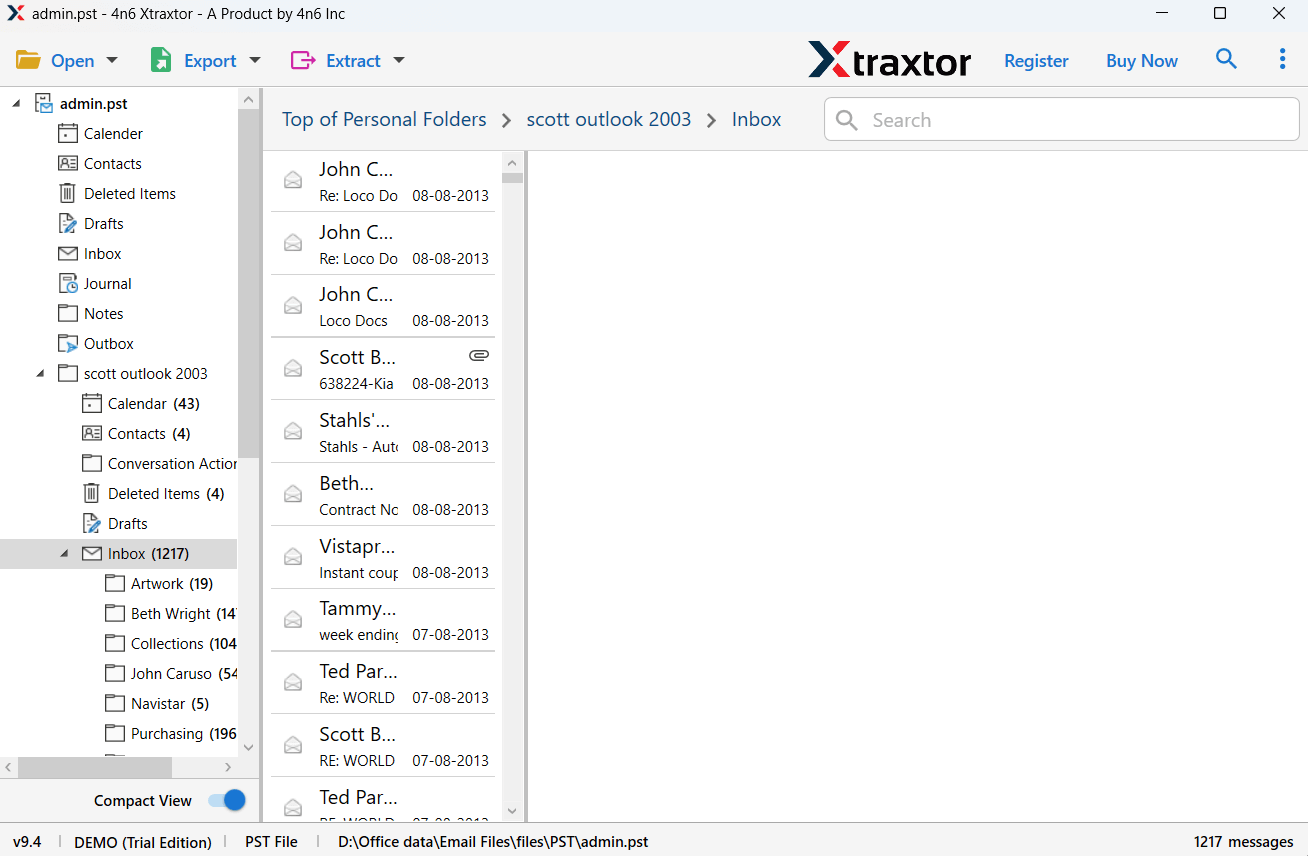
Step 4. Click on Export and choose IMAP as the saving option.
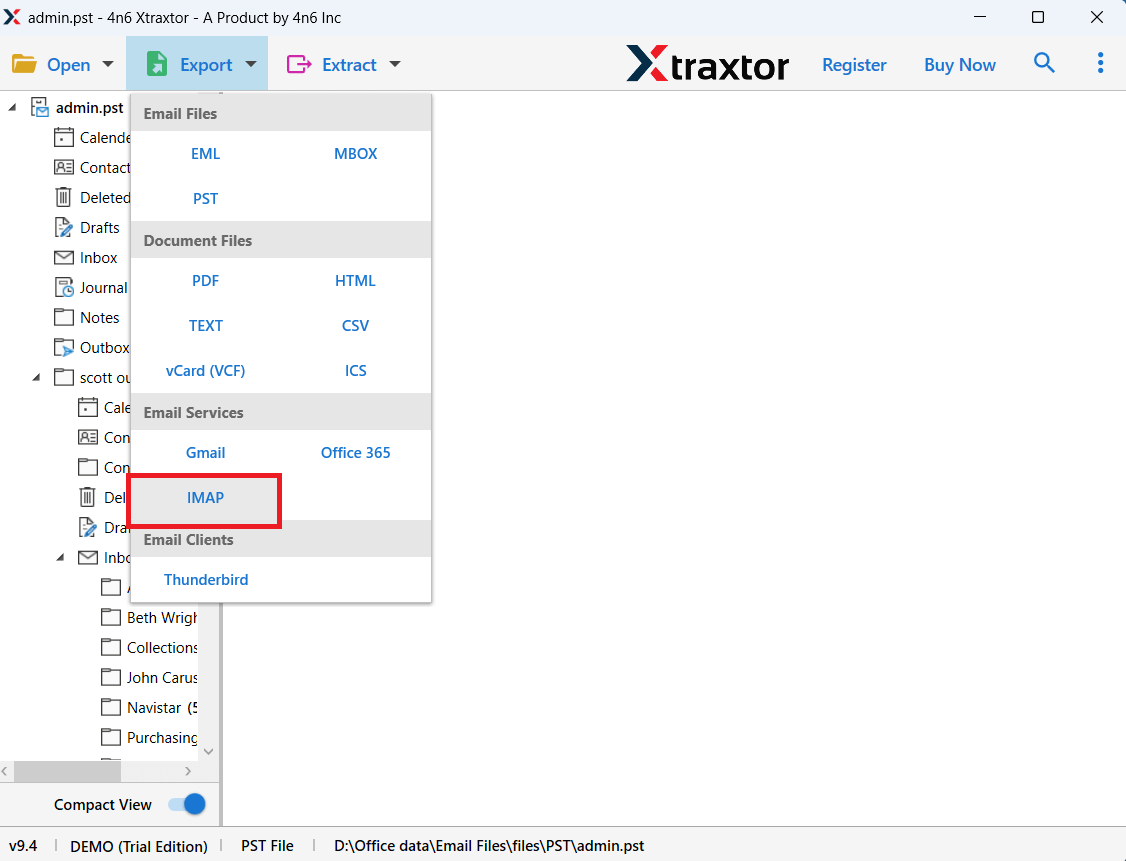
Step 5. Enter your BlueHost email IMAP credentials and server details.
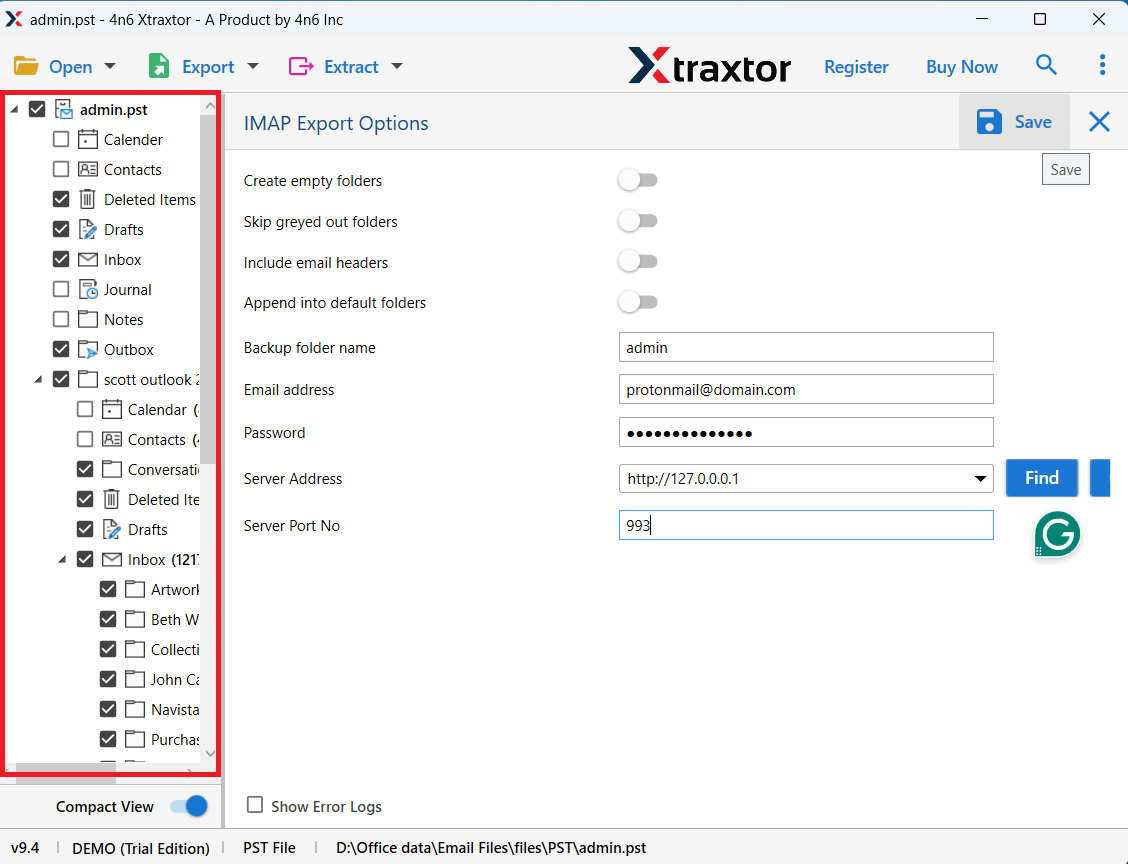
Step 6. Select the required PST folders that you want to import.
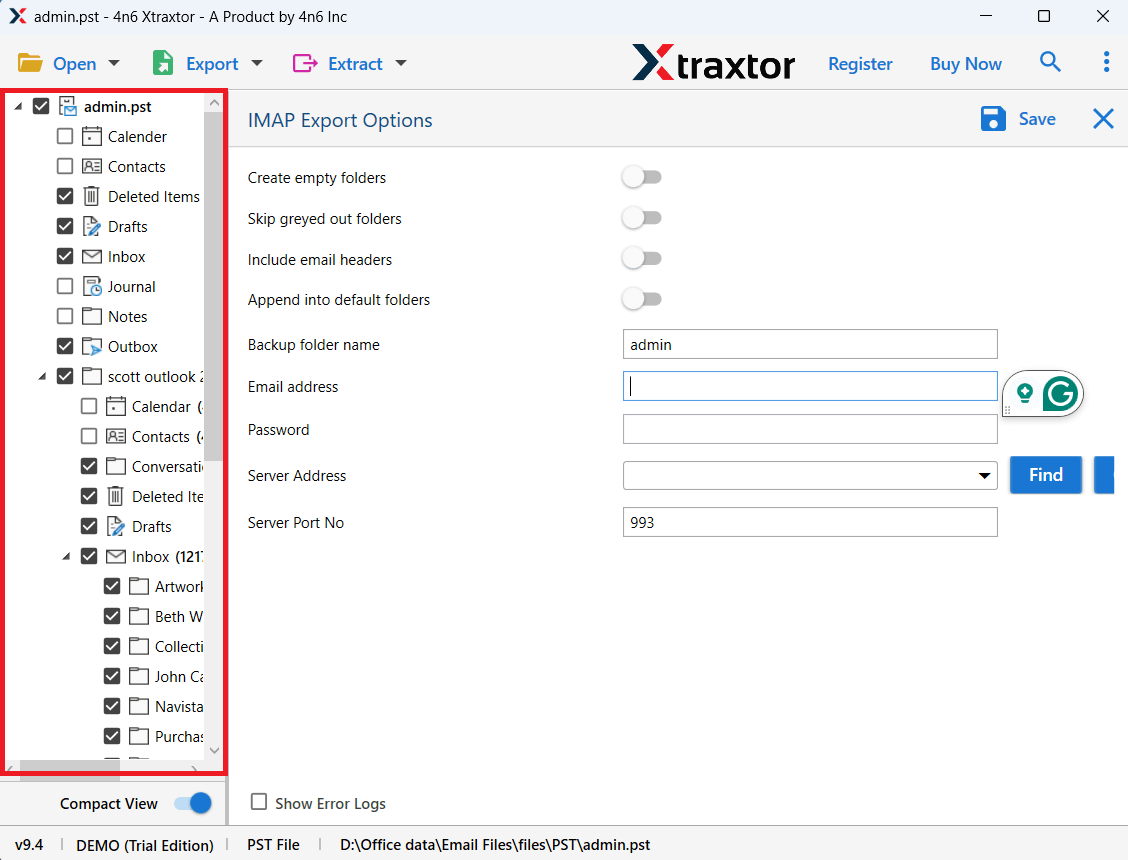
Step 7. Click the Save button to start the PST to BlueHost migration process.
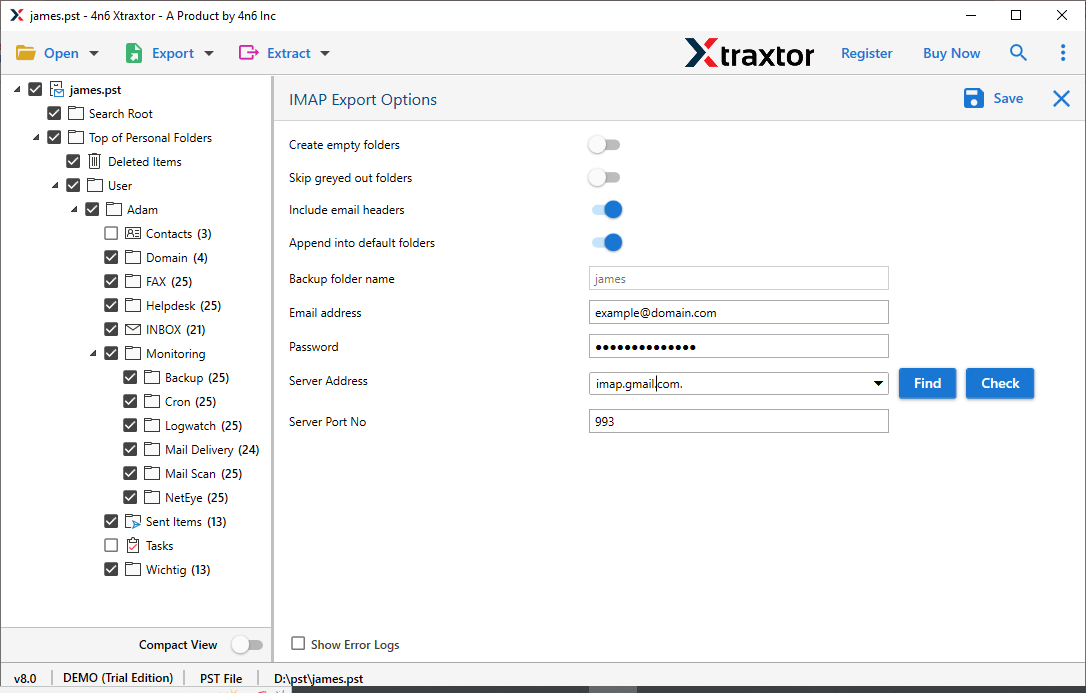
After the process is completed, log in to your BlueHost webmail account and access all imported emails with attachments.
Here are some useful features of the software:
- Import single or multiple PST files into BlueHost email account
- Maintains original folder hierarchy during migration
- Preserves email attachments and metadata
- Allows selective migration with advanced filters
- Supports large PST files without size limitations
- Provides a preview option before migration
- Works with all Outlook PST versions
Conclusion
In this article, we explained the best method to import PST to BlueHost email account. Since BlueHost webmail does not support PST files directly, using a professional solution becomes the easiest and safest option. The automated tool helps users migrate PST files to BlueHost quickly while preserving all email data and folder structure. With its simple interface and advanced features, users can complete the migration without any complications.
