How to Import Outlook Contacts to Whatsapp?

Microsoft Outlook still holds a strong position among the top email clients in 2026. It is widely used to manage emails, calendars, and especially contacts across devices. If you have saved important contacts in Outlook, you might want to use them on messaging apps like WhatsApp. However, WhatsApp does not directly support Outlook contact import, which makes the process a bit tricky.
Don’t worry; this guide will show you simple and effective methods to import Outlook contacts to WhatsApp, so you can easily access and chat with your contacts.
Here are the best methods to transfer Outlook Contacts to WhatsApp;
- Export Outlook contacts to phone contacts (Android/iPhone)
- Sync Outlook contacts using Google account
- Import contacts via CSV file
- Use vCard (VCF) file method
- Use professional tool for selective transfer
How to Import Outlook Contacts to WhatsApp? (Manual Method)
Follow these easy steps to move your Outlook contacts to WhatsApp:
Step 1. Open Microsoft Outlook and go to the Contacts (People) section.
Step 2. Choose the contact you want to export.
Step 3. Click on File > Save As.
Step 4. Select a location on your computer to save the file.
Step 5. Choose vCard (.vcf) format and click Save.
Step 6. Now, copy this file to your phone.
Step 7. Open the Contacts app on your phone.
Step 8. Go to Settings > Import/Export Contacts.
Step 9. Tap on Import from Storage.
Step 10. Select the saved vCard file and tap Import.
Step 11. Wait for the contacts to be added to your phone.
Step 12. Open WhatsApp and refresh your contacts.
That’s it! Your Outlook contacts will now show in WhatsApp.
How to Transfer Outlook Contacts to WhatsApp Automatically?
If you have a large number of contacts in Outlook, the manual method can take a lot of time. In such cases, using a professional tool like Xtraxtor is the best option. It helps you export all Outlook contacts in bulk and convert them into formats that are supported by your phone, such as VCF.
This software is designed for both technical and non-technical users. You don’t need any special skills to use it. With just a few clicks, you can transfer your Outlook contacts to your mobile device and then access them easily in WhatsApp.
The tool works by extracting contacts from your Outlook mailbox or PST file and saving them in a compatible format. Once the contacts are saved as VCF files, you can simply import them into your phone’s Contacts app. After that, WhatsApp automatically detects those contacts and shows them in your chat list.
Try the tool now and check the complete working process without any hassle.

Steps to Import Outlook Contacts to WhatsApp
Step 1. Install and run the software on your computer.
Step 2. Click on Open >> Desktop Email Clients >> Outlook Accounts.
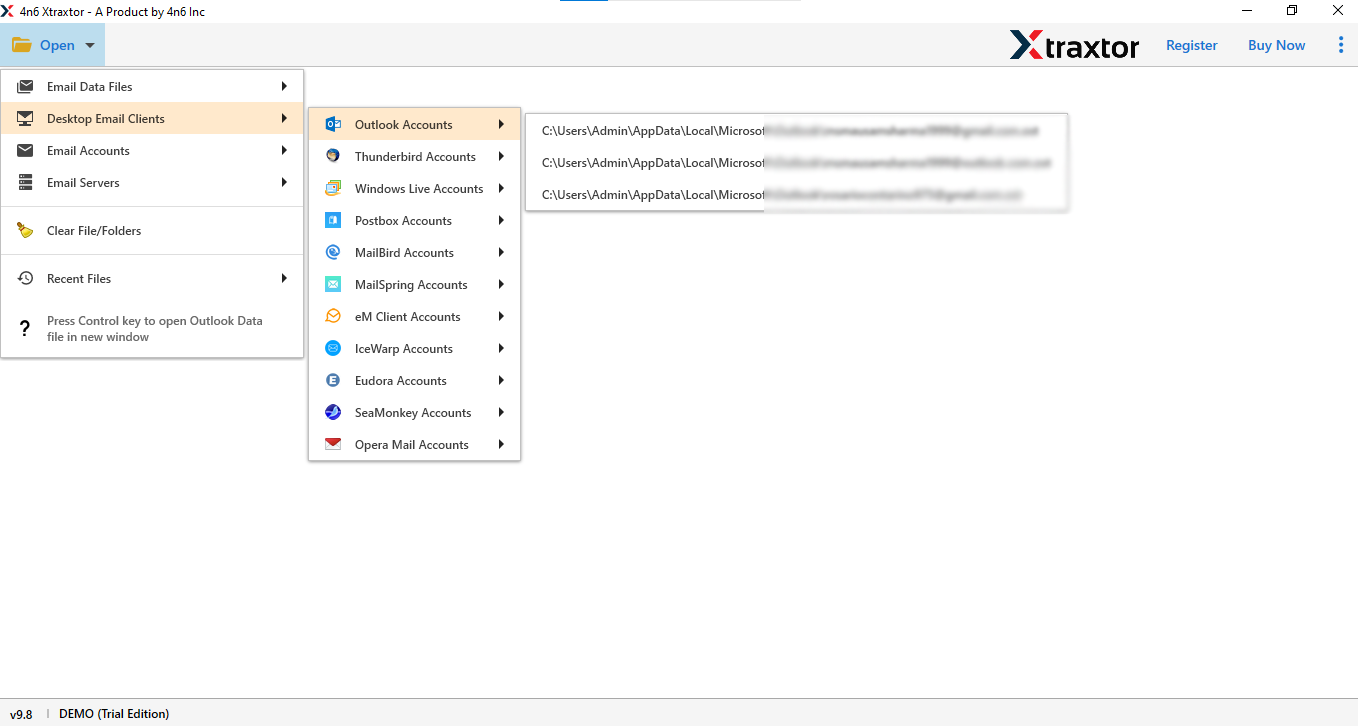
Step 3. The software will load and show all contacts. You can preview them before exporting.
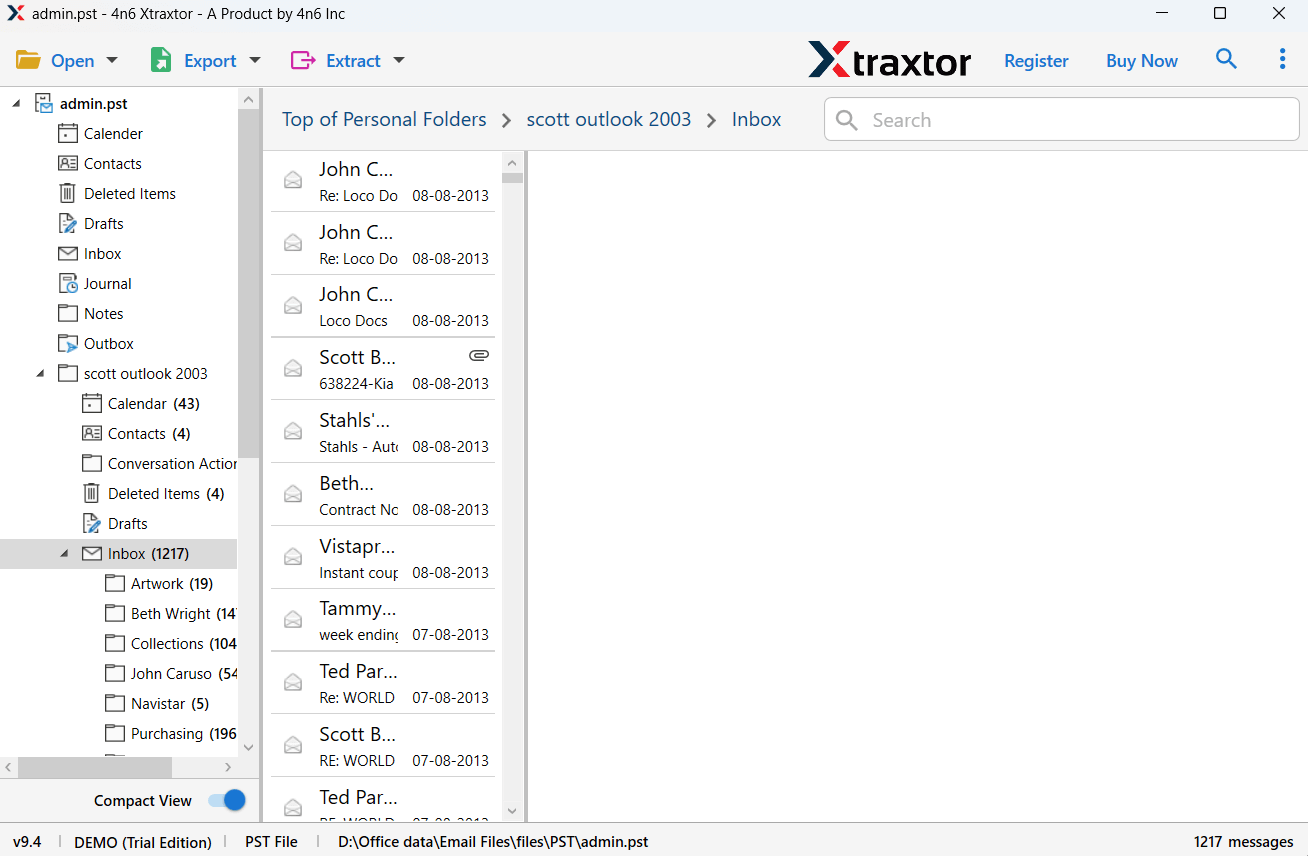
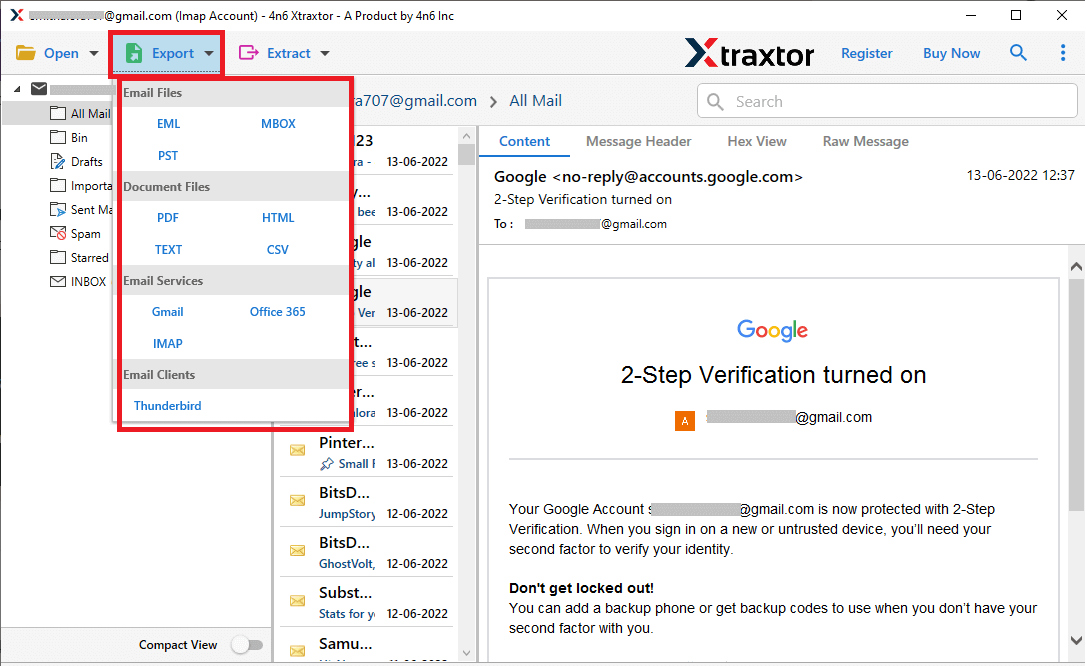
Step 4. Click on the Export option and choose vCard as the saving format.
Step 5. Select the required contacts if you want to export only specific data.
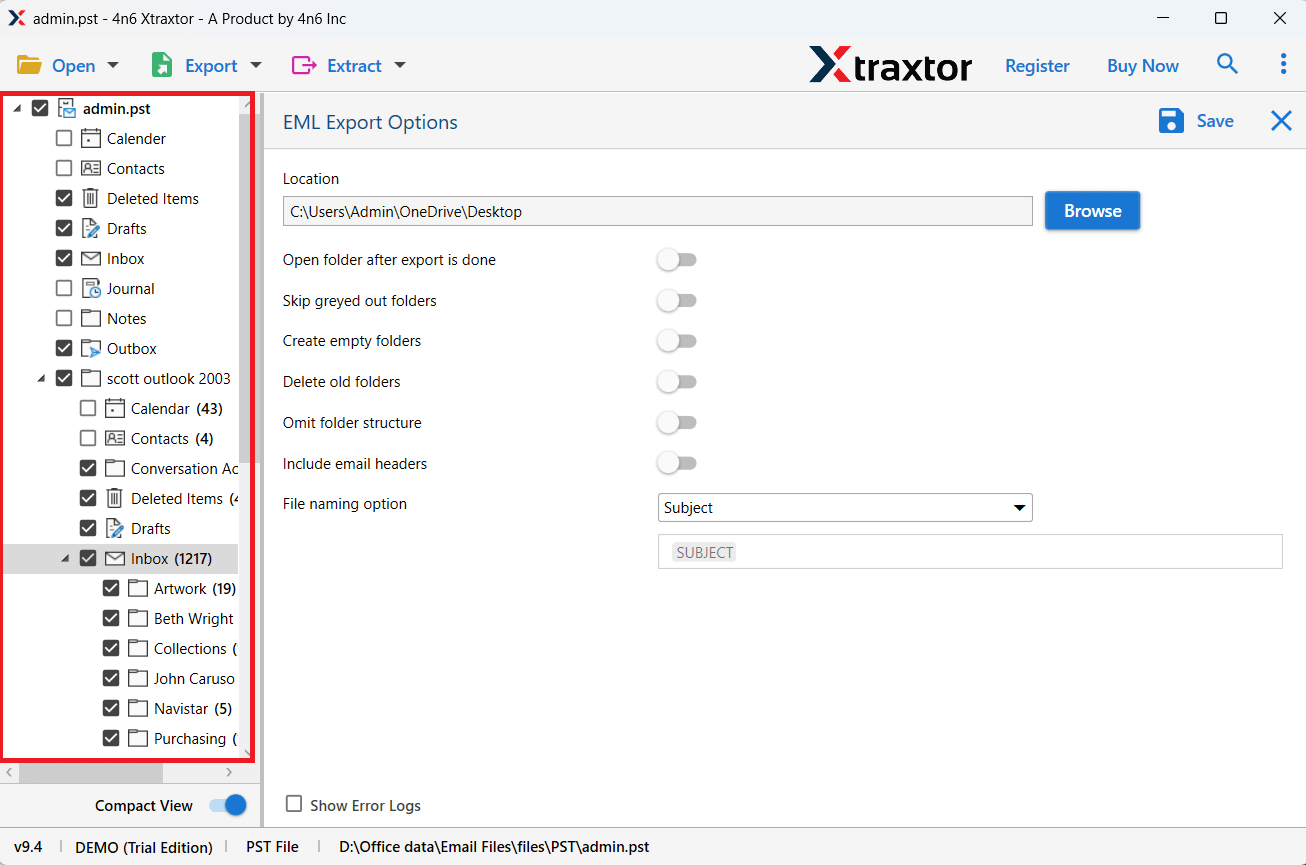
Step 6. Choose a destination location and click on the Save button.
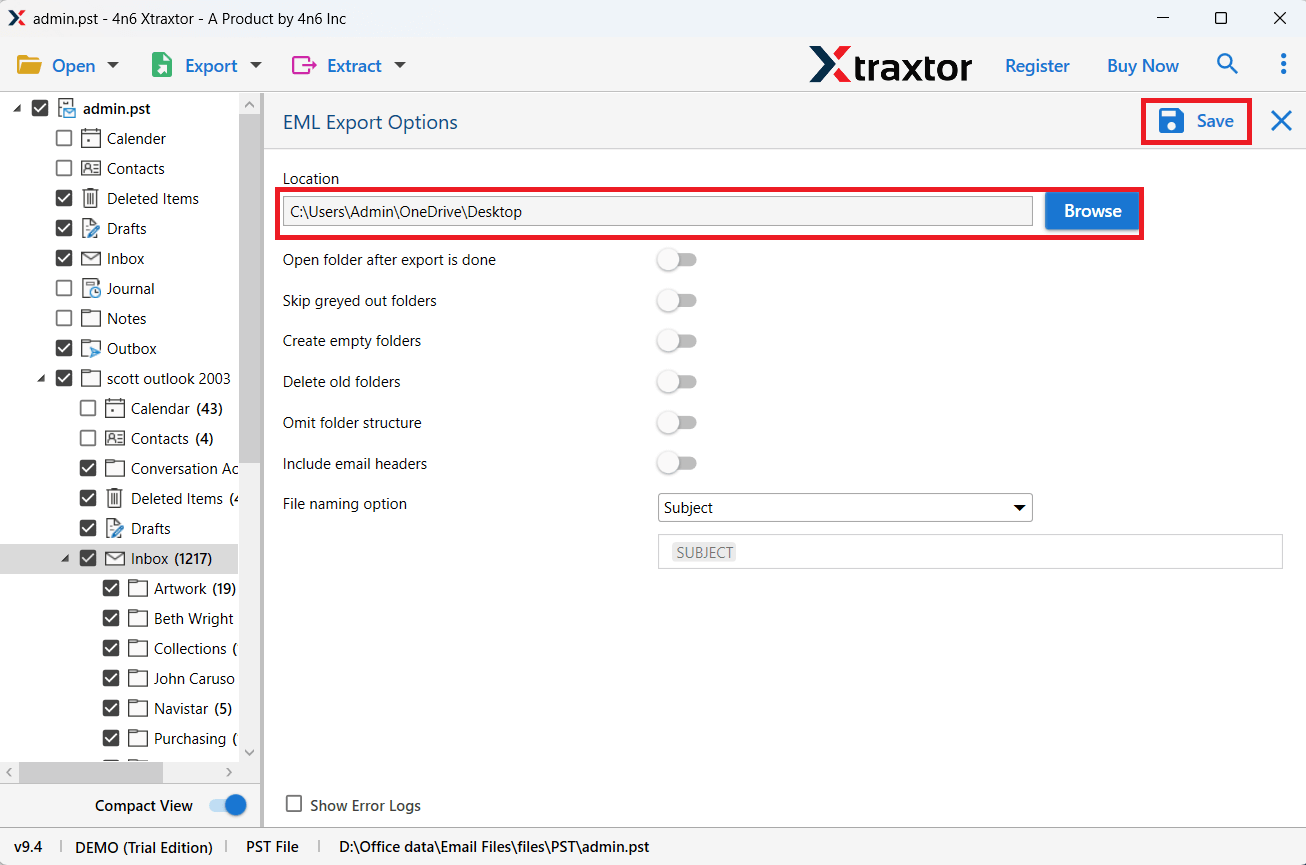
Step 7. Now, transfer the exported VCF file to your smartphone.
Step 8. Open the Contacts app on your phone and import the VCF file.
Step 9. Finally, open WhatsApp and refresh contacts to view all imported Outlook contacts.
Done! Your Outlook contacts are now successfully available in WhatsApp.
Key Benefits of Using This Tool
- Export multiple Outlook contacts at once without repeating the process again and again.
- You can load contacts directly from Outlook or add PST files manually.
- Converts contacts into vCard format, which is supported by Android and iPhone devices.
- Keeps all contact information safe, including name, phone number, email address, and other fields.
- Lets you view contacts before exporting, so you can choose only the required ones.
- Export only selected contacts instead of the entire contact list.
- Simple design that anyone can use without technical knowledge.
- Compatible with all major versions of Outlook and Windows OS.
Final Words
In this guide, we explored different ways to import Outlook contacts to WhatsApp, including manual and automated methods. While manual methods work for small contact lists, they can be time-consuming for bulk data. If you want an error-free process, using a professional tool is the best choice. It provides complete working steps at no cost. So, when you are fully satisfied with its working process, then only proceed further.
