How to Import MSG to Apple Mail?

If you are looking forward to import MSG to Apple Mail, you are on the right page. Here, we will explain an easy-to-implement approach to help you transfer your .msg files into Apple Mail with attachments.
Many businesses and professional users who deal with MSG files in their daily lives often need to access .msg files in Apple Mail. However, due to several issues, finding the right solution is not an easy task. So, keep reading this article to find out a simple & easy way to convert MSG to Mac Mail.
Why Import MSG to Apple Mail?
There are several reasons why users want to import MSG files into Apple Mail.
- Apple Mail provides a simple and clean interface to manage emails.
- It supports strong security and privacy features.
- Users who move from Windows to Mac need to access their Outlook MSG emails.
- Apple Mail allows easy email organization using folders and smart mailboxes.
- The application integrates smoothly with other Apple services.
- It offers fast email search and filtering options.
- Apple Mail regularly receives updates to improve performance and security.
Because of these benefits, many users prefer moving their MSG files into Apple Mail.
How to Open MSG Files in Apple Mail Manually?
There is no direct option in Apple Mail to import MSG files. Therefore, users need to use indirect manual methods. These methods are suitable only for a small number of files.
Below are some common manual approaches.
Follow these steps:
- Open Microsoft Outlook on your Windows system.
- Locate the MSG files stored on your computer.
- Drag MSG files into Outlook folders.
- After that, export the Outlook mailbox to PST format.
- Convert PST to MBOX format using a compatible tool or email client like Thunderbird.
- Now open Apple Mail on your Mac.
- Go to File > Import Mailboxes.
- Select Files in MBOX format and click Continue.
- Choose the MBOX file and import it into Apple Mail.
This method allows users to transfer MSG data into Apple Mail indirectly.
Limitations of the Manual Method
Although manual methods are free, they have several drawbacks.
- Not suitable for importing multiple MSG files together.
- Risk of losing attachments, formatting, or email metadata.
- Requires multiple steps and tools, which makes the process slow.
- Non-technical users may find these steps complicated to follow.
How to Transfer MSG Files into Apple Mail with Complete Data?
To overcome the limitations of manual methods, users can use a reliable tool such as Xtraxtor. This software helps users import MSG files to Apple Mail format easily and safely. This tool directly convert MSG files into MBOX format, which is supported by Apple Mail. After conversion, users can quickly import the MBOX file into Mac Mail.
The software allows users to add single MSG files or entire folders. It also maintains the original folder structure during the process. All Windows users can use the tool to migrate their Outlook MSG emails to Apple Mail without losing data.
Click on the free download button and check its working process.

Steps to Import MSG to Apple Mail
Follow these simple steps to complete the process.
Step 1. Launch the software and read the instructions carefully.
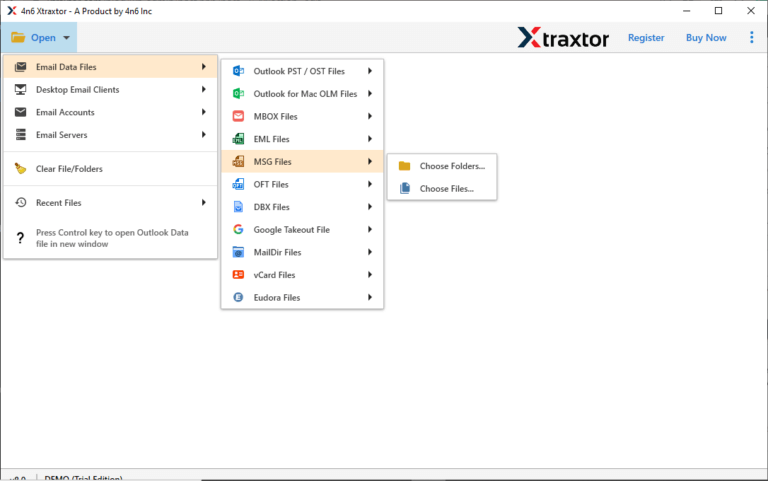
Step 2. Now, click on Open >> Email Data Files >> MSG Files >> Choose Files or Folder to add MSG files into the software.
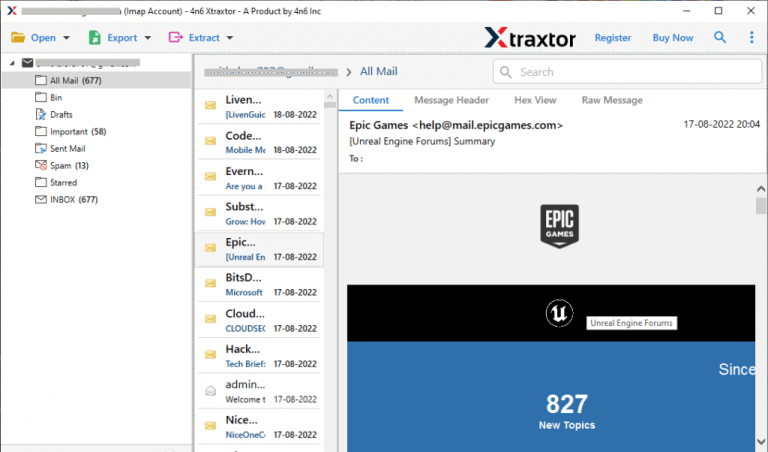
Step 3. Preview MSG emails in the software panel before starting the conversion process.
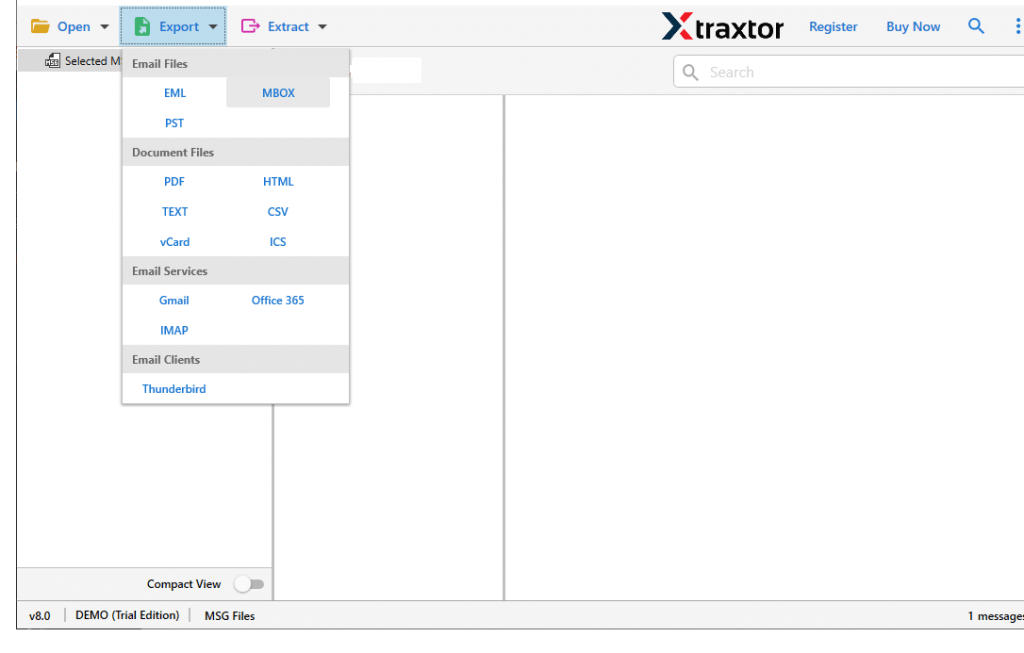
Step 4. After that, click on Export and select MBOX as the saving option from the given list.
Step 5. Next, choose the destination folder where you want to save the converted file.
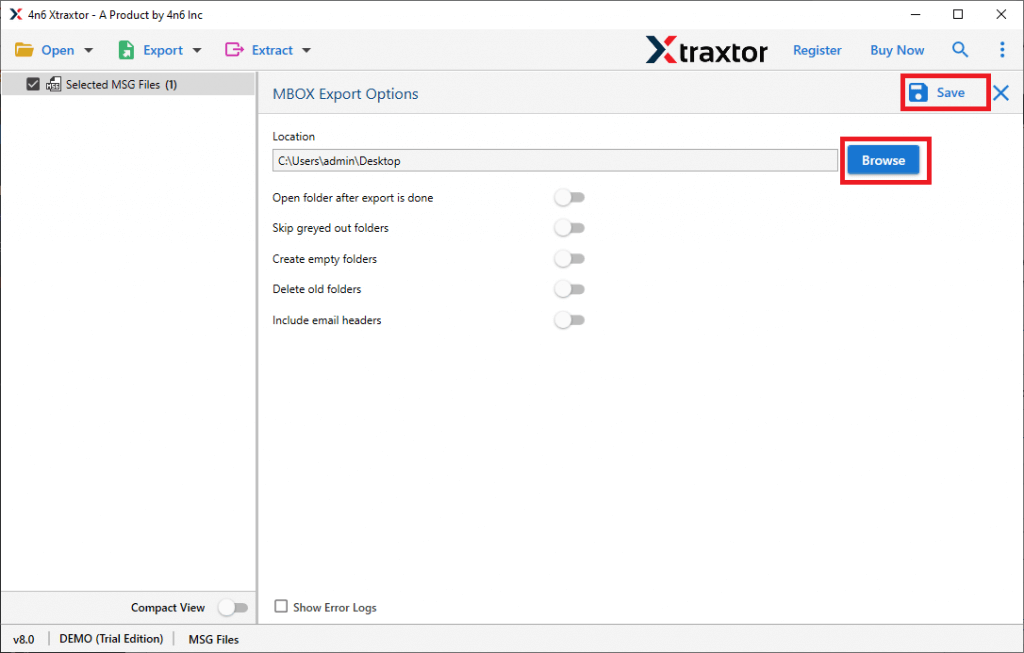
The software will start converting MSG files into Apple Mail-compatible format.
Once the process is finished, you will get the output MBOX file, which can be easily imported into Apple Mail (Mac Mail).
The conversion process is completed!
Your MSG emails will now appear in Apple Mail.
The software provides many useful features for users.
- Import unlimited MSG files into Apple Mail without size limits.
- Convert MSG files with complete email properties.
- Maintain original folder hierarchy during migration.
- Preserve attachments, formatting, and metadata.
- Support batch conversion of multiple MSG files.
- Provide a preview option before conversion.
- Simple and user-friendly interface.
Conclusion
In this article, we explained different ways to import MSG to Apple Mail. Manual methods are available, but they are time-consuming and not suitable for large numbers of files. For a faster and safer process, using an automated tool is recommended. It allows users to convert MSG files to Apple Mail-supported format in easy steps, so you can easily import them into Apple Mail without losing any email data.
