How to Import MBOX to Orange Mail?

If you’re looking to import MBOX to Orange Mail account, then you’re not alone. Many users have old MBOX files saved from different email clients and now want to access those emails in their Orange Mail account. Talking about the MBOX file format, it is one of the most widely used formats to store multiple emails along with attachments in a single file. It is supported by popular email clients like Mozilla Thunderbird, Apple Mail, Opera Mail, and others.
There are many situations where users need to move their MBOX data to a webmail service. Orange Mail is commonly used by Orange subscribers for personal and professional communication. Since it is a web-based email platform, users often want to upload their old MBOX emails into Orange Mail for easy access and centralized management.
Orange Mail provides a secure and simple interface to manage emails, contacts, and folders. However, it does not offer a direct option to import MBOX files. Therefore, users need a reliable solution to complete the process safely. In this article, we will explain the best way to import MBOX files into Orange Mail step by step.
What are the Reasons to Import MBOX to Orange Mail?
Before learning the solution, let’s first understand why users want to import MBOX files into Orange Mail.
- Centralized Email Management: Users often switch from desktop email clients to webmail services. Importing MBOX files into Orange Mail allows users to manage all old and new emails in one place.
- Easy Web Access: Orange Mail is web-based, so users can access their emails from any device with an internet connection. By importing MBOX files, they can view historical data anytime.
- Data Safety and Backup: Keeping emails only in MBOX files on a local system may not always be safe. Importing them to Orange Mail ensures an additional layer of online backup.
- Smooth Migration Process: When changing email platforms, users prefer transferring their complete email history. Importing MBOX to Orange Mail helps in maintaining continuity.
In short, these are the common reasons why users want to move their MBOX files into Orange Mail. Now, let’s move to the solution.
How to Transfer MBOX Files into Orange Mail Automatically?
Since Orange Mail does not provide a built-in feature to upload MBOX files directly, the manual method becomes complicated and unclear. Therefore, using a professional Tool such as Xtraxtor is the most reliable approach.
It allows users to upload MBOX files to IMAP-supported email services like Orange Mail without technical complexity. The software connects directly to your Orange Mail account using IMAP settings and securely transfers emails along with attachments.
The tool also preserves folder structure, email formatting, metadata, and attachments during the process. It supports bulk import, so you can transfer multiple MBOX files at once.
Click the free download button to explore all working steps.

Steps to Import MBOX to Orange Mail
Step 1. Download the software on your Windows system.
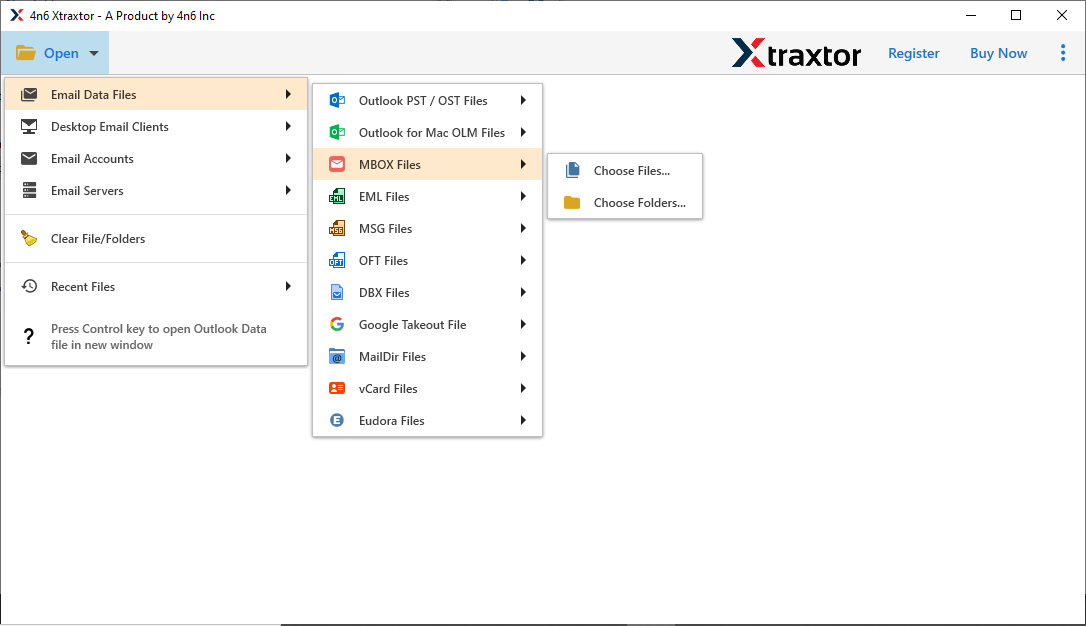
Step 2. Now, choose Open >> Email Data File >> MBOX File >> Select File or Select Folder.
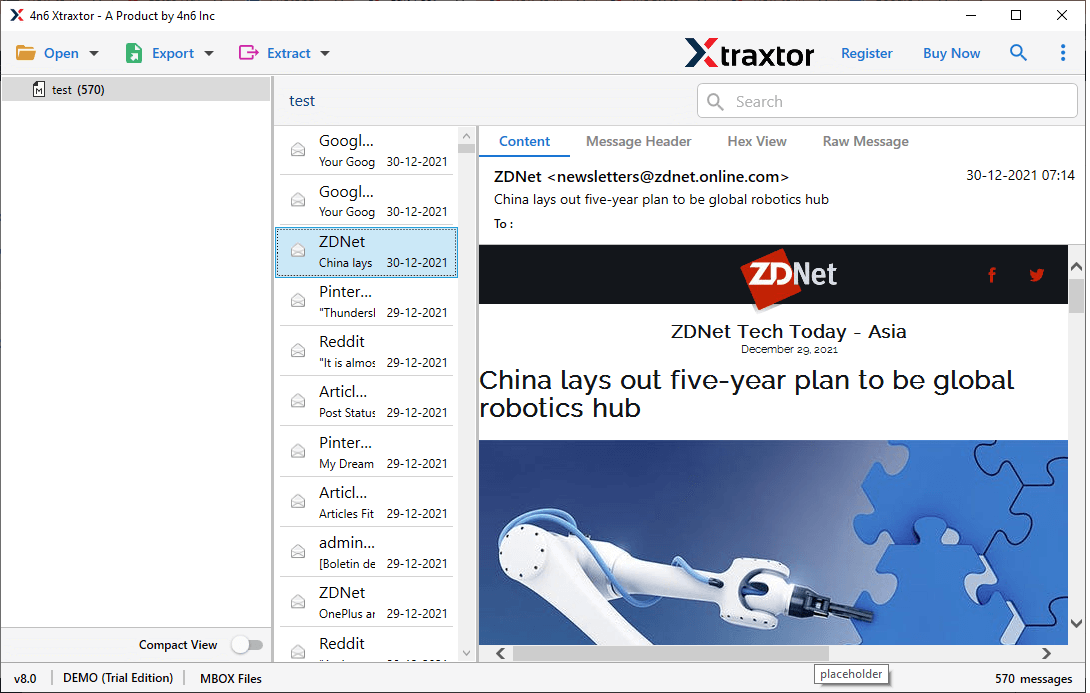
Step 3. After that, preview your .mbox file emails directly in the software interface.
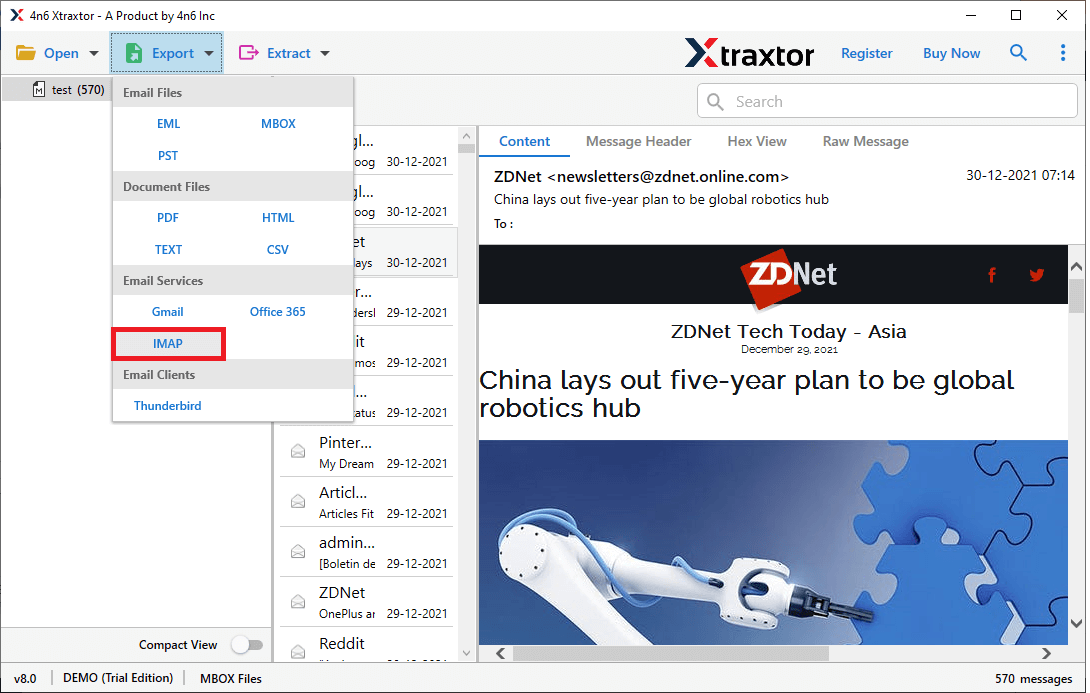
Step 4. Then click on Export and select the IMAP option from the list of saving options.
Step 5. Select the folders that you want to import into your Orange Mail account.
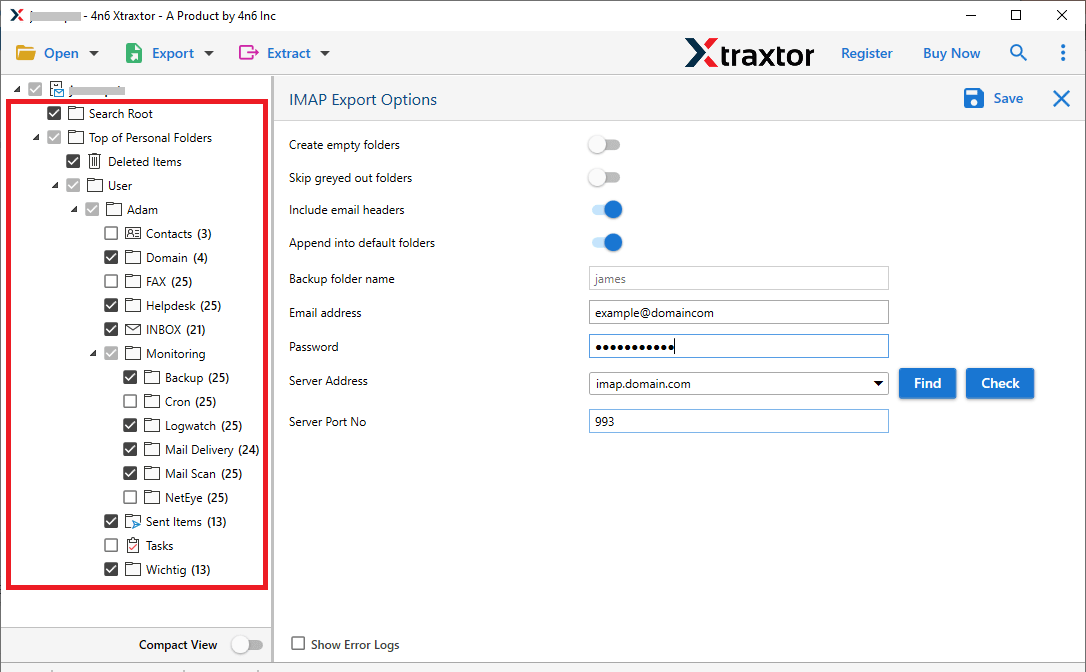
Step 6. Finally, enter your Orange Mail email ID and password, then click on the Save button.
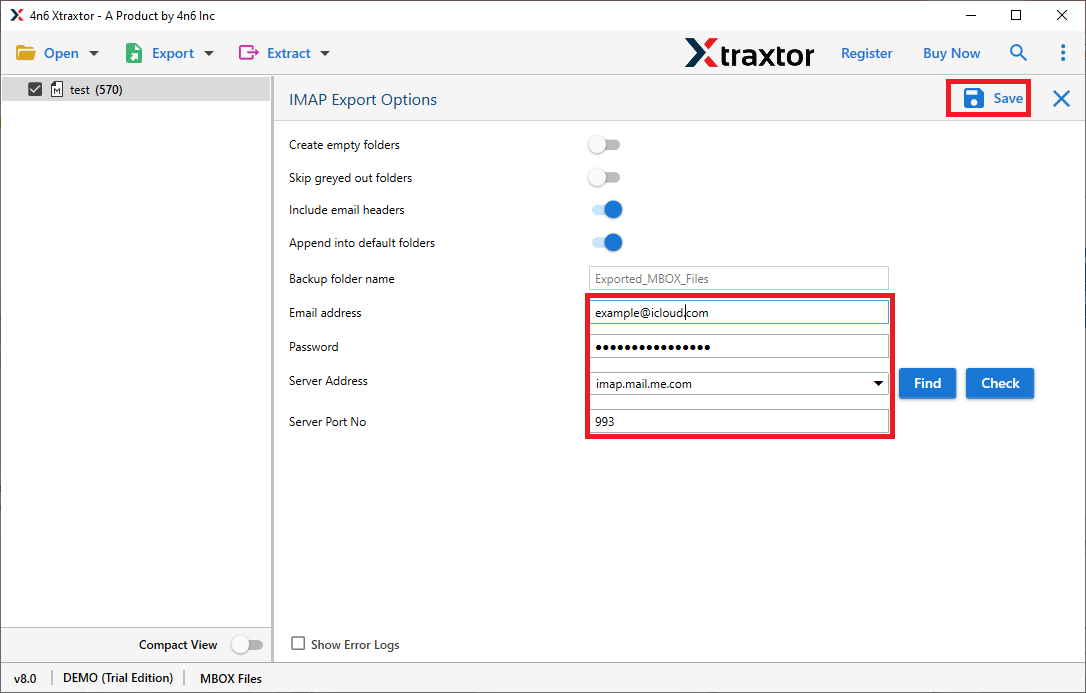
Within a few minutes, your MBOX emails will be successfully uploaded to your Orange Mail account.
Concluding Words
In this article, we discussed how to import MBOX to Orange Mail account step by step. Since there is no direct manual method available, using a professional MBOX Converter Tool is the best and safest option. You can also try the demo version of the tool to understand its working process before purchasing the full version. This way, you can securely move your MBOX files to Orange Mail without any hassle.
