
If you are using Mailbird on your Windows system and now want to move your emails to Gmail, you are not alone. Many users switch to Gmail because it is cloud-based, easy to access, and works smoothly across devices. In this guide, you will learn how to transfer Mailbird emails to Gmail using a simple and reliable method. This article is written for a normal user, so you can follow it without confusion.
Why Gmail Is a Better Choice for Most Users?
Gmail is one of the most trusted email services in the world. Users prefer Gmail over desktop clients because:
- It is free and easy to use
- You can access emails from any device, anywhere
- Emails are stored safely in the cloud
- Easy file sharing with Google Drive
- Works smoothly with Calendar, Docs, Meet, and other Google apps
- No software installation required
That is why importing Mailbird emails to Gmail makes sense for long-term use.
Can You Transfer Mailbird Emails to Gmail Manually?
There is no direct manual option in Gmail to import Mailbird data. Gmail does not support Mailbird files natively, and setting up complex workarounds can be time-consuming and risky.
For this reason, most users prefer a direct and automated solution.
How to Move Emails from Mailbird to Gmail Automatically?
Unfortunately, Gmail doesn’t have built-in import features that let you move Mailbird files to a Gmail account. But you don’t have to worry, this task can be done easily with the Xtraxtor tool. This is a direct and one-stop solution that lets you import Mailbird files to Gmail account. It has a user-friendly interface and offers several beneficial features. This utility works well on almost all versions of Windows OS.


Steps to Transfer Mailbird Emails to Gmail
Step 1. Launch the tool on your Windows machine.
Step 2. Click on the Open button >> Mailbird Accounts >> Choose Mailbird files.
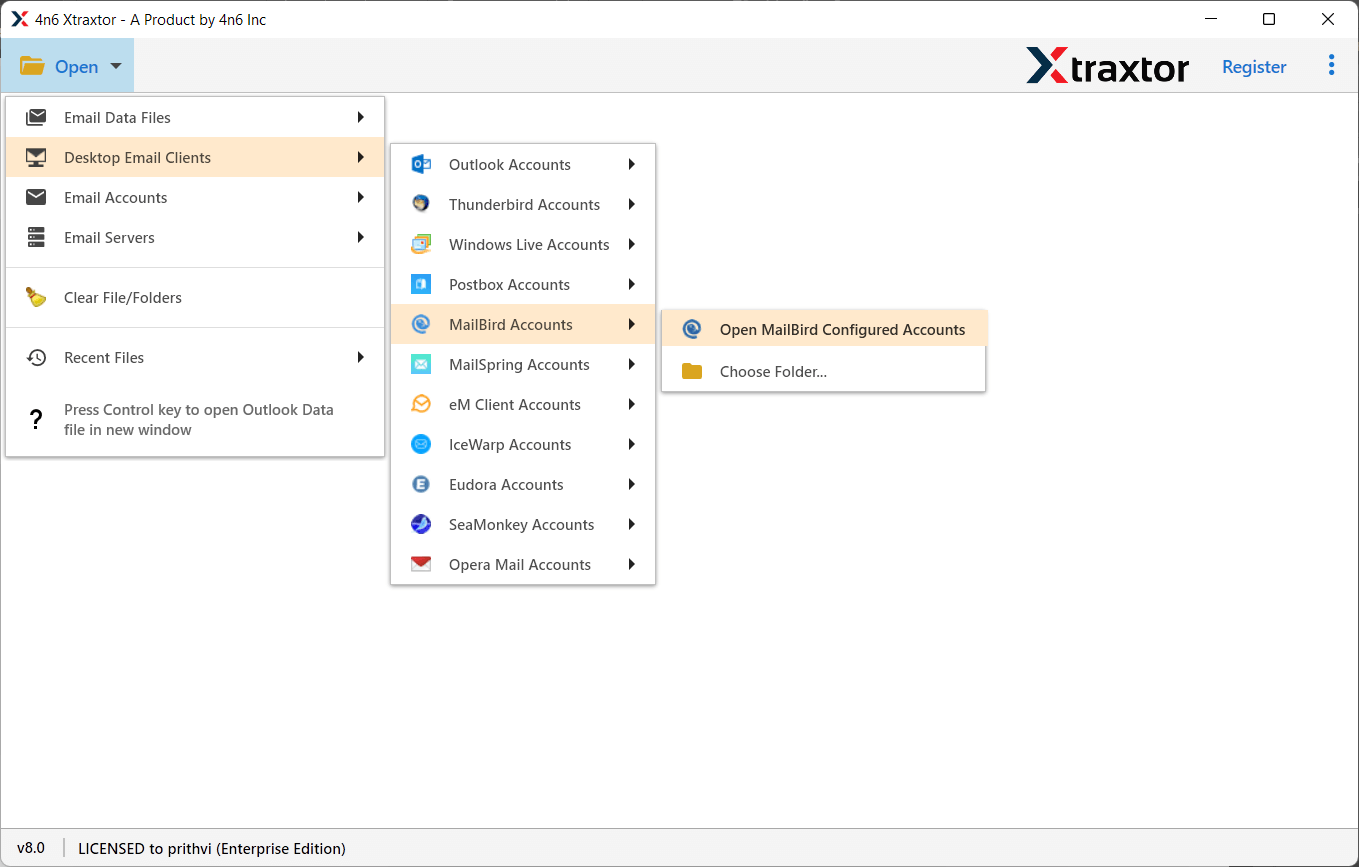
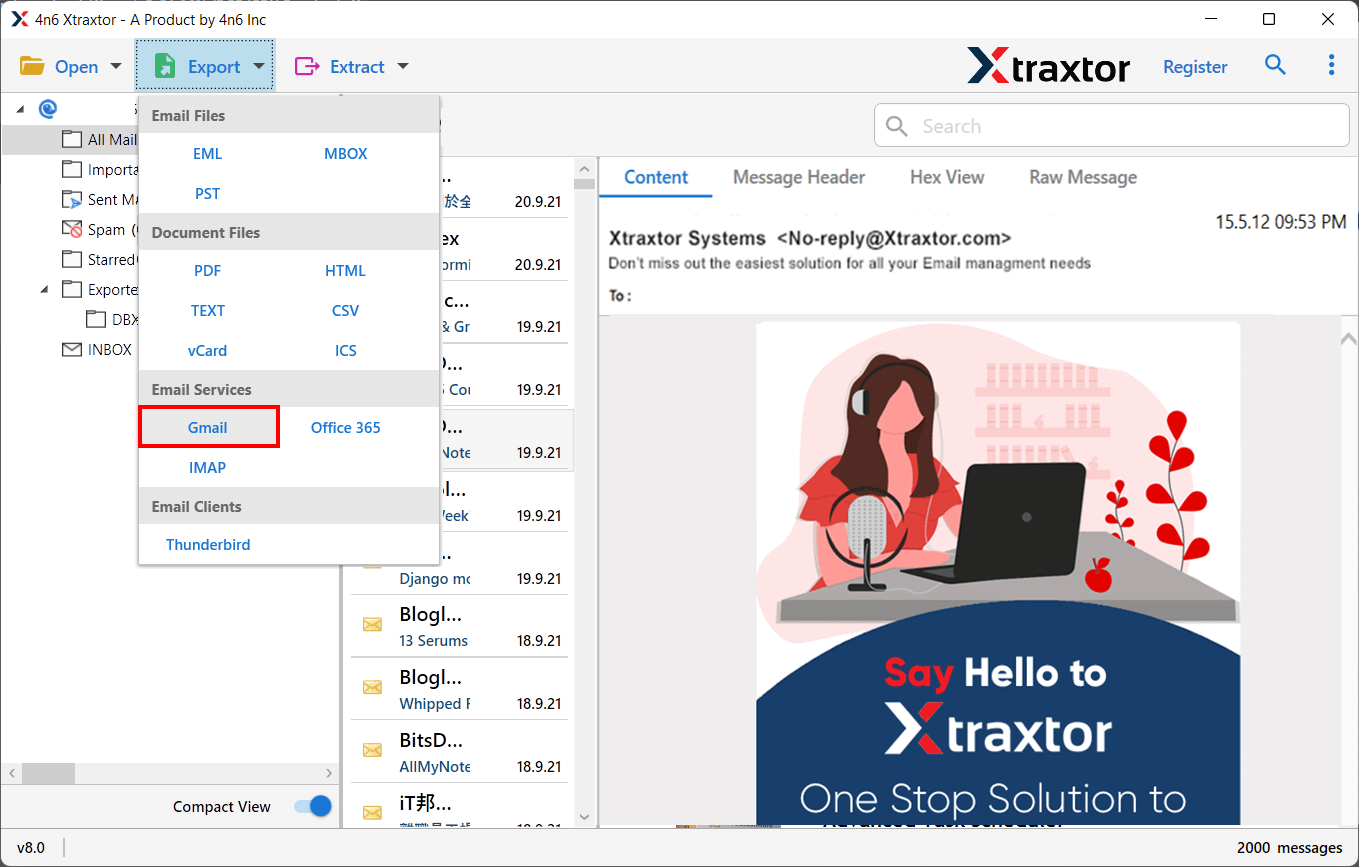
Step 3. Click the Export and from the saving options select Gmail.
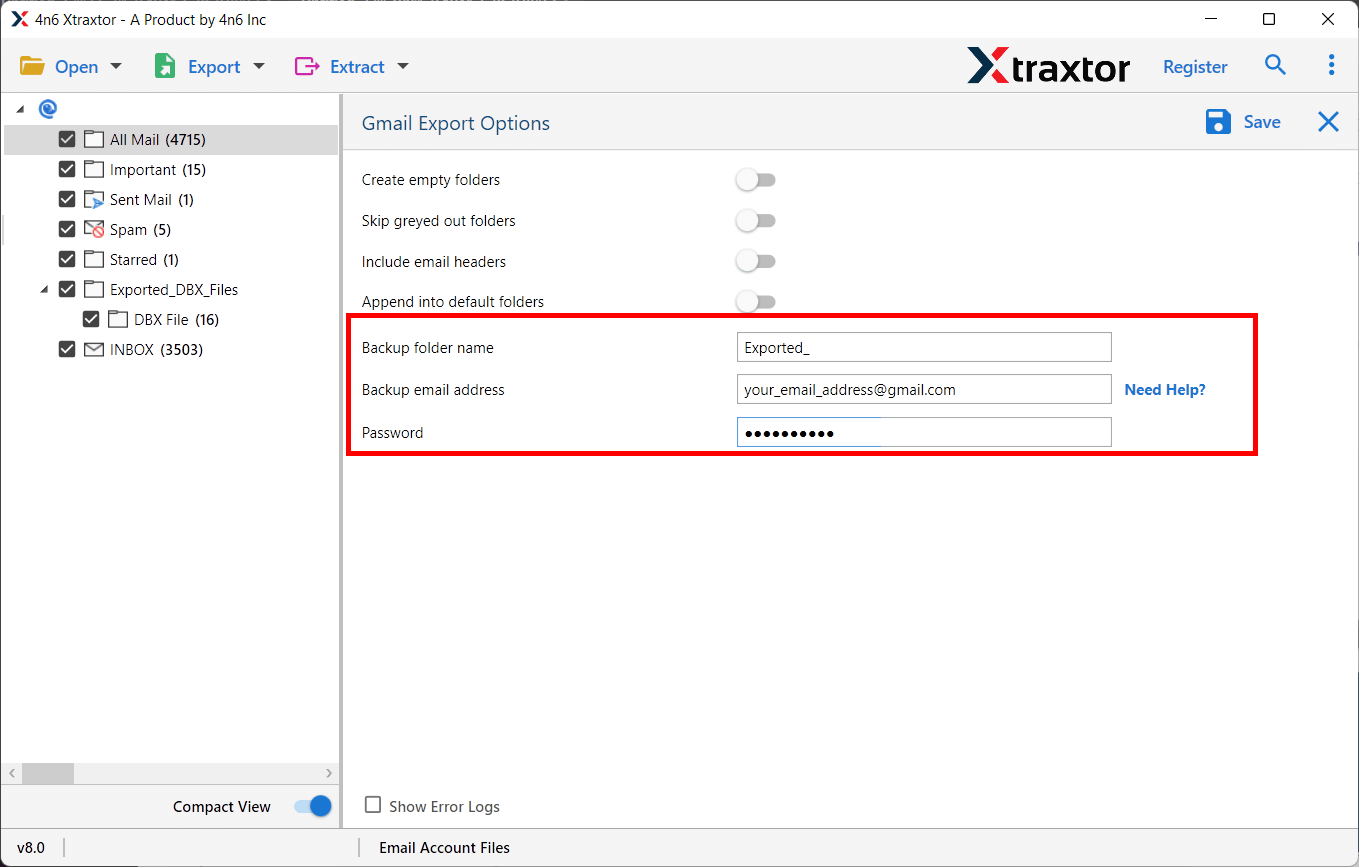
Step 4. Enter your Gmail email address and password in the required fields.
Step 5. Click on the Save button to start the procedure.
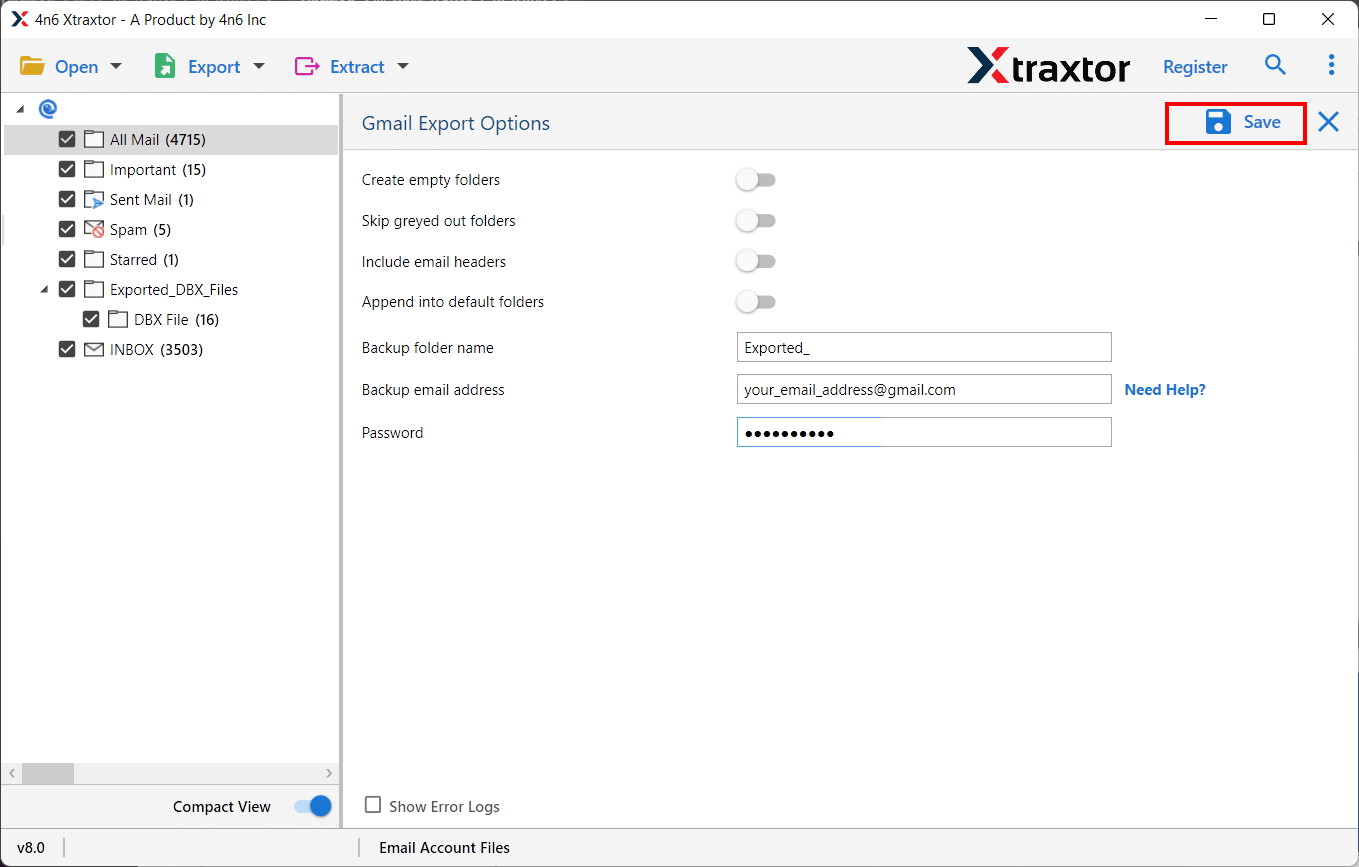
The import of Mailbird emails into the Gmail process starts. Once that is complete, you can review the imported data in your Gmail account.
So, these is the complete steps you need to perform to directly import Mailbird to Gmail account in a hassle-free manner.
Benefits of Using Mailbird to Gmail Import Tool?
The conversion tool provides multiple great features that make it possible for users to easily complete this task according to their choices. Some of the key features of the utility are listed below:
- Import Complete Mailbox Items: The utility lets users move all items from Mailbird, including emails, contacts, calendar data, tasks, etc.
- Dual Modes for Loading Email: The software offers two options for loading Mailbird mailbox data. You can select folders from your system manually. Or you can select the option for the configured Mailbird account, and the tool automatically loads all data from the default location.
- Import Selective Data: Sometimes, not all mailbox data needs to be import into the Gmail account. For this purpose, the tool offers the option to select only certain Mailbird files that you want to export into Gmail and save time.
- Retains Folder Structure: The tool maintains the integrity of data during the import Mailbird to Gmail process. It preserves email attributes and on-disk folder hierarchy throughout the procedure.
- Bulk Mode Available: The utility has a batch mode facility that makes it easy to import multiple Mailbird files to Gmail account directly at the same time.
- No Limitations: This is the only tool that has no limitations on file size and file numbers. You can easily import unlimited Mailbird files to a Gmail account without a single error.
- 100% Secure: This is a fully secured utility against viruses, malware, and advertisements. Your personal data will never be saved in the database, and you will get a completely accurate result.
Conclusion
Gmail is undoubtedly the best and most preferred cloud email service. For this reason, most Mailbird users want to transfer Mailbird emails to Gmail account. To meet the needs of the user, here in this blog, we have explained the direct method to transfer Mailbird files to Gmail using the Mailbird file converter. In this way, you can import Mailbird data directly into a Google account.
