How to Import EML to Excel Spreadsheet?

Recently, many users have been looking for ways to import EML to Excel spreadsheets. There are several reasons behind this need. EML is a common file format used by email clients like Thunderbird, Windows Live Mail, and others. However, EML files are not easy to manage when you have large amounts of data.
On the other hand, Excel helps you organize data in a proper table format. That’s why users prefer converting EML files to Excel for better management and analysis.
In this guide, we will explain all possible methods to open EML file in Excel, including manual and professional solutions.
Reasons to Import EML Files to Excel
Excel is widely used for data management, and converting EML files into Excel format offers many benefits:
- Easy to manage large email data
- Helps in sorting and filtering emails
- Extract useful details like sender, subject, and date
- Presents data in a structured format
- Useful for reporting and analysis
- Keeps backup of important email data
- Improves productivity and saves time
How to Open EML File in Excel Sheet Manually?
There are a few manual methods available to convert EML to Excel. Let’s look at them:
#1. Save EML to Excel Using CSV Method
This method involves converting EML files into CSV format, which can be opened in Excel.
Follow the steps below:
- Open your EML file using any email client (like Thunderbird).
- Copy important email details such as sender, subject, and date.
- Paste this data into Notepad or Excel manually.
- Save the file in .csv format.
- Open the CSV file in Microsoft Excel.
#2. Import EML into Excel Using Copy-Paste
Another simple way is to manually copy data from EML files.
Follow the steps below:
- Open the EML file.
- Copy the required information (email content, sender, date, etc.).
- Open Microsoft Excel.
- Paste the copied data into Excel cells.
- Save the file.
Limitations of the Manual Method
Manual methods have several drawbacks:
- Takes a lot of time for multiple files
- No bulk conversion option
- High chances of human error
- Does not extract complete data properly
- No advanced features like filtering
- Not suitable for non-technical users
How to Convert EML Files into Excel CSV Automatically?
If you are looking for a quick, simple, and accurate way to import EML to Excel spreadsheet, then Xtraxtor software is a great choice. This tool is specially designed to make the conversion process easy for all users, even those without technical knowledge.
With this software, you can directly convert EML files into Excel-supported CSV format in just a few clicks. It ensures that all your email data such as sender, receiver, subject, date, and attachment details, is safely preserved during the conversion. There is no risk of data loss or file corruption.
One of the biggest advantages of this tool is its bulk conversion feature, which allows you to convert multiple EML files at once. This saves a lot of time and effort, especially when dealing with large amounts of data. Additionally, the software maintains the original folder structure, so your data remains organized.
The tool also provides advanced filter options, helping you export only selected emails based on date, subject, or sender. Its user-friendly interface makes the whole process smooth and hassle-free.

Steps to Import EML to Excel Spreadsheet
Step 1. Open the Xtraxtor on your Windows system.
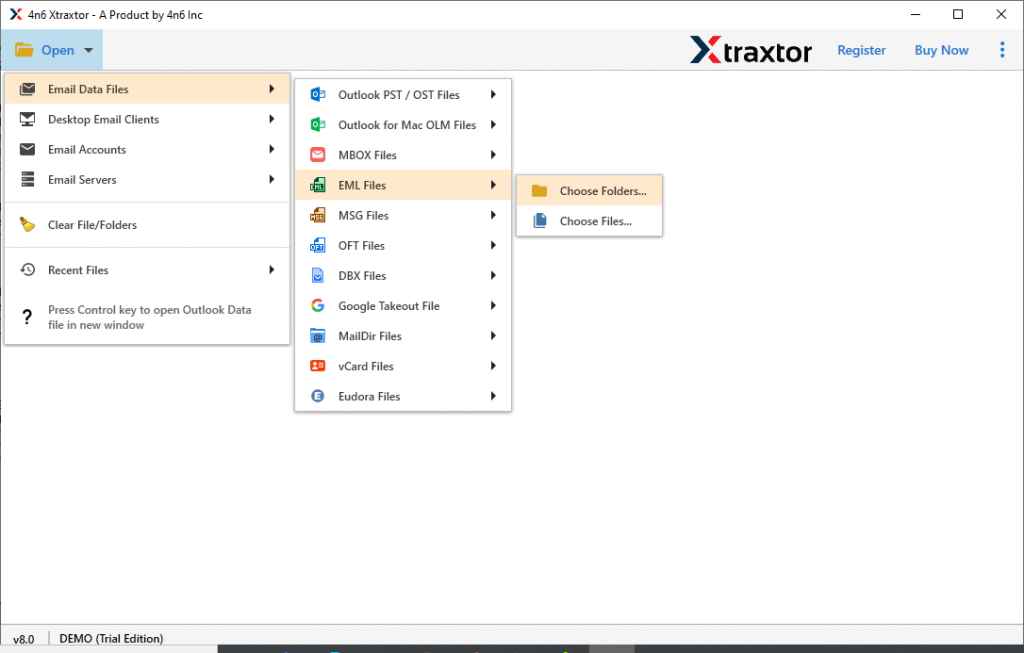
Step 2. Click the “Open” button and choose Email Data Files >> EML Files.
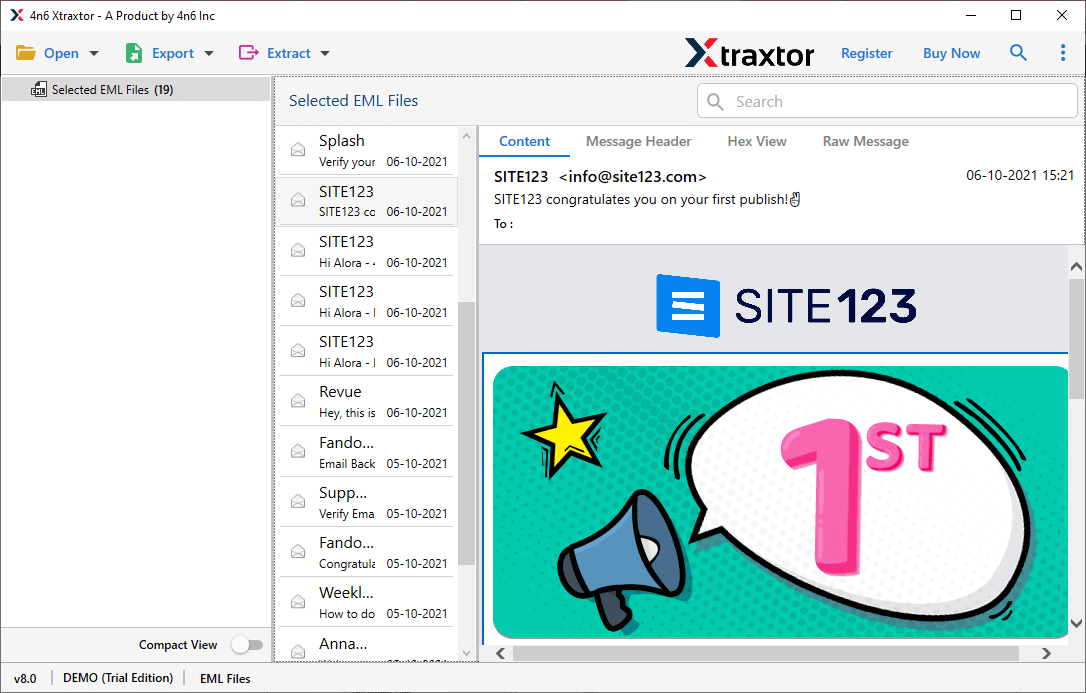
Step 3. Preview your EML files as emails on this screen.
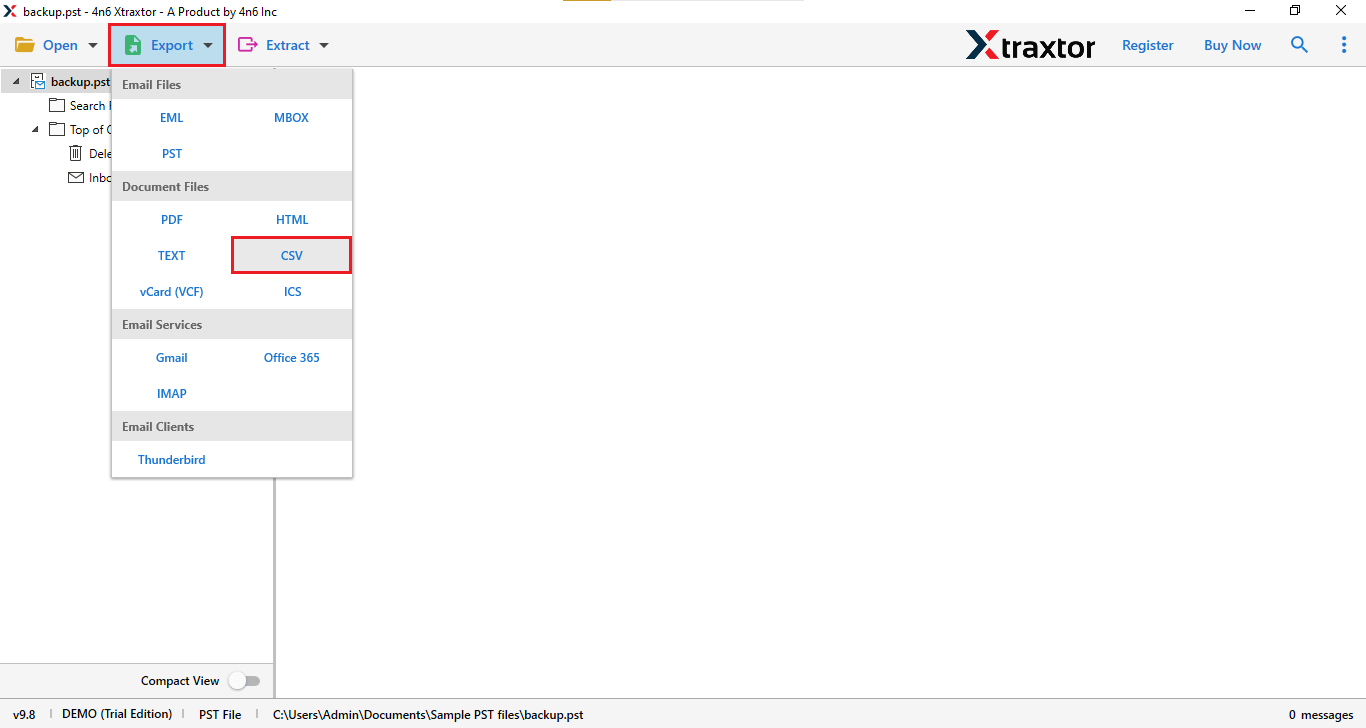
Step 4. Now, click on the “Export” button & choose CSV option.
Step 5. Select the email folders that you want to export.
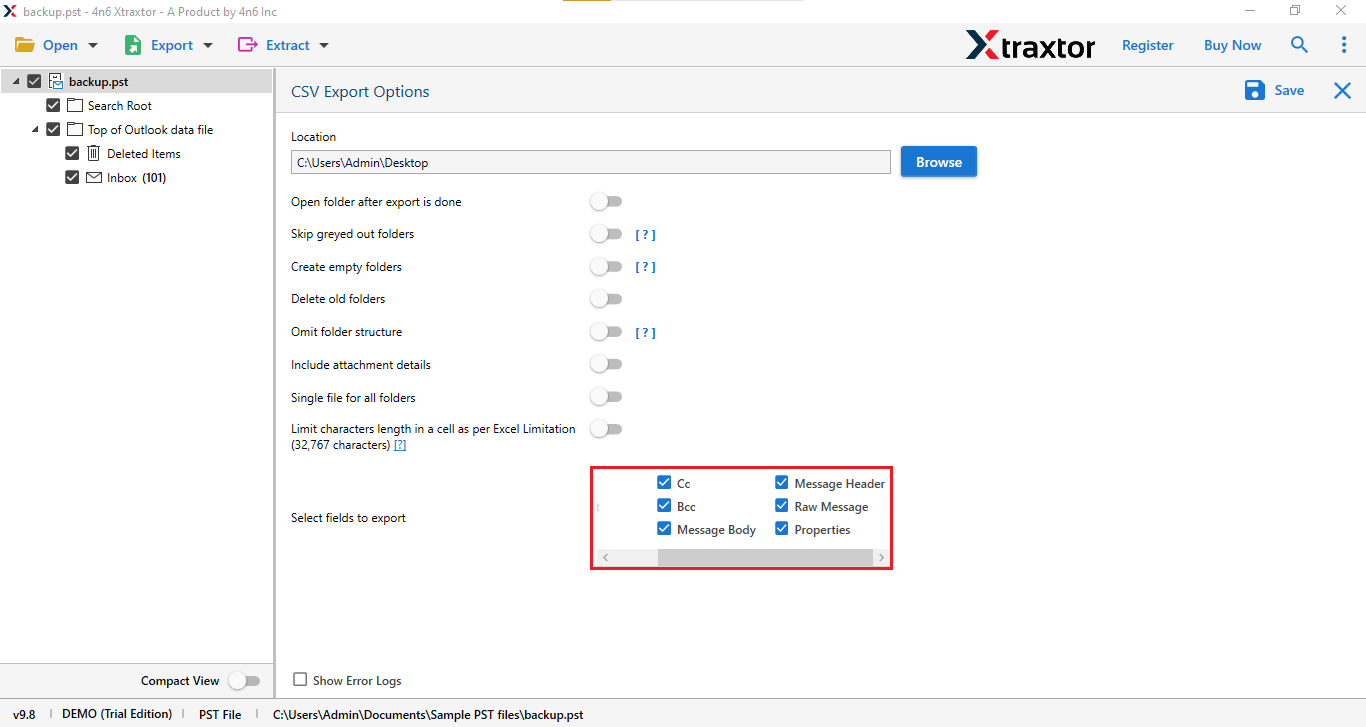
Step 6. Browse the destination location & Click on the “Save” button.
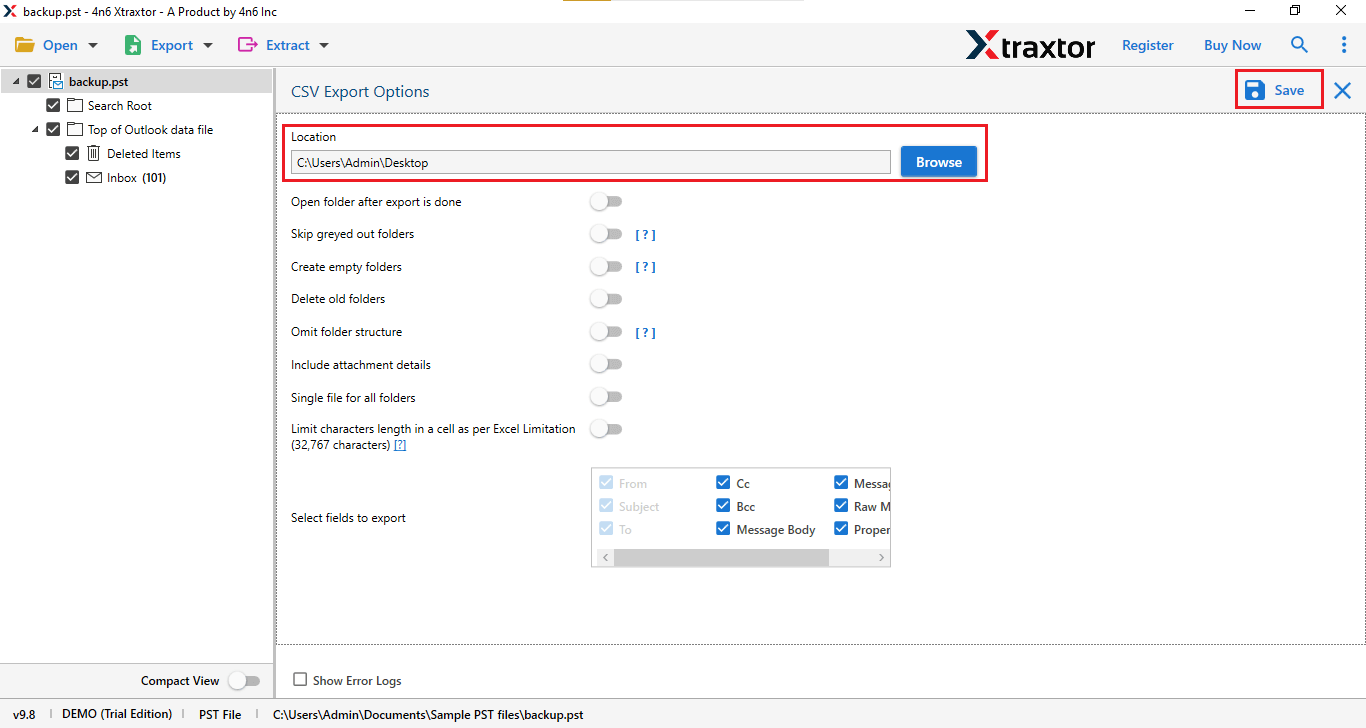
That’s it! Your EML files will be converted to Excel format within a few minutes.
Prominent Features of the Expert Solution
- Bulk Conversion: Convert multiple EML files to Excel at once without repeating steps.
- Complete Data Export: Export all email details like To, From, Subject, Date, and attachments information.
- Maintain Folder Structure: Keeps the original folder hierarchy during conversion.
- Selective Conversion: Apply filters to export only required emails based on date, subject, or sender.
- User-Friendly Interface: Simple design that anyone can use without technical knowledge.
- Fast Processing: Quickly converts EML files into Excel format without delays.
- Supports All Windows Versions: Works smoothly on Windows 11, 10, 8, and 7.
- No Data Loss: Ensures safe and secure conversion without losing any email information.
- Preview Option: Allows you to preview EML files before starting the conversion.
- Batch Folder Selection: Easily select entire folders for conversion instead of choosing files one by one.
- Preserves Email Formatting: Maintains original email formatting, including text and layout.
- Advanced Filters: Provides multiple filter options for precise and customized conversion.
- Save to Desired Location: Lets you choose any location on your system to save the output file.
- Quick Installation: Easy to install and ready to use within minutes.
Final Words
In this blog, we explained how to import EML to Excel using both manual and professional methods. The manual methods are free but they take more time, require manual effort, and may not give accurate results, especially for large data.
On the other hand, using a professional tool makes the process simple, fast, and reliable. It helps you convert all EML files into Excel format without any data loss. Manual methods are useful only for small tasks, but for complete and bulk conversion, the automated solution is the better choice.
