How to Import Emails to Webmail Account?

Email is no longer limited to one device or one platform. Users now access their mailboxes from laptops, mobiles, and tablets. This is why webmail accounts have become the preferred choice for both individuals and businesses.
If you are planning to import emails to webmail account, this guide will help you understand:
- When and why email import is needed
- The safest way to move emails with attachments
- How to avoid data loss during migration
Whether you are switching providers, merging multiple accounts, or centralizing business communication, importing emails into webmail ensures everything stays accessible in one place.
Common Reasons Users Import Emails to Webmail
Before moving to the process, let’s understand the real user intent behind this task.
- Switching to a New Email Provider: Users often move from desktop or legacy email services to modern webmail platforms for better access and security.
- Centralized Email Management: Importing emails allows users to manage all communications in one mailbox instead of checking multiple accounts.
- Secure Cloud Access: Webmail offers encrypted access, spam filtering, and secure login, which improves email safety.
- Backup & Long-Term Storage: Once emails are imported to webmail, they remain accessible even if the original account becomes inactive.
- Business Continuity: For businesses, importing emails to webmail helps teams collaborate and maintain records without interruptions.
How to Transfer Emails to Webmail With Attachments?
The Xtraxtor software is the full-fledged solution to move all your emails directly from your account to Webmail mailbox in a few clicks. With its advanced features and filters, you can import selective emails from your account without affecting their integrity. All you need to do is add your source email account and choose IMAP to move emails to your Webmail account.
To experience the importing process, you can use the demo version of the software.


Steps to Import Emails to Webmail Account
1. Download Xtraxtor on your system.
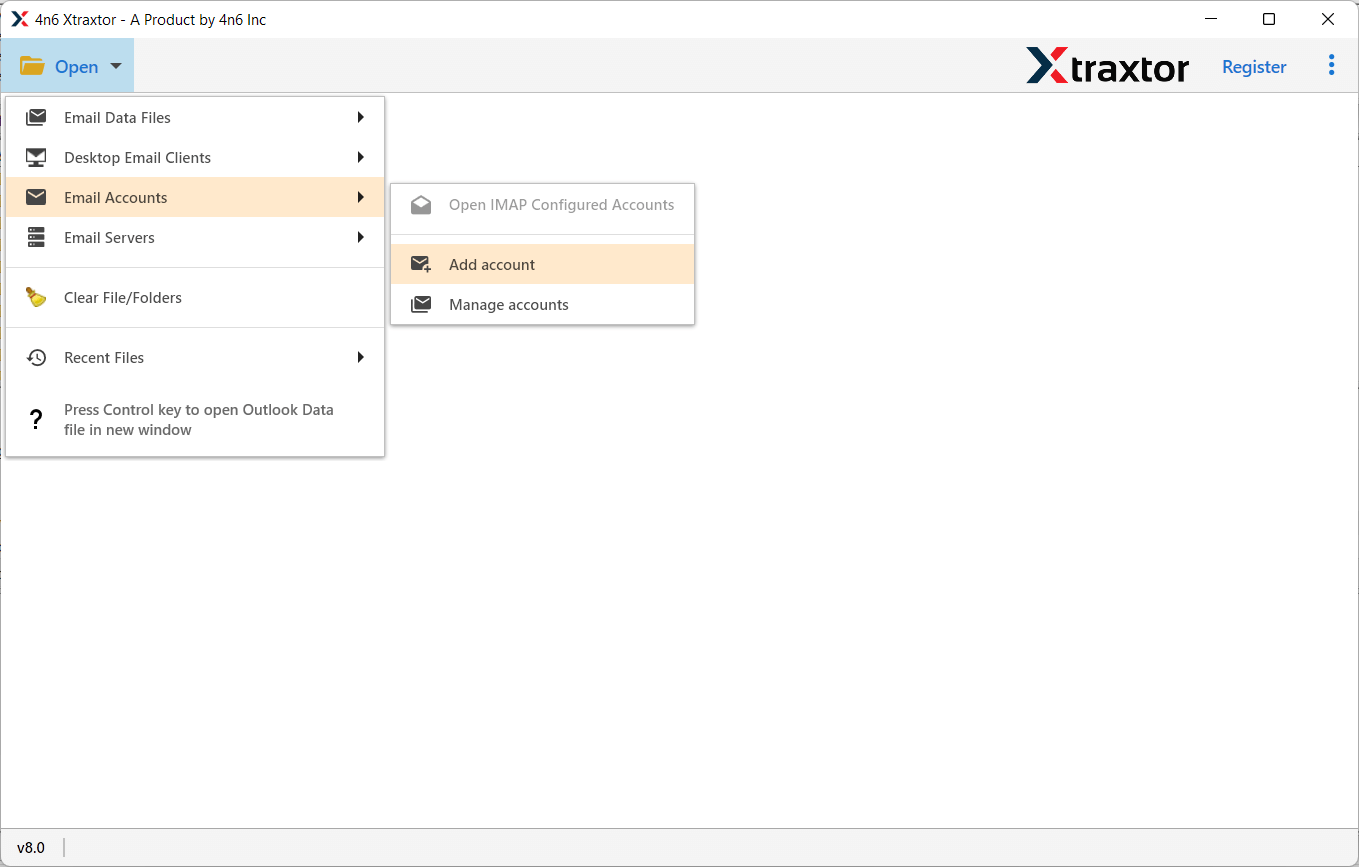
2. Select Open >> Email Accounts >> Add Account.
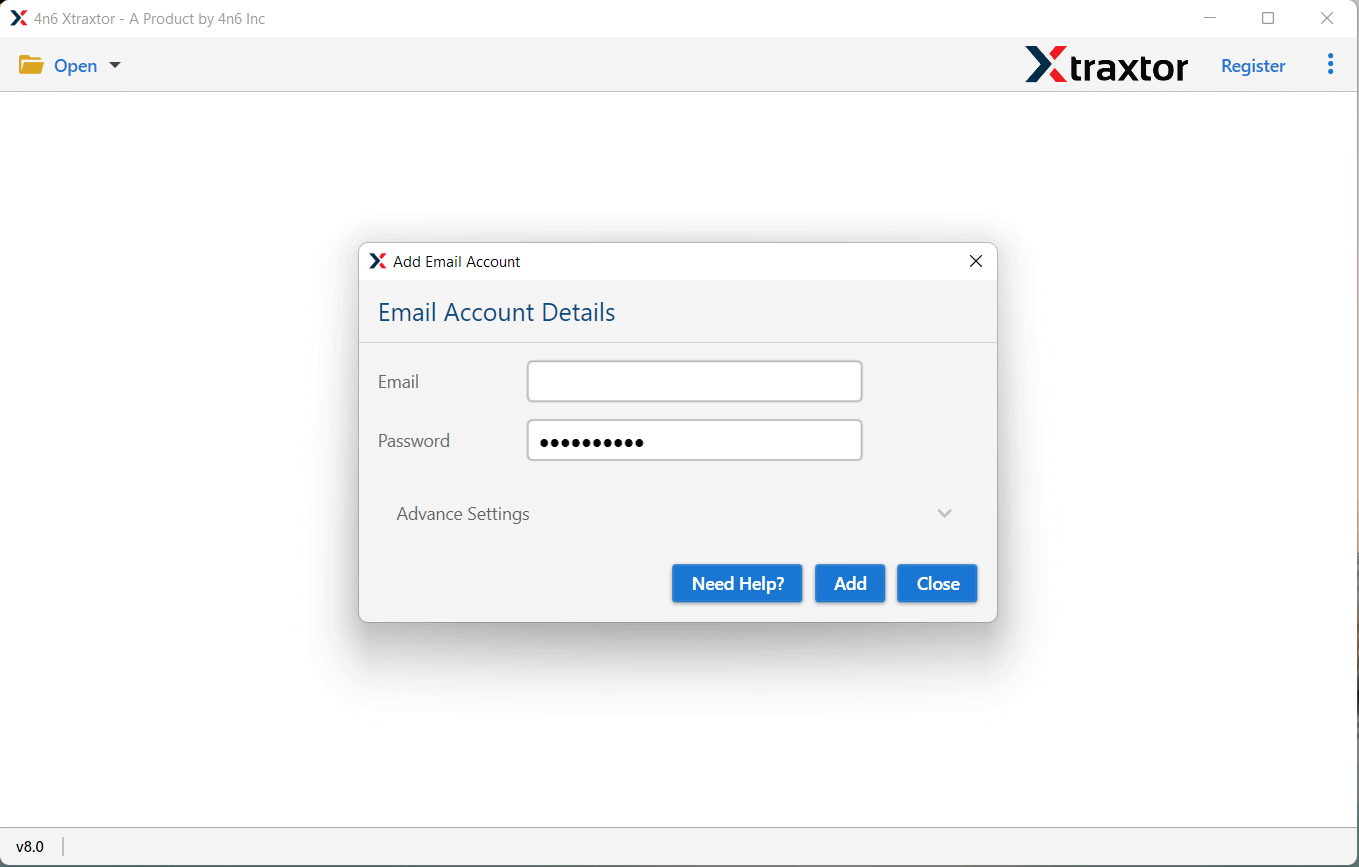
3. Enter the login details of the source email account and hit the Add button.
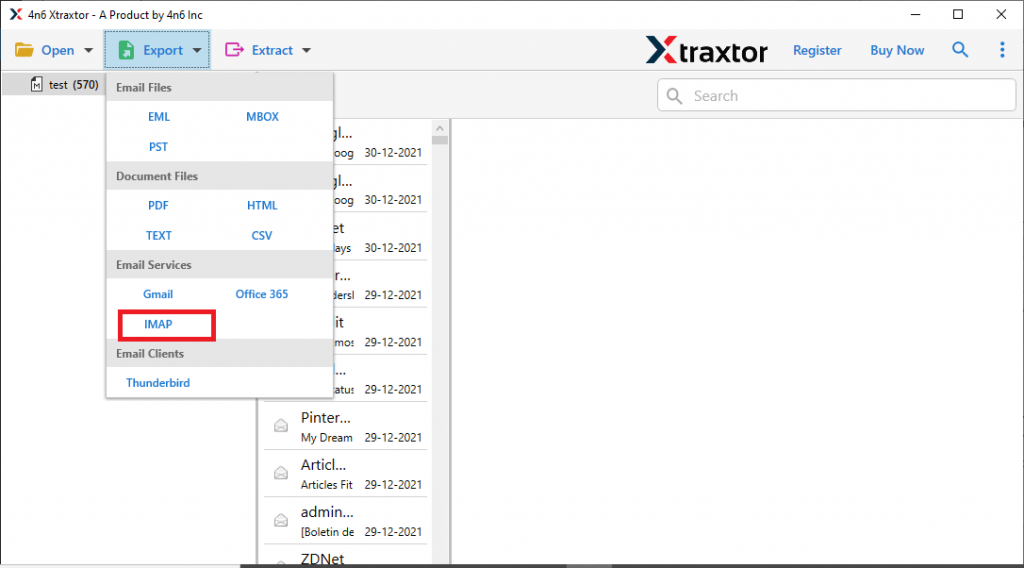
4. Click on Export and choose IMAP from the given options.
5. Select the email folders you want to import.
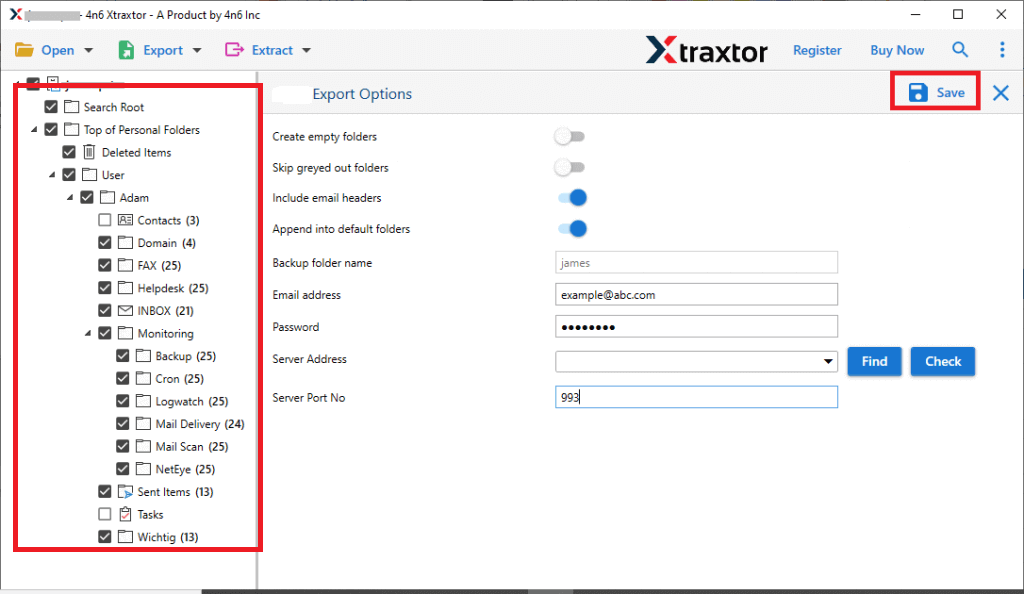
6. Enter your Webmail login details and hit the Save button.
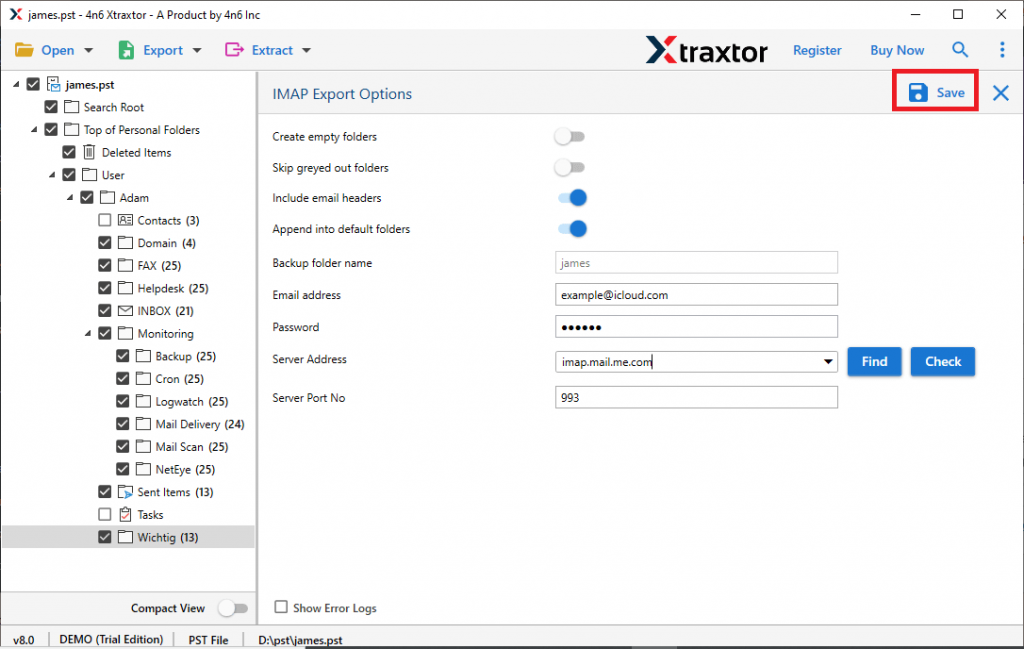
Done! Here you migrate emails to Webmail account in a few simple clicks.
Key Benefits of Using an Automated Solution
With this tool, there are various outstanding features, including –
- Quickly transfer emails, contacts, calendars, and more to your webmail account.
- Import emails from a variety of cloud-based services with ease.
- Preview your emails before importing to make sure everything is correct.
- Maintains the original format and structure of your emails during import.
- Easily transfer emails to iCloud, Exchange, Office 365, Zoho Mail, and more.
- Keeps your folder and sub-folder structure intact during transfer.
- Use filters to select specific emails by sender, date, or attachments.
- Convert emails to formats like PST, CSV, or MBOX for use elsewhere.
- Import only the folders you need, leaving out unnecessary data.
- Compatible with all versions of Windows, including Windows 11, 10, 8, Vista, XP, and older versions.
Conclusion
To sum up, import emails to webmail account is an easy process that helps you keep your emails organized and accessible. By following the steps, you can quickly move your emails, contacts, and other data while maintaining your email format. To know the process to import emails to Webmail account, you can use the demo version of the software and analyze it.
