How to Import Emails to Roundcube Mail?

Switching to a new email client can feel risky, especially when your mailbox contains years of important emails. If you are planning to import emails to Roundcube mailbox, your biggest concern is probably data loss, missing folders, or broken attachments.
This guide is written to help users who want a safe, complete, and bulk email import into Roundcube. We explain why Roundcube is a good choice, the best way to import emails, and how to ensure your data stays intact during the process.
Why Users Move Emails to Roundcube Mail?
Before jumping into the steps, it helps to understand why many users prefer Roundcube as their webmail client.
1. Easy-to-Use Interface: Roundcube offers a modern and simple layout. Even non-technical users can manage emails, folders, and contacts without confusion.
2. Open-Source and Free: Roundcube is open-source, which means flexibility, transparency, and no licensing cost. Many hosting providers include it by default.
3. Useful Built-In Features: Users get advanced options like: Folder and subfolder management, Email filters and rules, Address book, and identity management
4. Access From Anywhere: Since Roundcube is web-based, you can check emails from any device with an internet connection, no software installation needed.
How to Import Emails to Roundcube in Bulk?
For hassle-free and secure migration, you can use the Xtraxtor software. The tool is efficient for transferring all your emails to Roundcube Mail account in a single attempt. Most importantly, no data is lost while bulk importing. With its filters, you can import only selective emails. Additionally, you can also import selective email folders to Roundcube as well.
Download the demo version of the software to know its working process.


Steps to Import Emails to Roundcube with Attachments
1. Run the software on your system.
2. Select Open >> Email Accounts >> Add Account.
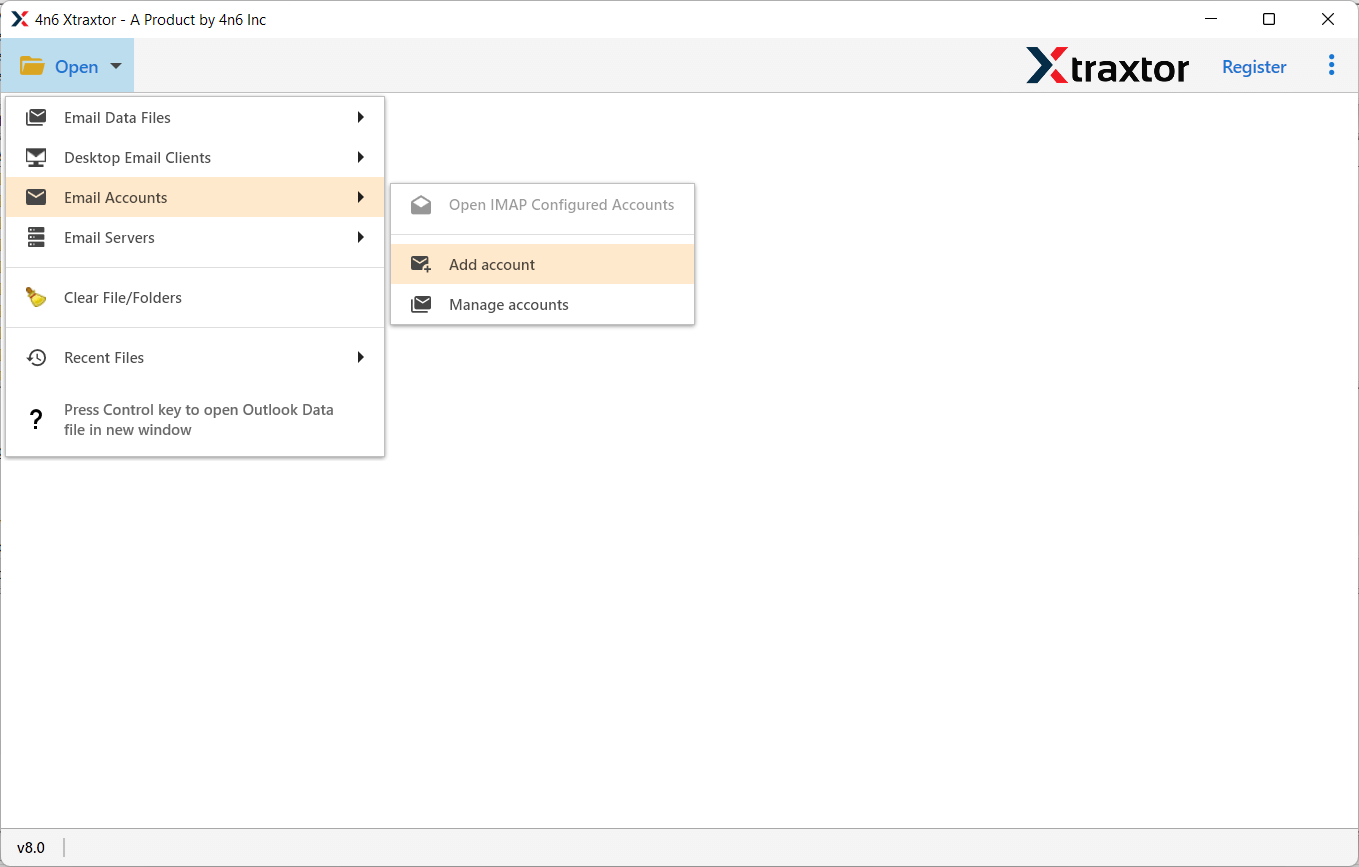
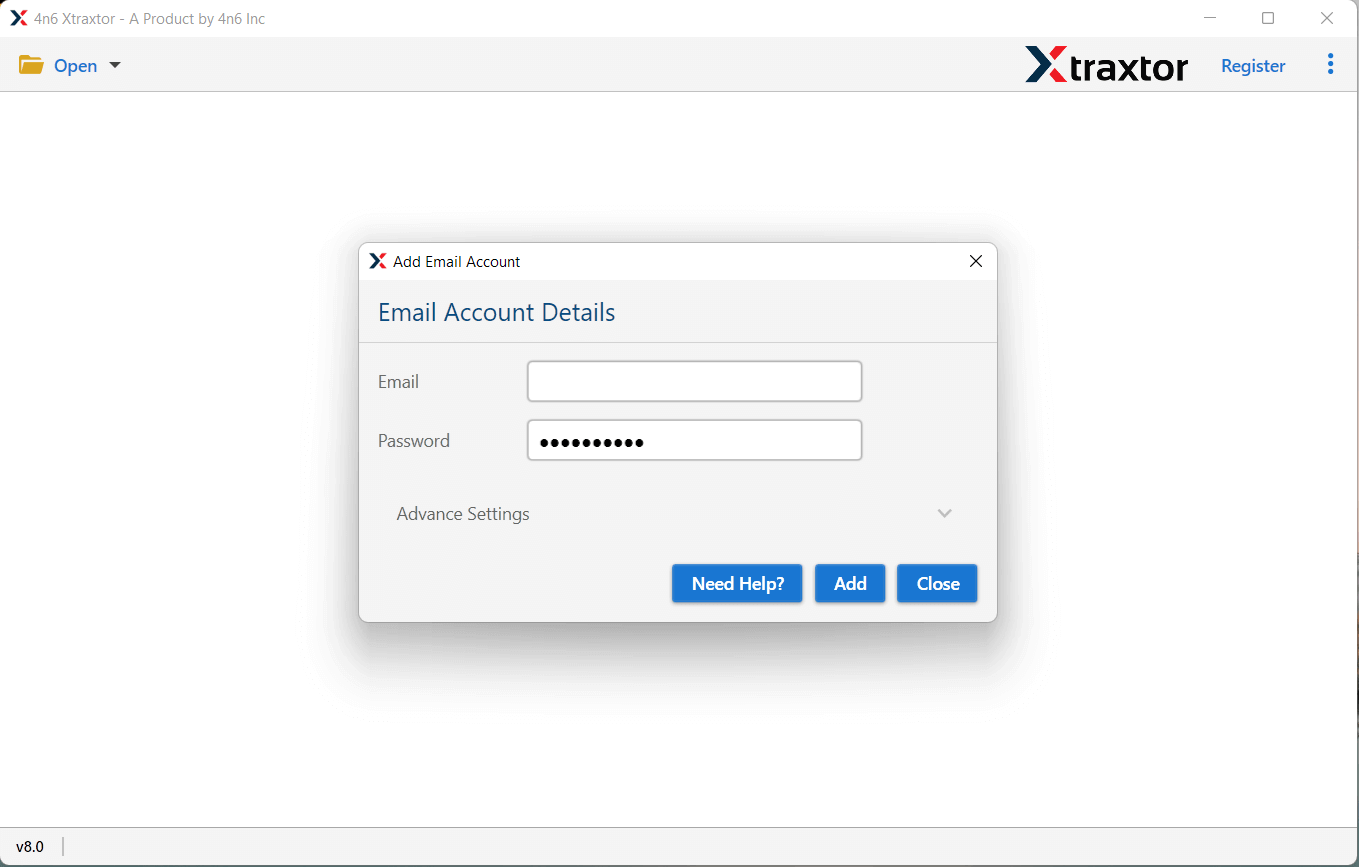
3. Enter the login details of the source email account and hit the Add button.
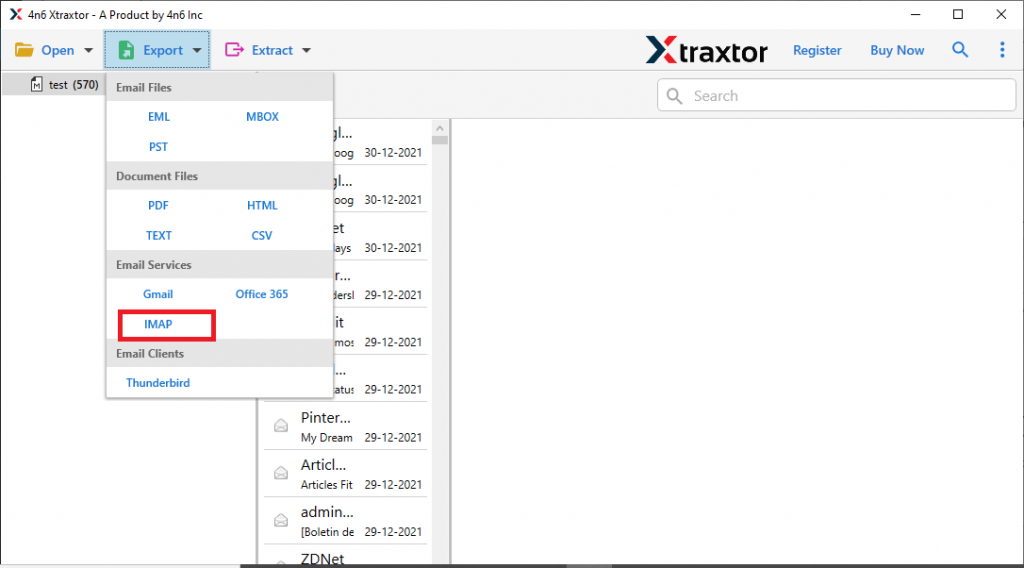
4. Click on Export and choose IMAP from the given options.
5. Select the email folders you want to import.
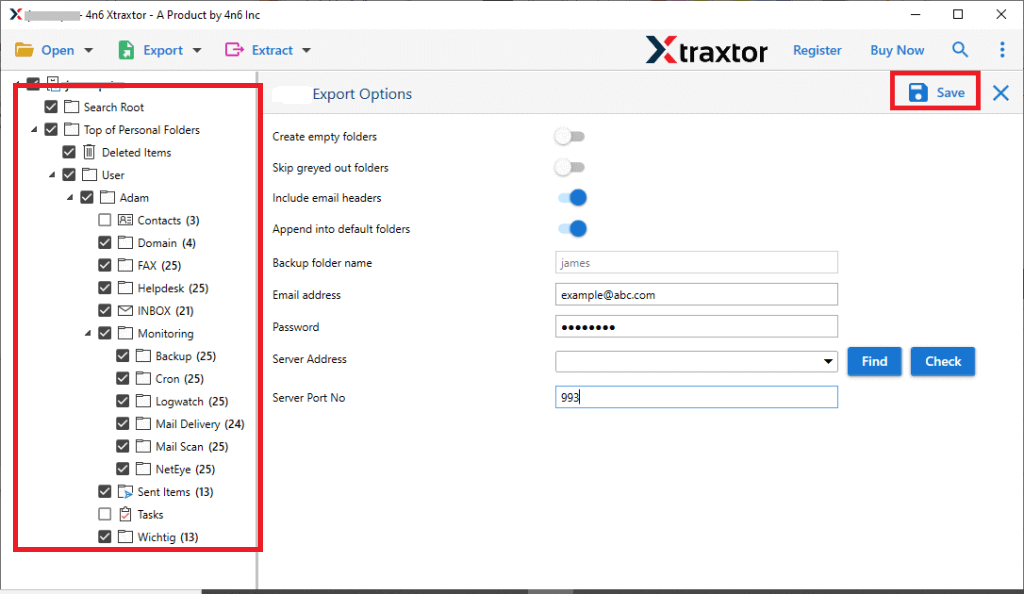
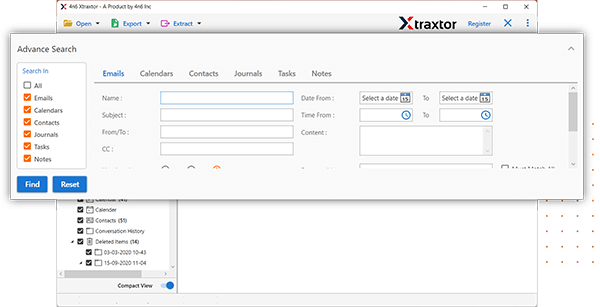
6. Apply filters if you want to import selective emails.
7. Enter your Roundcube login details and hit the Save button.
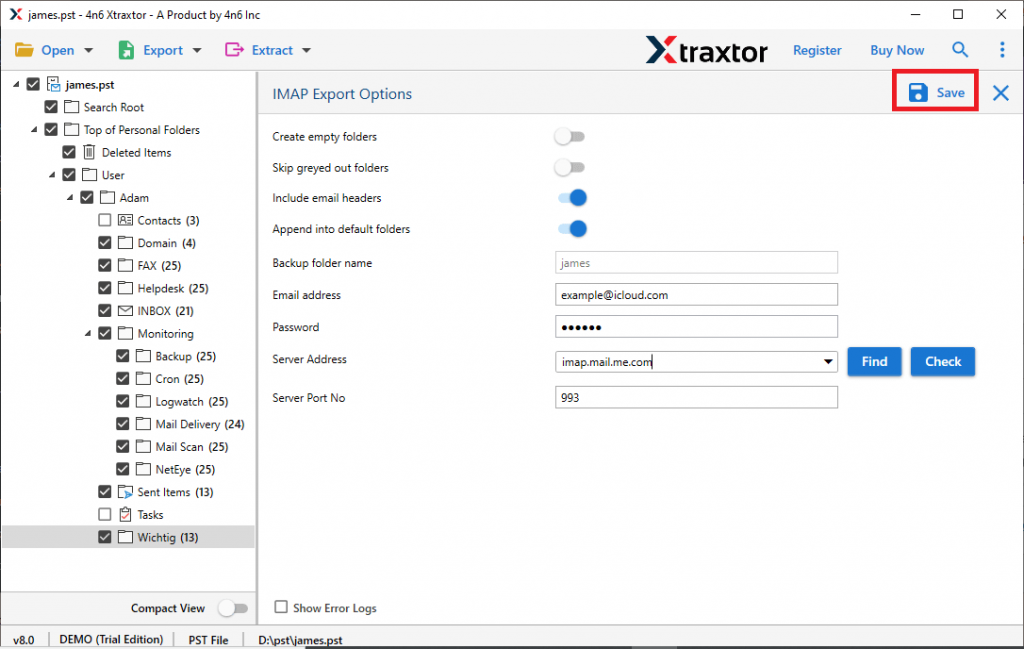
Done! Here you migrate emails to Roundcube Mail account in a few simple clicks.
Why Use Xtraxtor for Importing Emails?
- Easy Import to Roundcube: Quickly move emails, contacts, calendars, and other data from your webmail to Roundcube.
- Supports Many Cloud Accounts: Import emails from various cloud-based services without any hassle.
- Preview Emails Before Importing: Check your emails before importing to ensure everything is correct.
- Keeps Data Safe and Intact: Maintains the original email format and structure during the import process.
- Transfer to Other Platforms: You can easily move emails to many other webmail accounts. Using this tool, you can import emails to iCloud, Exchange, Office 365, Zoho Mail, and more.
- Keeps Folder Structure: Retains the folder and sub-folder arrangement during the transfer to keep things organized.
- Advance Filters: Use filters to choose specific emails based on sender, date, or attachments, making selection simple.
- Convert Emails to Different Formats: Change email files to formats like PST, CSV, or MBOX for other uses.
- Selective Folder Import: Import only the folders you need, skipping unnecessary data.
- Works on All Windows Versions: Compatible with Windows 11, 10, 8, Vista, XP, and older versions.
Conclusion
Importing emails to Roundcube Mail doesn’t have to be difficult. With a little preparation and the right steps, you can smoothly import emails to Roundcube and use its powerful features. Whether you’re coming from Gmail, Outlook, or another email service, you can keep your inbox intact and organized. Give a shot to the given solution and import your data.
