How to Import Apple Mail to Thunderbird?

If you want to migrate Apple Mail to Thunderbird smoothly, this guide will help you through the entire migration process. In this article, we will explain how to import Apple Mail emails to Thunderbird using both manual methods and a professional tool. These methods are easy to follow and help users transfer their emails without much difficulty.
In today’s digital environment, moving email data from one email client to another has become very common. Users often change their email client because of personal preference, better features, or compatibility with different operating systems. If you are planning to move your emails from Apple Mail to Mozilla Thunderbird, you can do it easily with the right approach.
Apple Mail vs Thunderbird: Why Move Your Emails?
The decision to migrate Apple Mail to Thunderbird may come from several useful benefits. Below are some important reasons why many users prefer Thunderbird.
- Open Source Flexibility: Mozilla Thunderbird is an open-source email client, which means users can customize it easily using various add-ons, extensions, and themes.
- Free Email Client: Thunderbird is completely free to use. Unlike some email services, there are no subscription charges or licensing fees.
- Better Privacy and Security: Thunderbird provides strong privacy features and regular updates from the open-source community, making it a secure option for many users.
- Cross-Platform Support: Thunderbird works on Windows, macOS, and Linux, which makes it a good choice for users who work across different operating systems.
- Manage Multiple Email Accounts: Thunderbird allows users to manage multiple email accounts from one place. It also supports a unified inbox feature.
- Advanced Email Features: Even though Thunderbird is free, it provides useful features like message filters, smart folders, tabbed emails, and powerful search options to improve email productivity.
How to Import Apple Mail to Thunderbird Manually?
Another method to migrate emails is by using Gmail as a bridge between Apple Mail and Thunderbird.
- Log in to your Gmail account.
- Click on the Settings icon and select See all settings.
- Open the Forwarding and POP/IMAP tab.
- Enable IMAP Access and click Save Changes
- Open Apple Mail.
- Go to Mail > Add Account.
- Enter your Gmail login details.
- Choose IMAP configuration to sync your Gmail account.
- Create a new folder in the Gmail account within Apple Mail.
- Drag the emails from Apple Mail folders into the Gmail folder.
- The emails will now sync with Gmail.
- Open Mozilla Thunderbird.
- Go to Account Settings.
- Click Account Actions > Add Mail Account.
- Enter your Gmail account details.
- Choose IMAP configuration.
After setup, Thunderbird will download all emails stored in Gmail, including those transferred from Apple Mail.
How to Transfer Apple Mail Emails to Thunderbird Automatically?
If you are looking for an automatic way to move emails between Apple Mail and Thunderbird, Xtraxtor software can make the process quick and simple. This tool is designed for users who want to move their Apple Mail mailbox data to Thunderbird without performing complicated manual steps. With this tool, users can easily upload Apple Mail mailbox files and convert them into MBOX format, which is fully supported by Thunderbird.
This tool allows users to transfer Apple Mail emails along with attachments, email headers, formatting, and other properties without losing any information. It also supports batch conversion, which means you can convert multiple Apple Mail folders at the same time instead of processing them one by one.
Overall, Xtraxtor offers a fast, secure, and user-friendly solution to automatically transfer Apple Mail emails to Thunderbird without data loss or complex configurations.
Download the demo version to understand the full working process.

Steps to Import Apple Mail to Thunderbird
Follow these simple steps to move Apple Mail emails to Thunderbird quickly.
Step 1. Download and run the software on your system.
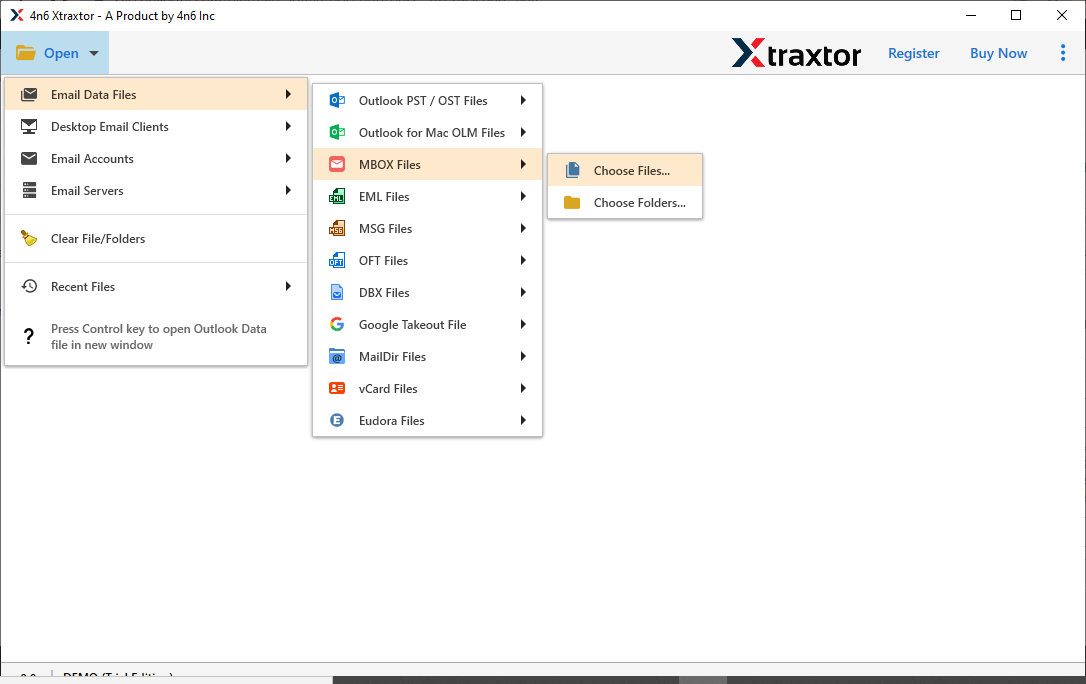
Step 2. Click on Open >> Email Data Files >> MBOX Files >> Select Files or Select Folder.
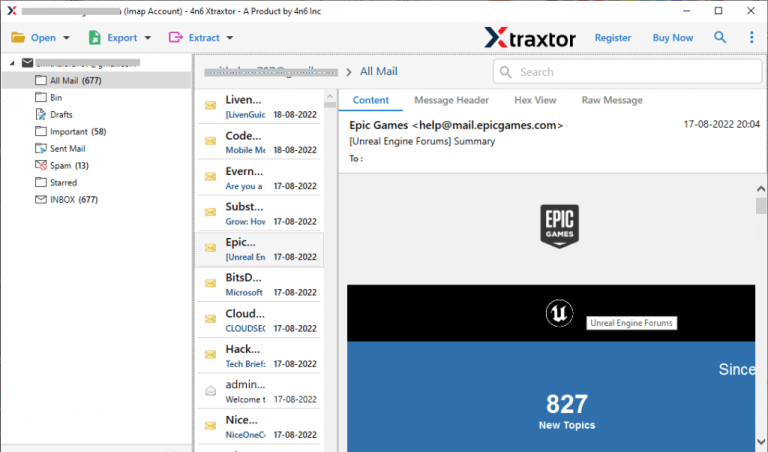
Step 3. The software will load all Apple Mail emails and allow you to preview the mailbox data.
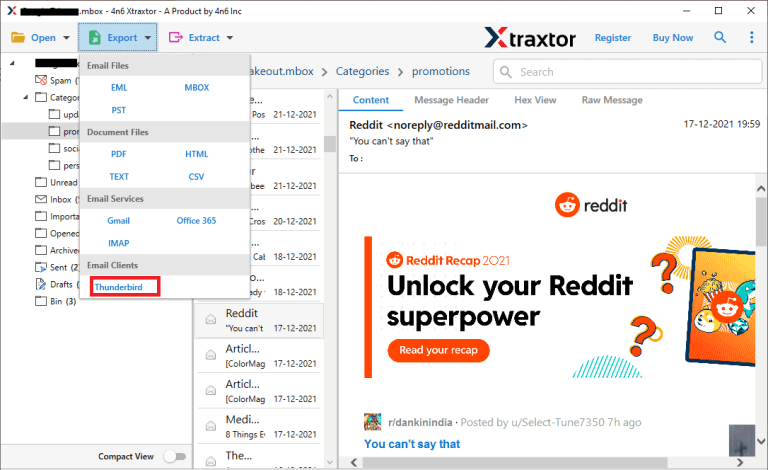
Step 4. Now, click on Export and select Thunderbird as the saving option.
Step 5. If needed, choose specific email folders that you want to migrate instead of the entire mailbox.
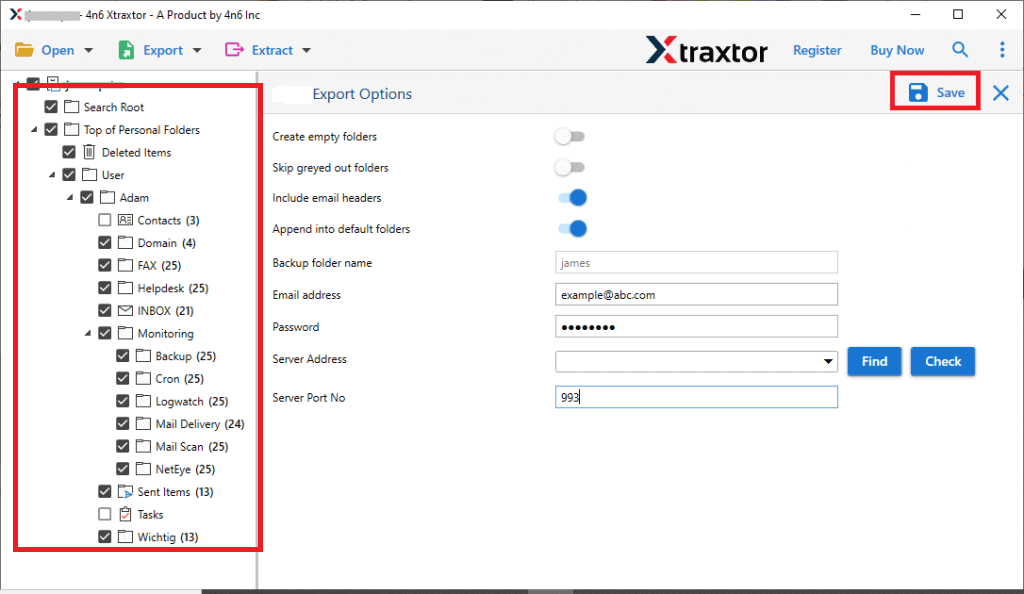
Step 6. Finally, click on the Save button to start the Apple Mail to Thunderbird migration process.
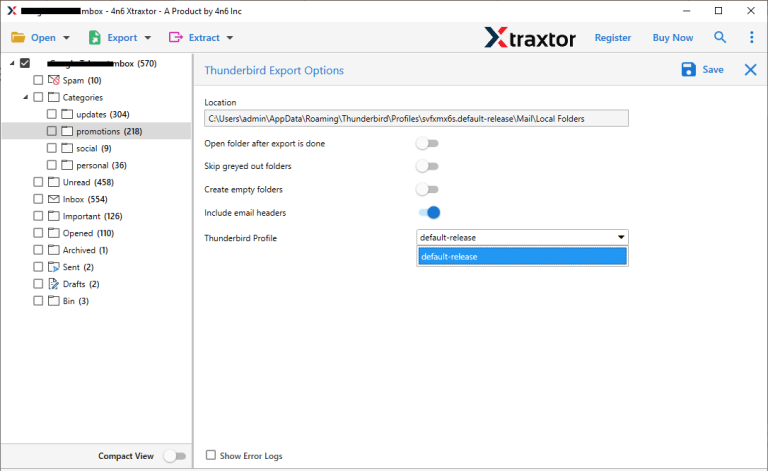
Once the process is finished, all Apple Mail emails will appear in your Thunderbird account with the same folder structure.
The software offers many advanced features for users.
- Convert Apple Mail mailbox data into multiple formats like MBOX, PST, EML, MSG, and HTML.
- Preview Apple Mail data before starting the migration process.
- Support batch conversion of multiple mailboxes.
- Convert large mailbox files without any size limitation.
- Maintain the original folder structure during migration.
- Provide selective conversion options.
- Compatible with all the latest & previous Windows versions.
- Preserve email attachments and metadata during conversion.
Conclusion
Both methods explained in this blog can help you complete the migration process. You can choose any method depending on your needs. The main difference is that the manual method allows you to import only one or a few MBOX files at a time, which can take more time and effort. On the other hand, the professional method allows you to transfer multiple files in bulk while keeping your data safe and secure. Therefore, select the method that best suits your requirements and the amount of data you want to migrate.
