How to Migrate Exchange to Gmail? Complete Guide

Migrating emails from Microsoft Exchange to Gmail is a common need for users and organizations moving to a simpler, cloud-based email system. Exchange works well in enterprise environments, but it often requires technical setup, ongoing maintenance, and dependency on Outlook. Gmail, on the other hand, is easy to use, accessible from anywhere, and does not require special software to manage emails.
Because of these reasons, many users want to migrate Exchange to Gmail without losing folders, attachments, or important data. However, the migration process is not always straightforward and depends on the tools and access you have.
In this blog, we explain two reliable ways to migrate emails from Microsoft Exchange to Gmail: a manual method using Outlook and an automated method for users who want a faster and simpler solution. You can review both options and choose the one that best fits your situation.
What Are Microsoft Exchange and Gmail?
Microsoft Exchange Server is a business email server used by organizations. It supports email, contacts, calendars, tasks, and advanced security features. Because of its enterprise-level setup, it needs technical expertise and regular maintenance.
Gmail, on the other hand, is Google’s free email service. It is easy to use, works on any device, and gives 15GB of cloud storage. Since it is simple and accessible, many people prefer moving from Exchange to Gmail
Now, if we are talking about the methods, then there are two ways to transfer emails from Microsoft Exchange to Gmail:
- Manual method using Outlook
- Automated tool (recommended when manual steps fail or are too complex)
Let’s check both.
How to Migrate Exchange to Gmail Manually (Using Outlook)
This method works only if:
- You have Outlook installed
- Your Exchange account is active
- You can enable IMAP in Gmail
Steps:
- Open Gmail >> click Settings >> Forwarding and POP/IMAP >> enable IMAP >> Save.
- Open Outlook on your system.
- Add your Exchange account to Outlook.
- Go to File >> Add Account and add your Gmail account as well.
- Once both accounts appear in Outlook, create a New Folder under Gmail.
- Drag the emails or folders from Exchange and drop them into Gmail.
After a while, the emails will appear in your Gmail account.
Manual Method Limitations
- You must install Outlook.
- It is time-consuming for large mailboxes.
- Syncing may fail if Exchange is slow.
- Not suitable for corrupted or damaged Exchange mailboxes.
- Non-technical users may find account setup difficult.
If these limitations prevent you from completing the migration, then use Method 2.
How to Move Emails from Exchange to Gmail Automatically?
If Outlook is not available, your mailbox is large, or you don’t want to deal with manual sync issues, you can use a dedicated tool such as Xtraxtor Email Backup Tool.
This tool helps you:
- Move emails from Exchange to Gmail directly
- Transfer large mailboxes without errors
- Preserve folder structure and attachments
- Migrate selected emails using filters
- Avoid complex setup, no Outlook needed


How to Migrate Exchange to Gmail Account
- Launch the software on your Windows PC.
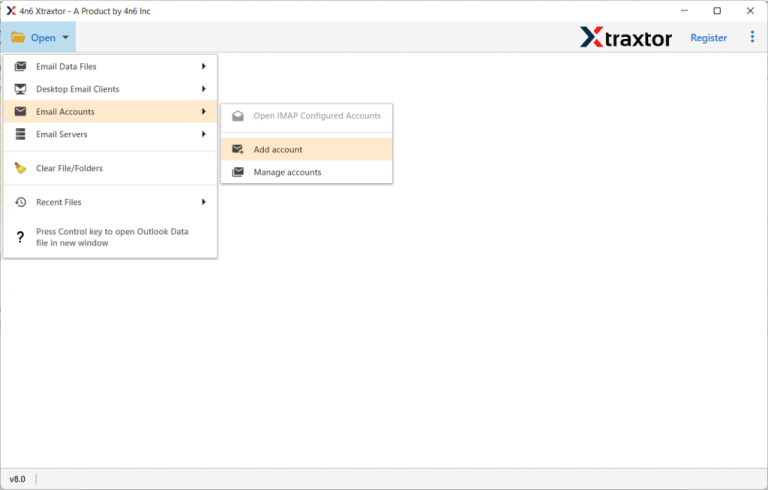
- After that, click on Open >> Email Accounts >>Add Account.
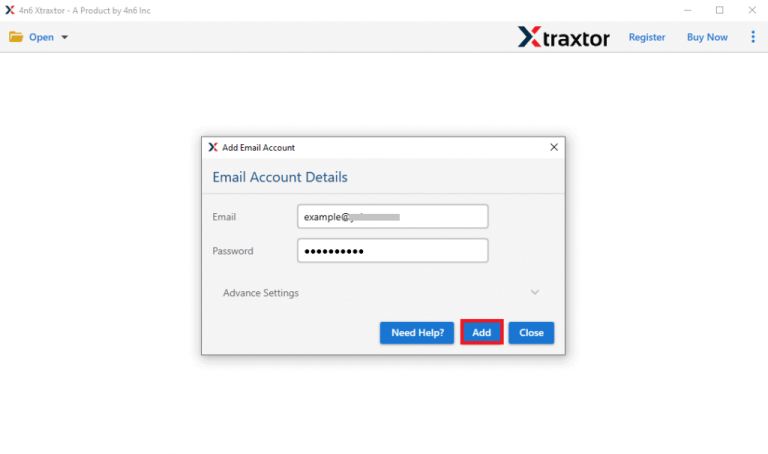
- Sign in using your Exchange account.
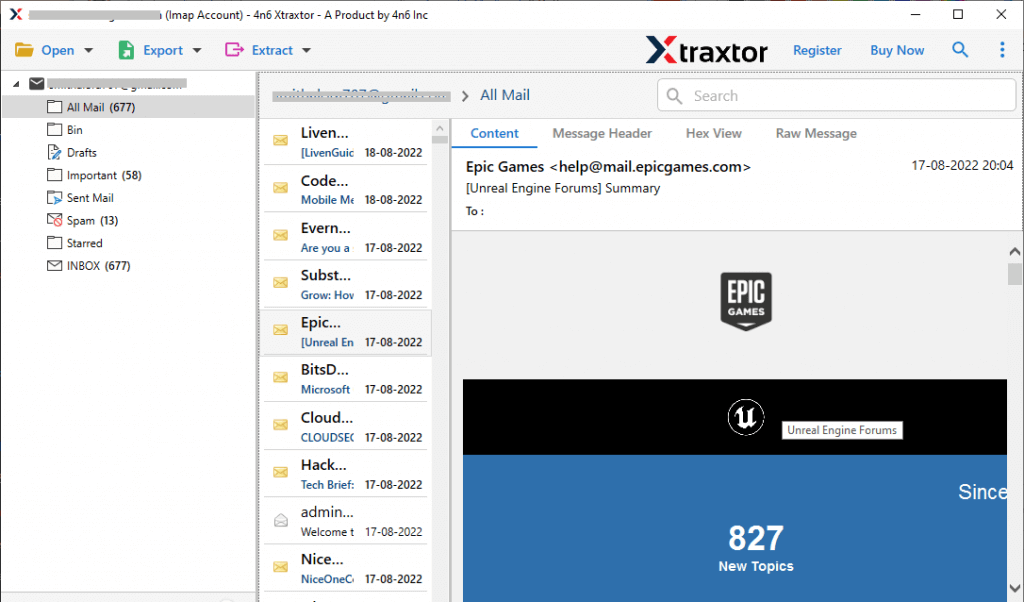
- Now, the tool automatically loads all Exchange emails.
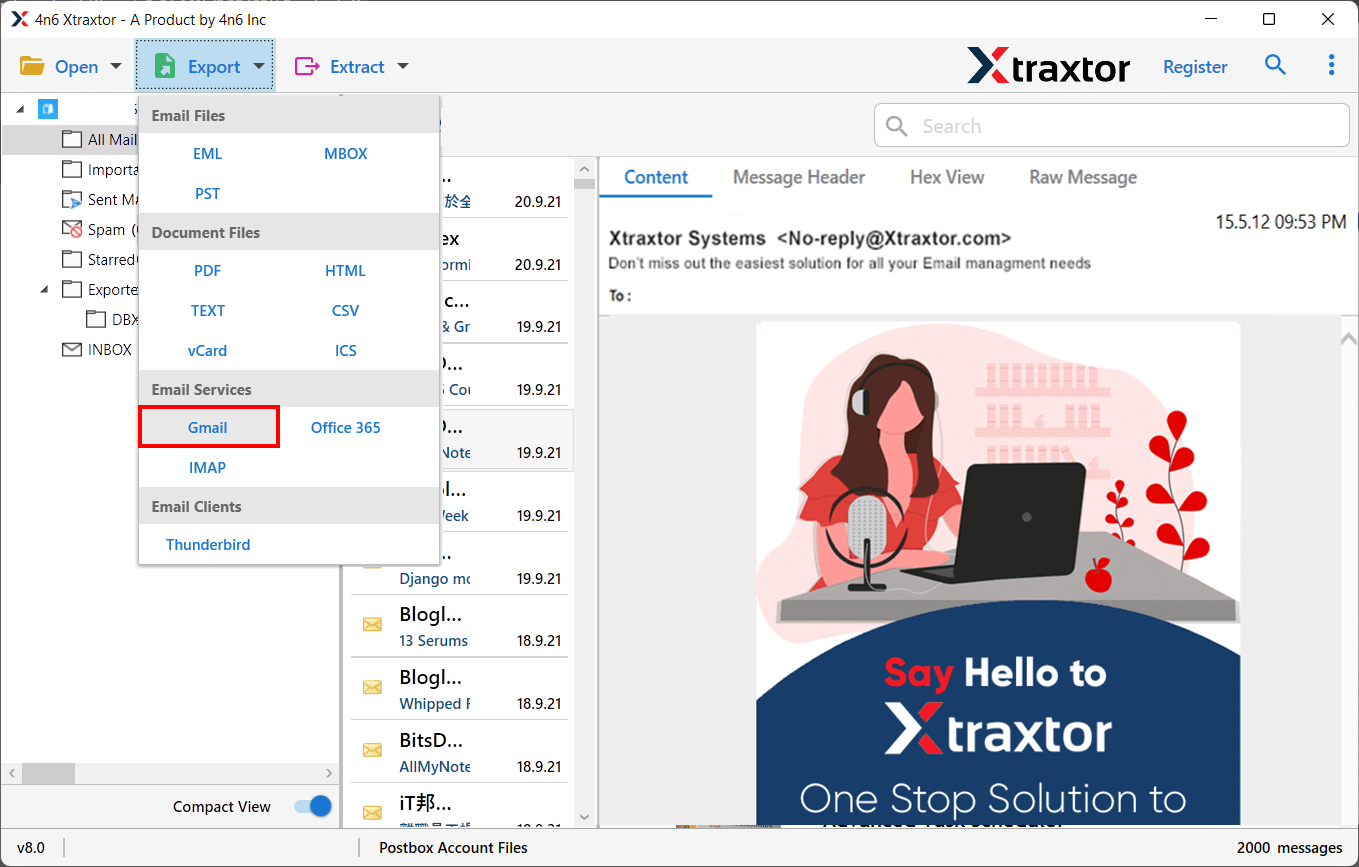
- Now, go to Export and choose Gmail as the destination.
- Choose the Exchange email folders to import into Gmail.
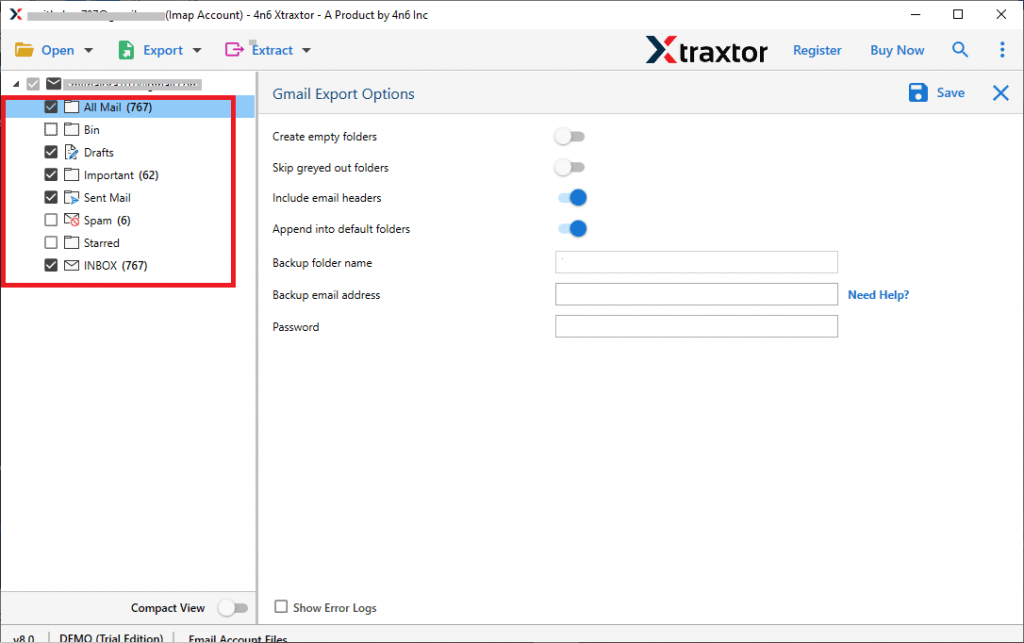
- Enter your Gmail ID / App Password & start the migration.
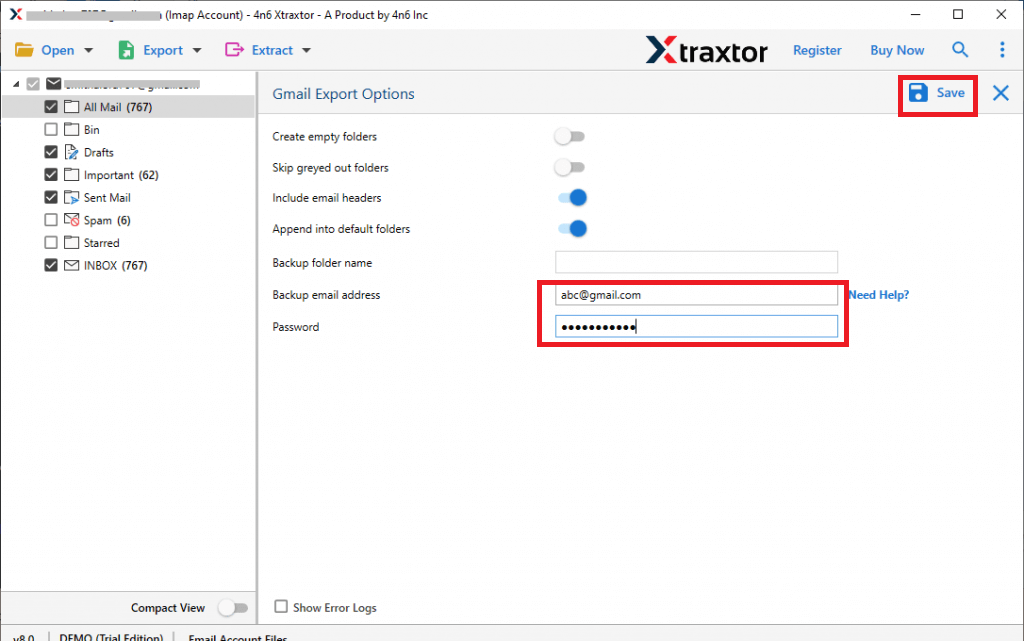
The tool moves all emails safely without losing formatting or attachments.
Final Verdict
In this post, we have discussed how to migrate Exchange to Gmail with manual and automated solutions. While implementing these two methods, we have observed that migrating emails from Exchange to Gmail is possible manually through Outlook, but the process can be slow and requires technical steps. It may also fail for large mailboxes or if Outlook is not available.
If you want a faster, simpler, and more stable solution, using an Exchange to Gmail migration tool becomes the better option. The mentioned tool in this article is one such example of an effective tool to reduce errors, save time, and safely transfer all your important data in just a few clicks.
