
Summary: This informative guide will show you how to export Gmail emails to PDF. The blog contains reasons and solutions to convert Gmail into PDF file format. So stay with us and follow the manual and automated solutions.
Gmail is used by over 1.8 billion users worldwide, and many people store important emails like invoices, reports, receipts, and legal documents in their inbox. But relying only on cloud storage is not always safe or convenient.
That’s why many users look for ways to export Gmail emails to PDF. PDF files are easy to store, share, print, and access anytime, even without the internet. In this guide, you will learn simple and updated methods to convert Gmail emails to PDF, both manually and in bulk.
Why Users Export Gmail Emails to PDF Files?
Most users want to convert their Gmail emails to PDF for several reasons, which are given below-
- PDF is the most widely used format to store, read, edit, and send information.
- Data saved in PDF format can be easily accessed without an internet connection.
- Exporting Gmail emails to PDF helps to organize their data and communication. These files can be easily shared with other users.
- PDF is a secure format that provides a password protection feature. So that users can protect their important emails.
- Most of the people use smartphones; after exporting Gmail emails to PDF, they can easily view them on mobile devices using a free Adobe Reader.
Ways to Convert Gmail Emails to PDF in Batch
In the above section, we saw that there are many advantages to export Gmail emails to PDF format. There are two methods to save Gmail emails to PDF.
- Manual approach
- Professional approach
Method 1. How to Save Gmail Email as PDF Manually?
Gmail has the built-in functionality to convert emails to PDF format. Follow the steps that are given below-
Step 1. Login your Gmail Account on your local system.
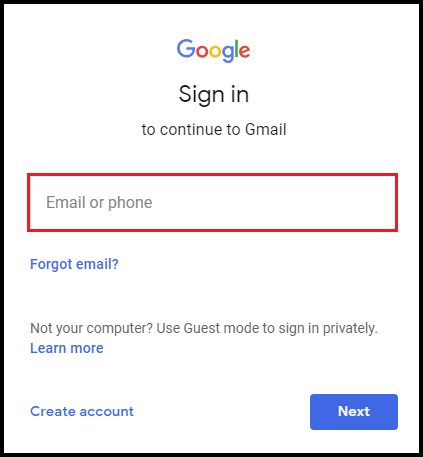
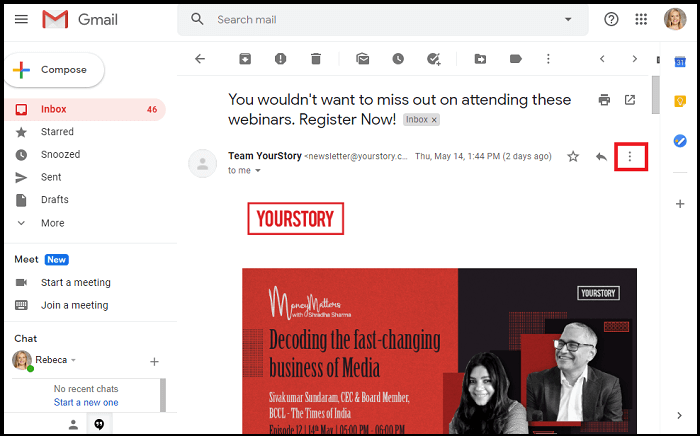
Step 2. Now, open the email that you want to convert into PDF format and click on the three vertical dots at the top right side of the email window.
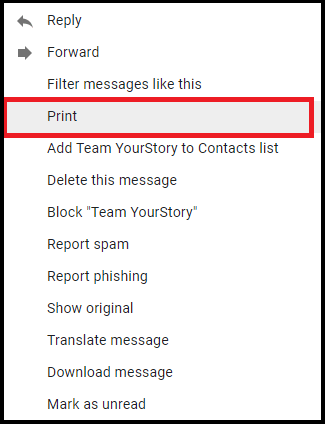
Step 3. Select the Print option from the drop-down list.
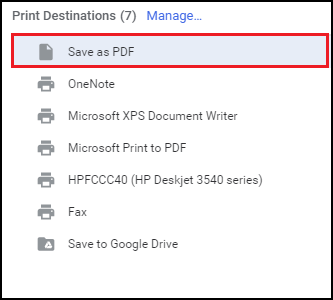
Step 4. After that, in the Destination section, choose the Print as PDF option and Press Save button to begin the process.
Step 5. At last, in the File Name, enter the name of the file and choose the destination location to save the PDF file, and click on the Save button.
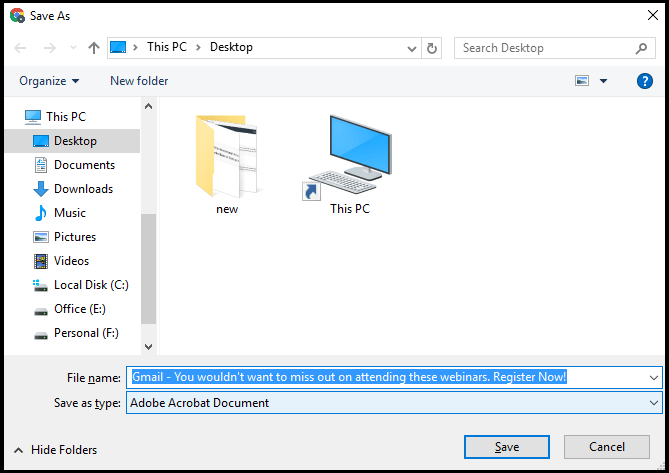
Now your PDF will be saved in the folder that you specified. You can see your PDF in that folder. Repeat the process again and again to export other emails.
Demerits of the Manual Method
The manual method is completely free and secure to export Gmail emails to PDF, but it does not give permission to convert multiple Gmail emails to PDF at the same time. Using this approach, you can convert only one email at a time. So, it is a time-consuming process. To overcome these limitations, you can use an automated solution.
Method 2. How to Export Emails from Gmail to PDF Files in Bulk?
Xtraxtor Gmail Backup Tool is a perfect and efficient way to convert Gmail emails to PDF. Using this tool, you can convert all Gmail emails to PDF at once. The software preserves 100% data integrity during the conversion process. It provides many advanced filter options to export only the required emails from Gmail. It maintains the metadata properties and attributes of the emails during the process.
In addition, the simplified interface helps beginners to export Gmail emails to PDF in batches without any complications. It is compatible with all the latest and older versions of Windows Operating Systems.
You can download the free demo version of this tool to check its work efficiency and accuracy.

Steps to Export Gmail Emails to PDF with Attachments
Step 1. Launch Xtraxtor Email Backup Tool on your Windows PC.
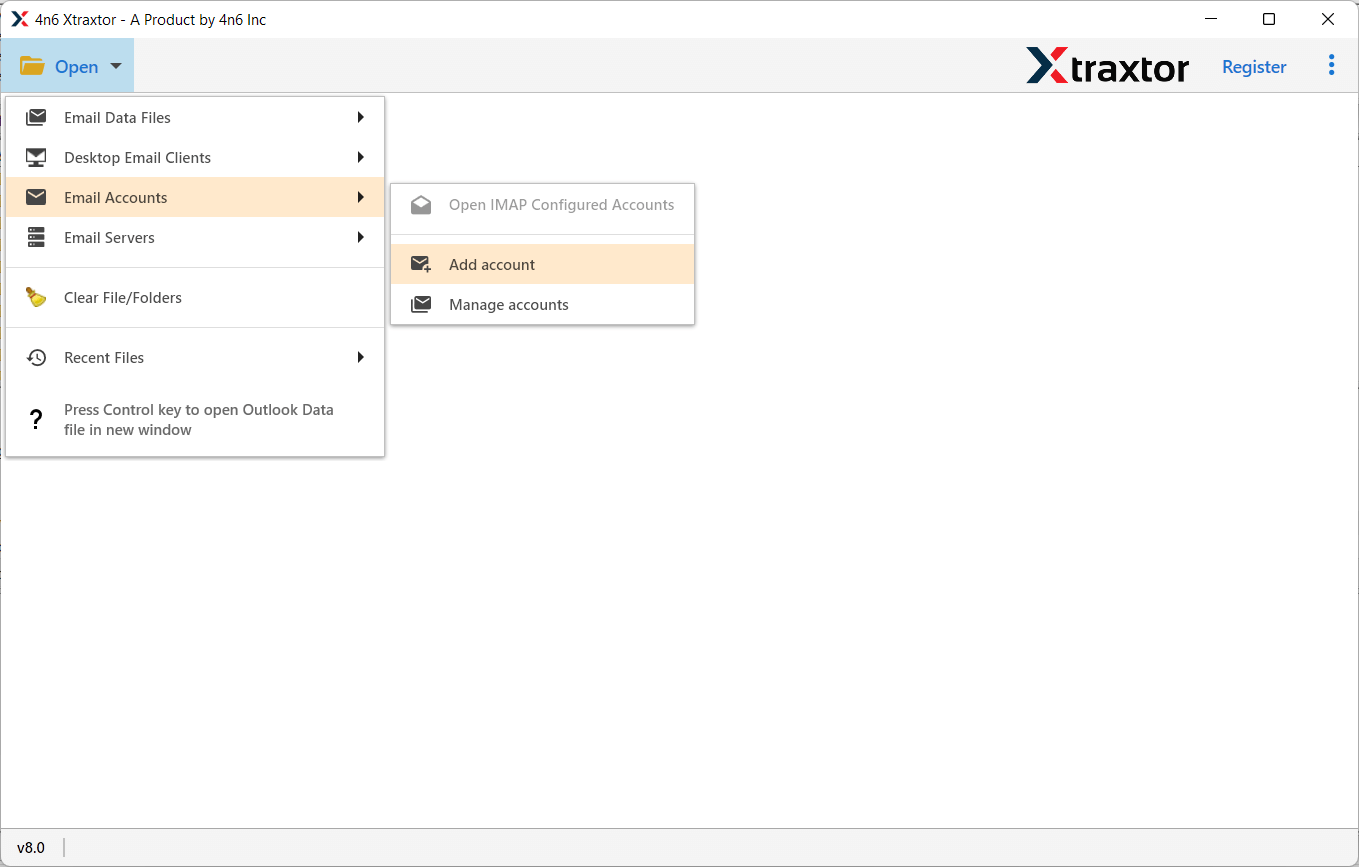
Step 2. Now, navigate to Open >> Email Accounts >> Add Accounts.
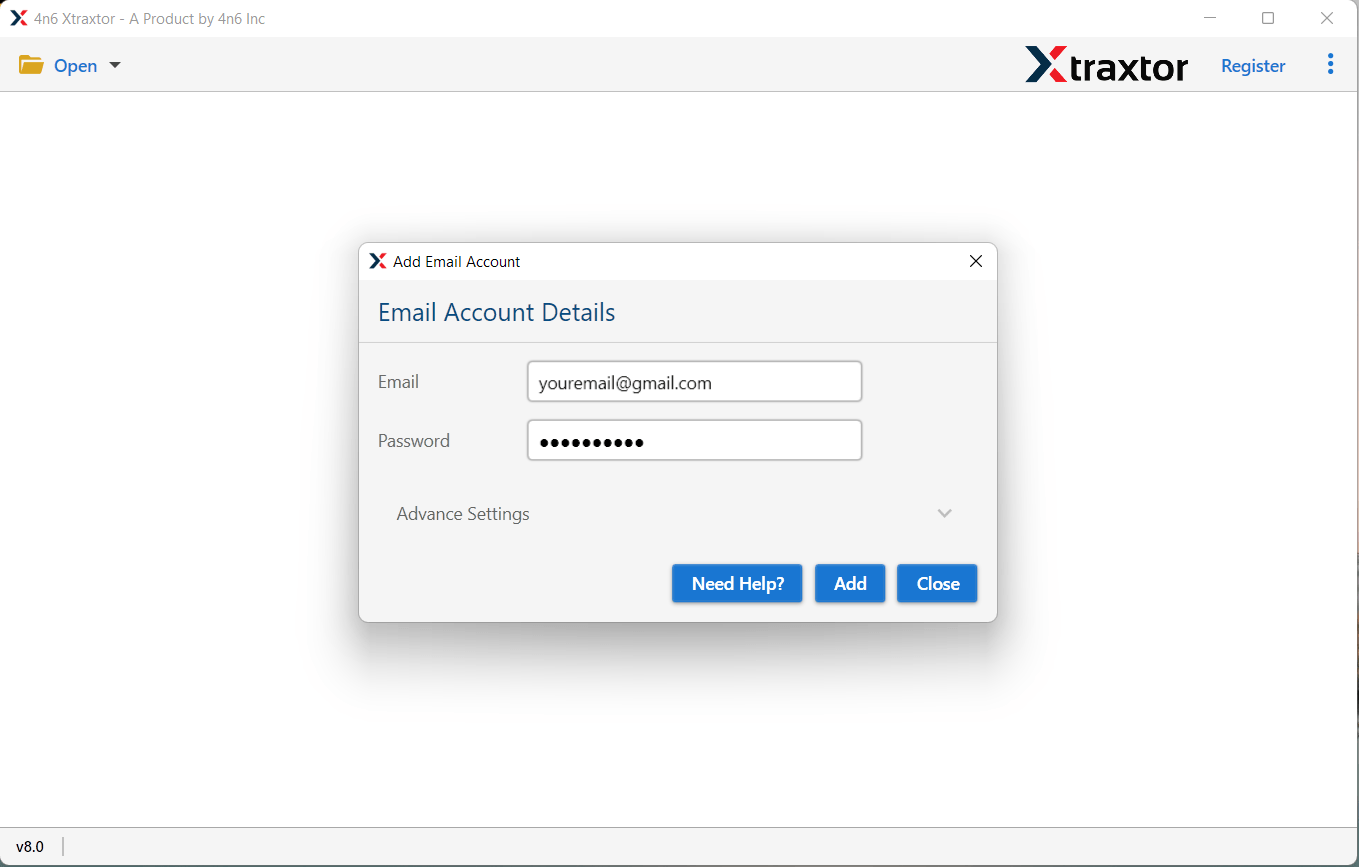
Step 3. Enter your Gmail credentials and click on the Add button.
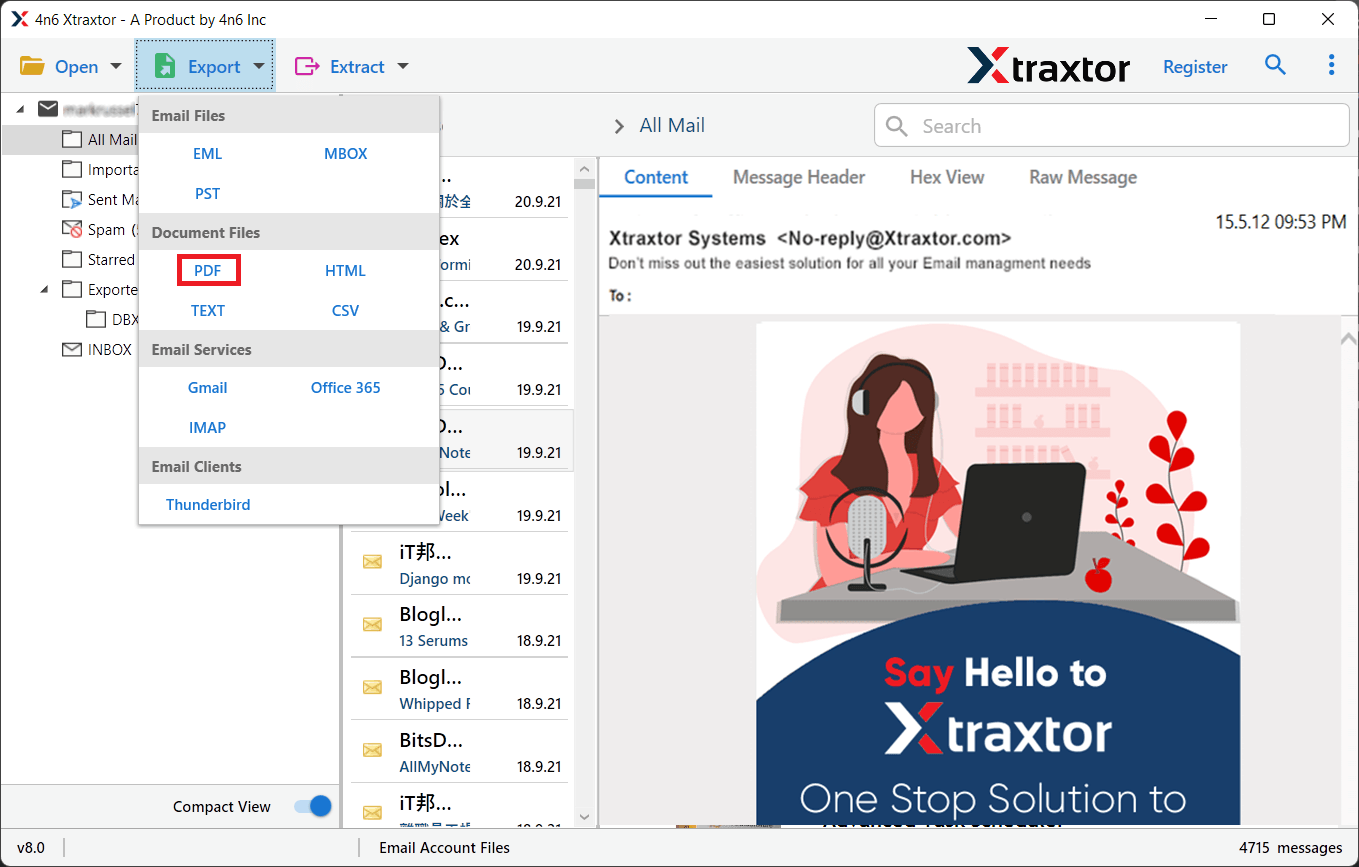
Step 4. After that, click on Export and select PDF from the given options.
Step 5. Click on Browse to set the Destination location and click on the Save button.
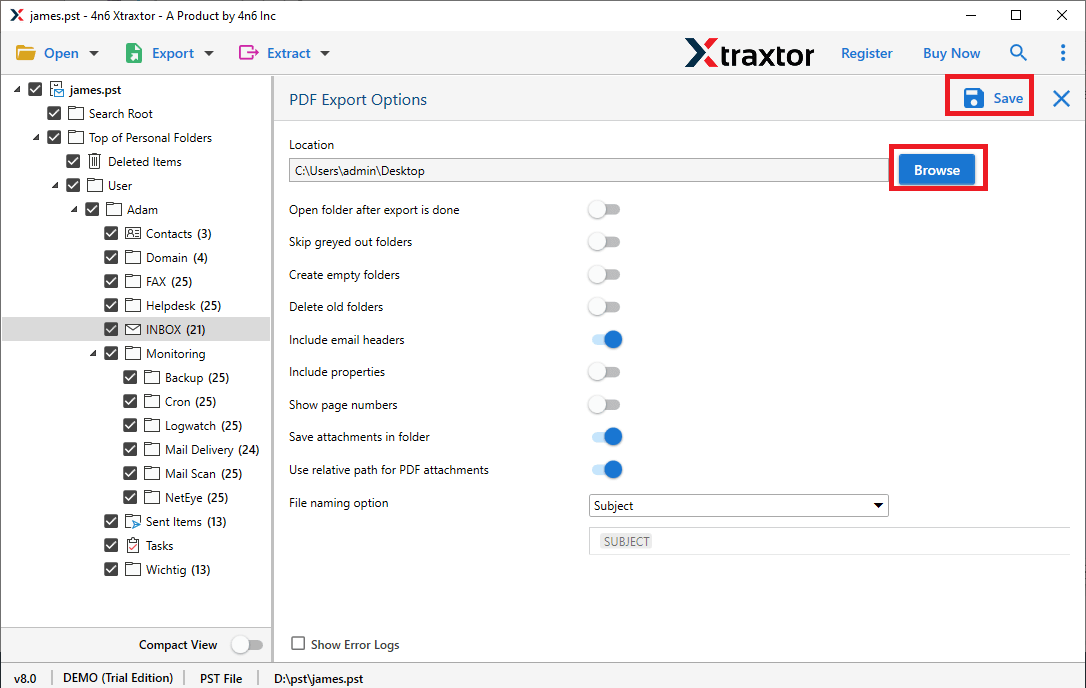
The process is done. Hence, you can export Gmail emails to PDF in a batch in a few simple clicks.
Key Features of Xtraxtor Software
- Convert Gmail Email to MBOX, PST, EML, PDF, MSG, HTML, etc. file formats.
- A preview option to view all emails from Gmail before the conversion process.
- Export multiple Gmail emails to PDF at once with complete accuracy.
- Maintains the original structure of the emails during the process.
- Various advanced filter options, such as to, from, date, time, subject, etc.
- Directly import Gmail emails to Office 365, AOL Mail, and other accounts.
- Designed with advanced algorithms and a simple interface.
Conclusion
In this article, we have discussed how to save Gmail emails as PDF using manual and professional methods. The manual method does not give permission to convert multiple emails to PDF at the same time. However, the experts recommend using an automated solution to complete this task. The above suggested tool is able to export Gmail emails to PDF in batches with attachments. So, it saves your time and effort to convert all Gmail emails to the portable document format.
FAQs
Q1. Can I export all Gmail emails to PDF at once?
Ans. No, Gmail does not provide a built-in bulk export option. You need a professional tool for that.
Q2. Will attachments be saved in PDF?
Ans. Manual method may not save attachments properly. Automated tools can export emails with attachments.
Q3. Is it safe to convert Gmail emails to PDF?
Ans. Yes, if you use a trusted method or tool, your data remains safe and unchanged.
Q4. Can I open PDF emails on mobile?
Ans. Yes, PDF files can be opened on any smartphone using free apps.
