How to Extract Phone Numbers from Office 365?

Overview: Want to know how to extract phone numbers from Office 365? If yes, then this guide will help you. Here, we will explain different methods to extract phone numbers from Office 365 mailboxes. You can use manual methods like exporting contacts or searching emails. However, experts recommend using an automated Office 365 Phone Number Extractor for a quick and accurate result.
Let’s explore all methods step by step.
Before learning the methods, let’s understand where phone numbers are stored in Office 365.
Where Can Phone Numbers Be Found in Office 365?
Email Body: Phone numbers can be written inside email messages during conversations.
Email Signature: Most professionals include their contact details in email signatures.
Contacts: If you save contacts in Office 365, their phone numbers are stored there.
Note: Office 365 does not show phone numbers unless they are shared by the sender in emails or saved in contacts.
How to Extract Phone Numbers from Office 365 Manually?
There are multiple ways to extract phone numbers from Office 365. You can use built-in options like contacts export or manually search emails.
Let’s understand each method.
#1. Using Office 365 Contacts
Office 365 allows you to export saved contacts along with phone numbers.
Steps:
- Log in to your Office 365 account.
- Open the People (Contacts) section.
- Select the contacts you want to export.
- Click on Manage >> Export Contacts.
- Choose CSV format.
- Click on Export.
Now, open the CSV file in Excel to view phone numbers.
#2. Manual Search Method
You can also find phone numbers manually from emails.
Steps:
- Open your Office 365 mailbox.
- Use the search bar.
- Search keywords like phone, mobile, or country codes (+91, +1, etc.).
- Open emails and check the message body or signature.
- Copy phone numbers and save them manually.
Limitations of Manual Methods
Manual methods have several drawbacks:
- Only works for saved contacts
- Cannot extract numbers from all emails automatically
- Time-consuming process
- Risk of missing data
- Not suitable for large mailboxes
- Requires manual effort
How to Automatically Export Phone Numbers from Office 365?
If you want to extract phone numbers from Office 365, using a professional tool, then Xtraxtor is the best option. This software is designed to scan your entire Office 365 mailbox and extract phone numbers from emails, including email body, signatures, and other content. You just need to log in with your Office 365 account, select the folders, and choose the “Extract Phone Numbers” option. The tool will automatically process all emails and save the extracted numbers in a file on your system.
The software comes with many useful features that make the process easy and accurate. It supports bulk extraction, so you can get phone numbers from multiple emails at once without repeating steps. It also provides advanced filters to extract only specific data based on date, sender, or subject. The tool ensures no data loss and gives accurate results, even for large mailboxes. With its simple interface, anyone can use it without technical knowledge, making it a fast and reliable solution for extracting phone numbers from Office 365.

Steps to Extract Phone Numbers from Office 365
Step 1. Run the suggested software on your system.
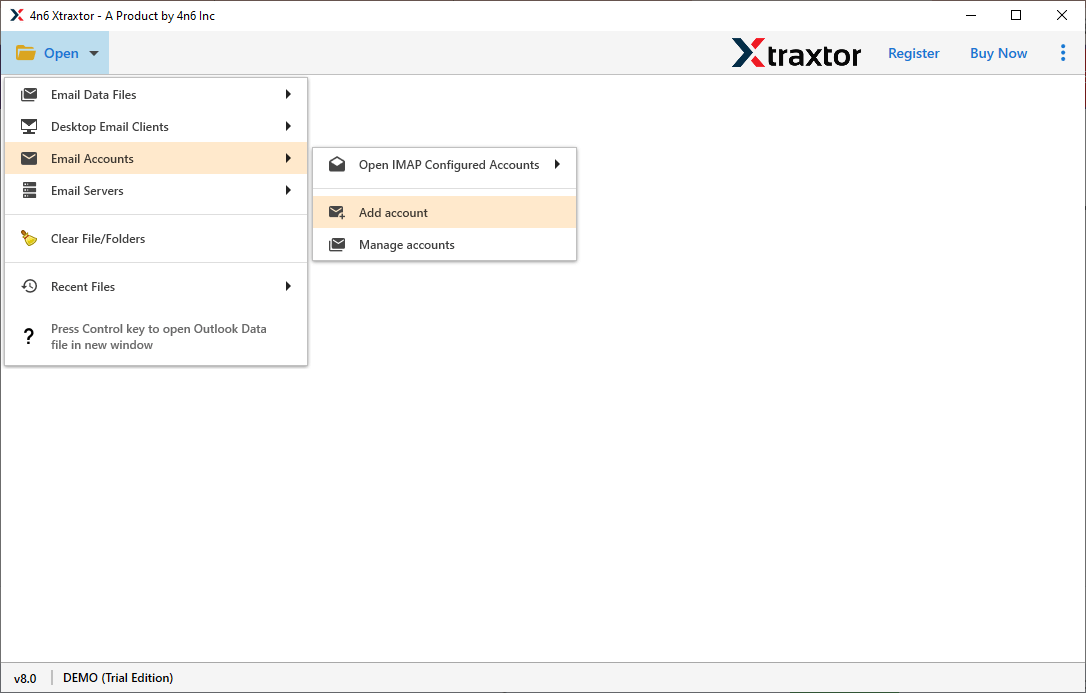
Step 2. Click on Open >> Email Accounts >> Office 365 Account.
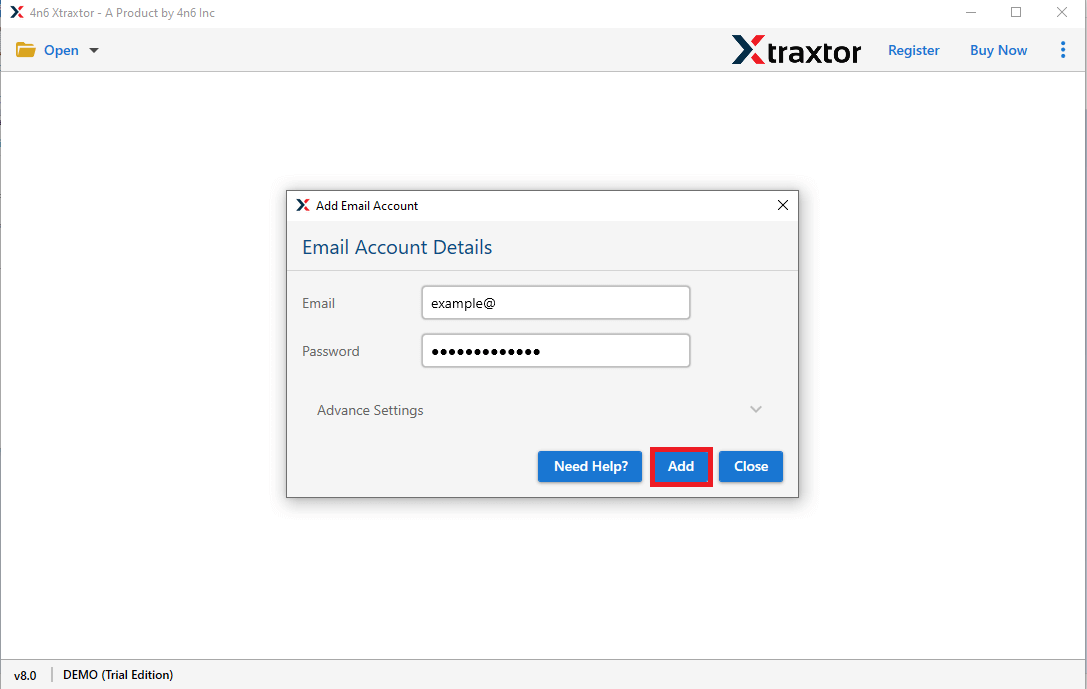
Step 3. Enter your Office 365 login details and add your account.
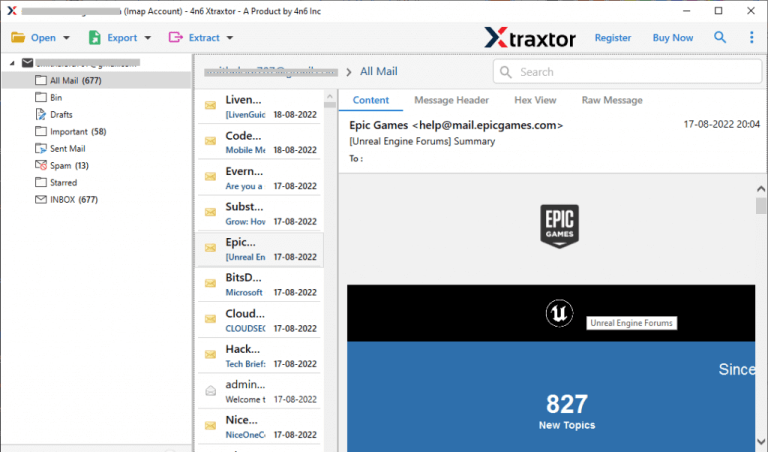
Step 4. After login, you can preview all your mailbox data before starting the process.
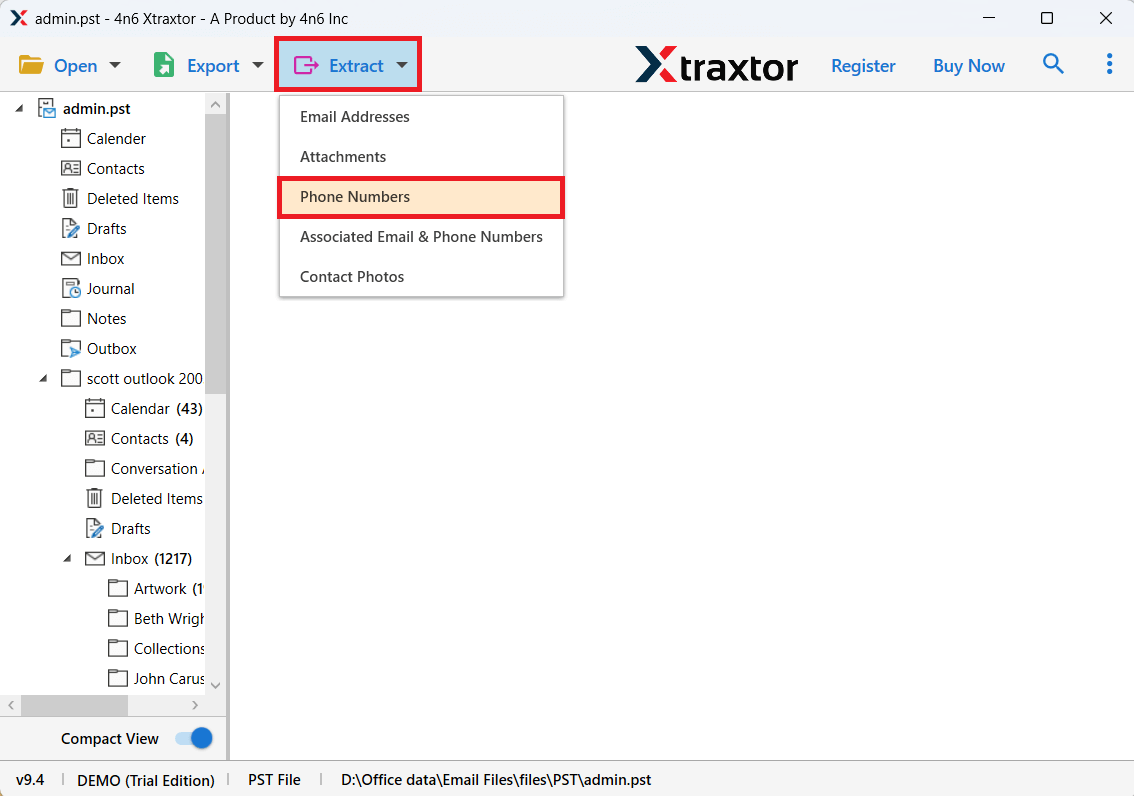
Step 5. Click on Extract and select Phone Numbers option.
Step 6. Choose the email folders from which you want to extract phone numbers.
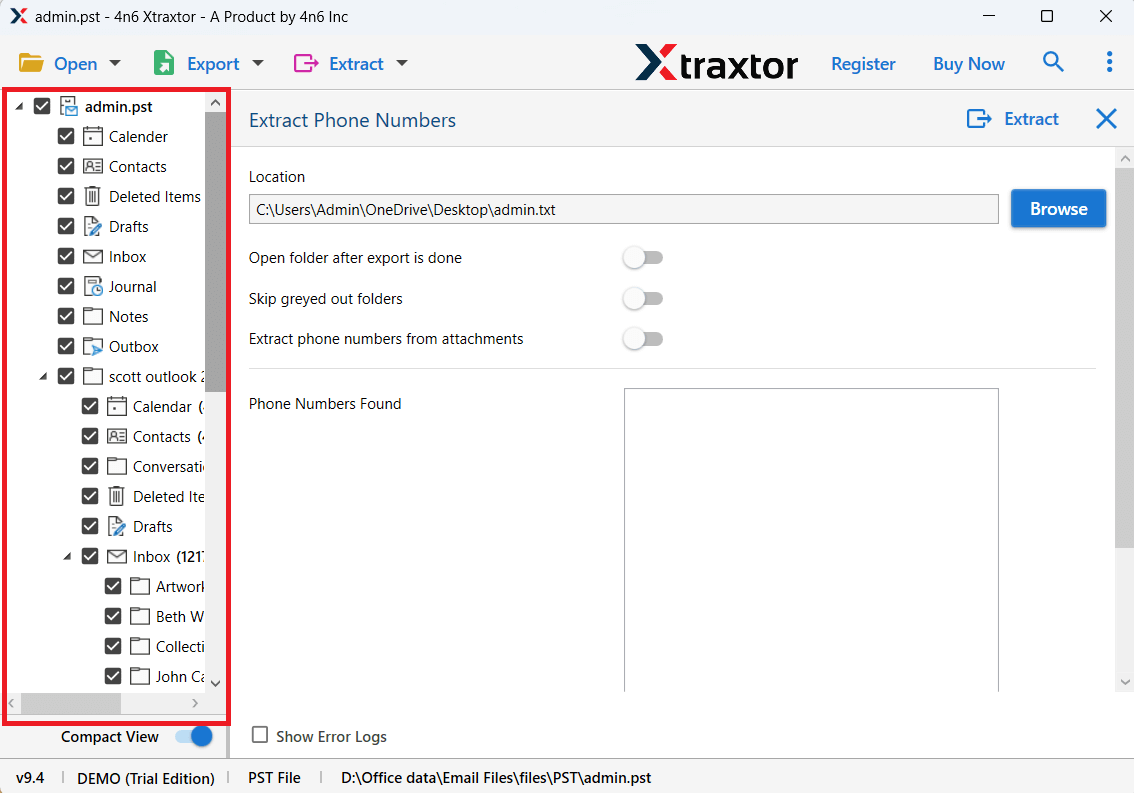
Step 7. Select the destination location & click Extract button to start the process.
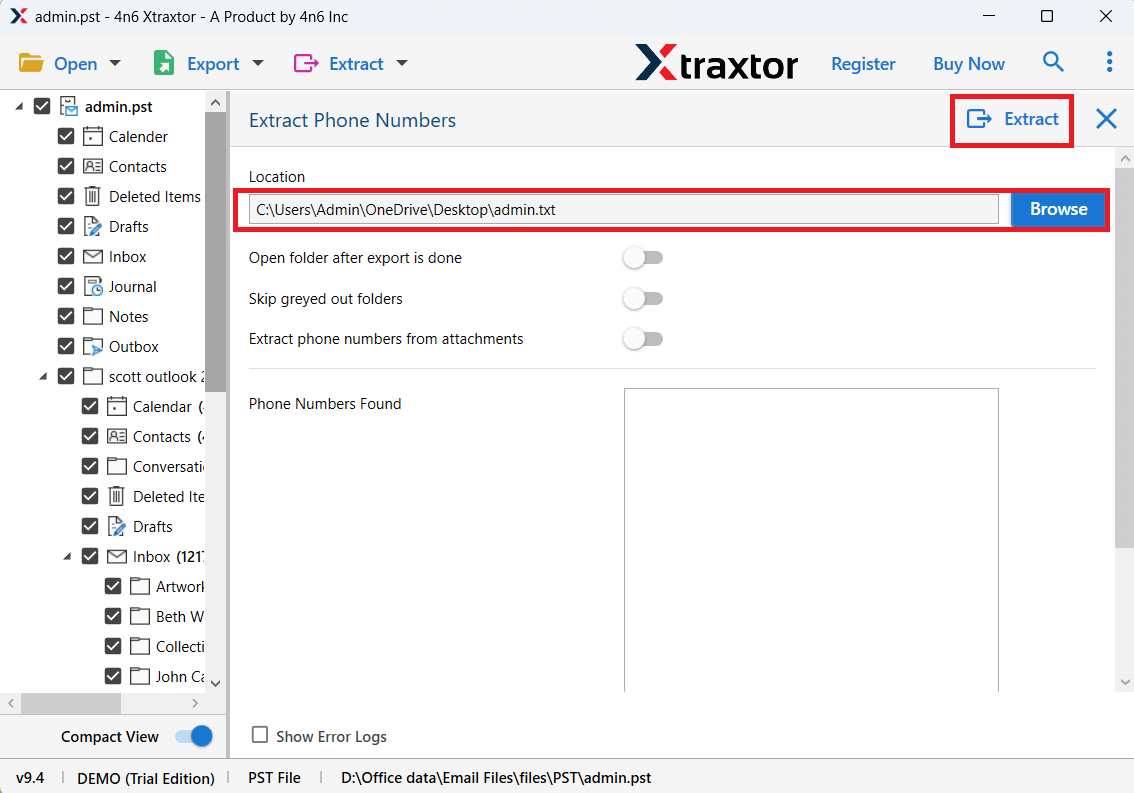
The software will now start extracting phone numbers from your Office 365 emails automatically.
Key Features of the Best Office 365 Phone Numbers Extractor
- Extract phone numbers from complete Office 365 mailbox
- Scan email body and signatures to find contact numbers
- Bulk extraction from multiple emails at once
- Maintain accuracy without missing any data
- Advanced filters to extract specific phone numbers
- Simple and user-friendly interface
- Supports large mailbox data without issues
- Fast and secure extraction process
- No duplicate phone numbers with smart processing
- Option to save extracted data in desired location
- Works on all Windows versions
- No technical skills required to use the tool
Overall Reflection
In this blog, we have explained different methods to extract phone numbers from Office 365, including manual and automated solutions. The manual methods can work for a small number of emails, but they require a lot of time and effort, especially when dealing with large mailbox data.
Based on expert recommendations, using a professional Office 365 Phone Number Extractor is the best choice. It provides accurate results, saves time, and extracts phone numbers from the entire mailbox without missing any data.
