Quick Answer: Yes, you can extract email addresses from Outlook. For a few emails, copy addresses manually; for multiple emails or folders, use VBA or an Outlook email address extractor to export your Outlook email addresses in bulk, remove duplicates, and save the results to Excel.
Outlook is mainly used for sending, receiving and organizing emails, but a mailbox can also include hundreds or thousands of email addresses across various emails and folders. If you ever want to combine list of these addresses, manually doing will be time-consuming.
In this guide, we’ll cover manual, VBA, Excel, and bulk extraction methods so you can choose the approach that best fits the number of Outlook emails you need to process.
What Does “Extract Email Addresses from Outlook” Mean?
Decide what you want to collect before deciding on a method.
An Outlook mailbox may contain addresses in several parts in an email such as:
From, To, CC, Reply-To (if available), Recipient information shown in message headers,
Addresses in email content or attachments that are supported.
For example, let’s say you have 1,000 messages from various customers in your Outlook folder.
You could make a list like this:
customer1@example.com
customer2@example.com
customer3@example.com
customer4@example.com …
Instead of opening each one of the 1,000 messages individually, a bulk extraction method can process the messages and create a consolidated list.
The main difference between copying an address from an Outlook email and extracting email addresses from Outlook in bulk is this.
Method 1: Manually copy Email Addresses from Outlook
If you only want addresses from a few messages, then the easiest way is to copy them manually.
- Open the Outlook application on your system.
- Open the e-mail with the address.
- Expand message header if necessary.
- Look in the From, To, or CC line for the address you need.
- Copy Address.
- Copy and paste into notepad, excel or a document.
Here are the details.
Sender: john@example.com
To: support@domain.com
CC: manager@example.com
You are able to copy the addresses you need and paste into a spreadsheet.
When to apply this approach?
Manual copying is a good option when you want to: 5 addresses, 10 addresses, addresses from a few emails etc.
Method 2: Extract Email Addresses from Outlook using VBA
If you’re comfortable with Outlook macros, VBA can automate the extraction of email addresses.
It’s handy for a customised workflow.
Outlook Folder >>VBA scans messages >> Collect email addresses >> Remove duplicates >> Write results to Excel
Benefits;
- Automate repetitive tasks
- Can be personalised
- Useful for those already familiar with Outlook VBA
- Can output results directly to Excel
Limitations: VBA requires scripting knowledge and maintenance. You might also need to adapt the script to your Outlook version, mailbox structure, message fields and the exact addresses you want to extract.
If you don’t want to create or maintain a macro, a dedicated Outlook email address extractor is a simpler alternative.
Method 3: Use PowerShell to Extract Email Addresses from Outlook
If you are comfortable with PowerShell, you can run a simple script to extract all the email addresses of the senders from your Outlook Inbox and export them to a text file. Then you can open the file and copy the addresses to Excel if you want.
PowerShell Script to Extract Sender Email Addresses
$Outlook = New-Object -ComObject Outlook.Application
$Namespace = $Outlook.GetNamespace(“MAPI”)
$Folder = $Namespace.GetDefaultFolder(6) # Inboxforeach ($Item in $Folder.Items) {
if ($Item.SenderEmailAddress) {
$Item.SenderEmailAddress | Out-File “C:\Emails.txt” -Append
}
}
How it functions;
- Start Outlook with PowerShell.
- Choose your Inbox folder.
- Checks each email against the sender’s email address.
- Saves extracted addresses to C:\Emails.txt.
Note: This example only extracts sender addresses from the Inbox folder. It does not pull addresses from other folders, nor from the To/CC fields.
Classic Outlook and New Outlook
Depending on whether you are using Classic Outlook or New Outlook, the features and interface available to you will be different.
This is important when you are following a tutorial, because a menu that is shown in a Classic Outlook tutorial may not be in the exact same place in New Outlook.
If you only want to extract addresses from existing Outlook emails, then you should know where the messages are stored and what you want to do with them, rather than assuming that all versions of Outlook have the same export options.
If you have a dedicated extraction tool, check the product’s current compatibility information before processing your mailbox.
Method 4: Use an Outlook Email Address Extractor for Bulk Extraction
If you need to extract email addresses from hundreds or thousands of Outlook emails, a dedicated email address extractor can make the process easier. It can load Outlook data, let you select specific folders, scan multiple emails, extract available addresses, remove duplicates, apply filters, and save the results. For example, you can also try Xtraxtor Email Address Extractor which is designed for bulk extraction that can export multiple email addresses from your configured Outlook profile in bulk. Also, it provides helpful features such as folder selection, email preview, filtering etc.

Steps to Extract Email Addresses from Outlook Using Xtraxtor
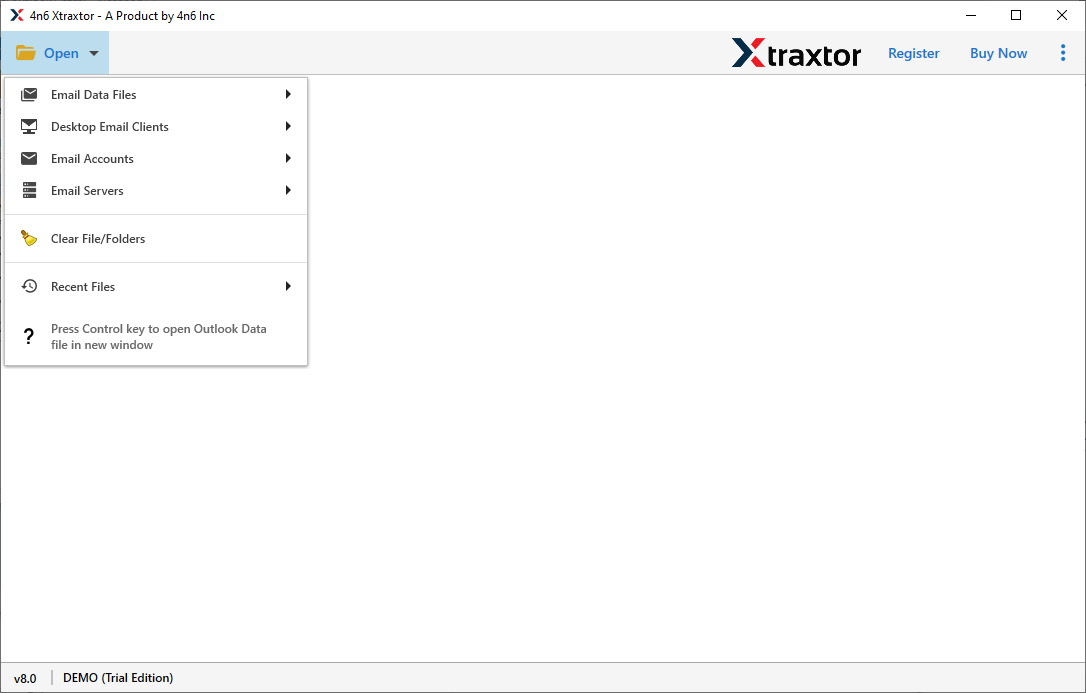
Step 1. Launch this software on your Windows system and click on Open to select the given options.
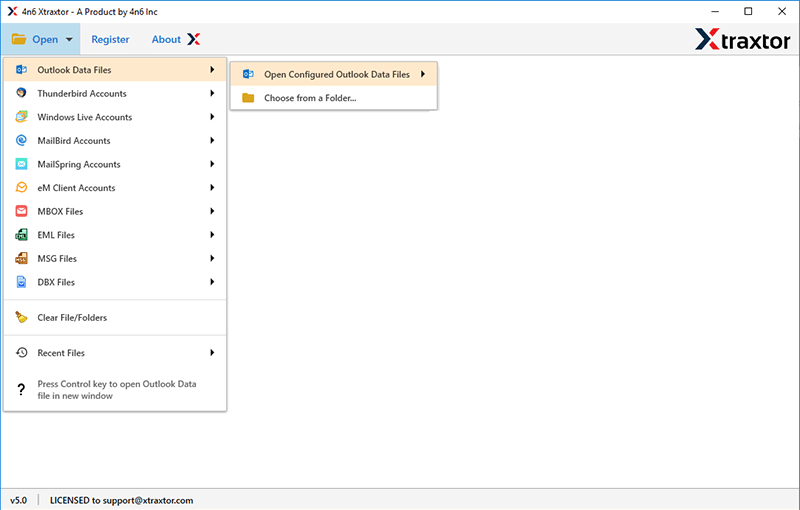
Step 2. Navigate to Desktop Email Clients >> Outlook Data Files >> Open Configured Outlook Data Files.
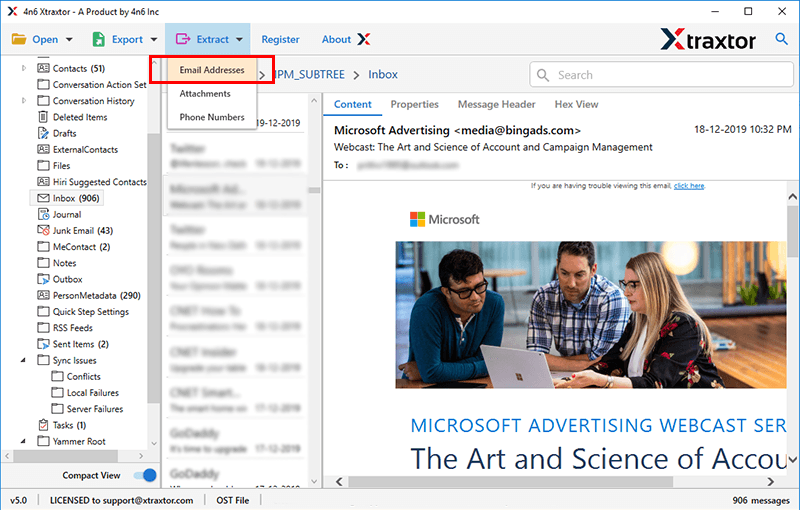
Step 3. Click on the Extract menu and select the Email Addresses option.
Step 4. Finally, click on the Save button to save resultant files.
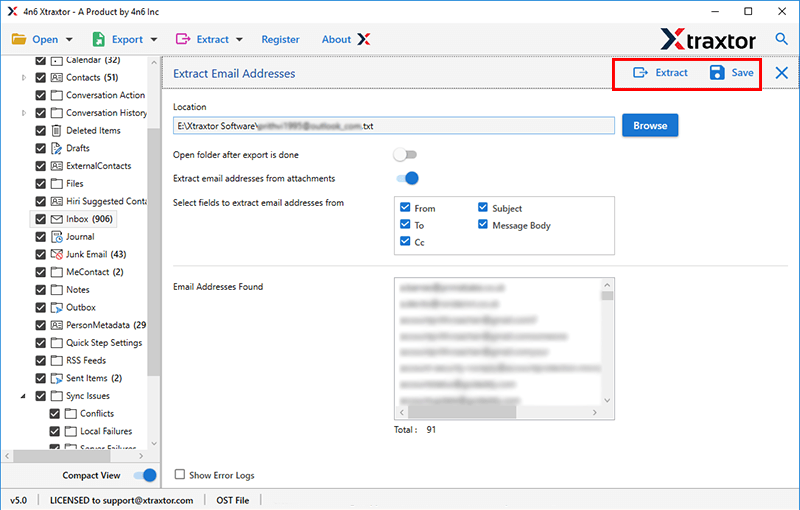
After extraction, review the results and save the final list.
This is particularly useful when you need to extract email addresses from an Outlook folder without opening every message individually.
Benefits of Using an Automated Outlook Email Address Extractor
- Secure and error-free tool without any adds
- Advance filter options – to, from, cc, name, date, etc
- Copy all Outlook email addresses in a text file
- Allow to preview emails with complete data
- Automatically detect Outlook profile from system
- Simple Graphical and user-friendly interface for beginners
- Outlook installation is not required with this tool
- Support Outlook 2024, 2021, 2019, 2016 and all other editions
- Works on all versions of MS Outlook and Windows OS
Which Method Should You Choose? Manual vs. Automated Methods
Here’s a quick comparison:
| Method | Best For | Bulk Extraction | Folder Support | Duplicate Removal | Ease of Use |
|---|---|---|---|---|---|
| Manual Copy | Few addresses | No | Manual | No | Easy |
| VBA | Custom automation | Yes | Yes | Can be automated | Advanced |
| PowerShell | Sender addresses | Yes | Limited | Requires scripting | Advanced |
| Outlook Email Address Extractor | Large mailboxes | Yes | Yes | Yes | Easy |
Final Thoughts
There are a few methods of extracting email addresses from Outlook. The best one will depend mostly on how much data you need to process.
If you only want to do a few messages, the easiest way to copy addresses is by hand. Ans, if you want customised automation, VBA can process Outlook messages as per your requirements.
If you only want to extract addresses from existing Outlook emails, then you should know where the messages are stored and what you want to do with them, rather than assuming that all versions of Outlook have the same export options.