How to Extract Email Addresses from Kerio Mail?

Overview: Looking to extract email addresses from Kerio Mail Server? You’re in the right place. In this guide, we will explain simple and effective ways to export complete email addresses from your Kerio email server. You will learn both manual methods and a professional solution to extract email IDs in bulk or selectively without losing any data.
Kerio Connect (email server platform) is widely used by small and medium-sized businesses for managing emails, calendars, and contacts in one place. It provides a secure and reliable environment for daily communication and collaboration.
Often, business users, IT admins, and marketing teams need to extract email addresses from Kerio Server for purposes like email marketing campaigns, contact backup, data migration, or CRM integration.
Although it is possible to extract email addresses manually, users often face difficulties due to limited export options, technical configurations and the absence of a direct feature to extract all email addresses from emails. This makes the process time-consuming and confusing especially for large mailboxes.
But no need to worry! In this guide, we will explain why extracting email addresses from Kerio Server is important and how you can do it using different methods.
Why Extract Email Addresses from Kerio Mail Server?
Extracting email addresses from Kerio Connect Server can be useful for many personal and business needs. Here are some common reasons:
- Create a backup list of all email contacts
- Use email IDs for marketing campaigns and newsletters
- Import contacts into CRM tools or other platforms
- Analyze communication data for business insights
- Maintain a centralized contact database
- Perform audits or compliance checks
Nowadays, businesses rely heavily on structured email data for automation, analytics, and outreach. Having a complete and fair email list improves productivity and communication.
Top 2 Methods to Export Email Addresses from Kerio Connect Server
Now, let’s move to the methods or options available to solve your query. There are mainly two ways to export email addresses from Kerio Server, which we have found while exploring various possible methods.
Manual Methods (Free but limited)
Automated Tool (Fast and accurate)
Let’s explore both options.
Method 1. Extract Email Addresses Using Kerio Webmail
Kerio Webmail allows users to export saved contacts easily.
Follow the steps to get your email addresses from Kerio server easily;
- Log in to your Kerio Webmail account
- Go to the Contacts section
- Select the contacts you want to export
- Click on More Options / Export
- Choose format (CSV or vCard)
- Save the file to your system
Note: This method works well if your email addresses are already saved in contacts.
Method 2: Extract Email Addresses via Email Client
You can configure your Kerio account in email clients like:
- Microsoft Outlook
- Mozilla Thunderbird
Steps:
- Configure your Kerio account using IMAP
- Sync all mailbox folders
- Use the Export/Import option
- Export data in CSV or PST format
- Extract email fields like From, To, CC
Limitations of Manual Methods
Manual approaches are useful but come with several drawbacks:
- Cannot extract email addresses from all emails (only contacts)
- No option for bulk extraction from multiple accounts
- Time-consuming for large mailboxes
- Requires technical setup (IMAP, configuration)
- No advanced filters for selective extraction
- Risk of missing important email addresses
How to Get Email Addresses from Kerio Mailbox Professionally?
Now, try Xtraxtor software to extract email addresses from Kerio Mail server. The tool keeps all data safe and accurate during the extraction process. It allows you to extract all email addresses from Kerio Mail in one go without missing any details. It also offers smart filter options like to, from, cc, bcc, date, and subject, so you can extract only the email addresses you need. The user-friendly interface makes it easy for both beginners and professionals to use without any technical knowledge.
You can also try the free demo version to check its features and performance before using it fully.

Steps to Extract Email Addresses from Kerio Mail
Step 1. Run the software on your Windows system.
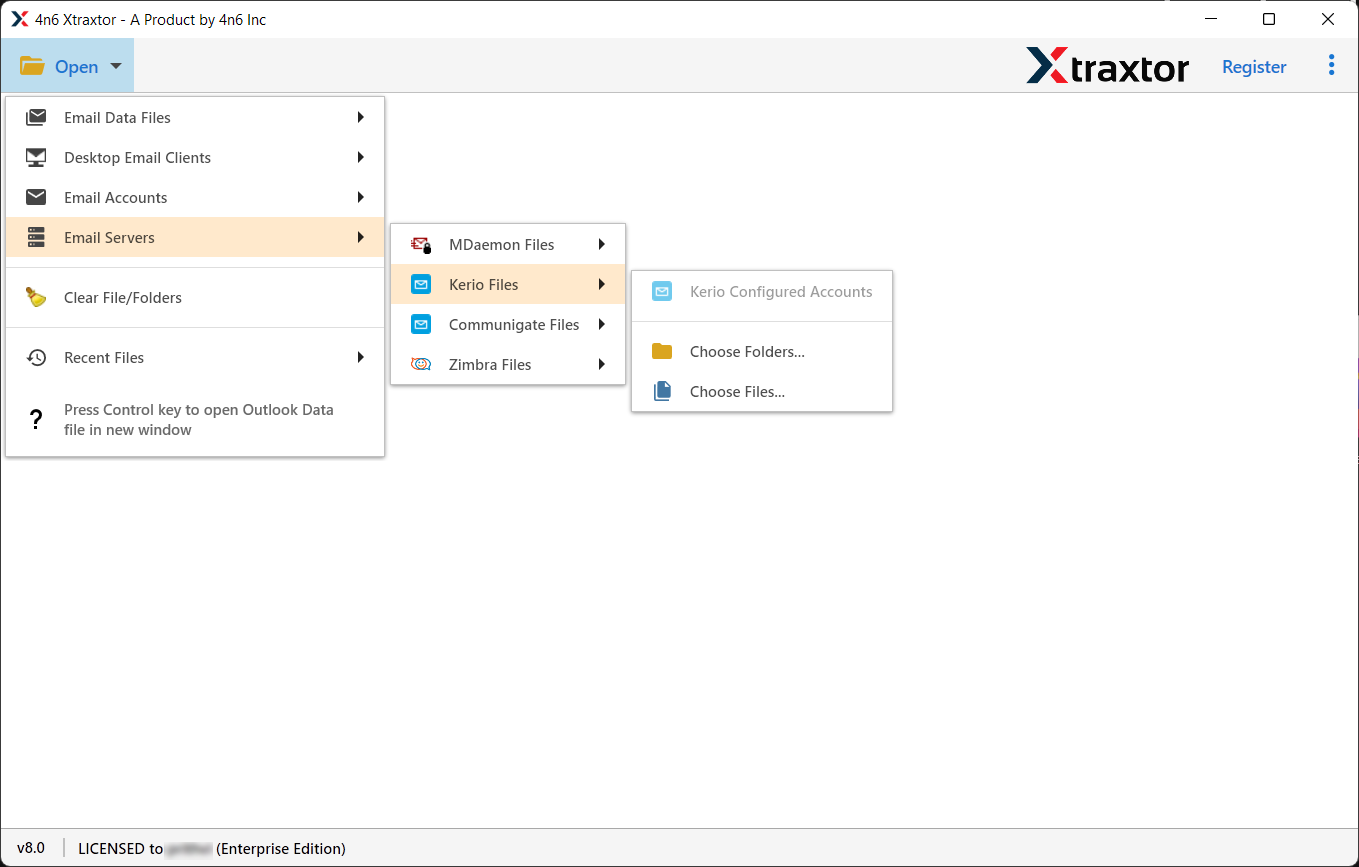
Step 2. Click on Open >> Kerio Files >> Choose Files to add your Kerio mailbox data.
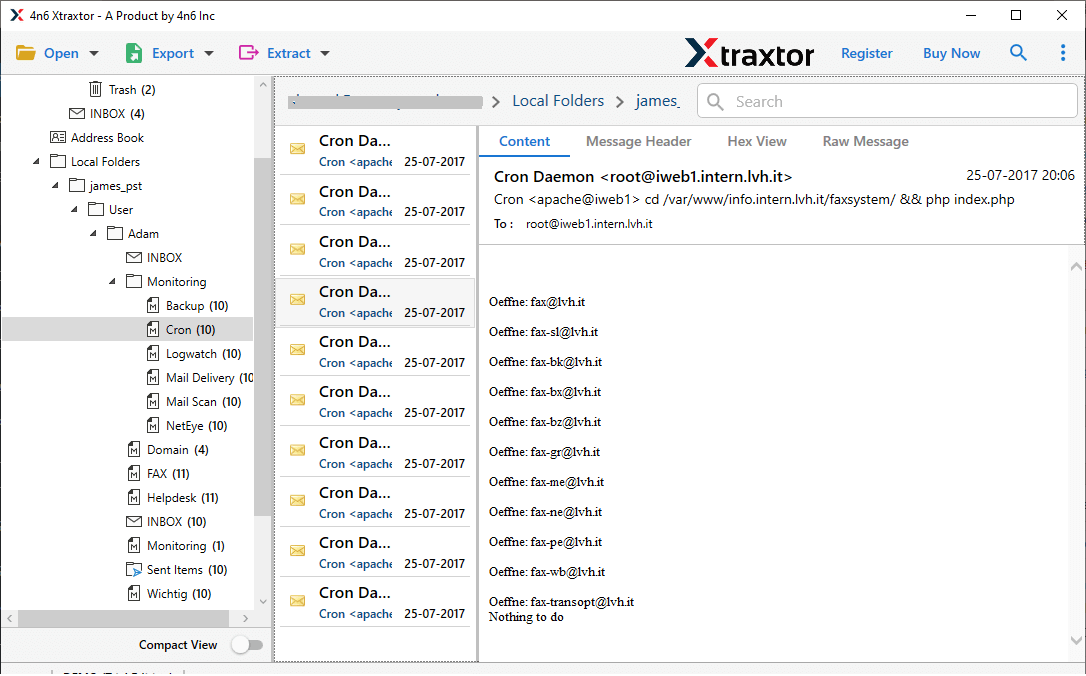
Step 3. The tool will automatically load and preview all emails on the screen.
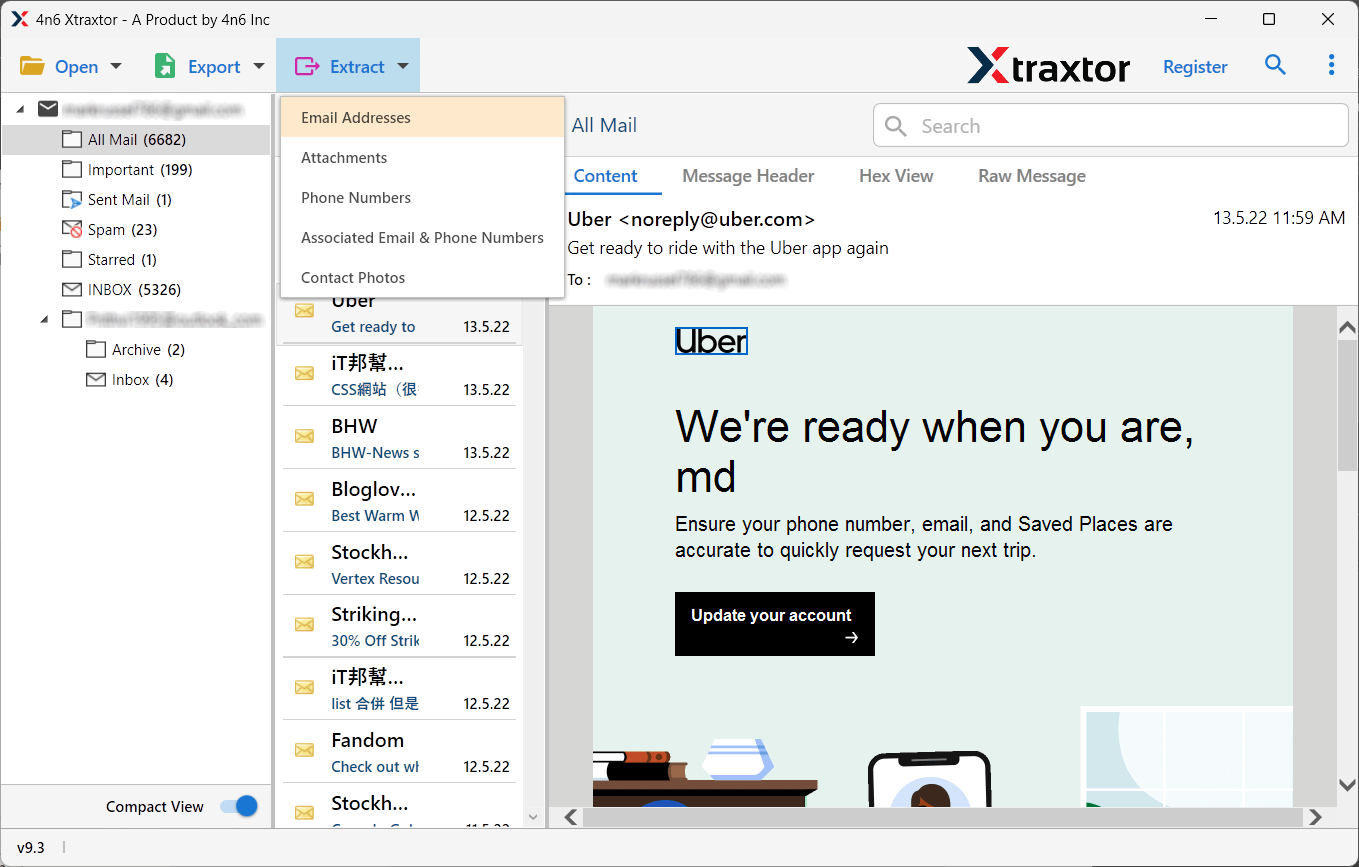
Step 4. Now, click on Extract >> Email Addresses from the given options.
Step 5. Select the email folders from which you want to extract email addresses.
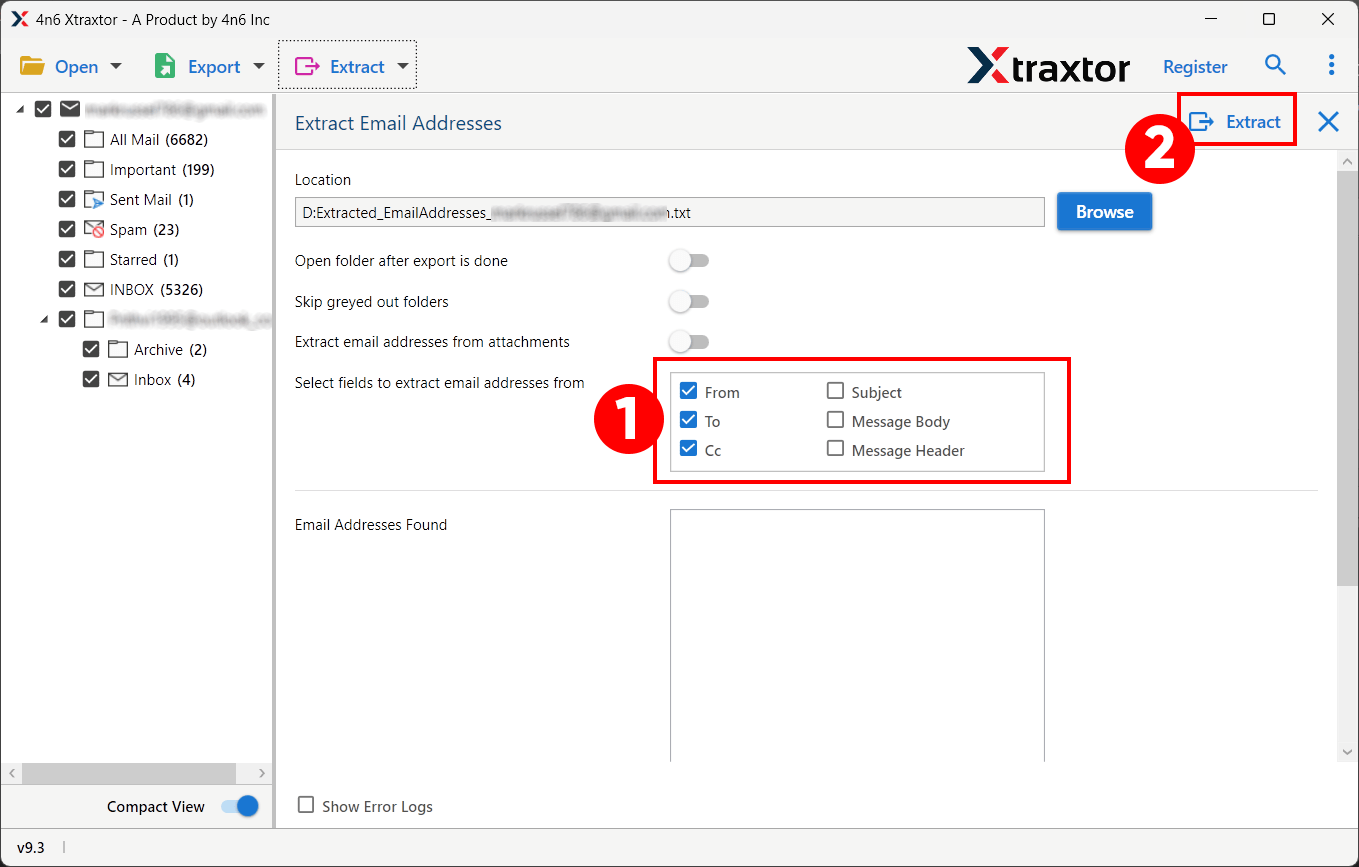
Step 6. Choose the destination location & click on the Save button to start.
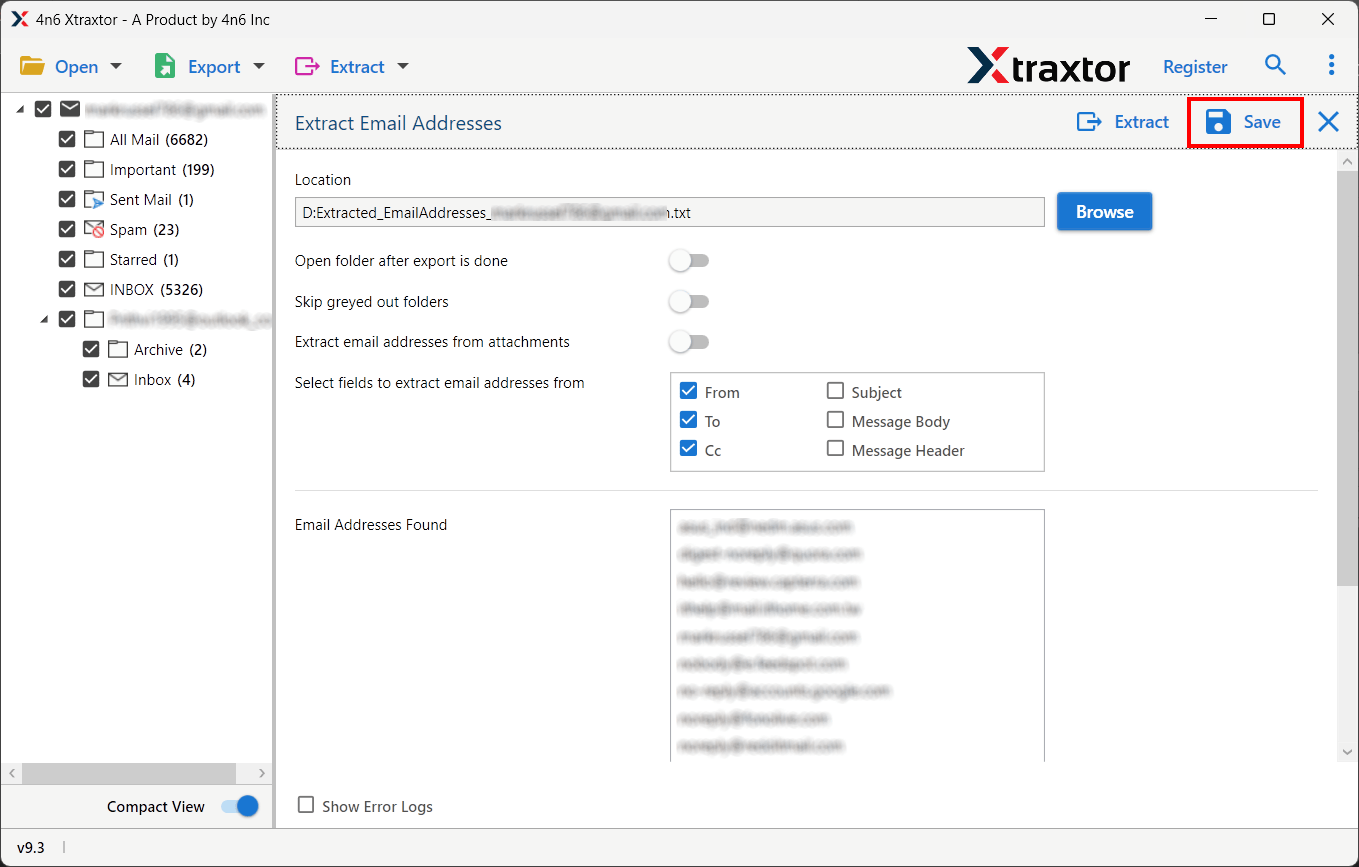
Done! All email addresses will be extracted and saved in a simple text file.
You can easily copy them and use them in Excel or any other application.
Now, check some helpful features of using this software to extract email addresses.
- Extract email addresses from multiple Kerio accounts in bulk
- Export email addresses from Inbox, Sent, Drafts, etc.
- Advanced filters (date, subject, sender, keywords)
- Export email addresses into CSV/Excel format
- Maintain complete email data integrity and accuracy
- Works with large mailboxes and multiple emails
- Simple interface for both technical and non-technical users
- Secure login using modern authentication for no data loss
Final Words
We are ending this blog with the hope that you now clearly understand how to extract email addresses from Kerio Mail using both manual and professional methods. While manual ways work for small data, they can be time-consuming and limited. For quick, accurate, and bulk extraction, using a reliable tool is a better choice. It saves time, reduces effort, and ensures you get all required email addresses without any hassle.
