How to Extract Attachments from Webmail?

This blog explains how you can extract attachments from webmail account. It provides a complete, step-by-step guide to export your Webmail email attachments easily. Managing emails with large attachments can be difficult, so this guide covers all available methods to help you solve this problem in a simple and effective way.
Why Do Users Need to Extract Attachments from Webmail?
Many users face common problems while managing email attachments in webmail. Some of the main reasons are:
- Your webmail does not allow downloading bulk attachments
- Manual downloading takes a lot of time
- Large attachments fill the mailbox storage
- Difficult to organize files by type or date
- Risk of missing important attachments
Extracting attachments helps you save storage, organize data, and keep backups safely on your system.
Methods to Download Attachments from Webmail Account
There are two main ways to download attachments from webmail account. The first method is manual, where you can export attachments one by one directly from the webmail interface. This method is suitable only when you have a small number of emails.
The second method is an automated solution that uses a professional tool to extract all attachments in bulk. This option is recommended for users with large mailboxes or for business emails.
In the following sections, we will explain both methods in detail so you can choose the best one based on your needs.
How to Extract Attachments from Webmail? (Free Method)
To save your Webmail email attachments in a cost-effective manner and without using any third-party tool, you can use the Outlook email client.
Follow the steps below:
- Log in to your webmail account.
- Open the email that contains the attachment.
- Click on the attachment file.
- Choose the Download option.
- Save it to your computer.
Repeat these steps for every email.
Limitations of the Manual Method
- No option to download attachments in bulk
- Very slow for large mailboxes
- High chance of missing files
- Not suitable for business users
Note: Best only for personal or one-time use.
How to Export All Attachments from Webmail Automatically?
As you can see, manual methods are only for extracting attachments from Webmail emails. In such cases, professionals recommend using Xtraxtor Email Attachment Extrator. It is an advanced tool with a simple GUI that allows you to extract all attachments from your email account in bulk, even without putting much effort. Also, it will preserve all your email attachment data efficiently.
Click the free download button to explore all working steps.

Steps to Extract Attachments from Webmail Account
Step 1. Install and open the Xtraxtor software on your system.
Step 2. Next, click on Open tab >> Email Accounts >> Add Account.
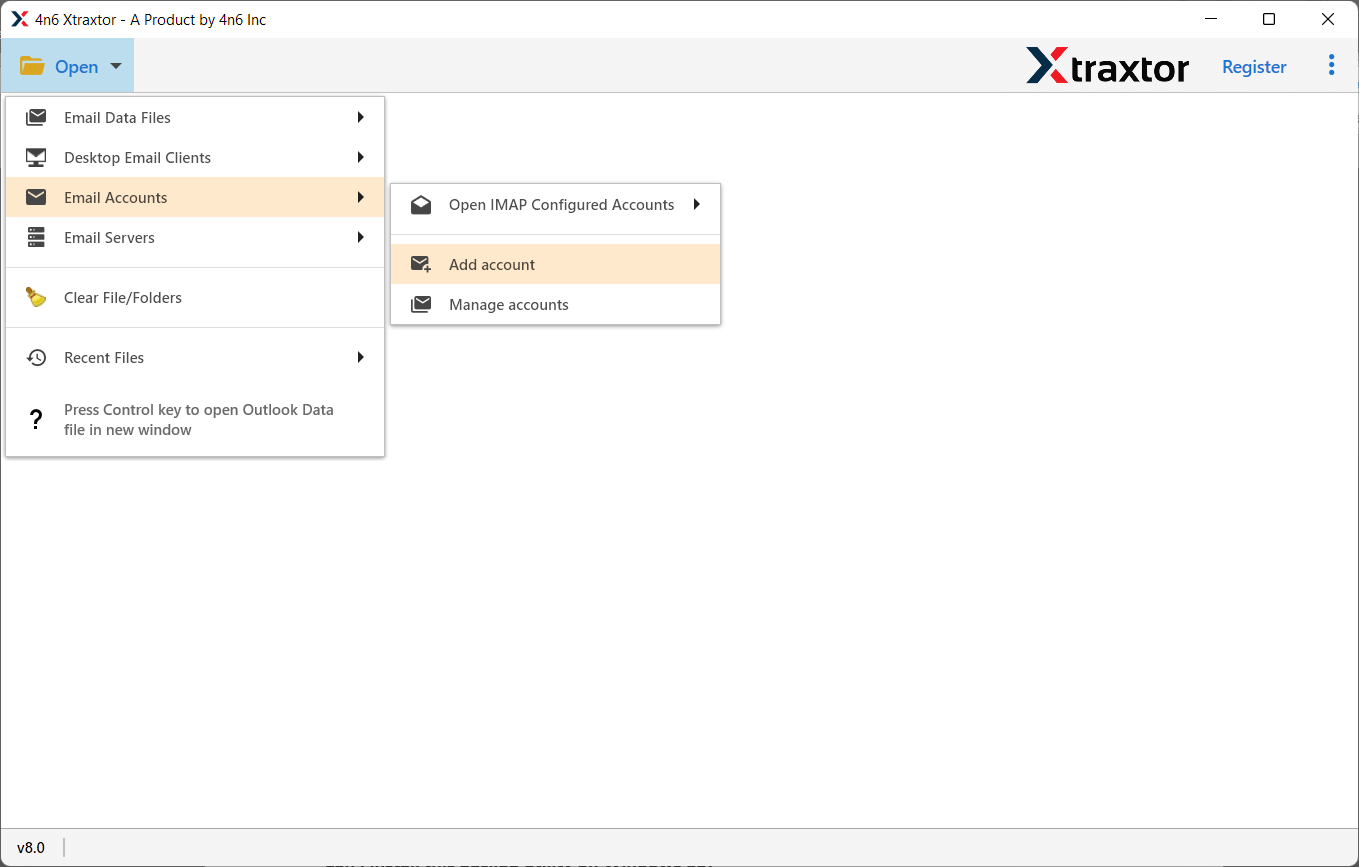
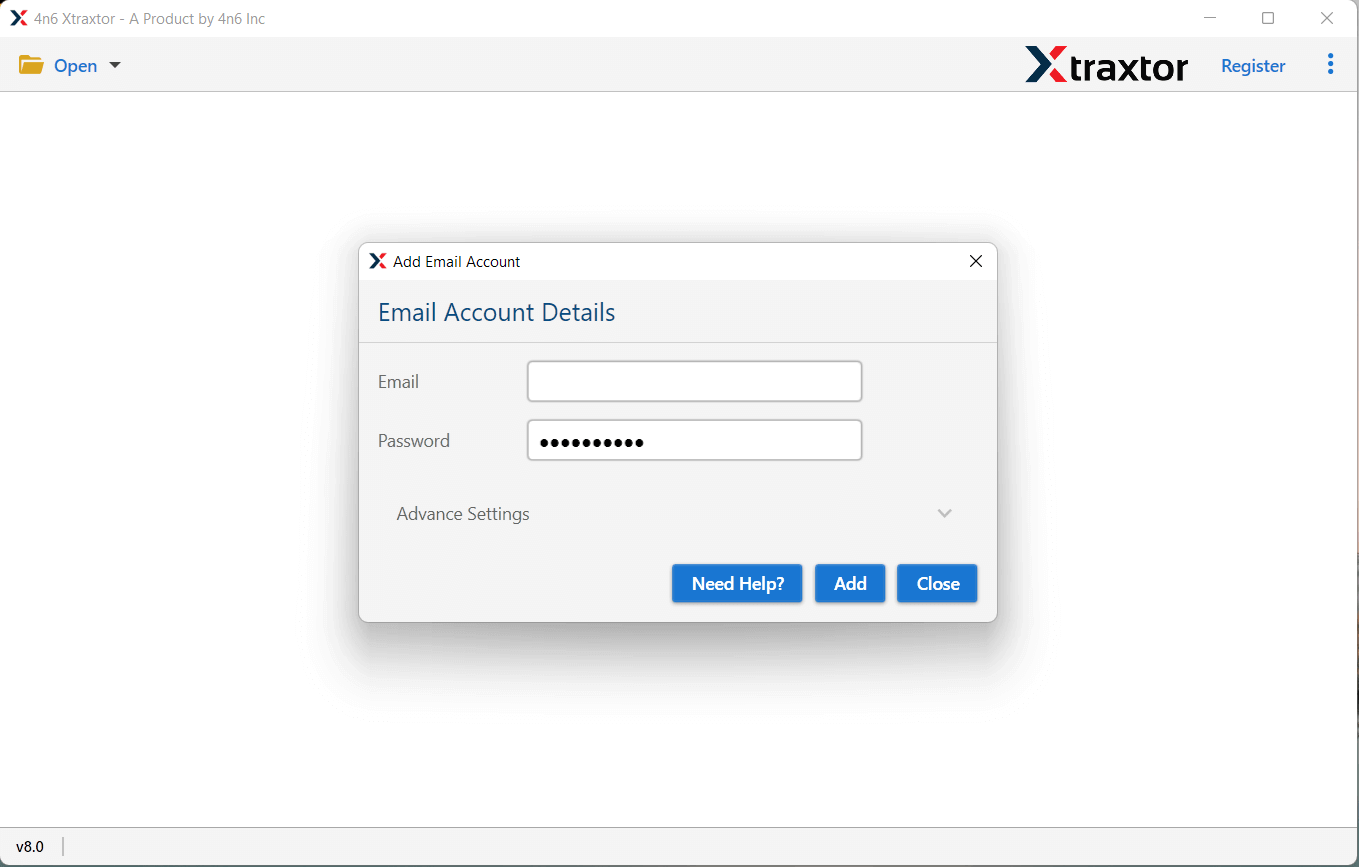
Step 3. Enter your webmail login details & click the Add button.
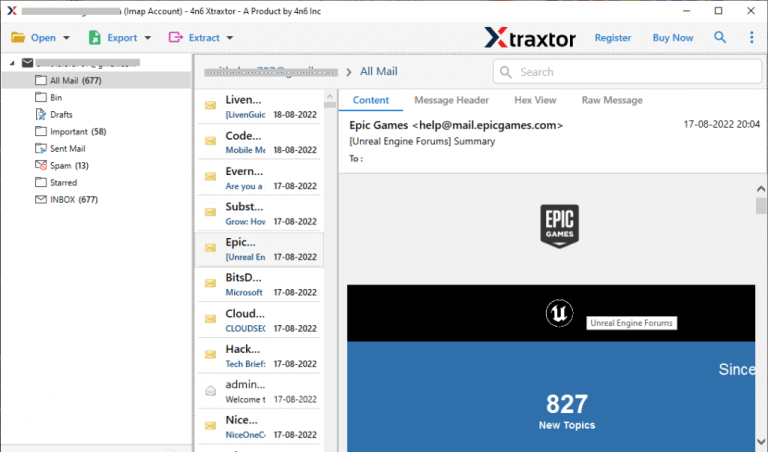
Step 4. Here, see a preview of the emails in your Webmail account.
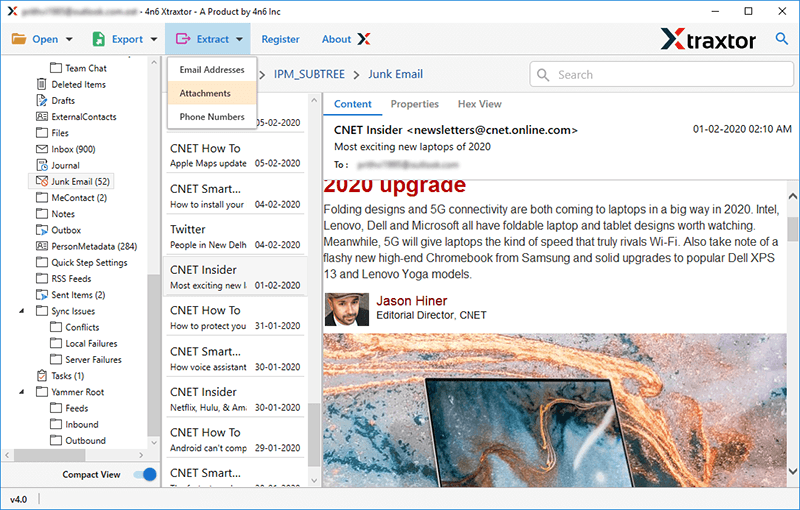
Step 5. After that, click Export and choose the Attachment option from the list.
Step 6. Select the email folders from which you want to extract emails.
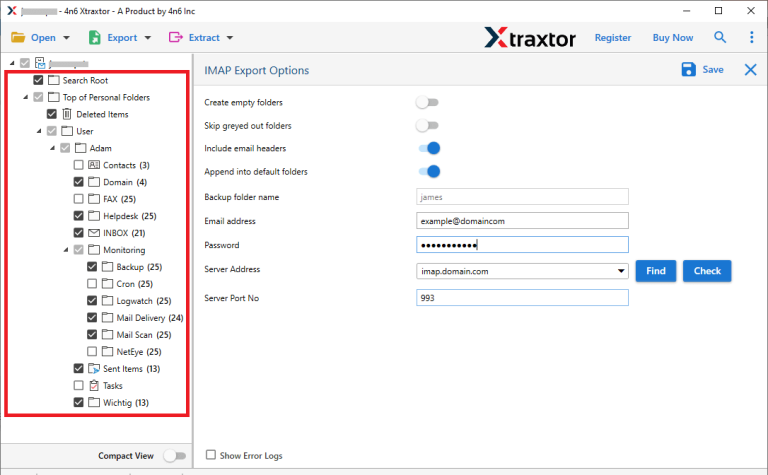
Step 7. Choose a location on your computer & click the save button.
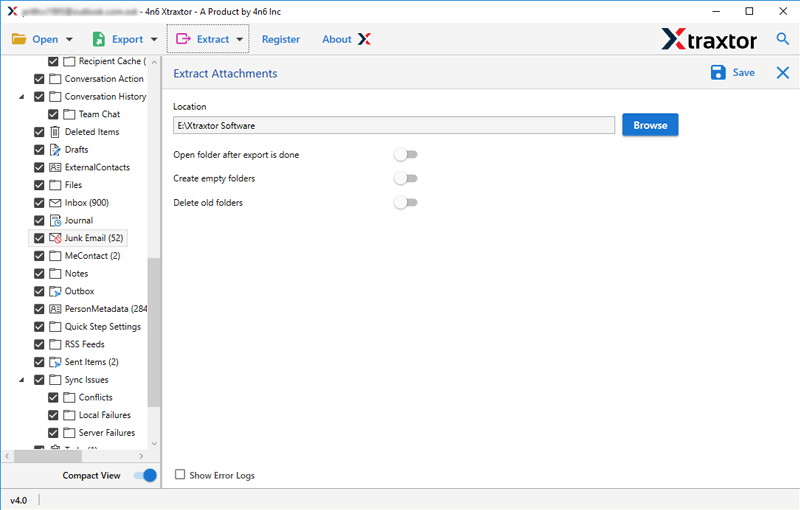
Once the process is complete, you will be redirected to your chosen location where your email attachments are exported.
Final Thoughts
So, we are done with providing the best ways to extract attachments from Webmail account. While there is a manual way and an automated solution as well, choosing the right method totally depends on users’ needs and requirements. If you have a few emails, then you can choose a manual method. However, if you have multiple emails from which you want to export attachments, then using an automated tool is suggested only.
