
If you’re searching for how to extract attachments from Gmail to your computer or desktop, you’re not alone. Many users struggle with downloading attachments, especially in bulk from their Gmail account. Still, they don’t get a right method as per their need and repeated manual effort can make the process frustrating.
So, in this guide, you’ll learn simple, fast and practical ways to download all attachments from Gmail. No matter, you want to download a few files or thousands of attachments at once. We’ll cover both manual and advanced approaches so you can choose what works best for your situation.
What You’ll Learn in This Guide:
- How to save attachments from Gmail to desktop (step-by-step)
- How to download multiple attachments from Gmail in bulk
- Common problems and how to fix them
- Best method for large-scale attachment extraction
Why Users Need to Extract Attachments from Gmail Emails
Attachments are often more important than emails themselves. Here’s why users frequently download them:
- Work & business use: invoices, reports, contracts, client files
- Backup purpose: To avoid losing important documents
- Offline access: open files without internet
- Faster file sharing: reuse downloaded files easily
- Storage management: reduce Gmail space usage
- Legal & compliance needs: keep records safe
Note: With increasing data usage, many professionals prefer local storage or cloud backup copies of attachments for better control.
Method 1: How to Save Attachments from Gmail to Desktop (Manual Way)
This is the most basic method if you only need a few attachments.
Steps:
- First of all, log in to your Gmail account.
- Now, open the email that contains attachments.
- After that, scroll down to the attachment section.
- Click the Download icon on each file.
The file will be saved to your Downloads folder.
Limitations of the Manual Method:
- You must download one attachment at a time
- Not suitable for hundreds or thousands of emails
- No option to download attachments in bulk
- Time-consuming and repetitive
- Difficult to organize files later
This method is fine for occasional use, but not practical for large data.
How to Download Attachments from Multiple Emails Gmail Automatically?
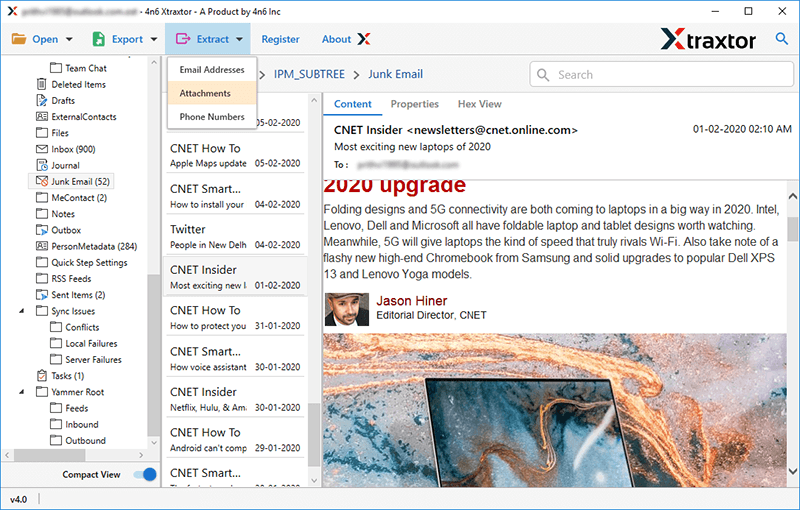
Xtraxtor is an easy and safe approach to download attachments from Gmail emails at once. Most importantly, while bulk extracting, there will be no data loss. All you need to do is add your Gmail account, then click on the extract option and choose attachments. After that, the tool will start extracting all your Gmail email attachments in a single text file. Moreover, if you want to save attachments from a specific email folder, then you can select them and extract them only.
You can use the demo version of the tool on your Windows and learn its working process.


Steps to Extract Attachments from Gmail Account
1. Run the suggested software on your system.
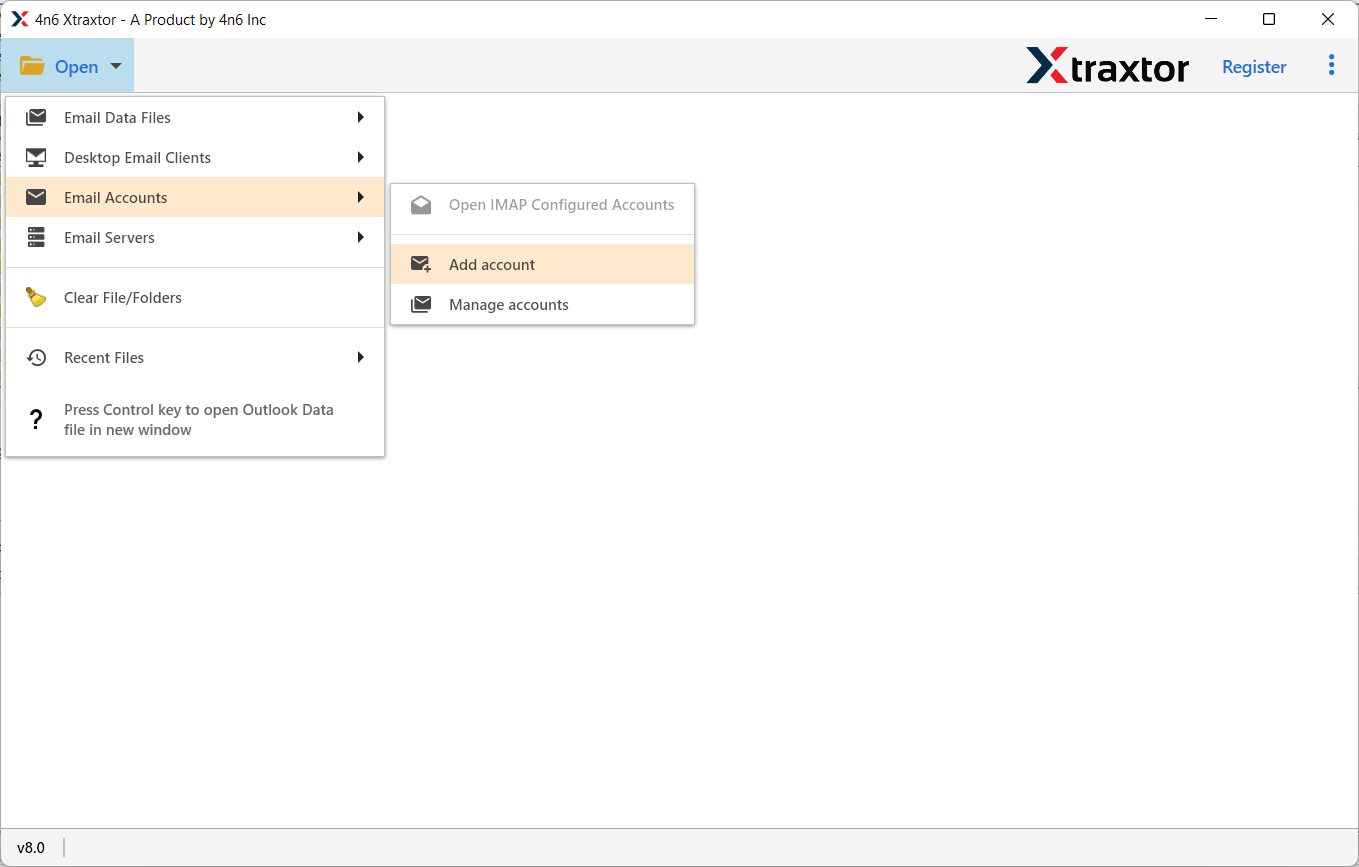
2. Click on Open >> Email Accounts >> Add Account.
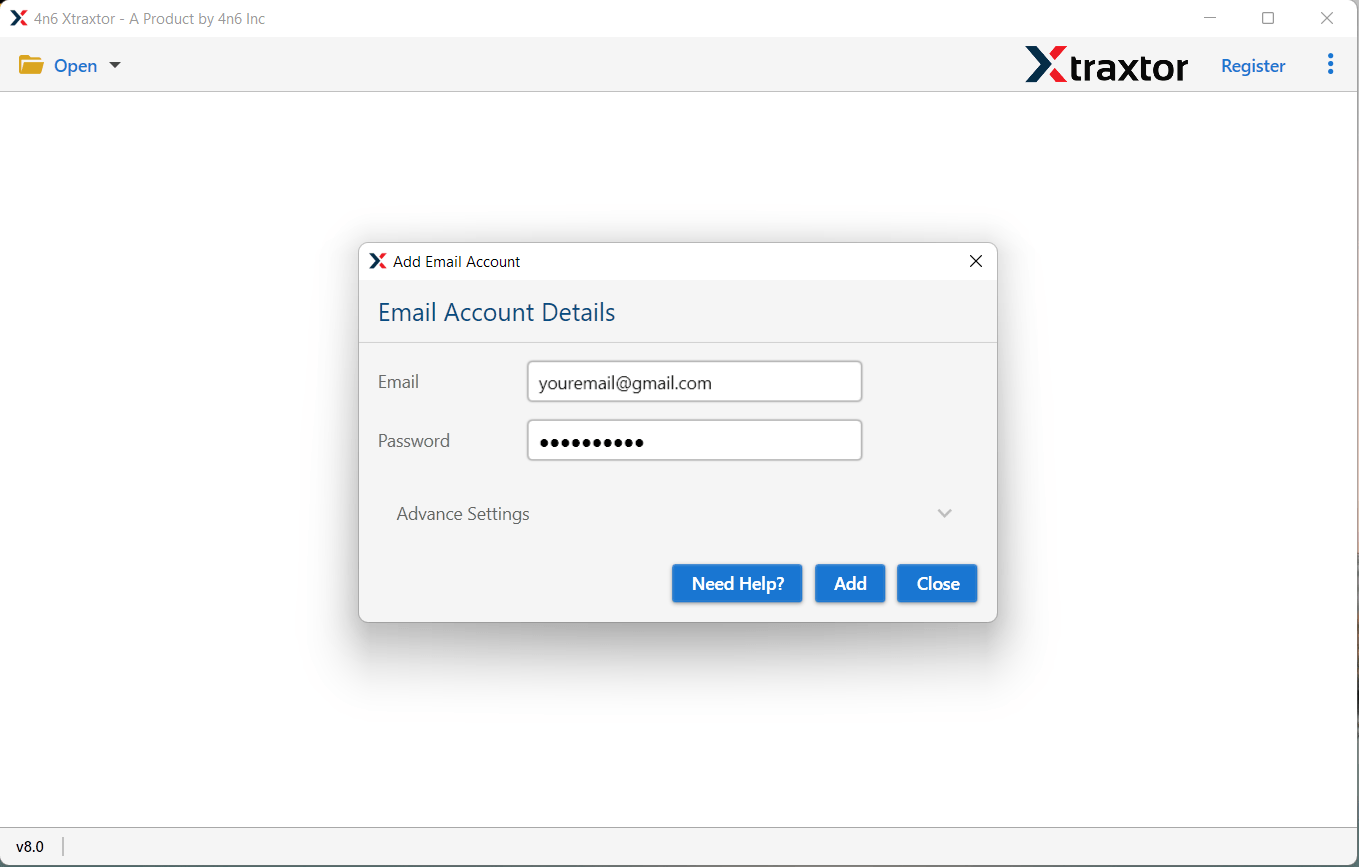
3. Enter your Gmail login details and hit the Add button.
4. Click on Extract >> Attachments.
5. Select the email folders to extract attachments.
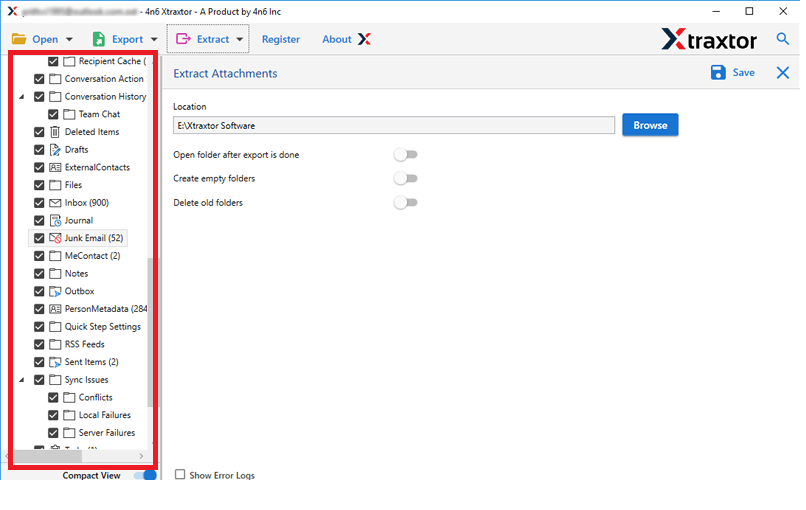
6. Browse the targeted location and hit the Save button.
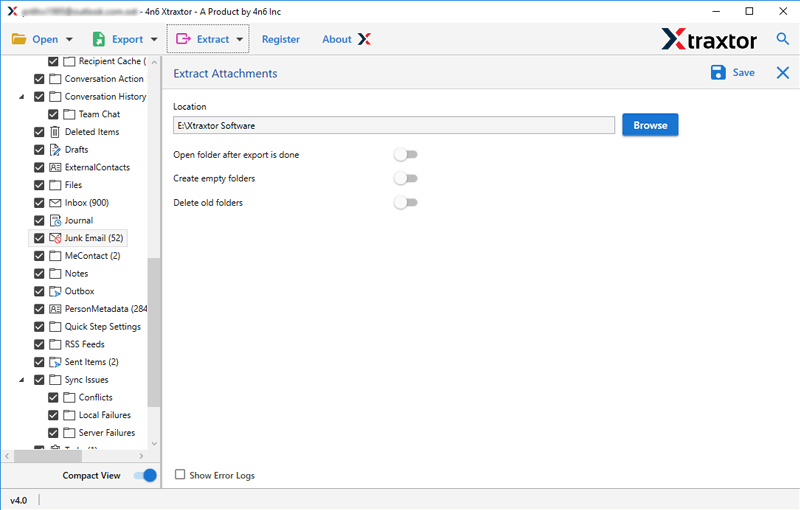
Done! Here, complete the Gmail email attachment extraction process.
Advanced Features That Make Bulk Extraction Easy
- Download attachments based on date, sender, receiver, subject, or keywords
- Maintains exact file format, size, and structure without any changes
- Saves attachments in a well-organized folder structure for easy access
- View emails and attachments before downloading to ensure accuracy
- Works with Gmail, Office 365, Yahoo Mail, Zoho Mail, and more
- Easily handle large mailboxes and heavy attachments without issues
- Quickly extracts attachments even from large datasets (GBs of data)
- Choose specific Gmail folders (Inbox, Sent, Labels) to extract attachments
- No need for additional software or email client installation
- Supports modern authentication (App Password) for safe account access
- Choose your preferred destination path like desktop, external drive, etc.
- Keeps important details like date, subject, sender info intact
- Simple design suitable for both beginners and professionals
- Test features and performance before purchasing the full version
Conclusion
Here, we have completed all the possible methods that are available to extract attachments from Gmail account. You can first check all the explained methods and select the best one. However, as per our suggestion, the manual approach works for small tasks, but it becomes difficult when dealing with large amounts of data.
If your goal is to download multiple attachments quickly, safely, and without errors, using a smarter bulk method is the best option. Start with a method that fits your needs, and if you’re handling large amounts of email data, always go for a faster and more reliable solution.
