How to Export Zoho Mail to PST: Complete Guide

User Query: It’s been years since I have been using Zoho Mail account. Now, I want to export Zoho Mail to PST without losing my data. Do you know any way to perform this task securely?
If you are also searching for a secure and reliable way to export Zoho Mail to PST, like the above user, then you are at the right place. Here, in this blog, you will come across two of the most effective approaches, including the traditional ones and a professional approach. Along with that, you will also get tips to decide which methods work well in different situations so that you can choose as per your needs.
Exporting emails from Zoho Mail to PST lets users securely store data locally and access it offline via Outlook. It provides better control over your data as you can protect it against data loss.
Now, we will explore the two most reliable solutions to export Zoho Mail to PST. However, the choice of solution is up to you only. You can choose either of the methods as per your needs and requirements. First of all, go through each solution, analyze it, and then decide further.
How to Export Zoho Mail to PST for Free?
To export Zoho Mail to PST file format, we are using Outlook directly. Follow these instructions:
- Open your “Outlook” application on your Windows.
- Configure your “Zoho Email” account in Outlook.
- Navigate to, “File” option in Outlook.
- Click on the “import/export” option.
- Select the option “Export to a file” click on “Next“.
- Choose the option in the Outlook Data File (.pst) and click “Next“.
- Select the folder that you want.
- Finally, click on “the Finish” Button to start the export.
After that, your emails will be exported into PST. This method has some limitations are given below:
- This process is time-consuming for bulk files.
- It has a high risk of email corruption.
- You can only export 2 GB.
- The email attachment will also be lost.
- File structure will be disturbed during export.
- The process is technical and not useful for non-tech users.
- If the Zoho mailbox size is big, so unable to export.
These are a few limitations of this method. If you are not able to export Zoho Mail to PST with this method, then you can try the next method.
How to Convert Zoho Emails to PST File Professionally?
If the manual method won’t work, you can try Xtraxtor. This software is specially made to export Zoho Mail seamlessly. Its user interface makes it easy to use for tech and non-tech users. Using this software, you can convert your complete Zoho mails from the email account to PST folder at once. Additionally, you can also export selected emails as per your needs.
Click the “FREE Download” button and see how it works.

Steps to Export Zoho Mail to PST Format
- Open the Xtraxtor software on your Windows PC.
- Click the “Open” button to select the account option.
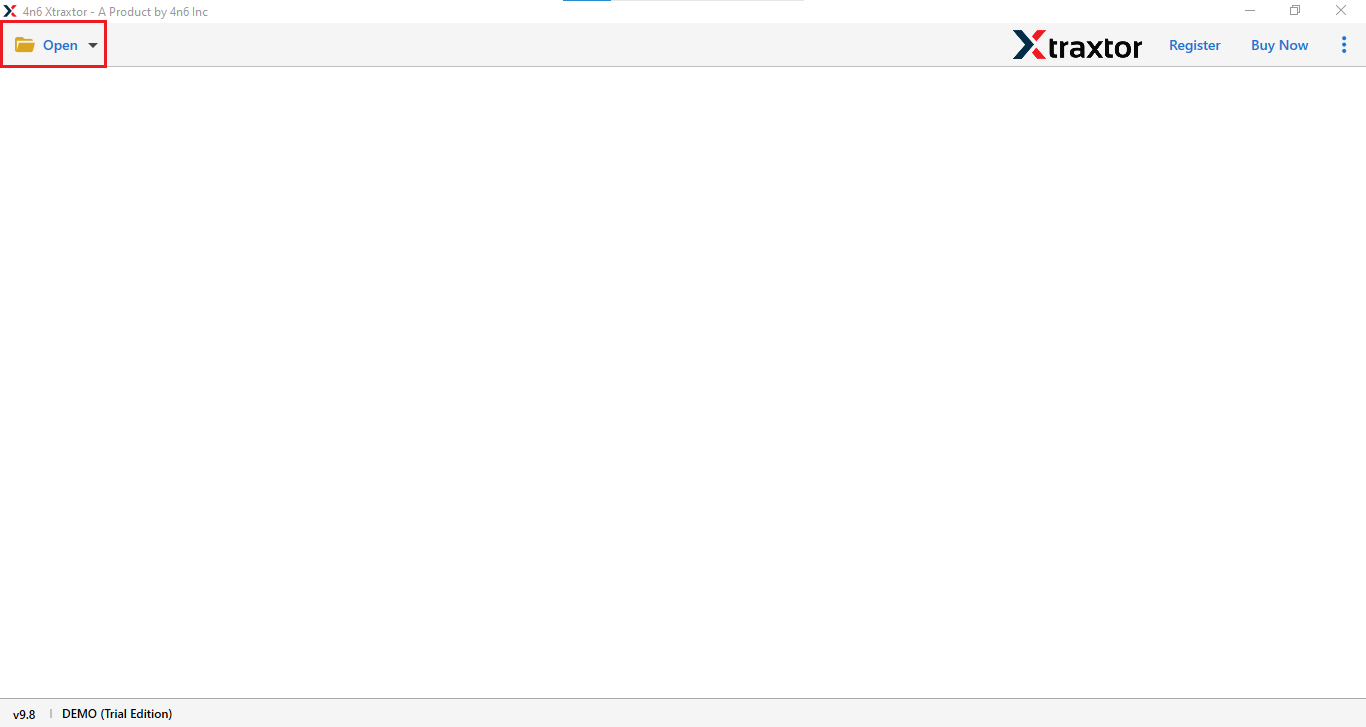
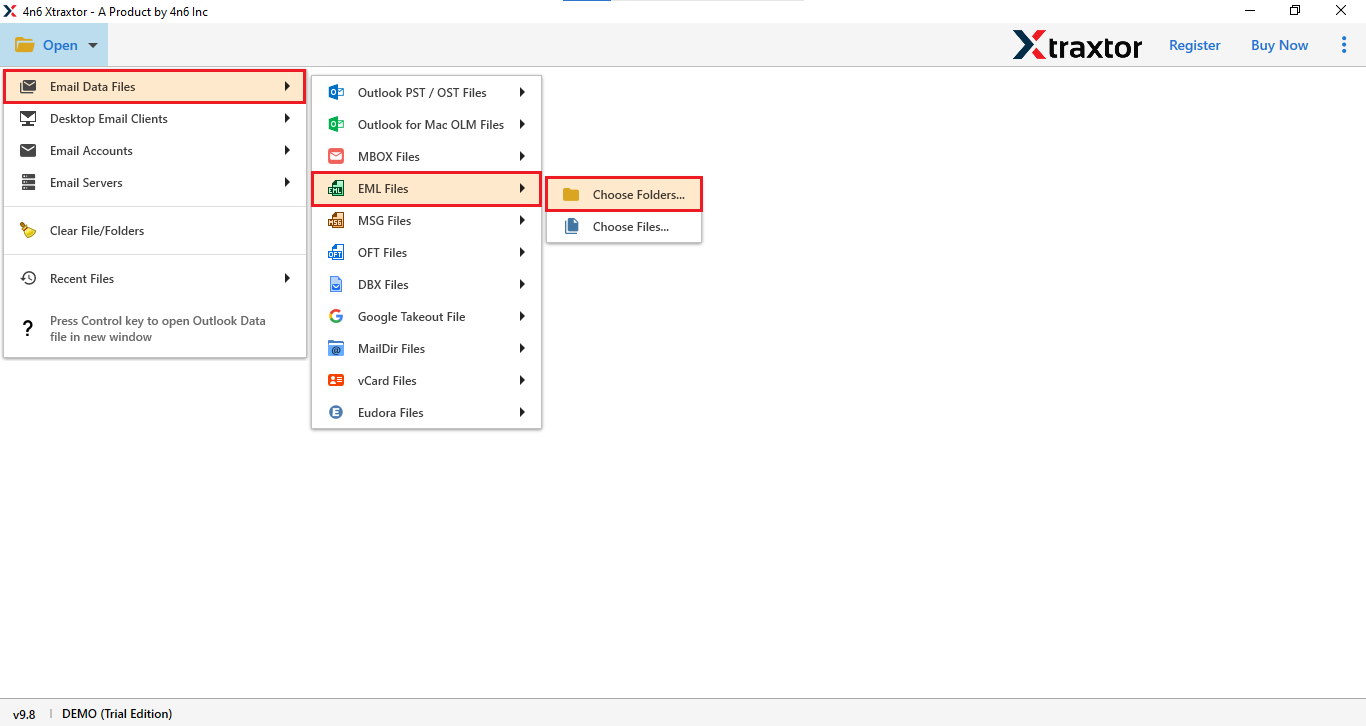
- Go to Email Data File> EML Files> Choose Folder.
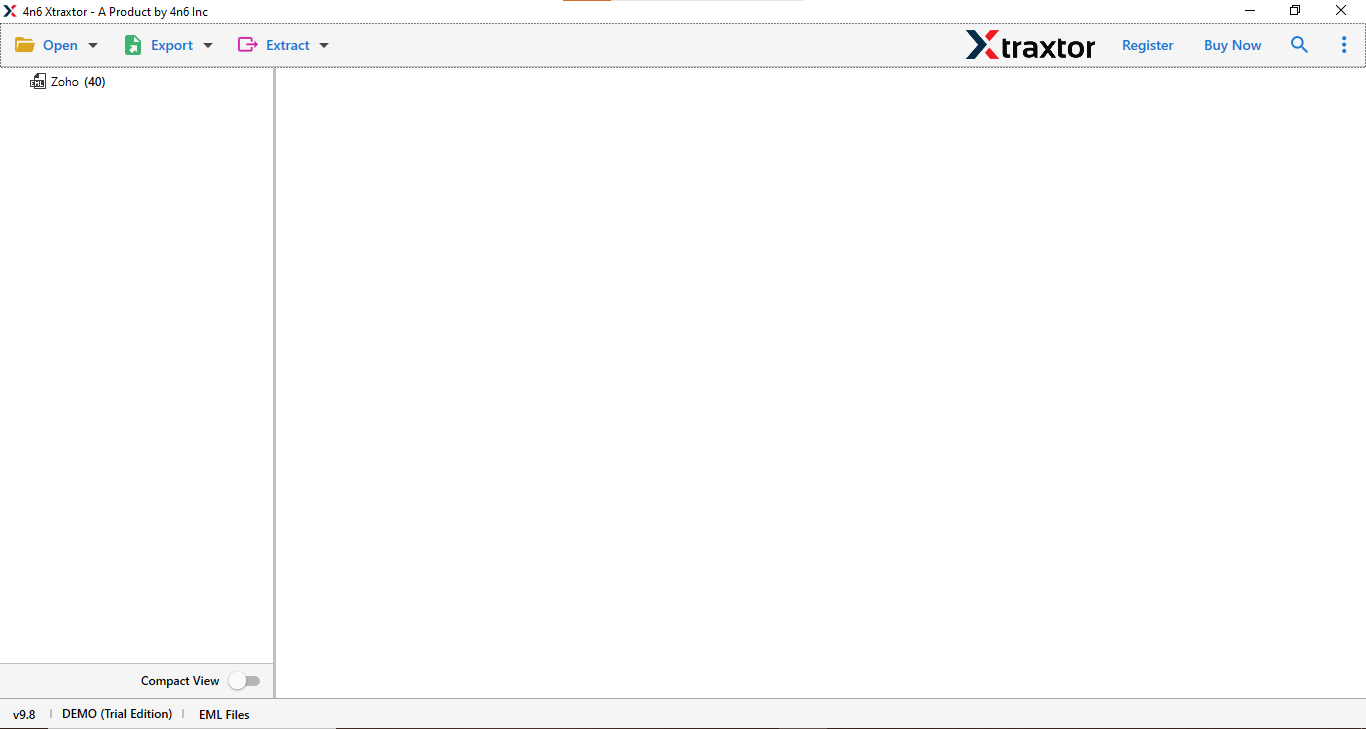
- You will see a preview of your imported emails.
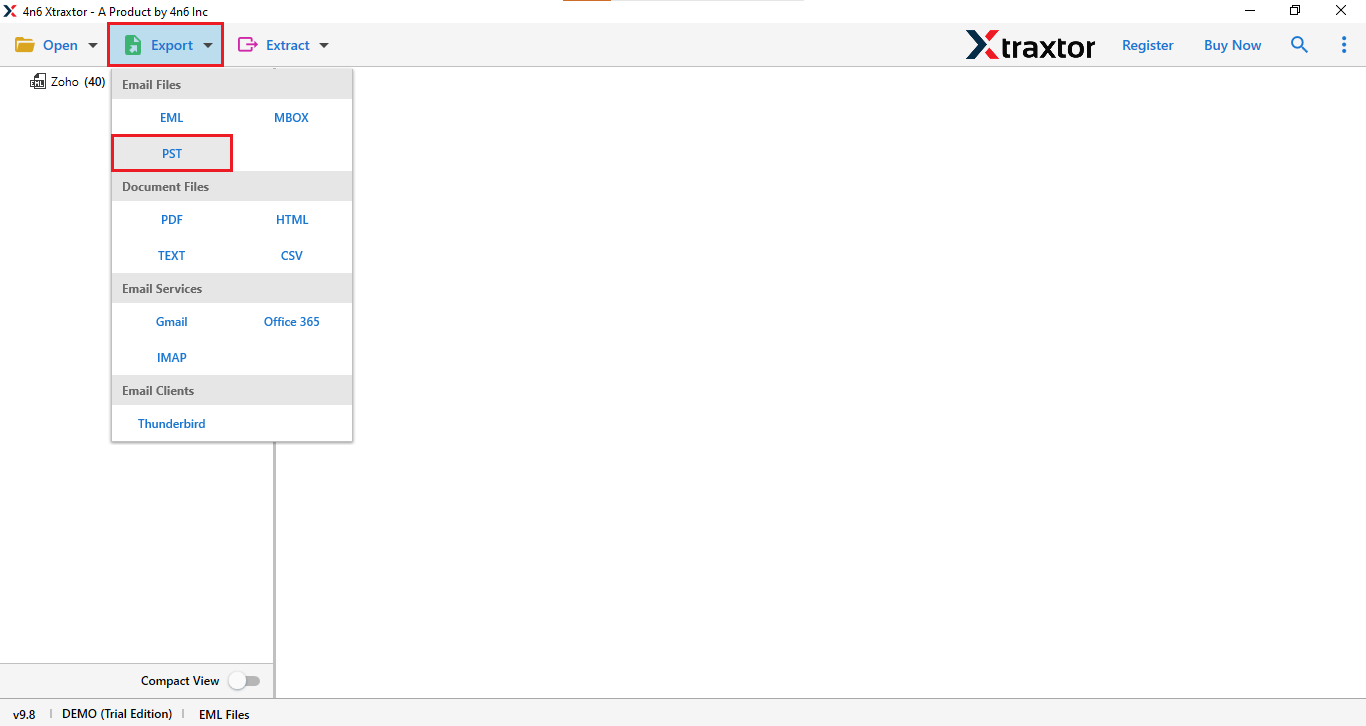
- Click on “Export” and select PST option.
- Now, browse the location and click on “Save“.
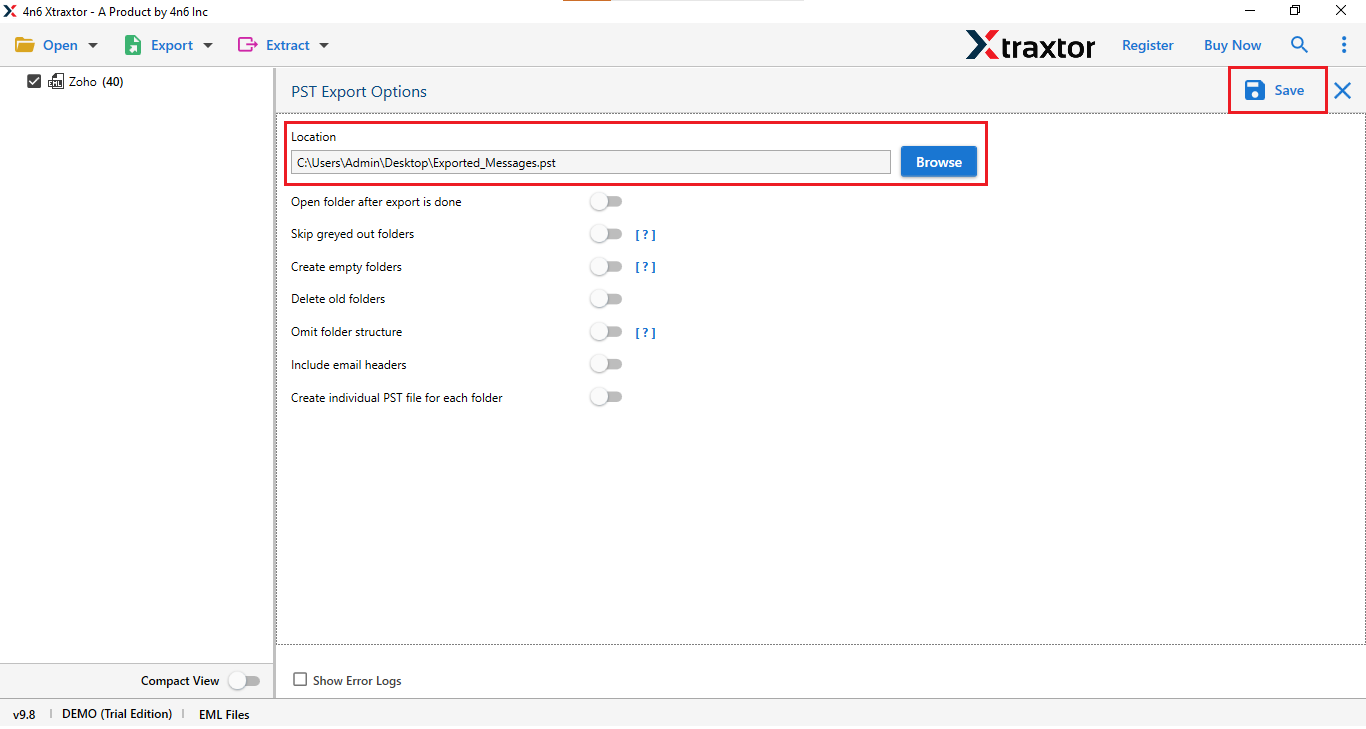
Finally, your Zoho mail will be exported in a few minutes.
Advantages of Using a Professional Solution
- Works over 200 webmail accounts for the backup process.
- You can also export Zoho Mail to MBOX format using the same tool.
- It has advanced filter options like to, from, subject, date, name, etc.
- This tool offers a free trial version that allows you to explore its features.
- You can also export emails to PDF, MBOX, CSV, and other file formats.
- This software works on Windows 11, 10, 8, 8.1, 7, and all other OS versions.
Final Words
In this article, we discussed how to export zoho Mail to PST file, and tried both manual and professional methods. While the manual method allows for easy conversion, it’s time-consuming and can also lead to data loss. Additionally, the use of the manual method also corrupts the file structure. On the other hand, using a professional solution allows you to convert zoho emails to PST file format in bulk without risk and in a time-saving manner.
You can try the trial version of this tool. If you are satisfied with the results, you can go with licensed versions.
