How to Export Zoho Mail to MBOX File?

It’s normal when your mailbox gets overloaded due to multiple emails you receive or send. But to solve this, you need to archive or move many emails securely. An MBOX file format can be the most suitable option in this scenario. If you are also looking for how to export Zoho Mail to MBOX file, it’s the perfect guide for you. Here, you will get right guidance, clear and actionable tips to handle your data easily, along with a complete procedure.
So, let’s talk about the methods. When we started searching for the methods, we found that only a few of them works well. So, we are presenting the most reliable and secure way to export all emails from Zoho Mail in MBOX file. Go through each one of the methods and choose that suits you the most.
How to Export Zoho Mail to MBOX Using Free Solution
Step 1. Configure account with Thunderbird
- Open the Thunderbird application on your PC.
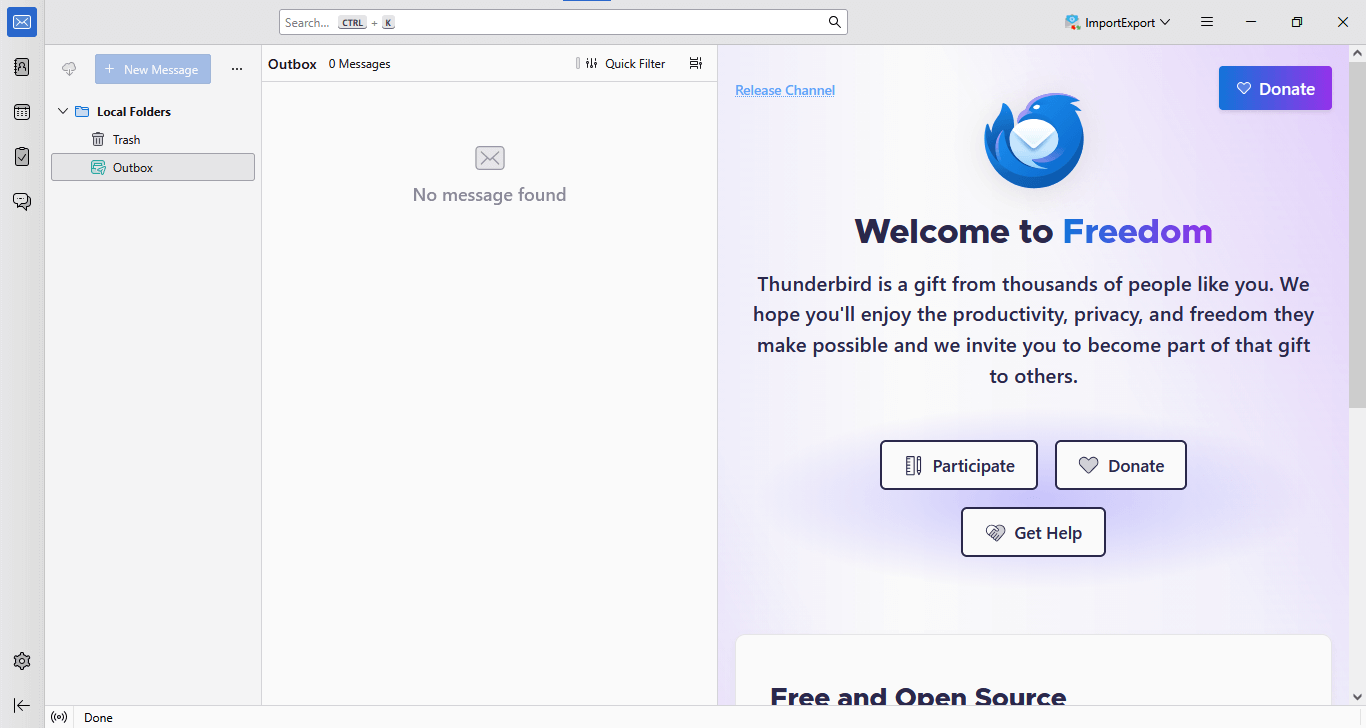
- Navigate to the “Gear” icon to open it.
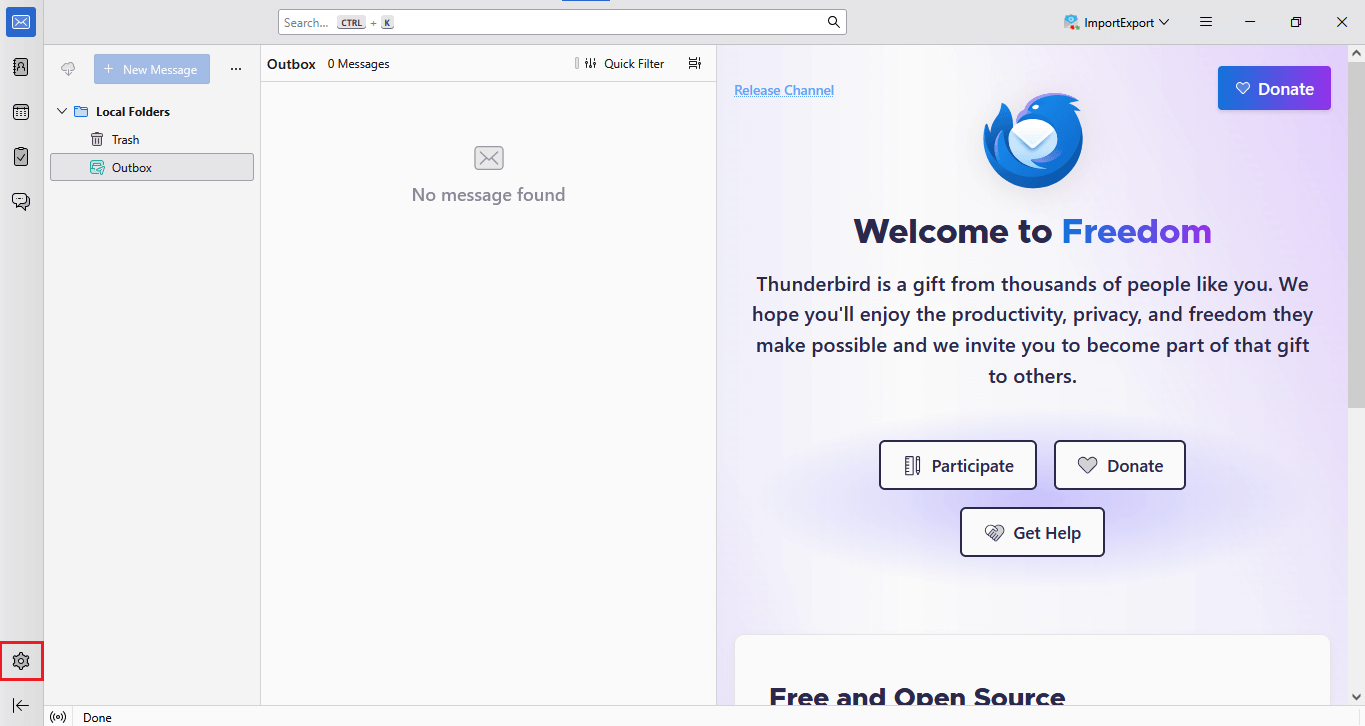
- Now, click on “Account Settings“, go to the “New Account” option, and click on “Mail Account” to add your account.
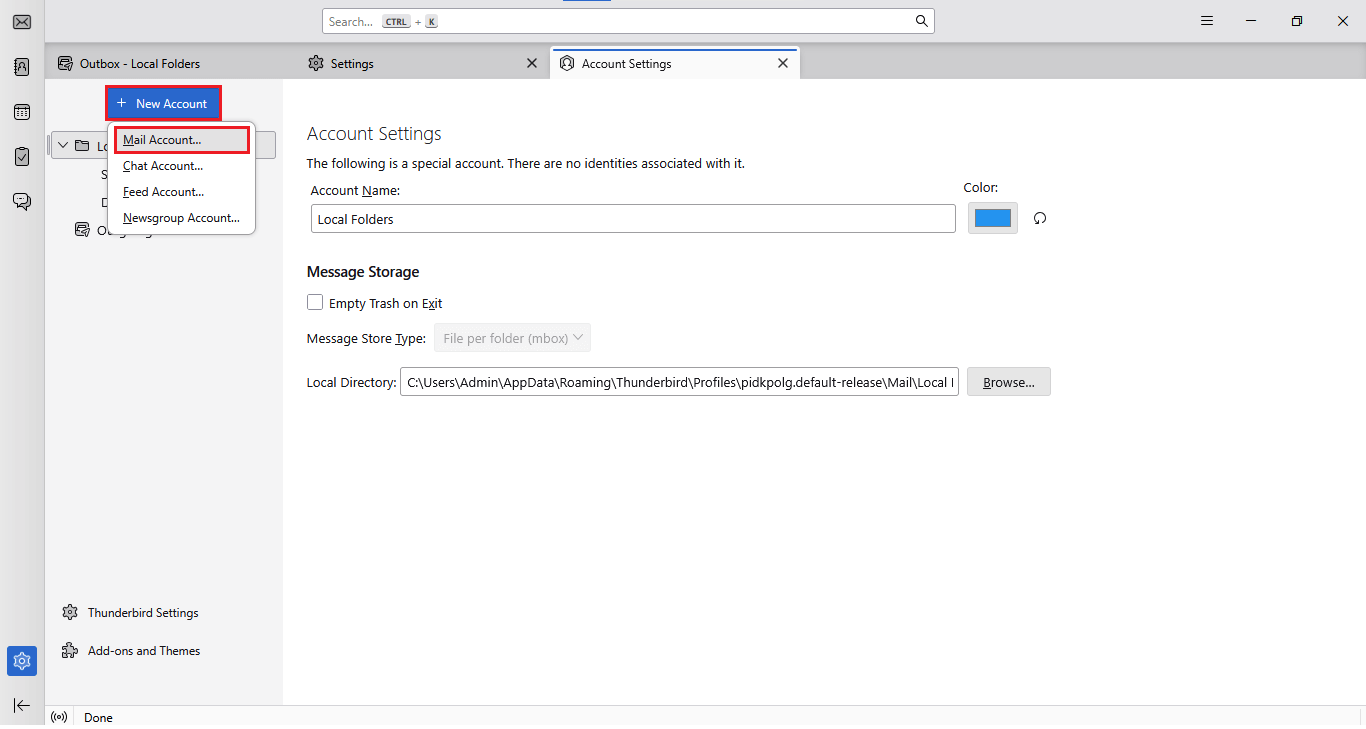
- Enter your “Full Name“, “Mail address“, and “Password” to configure your account with Thunderbird and click “Continue“.
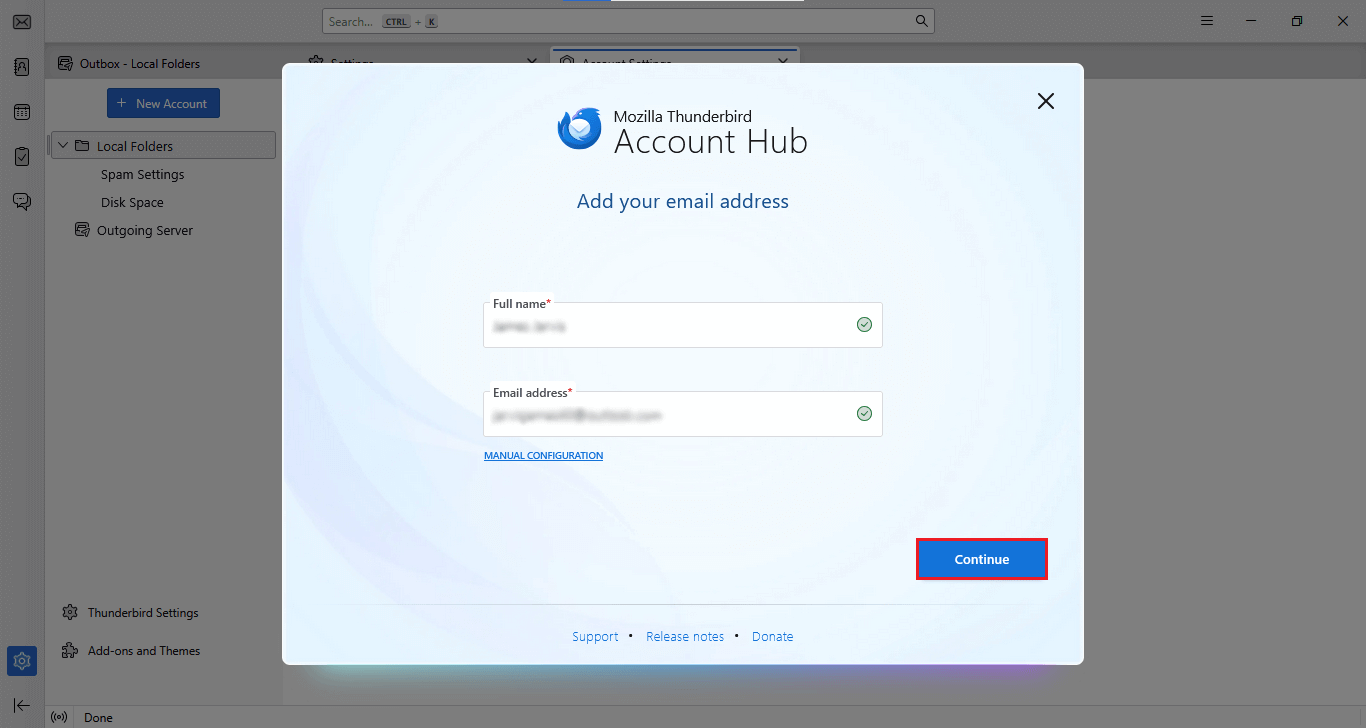
- Select the “IMAP” option and hit “Continue”.
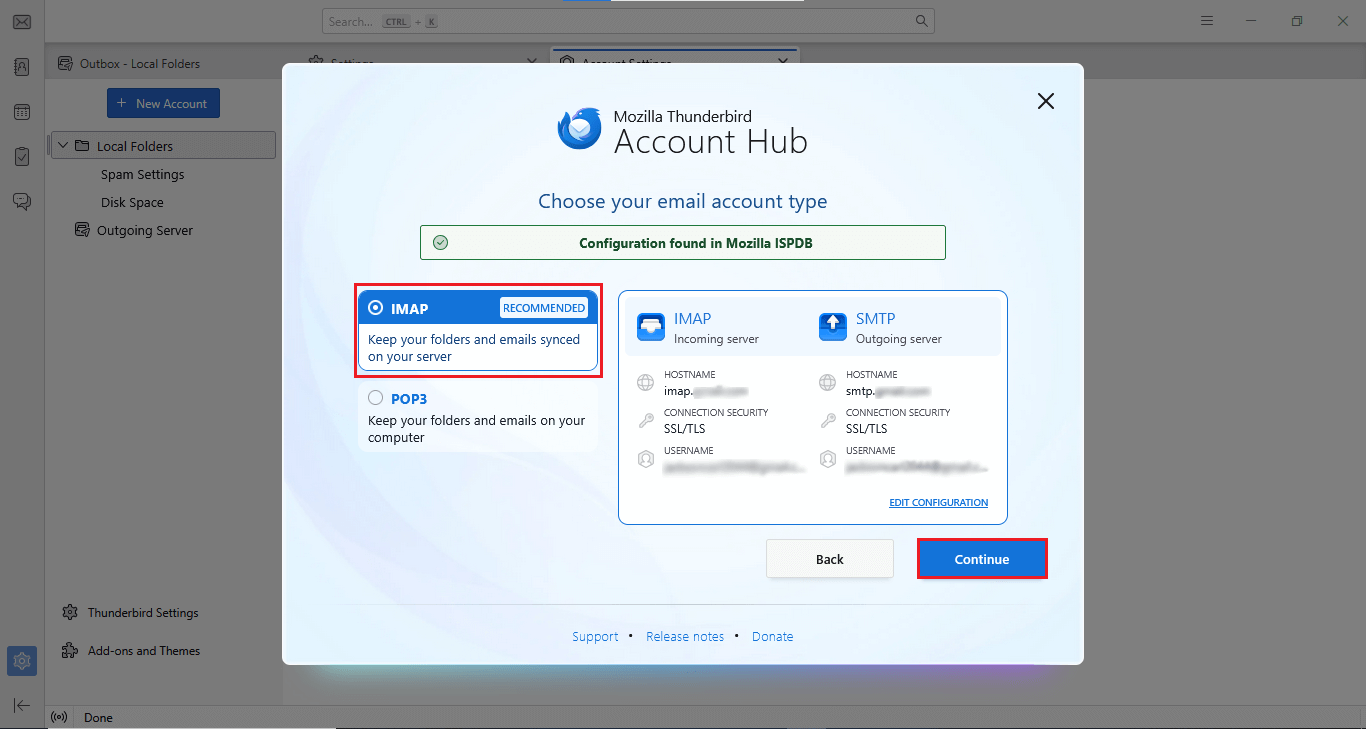
Done, your account is configured with Thunderbird.
Now, let’s move to Step 2.
Step 2. Add account to Thunderbird.
- Install the “ImportExportTools NG” add-on in your Thunderbird application.
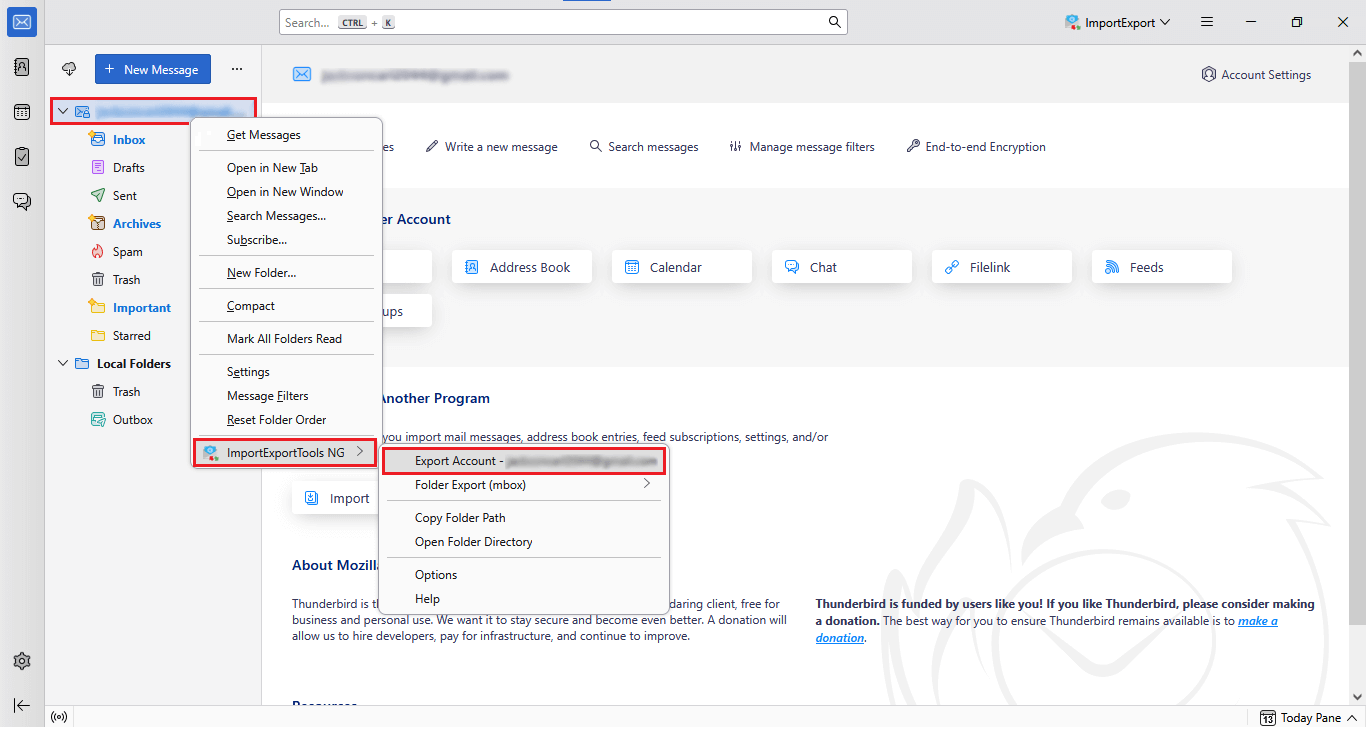
- After that, go to your Zoho mailbox and right-click and select the ImportExportTools NG option.
- Then, choose the “Export Account” option.
- Now you will see a permission pop-up by Thunderbird, click the “OK” button to get your “MBOX” file.
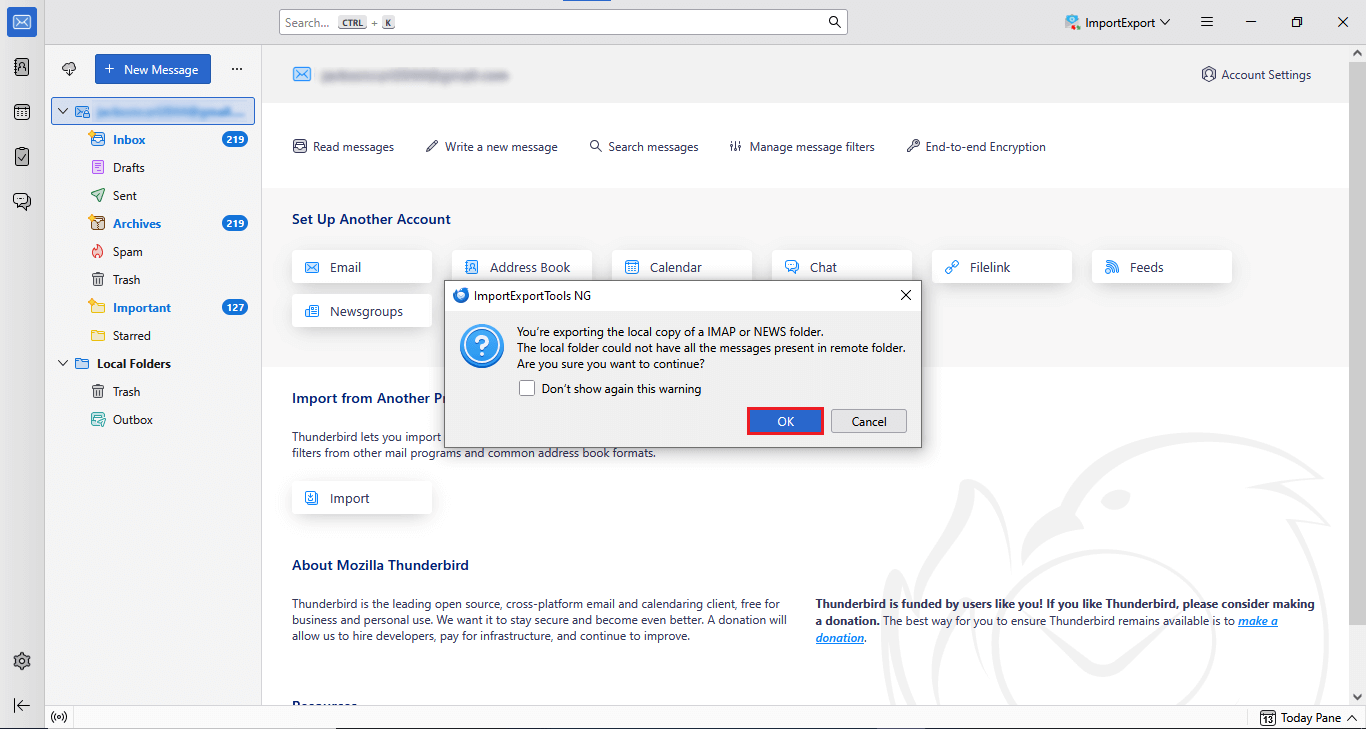
Finally, your MBOX file is ready to use.
By following this process, you can transfer Zoho Mail to MBOX file format. However, it is lengthy and time-consuming as Thunderbird only allows exporting a single folder at once. Moreover, it also carries a high risk of data loss. Additionally, this method is not easy for non-tech users, and the file structure is disrupted during the export process.
In this case, you can try the professional method recommended below.
How to Convert Zoho Mail to MBOX Professionally?
If the manual method doesn’t work and meet your requirements, you can try the Xtraxtor tool. This software exports Zoho Mail to mbox in just a few clicks, without losing any attachments. Furthermore, the email data is preserved during the export process. The program gets the job done and saves you time.
Click the button below to “Download FREE” trial version of the software.

Steps to Export Zoho Mail to MBOX
- Run the Xtraxtor to your home screen.
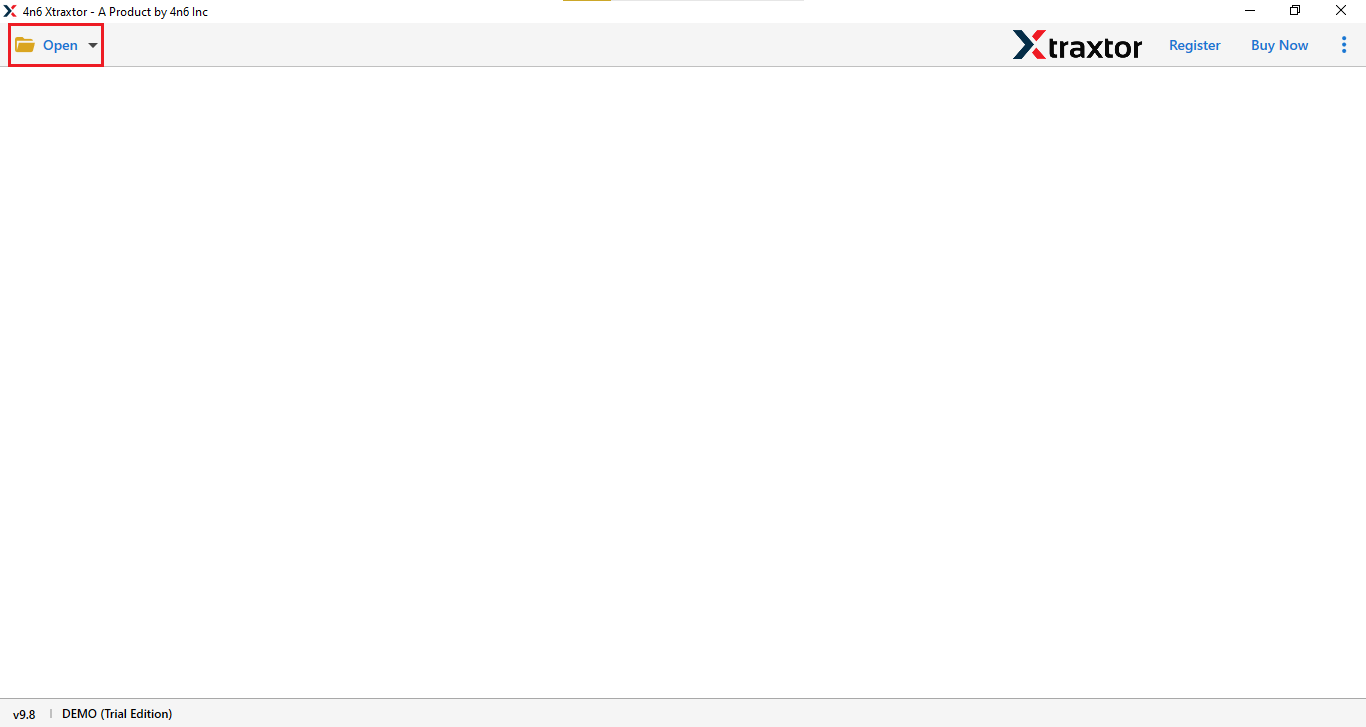
- Go to Email Data Files >> MBOX Files >> Choose Folder.
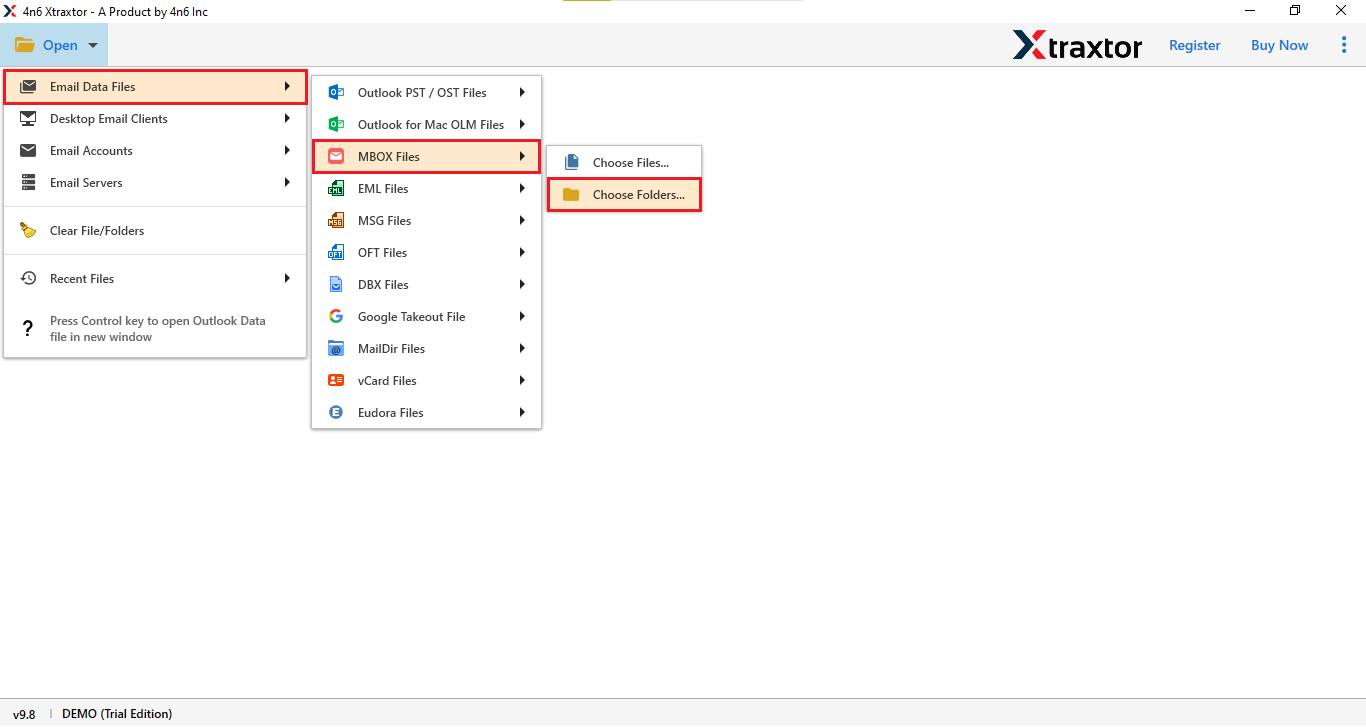
- After that, open the Zoho mail folder and start the Export process.
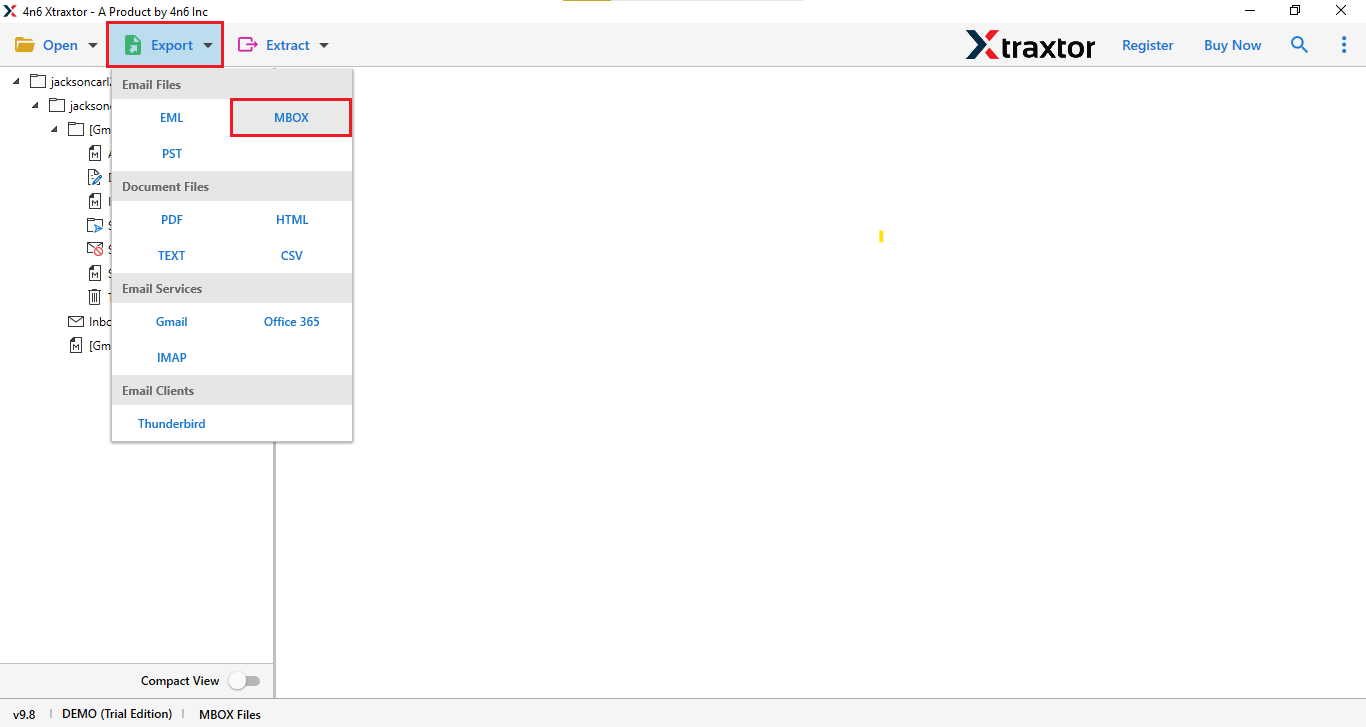
- Click on the “Export” button and choose “MBOX” file format.
- Now, select the required “Folders” and “Browse” the location, and click the “Save” button.
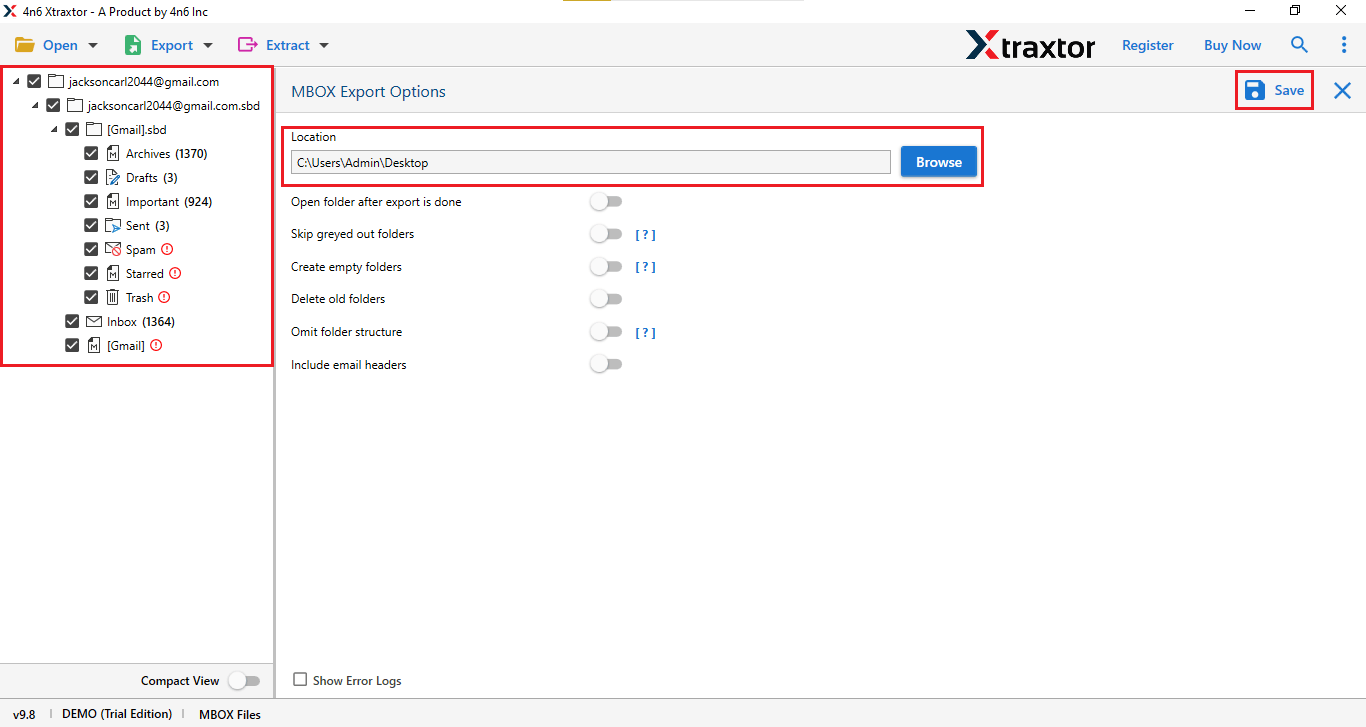
Done! Your zoho mail is exported to PST file format.
With this method, you can easily transfer Zoho Mail to PST format in just a few clicks.
Advantages of Using a Professional Tool
- You can directly export your email to MBOX in just a few clicks.
- Support on any Windows operating systems like – 11, 10, 8, 8.1, and 7.
- This wizard also export Zoho Mail to PST file.
- This tool comes with a free trial version, which allows you to explore its features.
- Works over 200 webmail accounts for the backup process.
- User-friendly interface makes this software easy to use for non-tech users.
- Software comes with advanced filters that make selective exporting easier.
These are some of the best features of the professional solution that simplify exporting.
Conclusion
We hope that we helped you in finding the right methods for you to export Zoho Mail into MBOX format. Lastly, we will say only one thing that you can go with any of the explained methods depending on your needs and requirements. However, if you want to access your Zoho emails without any email client, then you may choose an automated solution.
