How to Export Yahoo Mail to MBOX File?

This blog is designed to help users export Yahoo Mail to MBOX format. Exporting Yahoo emails into an .mbox file is often needed when users want offline access to their emails. Since Yahoo Mail works only with an internet connection, its accessibility completely depends on account availability and server status.
This creates concerns such as sudden login issues, account suspension, or server problems, which can prevent you from accessing important emails. In such situations, having no local backup can be risky.
Exporting Yahoo Mail to MBOX format creates a safe and offline email backup that can be opened anytime using supported email clients. This guide will help you clearly understand how to convert Yahoo emails into MBOX files step by step. So, let’s move ahead and explore the best methods.
Now, talking about the methods, Yahoo Mail doesn’t provide a direct MBOX export option. However, you can go for the manual configuration. Also, we will provide an alternate way to export Yahoo Mail to MBOX file format. So, check out all the explained methods and then decide which suits best to your needs and requirements.
How to Export Yahoo Mail to MBOX File Manually?
Here, we will use an MBOX-supported email client to export Yahoo emails into MBOX format. In this guide, we are using Mozilla Thunderbird because it is free and easy to use. You can also choose any other email client that supports MBOX files and follow similar steps to convert your Yahoo emails.
Now, follow the steps below to save Yahoo emails as MBOX files using Thunderbird.
- Sign in to Yahoo Mail and enable IMAP in settings.
- Create a Yahoo App Password from account security.
- Download and install Mozilla Thunderbird.
- Open Thunderbird and add your Yahoo Mail account using the app password.
- Let Thunderbird sync all email folders.
- Right-click any folder and save emails as MBOX on your computer.
That’s it! Your Yahoo emails are now exported to MBOX format.
How to Convert Yahoo Emails into MBOX Automatically?
Now, you can try an advanced and much easier option than the one above. Xtraxtor software is one such application that can help you to export Yahoo Mail to MBOX format in a fast and easy way. You should refer to this method if you have a large number of emails and need to export quickly. It is also helpful when you don’t want to follow the technical manual configuration process.
This tool allows you to directly export emails from Yahoo Mail account into MBOX format with complete mailbox folders. Also, it will keep all your emails, attachments, and folder structure intact.
Get the free trial and learn the complete working procedure.

Steps to Export Yahoo Mail to MBOX File
Step 1. Run the software on your Windows system.
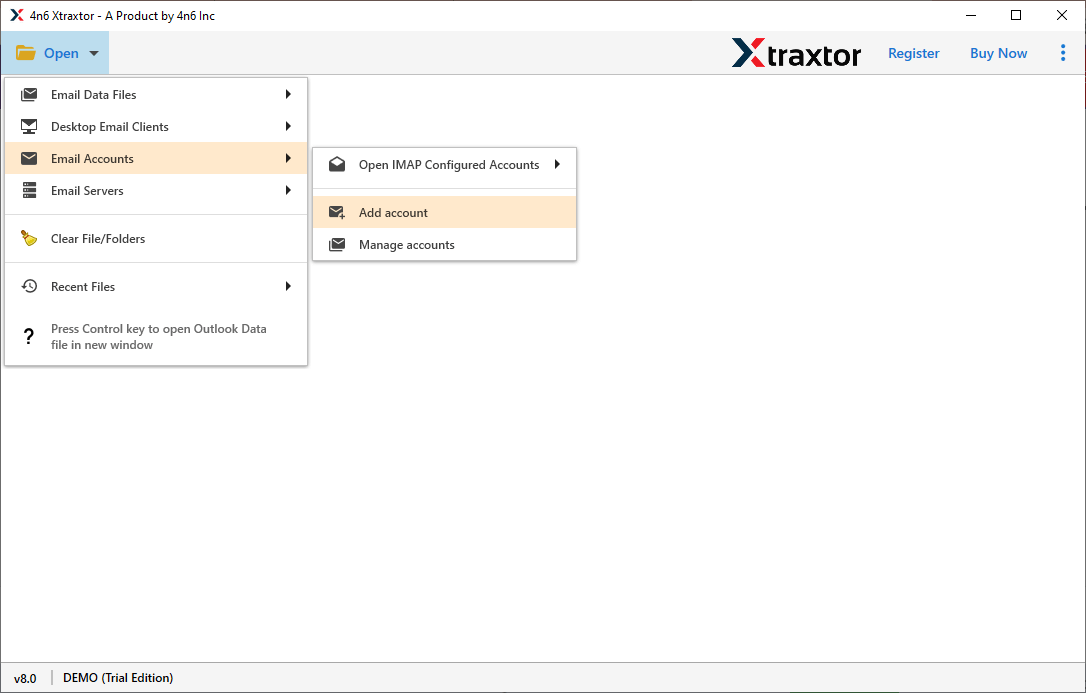
Step 2. Click the Open tab and choose Email Account and the Add account option.
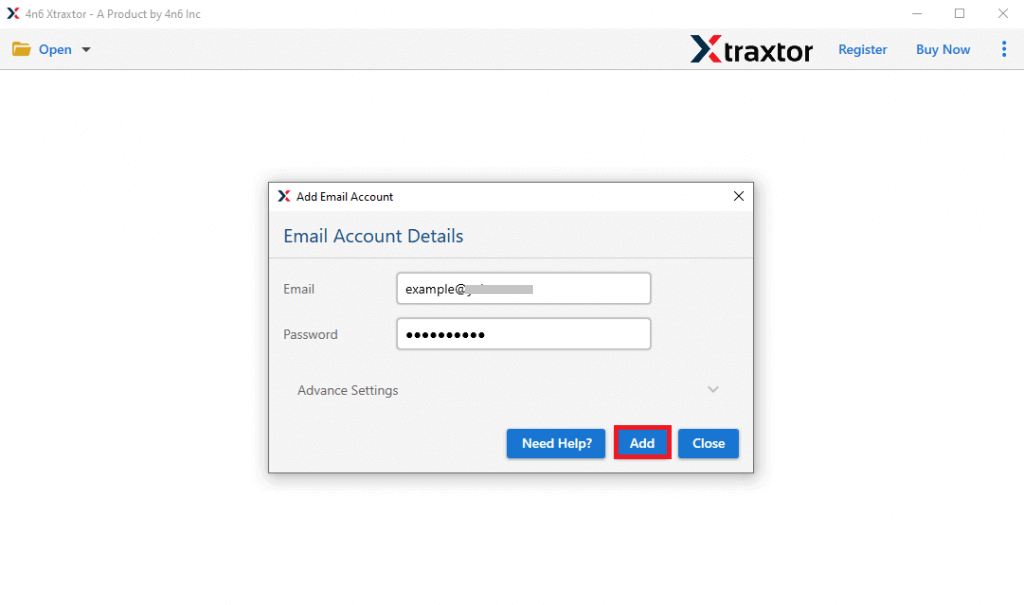
Step 3. Now, provide your Yahoo Mail account details and click the Add button.
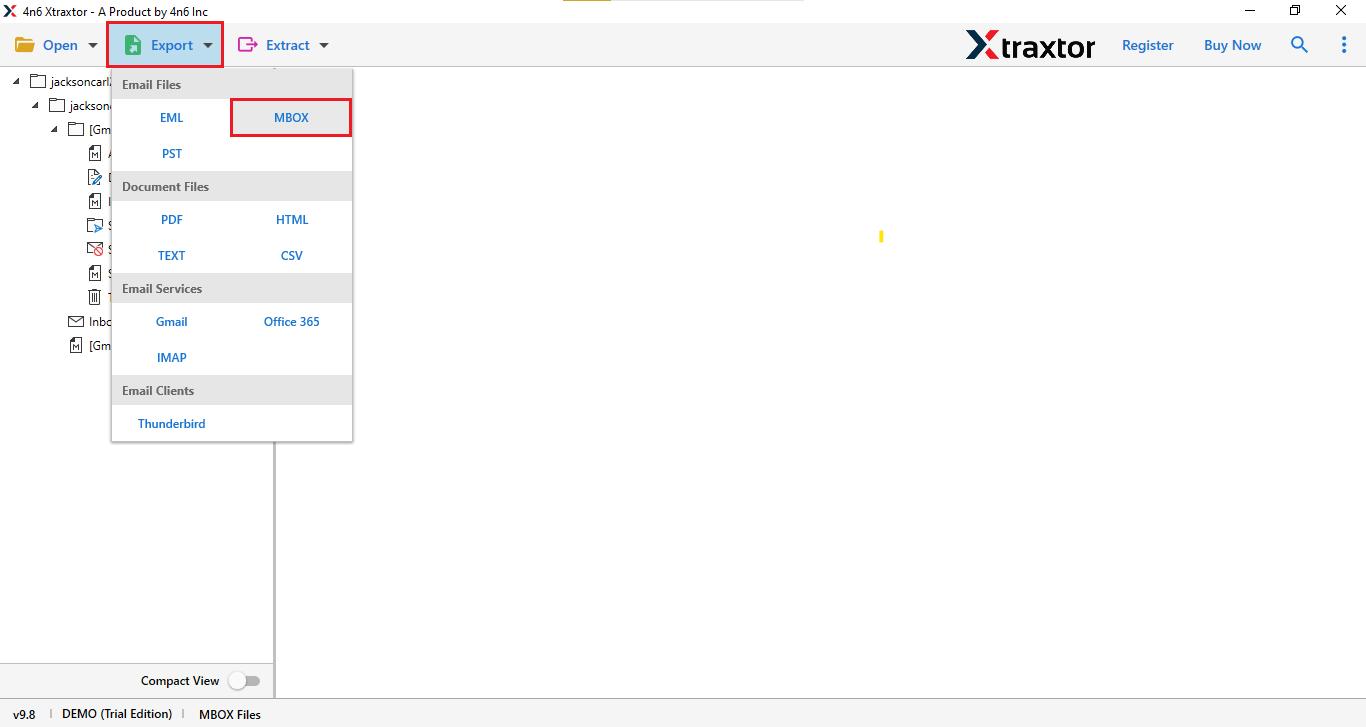
Step 4. Tap on the Export and choose the MBOX option from the list.
Step 5. Choose the required mailbox folders from preview mode.
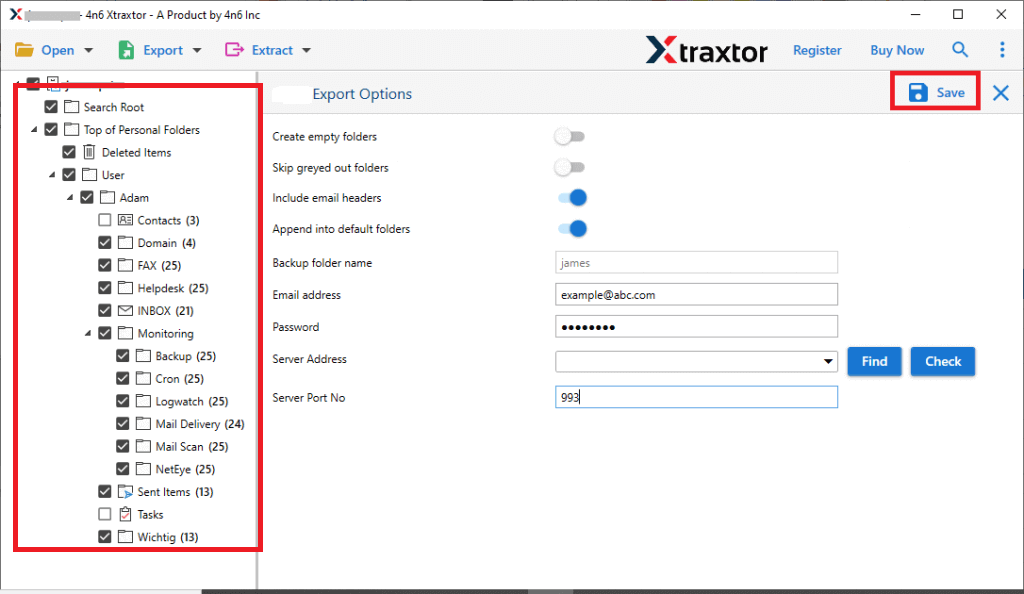
Step 6. Browse the destination path and click on the Save button.
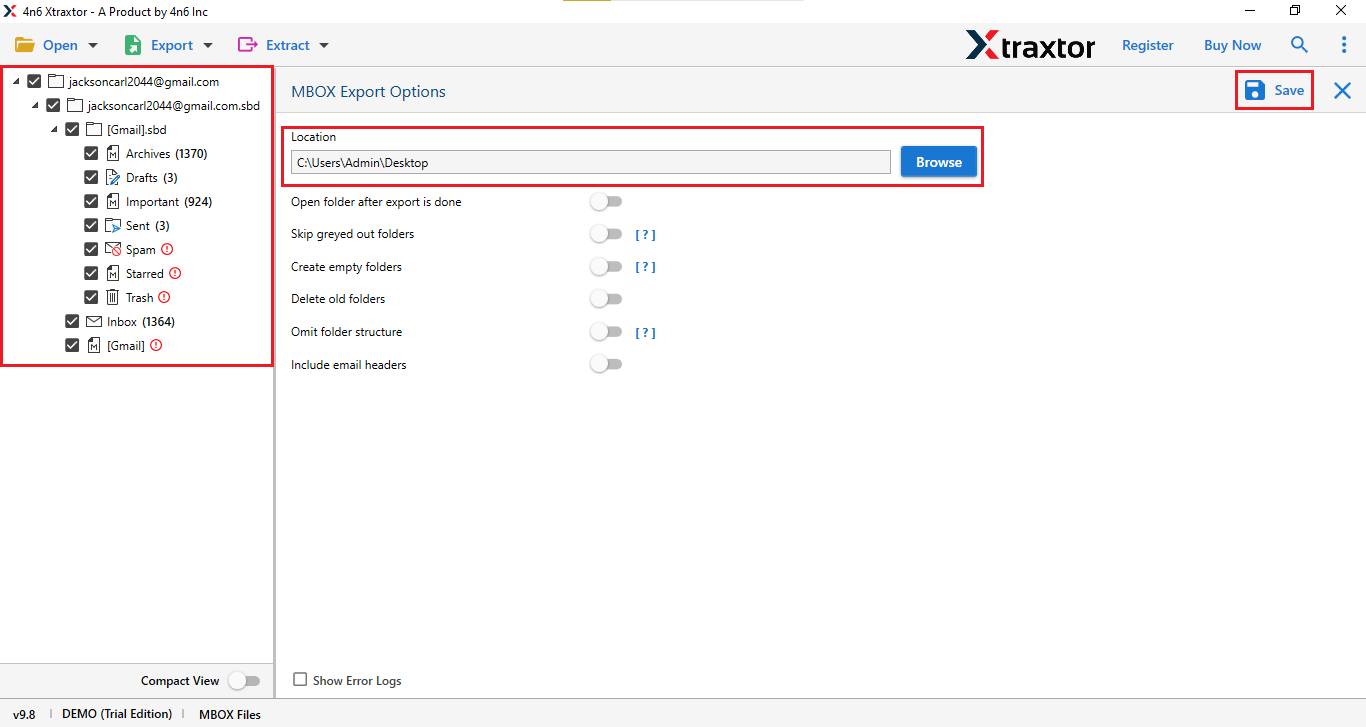
Wait for a while, the software will start exporting your selected Yahoo emails into MBOX file.
Once completed, you will be notified through a log report. Click OK to continue.
Final Words
So, at last we will say that choose the method which fits best for your needs. For recommendation purposes, we will suggest that you go with the manual method only if you have a small number of emails and want a free method. However, it will work only for a few emails and takes more time and effort. In other hand, using a professional solution always comes with various benefits. Such as exporting large Yahoo mailboxes into MBOX files, maintaining folder hierarchy, preserving email properties, and many more.
