How to Export SmarterMail to PST File Format?

The main purpose of this article is to explain how to export SmarterMail to PST in a clear and simple way. Many users want to move their SmarterMail emails into Outlook, but they are unsure how to do it correctly. Here, you will understand why SmarterMail to PST conversion is required and which method is safe and practical.
Email migration is common when companies upgrade their systems or switch to a desktop-based email client. SmarterMail is widely used as a web-based email server for businesses. It works well in a browser, but problems start when users need offline access in Microsoft Outlook.
Outlook does not store webmail data directly. It uses PST (Personal Storage Table) files to save emails locally. Because of this, exporting SmarterMail to PST becomes necessary for users who want secure offline access and long-term backup.
How to Export SmarterMail to PST Using Outlook (Manual Method)
In this method, you must install Microsoft Outlook on your Windows computer. This solution is free, but it involves several technical steps. There is also a risk of missing data if the synchronization is interrupted.
Follow the steps below:
Step 1. Open MS Outlook on your Windows PC.
Step 2. Click on the File tab and select Add Account.
Step 3. Enter your SmarterMail email address and password.
Step 4. If needed, manually configure the IMAP server settings and complete the setup.
Step 5. Wait until Outlook syncs all SmarterMail folders.
Step 6. Now go to File >> Open & Export >> Import/Export.
Step 7. Choose Export to a file and select Outlook Data File (.pst).
Step 8. Select the SmarterMail folders and choose the destination location.
Step 9. Click Finish to export SmarterMail emails into PST format.
Challenges of Manual Method
- Slow syncing process
- Requires Outlook installation
- Risk of incomplete export
- Difficult for non-technical users
- No advanced filter options
Because of these limitations, many users prefer a professional solution.
How to Export All Emails from SmarterMail to PST (Professional Method)
Since the manual method takes time and technical knowledge, using a professional email backup tool is a better option. Xtraxtor Email Backup Wizard is a reliable software that can directly export SmarterMail emails to PST format without complicated configuration.
The software ensures complete data safety during the export process. It also offers preview and advanced filter options to select only the required emails. Even beginners can easily use this tool without any technical guidance.
A demo version is available so users can check the working process before purchasing.

Steps to Export SmarterMail to PST File Format
Step 1. Download and launch the Xtraxtor software on your Windows computer.
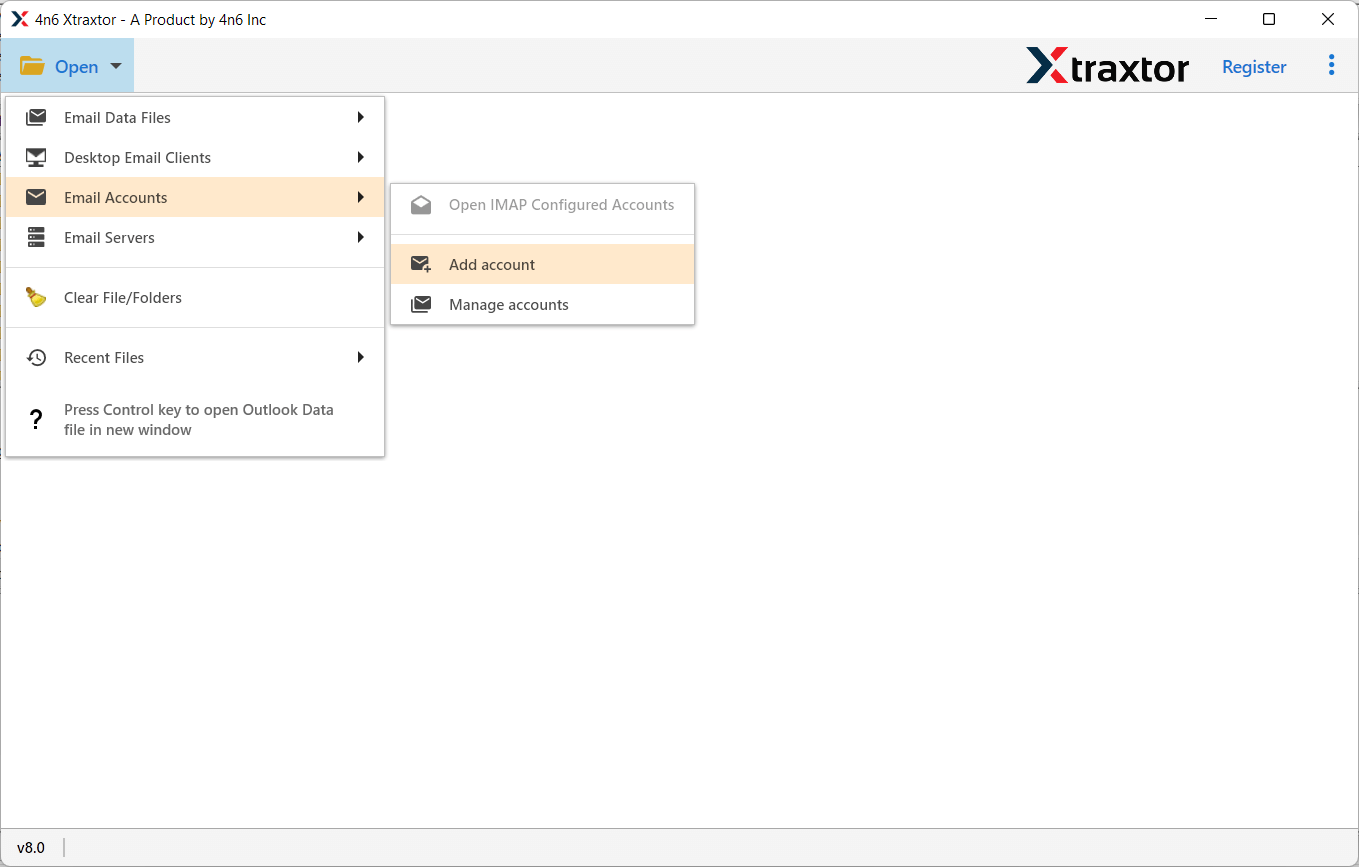
Step 2. Click on Open >> Email Accounts >> Add Account.
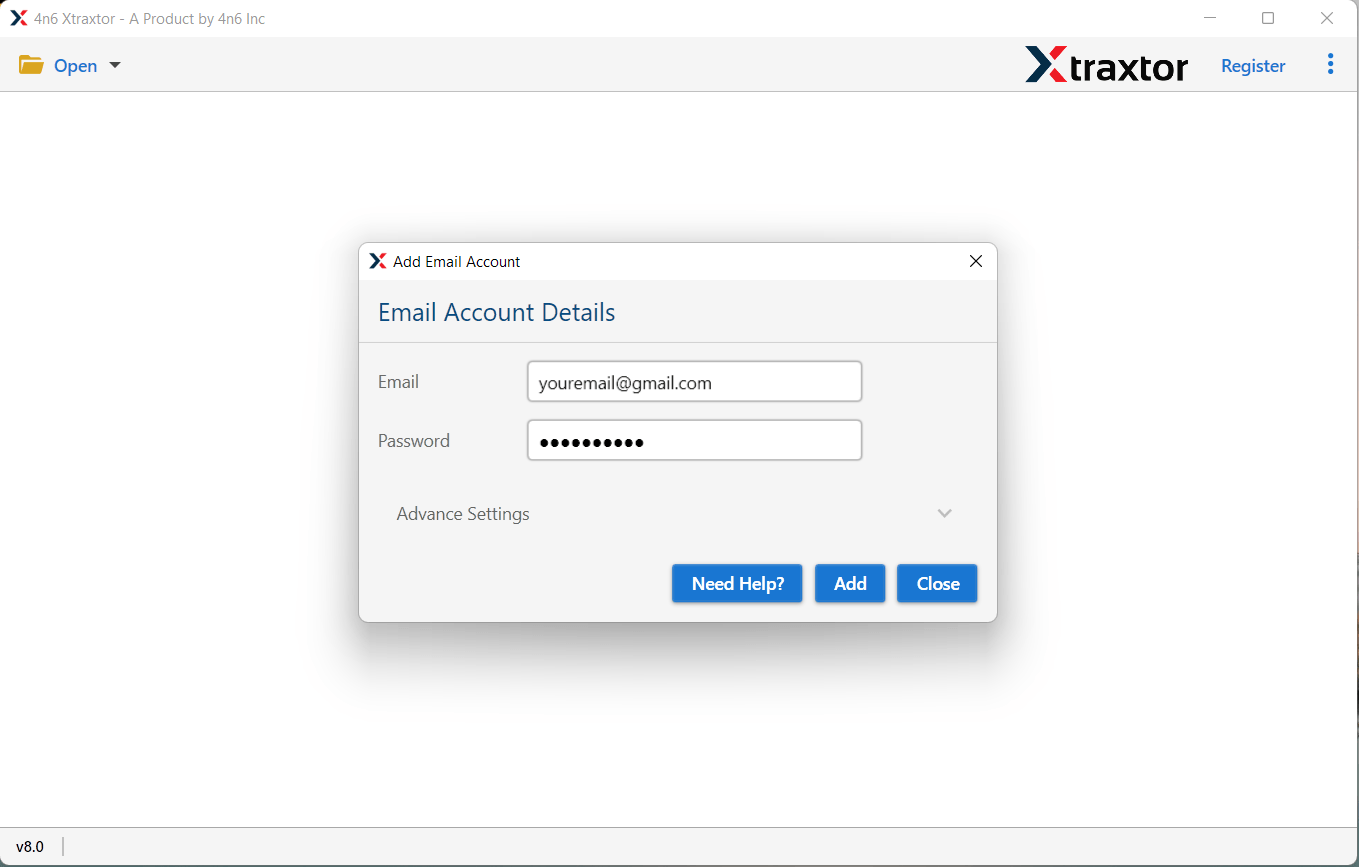
Step 3. Enter your SmarterMail login credentials and click Add.
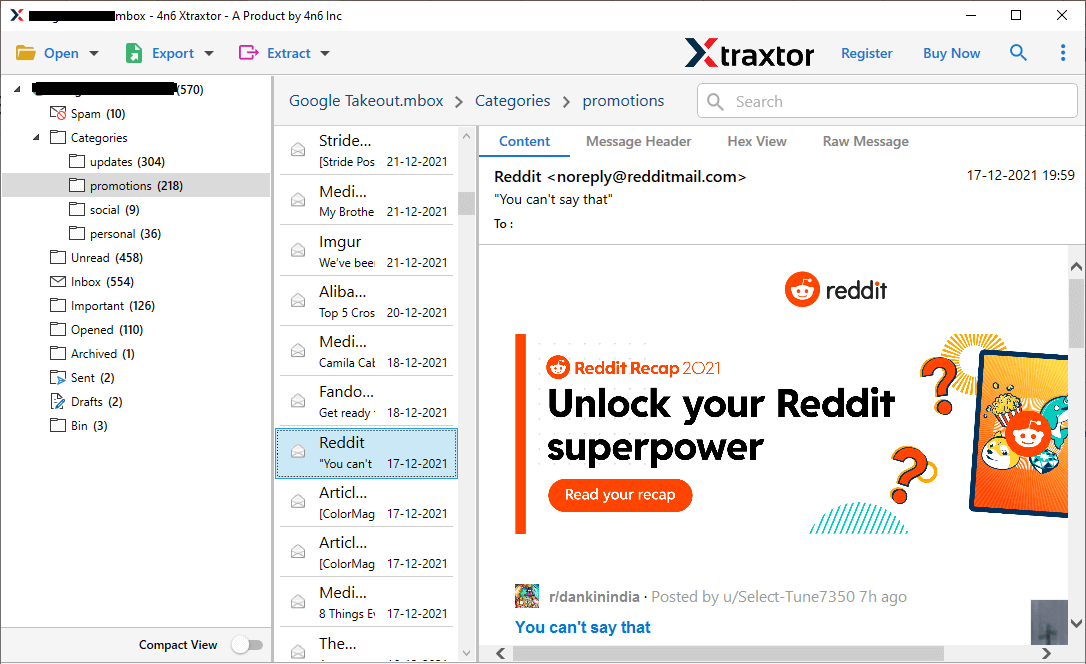
Step 4. The software will load and preview your mailbox data.
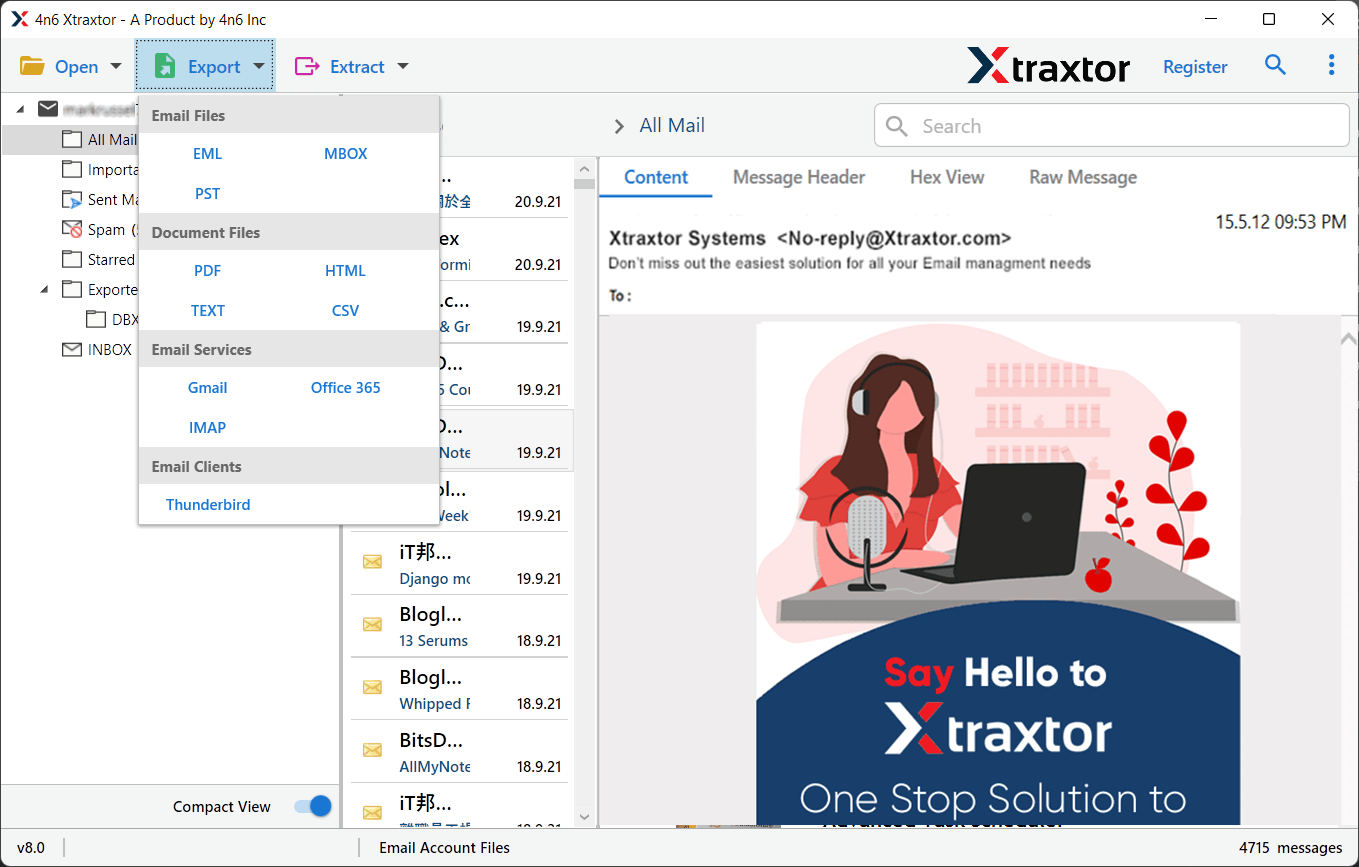
Step 5. Click on Export and choose PST from the list of file formats.
Step 6. Select the required folders you want to export.
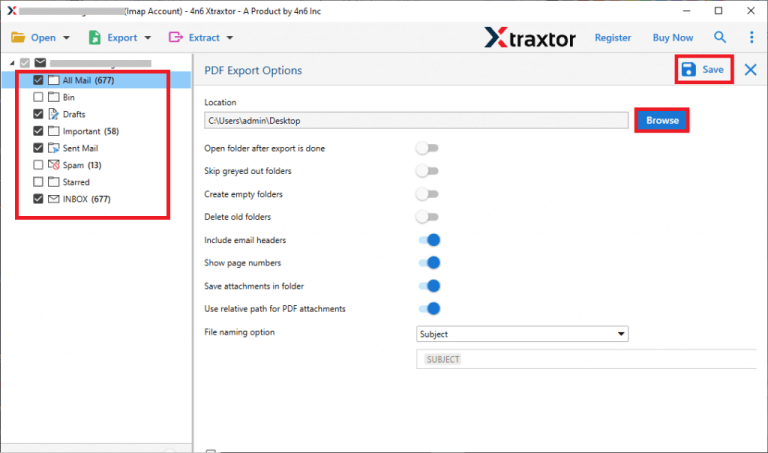
Step 7. Click on Browse & click the save button to start.
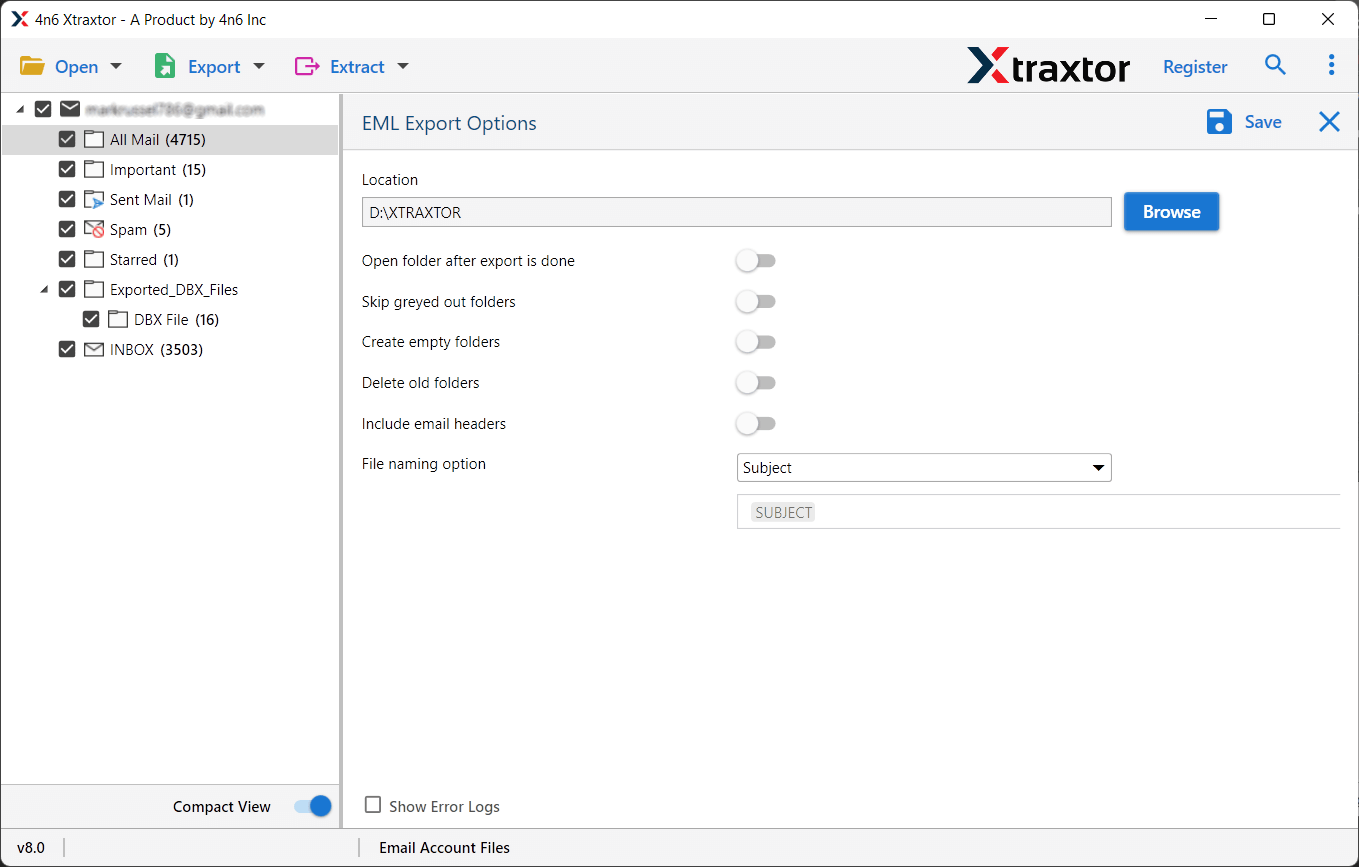
After completion, you can open the PST file directly in Outlook.
Why Use an Email Backup Tool?
The professional tool offers several advantages:
- Export Complete Mailbox: It allows you to export all SmarterMail emails to PST in one go without size restrictions.
- Advanced Filter Options: You can filter emails by date, subject, sender, recipient, etc., to export only important data.
- Multiple Saving Formats: Apart from PST, the tool supports PDF, MBOX, EML, MSG, and other formats.
- Maintains Folder Structure: The original folder and subfolder hierarchy remain unchanged.
- Preserves Email Properties: Attachments, metadata, formatting, and email attributes remain intact.
- Direct Webmail Backup: You can directly connect to SmarterMail using login credentials without additional configuration.
- User-Friendly Interface: The software is simple and suitable for both technical and non-technical users.
- Safe and Accurate Process: The tool maintains 100% data integrity during export.
Conclusion
In this blog, we discussed two ways to export SmarterMail to PST format. The manual Outlook method is free but involves several technical steps and possible risks. On the other hand, the professional email backup tool provides a faster, safer, and more reliable solution.
If you want a simple and error-free way to convert SmarterMail emails to PST, using a professional tool is the most recommended approach.
