
If you are using Microsoft Outlook and want to export Outlook emails to Zip file, then you are in the right place. In this guide, you will learn how to export emails from Outlook to zip file step by step using simple methods. So, let’s get started!
Outlook does not provide a direct option to send Outlook emails to zip file format. That’s why users often look for easy ways to compress and save their emails for backup, sharing, or storage purposes. Whether you want to save space, move emails, or archive data, converting Outlook emails to a ZIP file can be very helpful.
If you are not sure how to save Outlook emails to zip file, don’t worry. This blog will guide you with the best possible solutions.
Let’s check out two tried and tested methods to save Outlook emails to zip file.
How to Export Outlook Emails to Zip File for Free?
Follow these simple steps to export emails from Outlook to zip file manually:
- Open Microsoft Outlook on your system.
- Go to the File tab and click on Open & Export > Import/Export.
- Choose Export to a file and click Next.
- Select Outlook Data File (.PST) and press Next.
- Choose the email folder that you want to export.
- Select a location to save the file and click Finish.
- Now, go to the saved location on your computer.
- Right-click on the exported PST file.
- Click on Send to > Compressed (Zipped) folder.
Done! This is how you can save Outlook emails to zip file manually.
Note: This method is not suitable for bulk tasks. If you want to send Outlook emails to zip file in large numbers, you will need to repeat these steps again and again.
How to Convert Outlook Emails to Zip file Automatically?
If you are looking for a quick and reliable way to export Outlook emails to zip file, then using a professional tool is the best option. Xtraxtor is a powerful solution that helps you easily convert and save Outlook emails into ZIP format without any data loss. This tool is suitable for both personal and professional users who want to export bulk Outlook emails into compressed ZIP files along with attachments.
Free Trial Available
You can download the software for free and test its features. The demo version allows you to export a limited number of emails to understand how the tool works.

Steps to Export Outlook Emails to Zip File
Step 1. Download and install the software on your system.
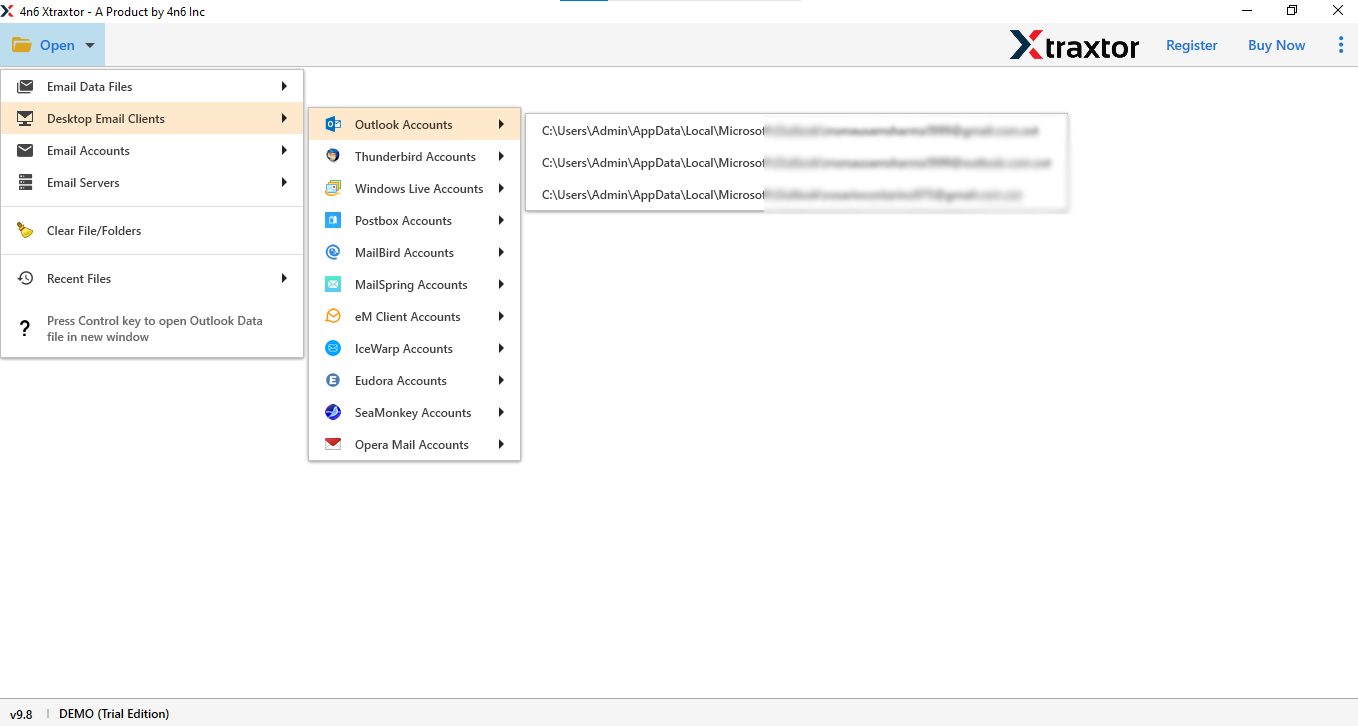
Step 2. Launch the tool and click on Open >> Desktop Email Clients >> Outlook Accounts.
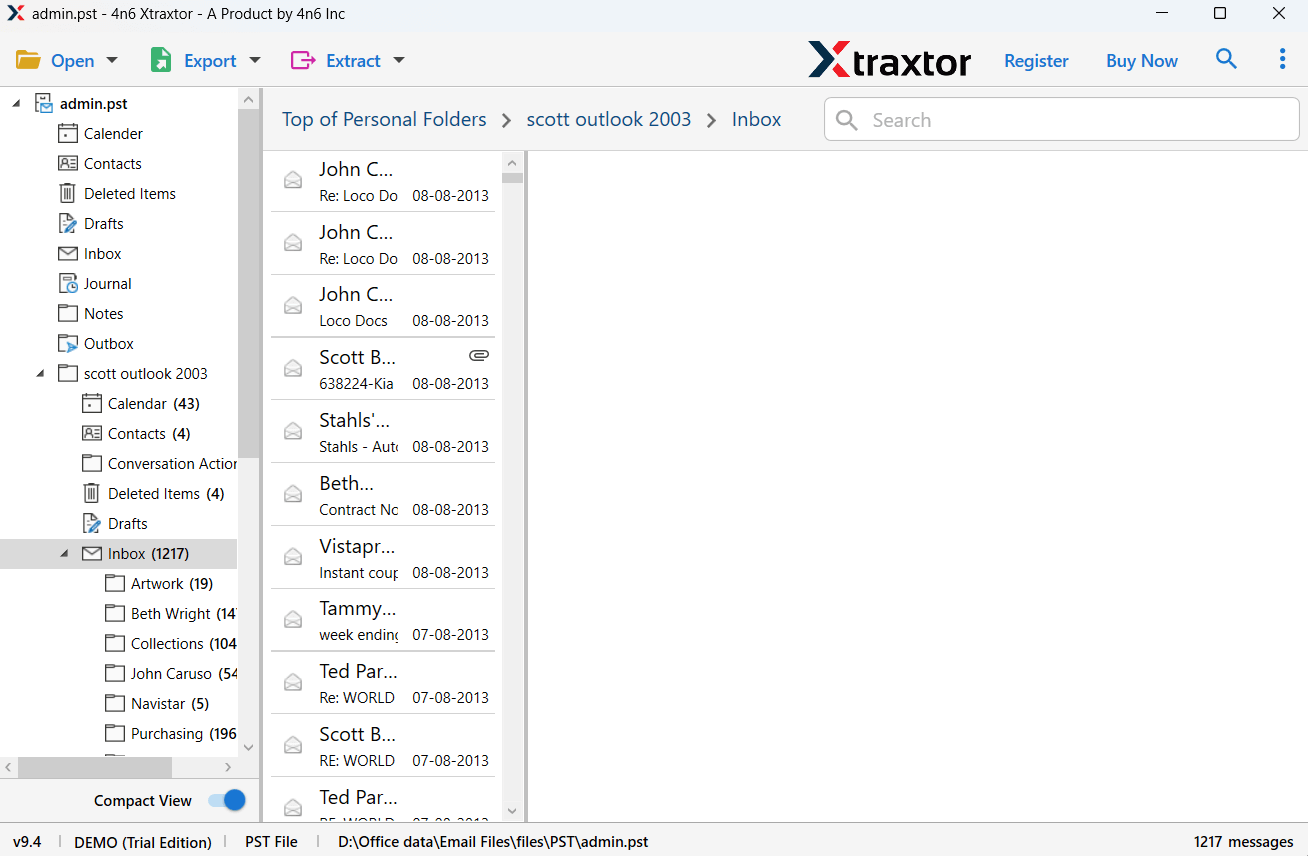
Step 3. The software will load all your Outlook emails for preview.
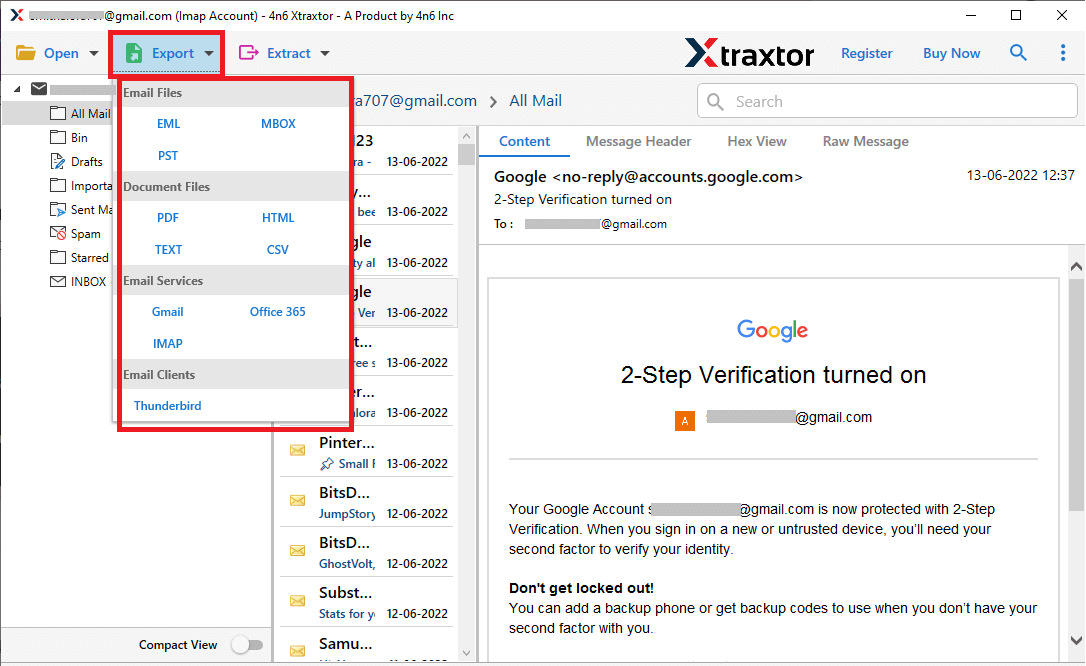
Step 4. Click on the Export option and choose the required format.
Step 5. Select the email folders that you want to export.
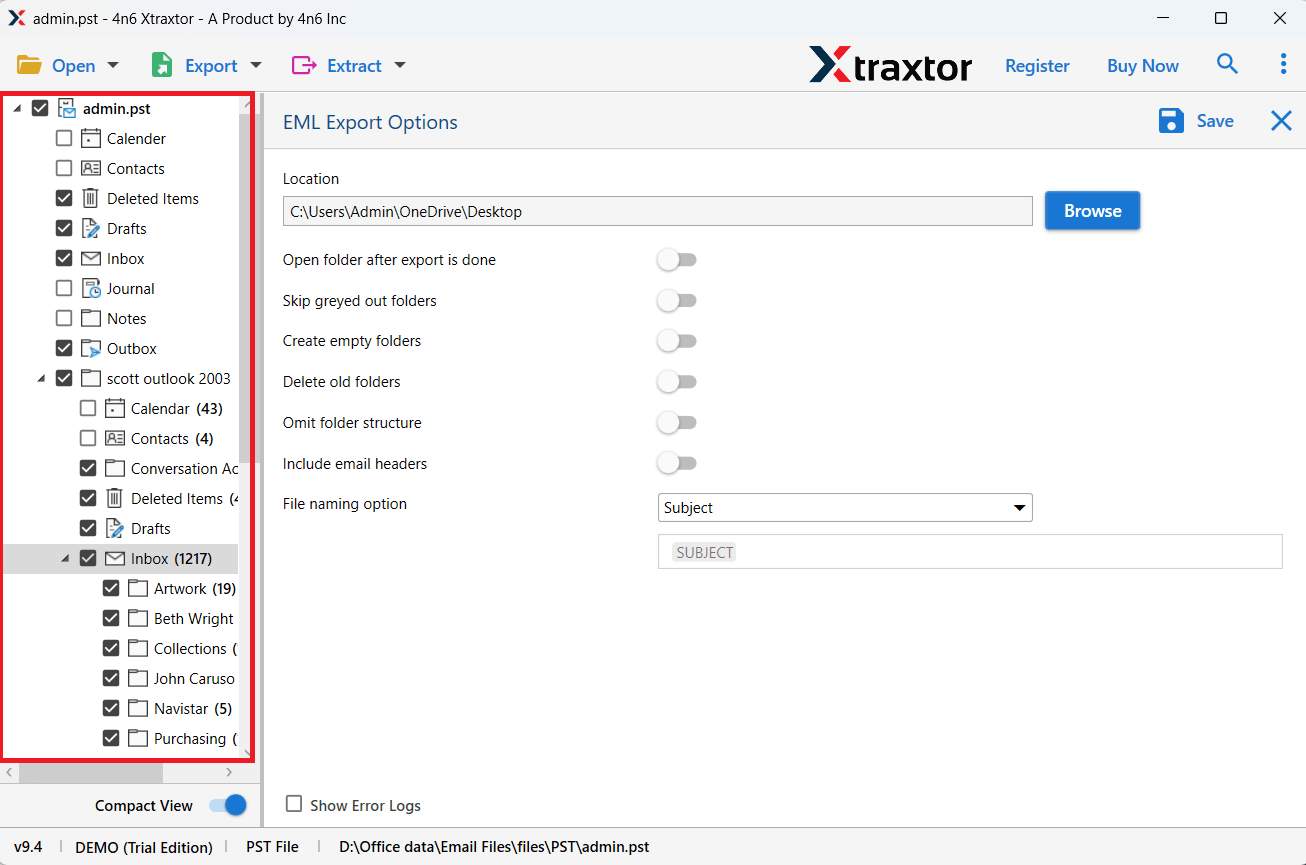
Step 6. Choose the destination location and click on the Save button.
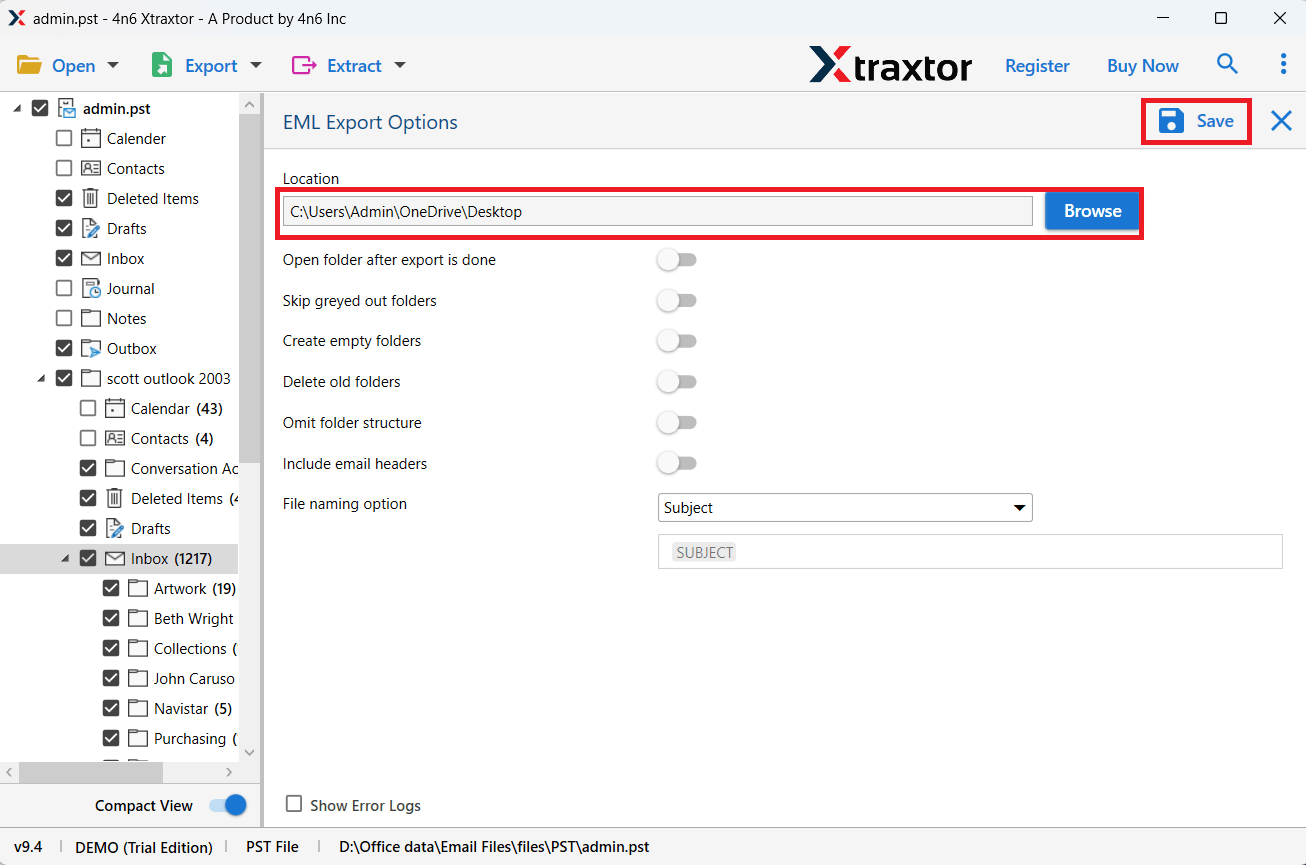
Step 7. After export, right-click the saved file/folder and choose Send to >> Compressed (Zipped) Folder.
Done! You have successfully completed the process to add Outlook emails to a zip file.
Important: The software ensures that your email data remains safe and unchanged during the process. It does not store your personal data and provides a safe environment for email conversion.
Features of the Software
- Users can export unlimited Outlook emails to Zip file format without any restriction.
- It is a completely standalone tool and does not require any external application.
- You can easily add Outlook data files or configured accounts for conversion.
- Allows you to choose the destination path to save the final Zip file.
- Ensures complete data safety and does not store any personal information.
- Provides advanced filters such as To, From, Date, Subject, etc., for selective export.
- Compatible with all versions of Windows OS.
- Exports emails along with attachments into Zip file format.
Conclusion
This article explained simple and effective ways to export Outlook emails to Zip file. The manual method works for basic needs but takes time and effort for large data. For quick and bulk export, using a professional tool is a better choice. You can first try the demo version to understand how it works, and then upgrade to the full version for complete email backup.
