How to Export Hotmail to MBOX File?

Hotmail (now Outlook.com) has been widely used by professionals and businesses for years. Whether you want to create a secure backup, move to another email client, or access emails offline, exporting Hotmail emails to MBOX format is a smart and future-proof choice. In this guide, you’ll learn how to export Hotmail to MBOX file safely, including attachments and folder structure, without data loss.
Why Export Hotmail to MBOX File?
Many Hotmail users look for MBOX export due to its flexibility and long-term usability. Here are the most common reasons:
- Local email backup: MBOX allows you to store emails safely on your computer.
- Access emails in multiple email clients: MBOX files are supported by Thunderbird, Apple Mail, SeaMonkey, and other clients.
- Migration to another platform: If you plan to move from Hotmail to an MBOX-supported service, an export is required.
- Better data control: Keeping emails locally reduces dependency on cloud accounts.
How to Convert Hotmail Emails to MBOX File?
Try out the Xtraxtor software and complete the Hotmail to MBOX conversion without any hassle. With its simple and user-friendly interface, it is easy to export your Hotmail data into MBOX file along with attachments. The advanced filters of the tool help you to export emails from a specific sender, receiver, name, subject, date, time, etc. Most importantly, you can select your important Hotmail email folders and export them only.
Additionally, using this tool, you can also export your mailbox data into different file formats as well.
You can analyse the working of the software by downloading the demo version of the software.


Steps to Export Hotmail to MBOX File
1. Run this tool on your Windows machines.
2. Then, click on Open >> Email Accounts >> Add Account.
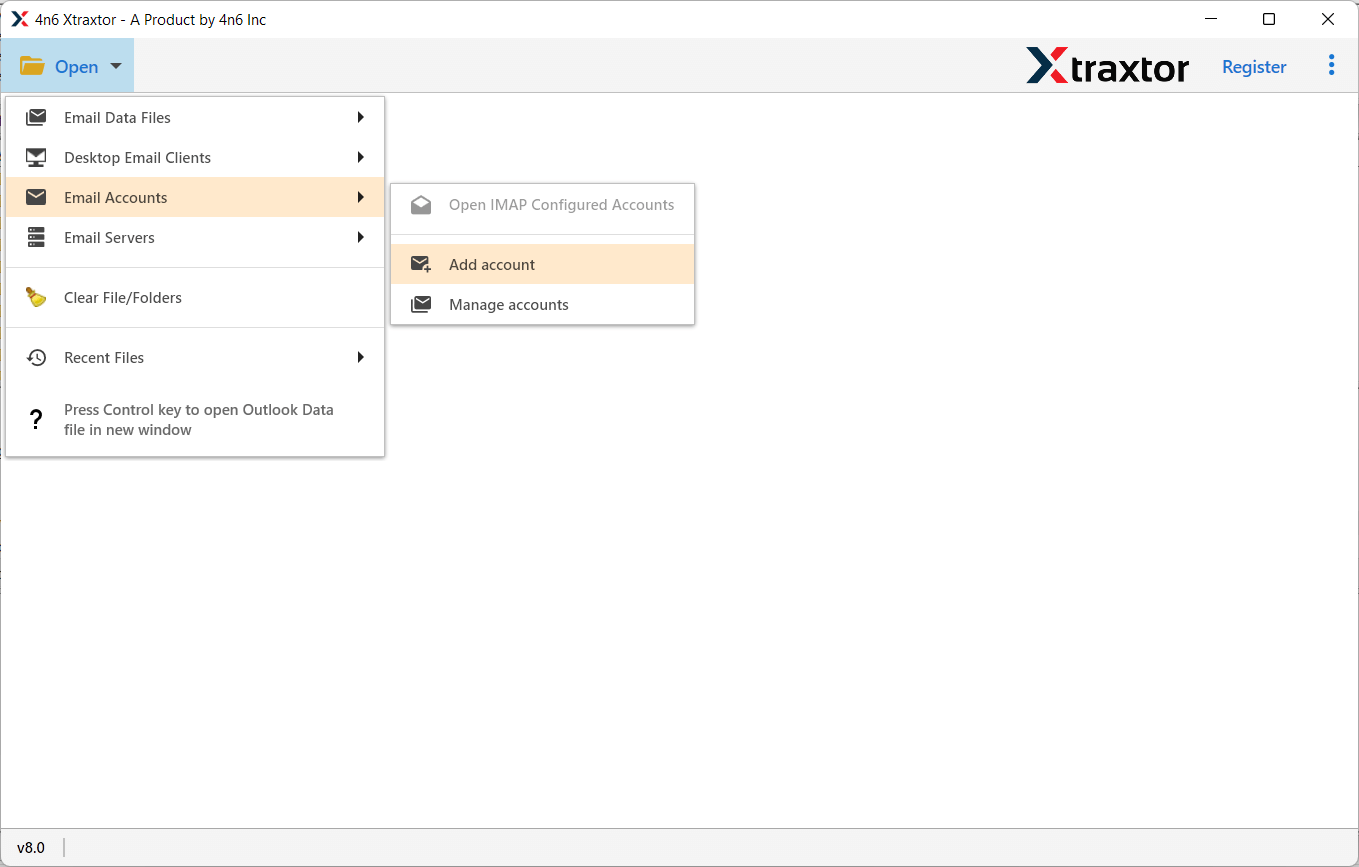
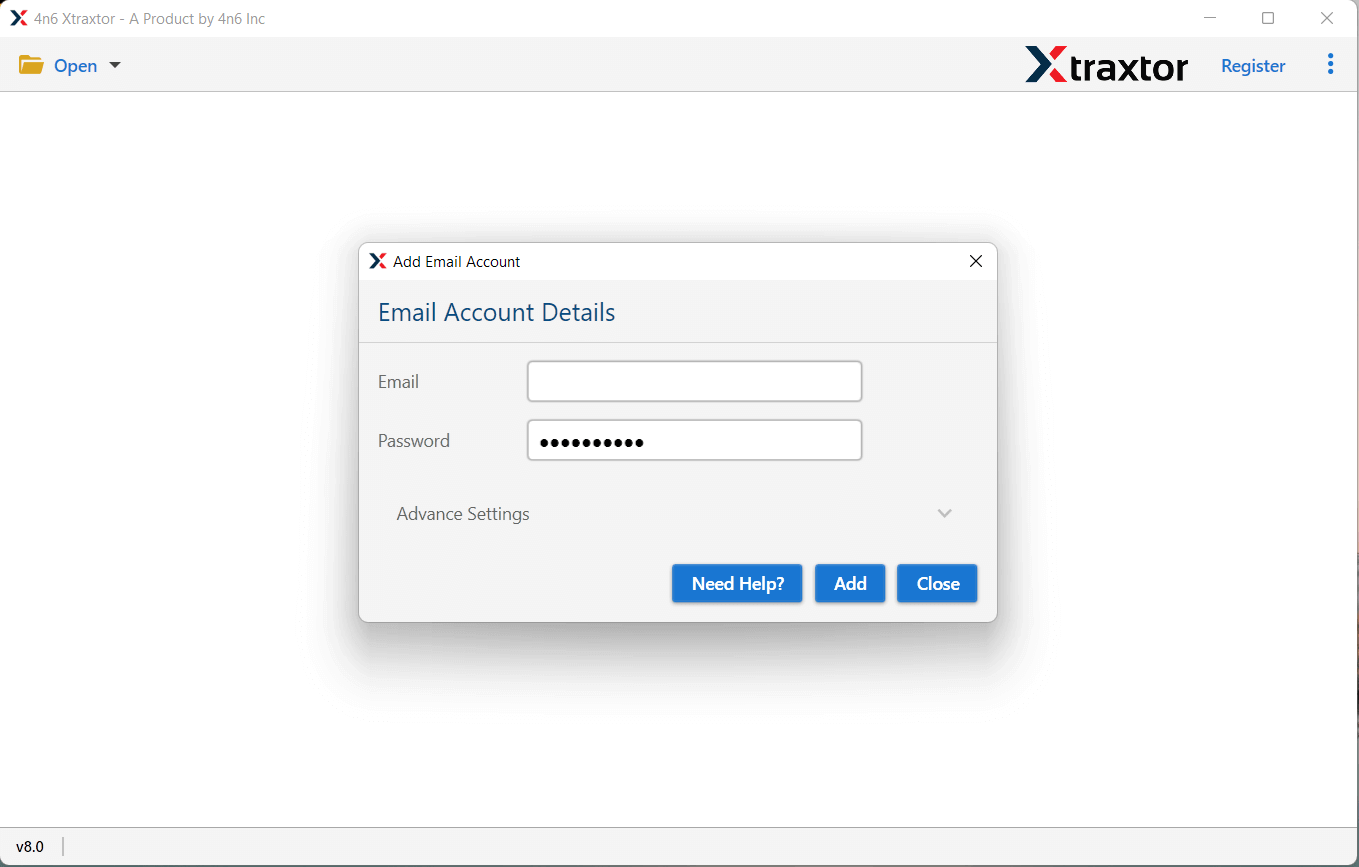
3. Enter your Hotmail login details and hit the Add button.
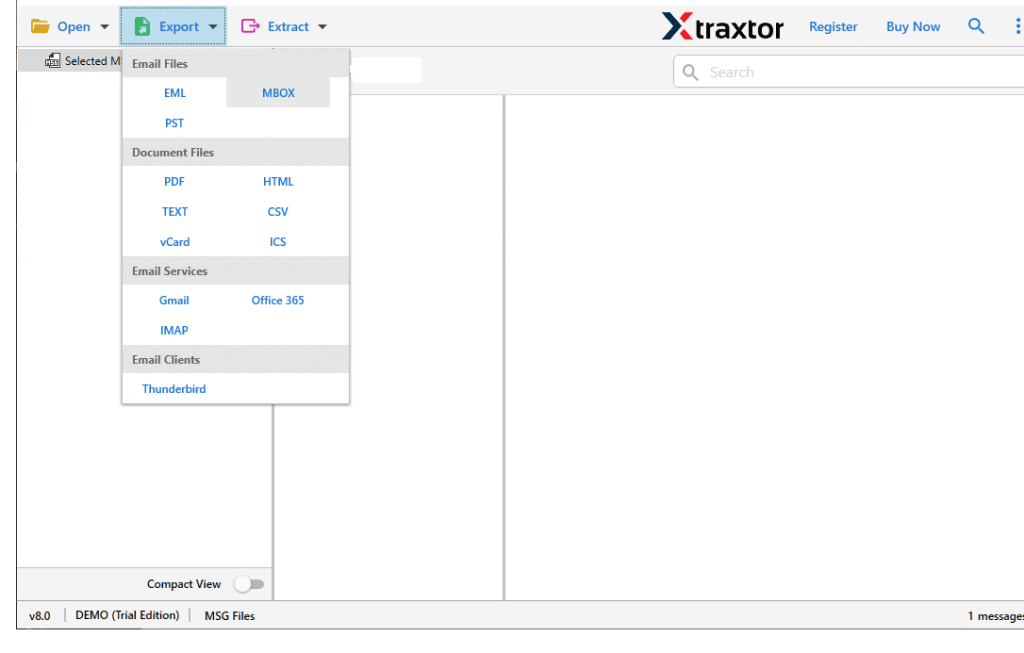
4. Click on Export and choose MBOX format.
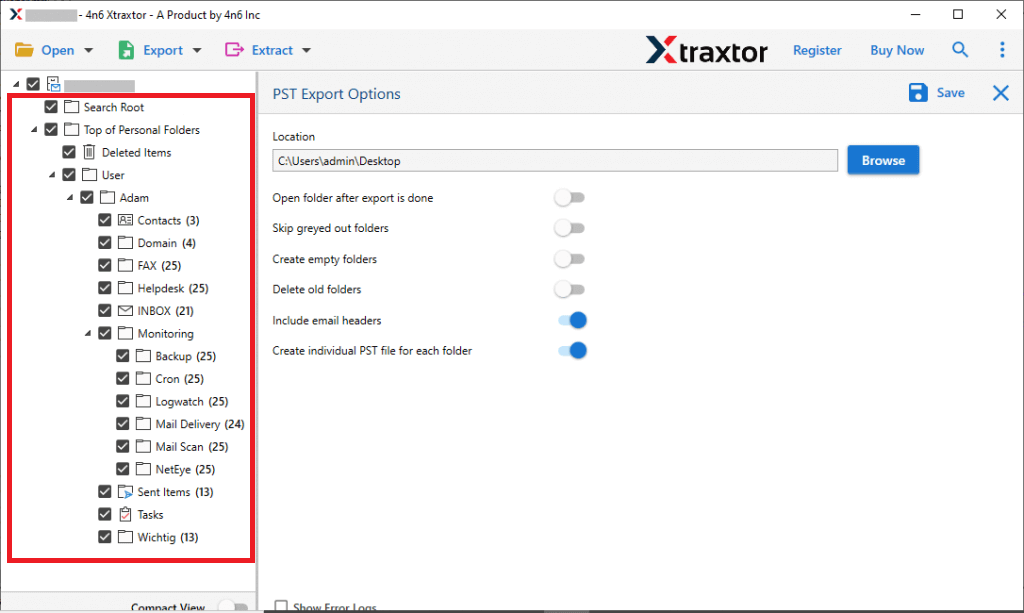
5. Select the email folders you want to export.
6. If you want to apply filters, then click on the search option and choose.
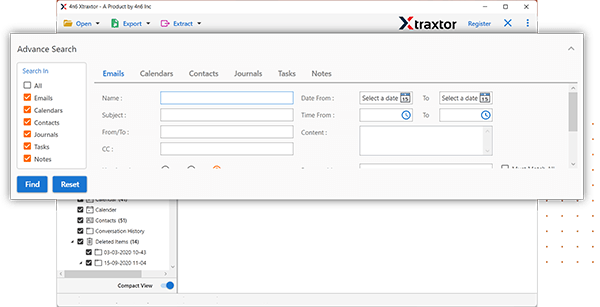
7. Browse the targeted location and hit the Save button.
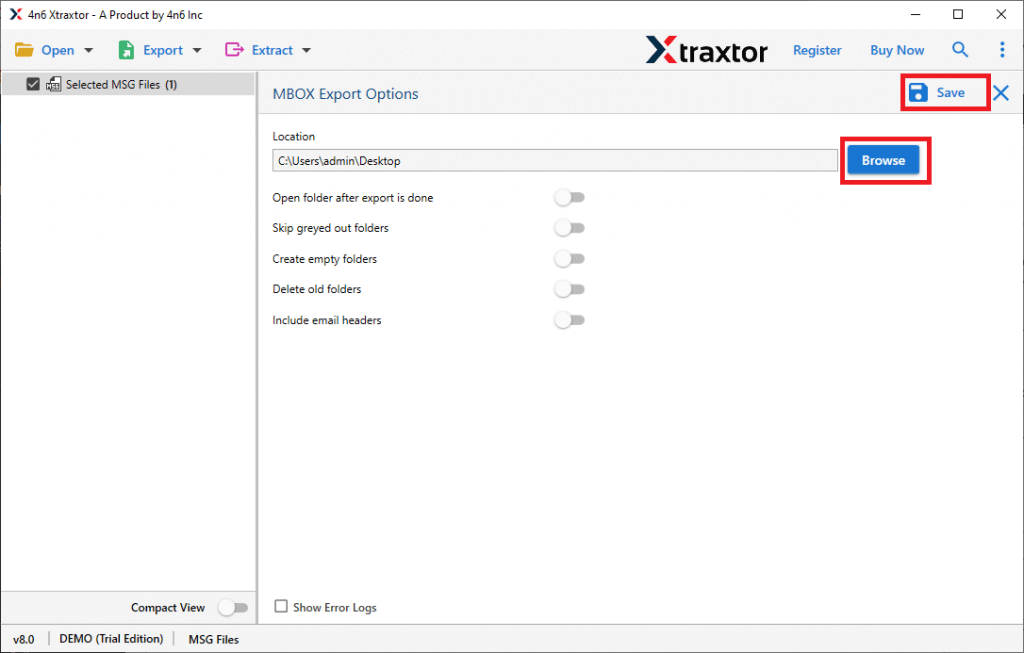
Done! Here you export Hotmail emails to MBOX file in a few simple clicks.
Why Use the Hotmail to MBOX Converter Tool?
- Direct Export: This tool lets you export Hotmail emails to MBOX without needing any extra software. Just log in to your Hotmail account and select MBOX format. The process is fast and finishes in a few seconds.
- Maintain Folder Structure: The tool keeps your email folders in the same order and structure as they were before the export. Your emails will stay organized the way they were.
- Bulk Conversion: You can export all your Hotmail emails to MBOX at once. There are no limits on how many or how large the emails can be, so you can save as many emails as you want without any issues.
- Migrate Hotmail to Other Accounts: With this tool, you can move your emails from Hotmail to other email services. It moves emails from Hotmail to Office 365, Yahoo Mail, Thunderbird, Zoho Mail, AOL Mail, and more.
- Wide Compatibility: This tool works on any Windows computer, including Windows 11 and all other older versions.
- Advanced Email Filter Options: You can use filters like Date Range, Sender, Receiver, and Subject to export only the emails you need. This helps save time by letting you select specific emails.
- Free Trial Version: There’s a free version to try out the software before buying. If you have questions, the customer support team is available 24/7 to help you with anything.
Is There a Free Manual Method?
There is no direct manual way provided by Microsoft to export Hotmail to MBOX. Some users attempt Thunderbird-based workarounds, but these methods are:
- Time-consuming
- Prone to sync issues
- Not suitable for large mailboxes
- Dependent on third-party add-ons
For reliable and complete exports, an automated solution is recommended.
Conclusion
Exporting Hotmail emails to MBOX is a practical step if you want data security, flexibility, and long-term access. While manual options are limited and unreliable, a professional tool provides a safe and efficient way to complete the task.
With Xtraxtor, you can export Hotmail to MBOX, whether you have a few emails or a large mailbox, while preserving attachments and folder structure. Try the demo version to understand its workflow and export your data with confidence.
