How to Export HostGator Emails to PST File?

Many users are searching for a safe and simple way to export HostGator emails to PST file along with attachments. PST format allows easy access to emails in Microsoft Outlook and helps users create a secure offline backup. In this guide, you will learn two effective methods to convert HostGator email to PST: a manual method and a professional solution. Read till the end to choose the best option for your needs.
Why Export HostGator Emails to PST File?
Users convert HostGator emails to PST format for several important reasons:
- Free up mailbox space: HostGator email accounts have limited storage. Exporting emails helps create space for new messages.
- Create a secure backup: If your account is hacked, deleted, or faces server issues, a PST backup keeps your emails safe.
- Offline access: PST files can be opened in Outlook without an internet connection.
- Easy migration: PST files make it simple to move emails to another computer or Outlook profile.
- Centralized storage: All emails and attachments are saved in a single file.
There are two ways to export HostGator emails to PST:
- Manual method using Microsoft Outlook
- Automated method using a professional email backup tool
Let’s understand both methods step by step.
How to Convert HostGator Email to PST File Manually?
This method requires Microsoft Outlook. First, you need to configure your HostGator email account in Outlook and then export it as a PST file.
Step 1. Open the Outlook application on your Windows system.
Step 2. Click on File >> Add Account.
Step 3. Enter your HostGator email address and click Connect.
Step 4. If Outlook does not configure automatically, choose Advanced Setup and select IMAP.
Step 5. Enter the HostGator IMAP settings:
- IMAP Server – mail.yourdomain.com
- Port Number – 993
- Encryption – SSL/TLS
Step 6. Enter your email password and click Connect.
Step 7. Once configured, go to File >> Open & Export >> Import/Export.
Step 8. Choose Export to a file and click Next.
Step 9. Select Outlook Data File (.pst) and click Next.
Step 10. Choose the email folders you want to export.
Step 11. Browse to the location to save the PST file and click Finish.
Now your HostGator emails are exported to PST format manually.
Limitations of the Manual Method
Although this method works, it has several drawbacks:
- Requires Microsoft Outlook installation
- Time-consuming with many steps
- No advanced filter option
- Risk of errors or data loss
- Not suitable for large mailboxes
- Outlook must remain connected during export
Because of these limitations, many users prefer an automated solution.
How to Export Emails from HostGator to PST Securely?
You can use a professional tool like Xtraxtor to export HostGator emails to PST file in just a few clicks. The software safely downloads complete mailbox data including attachments and maintains the original folder structure.
With this tool, you can also apply filters to export selected emails based on Date, From, To, Subject, etc. It allows you to save the PST file on your local drive or external storage device. The interface is simple, so even non-technical users can perform the backup process easily.
Click the free download button to explore all working steps.

Steps to Export HostGator Emails to PST File
Follow these simple steps:
Step 1. Install and run the software on your Windows system.
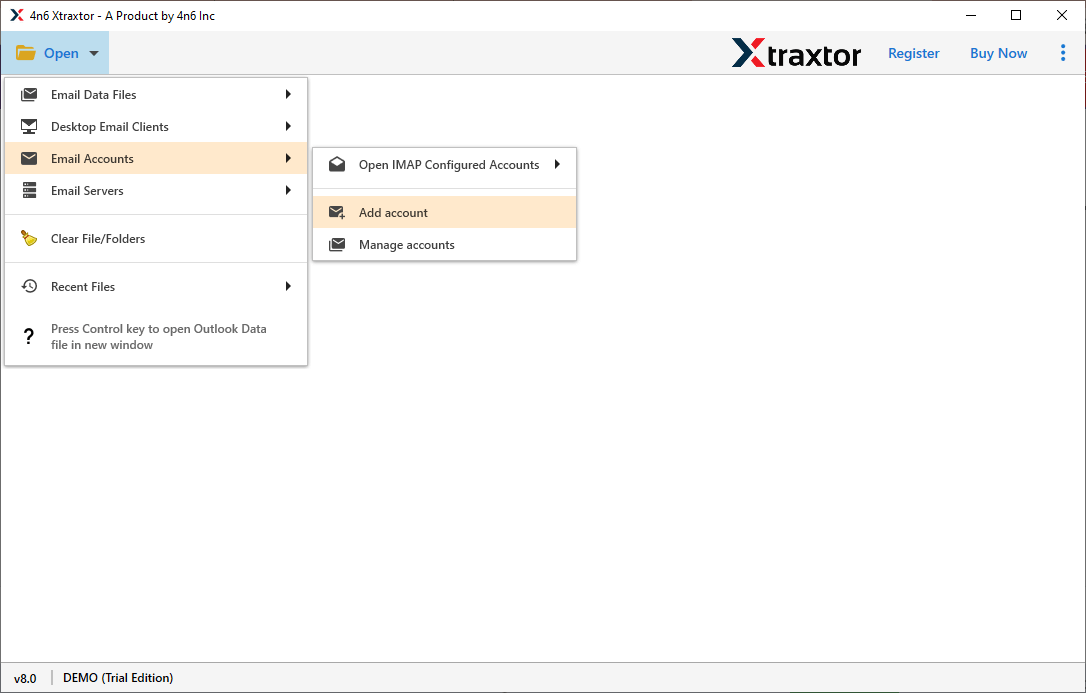
Step 2. Click on Open >> Email Accounts >> Add Account.
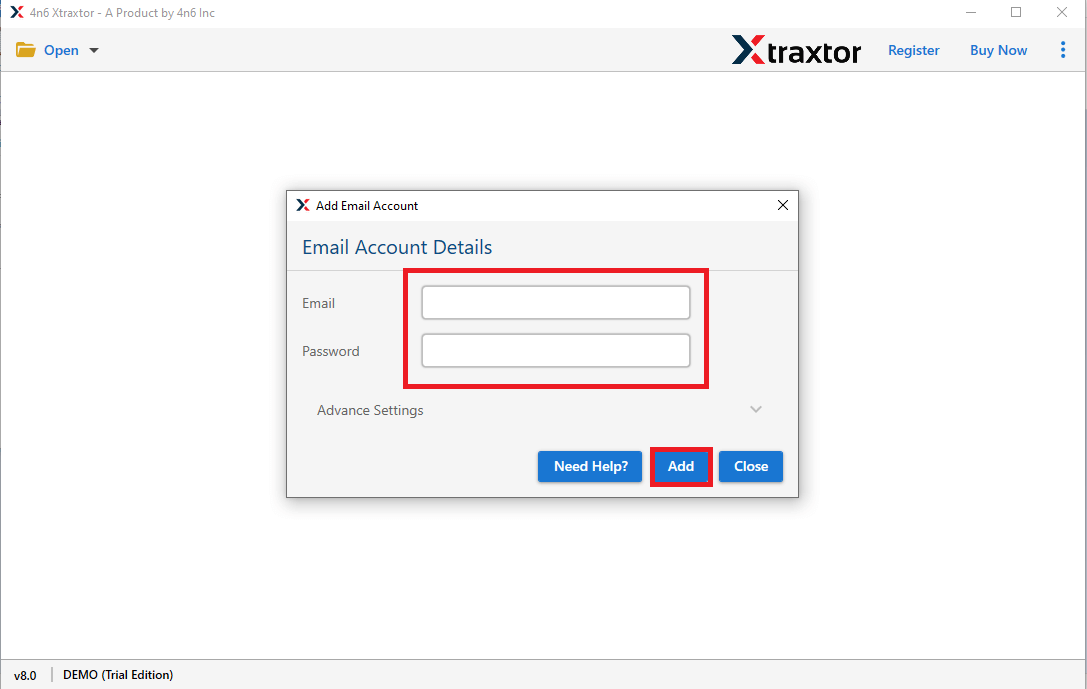
Step 3. Enter your HostGator email login details and add the account.
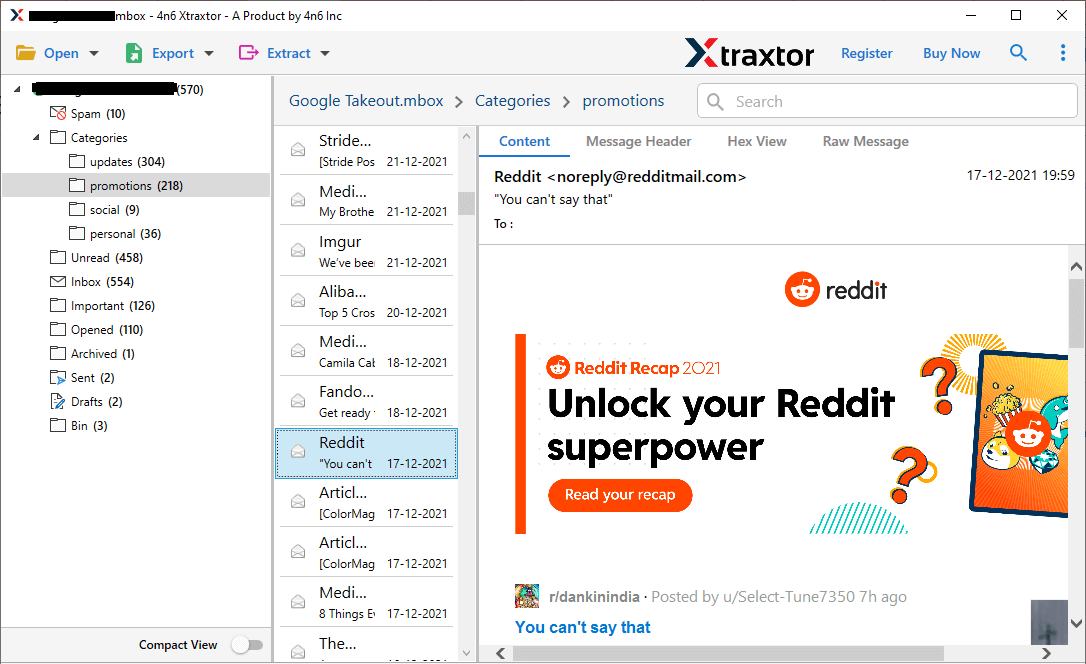
Step 4. Preview your emails before exporting.
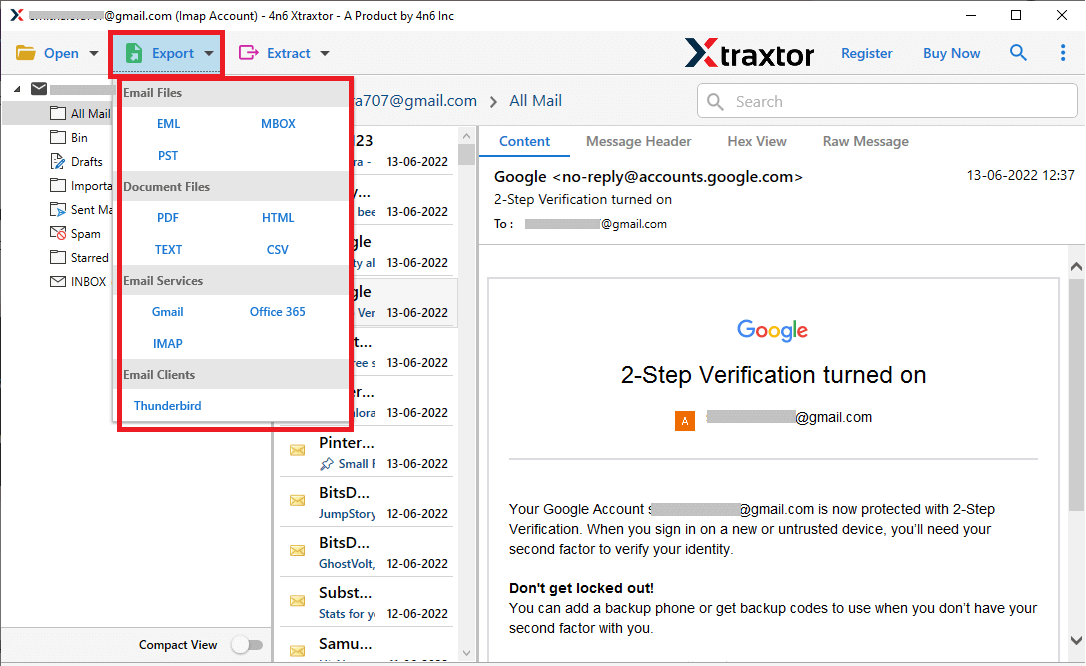
Step 5. Click on Export and choose PST format from the list.
Step 6. Select the email folders you want to export.
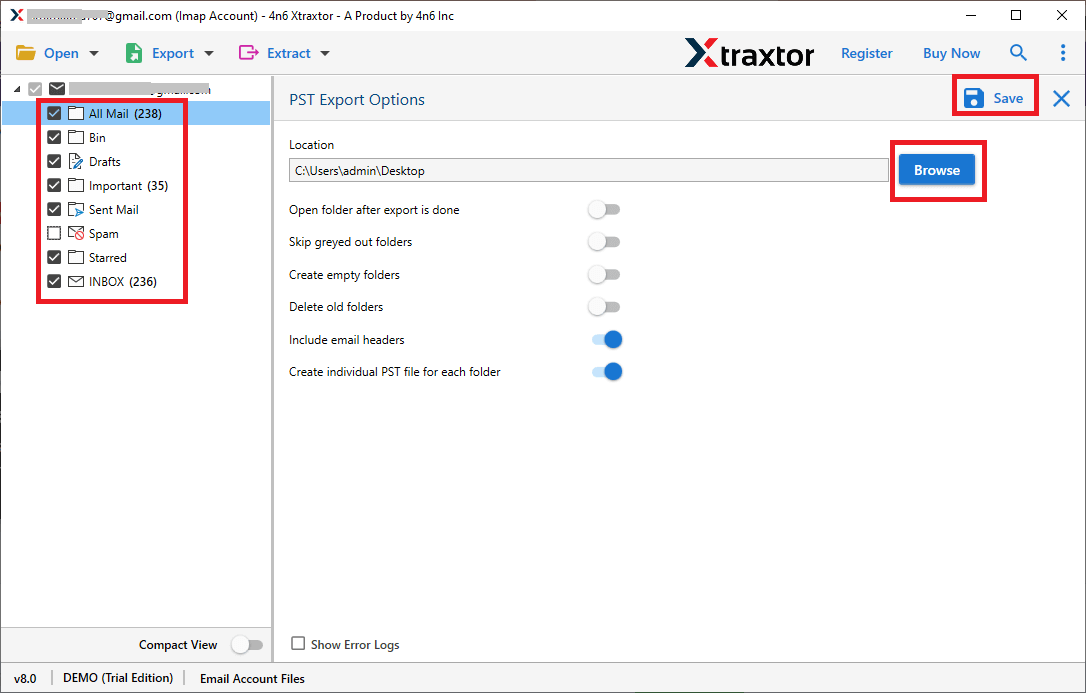
Step 7. Browse the destination location and click on the Save button.
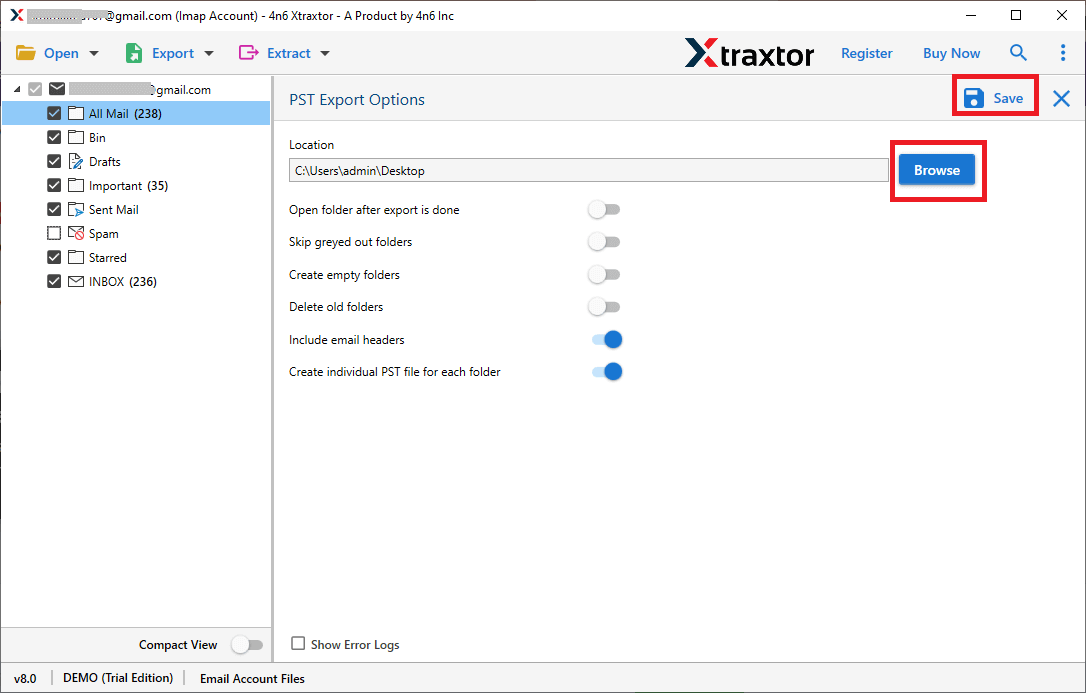
That’s it. Your HostGator emails are now safely exported to a PST file.
Using an automated solution provides many benefits:
- Complete HostGator email backup without data loss
- Export emails along with attachments
- Maintains original folder hierarchy
- Advanced filter options for selective export
- Preview emails before exporting
- No need to install Outlook
- Supports large mailboxes
- Simple and user-friendly interface
Conclusion
In this blog, we explained two simple methods to export HostGator emails to PST format. We discussed both the manual method using Microsoft Outlook and the automated solution so you can clearly understand how each method works. Now, you can choose the option that best fits your needs. Try the steps and decide which method is easier and more suitable for you. We hope this guide helps you export HostGator emails to PST format without any difficulty.
