How to Export Google Workspace Emails to MBOX?

In this updated guide, we will teach you through 2 fully working and tested methods to export Google Workspace to MBOX securely. This article covers everything you need to know about how you can easily convert emails from Google Workspace to MBOX format by using all the methods available. You can trust all the explained methods as they are verified and recommended by our experts.
So, go through this article and get a clear understanding of the complete methods.
How to Export Google Workspace to MBOX for Free?
Here, we will use Google Takeout to manually export all emails from Google Workspace account to MBOX format. Follow the steps below carefully to get the desired results.
- Open “Google Chrome” on your PC.
- Go to “Google” and type “Google Takeout” and press “Enter” on your keyboard.
- Scroll down and select “Create a new export” and “Deselect” all the “Check marks“.
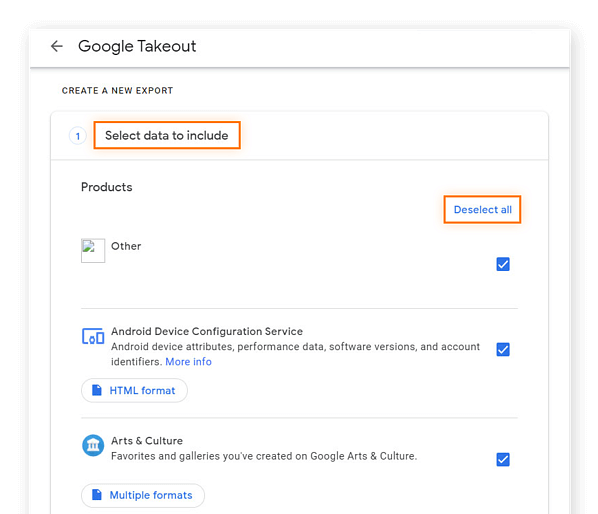
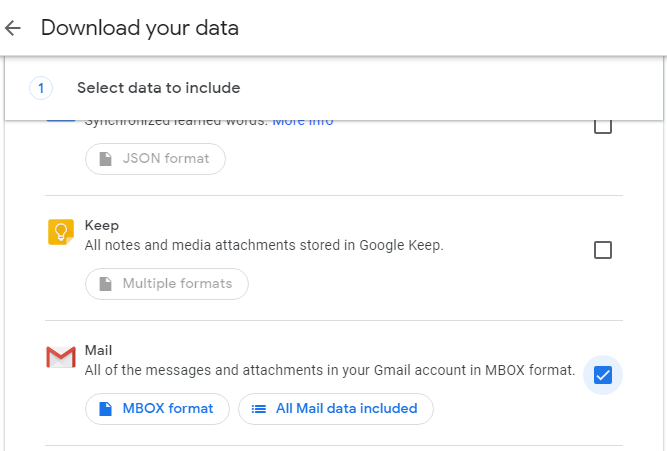
- Simply check the box next to “Mail” and click the “Next Step” button.
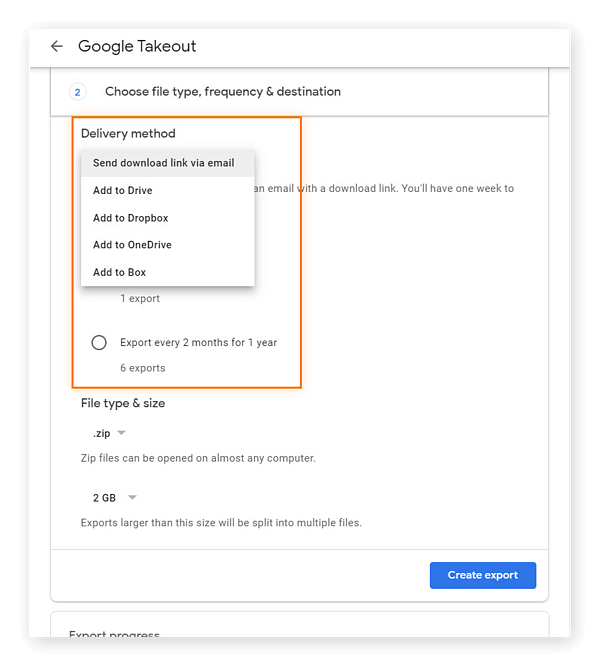
- Here you will find a list of options. Now select the option “Send download link via email“.
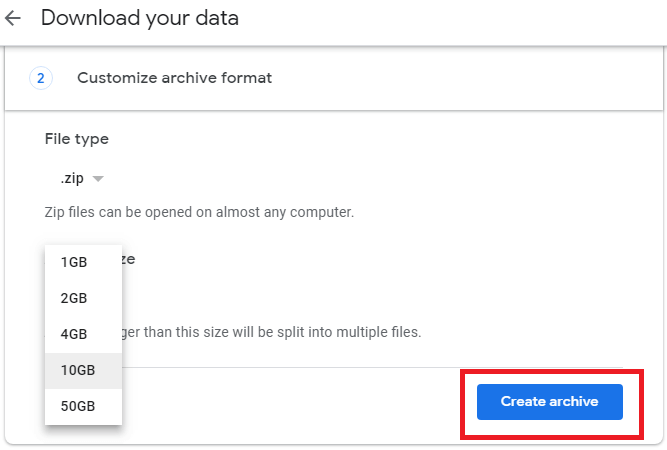
- Choose option “.zip” as “File Type” with “File Size” according to your need.
- After that, click on “Create Archive“.
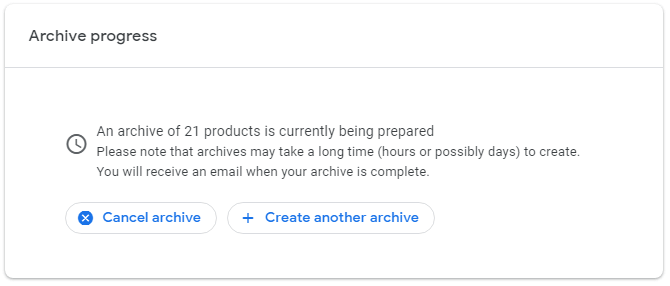
- Now the export process will start.
- After completion of the export process, you will receive an email of completion.
- Open the received email, and you will get the “Download archive” button.
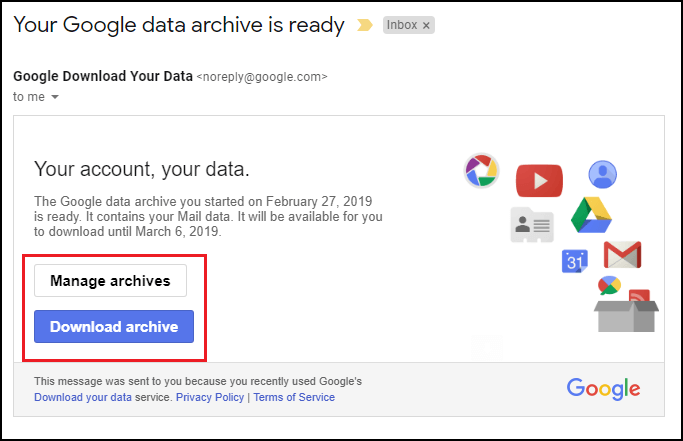
Afterwards, extract the file and get data in “MBOX” format.
How does Google Takeout work and what is the next step?
Google simply creates the archive of your mails and sends a download link on your email address. You need to download the ZIP file and access your emails in MBOX file format.
Now let’s talk about the limitations of Google Takeout:
It’s time-consuming for bulk files and won’t allow creating an export from specific folders with advanced filters. There is no option for scheduled or automatic backups. Furthermore, additional steps are required to access and use MBOX files later.
If this free solution doesn’t work and give you the results you want, you can try the professional export method.
How to Convert Google Workspace Emails to MBOX Professionally?
Try the Xtraxtor to export Google Workspace to MBOX file format. This software allows you to accurately, securely, and easily save Google Workspace emails to MBOX. Additionally, this tool allows you to convert your emails to MBOX format in just a few clicks, while preserving the email formatting, folder structure, and all attachments.
Furthermore, you can save MBOX files on your hard drives, external drives, and cloud storage with advanced filters such as Date, Subject, From, To, etc.
Click on the button below to “Download” its free “Trial Version“.

Steps to Export Google Workspace to MBOX File Format
- Run Xtraxtor Tool on your Windows PC.
- Click on the Open button and go to the email account option.
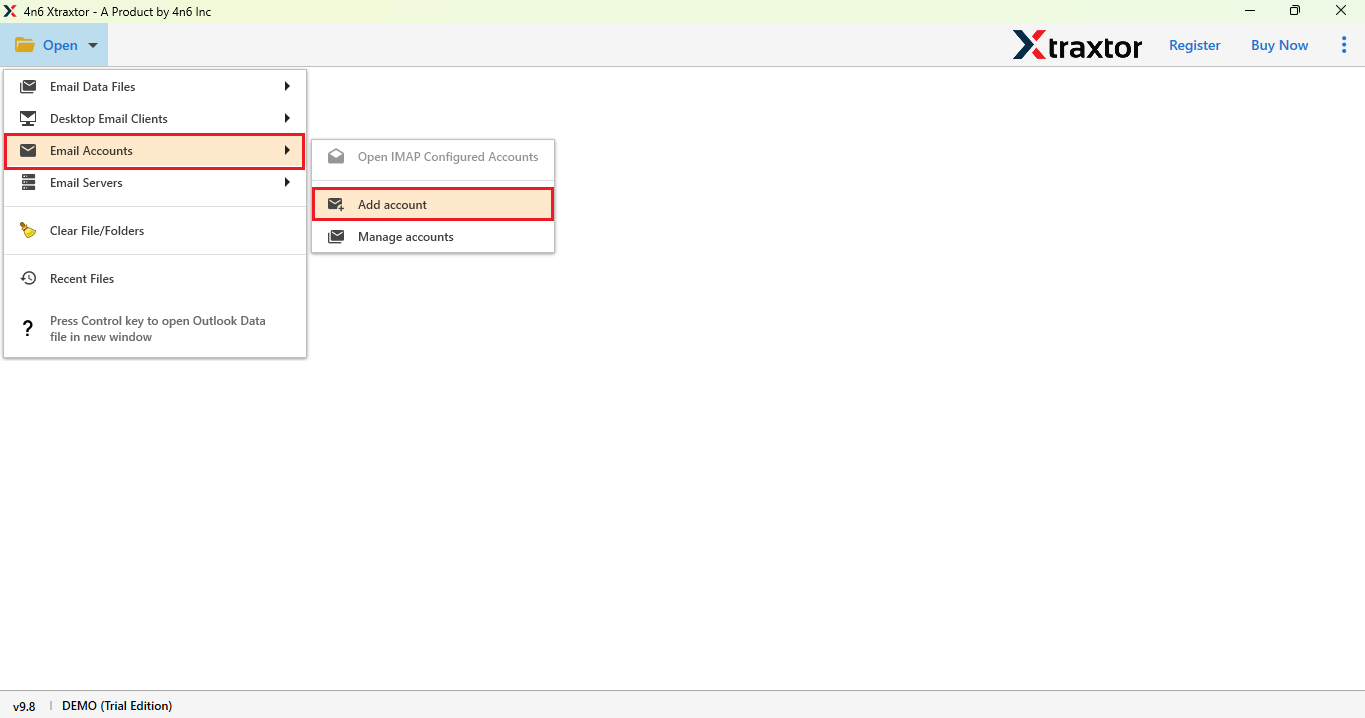
- Add your Gmail account with its App password.
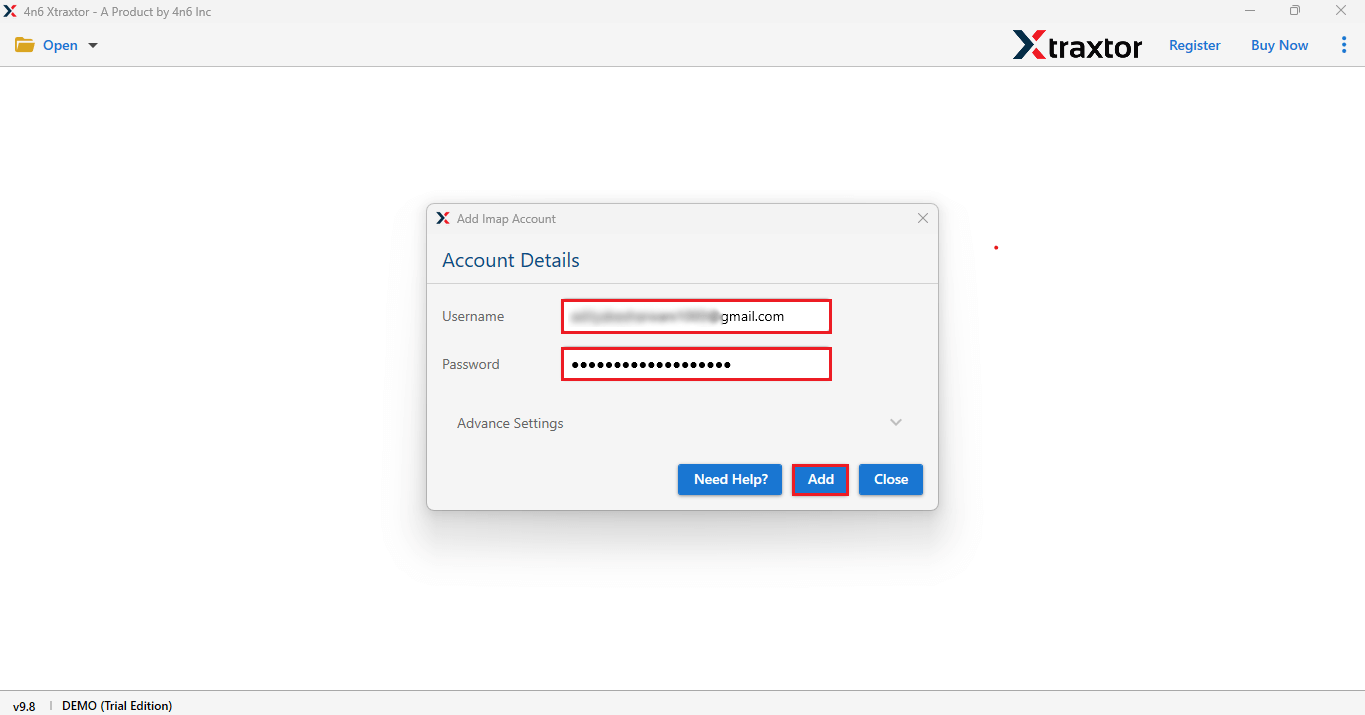
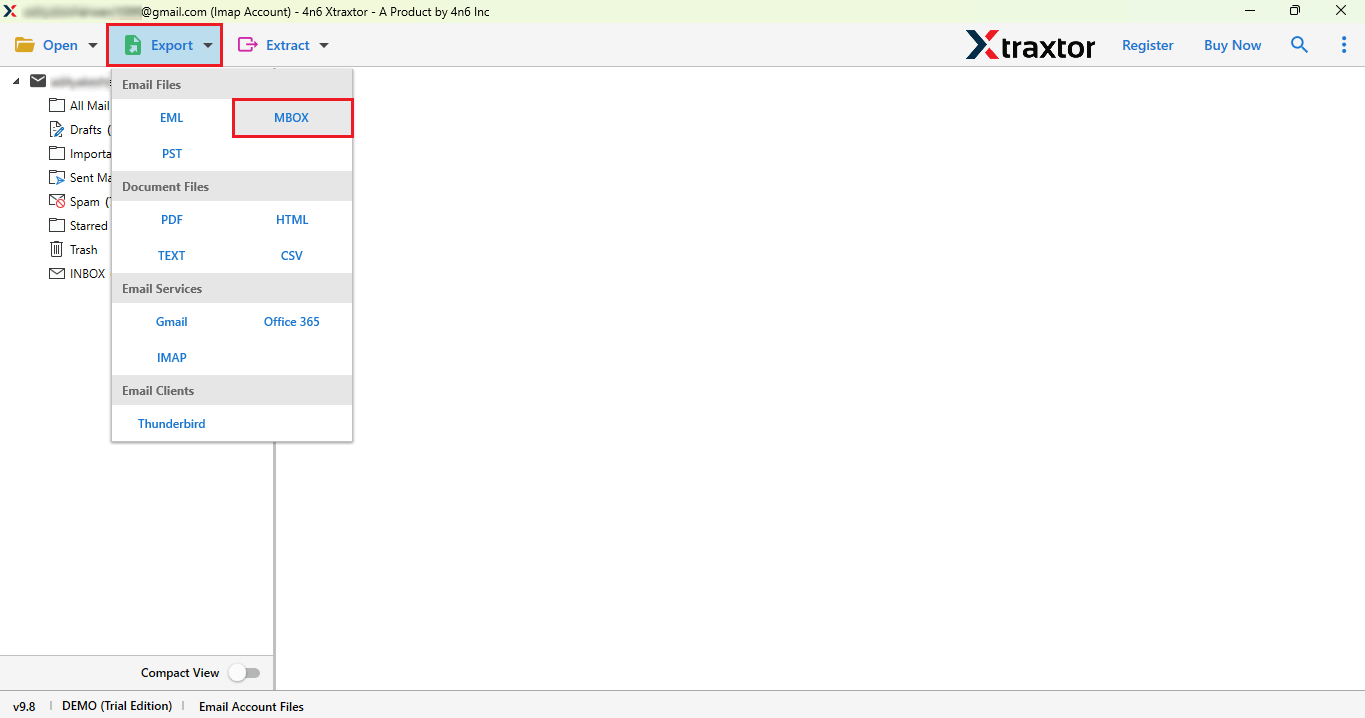
- Then simply click on the Export button and select MBOX.
- Now select the folder you need, browse the location for your MBOX files, and click Save.
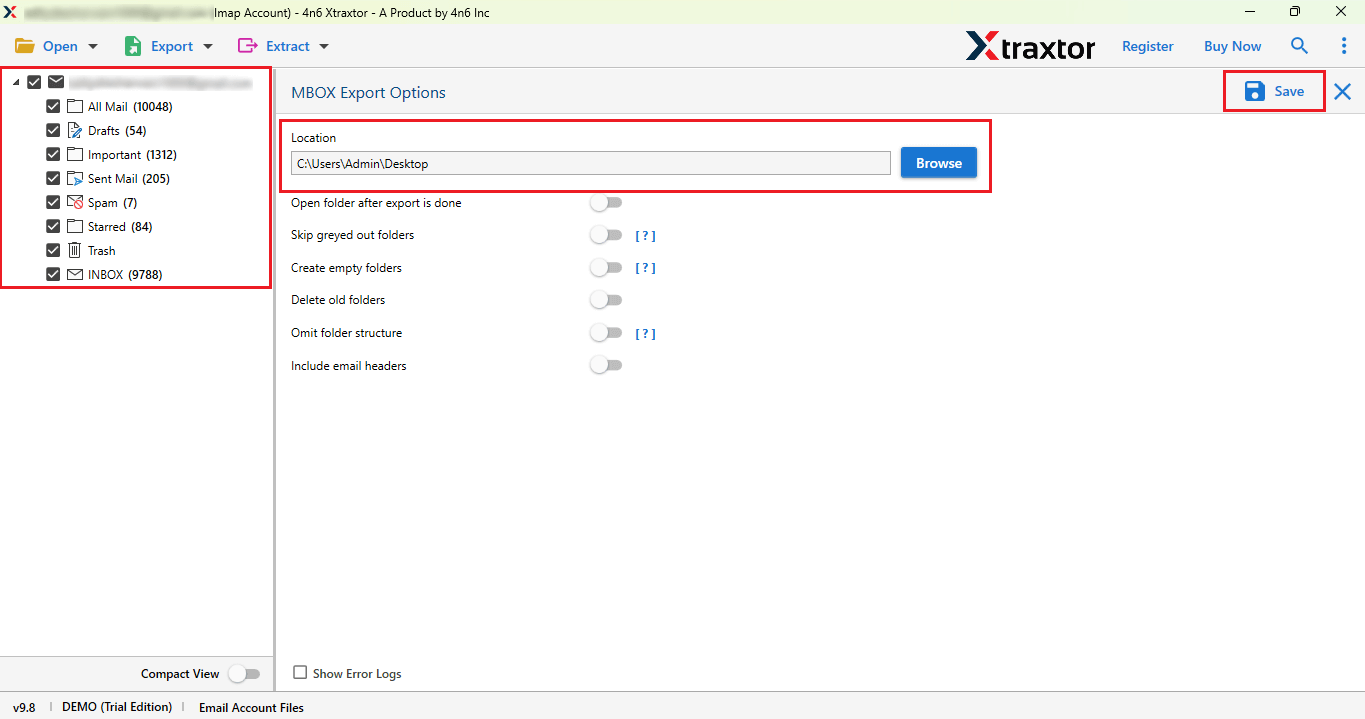
Your converted Google Workspace email will be saved in MBOX files.
By following the above method, you can save complete Google Workspace emails as an MBOX file.
Features of Using a Professional Tool
- This software allows direct export to any file format, such as EML, PDF, PST, and other file types.
- Its user interface makes it easy to use for non-tech and tech users.
- Works on 200+ Webmail accounts for the backup process.
- This tool offers a free trial version that allows you to explore its features.
- Software enables bulk export all at once with just a few clicks.
- This is an all-in-one solution for backing up emails.
- It gives advanced filter options such as to, from, subject, date, name, etc.
- Supports all Windows operating Systems such as – 11, 10, 8, 8.1, and 7.
These were the benefits of using professional software to export Google Workspace emails to MBOX.
Conclusion
If you want to export Google Workspace emails to MBOX, this blog is a helpful guide for you. So, you have now understood that exporting Google Workspace emails to MBOX can be done by using two easy ways. Google Takeout is a good option if you want to export complete emails at a single time. However, if you need to export selective Google Workspace emails, using an automated tool is a professional method is suggested. All the methods explained above are tried and tested by professionals, so you can make a wise decision that best suits your needs.
