How to Export FastMail Emails to PST File Format?

When users switch from a web-based email service to desktop app, Outlook is the top choice. It offers various helpful features to manage emails effectively and efficiently. Similarly, many FastMail users look to export FastMail emails to PST so that they can easily access their emails in Outlook.
However, this process isn’t always easy; it can be a bit tricky and time-consuming if you are not familiar with the technical steps. That’s why we have created this guide to easily guide you through the process to export emails from FastMail to PST file format.
In this blog, we will cover both manual & automated ways to export FastMail emails into PST file. So, go through each method and understand its complete process, then decide which method to use. Use an appropriate time to understand both options and choose the one that best suits your needs.
There are two main ways to convert FastMail emails to PST:
- Manual Method
- Automated Tool
Let’s explore both methods step by step.
How to Export FastMail Emails to PST? (Manual Method)
To use this method, you must have Microsoft Outlook installed on your system. After installing Outlook, follow the steps below.
- Open Outlook and go to the File tab.
- Click Add Account.
- Choose Manual Setup or Additional Server Types.
- Select POP or IMAP and click Next.
- Enter your Fastmail email address and password.
- Provide your IMAP details and click Next.
- Next, go to the File tab.
- Click Open & Export and choose Import/Export.
- Select Export to a file and click Next.
- Choose Outlook Data File (.pst) and click Next.
- Select the folder you want to export.
- Click Next, choose the target location, and press Finish.
By following the above steps, you can export FastMail emails to PST format using Outlook.
However, although this manual method is free, it has several limitations.
Demerits of the Manual Method
The manual process is technical and requires proper configuration.
- If the syncing process is interrupted, you may need to start again.
- It is very time-consuming for large mailboxes.
- Bulk export of multiple accounts is not supported.
- There is always a risk of incomplete data synchronization.
- No advanced filter options like date range selection.
- Outlook installation is mandatory.
Due to these drawbacks, many users prefer a professional solution.
How to Convert FastMail Emails into PST File?
Try Xtraxtor Email Backup Wizard, which is a simple and secure solution to export FastMail emails to PST format without any data loss. The software allows users to download all FastMail emails in one go with complete accuracy. It keeps the original email formatting, attachments, and folder structure intact during the export process. There is no limitation on mailbox size or number of emails. Users can export unlimited FastMail emails to PST format easily.
The tool also offers advanced filter options such as date range, folder selection, and exclude attachments to export only required emails. It does not alter email properties like To, From, Subject, Date, or attachments. The entire process is safe, smooth, and user-friendly.
You can download the free demo version to test the performance and features of the software before purchasing.

Steps to Export FastMail Emails to PST File
Step 1. Download and install the Xtraxtor software on your Windows computer.
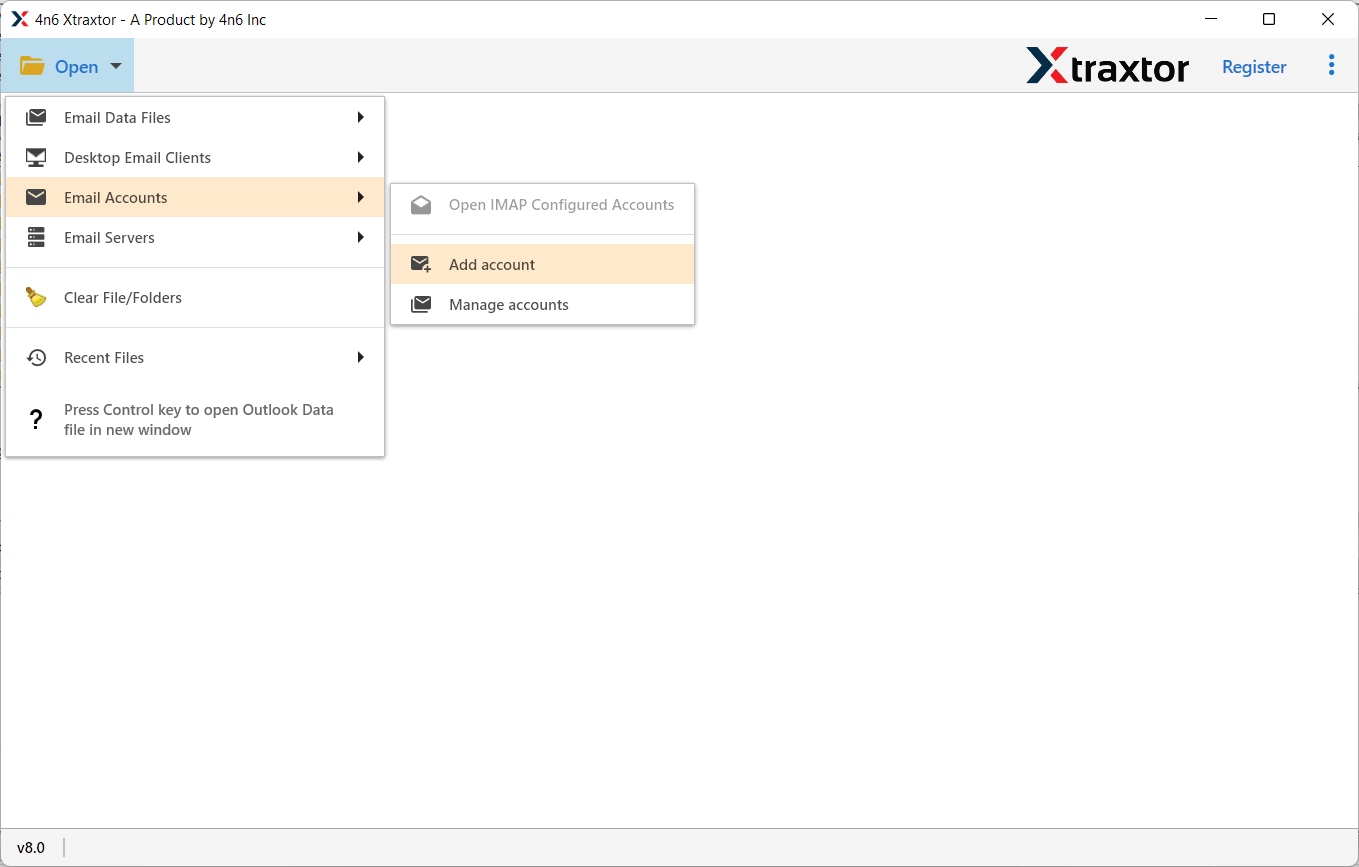
Step 2. Open the software and navigate to Open >> Email Accounts >> Add Account.
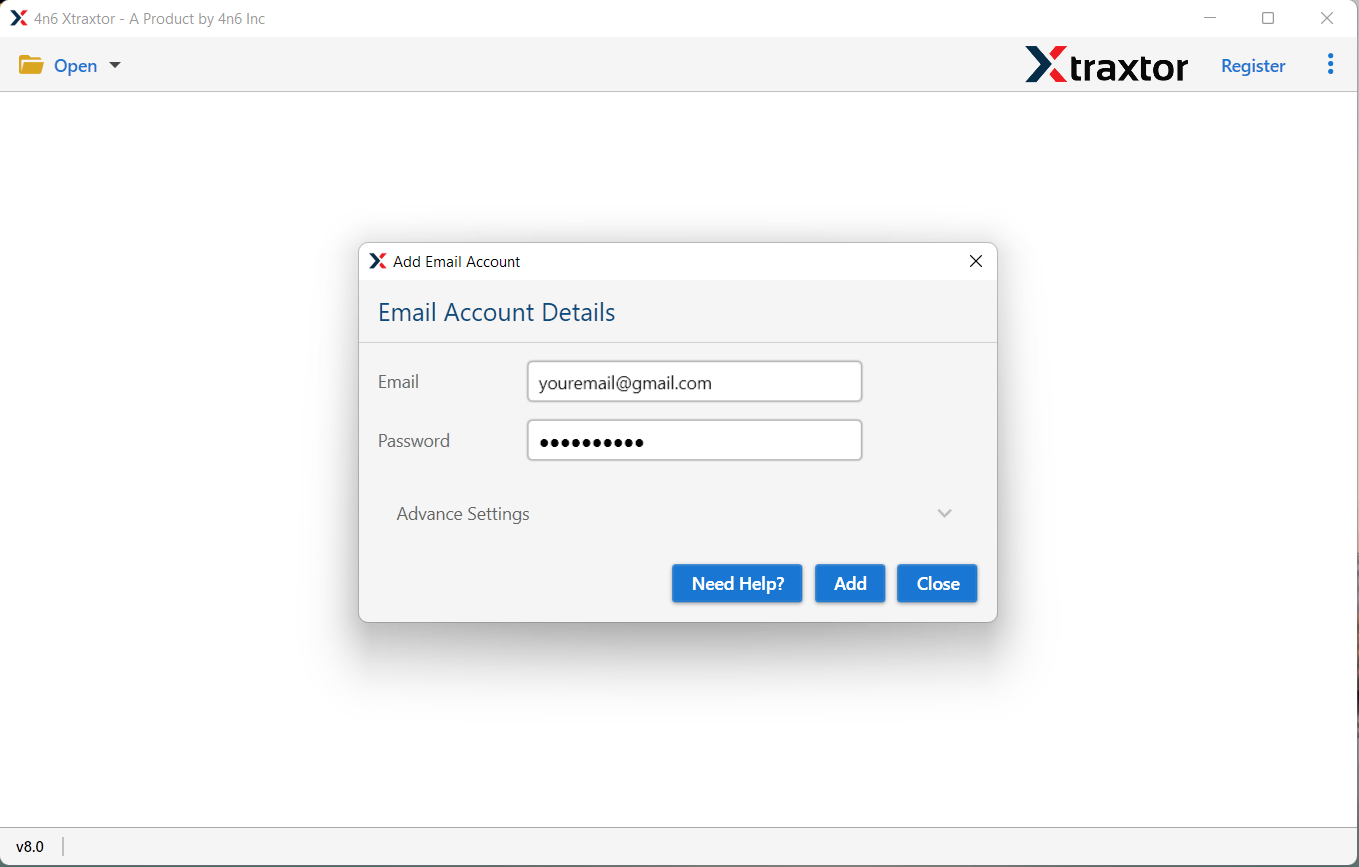
Step 3. Enter your Fastmail login credentials and click on the Add button.
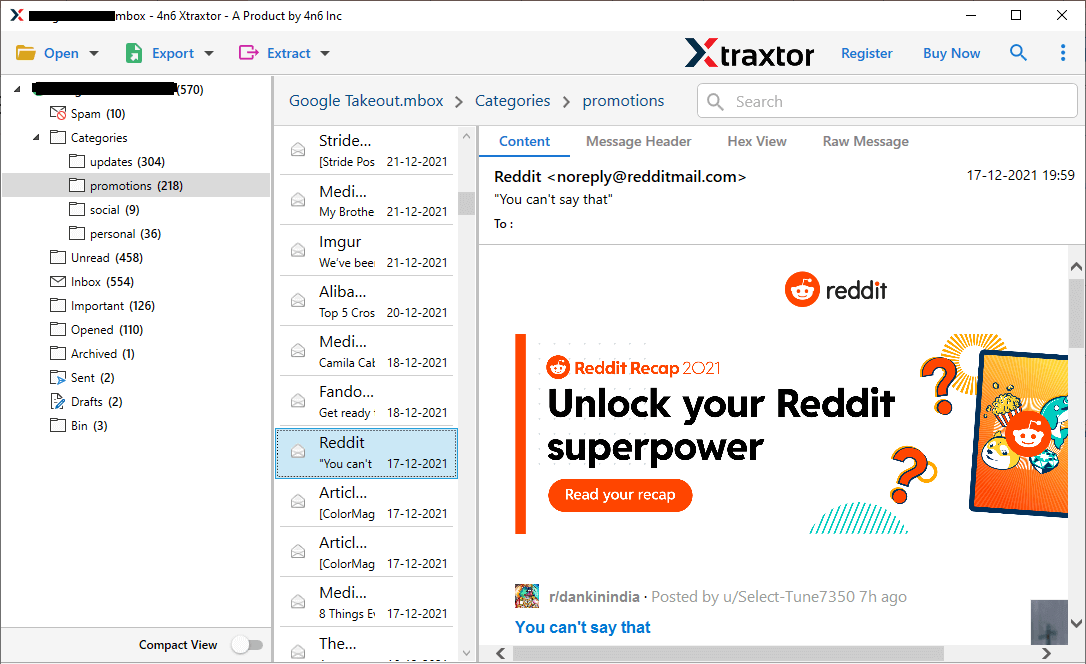
Step 4. After loading the mailbox, preview them.
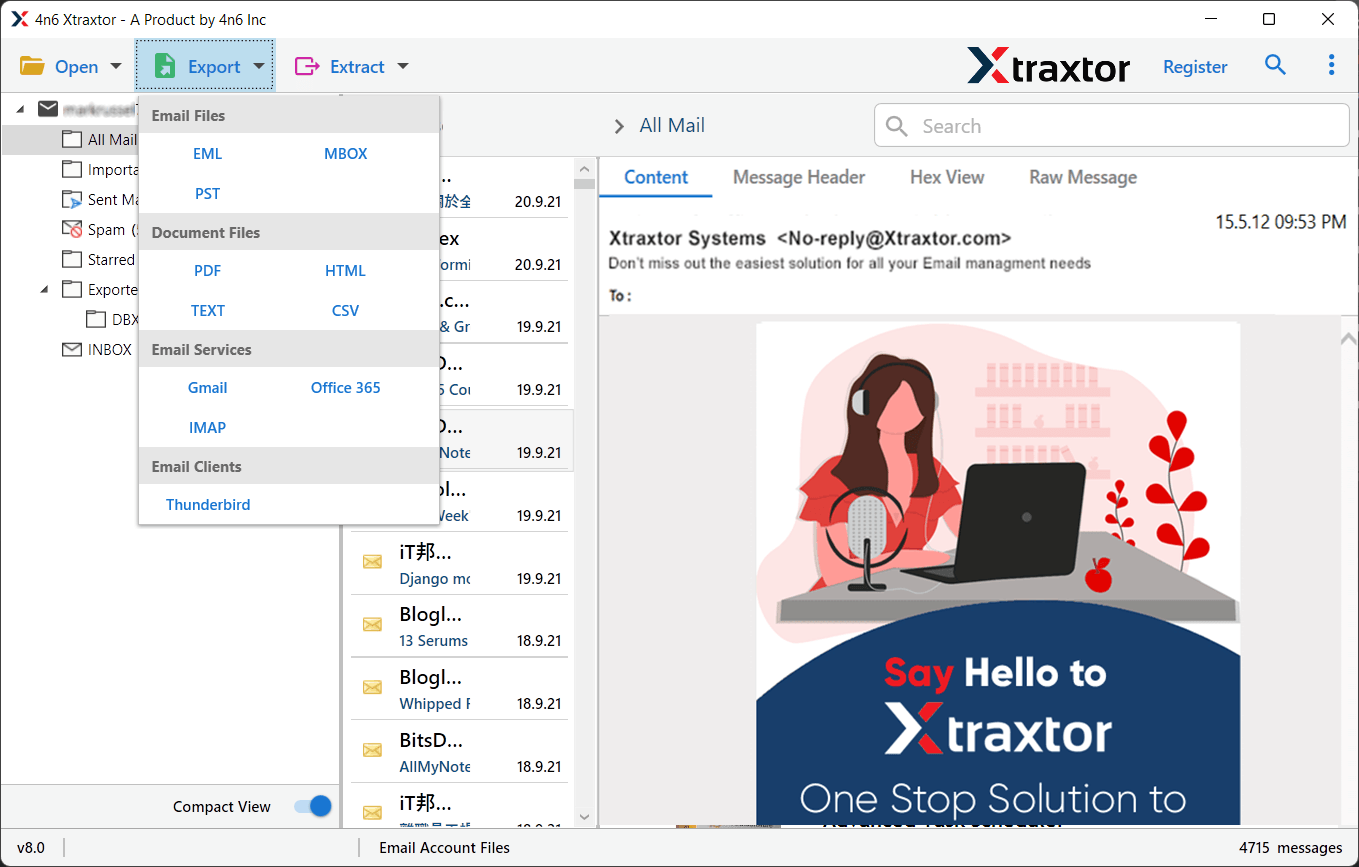
Step 5. Click on Export and choose PST as the saving format.
Step 6. Now, select the required email folders to export your emails.
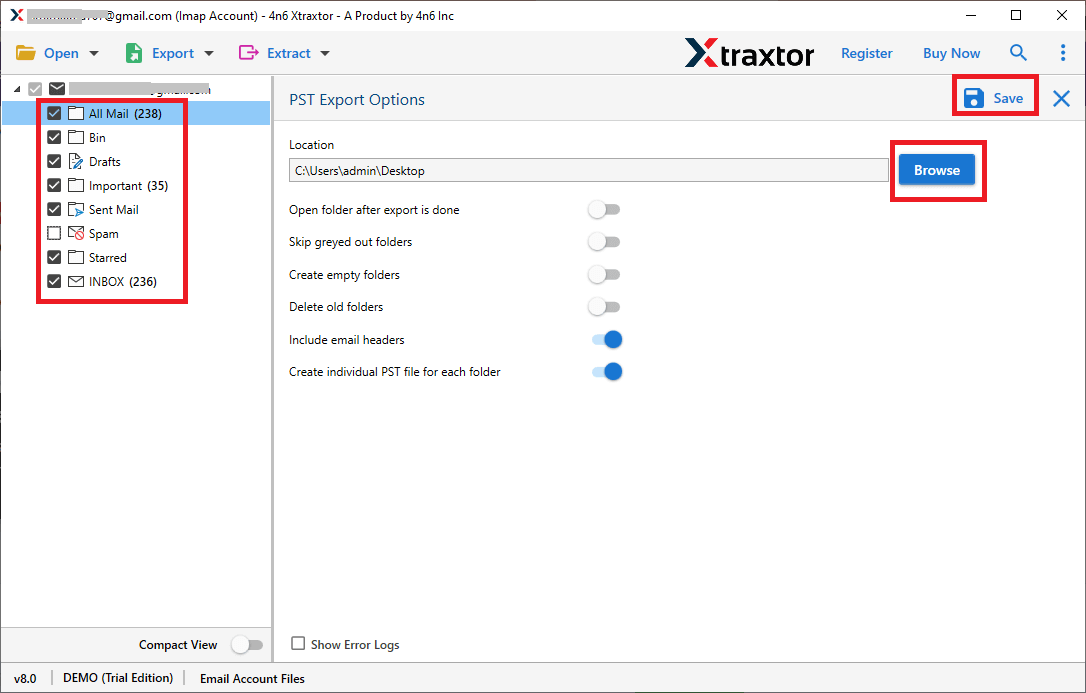
Step 5. Lastly, tap on Browse to select the destination & click save to start.
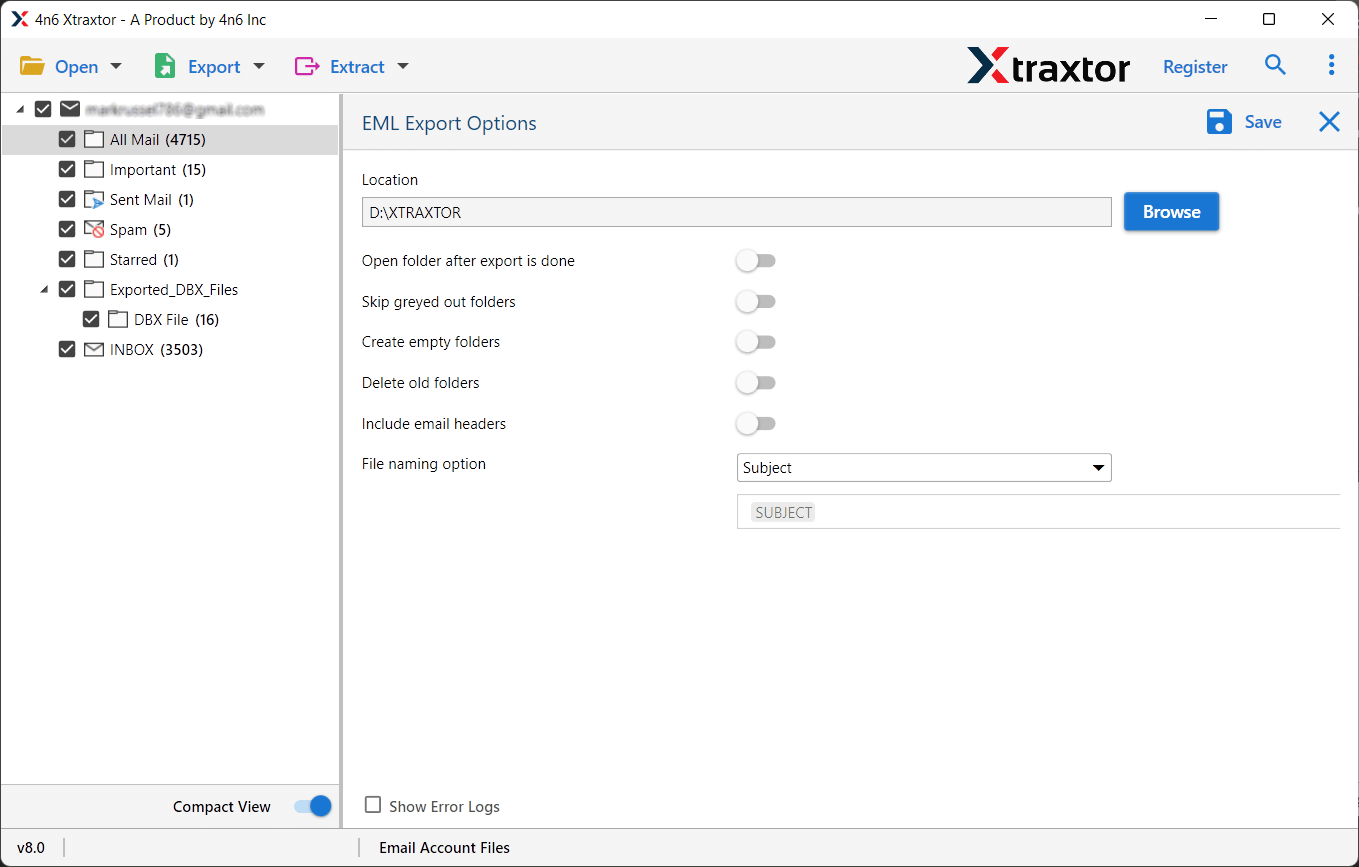
The process will start immediately. Within a few minutes, your FastMail emails will be successfully exported to PST format.
Wrapping Up
Many users search for reliable ways to export FastMail emails to PST format. There are two main approaches: the manual method using Microsoft Outlook and a professional Tool. The manual method is free but comes with technical complexity and limitations. On the other hand, the professional tool complete step-by-step guide to carry out this task in minimum steps and with complete data.
A free demo version is also available, so you can test the software before purchasing.
