How to Download Gmail Folder to Desktop?

So you want to download Gmail folder to desktop, but don’t know where to start? Don’t worry, you’re not alone. Many users look for a simple way to save Gmail folders on their computer for backup, offline access, or better data security. Whether it’s for personal use or business needs, having a local copy of your emails can be very useful.
In this guide, I will explain both manual and professional methods to download Gmail folders easily, so you can choose the best option according to your needs and complete the process without any confusion.
Reasons to Download Gmail Folder to Desktop
There are many useful reasons why users prefer to download Gmail folders to their desktop. It helps in better email management and keeps your important data safe.
One of the main reasons is to create a backup of important emails. If your Gmail account gets hacked, deleted, or inaccessible for any reason, you will still have a secure copy of your emails stored on your computer.
Another reason is to access emails offline anytime. Once emails are saved on your desktop, you can open and read them without needing an internet connection, which is helpful during travel or network issues.
Users also download Gmail data to free up storage space. Gmail provides limited free storage, and when it gets full, you may stop receiving new emails. By moving old emails to your desktop, you can easily manage your inbox space.
It is also important for professionals to save emails for legal or business records. Many users need to keep email data for documentation, auditing, or future reference, and storing it locally makes this process easier.
Lastly, downloading Gmail folders helps to transfer emails to another platform. If you plan to switch to another email service or client, having emails saved on your desktop makes the migration process simple and smooth.
How to Download Gmail Folder to Desktop? (Manual Method)
Gmail provides a basic way to download emails using Google Takeout.
Step 1. Open your Gmail account in your web browser.
Step 2. Click on your profile icon and select Manage your Google Account.
Step 3. Go to the Data & Privacy section.
Step 4. Scroll down and click on Download your data.
Step 5. Select Mail and choose the specific folders (labels).
Step 6. Click on the Next Step button.
Step 7. Choose the file type (.zip) and delivery method.
Step 8. Click on Create Export to start downloading.
Once the export is ready, download the file to your system.
Although this method works, it has several drawbacks:
- Time-consuming for large mailboxes
- No direct way to save emails in readable format
- Download Gmail in MBOX format only
- Cannot easily move Gmail emails to desktop folder
- No advanced filters for selective download
How to Export Gmail Folders to Computer Automatically?
Download Xtraxtor and easily save Gmail folders to your desktop without any hassle. The tool allows you to directly download Gmail data to your computer with complete emails, attachments, and folder structure intact. You can select specific Gmail folders and export them into various file formats such as PST, PDF, EML, MBOX, and more. It also offers advanced filter options like date range, subject, sender, and more to perform selective downloads.
The software maintains data integrity and provides a simple interface suitable for both beginners and professionals. It is an ideal solution for users looking to move Gmail folder to desktop quickly and securely.
Get started with the free version to understand its functionality.

Steps to Download Gmail Folder to Desktop
Step 1. Download and install the software on your Windows PC.
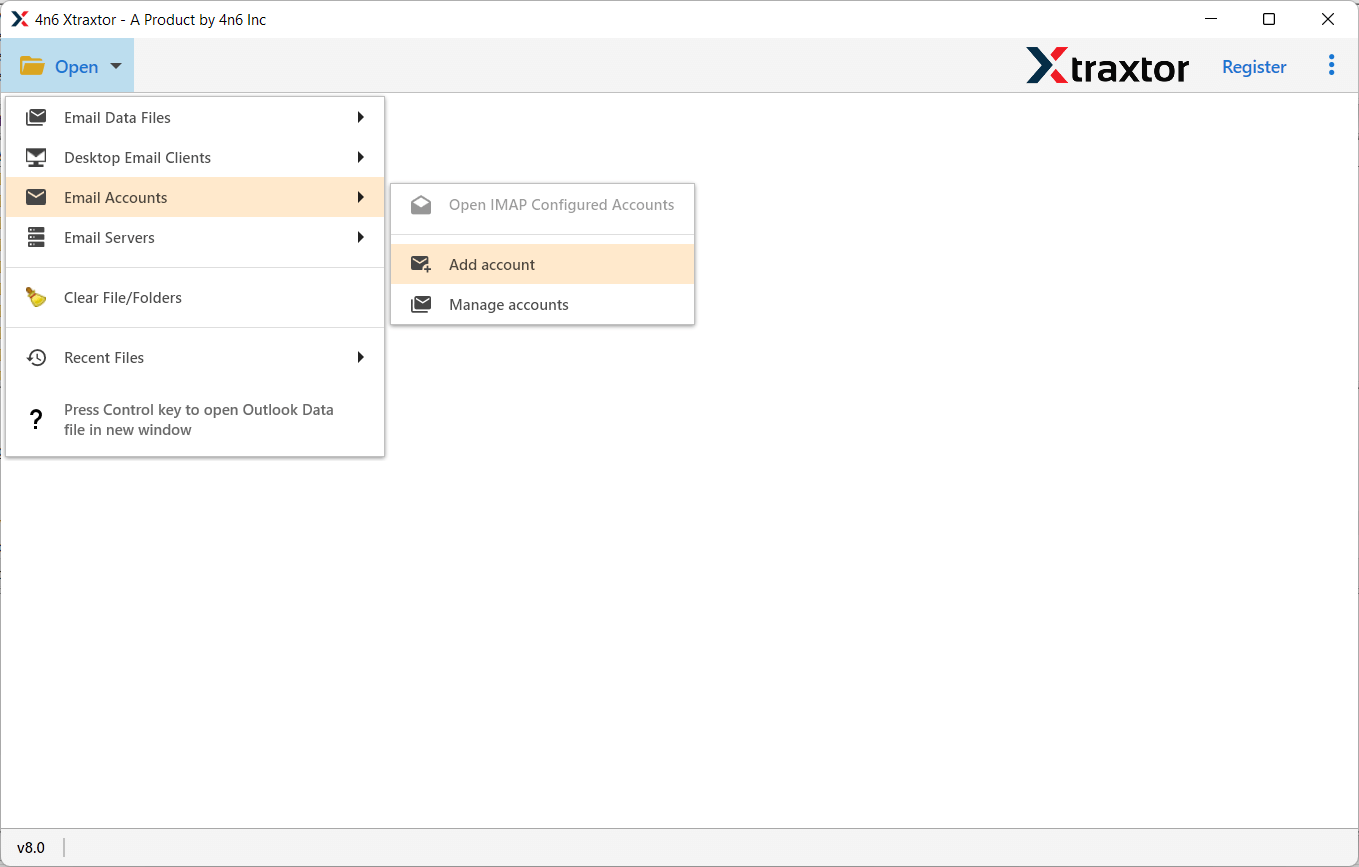
Step 2. Launch the tool and click on Open >> Email Accounts >> Add Account.
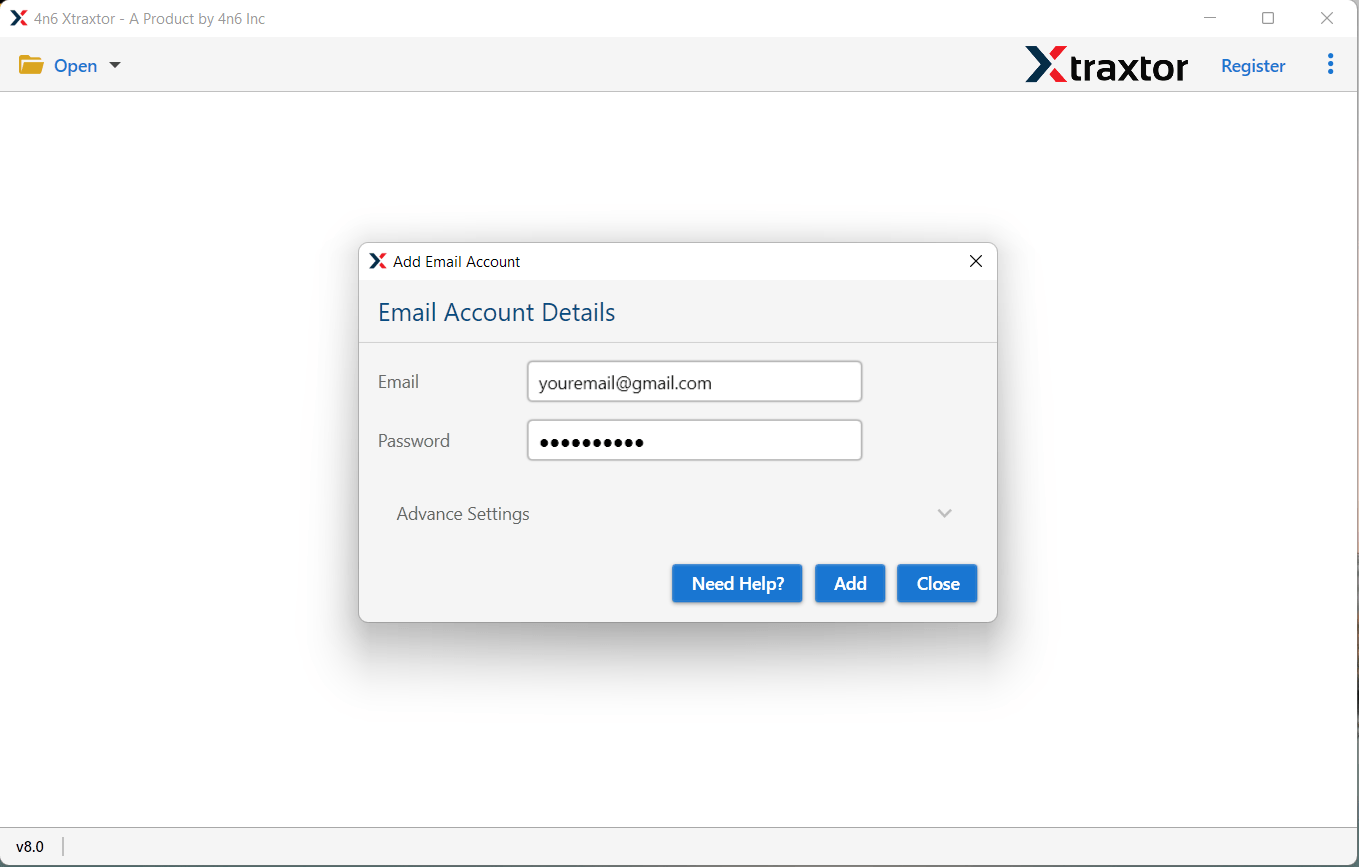
Step 3. Enter your Gmail login details and click on the Add button.
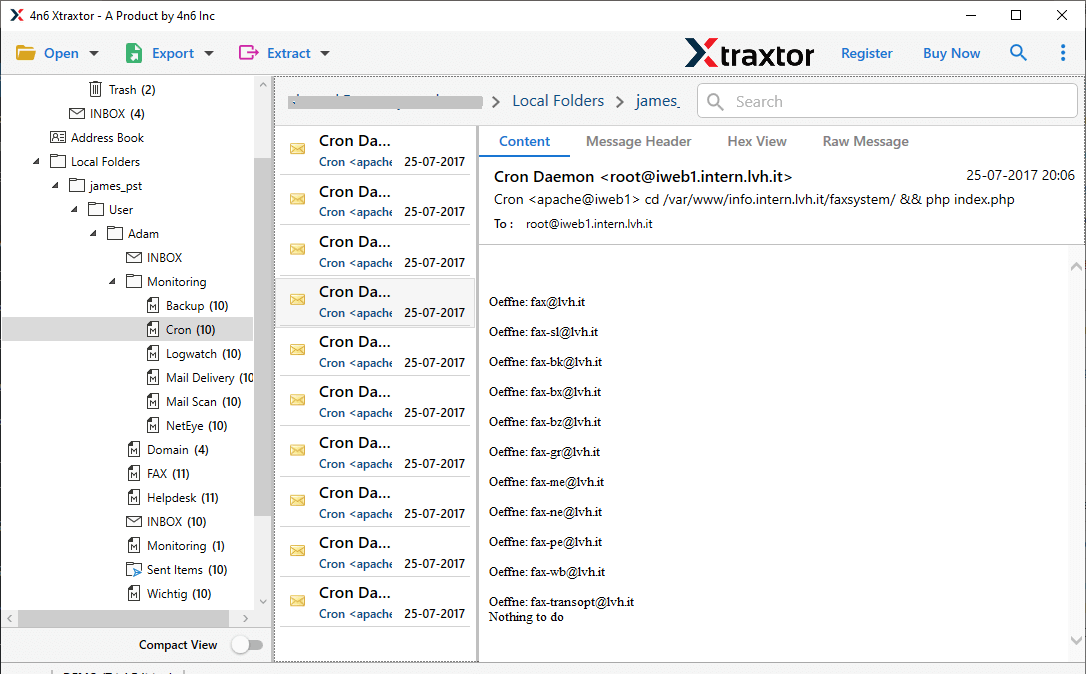
Step 4. The software will load and preview all Gmail folders.
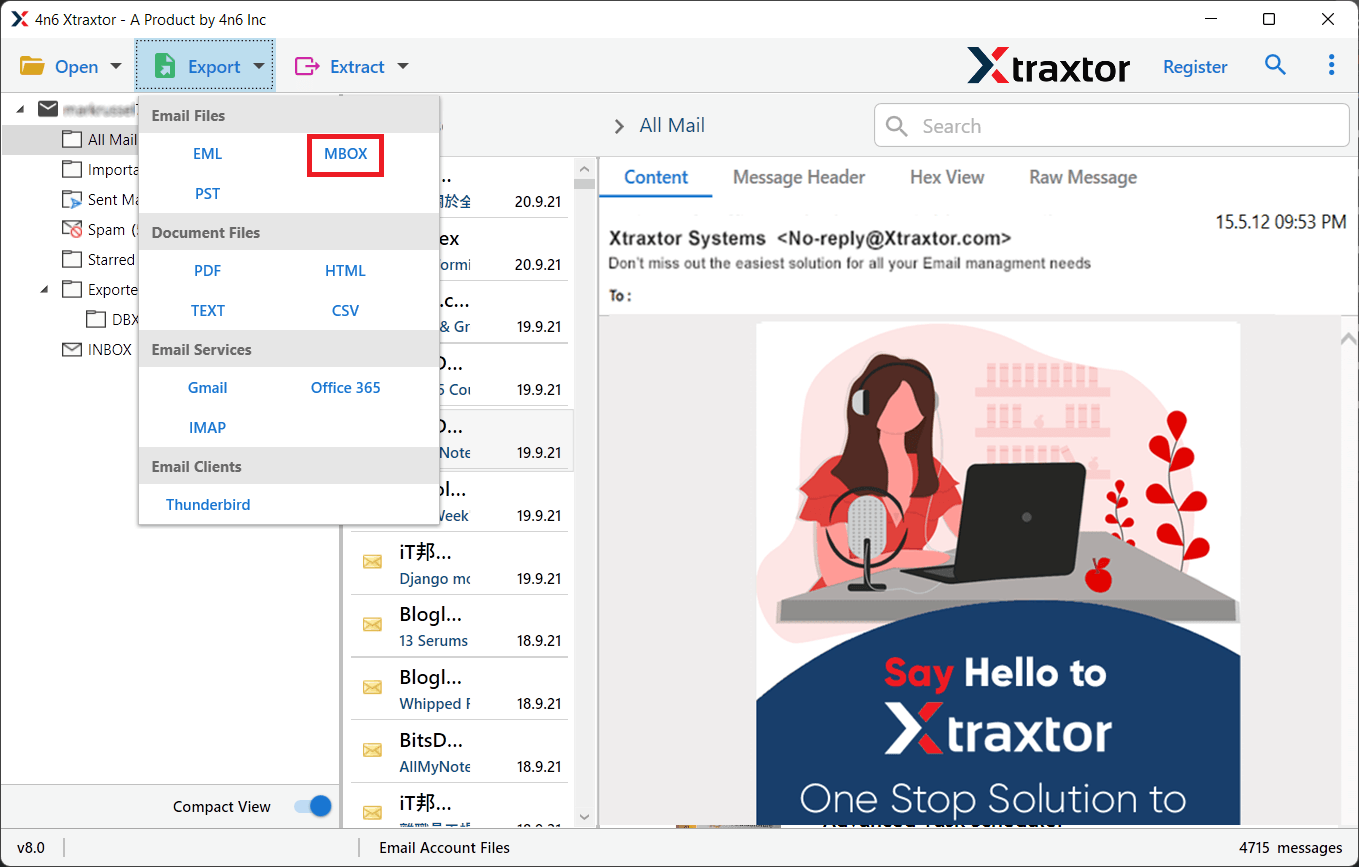
Step 5. Click on Export and choose the desired file format.
Step 6. Select the Gmail folders you want to download.
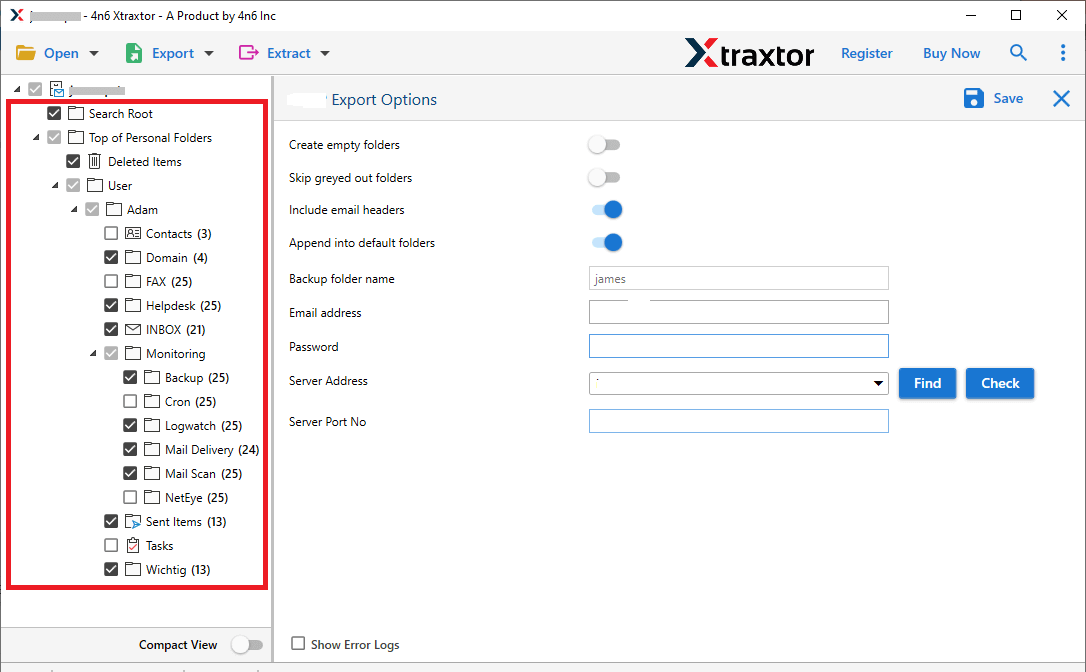
Step 7. Choose the destination path on your desktop & tap on the Save button.
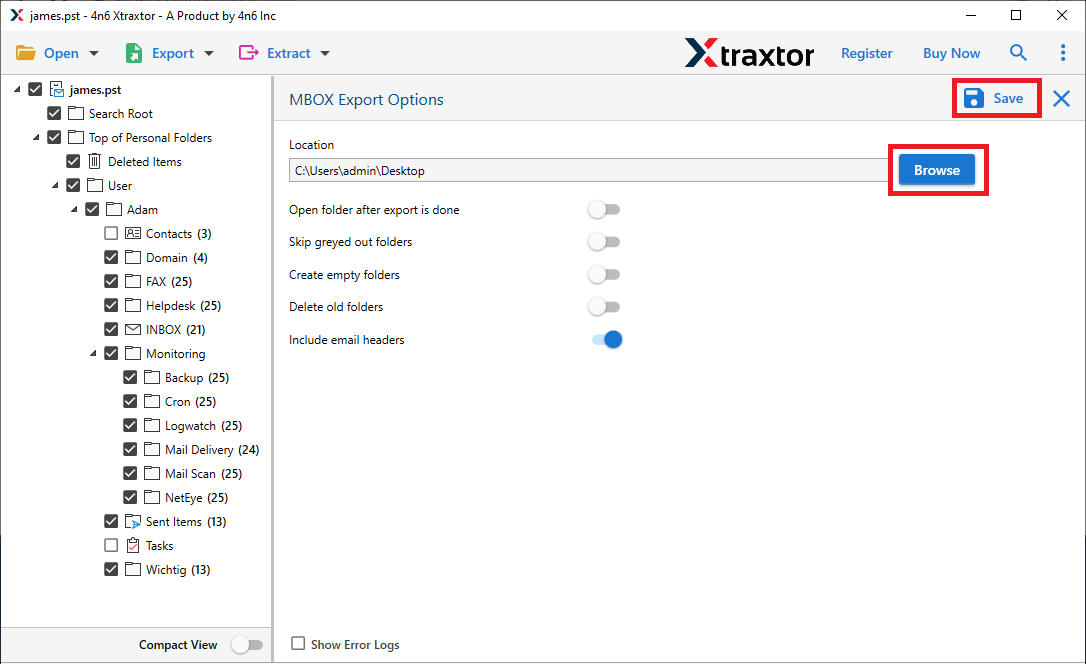
After completion, you can access all your Gmail emails directly from your desktop folder.
Key Features of the Tool
- Download Gmail folder to desktop in bulk without any hassle.
- Save emails along with all attachments in a single process.
- Supports multiple export formats to meet different user needs.
- Use advanced filters to download only selected emails.
- Maintains the original folder hierarchy during the process.
- No file size limitations for large mailbox data.
- Ensures secure and accurate email migration without data loss.
- Simple and easy-to-use interface for all types of users.
Conclusion
Downloading Gmail folders to your desktop is essential for backup and offline access. While the manual method is useful for small data, it has limitations. For a faster and more reliable solution, using a professional tool is the best choice. It helps you download Gmail folder to desktop without any risk of data loss.
