How to Download Attachments from Zoho Mail in Bulk?

Summary: This guide explains how to download attachments from Zoho Mail in bulk using simple manual methods and an advanced automated solution. If you want to save multiple attachments quickly and manage your email data efficiently, this blog will help you step by step.
Zoho Mail is widely used for personal and business communication. However, downloading attachments one by one can take a lot of time. Below, we will show you the best ways to export all attachments easily.
Why Download Attachments from Zoho Mail?
There are many reasons why users want to download attachments in bulk:
- Free up storage space in your mailbox
- Access files offline anytime
- Organize attachments in local folders
- Backup important data for safety
- Use files for legal or business records
Manual Methods to Save Attachments from Zoho Mail
There are some basic ways to download attachments manually from Zoho Mail.
#1. Download Attachments One by One
- Login to your Zoho Mail account.
- Open the email that contains attachments.
- Scroll down to view the attachments.
- Click on the Download button.
- Save the file to your system.
Limitation: You need to repeat this process for every email.
#2. Save Multiple Attachments from a Single Email
- Open the email with multiple attachments.
- Scroll to the attachment section.
- Click on Download All Attachments.
- Save the ZIP file to your computer.
Limitation: Works only for one email at a time.
#3. Forward Emails as Attachment
- Select multiple emails from inbox.
- Click on More options.
- Choose Forward as attachment.
- Send it to your own email.
- Download attachments from the received email.
Limitation: Not suitable for large data.
How to Extract Attachments from Zoho Mail in Bulk?
If you have a large number of emails, the manual method is not a good option. Zoho Mail does not provide a direct way to download attachments from multiple emails at once. That’s why using a professional tool becomes very helpful.
Xtraxtor is a simple solution that allows you to download attachments from Zoho Mail in bulk in one go. No matter how many emails or attachments you have, this tool can handle everything easily without any data loss.
So, what are you waiting for? Click on the free download button and try this tool for free to see how it works.

Steps to Download Attachments from Zoho Mail
Step 1. Run the Software on your Windows PC.
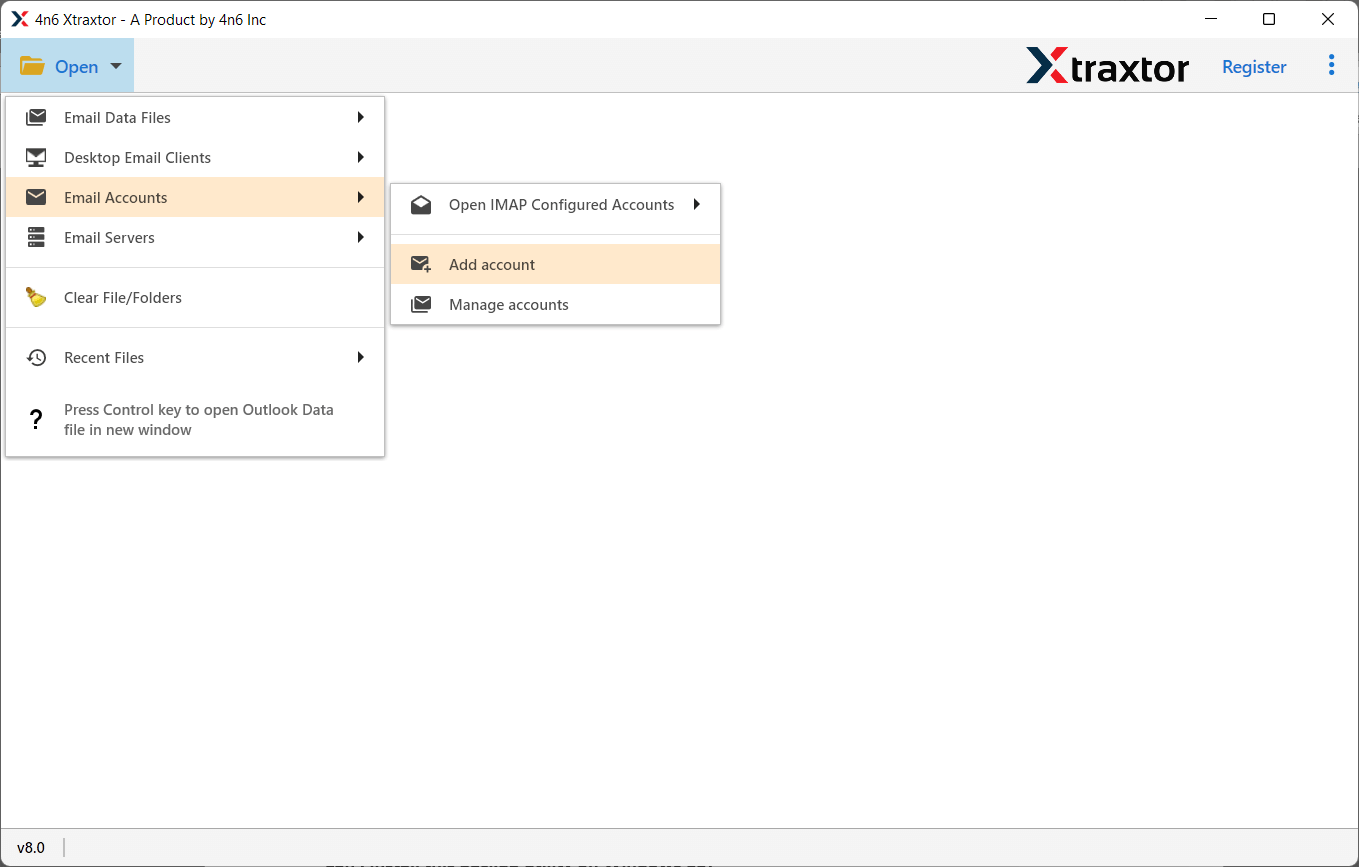
Step 2. Next, click on the Open tab, then Email Accounts, and choose Add Account.
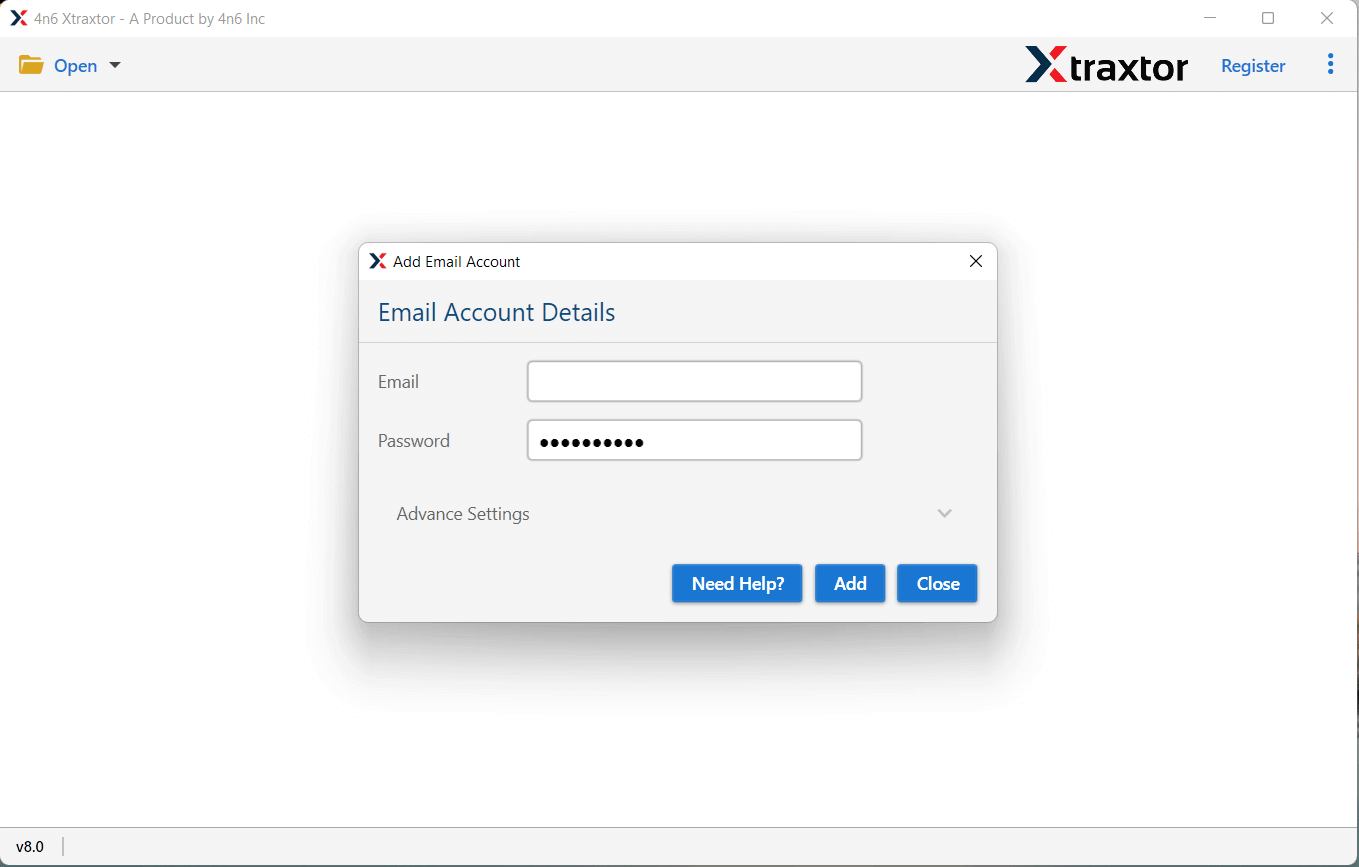
Step 3. Here, provide your Zoho Mail account credentials and click the Add button.
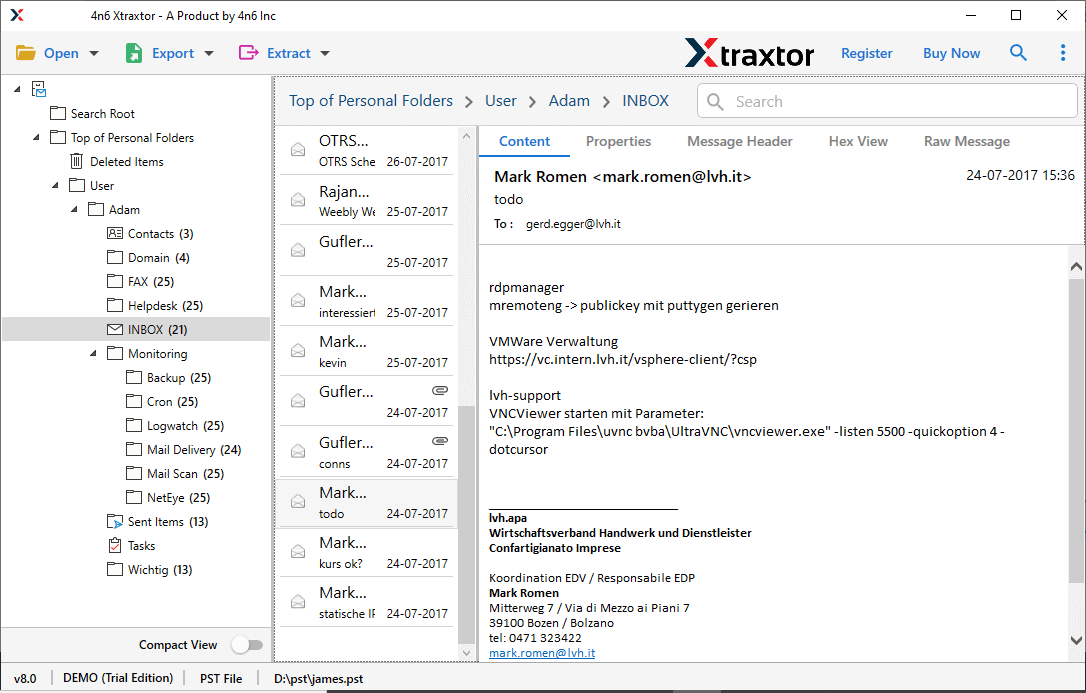
Step 4. Now, the software will load all your mailbox data. You can preview emails before downloading attachments.
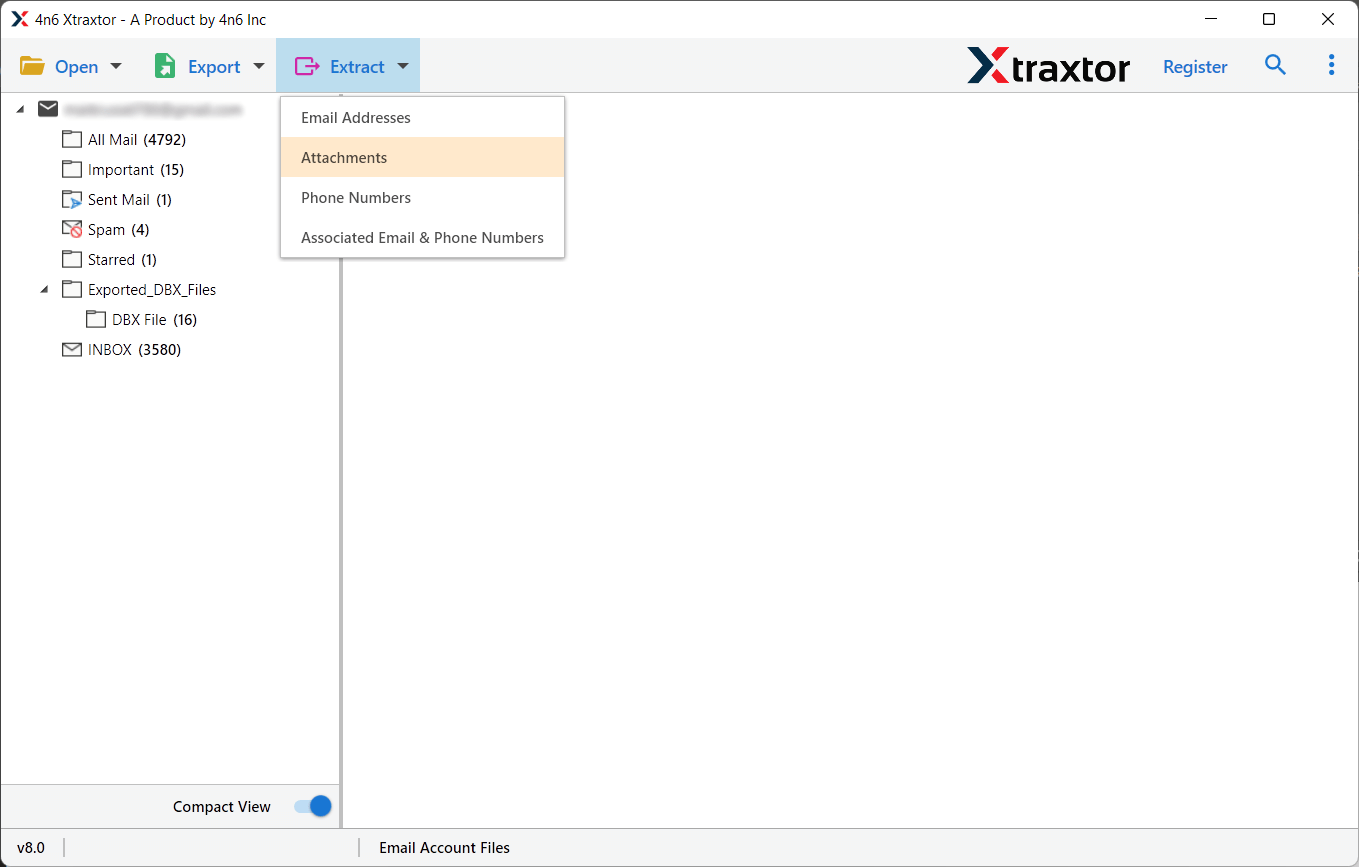
Step 5. After that, click on the Extract tab and choose the Attachments option.
Step 6. Click the Browse button and select the desired location. Then click on the Save button to start the process.
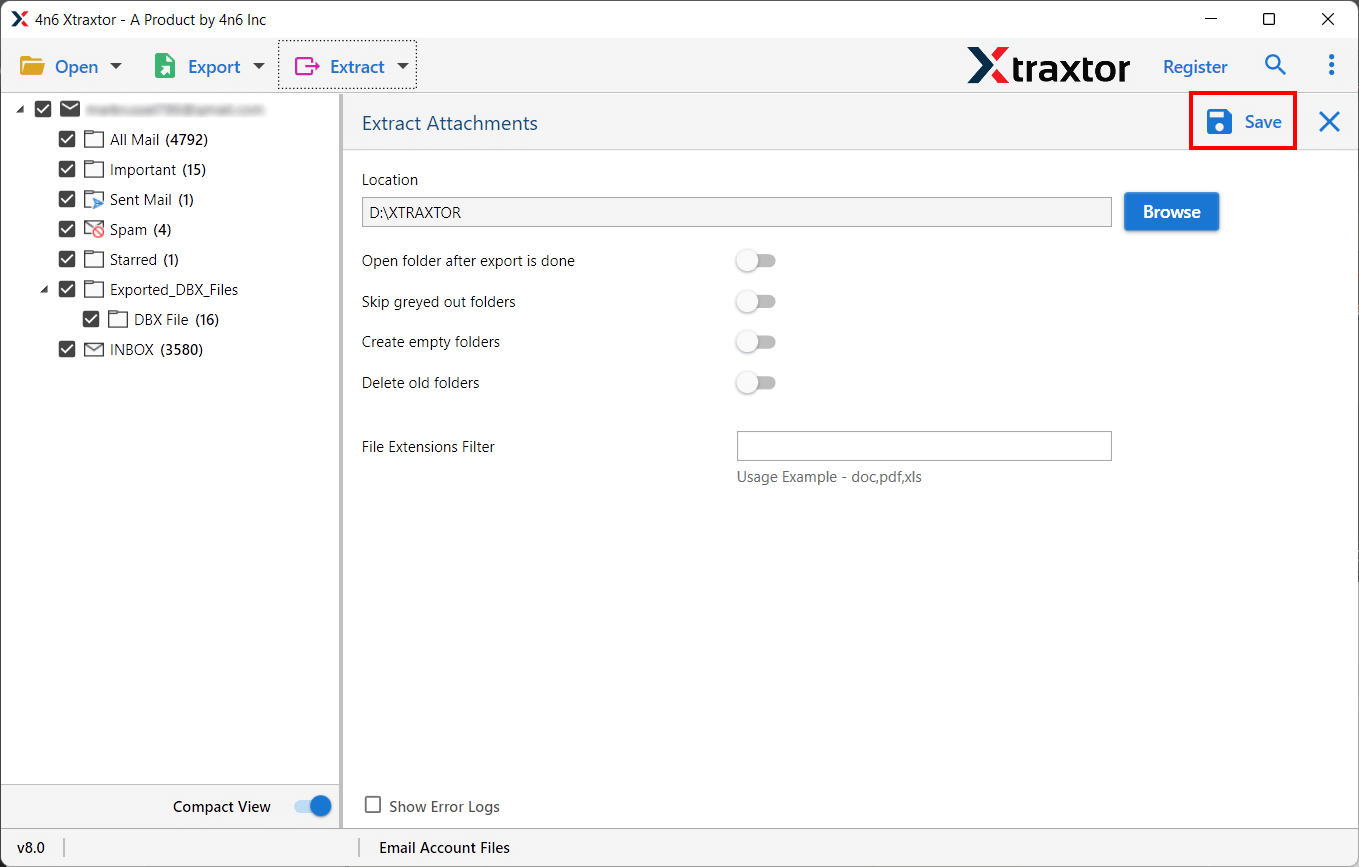
Done! The tool will generate a log report once the process is complete.
You will be redirected to the selected location where all your Zoho Mail attachments are saved.
Key Features of Zoho Mail Attachment Extractor Tool
- Bulk Attachment Download: Easily download attachments from multiple emails at once without repeating steps.
- Selective Extraction: Use filters like date, sender, subject, etc., to download only required attachments.
- Supports All File Types: Extract all types of attachments such as PDF, images, documents, and more.
- Maintain Folder Structure: Keeps attachments organized in the same folder structure as emails.
- Fast and Smooth Process: Quickly downloads large amounts of data without delay.
- Preview Option: View emails and attachments before starting the extraction process.
- Save to Desired Location: Choose any folder on your system to save attachments.
- No Data Loss: Ensures safe and accurate extraction of all attachments.
- User-Friendly Interface: Simple design that anyone can use without technical knowledge.
- Works on All Windows Versions: Compatible with Windows 11, 10, 8, and older versions.
- Free Demo Available: Try the tool before buying to check its performance.
Final Words
In this guide, we have explained the methods to download attachments from Zoho Mail in bulk. Using these methods, you can easily save your attachments from multiple emails. However, manual methods are time-consuming and not suitable for large amounts of data. The best way is to use a professional tool, which helps you quickly download all attachments from your Zoho Mail account in one go without any hassle.
