How to Download Attachments from Apple Mail?

Are you trying to download attachments from Apple Mail but feeling confused? You are not alone. Many users face problems like attachments not downloading, files opening but not saving, no option to download all attachments at once, etc.
In this guide, you will learn how to extract attachments from Apple Mail in easy steps. We will also explain what to do if you are unable to download attachments from Apple Mail.
Let’s start step by step.
Talking about the methods, there are various methods available online that claim for 100% results. We will explore. Apple Mail provides a handy option to export all your Apple Mail attachments in one go. Still, you can’t rely on it for bulk email attachment extraction.
So, explore all the possible methods and choose the best as per your needs and requirements.
How to Download Attachments from Apple Mail Manually?
This is the most common and simple method. It works well if you have only a few emails.
Step 1. Open Apple Mail on your Mac.
Step 2. Open the email that contains the attachment or attachments.
Step 3. If the email has a single attachment, click the attachment once and select Save, or drag the file to your Desktop or any folder.
Step 4. If the email has multiple attachments, right-click anywhere inside the email message.
Step 5. Click Save Attachments from the menu.
Step 6. Choose the folder where you want to save the files.
Step 7. Apple Mail will download and save all attachments from that email.
Note: These steps work for one email at a time only.
How to Extract Multiple Attachments from Apple Emails?
Many users want to download attachments from multiple Apple Mail emails at once. Unfortunately, Apple Mail does not provide a direct option for bulk attachment download. If you try to do this manually, you must open each email one by one and save attachments separately. This becomes difficult when you have hundreds or thousands of emails.
To extract multiple attachments in bulk, an Xtraxtor Email Attachment Extractor can help you with this requirement. Also, it ensures that all your email properties are along with embedded attachment files.
So, click on the free download button and check how it works to extract your email attachments from Apple Mail.

Note: Before using this tool, export Apple emails into MBOX file and then use this software.
Steps to Download Attachments from Apple Mail
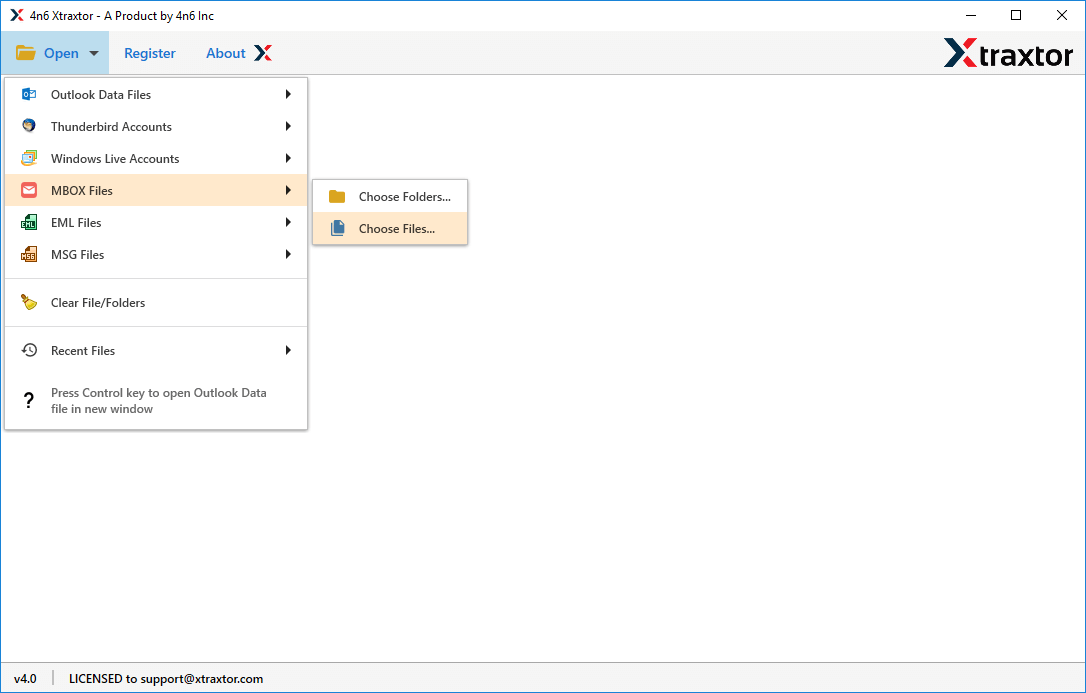
Step 1. Launch this software and click on Open >> Data Files >> MBOX Files.
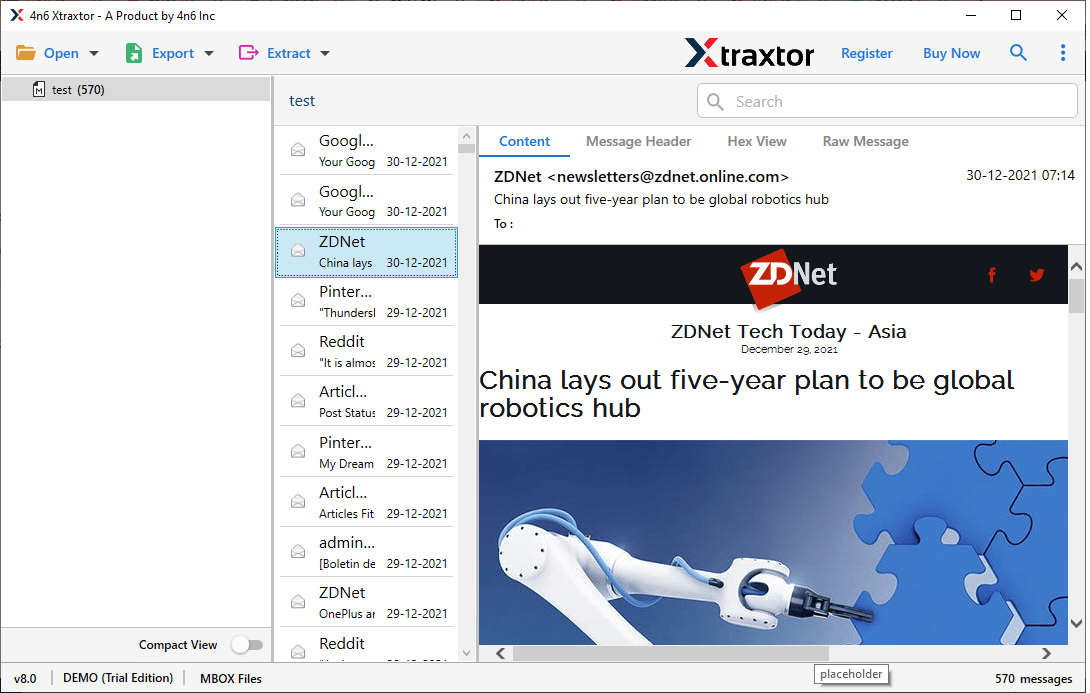
Step 2. Now, preview the email content of your mailbox file that you have uploaded.
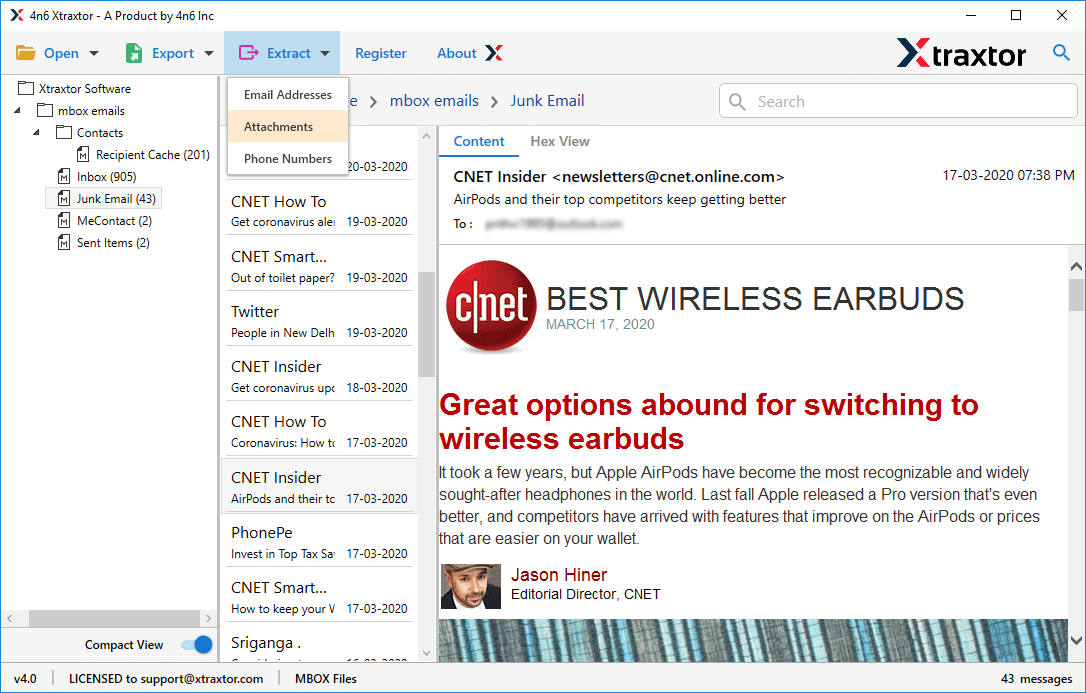
Step 3. Next, click the Extract option in the ribbon tab and choose Attachments.
Step 4. Select the required email folders from which you want to extract attachments.
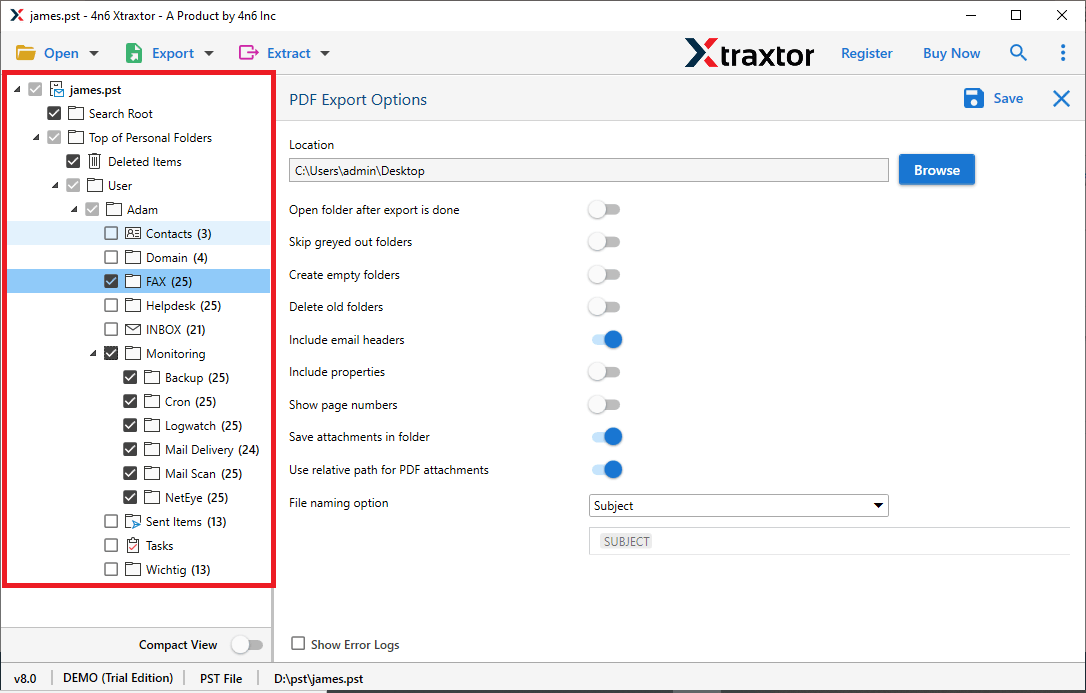
Step 5. Choose the desired destination path and click Save to start.
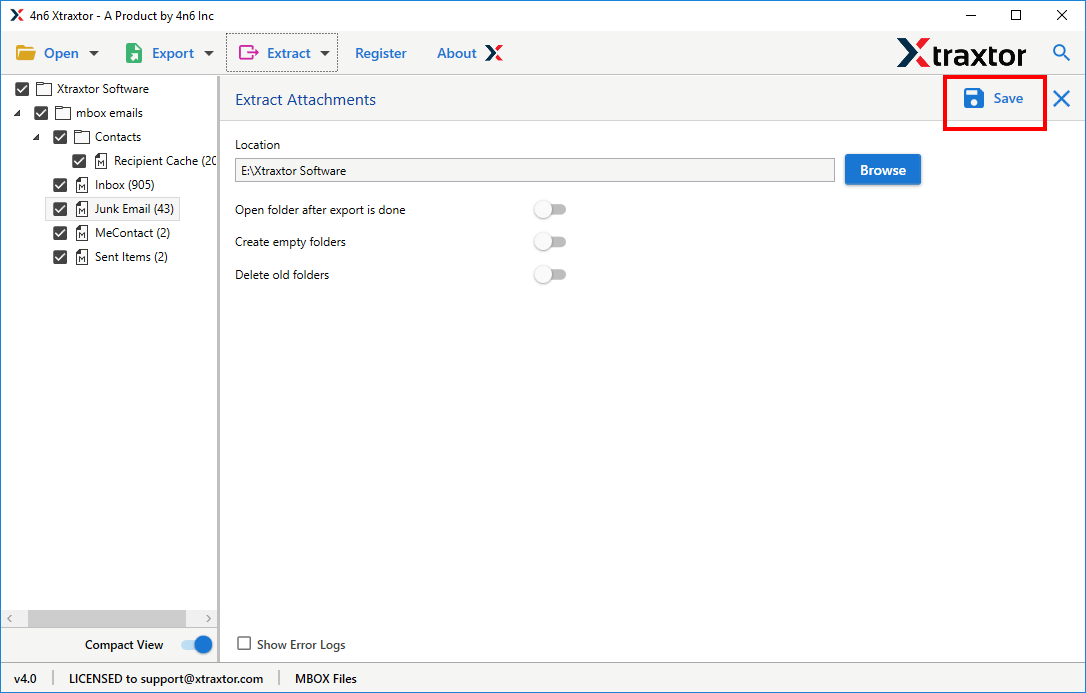
Completed! All your attachments will be saved in your chosen location without much trouble.
Benefits of Using a Professional Method Over a Manual Solution
- Bulk Attachment Download: A professional tool allows you to download all attachments from Apple Mail at once. You do not need to open emails one by one. This saves a lot of time when you have many emails.
- Selective Attachment Extraction: The software lets you choose which attachments you want to download. You can filter files by date, sender, or file type. This helps you avoid unnecessary downloads.
- Works When Manual Method Fails: Many users are unable to download attachments from Apple Mail due to sync or server issues. A professional solution can handle these problems better and download files without errors.
- Maintains Original Folder Structure: Attachments are saved in an organized way. The original email folder structure remains the same. This makes file management easy.
- Simple and User-Friendly Interface: Professional tools are designed for all users. No technical knowledge is required. Anyone can use the software easily.
- Secure and Safe Data: The software does not change or delete original emails. All attachments are downloaded safely without any data loss.
- Ideal for Large Mailboxes: If you manage a large number of emails, a professional method is the best option. It provides a fast and reliable way to download attachments from Apple Mail.
Final Recommendation
Now you know how to download attachments from Apple Mail by using two easy ways. If you only have a few emails, manual steps work fine. If you handle many emails, use an advanced solution. Choose the method that best suits your needs and requirements. Attachments are important for anyone who has their important data in them. So, choose the method wisely.
