How to Convert Outlook Email to EML Format?

Looking for a reliable solution to convert Outlook email to EML format in bulk? If yes, then this guide will help you. In this article, you will learn simple manual and professional methods to export emails from Outlook to EML
with attachments and full data.
Use Cases to Convert Outlook Email to EML Files
Many users search for how to convert Outlook email to EML format for different reasons. Some of the common ones are:
- Backup and Storage: Users save Outlook emails to EML files for backup. EML files are easy to store on a hard drive or external device.
- Easy Email Sharing: EML files can be opened in many email clients. That’s why users prefer to export Outlook email to EML for sharing emails easily.
- Access Without Outlook: If you want to open emails without Outlook, EML format is helpful. It works with many apps like Thunderbird and Windows Mail.
- Email Migration: During migration, users often convert Outlook email to EML format to move emails to another platform.
Manual Methods to Save Outlook Email as EML Format
There are a few manual ways available to export Outlook email to EML. Let’s understand them step by step.
Method 1. Using Drag and Drop
- Open Outlook on your system
- Select the emails you want to export
- Drag and drop emails to a folder
- Emails will be saved in MSG format
- Use another email client to convert MSG to EML.
Method 2. Using Email Clients (Thunderbird)
- Configure your Outlook account in Thunderbird.
- Open the emails you want to save.
- Right-click and choose “Save As”.
- Select EML format.
- Save the file to your system.
Drawbacks of Manual Methods
Manual methods are useful, but they have some limitations:
- Time-consuming for bulk conversion
- Need technical knowledge
- Risk of data loss or missing attachments
- No option for selective export
- Requires additional tools or email clients
- Not suitable for large mailbox data
How to Export Emails from Outlook to EML Files in Bulk?
To convert Outlook emails to EML format in bulk, use the Xtraxtor. With this tool, you can easily export Outlook emails to .eml format without any data loss. It keeps all email details safe, including attachments, formatting, and metadata.
The software has a simple interface, so anyone can use it without technical knowledge. You can also export selected emails using advanced filters like to, from, cc, bcc, subject, date, time, etc. This helps you convert only important emails.
Click on the free download button and check how it works.

Steps to Convert Outlook Email to EML Format
Follow the steps below to export Outlook emails to EML files in bulk:
Step 1. Download and install the software on your Windows system.
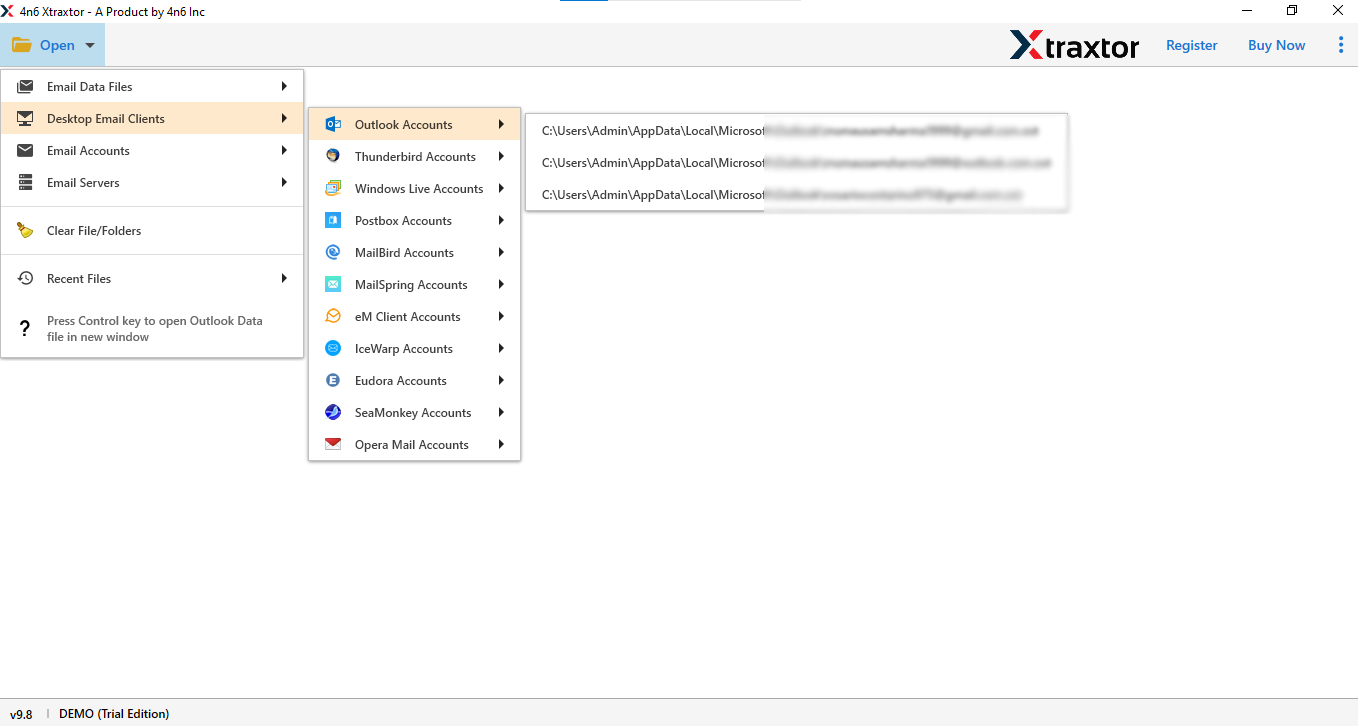
Step 2. Open the software and click on Open >>Desktop Email Clients >> Outlook Accounts.
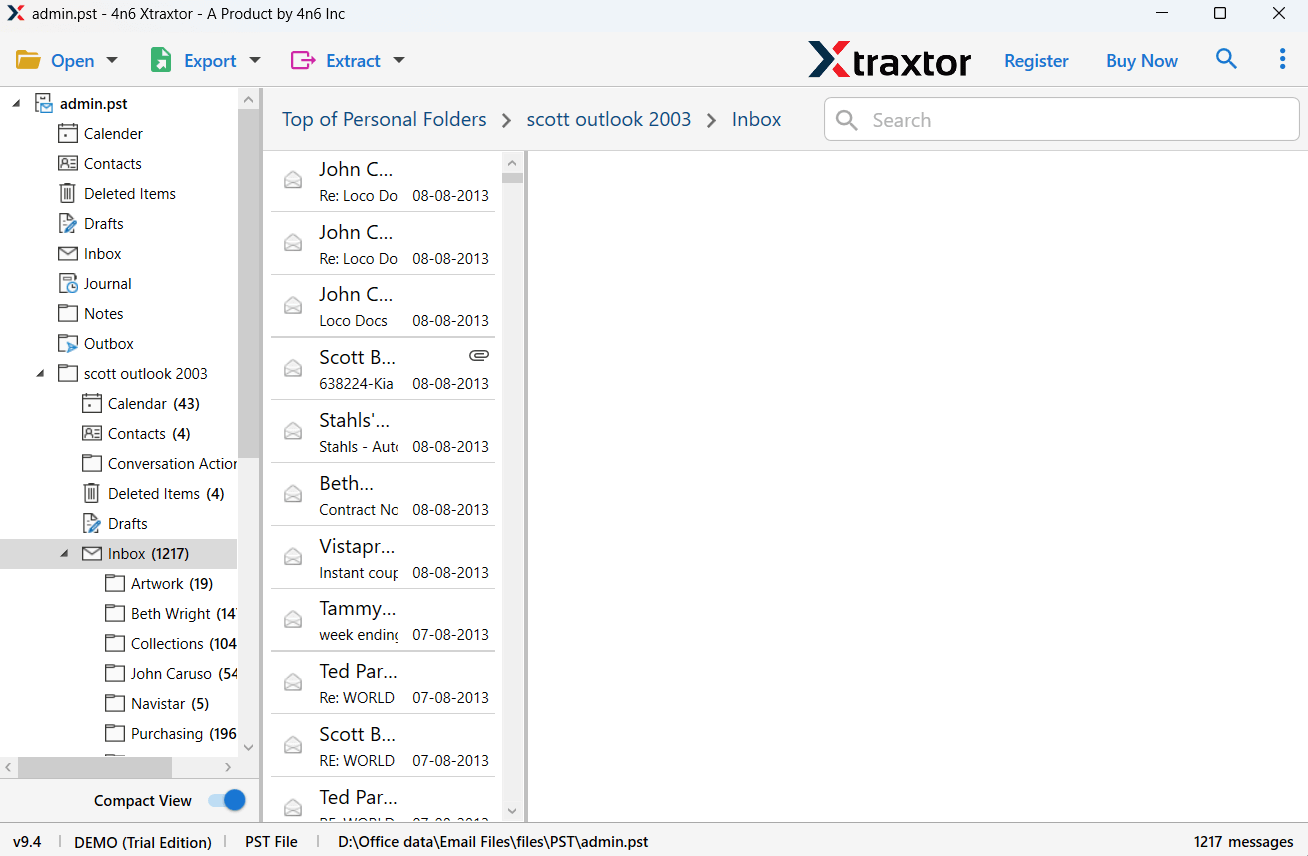
Step 3. Now, load your Outlook emails into the software panel & preview all emails before starting.
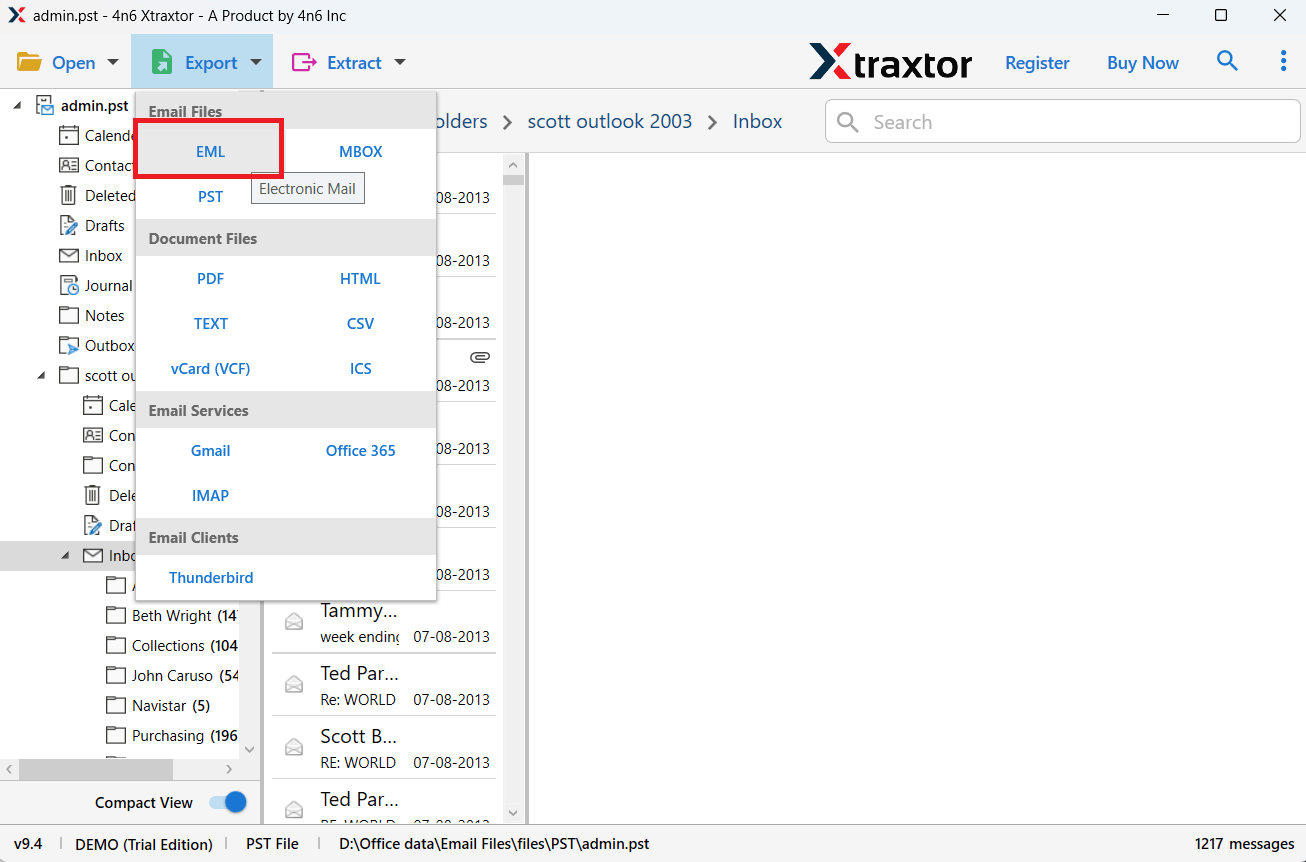
Step 4. Click on Export and select EML as the saving format.
Step 5. Choose the required folders if you want to export selective emails only.
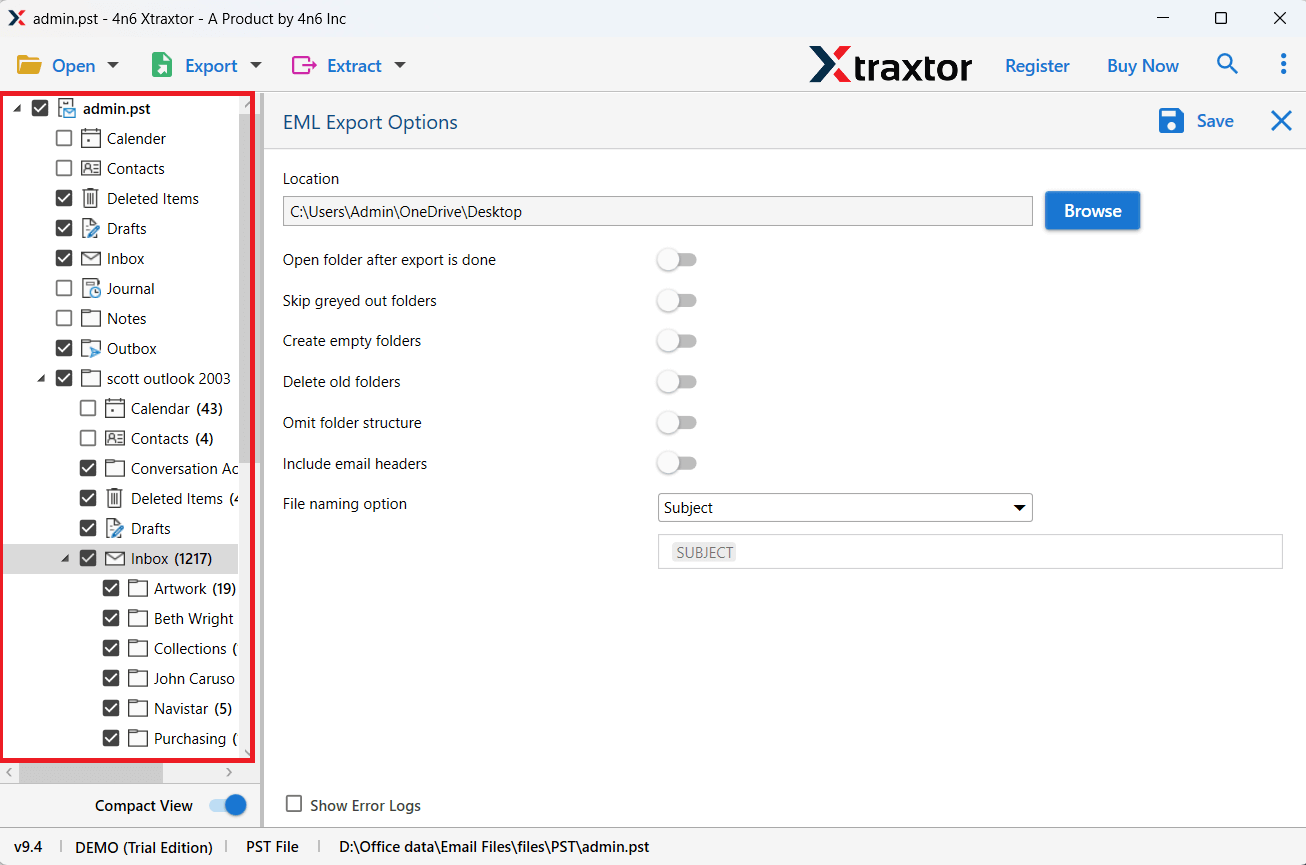
Step 6. Select the destination path & click on Save to start.
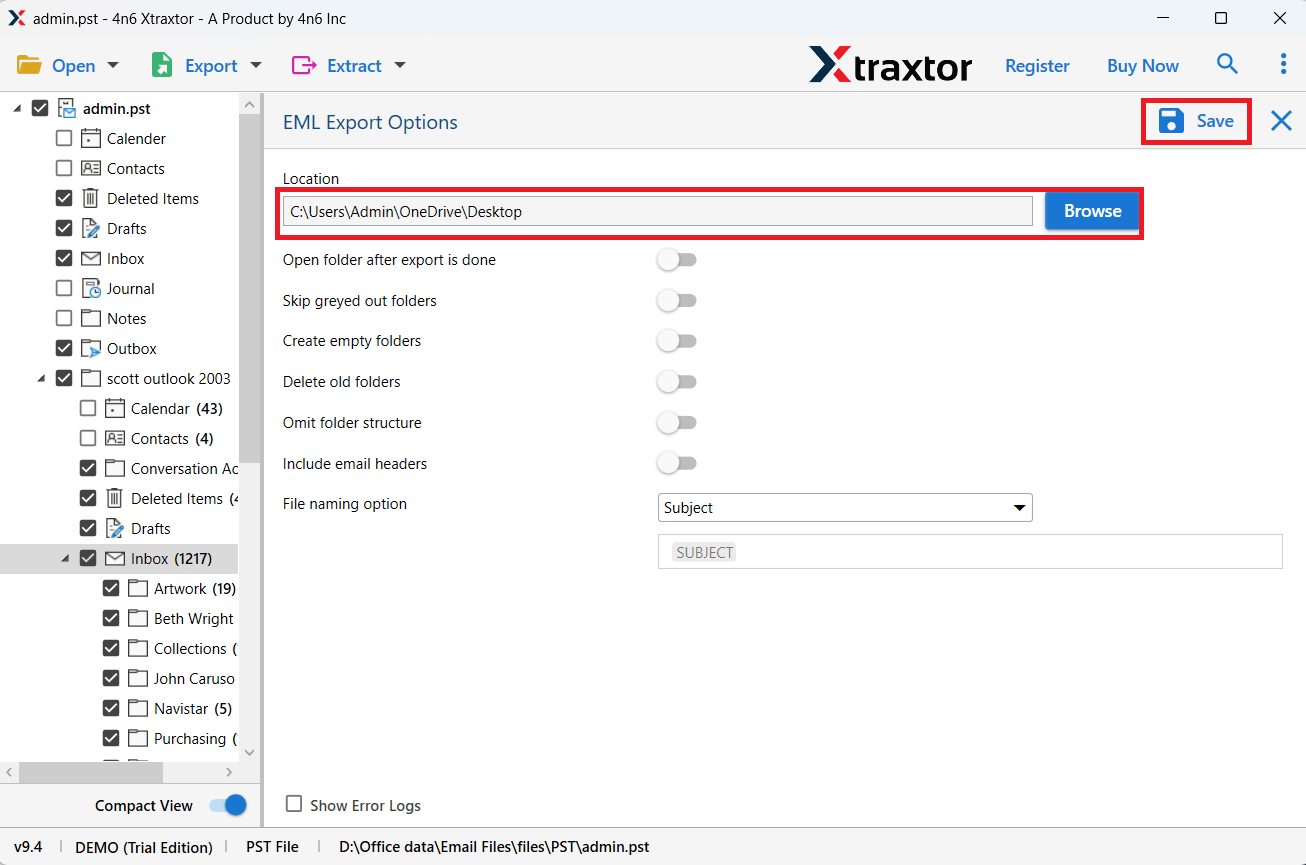
Done! Your Outlook emails are successfully converted to EML format with attachments.
Advantages and Features of Software
- Convert Outlook emails to EML format in bulk.
- Export emails along with all attachments.
- Maintain original folder hierarchy during conversion.
- Apply advanced filters for selective email export.
- Support multiple file formats for conversion.
- Preview emails before starting the process.
- No file size limitation for exporting data.
- Easy to use with a simple and user-friendly interface.
- Works without requiring Outlook installation.
- Ensures a 100% safe and secure conversion process.
To Conclude
Saving Outlook emails to EML format is a useful way to access and manage your emails outside Outlook. Manual methods can work for a few emails, but they are not suitable when you need to export a large number of emails. They can take more time and may not keep all data properly.
So, if you want to convert Outlook emails to EML in bulk with complete data and attachments, using a professional tool is the best option. It helps you save time, keeps all email details safe, and makes the process easy and reliable for both personal and professional use.
