How to Convert Office 365 Emails to PDF Files?

Emails stored in Office 365 often contain important business conversations, invoices, contracts, and legal records. Many users want to convert Office 365 emails to PDF files so they can store, share, or archive them safely. However, Office 365 does not provide a direct export to PDF option that makes it difficult for users to get the right method.
This guide explains all practical ways to export Office 365 emails to PDF files, manual and bulk methods, so you can choose the right solution based on your needs.
How to Convert Office 365 Emails to PDF Using the Print Option?
If you use Office 365 in a browser, this method can help.
Step 1. First of all, log in to Outlook Web.
Step 2. Open the email you want to print as a PDF file.
Step 3. Click More options >> Print.
Step 4. Use browser print settings to save as PDF.
Now, repeat the same process for the remaining Office 365 emails.
Why are manual methods not ideal for bulk emails?
Manual methods look simple, but they fail in real-world scenarios.
Problems with manual conversion:
- Cannot export multiple emails at once
- No date, sender, or folder filters
- High risk of missing emails
- Very slow for business mailboxes
- No automation
If you need to export entire folders, shared mailboxes, or old emails, manual methods are not practical.
How to Export Emails from Office 365 into PDF Files Automatically?
If you have a large Office 365 mailbox, manual methods are not practical. An automatic solution helps you export emails to PDF without any issues. Xtraxtor Software allows you to connect directly to your Microsoft 365 account. It downloads emails securely and saves them as PDF files on your system. It is useful for both personal mailboxes & shared mailboxes. Also, you can choose to export multiple Office 365 emails into .pdf files.
So, what are you waiting for? Click on the free download button to evaluate its working process.

Steps to Bulk Convert Office 365 Emails to PDF
Step 1. Run the software & click on the Open tab on the screen.
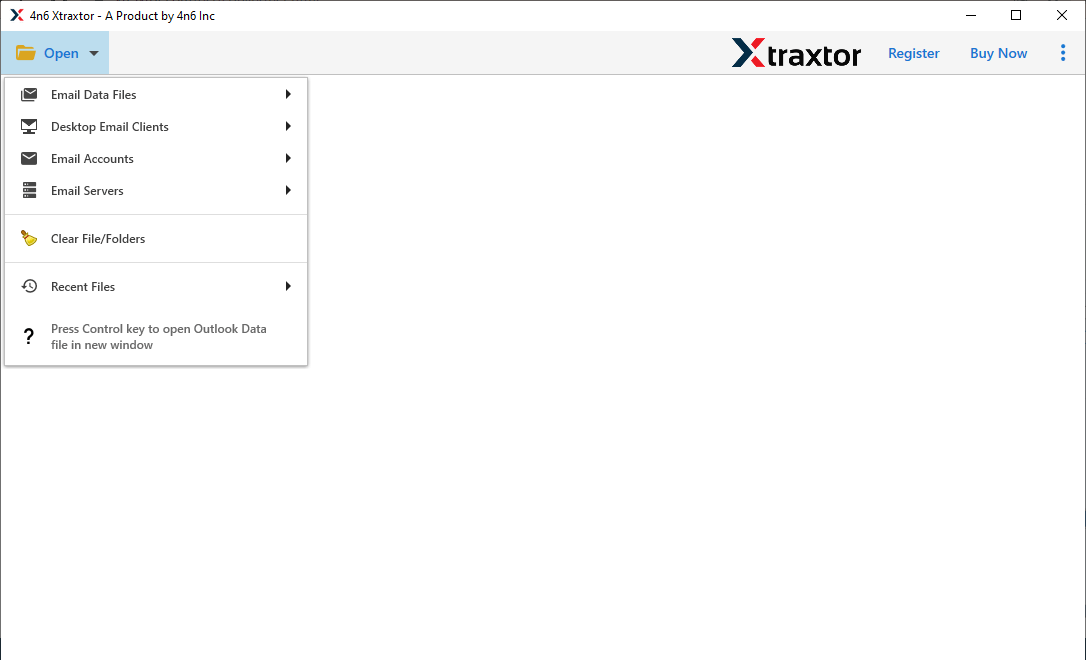
Step 2. Now, click Email Accounts >> Add account option.
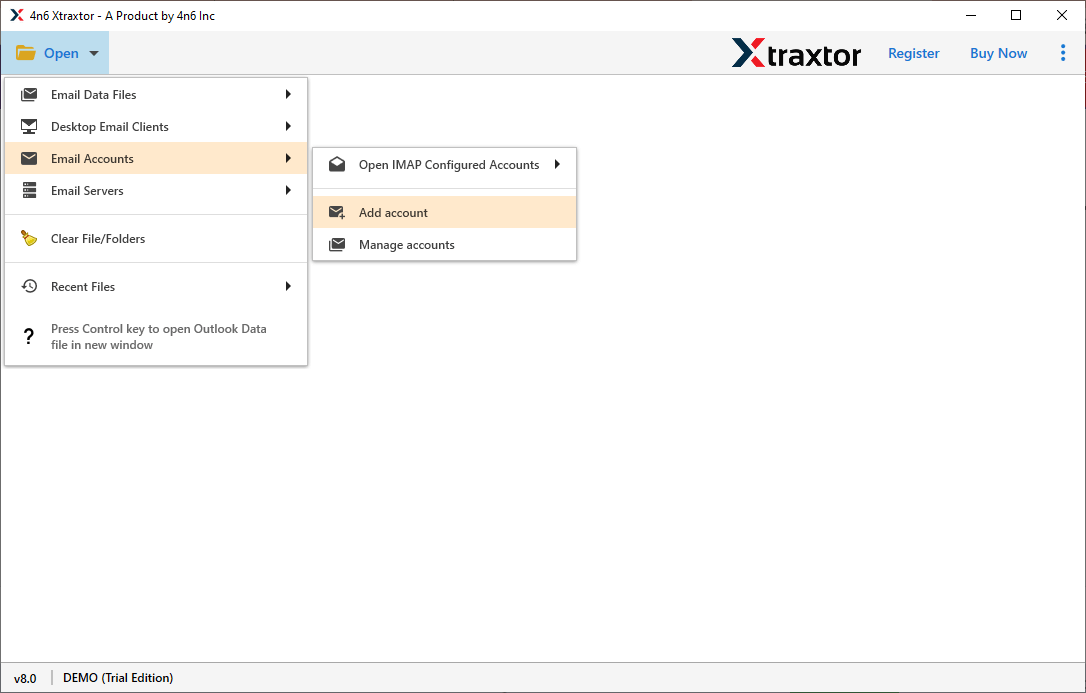
Step 3. Provide your Office 365 email details & click the Add button.
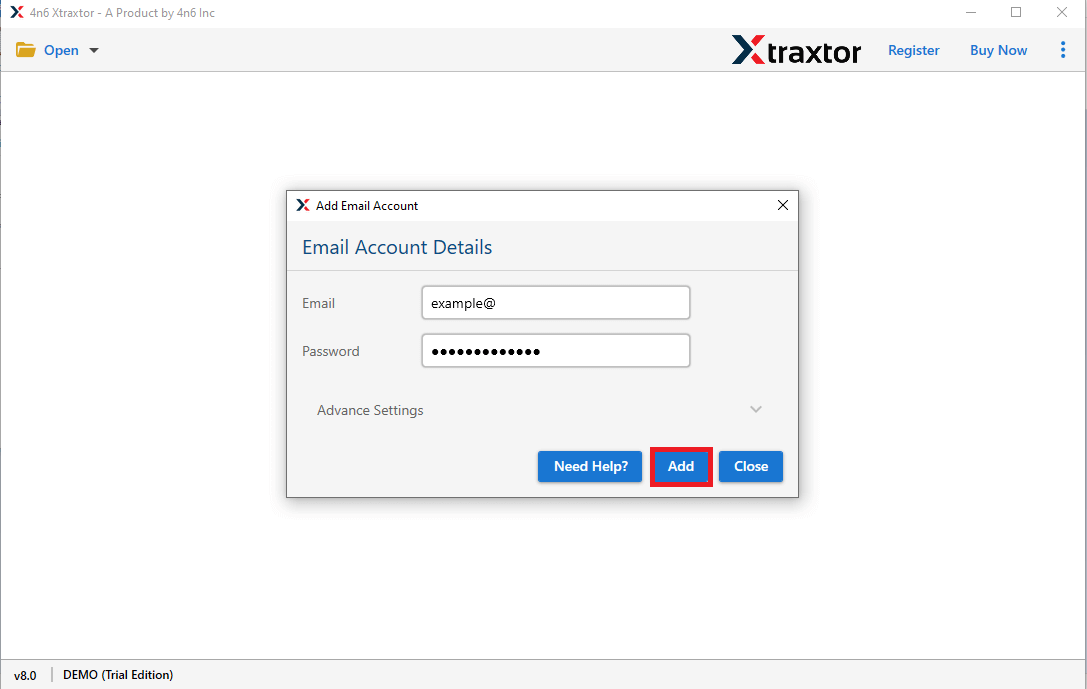
Step 4. Preview your emails before exporting them.
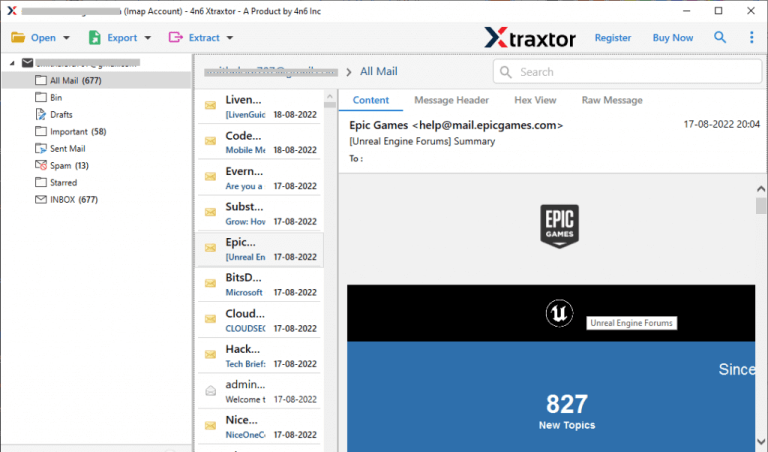
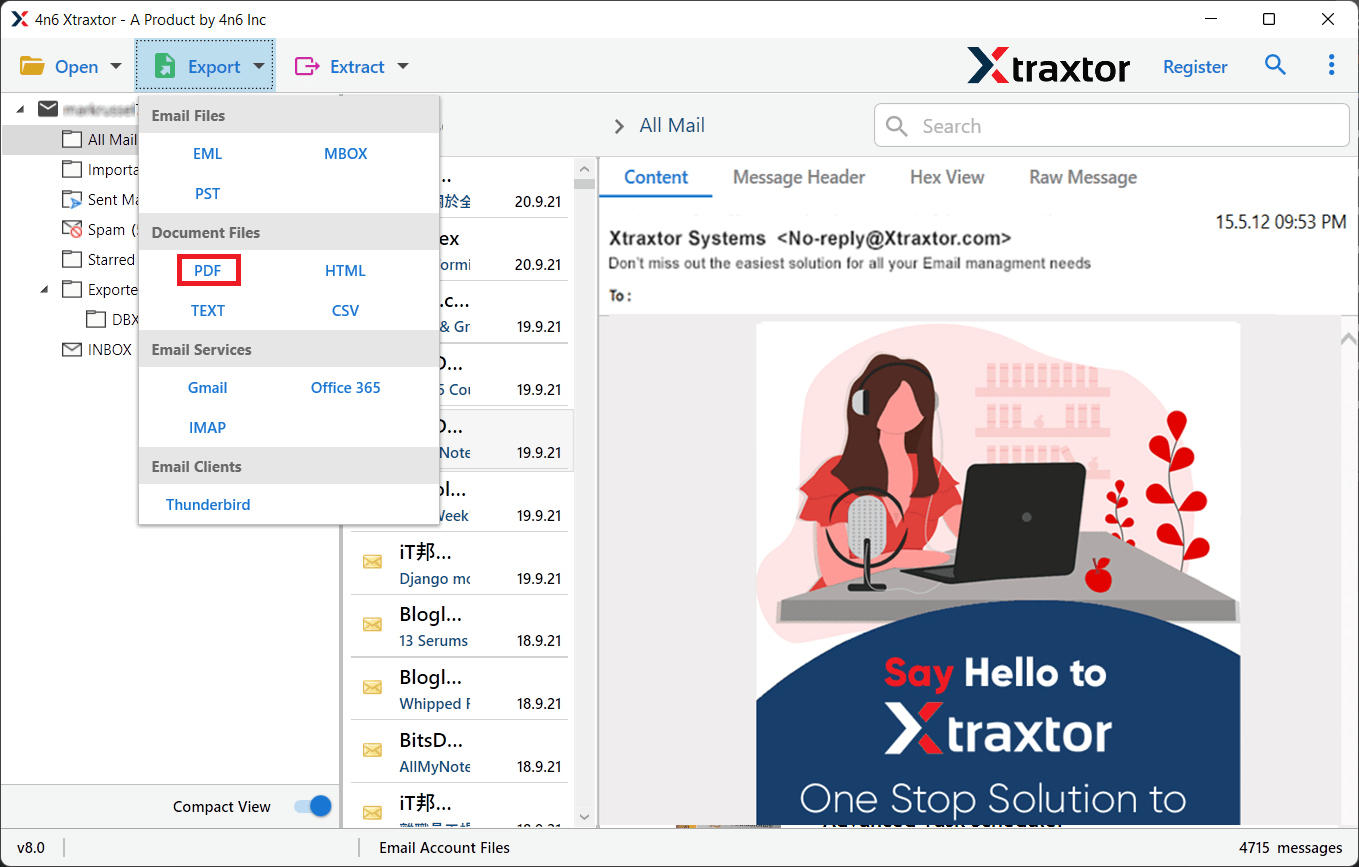
Step 5. Next, click the Export button and choose PDF from the list.
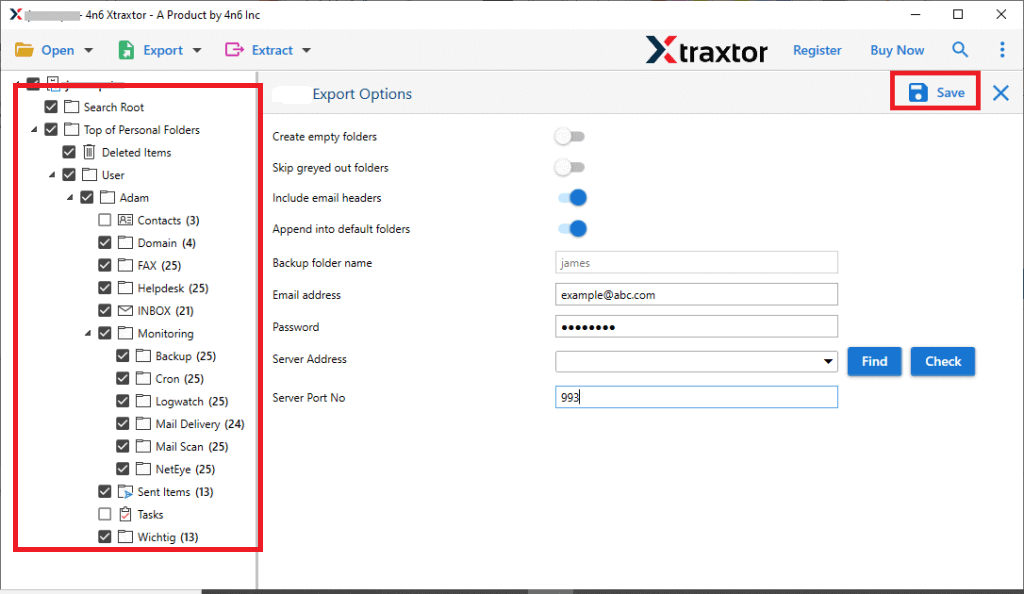
Step 6. Select all the required folders that you want to export.
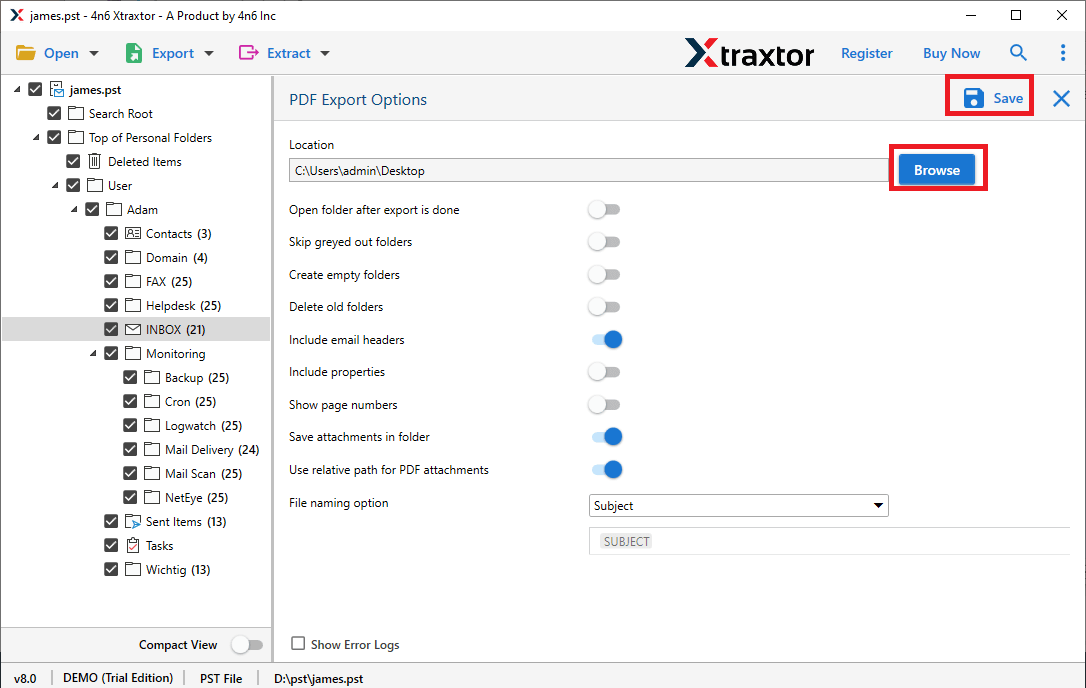
Step 7. Browse the destination path and click on the Save button to start.
Once completed, all selected Office 365 emails are saved as individual & readable PDF files.
Frequently Asked Questions (FAQs)
Q1. Can I export Office 365 emails to PDF without Outlook?
Ans. Yes, bulk tools can export emails directly without Outlook installation.
Q2. Are attachments included in PDF files?
Ans. With professional tools, attachments are embedded or saved separately.
Q3. Is bulk export safe?
Ans. Yes, when done using trusted solutions with secure authentication.
Q4. Can I export shared mailboxes?
Ans. Yes, advanced tools support shared and archive mailboxes.
Final Recommendation
If you need to save only one or two emails, manual methods using Outlook or the web app are fine. However, if you work with large Office 365 mailboxes, legal data, or business records, a bulk conversion approach is the safest and fastest option.
Choose the approach that matches your workload and future needs.
