How to Combine Outlook Mailboxes into One?

Managing multiple accounts in Microsoft Outlook can quickly become messy. If you’re struggling with scattered emails, you might be wondering if you can combine mailboxes in Outlook or how to manage everything in one place. The good news is, yes, you can combine Outlook inboxes, folders, and even entire mailboxes using simple methods. In this guide, you’ll learn how to combine multiple inboxes in Outlook, along with the best manual and professional solutions.
Now, we are moving towards the solutions, but before that, we must look into the reasons why users are searching for how to combine multiple Outlook emails into one email.
Why Combine Multiple Outlook Mailboxes into One?
There are many situations where users want to merge Outlook mailboxes:
- Manage all emails in one unified inbox
- Reduce confusion between multiple accounts
- Backup and secure important data
- Easily combine Outlook folders from different accounts
- Improve workflow and productivity
How to Merge Outlook Mailboxes for Free?
If you are looking for a free solution to combine two mailboxes in Outlook, you can use the built-in import/export feature.
- Open Outlook on your system.
- Click on File >> Open & Export >> Import/Export.
- Choose the Import from another program or file option.
- Select Outlook Data File (.pst) from the list.
- Browse and select the mailbox file.
- Choose the destination folder (main mailbox).
- Click the Finish button to start.
Note: Repeat these steps to join Outlook mailbox data from multiple PST files.
Limitations of the Manual Method
- Not ideal for large data
- Takes time if you have multiple mailboxes
- No option to remove duplicates
- Risk of data mismatch
- No advanced control
How to Merge Outlook Mailboxes Automatically?
When users search for a way to combine multiple Outlook mailboxes into one they actually don’t need just steps, but also a method that works with 100% accuracy and with complete data. That’s where Xtraxtor software comes in. It provides an easy-to-use interface that helps you to merge multiple Outlook mailboxes into a single attempt. So, instead of forcing yourself to adjust with the manual methods, trust this tool to reduce all your workload.
In addition to this, the software supports batch mode, which allows you to bulk combine your Outlook mailboxes at once.
It also offers a free demo version to allow users to test its functionality before purchasing the license. So, download it now at no cost.

Steps to Combine Outlook Mailboxes
Step 1. Install and run the software on your Windows system.
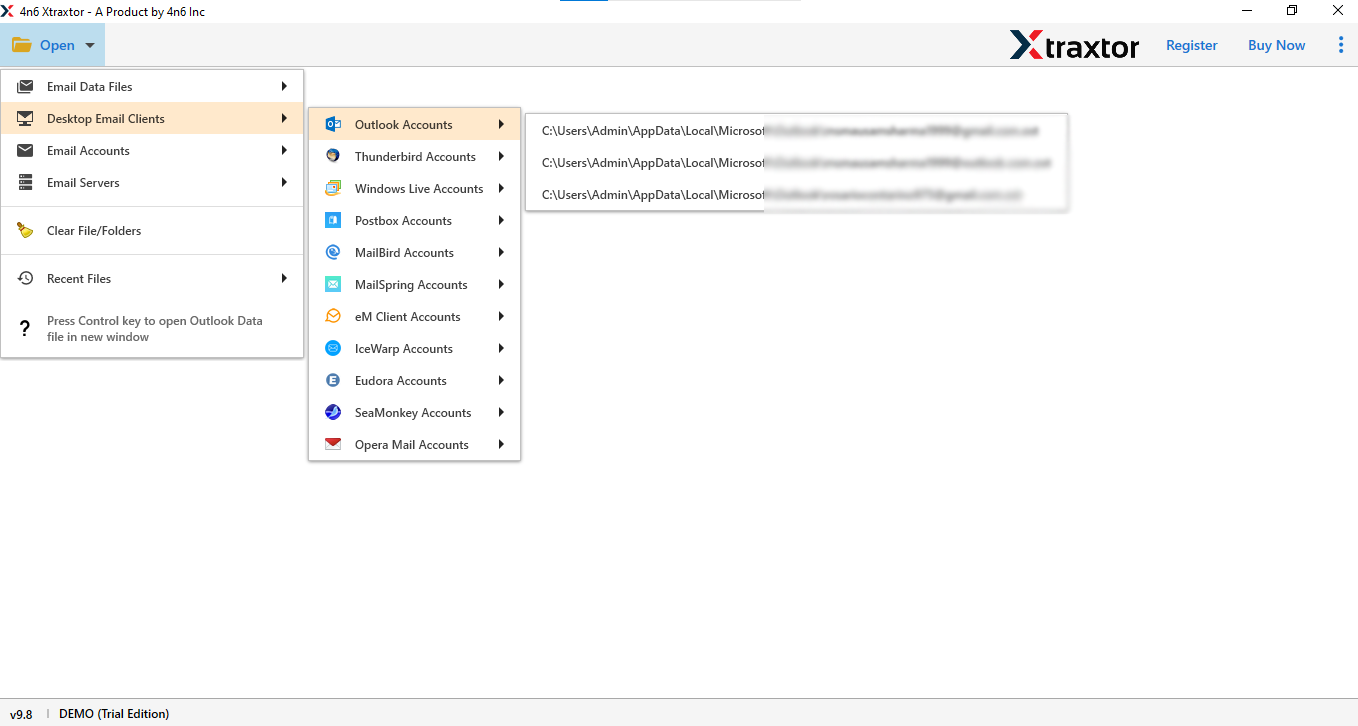
Step 2. Click on Open >> Desktop Email Clients >> Outlook Accounts.
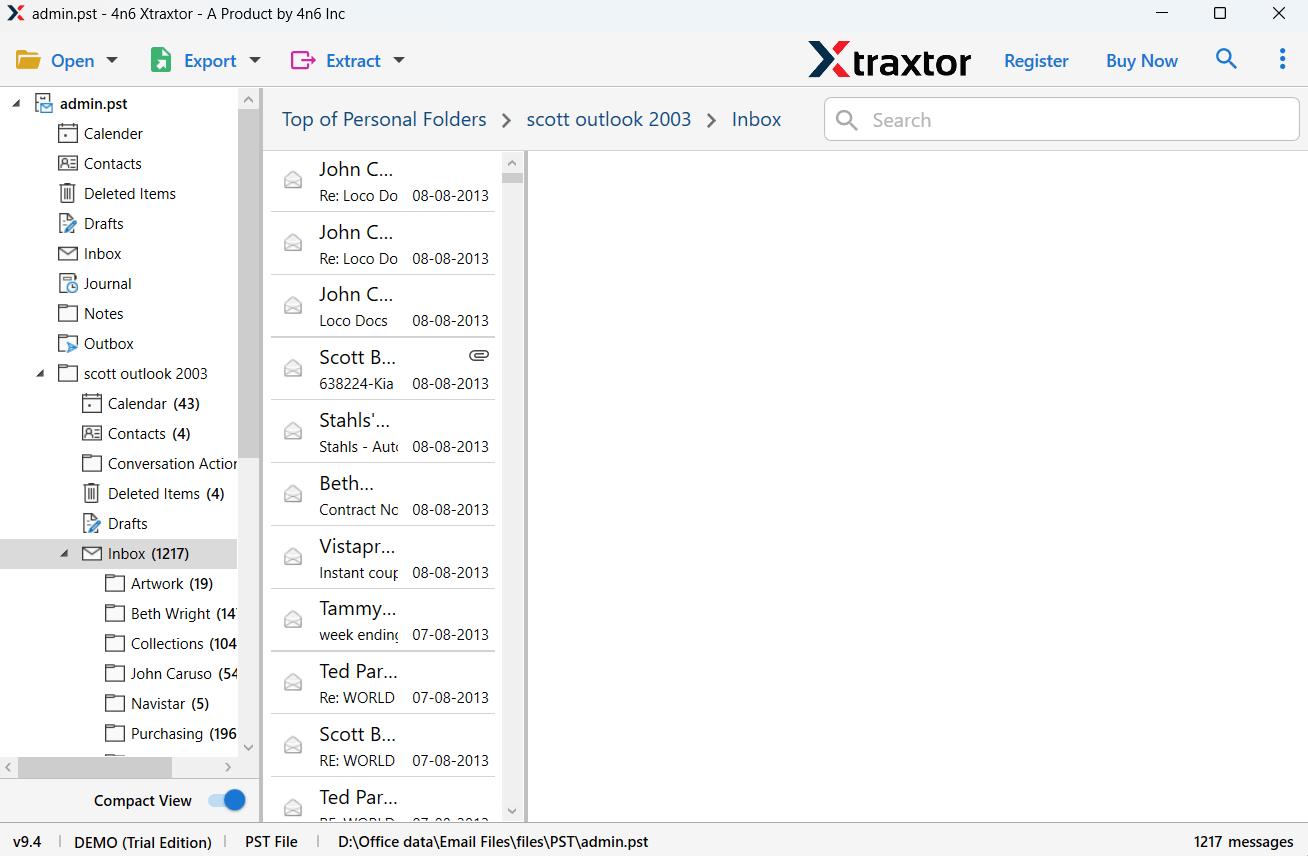
Step 3. Preview all emails, folders, and mailbox data before proceeding.
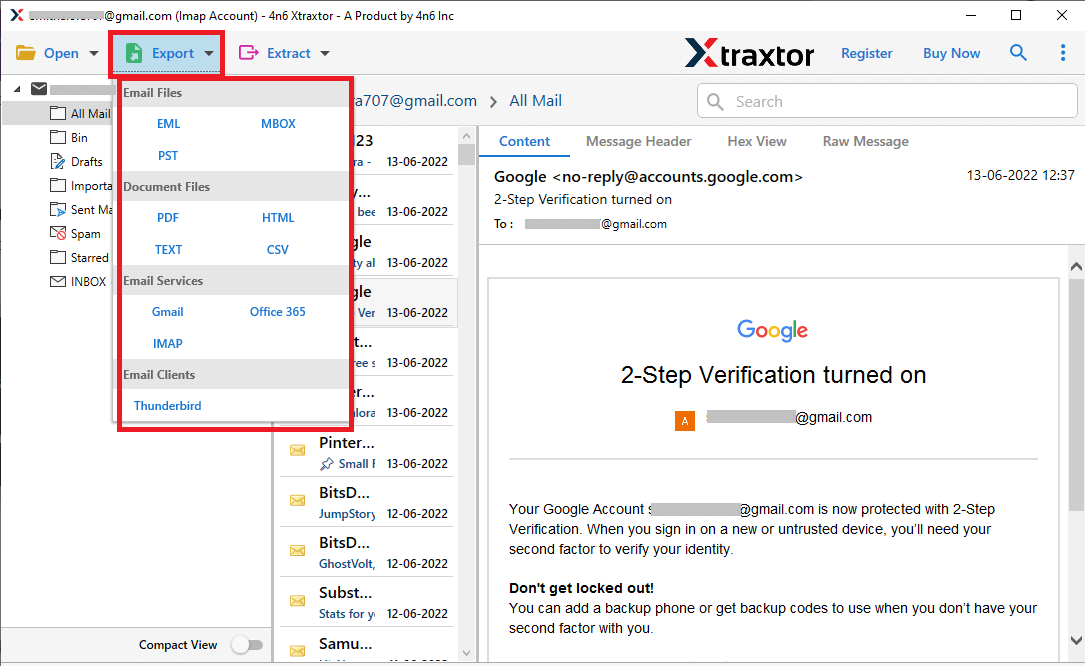
Step 5. Click on the Export option and choose PST as the saving format.
Step 6. Select the required folders (Inbox, Sent, etc.) if you want to combine specific data only.
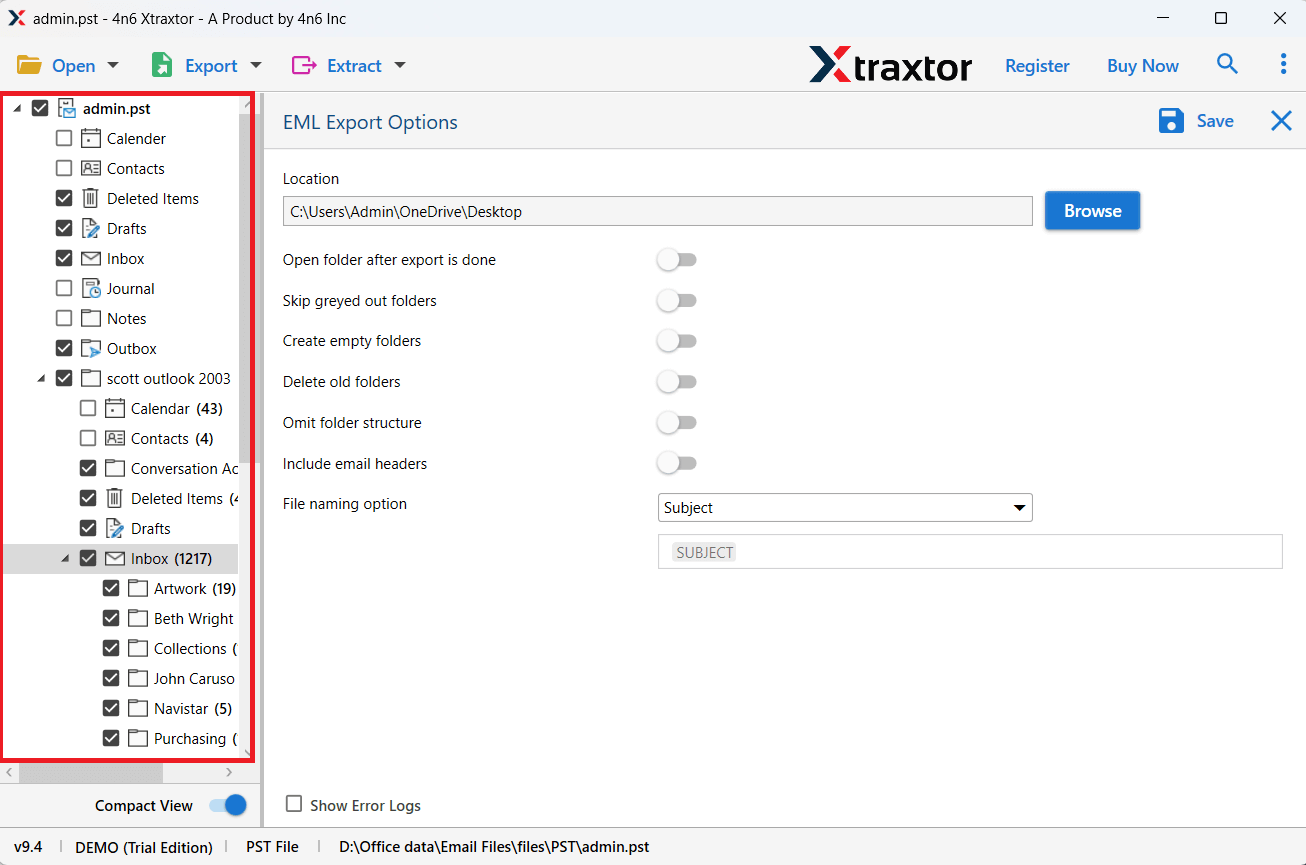
Step 7. Choose the destination location and click on the Save button to start.
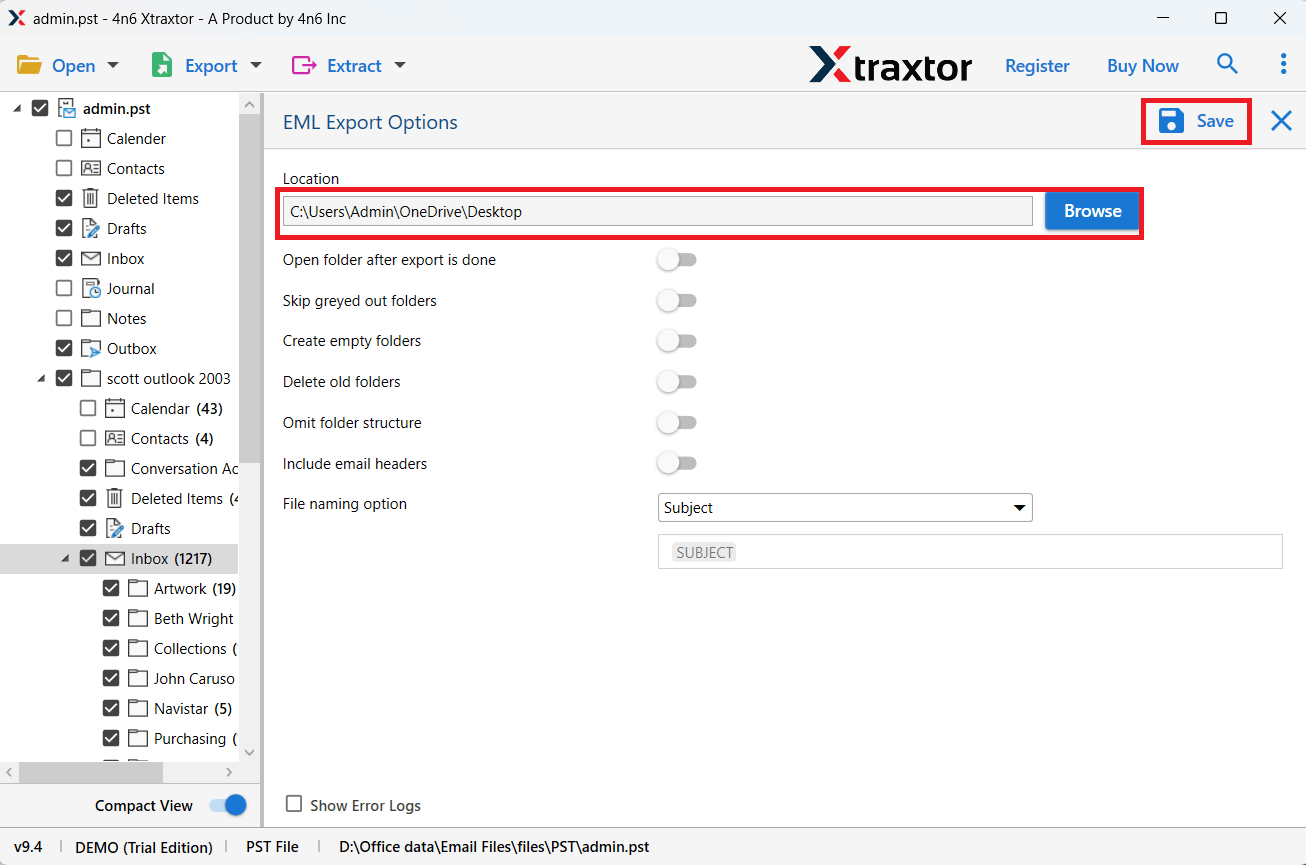
Step 8. Once the process is completed, open Microsoft Outlook and go to File >> Open & Export >> Import/Export >> Import from another program or file >> Outlook Data File (.pst) to import the newly created PST file.
Done! Your multiple Outlook mailboxes are successfully combined into a single PST file and imported back into Outlook.
Key Features of Xtraxtor Software
- Combine Multiple Outlook Mailboxes: Easily merge multiple Outlook files or mailboxes into a single file without any complexity.
- Bulk Mailbox Processing: Add and process multiple Outlook mailboxes at once, saving time and effort.
- Maintain Folder Hierarchy: Keeps your original folder structure intact, including all subfolders and email organization.
- Preserves Email Properties: Retains all email details such as To, From, Subject, Date, attachments, and metadata.
- Preview Before Merge: Allows you to view emails and folders before combining mailboxes to ensure accuracy.
- Export to Multiple Formats: Supports saving data into various formats like PST, PDF, MBOX, EML, and more.
- No File Size Limitation: Combine large Outlook mailboxes without any size restriction.
- Direct Migration Support: Transfer emails directly to platforms like Gmail, Office 365, Yahoo, and more.
- User-Friendly Interface: Simple design suitable for both technical and non-technical users.
- Windows Compatibility: Works smoothly on all major Windows versions, including Windows 11, 10, and earlier.
Final Words
In this guide, we discussed different ways to combine Outlook mailboxes, including manual and automated methods. While the manual approach works for small tasks, it becomes difficult when handling multiple accounts or large data. If you want a smooth and reliable process to merge Outlook mailboxes or join Outlook mailbox data, a professional solution is the better choice. It saves time and ensures complete accuracy.
