How to Backup Thunderbird Emails to Hard Drive?

Looking for the solution to backup Thunderbird emails to hard drive? Don’t worry, you can easily save Thunderbird emails to hard drive. In this article, we are going to discuss both manual and professional solutions to move Thunderbird emails to external hard drive, step-by-step.
Before we begin, let’s understand why users backup Thunderbird emails to hard drive.
Sometimes users need to switch to other email clients and don’t want to lose their Thunderbird email data. Each email client has its own file format, and not all email clients support Thunderbird files, or users might upgrade their computer system. Therefore, they create a copy of the Thunderbird emails on the hard drive.
Now, let’s move ahead towards the methods.
How to Backup Thunderbird Emails to Hard Drive Manually?
To manually save Thunderbird emails to hard drive, you must follow these steps:
- Open your Thunderbird application on your home screen.
- Navigate and Click on the Tools option Then click on ImportExportNG.
- Choose icon Export to a Folder.
- Browse the location to save file.
- And now click on the “Save” button.
The backup of your Thunderbird emails has now started.
Limitation: The Backup is only created in MBOX file format, large mailboxes can cause your system to freeze, and incomplete data backup led to the loss of attachment.
In such case, using a professional software is the way to backup thunderbird emails to hard drive.
How to Save Thunderbird Emails to External Hard Drive Professionally?
Try using Xtraxtor to save thunderbird emails, local folders, contacts, address books, etc. This software allows you to back up Thunderbird emails in any format. Its user-friendly interface, makes this tool suitable for non-tech users. You can create a backup of any email client. The utility provides an option to backup Thunderbird data in any file formats such as PDF, PST, EML, and MSG.
Click the “FREE Download” button and see how it works.

Steps to Backup Thunderbird Emails to External Hard Drive
- Run the Xtraxtor to your windows.
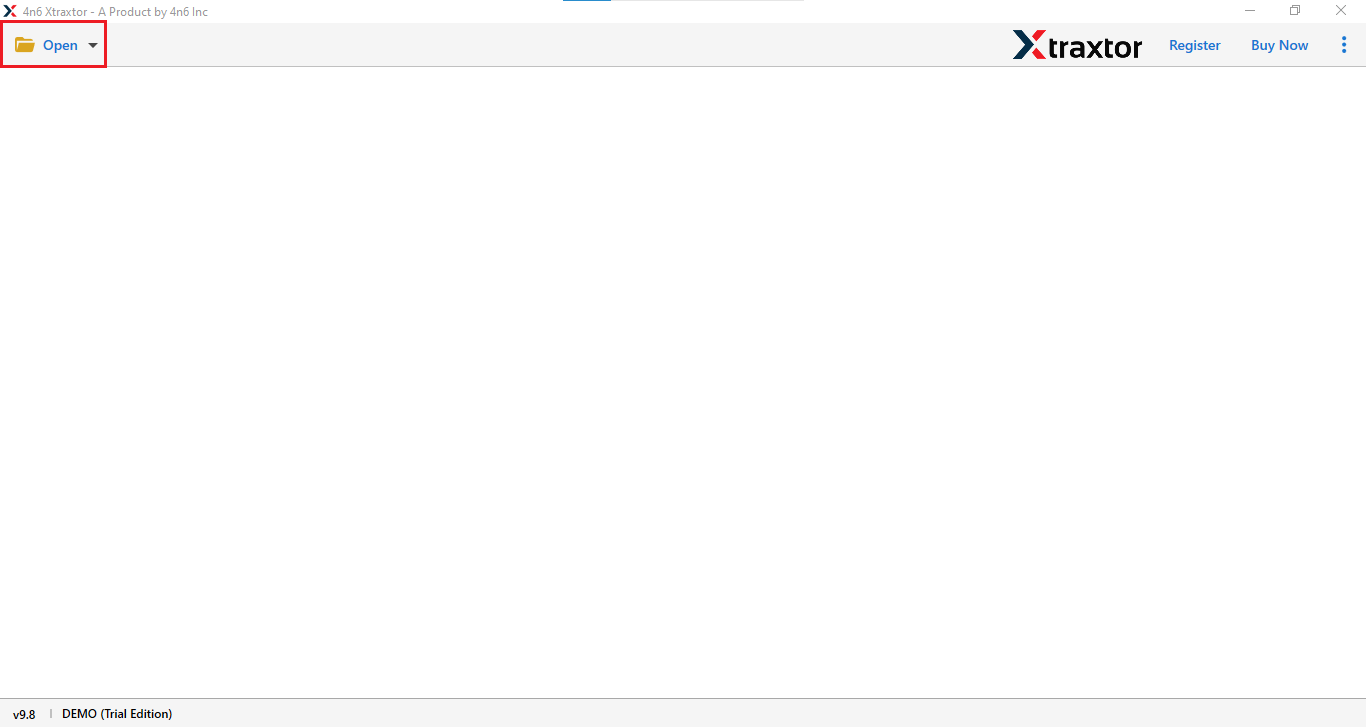
- Click the “Open” button to select the account option.
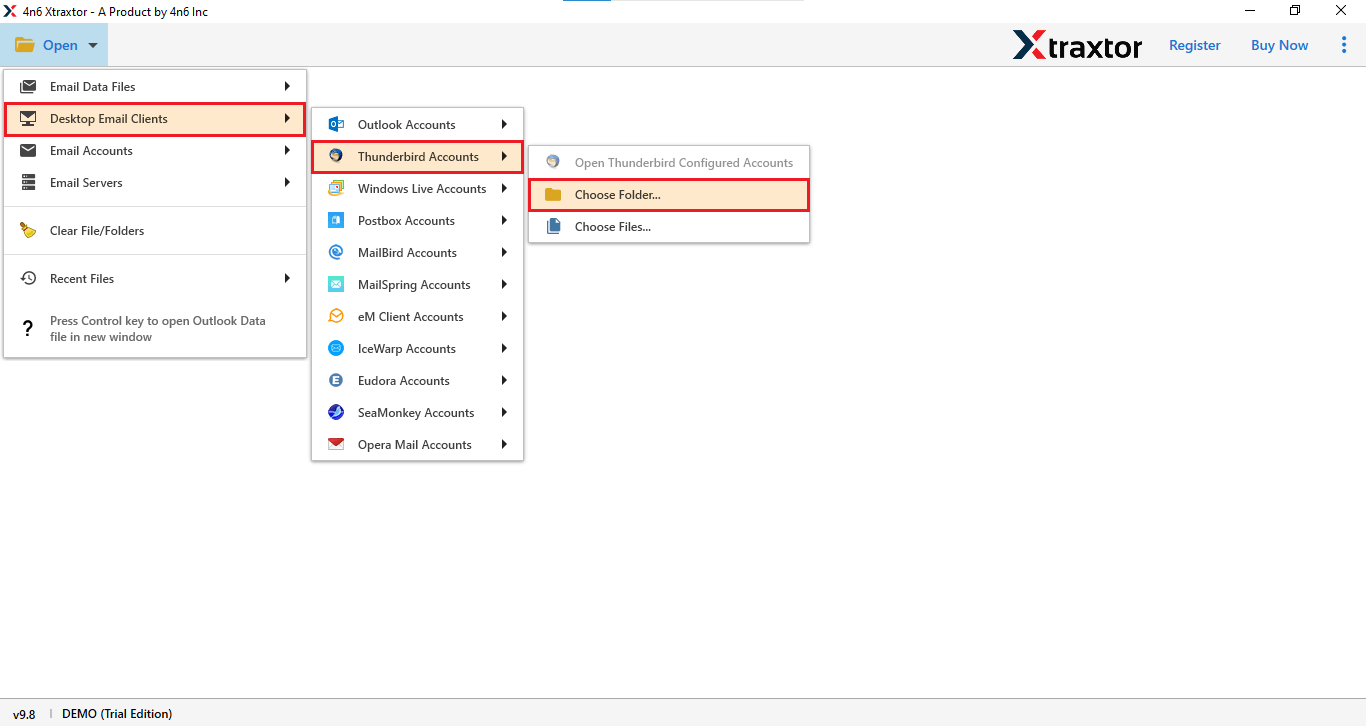
- Select Desktop Email Client>Thunderbird account>option choose folder.
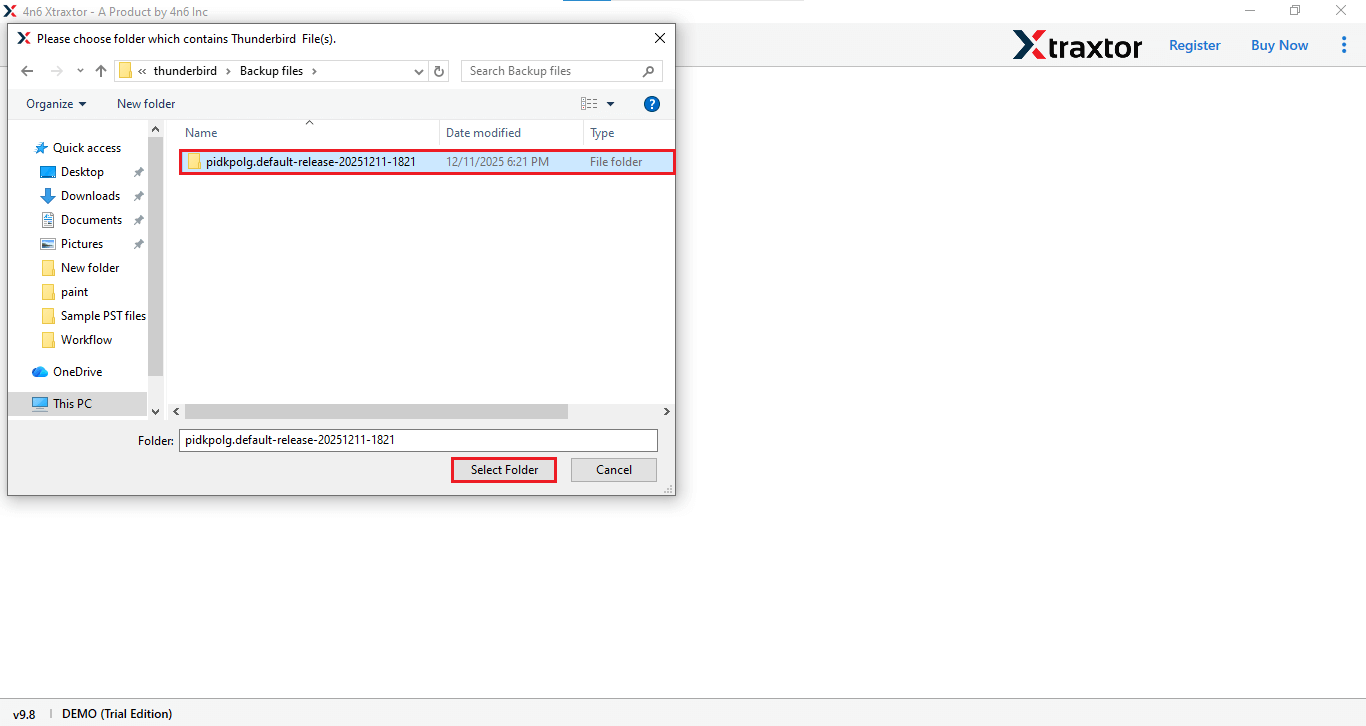
- Click on the “Folder” where your files are stored, and then click on “Select Folder“.
- Go to the “Export” option and select the desired file format for the backup.
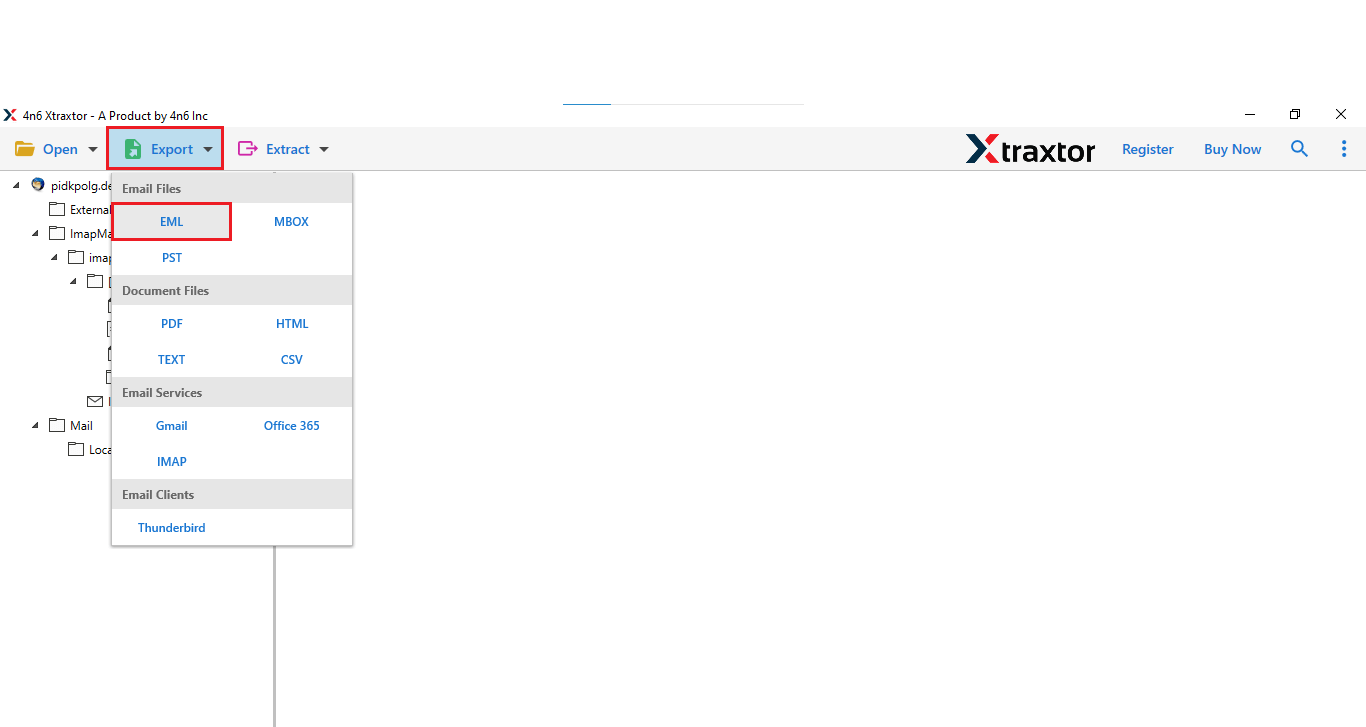
- Select the option where you want your emails to be backed up.
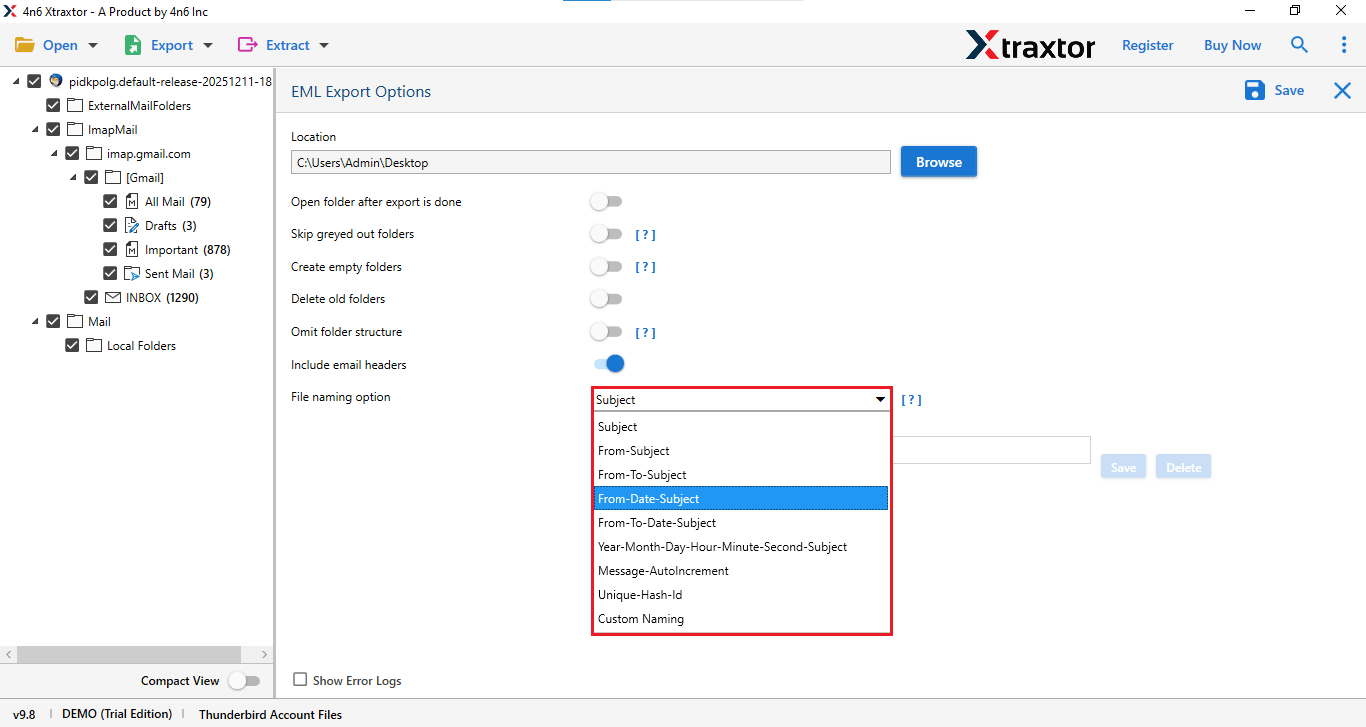
- Now select the location for your backup email and click on “Save.”
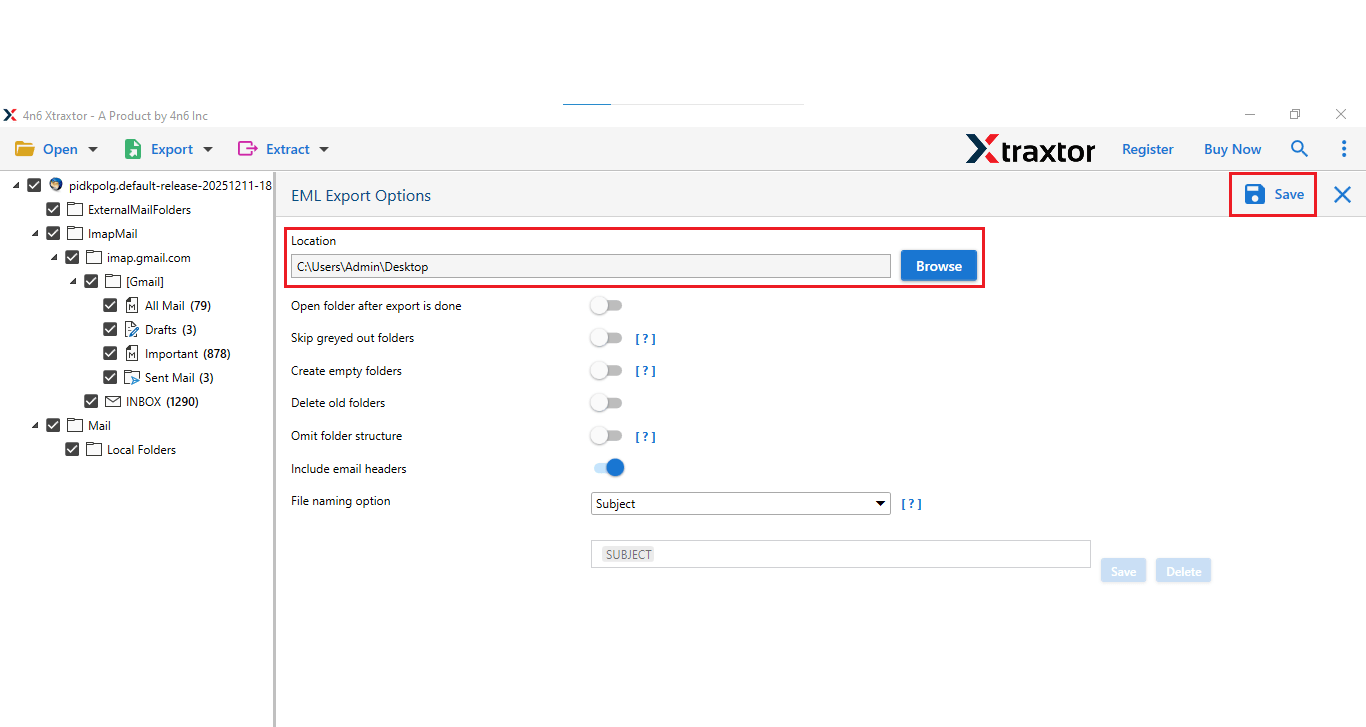
Done! Your backup thunderbird emails to hard drive will be created in a few minutes.
After using this, you will get a notification of completion.
Advantages of Using Professional Software
- This tool comes with a free trial version.
- You can download emails without losing data integrity.
- Support for over 200 email accounts for the backup process.
- Compatable with Windows 11, 10, 8, 8.1, 7, and all other OS versions.
- Maintain email properties and key elements while creating backup emails
- This software allows you to export emails to PST, PDF, and other formats.
- It offers advanced filters to back up emails based on recipient, sender, subject, etc.
Final words
In the above guide we have discussed the step-by-step process to backup Thunderbird emails to hard drive using both manual and professional methods. And found that using manual method, method only create backups in a limited file format and is not suitable for large amounts of data. In this case, using a professional tool is the better option.
You can try the free trail of this software to create backup thunderbird emails, if once you are satisfied with the tool so you can go for the licnnced version.
