How to Backup StartMail Emails to Computer?

Overview: Are you using StartMail as your secure email service and now looking for a way to backup StartMail emails to your computer? Or do you want to save StartMail emails to a local hard drive for offline access and safety? If yes, then you are on the right page.
In this article, we will explain how to backup StartMail emails to computer using a simple and reliable approach. You will learn why backing up StartMail emails is important, common challenges users face, and the best professional solution to download emails securely with complete data integrity.
StartMail is a privacy-focused email service designed for users who value security and data protection. It offers end-to-end encryption, strong spam filtering, and anonymous email aliases to protect users from tracking and surveillance.
Since StartMail stores all emails on cloud servers, your mailbox data remains online. While StartMail follows strong security practices, no cloud service is immune to risks such as account suspension, accidental deletion, cyberattacks, or unexpected access issues. That is why many users prefer to keep a local backup of their StartMail emails.
Why Should You Backup StartMail Emails to Computer?
Backing up StartMail emails is not just about storage; it’s about control and safety.
Below are some key reasons why users choose to download StartMail emails locally:
- Protection Against Data Loss: Emails may be deleted accidentally or lost due to account-related issues.
- Offline Email Access: A local backup lets you open and read emails even without an internet connection.
- Extra Security Layer: Downloaded emails are safe from online threats like hacking or phishing attacks.
- Email Migration Flexibility: Backups make it easier to switch from StartMail to another email service.
- Compliance & Documentation: Important emails can be stored for legal, business, or personal record-keeping.
Some users try manual ways to save emails from StartMail, such as copying emails one by one or forwarding them to another account. However, these methods have limitations:
- Time-consuming for large mailboxes
- No bulk download option
- Risk of missing attachments or folder structure
- No filtering or automation
To overcome these issues, a professional StartMail backup solution is recommended.
How to Download Emails from StartMail to PC Professionally?
Xtraxtor Email Backup Wizard is a reliable and easy solution to backup StartMail emails to computer along with attachments. The software works smoothly on all Windows operating systems and does not require any technical skills. Its user-friendly interface allows even beginners to backup their StartMail emails without any difficulty.
You can first try the free version to understand how the tool works.
Download (Free Trial)

Steps to Backup StartMail Emails to Computer
Step 1. Download, install, and launch the Xtraxtor software on your Windows computer.
Step 2. Click on Open >> Email Accounts >> Add Account.
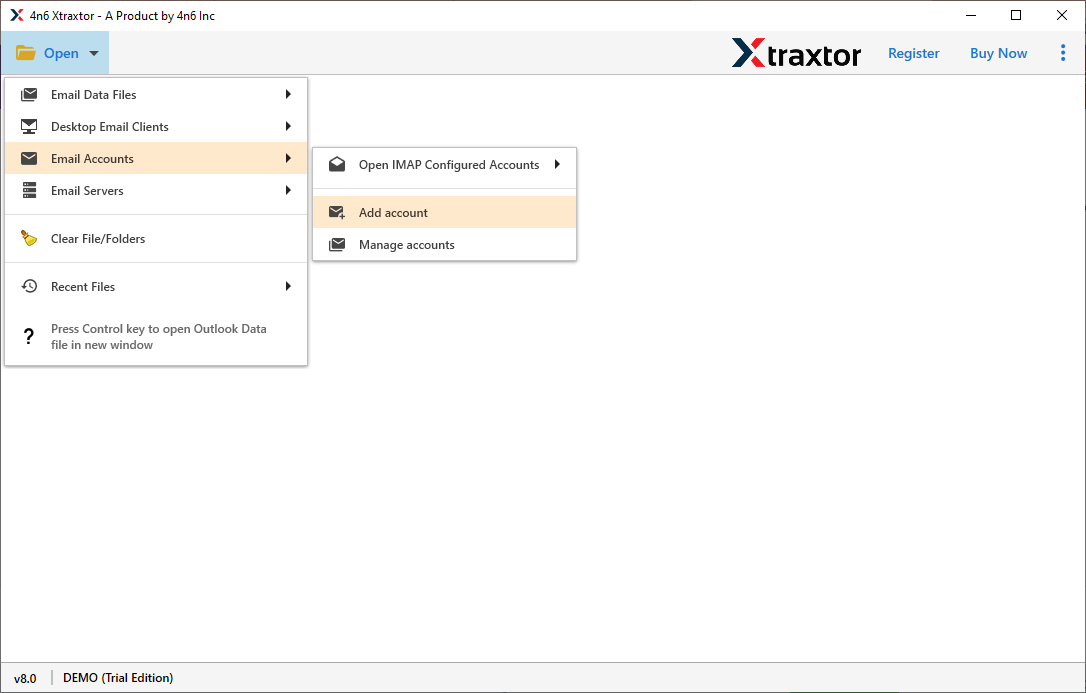
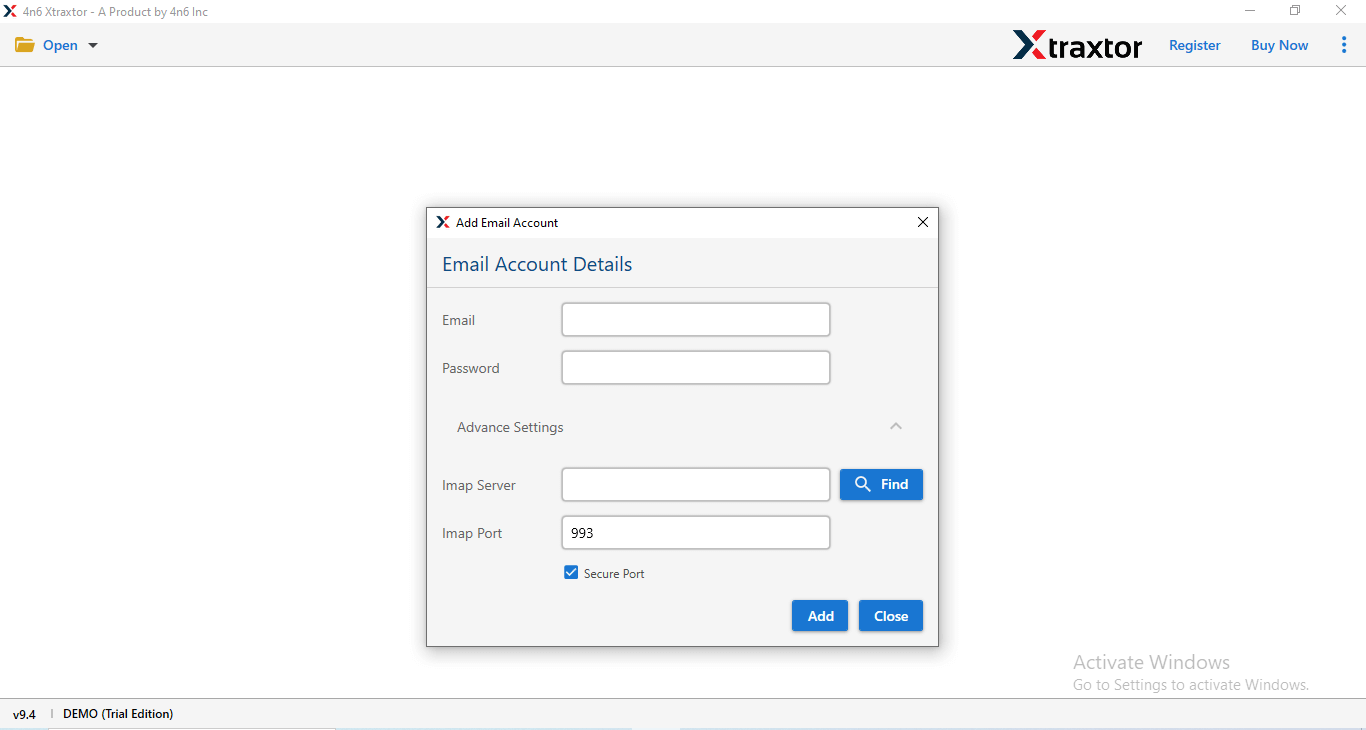
Step 3. Enter your StartMail email login credentials and click on the Add button.
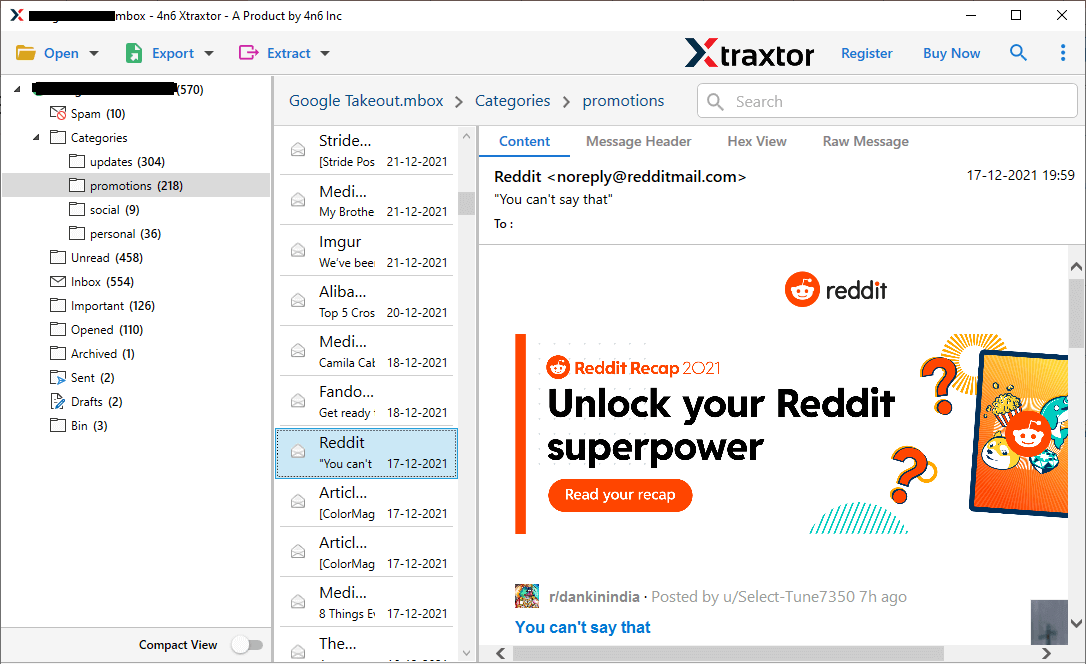
Step 4. The tool will load your StartMail mailbox and allow you to preview emails before backup.
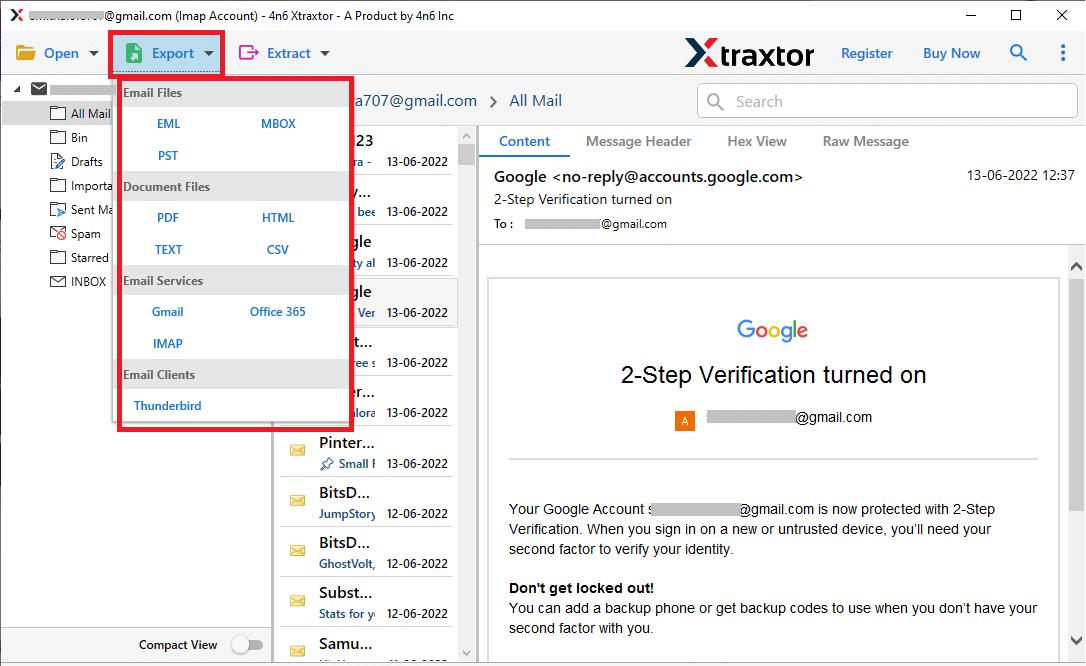
Step 5. Click on Export and choose the required file format from the available options.
Step 6. Choose the destination location on your computer and click on Save to start the backup.
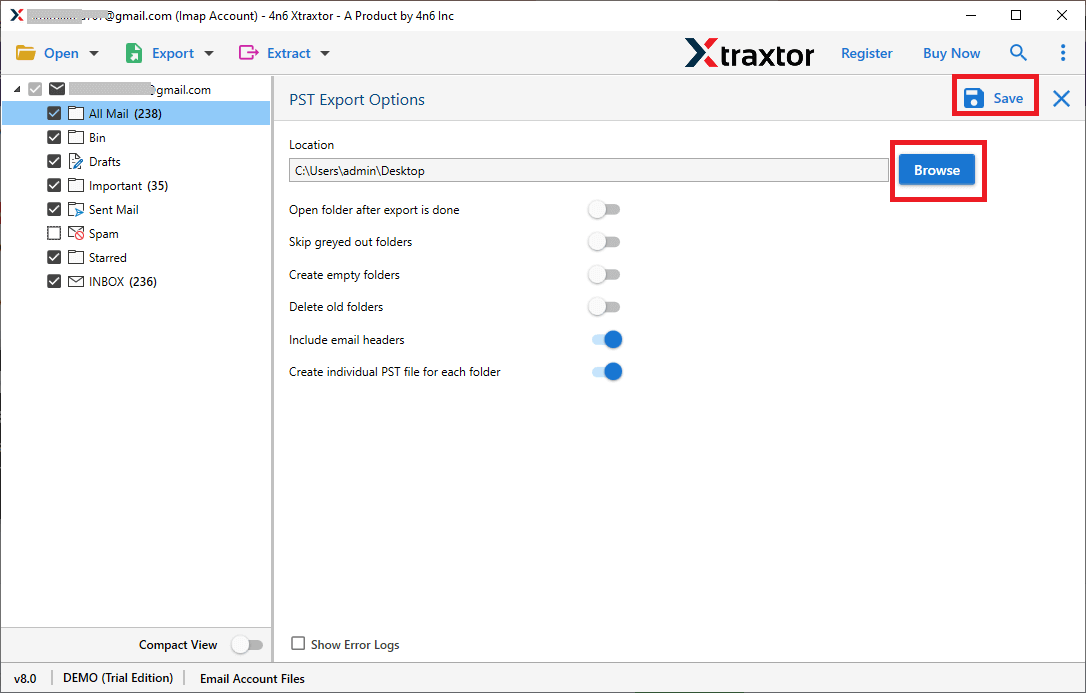
Done! Your StartMail emails are now safely backed up to your computer along with all attachments.
Advantages of Using an Automated Tool
This automated solution offers many useful features that make StartMail email backup easy and secure. Some key benefits are listed below:
Keep Original Folder Structure: The tool keeps your StartMail email folders and subfolders exactly the same during backup. All emails stay organized just like in your original mailbox.
Backup Multiple StartMail Accounts at Once: You can backup more than one StartMail email account in one go. Just upload a CSV file with account details, and the tool handles the rest automatically.
Multiple Saving Options: The software allows you to save StartMail emails in many file formats. You can also export emails to other IMAP-supported email services if needed.
Save Emails with Complete Details: All email properties are preserved during backup, including sender, receiver, subject, date, attachments, hyperlinks, inline images, and header information.
Advanced Filters for Selective Backup: If you don’t want to backup everything, you can use filters like date range, sender, receiver, subject, or emails with attachments to download only selected emails.
Easy to Use for Everyone: The tool has a simple interface that even non-technical users can use without any difficulty. If you face any issues, the support team is available to help quickly.
Conclusion
In this blog, we explained a safe and reliable way to backup StartMail emails to your computer. Creating a backup helps protect your important emails from data loss and keeps them accessible anytime. Although there are different ways to save emails, using an automated solution is the most secure and hassle-free option. We strongly recommend Xtraxtor Email Backup Wizard as it allows you to download the complete StartMail mailbox in one go, without errors or data loss, and with full email details preserved.
