How to Backup Outlook Emails to Google Drive?

If you are looking for a simple way to backup Outlook emails to Google Drive, then this guide will help you step by step. Many users want to save Outlook emails so they can access their data anytime, from any device, without depending on Outlook. In this blog, we will explain both manual and professional methods to complete this task easily.
In today’s digital world, keeping a backup of important emails is very important. Whether it is for business records, personal use, or data safety, users often need to transfer Outlook emails to Google Drive for secure cloud storage. Google Drive provides a safe and easy way to store files online and access them from anywhere.
Many users want to export Outlook emails to Google Drive for different reasons. Google Drive offers cloud storage, easy access, and better security compared to local storage. Also, it helps users manage their email data without worrying about system crashes or data loss.
Why Backup Outlook Emails to Google Drive?
- Data Safety: When you save your emails to Google Drive, your data stays safe even if your system crashes or gets damaged.
- Access Anywhere: You can easily upload Outlook emails to Google Drive and access them from mobile, laptop, or tablet anytime.
- Free Storage: Google Drive offers free storage space, making it easy to store important Outlook emails.
- Easy Sharing: Once you save Outlook emails to Google Drive, you can share them with others quickly.
- Space Management: Moving emails to Google Drive helps free up space in your Outlook account.
How to Upload Outlook Emails to Google Drive?
Follow these steps to export Outlook emails to Google Drive manually:
- Open Microsoft Outlook and go to the File tab.
- Click on Open & Export and choose Import/Export option.
- Select Export to a file and click Next.
- Choose Outlook Data File (.pst) and click Next.
- Select the email folder you want to export.
- Choose a location on your computer and click Finish to save the PST file.
- Now open Google Drive in your browser and sign in.
- Click on the New button and choose File Upload.
- Select the exported PST file and upload it to Google Drive.
Now you have successfully learned how to transfer Outlook emails to Google Drive manually.
Drawbacks of the Manual Method
- It takes a lot of time for large amounts of data.
- No option to export selective emails easily.
- Requires multiple steps to complete the process.
- Risk of data loss if the process is interrupted.
How to Transfer Outlook Emails to Google Drive automatically?
If you have a large number of emails and want a quick solution, then using Xtraxtor is the best option. This tool is specially designed to backup Outlook emails to Google Drive in a simple and secure way.
With this software, you can easily export emails by first converting them into popular formats like PDF. After that, you can upload the files to Google Drive without any difficulty.
The tool also allows you to save emails with complete email data, such as attachments, formatting, and metadata. You can even choose specific emails using advanced filters like date, subject, sender, and more.
With a further delay, tap on the free download buttona nd check it’s complete working process;

Steps to Backup Outlook Emails to Google Drive
Step 1. Download and install the software on your system.
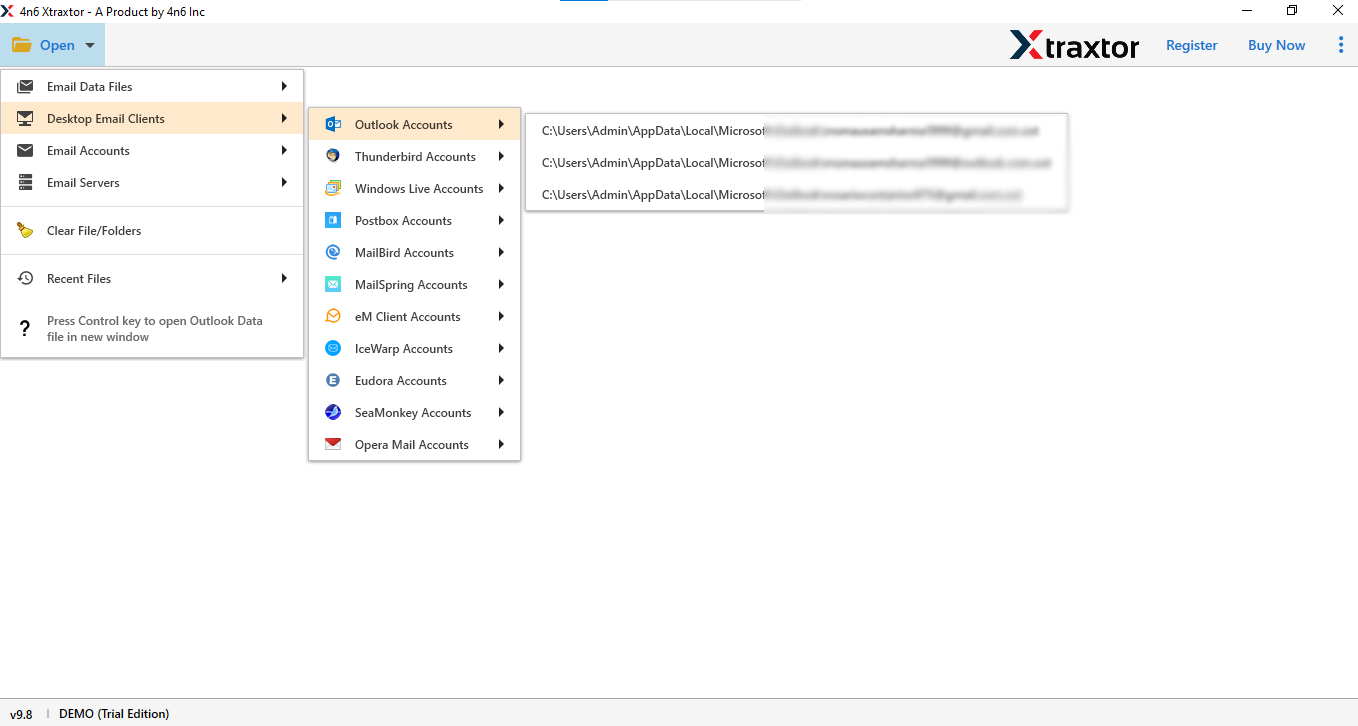
Step 2. Launch the software and click on Open >> Desktop Eail Clients >> Outlook Accounts.
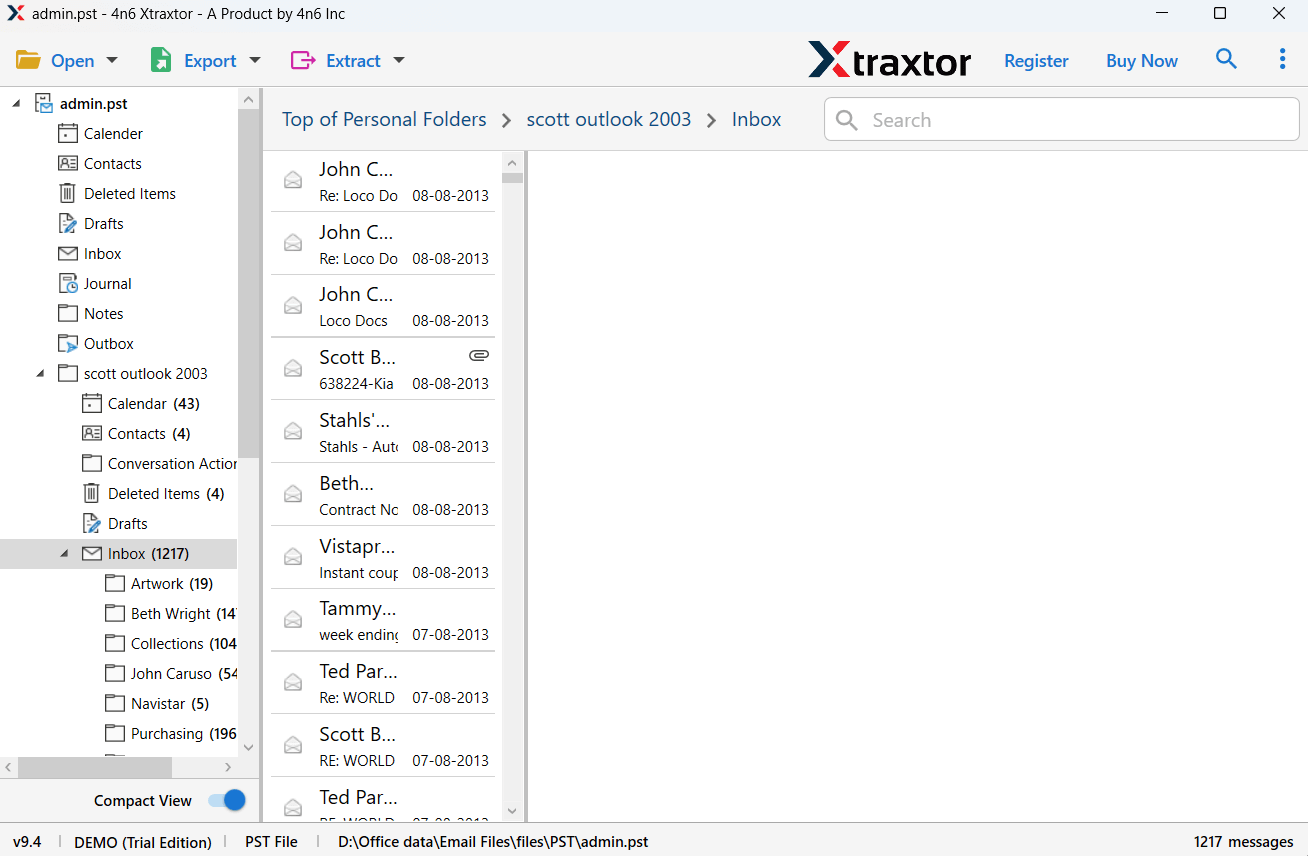
Step 3. After loading, you can preview all your emails and select the required folders.
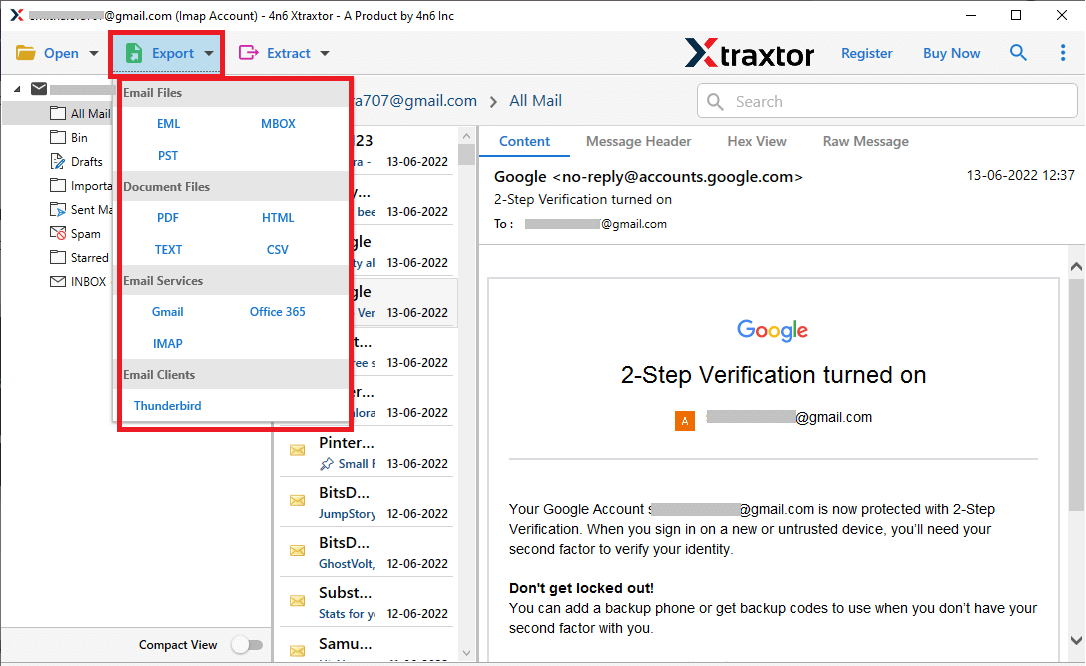
Step 4. Click on Export and choose a file format like PDF.
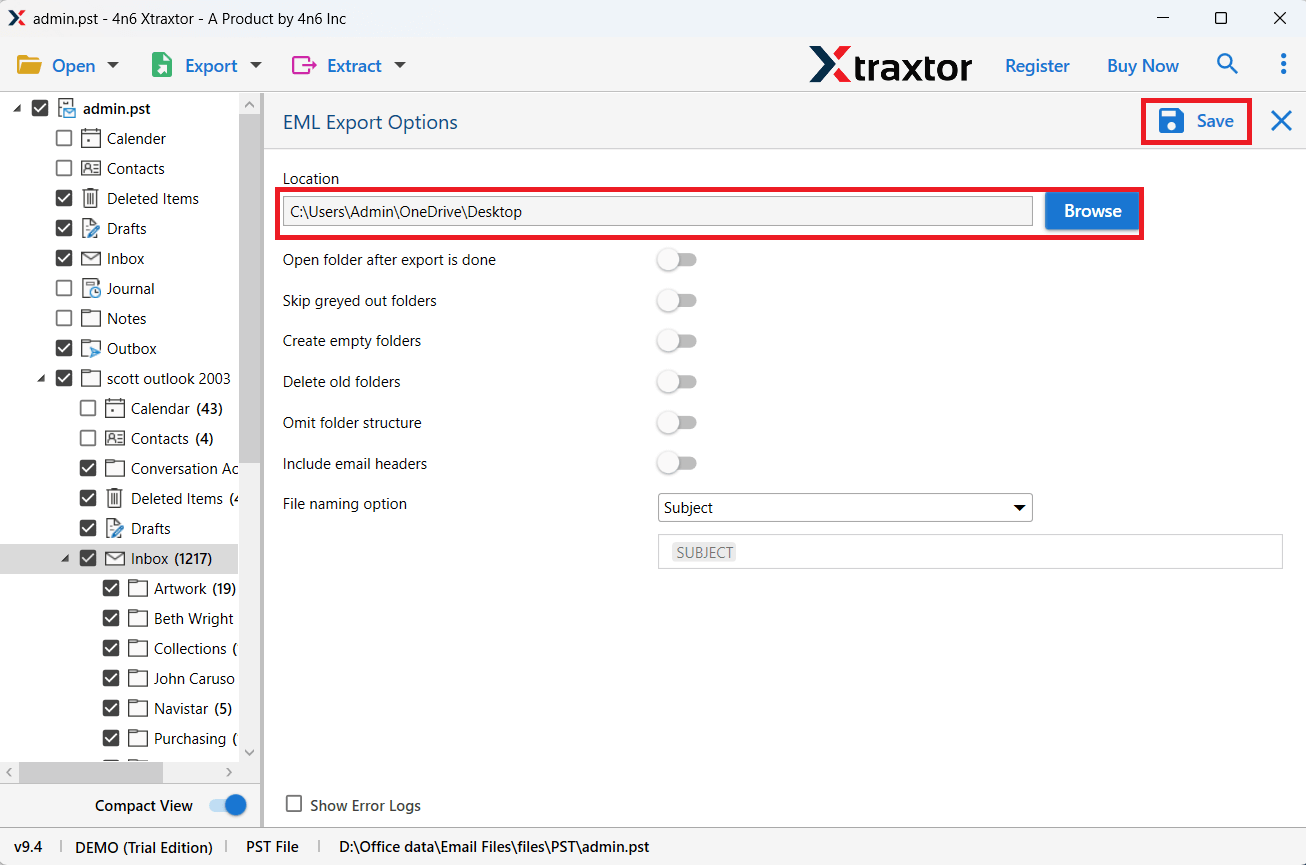
Step 5. Choose a destination location on your system and click the Save button to start the process.
Step 6. Once the conversion is complete, open your Google Drive account and upload the exported files.
Done! In this way, you can easily transfer Outlook emails to Google Drive in bulk without any data loss.
Key Features of Using an Automated Software instead of Manual Methods
- Backup Outlook emails to Google Drive in multiple formats like PDF, EML, MSG, MBOX, and PST.
- You can easily export single or multiple Outlook folders at once without any hassle.
- It helps you save Outlook emails to Google Drive along with attachments and full email data.
- The tool provides a fast and simple way to transfer Outlook emails to Google Drive without data loss.
- It is a standalone application, so you don’t need Outlook installation to perform the process.
- Supports all versions of Outlook to export Outlook emails to Google Drive easily.
- Works with both ANSI and Unicode PST files without any issue.
- Offers advanced filters to select only required emails for backup.
- Maintains folder hierarchy and keeps all data intact during the process.
Wrapping up
Backing up Outlook emails to Google Drive is a smart way to keep your important data safe and accessible anytime. Manual methods work for small tasks, but they can be slow and difficult for large data. In this guide, we explained both manual and professional ways to export Outlook emails to Google Drive. You can choose the method based on your needs and easily secure your Outlook data.
