How to Backup Orange Mail Emails to Computer?

If you want to know how to backup Orange Mail emails to your computer, then this article will help you. Here, I will explain two simple methods to save your emails safely. These methods are easy to follow and help you protect your important data. So, read the article till the end.
What is Orange Mail?
Orange S.A. provides an email service known as Orange Mail. It is mainly used by Orange internet subscribers for sending and receiving emails. Orange Mail allows users to manage contacts, folders, attachments, and other mailbox data through a web interface. Since it is a web-based email service, you can access it from any device with an internet connection. However, many users still want to download their emails for backup and safety purposes.
Why Users Need to Backup Orange Mail Emails?
There are several reasons why users want to save Orange Mail emails to their computer:
- To protect important emails from accidental deletion.
- To keep a copy of data in case of server issues or account problems.
- To free up mailbox storage space.
- To access emails offline without an internet connection.
- When switching from Orange Mail to another email service.
- For legal, personal, or company record-keeping purposes.
Before starting the backup process, make sure you have a stable internet connection, correct IMAP server settings, and your Orange Mail login details. After that, follow the methods explained below.
How to Download Emails from Orange Mail to Computer?
If you are using a Windows computer, you can use an email client like Microsoft Outlook that supports IMAP. Orange Mail does not provide a direct option to export emails. So, first, you need to configure your Orange Mail account in Outlook and then export the mailbox.
Here’s how you can do it:
- Open Outlook on your Windows PC.
- Go to the File tab and click on Add Account.
- Enter your Orange Mail email address and password.
- If required, manually enter the IMAP server settings.
- Click Finish to complete the configuration.
- Next, restart Outlook, and click on the File menu.
- Select Open & Export & Import/Export.
- Choose Export to a file and click Next.
- Select Outlook Data File (.pst) and click Next.
- Choose the Orange Mail mailbox folder.
- Set a location on your computer to save the file.
- Click Finish to start the export process.
This method works well for Windows users. If you are using Windows OS, check the next section.
How to Save All Emails from Orange Mail to Computer in Bulk?
If you are searching for a simple and secure way to backup Orange emails to your computer, using a professional backup tool is the best solution. Xtraxtor Email Backup Wizard is a reliable application that can easily download emails from Orange Mail account to your system in just a few clicks.
With this automated tool, you can directly export Orange emails to your computer without any risk of data loss. It offers advanced filter options such as date, subject, sender, receiver, cc, bcc, and more, so you can backup only the emails you need along with attachments. The software supports Windows 11, 10, 8, 7, and other earlier versions.
Click on the free download button to check how the tool works step by step.

Steps to Backup Orange Mail Emails to PC
Follow the steps below to download Orange emails to your system with attachments.
Step 1. Download and install the Xtraxtor software on your computer.
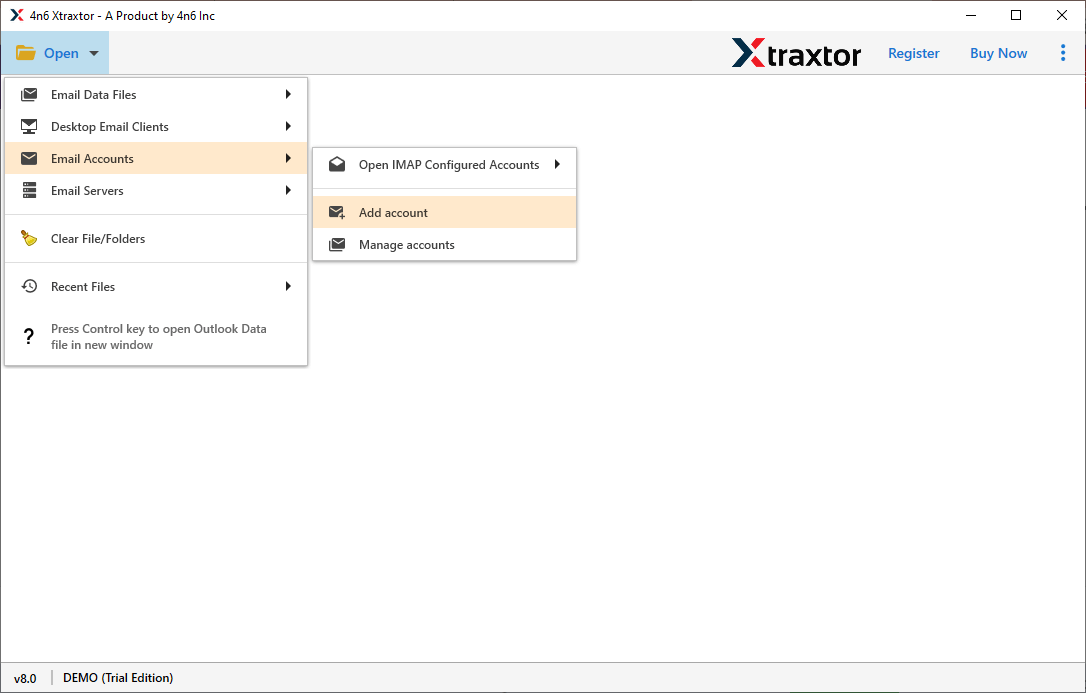
Step 2. Open the tool and select Open >> Email Accounts >> Add Account.
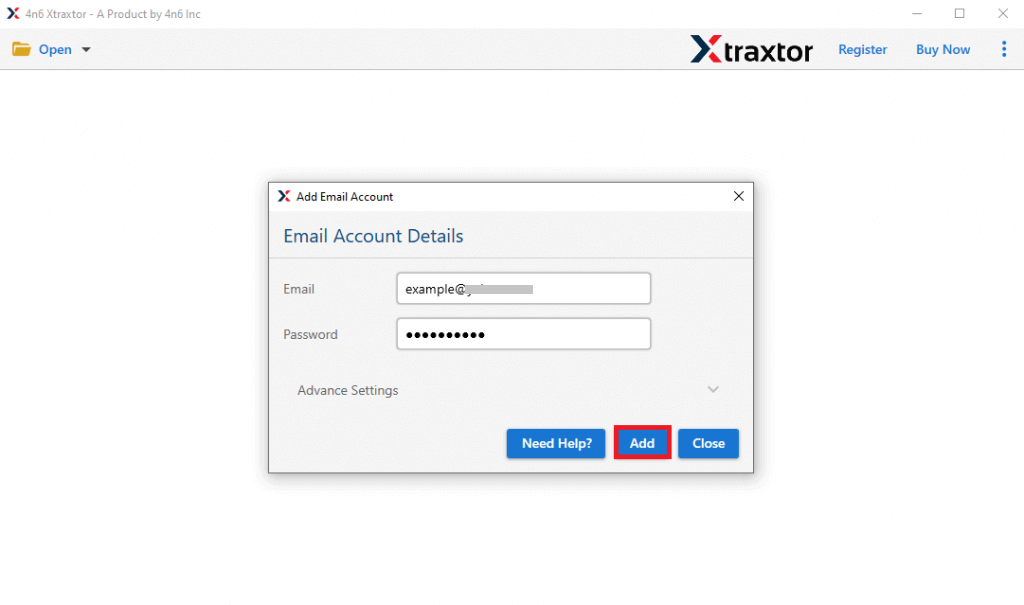
Step 3. Enter your Orange Mail login credentials and click on the Add button.
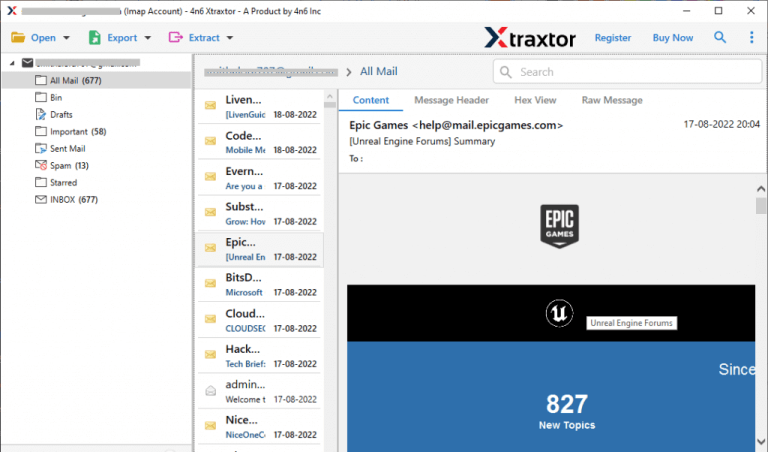
Step 4. The software will load and display your mailbox data for preview before backup.
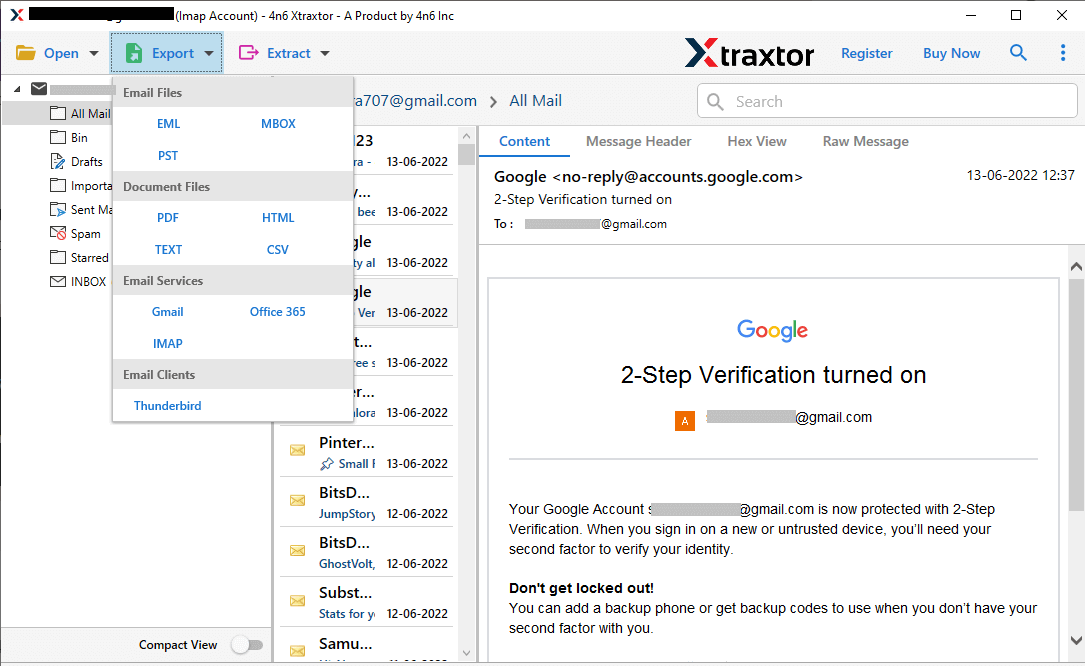
Step 5. Click on Export and select the desired file format.
Step 6. Select the email folders that you want to backup.
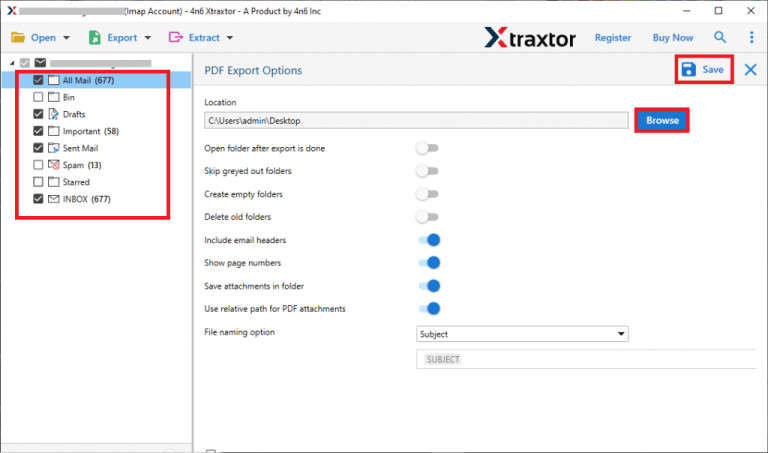
Step 7. Choose the destination location on your computer and click on the Save button.
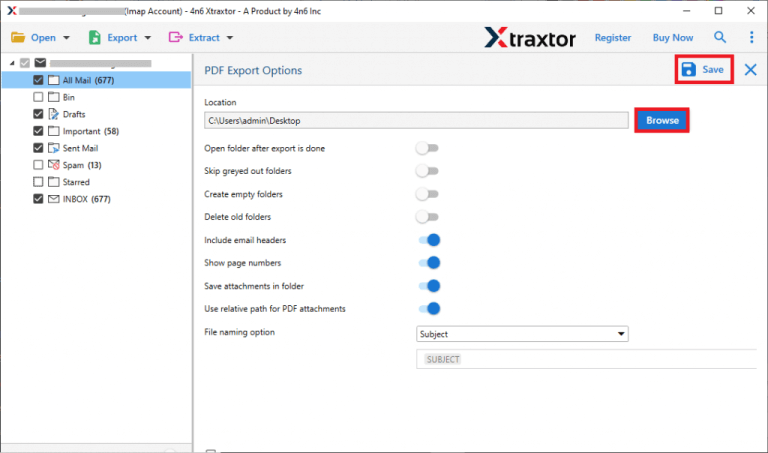
Done! Your Orange emails are successfully backed up to your computer without any data loss.
Features of Professional Tool
- Backup Orange Mail emails in multiple formats like PST, PDF, MBOX, EML, etc.
- Download single or multiple IMAP accounts at once.
- Maintains original folder hierarchy during backup.
- Provides advanced filter options to download selected emails.
- Keeps attachments and email properties intact.
- Compatible with all the latest and previous versions of Windows operating systems.
- Simple and user-friendly interface for technical and non-technical users.
Concluding Words
Now you know how to backup Orange Mail emails to your computer. Since Orange Mail does not offer a direct export option, you can either configure your account in an email client like Outlook (for Windows) or use a professional IMAP backup tool for a faster and safer solution.
Choose the method that suits your needs and keep your important Orange Mail data secure at all times.
