How to Backup Mediacom Emails to Computer?

In this post, we will discuss how to backup Mediacom emails to computer using an automated solution. This blog explains a simple and secure way to download individual as well as bulk emails from Mediacom Mail to your local system. Read this article till the end to find the best solution for your requirement.
Mediacom is a popular internet and email service provider used by many users for personal and business communication. Mediacom email allows users to access their mailboxes online. However, relying only on webmail is not always safe for long-term data storage.
Many users want to backup their Mediacom emails due to reasons like service changes, limited mailbox storage, accidental deletion, or the need to keep emails for future reference. That’s why creating a local backup of Mediacom emails becomes important.
After researching different options, we found that using a professional automated solution is the safest and most reliable way to backup Mediacom emails to computer.
Let’s explore the complete process in detail.
Why Do Users Need to Backup Mediacom Emails to Computer?
There are several reasons why users prefer to save Mediacom emails locally:
- Risk of email loss due to account suspension or service changes
- Limited storage space in Mediacom webmail
- Need for offline access to important emails
- Protection from accidental deletion or hacking
- Requirement to store emails for legal or business purposes
- Easy access to emails anytime without internet
How to Download Emails from Mediacom Mail Automatically?
To backup Mediacom emails safely and without any data loss, it is recommended to use Xtraxtor Email Backup Wizard. This automated solution is designed to download emails directly from Mediacom Mail and save them on your computer with complete accuracy.
With this software, you can backup complete mailboxes or selected folders, export emails in multiple file formats, and even backup multiple Mediacom accounts at once. The tool also preserves all email properties during the backup process.
Click on the FREE Download button and follow the steps below.

Steps to Backup Mediacom Emails to Computer
Step 1. Download and run Xtraxtor Software on your Windows system.
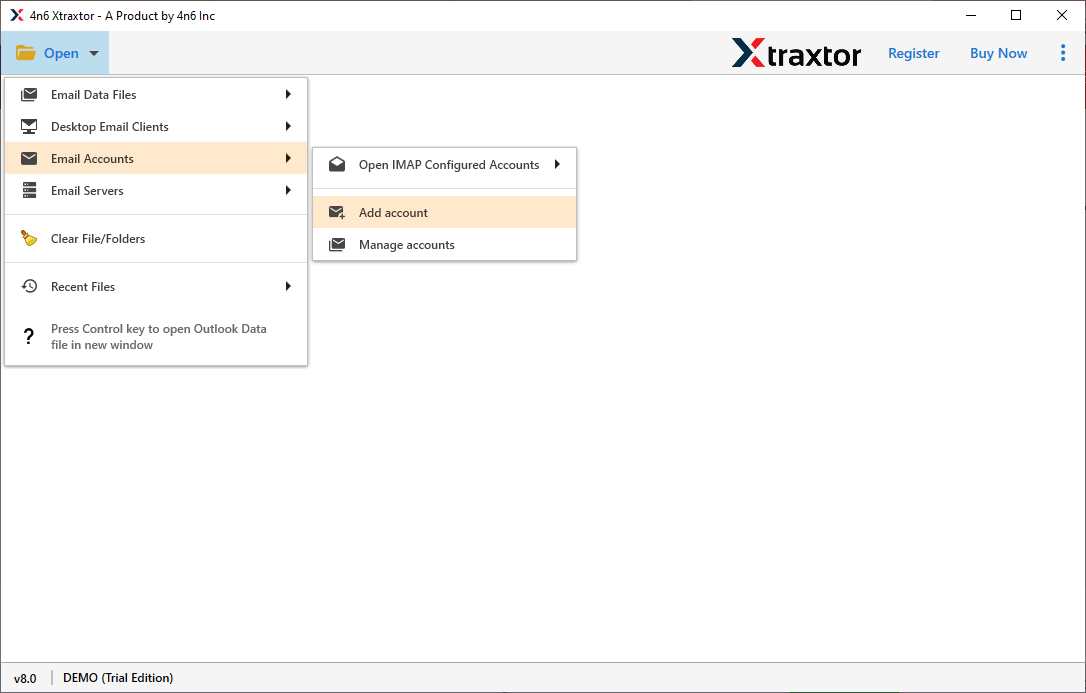
Step 2. Navigate to Open >> Email Accounts >> Add Account.
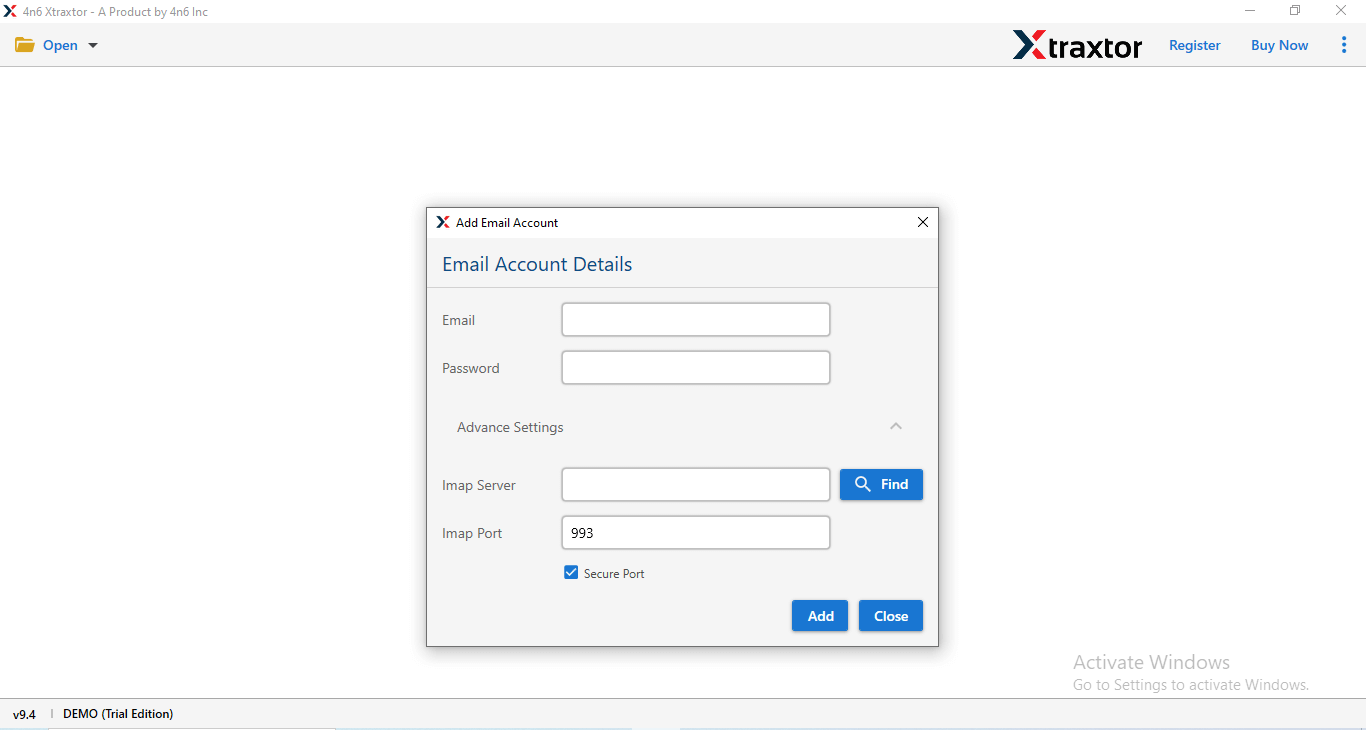
Step 3. Enter the Mediacom Mail credentials and click on the Add button.
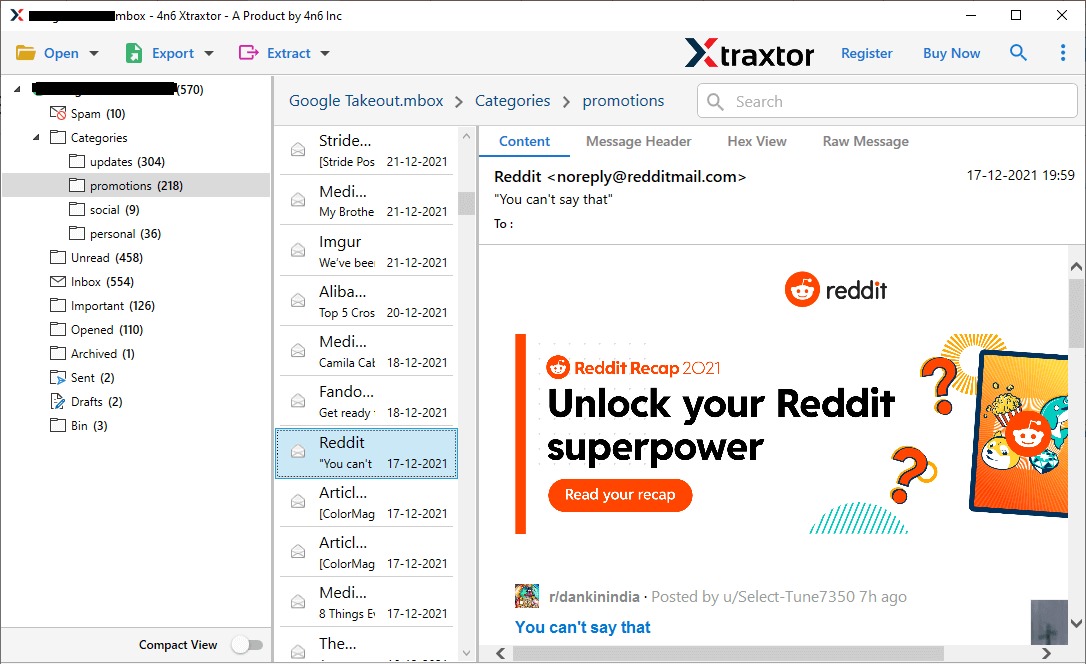
Step 4. The tool will load Mediacom Mail data for preview before starting the backup.
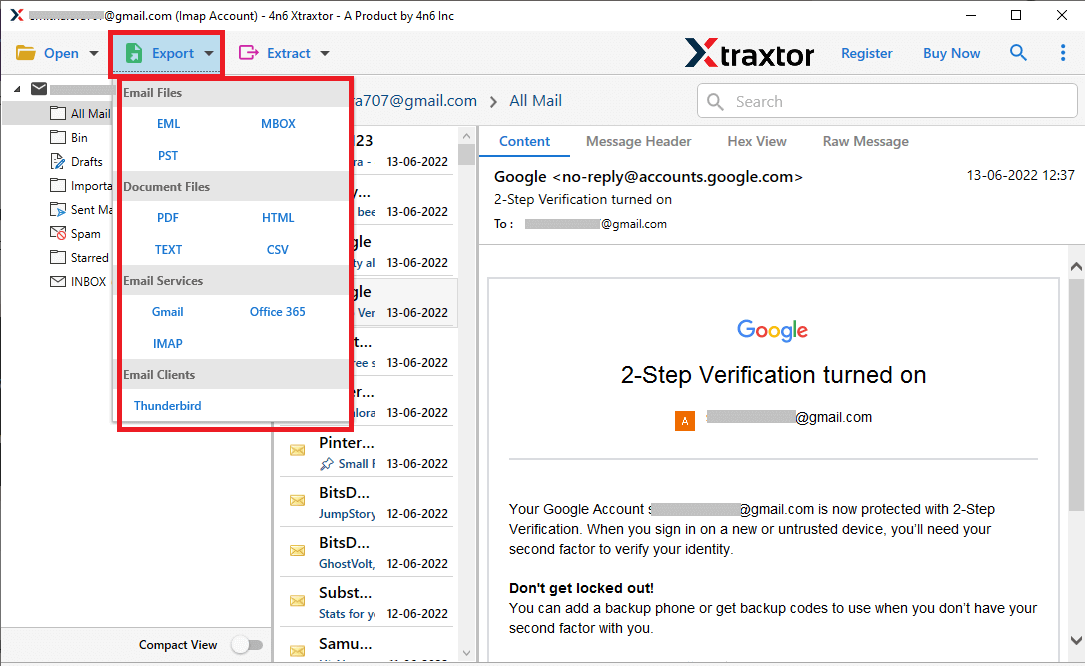
Step 5. After that, go to Export and select the file format as per your needs.
Step 6. Choose the email folders that you want to export.
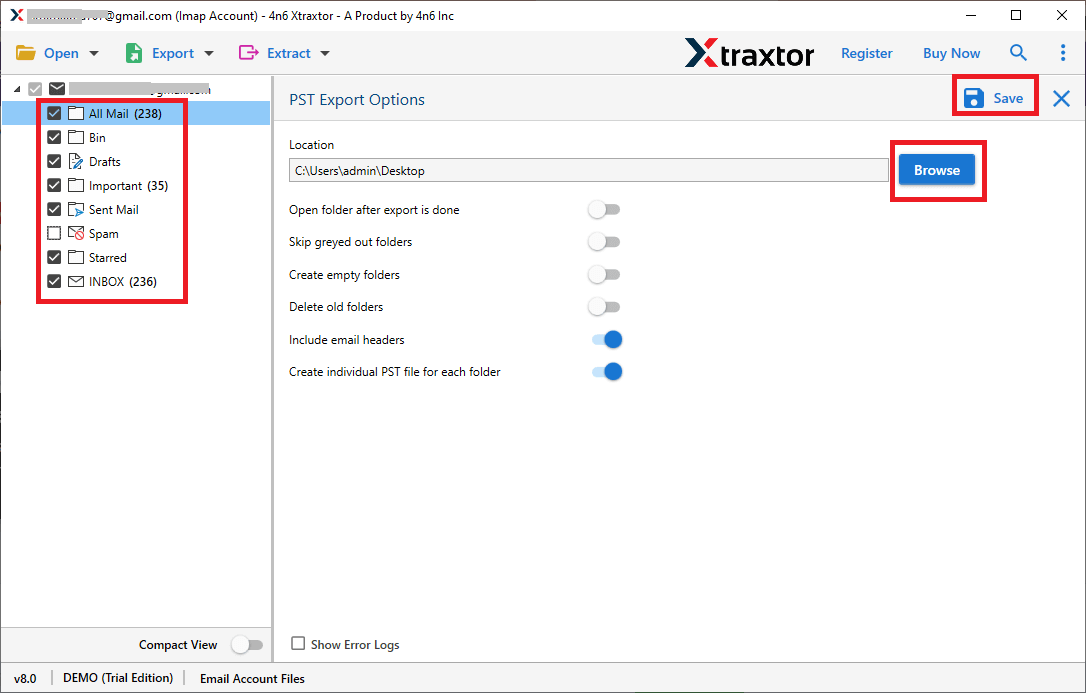
Step 7. Finally, click on Browse to select the destination location and then click Save.
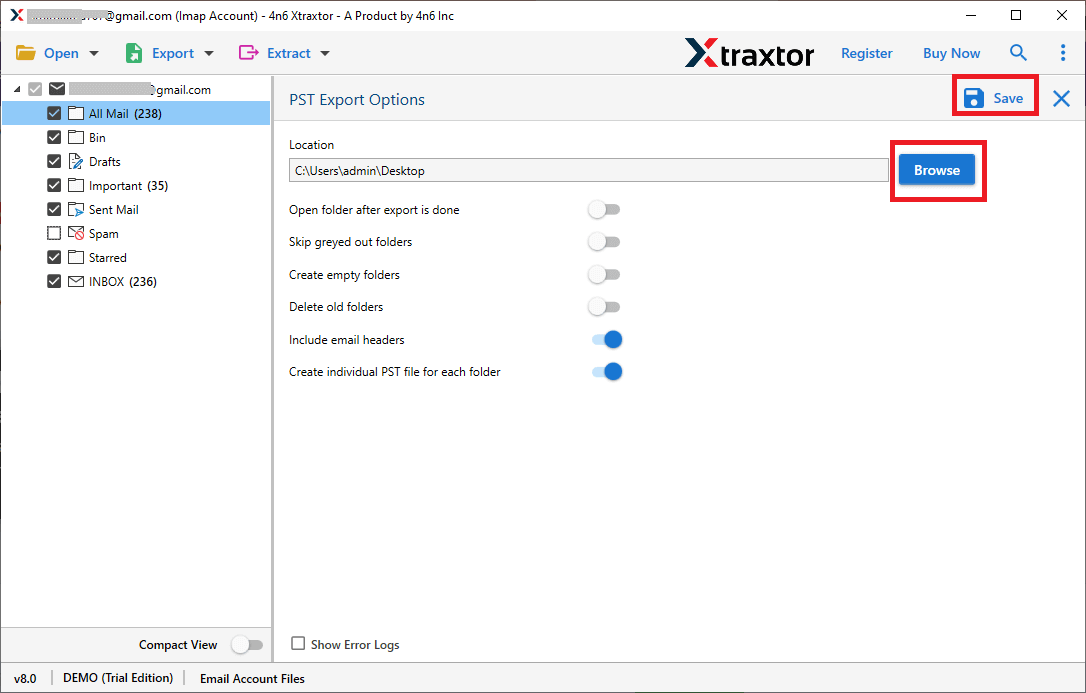
Done! Now, you can easily access your Mediacom emails from your computer with just a few clicks.
Key Features of Mediacom Email Backup Tool
- Download selective Mediacom emails using advanced filters
- Backup Mediacom emails in PST, PDF, MSG, MBOX, EML, DOC, HTML, and more
- Preserve all email properties like To, From, Subject, Date, CC, and BCC
- Export emails along with all attachments
- Batch mode to backup multiple Mediacom email accounts
- Maintain original folder hierarchy during backup
- Safe and secure process without data loss
- Simple interface suitable for non-technical users
- Compatible with all Windows operating systems
Conclusion
In this post, we have explained a complete and reliable solution to backup Mediacom emails to computer. Since there is no dependable manual method available, using automated software is the best and safest approach. The Tool helps you download all emails along with attachments, folders, and email properties without any data loss.
