How to Backup MailPile Emails to Computer?

Do you need a solution to backup MailPile emails to computer? If yes, this guide will help you find the right way. In this detailed and helpful article, we explain easy methods to download MailPile emails to your computer with step-by-step instructions. Here, you will learn a step-by-step guide using the most effective solution. So, follow this guide for more info.
MailPile is a privacy-focused email client, but like any email platform, your data is always at risk due to system crashes, accidental deletion, or hardware failure. That’s why creating a local backup of your MailPile emails is extremely important. A proper backup ensures your emails, attachments, and folders stay safe and accessible anytime.
Why Is It Important to Backup MailPile Emails?
Below are some important reasons why users prefer to backup MailPile emails to computer:
- Prevent data loss due to system failure or accidental deletion
- Access emails offline anytime
- Keep a secure copy of important communications
- Migrate emails to another email client or service
- Protect email data from corruption or malware
- Maintain long-term email records for personal or business use
How to Save MailPile Emails to Computer Hard Drive?
Since MailPile does not provide a direct export or backup feature, using a trusted third-party tool is the most effective option. The Xtraxtor Email Backup Wizard offers a complete and secure solution to backup MailPile emails to your local system. This tool is designed to download emails from your MailPile email accounts and save them in multiple file formats.
Click on the free download and check its working process.

Steps to Backup MailPile Emails to Computer
Step 1. Download and install Xtraxtor software on your Windows computer.
Step 2. Launch the tool and navigate to Open >> Email Accounts >> Add Account.
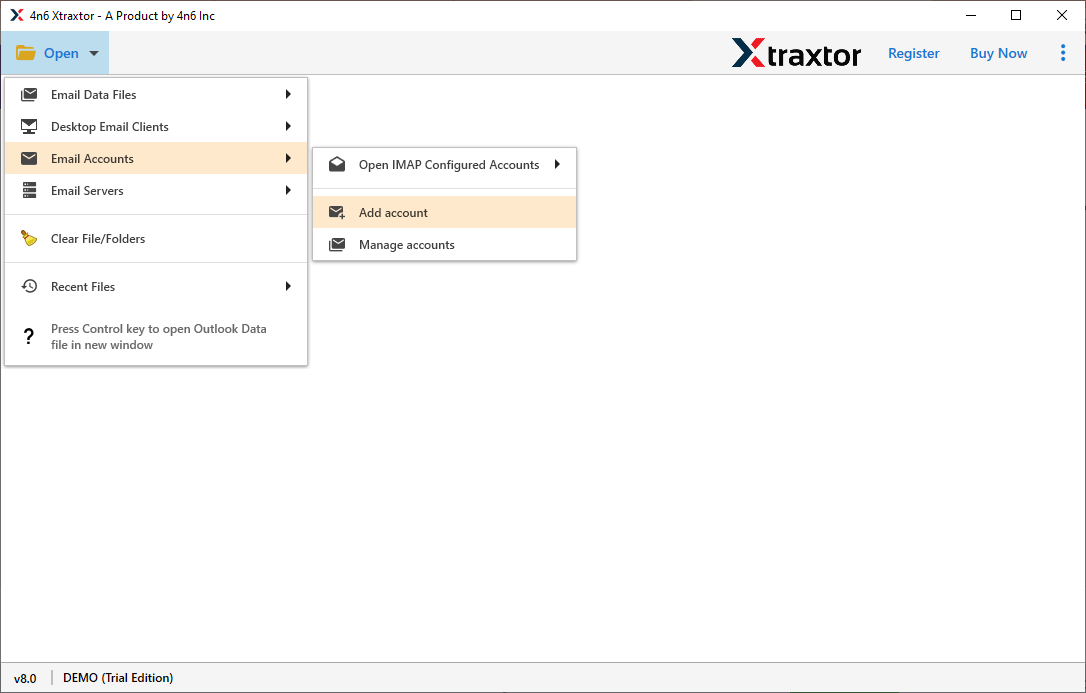
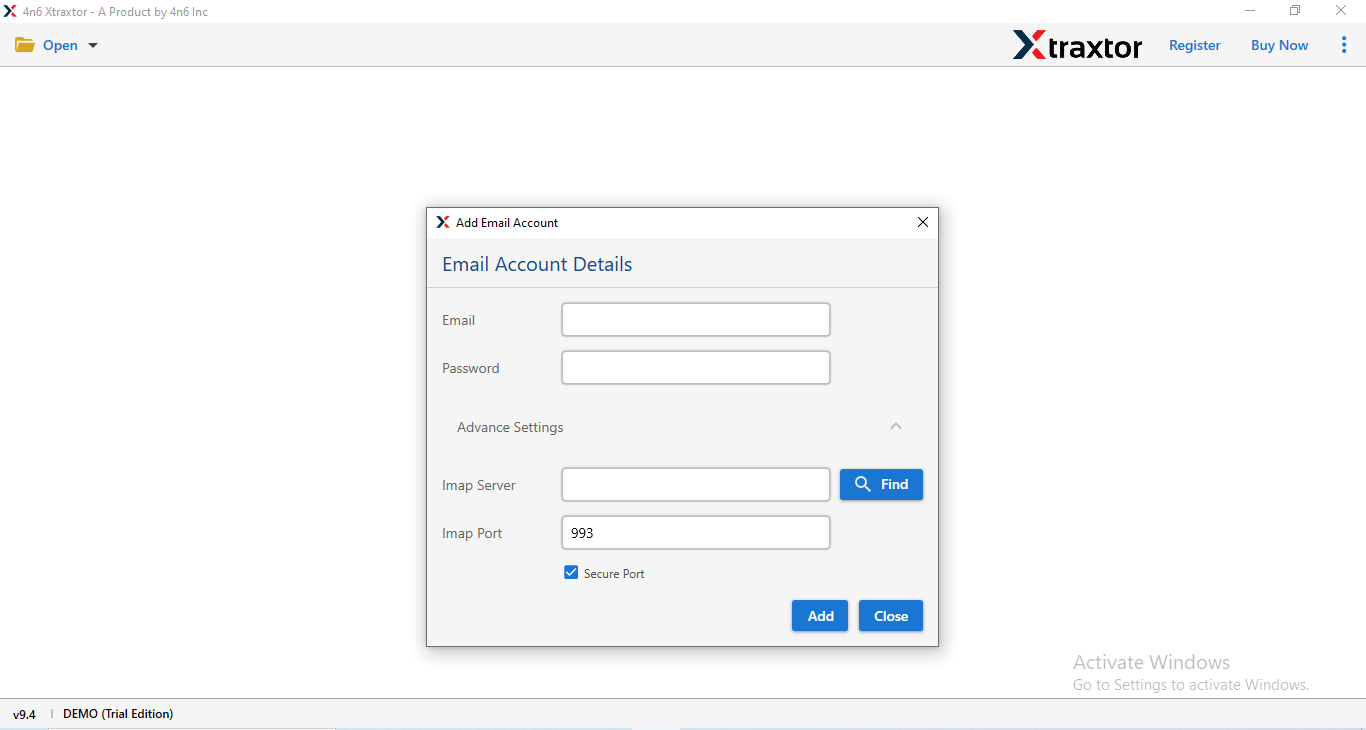
Step 3. Enter your MailPile email credentials and click on the Add button.
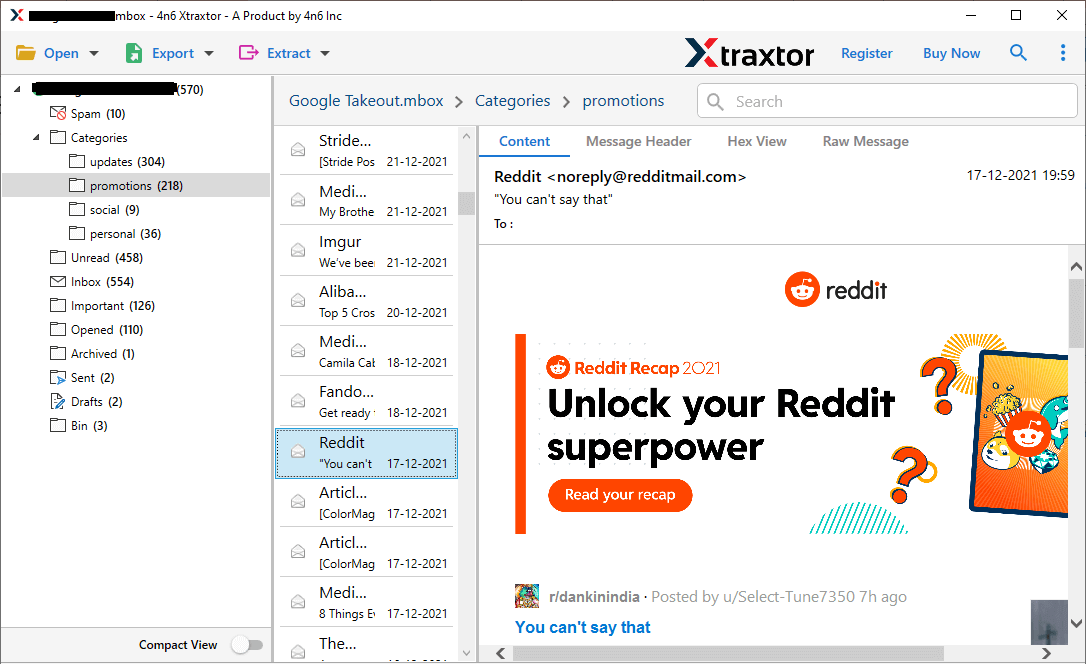
Step 4. The software will load all MailPile mailboxes and folders for preview.
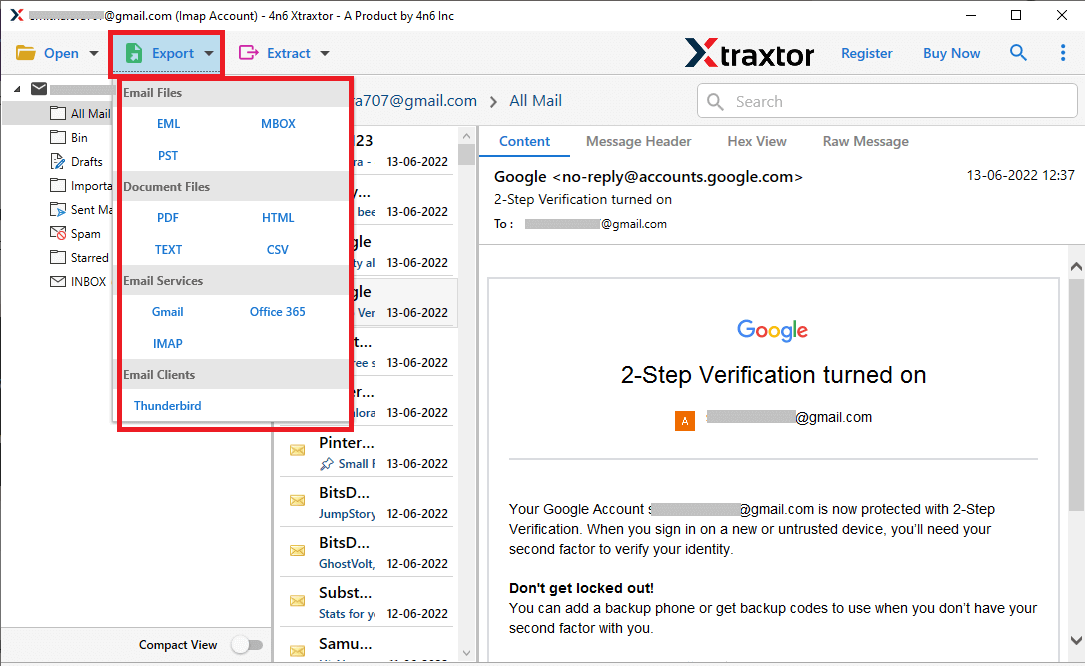
Step 5. Click on the Export option and select the desired file format for backup.
Step 6. Choose the MailPile email folders you want to backup.
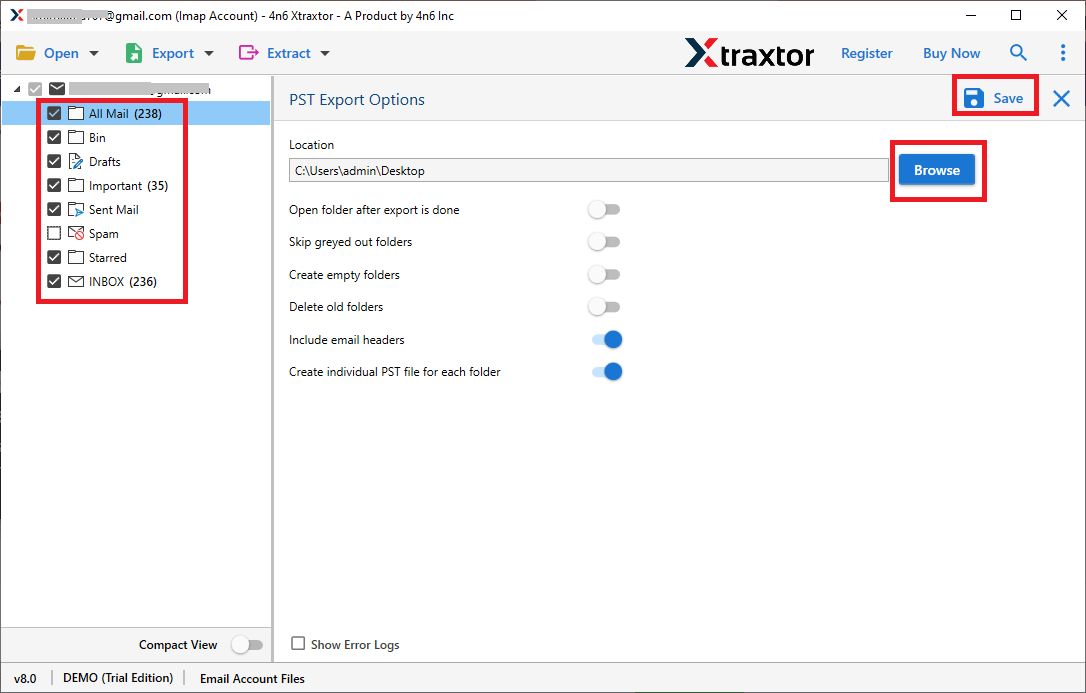
Step 7. Browse and select a destination location & click the Save button to start.
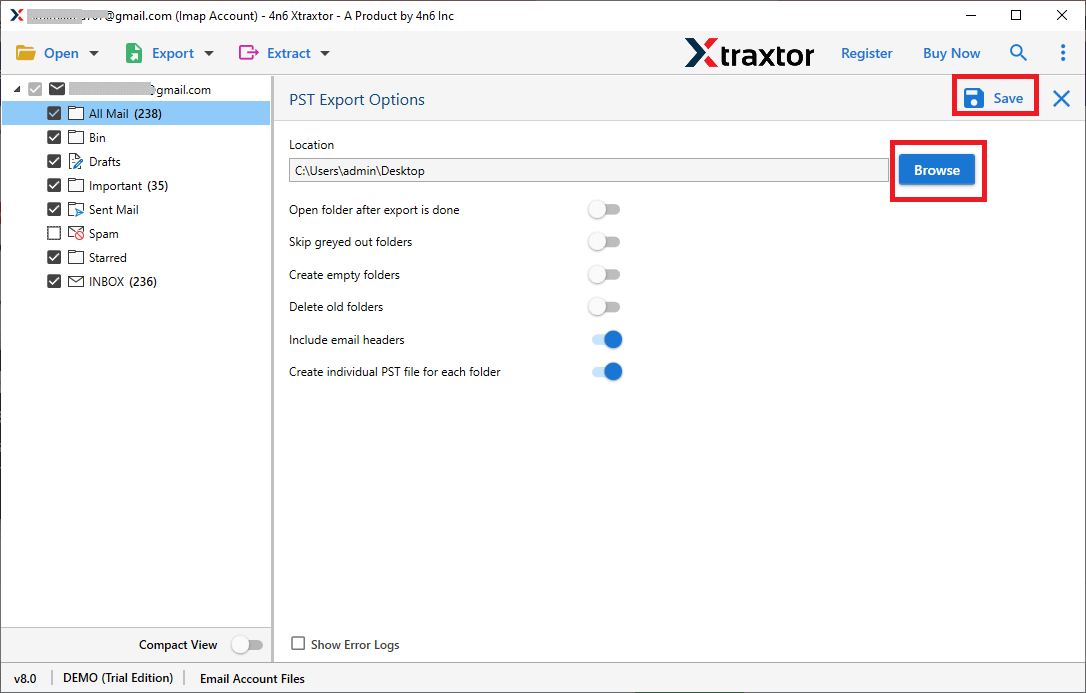
That’s it! Your MailPile emails will be safely saved on your computer in just a few clicks.
Advantages of Using an Automated Software
- Backup MailPile emails to multiple file formats such as PST, PDF, MBOX, EML, HTML, etc.
- Extract all email attachments and save them in a separate folder.
- Option to extract email addresses only for contact management.
- Batch mode support to backup multiple MailPile accounts using a CSV file.
- Advanced email filters like date range, sender, recipient, and subject.
- Maintains original folder hierarchy during backup.
- Preserves email metadata such as to, from, cc, bcc, subject, etc.
- Preview MailPile emails before starting the backup process.
- Works smoothly on all major Windows versions, including Windows 11, 10, 8, 7, and older editions.
Why Manual Methods Are Not Recommended?
After extensive research, we found no proper manual method to backup MailPile emails completely. Manual approaches are risky, time-consuming, and do not support bulk export, attachments, or folder structure. That’s why using a dedicated software solution is the safest and most reliable option.
Final Words
The above article is all about how to backup MailPile emails to computer. Using the above mentioned solution and the step-by-step instructions along with screenshots, any user can easily download their complete emails from MailPile in bulk. Also, it provides a free demo version facility that you can use to test the tool’s functions. Once you are satisfied with its trial edition, upgrade to its pro version.
