How to Backup HostGator Emails to Local Computer

Are you searching for a simple way to backup HostGator emails to your local computer? If yes, then you are in the right place. In this blog, we will explain everything in easy words. You will learn why HostGator email backup is important and how you can save your emails safely on your computer. So, read this complete guide carefully to understand the process clearly.
HostGator emails are widely used for business and professional communication. Although HostGator provides reliable email services, relying only on online storage is not always safe. Server issues, accidental deletion, hacking, or account suspension can lead to data loss.
That is why it is always recommended to create a local backup of HostGator emails on your computer.
How to Backup HostGator Emails to PC? (Manual Method)
You can manually download your HostGator emails by configuring your email account in a desktop email client. This method is useful for small mailboxes and one-time backups.
Follow the step-by-step process below:
- Open a desktop email client such as Microsoft Outlook or Thunderbird on your computer.
- Add your HostGator email account using IMAP or POP server settings.
- Enter your HostGator email address, password, and server details correctly.
- Allow the email client to fully sync all folders such as Inbox, Sent, Drafts, and others.
- Once syncing is complete, select the emails or folders you want to back up.
- Use the export or save option in the email client to store emails on your local computer.
- Choose a destination folder on your system and complete the export process.
After finishing these steps, your HostGator emails will be saved locally on your computer.
Note: This method can be time-consuming and is not recommended for large bulk email backup.
How to Download Emails from HostGator to Computer Automatically?
The most reliable and hassle-free way to backup HostGator emails is by using Xtraxtor Email Backup Wizard. This solution is suitable for both technical and non-technical users. The tool connects directly with your HostGator email account and saves emails to your local computer in a few clicks.
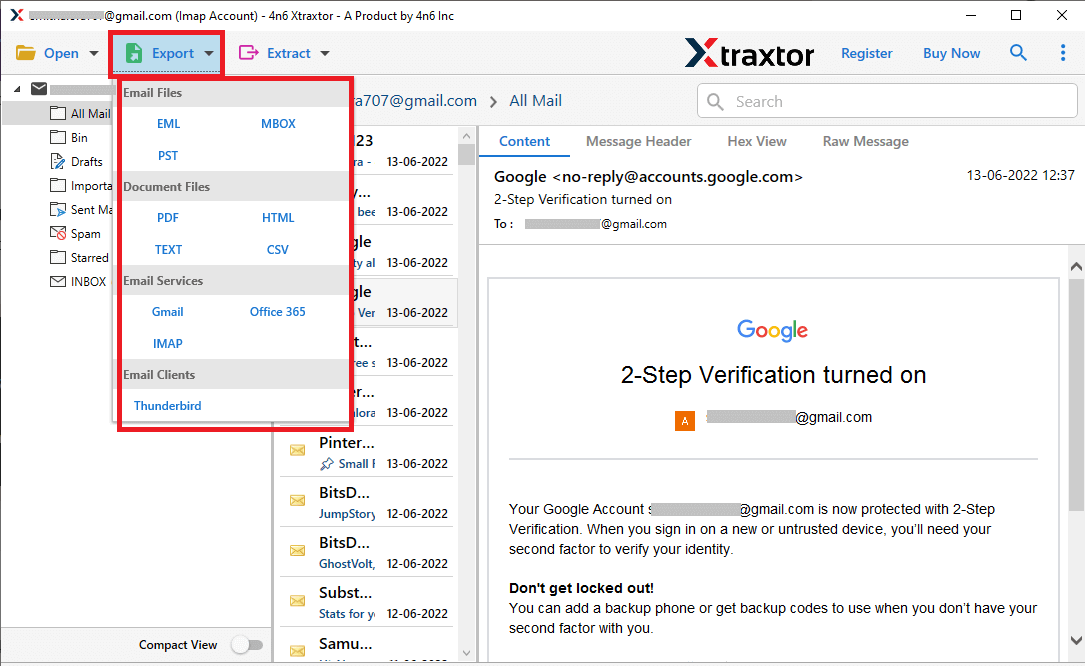
It allows you to back up all email folders, such as Inbox, Sent, Drafts, Spam, and custom folders. You can also choose the output file format based on your needs, such as PST, EML, MSG, PDF, or MBOX. All emails, along with attachments, are saved securely.
Click the free download button to explore all working steps.

Steps to Backup HostGator Emails to PC
Step 1. Install and run the recommended tool on your computer.
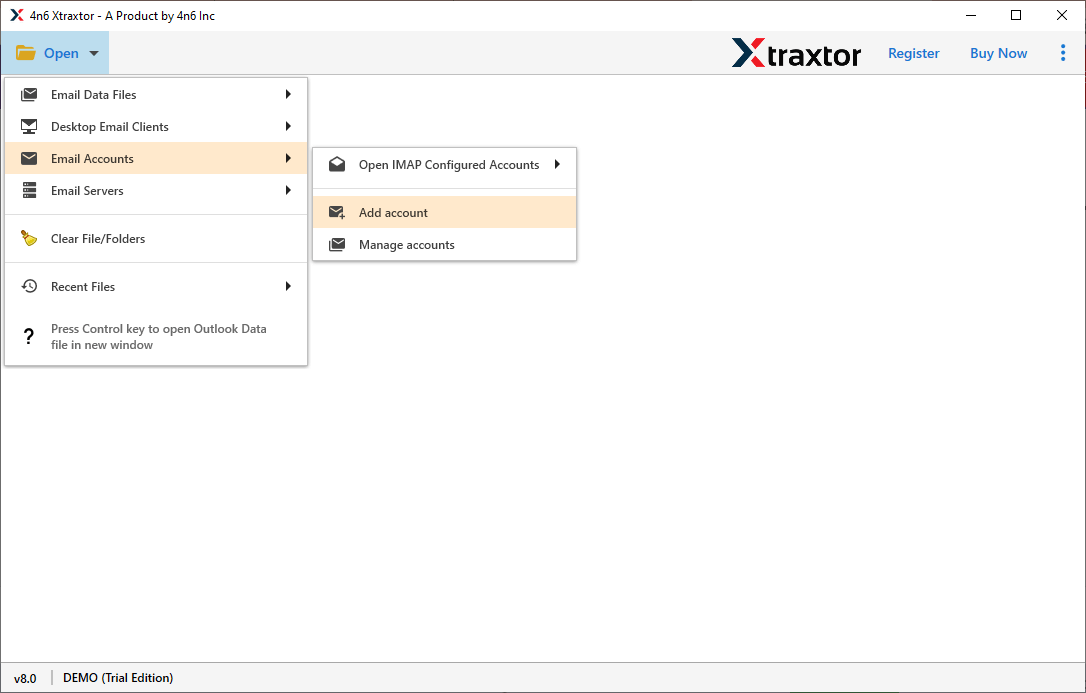
Step 2. Click open tab >> Email Account >> Add Account option.
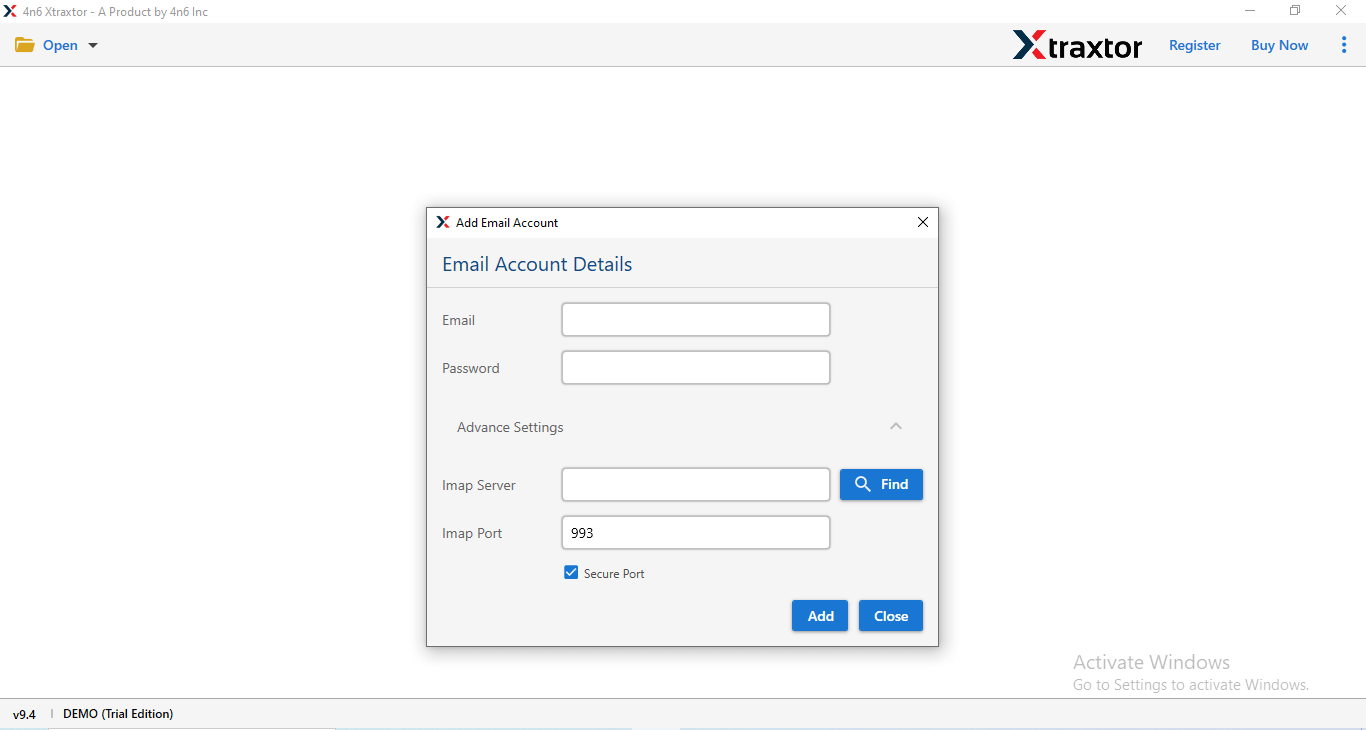
Step 3. Enter HostGator email login details and authenticate the account.
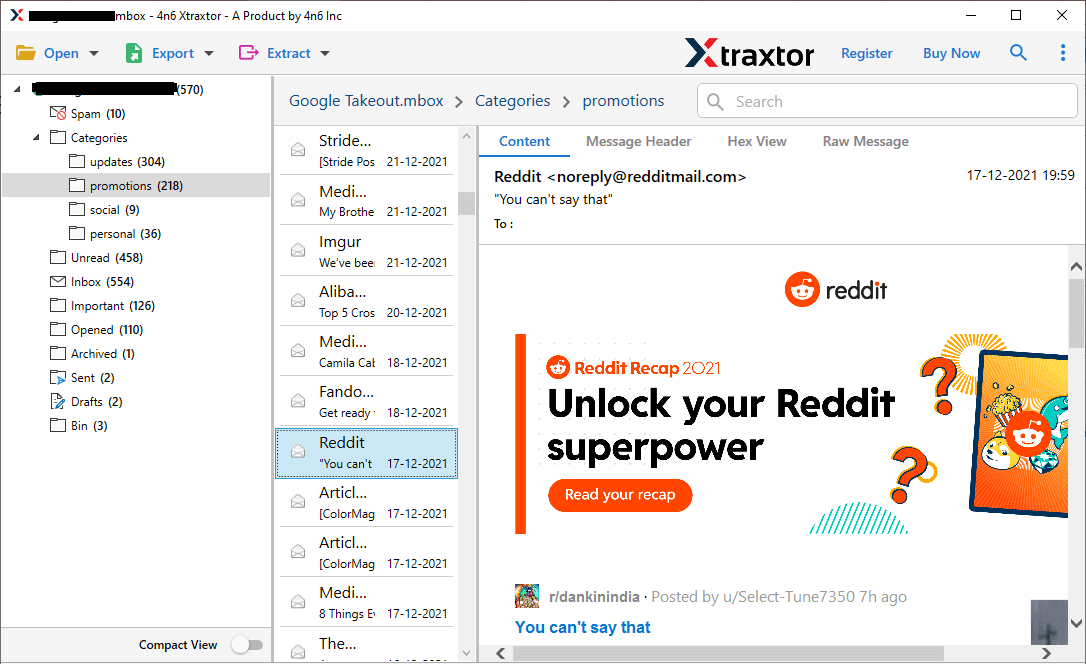
Step 4. Preview all HostGator email folders in the software panel.
Step 5. Choose the desired file format to save emails.
Step 6. Select a destination folder & click save to start.
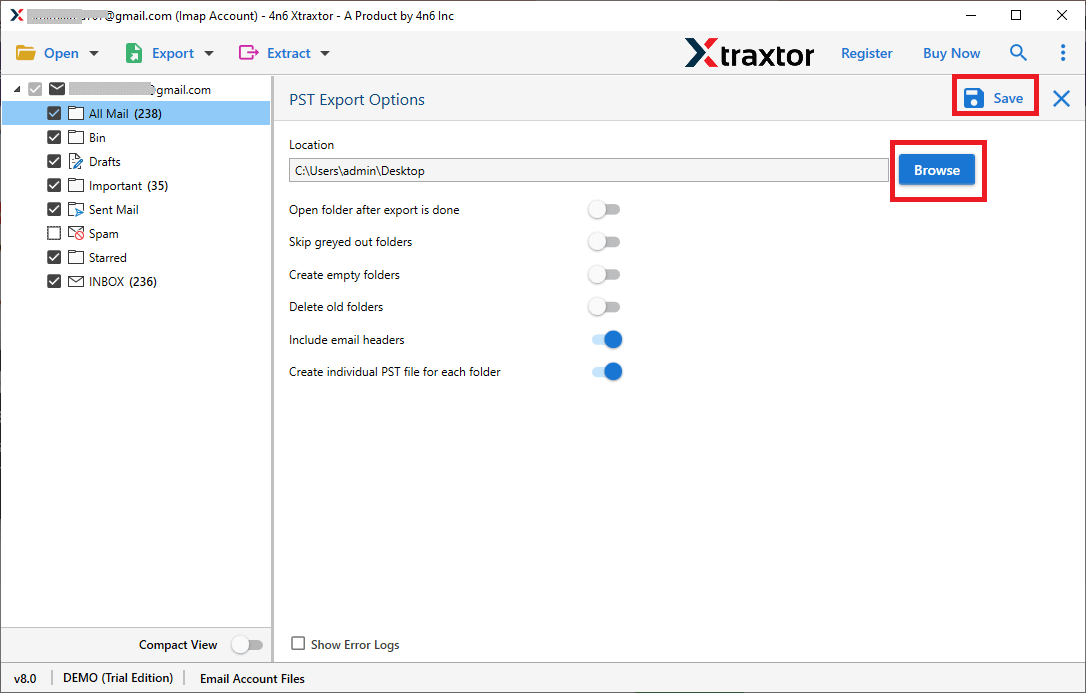
The tool will start downloading and saving HostGator emails to your computer.
Why Should You Use the Recommended Tool?
- Easily backup all HostGator emails along with attachments.
- Export multiple emails at once without any restrictions.
- Keeps the original email folder structure intact.
- Allows backup of large mailboxes without file size limits.
- Simple and user-friendly interface for all users.
- Works smoothly on all Windows operating systems.
- Free demo version available to test before purchase.
- Supports multiple saving formats such as PST, EML, MSG, PDF, and MBOX.
- Provides email preview option before starting the backup.
- Offers advanced filters to backup selected emails by date or folder.
- Preserves email metadata like To, From, Subject, and Date.
- Secure and reliable backup process with no data loss.
- No technical expertise required to use the software.
Ending Lines
Here, we have discussed two easy ways to backup HostGator emails in brief. Many users find it difficult to choose the right method for email backup, but this guide helps you understand the process easily. The solution can be used by both technical and non-technical users without any trouble.
To understand how the tool works better, users can try the free demo version of the tool. The demo allows backing up a limited number of emails. For unlimited email backup, the full version is required. If you need further help, you can always contact the technical support team for assistance.
