How to Backup Google Workspace Emails to PC?

Do you regularly backup Google Workspace emails? If not, there’s bad news. Even cloud giants like Google can experience outages and disruptions in their email service. And contrary to popular belief, your organization will be responsible for any data loss due to these events. Moreover, according to Google’s shared responsibility Model, protecting all your data within Google Workspace is solely your responsibility.
This post explores Google’s native backup feature and an alternate solution that can be used to download your emails from Google Workspace to local system. This article can also be helpful for you to choose the perfect Google Workspace email backup solution.
How to Backup Google Workspace Emails to Computer (Manual)
Google Workspace provides a built-in option called Google Takeout to export mailbox data.
Steps to Backup Emails Using Google Takeout
- Sign in to your Google Workspace account using your email ID and password.
- Open the Google Takeout page from your browser to start the data export process.
- Select “Mail” as the data to export and deselect other services if you only want email backup.
- Choose MBOX as the file format to download your emails in a standard mailbox format.
- Click on the “Create Export” button to begin preparing your email backup file.
- Wait for the export process to complete, which may take time depending on the mailbox size.
- Download the exported MBOX file to your PC once the backup is ready.
Once downloaded, your emails are saved locally on your computer.
Points you should remember while using this method;
- Exports emails only in MBOX format
- Not suitable for large organizations
- No selective backup (folders, dates, users)
- Takes a long time for big mailboxes
How to Download Emails from Google Workspace to PC Automatically?
Now, try Xtraxtor Email Backup Wizard to directly backup emails from Google Workspace to your PC. This software is developed with a smart algorithm and an easy-to-use interface so that it will be suitable for both technical and non-technical users. With this tool, users can safely download Google Workspace emails to system without losing emails, attachments, or folder structure.
The software allows you to save Google Workspace emails in multiple file formats and offers multiple advanced filter options, such as From, To, Subject, Date range, and more, to backup only required emails.
Moreover, the tool also provides the option to export Google Workspace emails to other email clients and file formats. It supports all major versions of Windows OS.
You can try the free demo version to understand the complete working process and backup Google Workspace emails in just a few simple steps.

Steps to Backup Google Workspace Emails to PC
Step 1. Download and launch the Xtraxtor software on your Windows system.
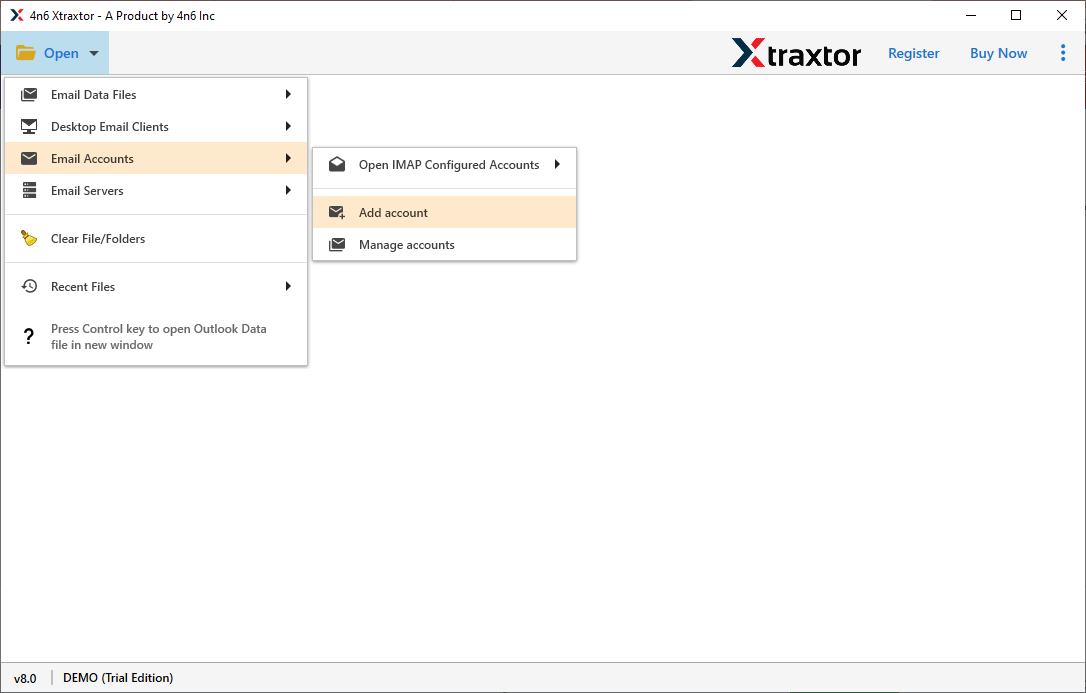
Step 2. Navigate to Open >> Email Accounts >> Add Account.
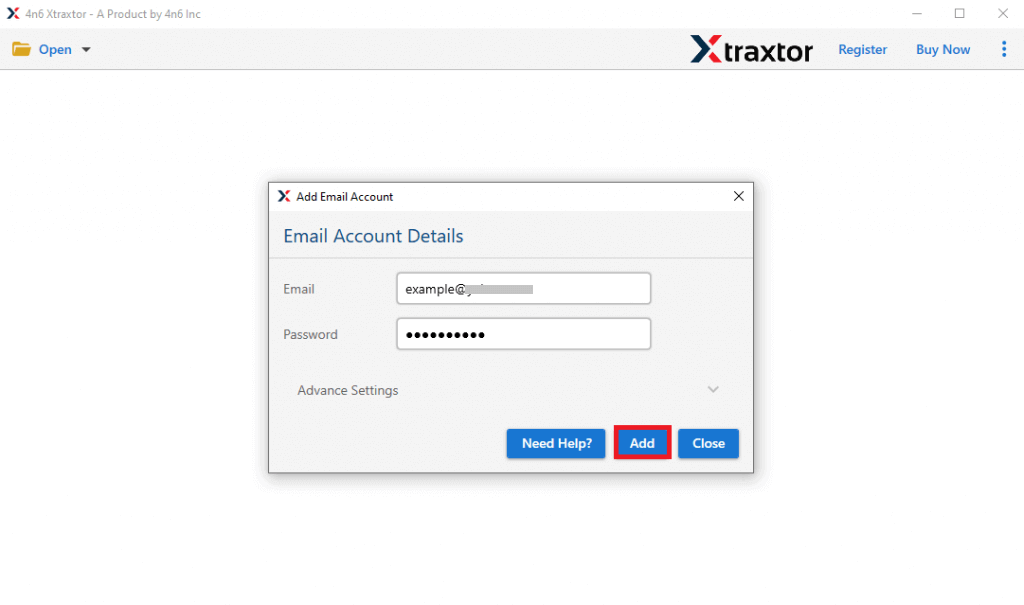
Step 3. Enter your Google Workspace email credentials and click on the Add button.
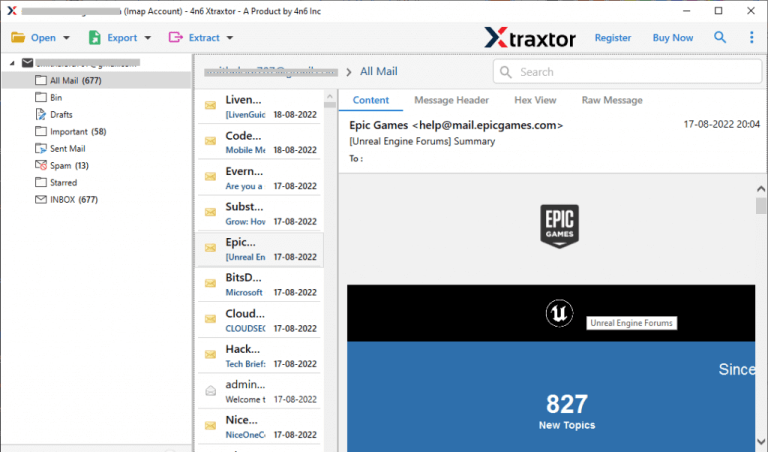
Step 4. The software will load and display all Google Workspace mailbox folders for preview.
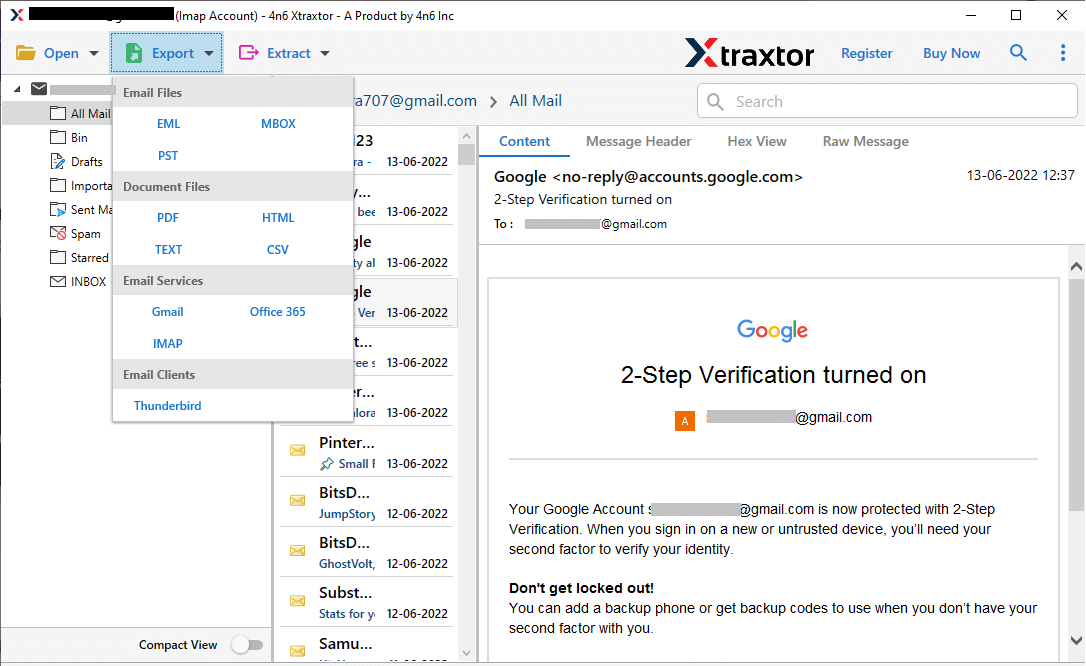
Step 5. Go to the Export tab and choose the file format in which you want to save your emails.
Step 6. Select the specific email folders that you want to export.
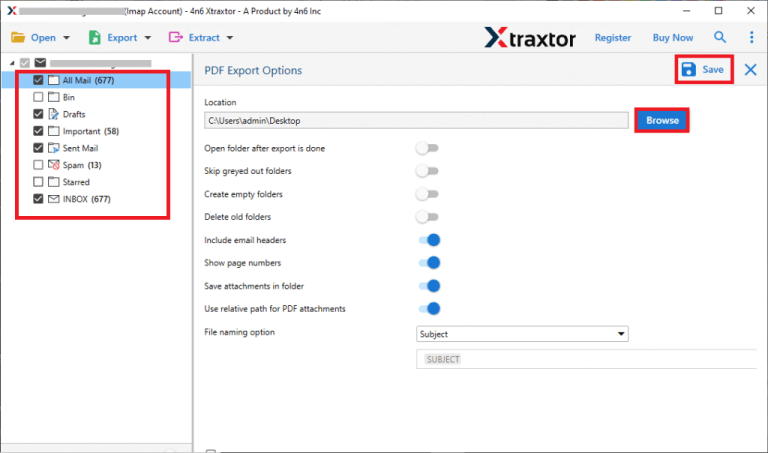
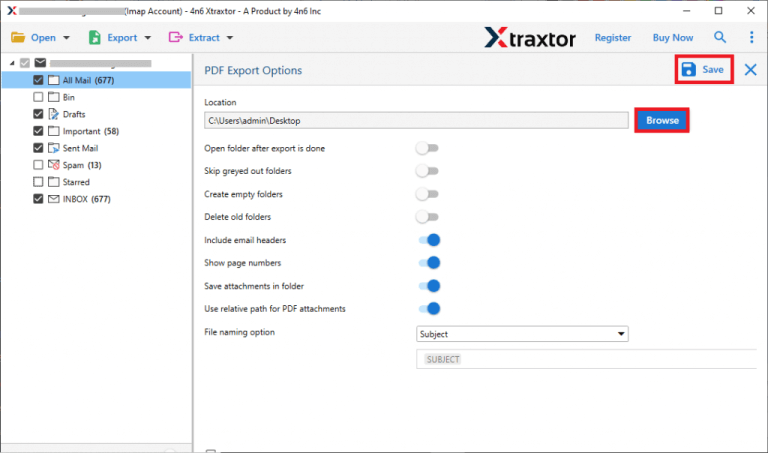
Step 7. Click on Browse to select the destination location & click the Save button.
Once completed! The software will notify you with a log report that the process has been completed.
After that, you will be redirected to your chosen location, where you can access all your exported Google Workspace emails.
Done! This was the way to easily backup Google Workspace emails to your computer with just a few simple clicks.
Benefits of Using Automated Software Instead of Manual Methods
- It allows you to safely download all emails from Google Workspace directly to your computer.
- The software maintains original emails, attachments, metadata, and folder hierarchy during the backup.
- Users can also backup Google Workspace emails to PST, PDF, EML, MBOX, CSV, and more.
- Advanced filter options like Date range, From, To, and Subject help backup only the required emails.
- The tool loads mailbox data for preview & allows users to verify emails before starting.
- It can handle large Google Workspace mailboxes efficiently without performance issues.
- A simple and easy interface that can be used easily by both technical and non-technical users.
- The software supports all major and latest versions of Windows operating systems.
- Users can try the demo version to understand the complete working process.
Conclusion
This blog has covered a detailed guide on how to backup Google Workspace emails through two tried and tested ways. By going through the above explained methods, you can easily perform the Google Workspace email backup process. But the manual method doesn’t ensure data integrity and provides limited options to backup Google Workspace emails freely. For these types of needs and requirements, we have also explained an alternate way that provides complete control over the process and data safety.
