How to Backup BlueMail Emails to Computer

Are you looking for a way to backup BlueMail emails to computer? Then you are in the right place. If you use BlueMail on your mobile or desktop and want to keep your emails safe by saving them locally, this guide will help you. Here, we explain all possible methods to download your BlueMail emails, step by step, in a very simple manner.
By the end of this article, you will know how to download BlueMail emails to your PC and protect them from accidental deletion, app issues, or account problems.
BlueMail is a popular cross-platform email client that supports IMAP, POP3, and Exchange accounts. It allows users to manage multiple email accounts in one place and is widely used on Android, iOS, Windows, and macOS.
Although BlueMail is convenient for daily email access, it does not provide a built-in option to backup it’s emails to computer. This makes email backup an important task for users who want long-term data safety.
So, let’s get started with the methods to see how you can easily save all your BlueMail emails to PC.
Why Backup BlueMail Emails to Computer?
Below are some important reasons why users choose to backup BlueMail emails:
- To protect emails from accidental deletion or app crashes
- Save important emails for legal or business records
- Access emails offline anytime
- Prevent data loss during device change or OS update
- To keep a permanent copy of emails with attachments
- To manage and organize emails more efficiently
Manual Methods to Download Emails from BlueMail Account
BlueMail works as an email client and syncs emails from the email server. This means emails are not stored permanently on your device unless you export them manually or use a professional backup tool.
You can backup BlueMail emails using:
- Manual methods (limited and time-consuming)
- Automated email backup software (recommended)
How to Save BlueMail Emails to Computer Manually?
The most convenient way to backup BlueMail emails is by exporting them into PDF file format. However, it can be lengthy if you have multiple emails in your BlueMail account.
Follow the steps below to save BlueMail emails as PDF files:
Step 1. Open the BlueMail app and open the email you want to save.
Step 2. Click on the three-dot menu at the top-right corner of the email screen.
Step 3. From the menu options, select Print.
Step 4. When the print window opens, choose Microsoft Print to PDF as the printer.
Step 5. Click on the Print button to continue.
Step 6. Select the folder on your computer where you want to save the email.
Step 7. Click Save to store the email as a PDF file.
Important Note: It does not support bulk email backup and must be repeated for each email manually.
How to Backup BlueMail Emails into Multiple File Formats?
Also, try Xtraxtor Email Backup Wizard, a reliable software that allows users to easily backup emails from BlueMail to a local computer. The software is built with an advanced yet simple interface so that it will be easy for both technical and non-technical users to save their BlueMail emails without any data loss.
Using this tool, you can export BlueMail emails into multiple file formats such as PST, PDF, EML, MBOX, HTML, and more. The tool preserves the original folder structure, email properties, and attachments during the backup process. It also offers smart filter options like Date range, From, To, and Subject, allowing users to backup only selected emails instead of the entire mailbox.
A free demo version is available to help users understand the working process before purchasing the full license.

Steps to Backup BlueMail Emails to PC Automatically
Step 1. Download and install Xtraxtor software on your Windows system.
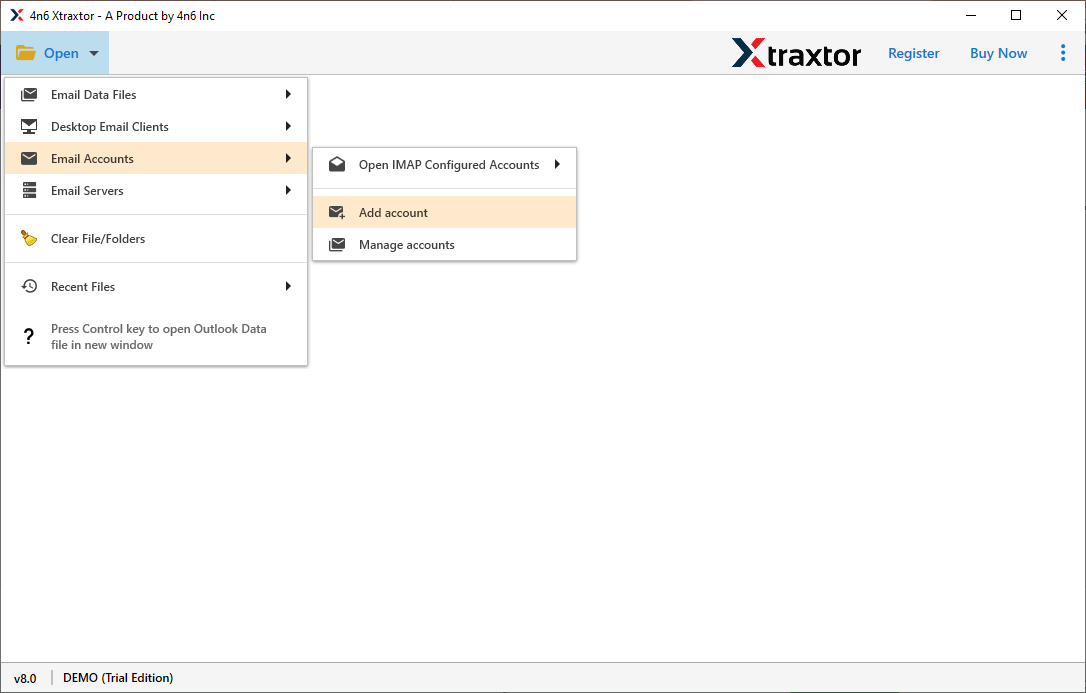
Step 2. Click on Open >> Email Accounts >> Add Account to continue.
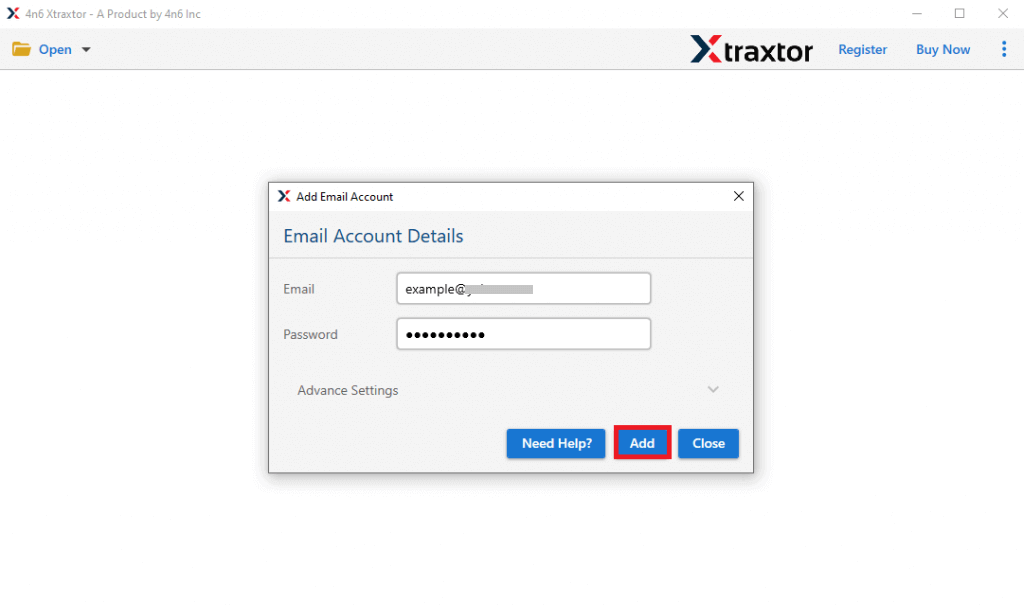
Step 3. Enter the email address and password of your BlueMail & click the Add button.
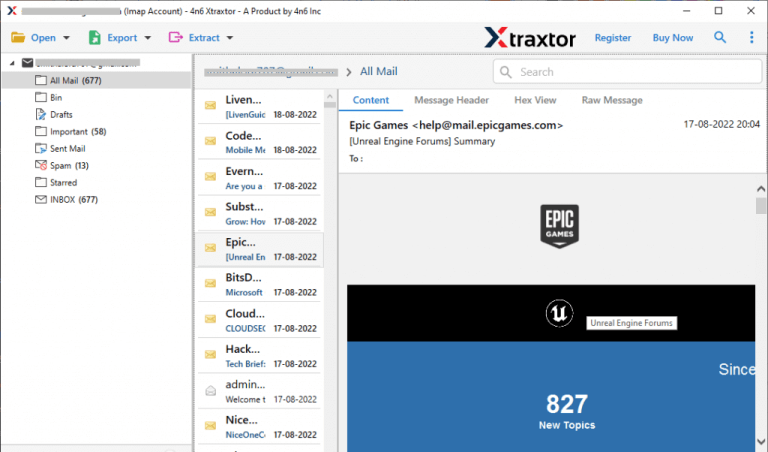
Step 4. The software will load all mailbox folders for preview before backup.
Step 5. Go to the Export tab and select the file format in which you want to save BlueMail emails.
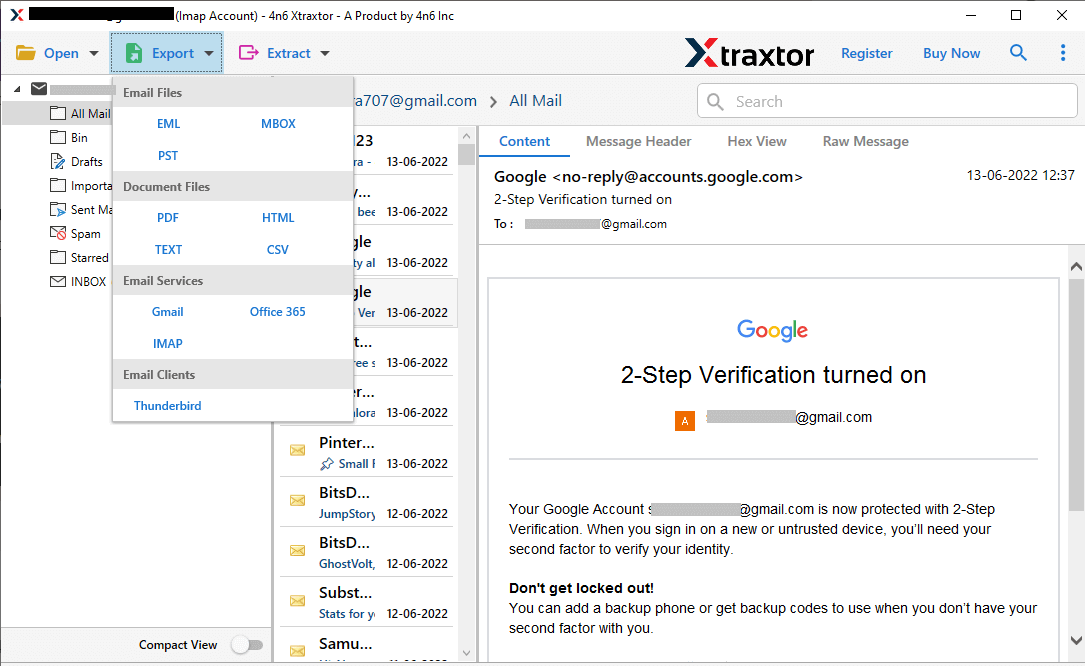
Step 6. Choose the specific email folders that you want to backup from the list.
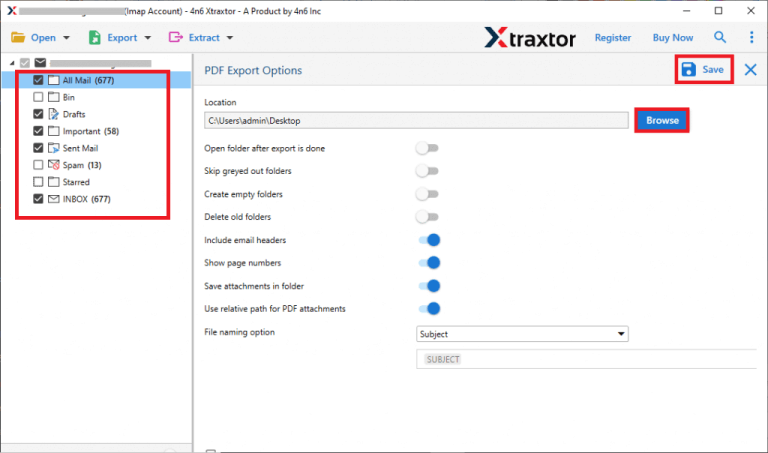
Step 7. Browse location and click on the Save button.
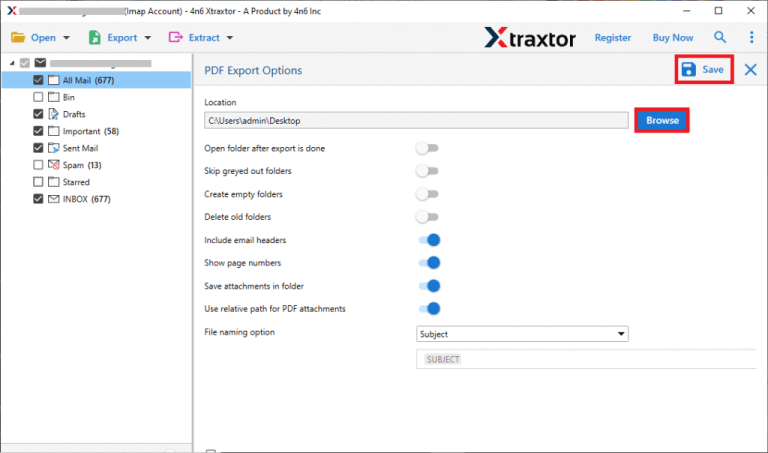
Done! Your BlueMail emails are now safely backed up on your computer in the selected file format, along with attachments.
Benefits of Using Automated Software instead of Manual Methods
Here, are some helpful features of the software that may help you to backup BlueMail emails easily.
- Safely backup emails from BlueMail to your PC without data loss.
- Save emails in PST, PDF, EML, MBOX, HTML, and other formats as needed.
- Keeps the original mailbox folder hierarchy and email properties intact.
- Use filters like Date range, From, To, and Subject to export only required emails.
- View emails and folders before starting the backup process.
- Backup large mailboxes or thousands of emails at once.
- Simple design that works well for both technical and non-technical users.
- Exports emails along with all attachments without modification.
- Ensures safe authentication during the backup process.
- Supports all major and latest versions of Windows OS.
- Allows users to test the software before purchasing the full version.
The Final Statement
So, we are ending this blog with a few concluding words. As you have read, this blog has shared two different ways to backup BlueMail emails to computer/PC/hard drive, etc. However, while exploring both methods, we found that the manual method is good for a few emails only. Otherwise, you will end up wasting your crucial time. To do it more quickly and effectively, we suggest that you go with the automated solution. It has the capability to handle bulk email backup without any issues. Also, you can try its free demo version for evaluation and upgrade to its licensed version.
