How to Backup cPanel Emails with Attachments Safely

Summary: “How to backup cPanel emails” to your local storage, like hard drive, PC, computer, etc., is the query we will be addressing in this blog. In this write-up, will not just discuss the methods that you need to download emails from cPanel account, but also we will explore multiple options so that you can choose the best as per your needs and requirements. So, without any further delay, let’s move ahead.
When Do You Really Need a cPanel Email Backup?
You should back up your cPanel emails if:
- You use webmail for business or client communication
- Your hosting storage is almost full
- Plan to change hosting providers
- You want offline access to old emails
- You need to keep email records for legal or compliance reasons
If any of these apply to you, continue reading.
How to Backup and Restore Emails in cPanel Manually?
Manual methods are useful if you have small mailboxes and basic technical knowledge.
Option 1: Download Emails Using cPanel File Manager
This method backs up all emails stored on the server.
Step 1. Log in to your cPanel account on your Windows OS system.
Step 2. After that, click on File >> File Manager.
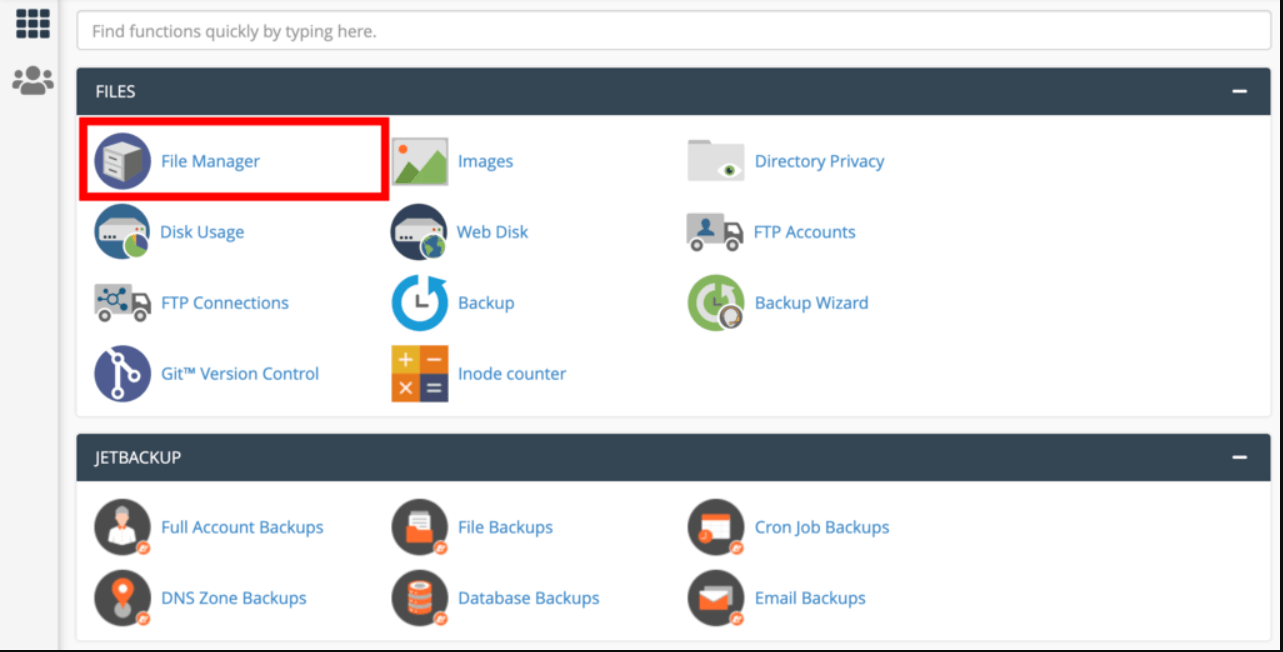
Step 3. Now search the Mail folder and select it.
Step 4. Right-click on the Mail folder and click on the Compress option.
Step 5. Choose any compression option from the given list.
Step 6. Now enter the name of the compressed file and click on the Compress button.
Step 7. Now the compressed file will be present in the hosting server account. Right-click on it and download the file.
Method 2: Download cPanel Emails via Export Option
Step 1. Signing in to your cPanel account.
Step 2. Go to the Email tab and click on the Email Account.
Step 3. Then, hit the Check Email button corresponding to the email account.
Step 4. Then, choose Horde and click on the Open button.
Step 5. After that, right-click on the emails and click on the Export option.
Step 6. Choose any download option and click the OK button.
Done! Here you back up cPanel emails to your system. Now you have MBOX file or zipped .mbox file.
Restore cPanel Emails Manually
Restore MBOX to Hord Account
1. Open your Hord Account and right-click on any folder.
2. Then, choose the Import option
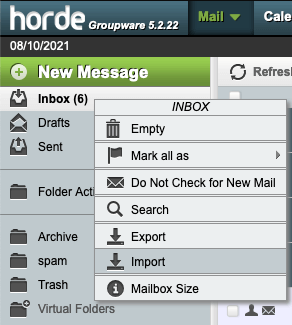
3. Browse the MBOX file that you backup and click on Ok.
Restore cPanel Emails to Roundcube
1. Login to the Roundcube webmail account.
2. Click on More and choose Import option.
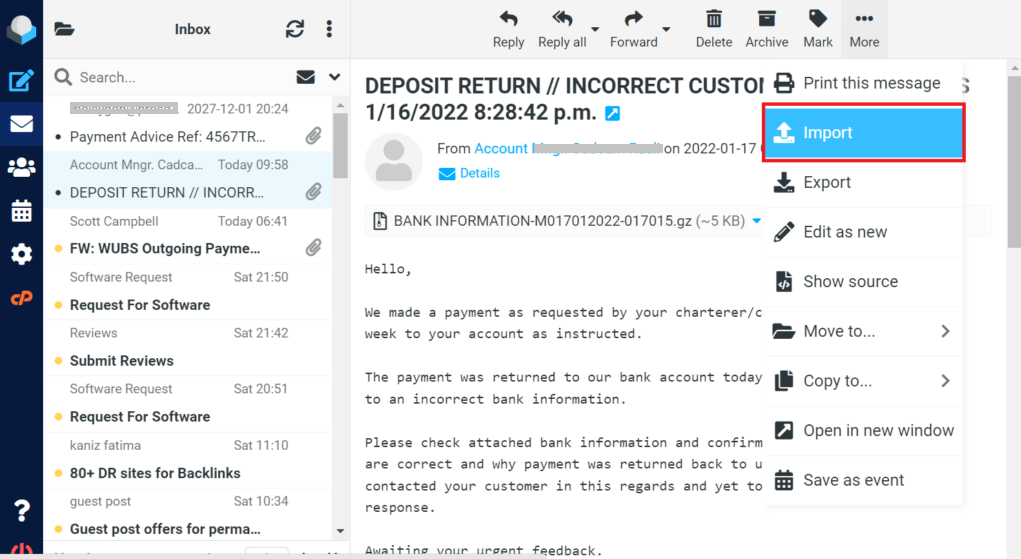
3. In a pop-up message, browse the .mbox file and click on the Import button.
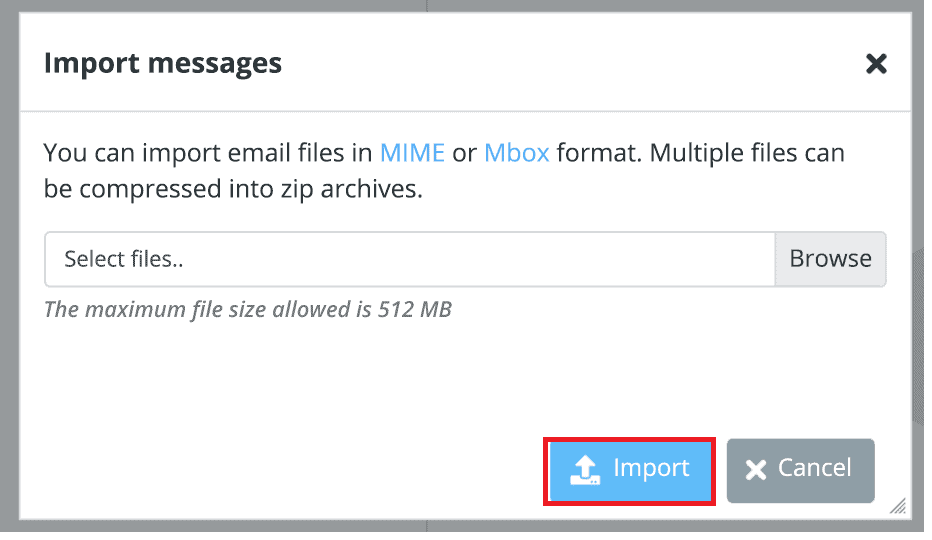
Done! Here, you manually backup and restore cPanel emails. However, there are a few limitations to this approach. Only a 512 MB file size will be imported back to cPanel, and it will take lots of time as well.
How to Take Backup of Emails in cPanel Automatically?
Try Xtraxtor Email Backup Wizard and backup and restore emails in cPanel account. Using this tool, you can export cPanel emails to any file format and then import them into another cPanel account. With its simple user interface, one can easily export and restore cPanel emails without any issues. There are various filter options to backup selective cPanel emails and restore them.
You can try the demo version of this tool to check its complete working process in a few steps.

Steps to Backup & Restore cPanel Emails
Follow the instructions and export and import cPanel emails –
Step 1. Install and launch the Xtraxtor cPanel Backup tool on your Windows OS system.
Step 2. After that, select Open >> Email Accounts >> Add Account.
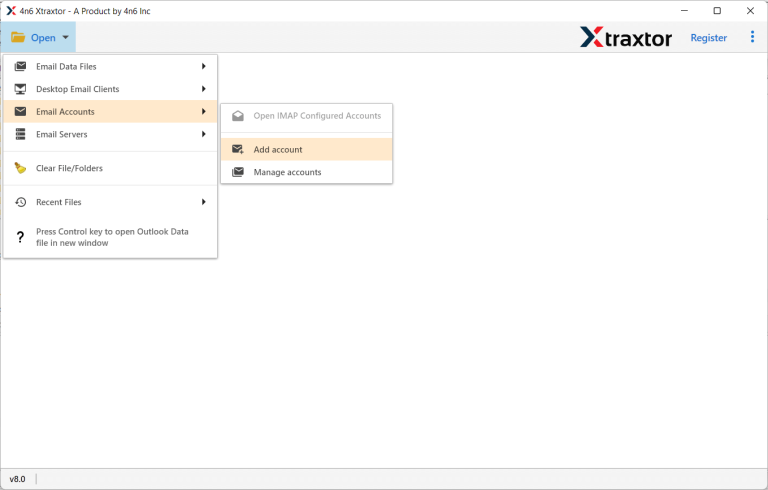
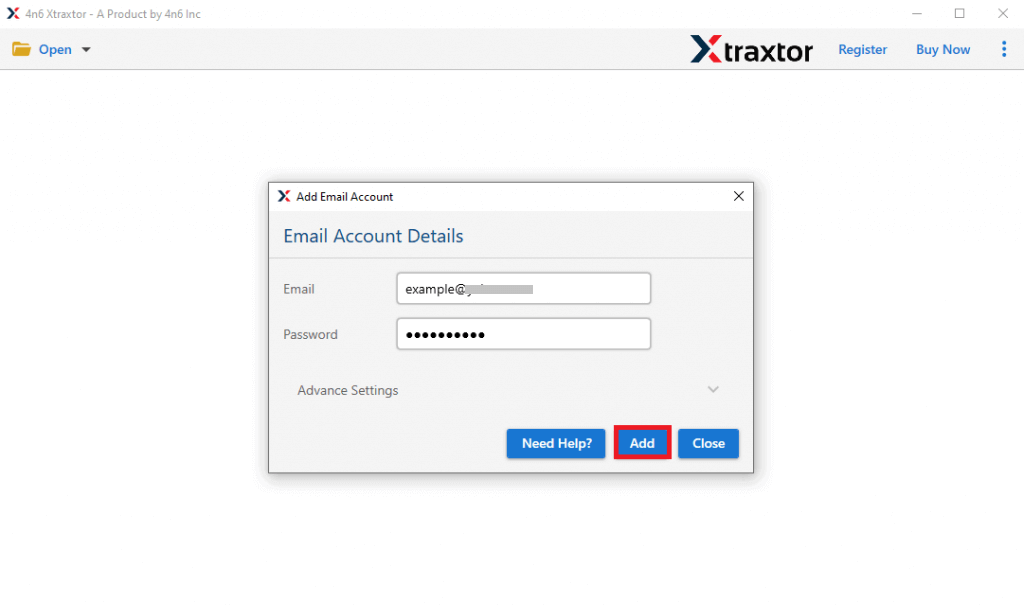
Step 3. Enter your cPanel login details and click the Add button.
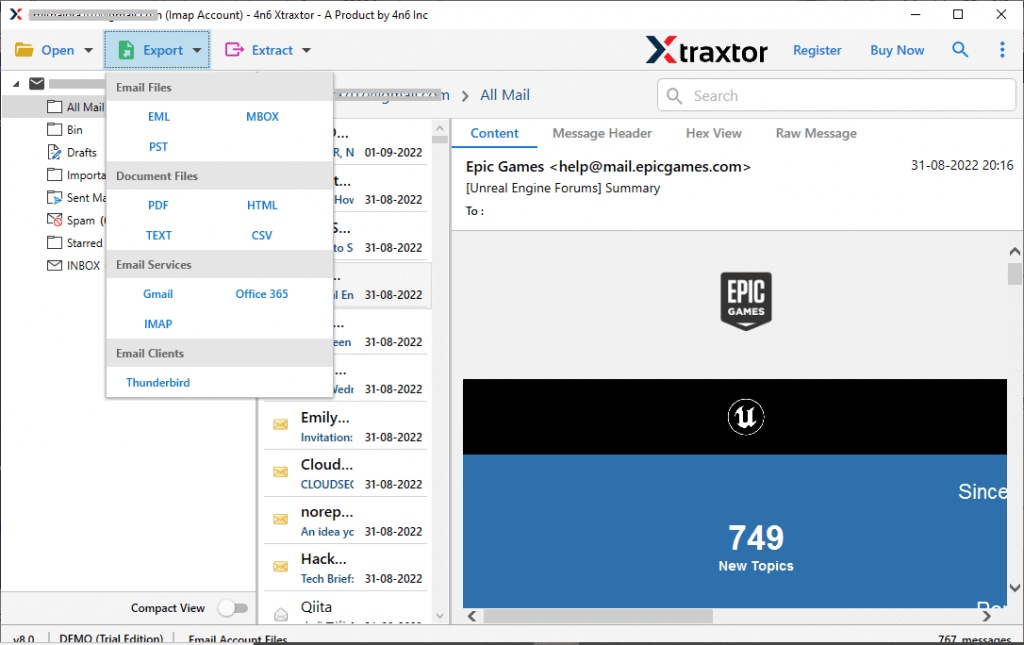
Step 4. After that, click on Export and choose any file format from the given list.
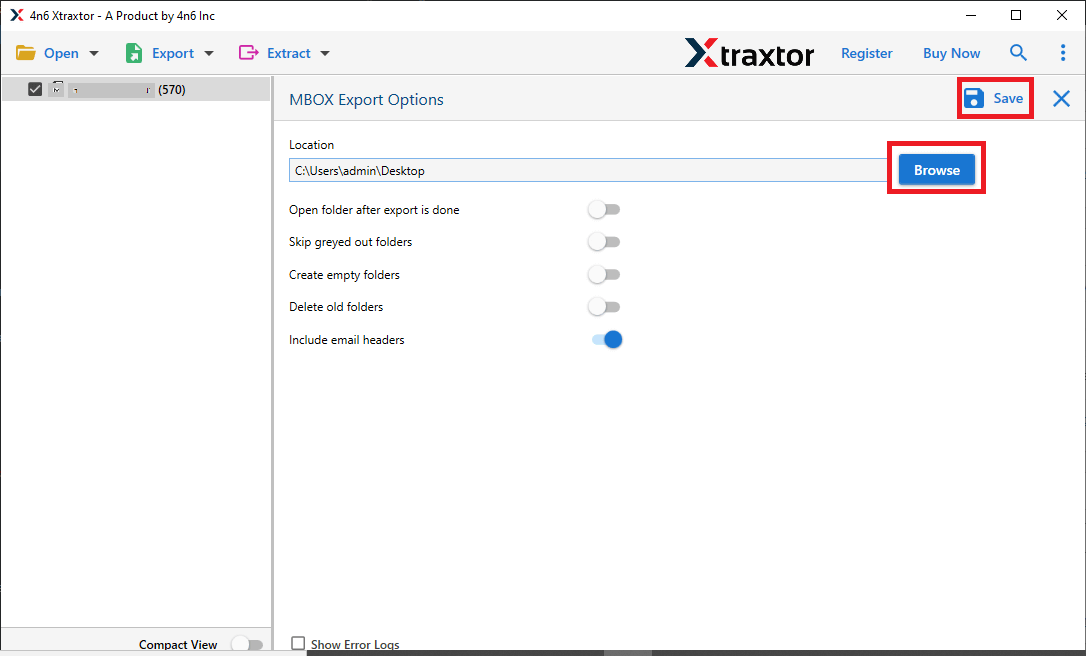
Step 5. Browse the location to save the exported data file and click the Save button.
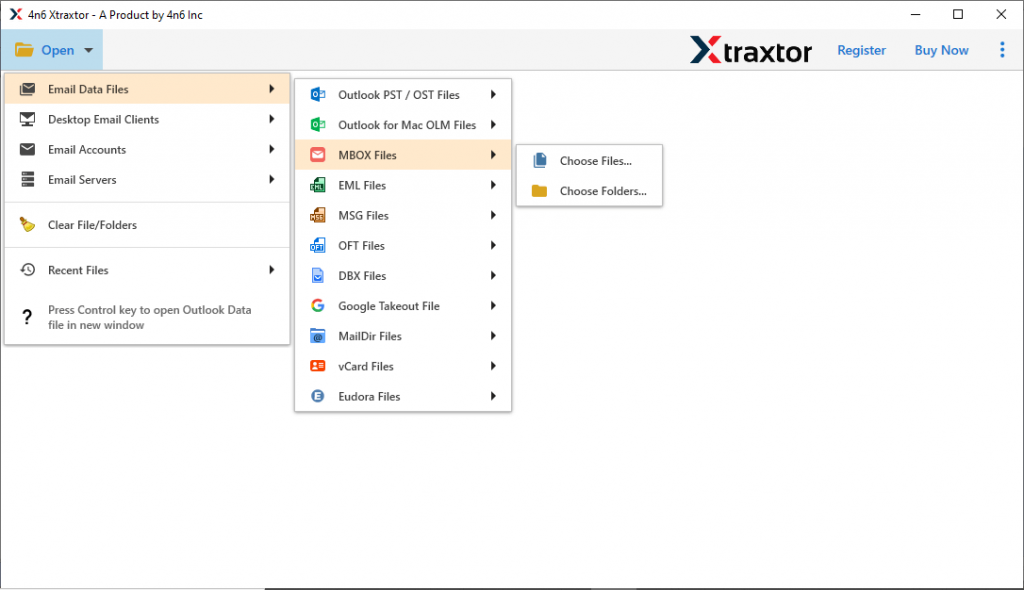
Step 6. Relaunch the application, click Open > Email Data File, and select the file format you exported earlier.
Step 7. Then, click on Export and choose the IMAP option from the given list.
Step 8. Here you can select the email folder you want to export.
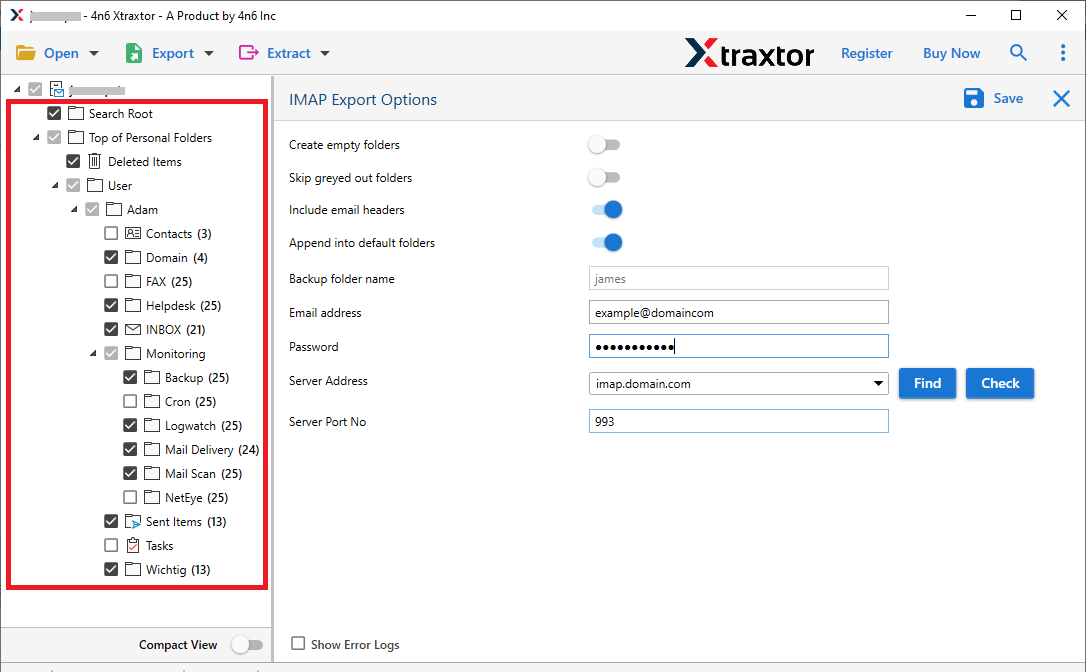
Step 9. Enter your cPanel login details and hit the Save button.
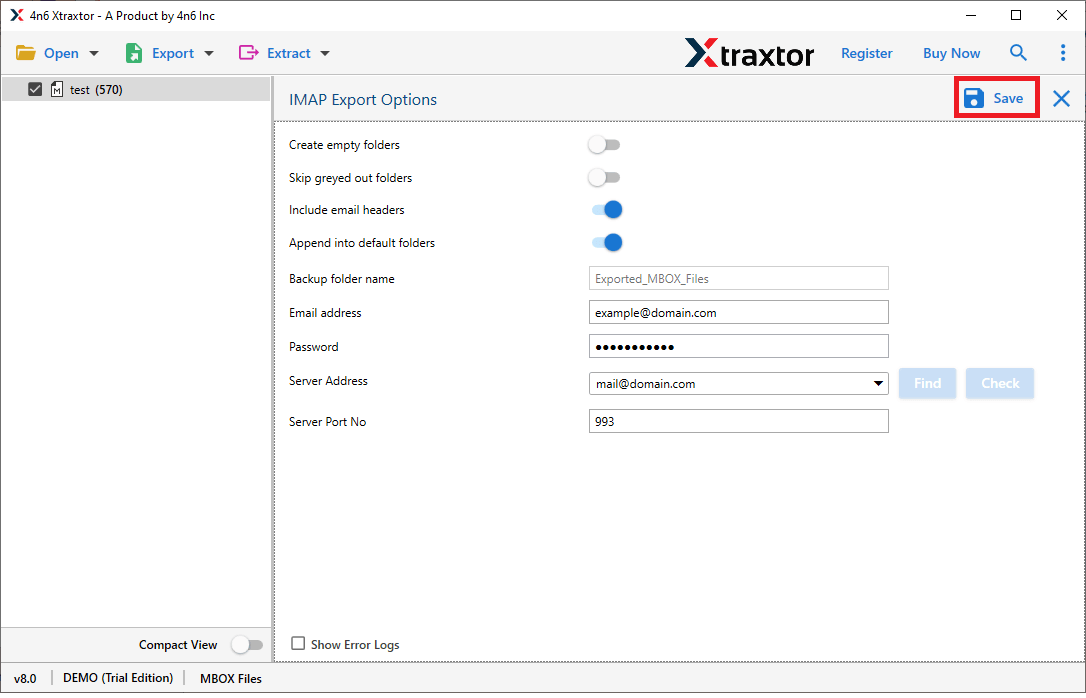
Here, you backup and restore emails in cPanel account along with attachments.
Benefits of Email Backup Tool
With this software, there are various advanced features, some of them mention here –
- Using this too,l you can backup cPanel emails into multiple file formats.
- With this tool, you can restore cPanel emails as well.
- With advanced filters such as to, from, cc, bcc, etc., you can export and restore selective emails.
- With the result-oriented feature, there will be no data loss or alteration.
- Maintain data integrity throughout the backup or restoration process.
- There will be no alteration in the email folder and sub-folder hierarchy and structure.
- With its simple user interface, it can be installed and run on all Windows OS systems.
Conclusion
Backup emails are a common practice to secure important data. For cPanel user to export their email into the system is important, hence in this blog, we discuss secure and efficient methods to backup and restore emails in cPanel account. We mention manual as well as professional ways for this process. cPanel Backup tool is an efficient way to export and restore cPanel emails without affecting data integrity and loss. You can try the demo version of this tool and secure your webmail account data.
Frequently Asked Questions
Q1. Can I back up cPanel emails from a specific date?
Ans. Yes, using the Xtraxtor, you can easily backup selective cPanel emails. All you need to do is apply the date range filter.
Q2. Will this tool work on my Windows 11 OS?
Ans. Yes, the tool supports not only Windows 11 but Windows 10, 7, 8, Vista, XP, and all other older versions.
