Are you looking for a way to import PST to Gmail account? It may seem confusing at first, but you are in the right place. Managing email data properly is important today, and Gmail is one of the best platforms for keeping emails safe, organized, and easy to access.
However, Gmail does not allow you to upload PST files directly. That’s why users often look for reliable methods to move PST emails to Gmail without losing data. In this article, we will explain the best and most trusted ways to transfer PST to Gmail, including both manual and professional solutions.
Manual methods usually involve Outlook and IMAP setup, which can be time-consuming and may not work well for large PST files. Because of these limits, many users prefer a faster and safer expert-recommended approach.
PST (Personal Storage Table) files are used by Microsoft Outlook to store emails, contacts, calendars, and attachments. While PST works well with Outlook, Gmail offers better accessibility, cloud storage, advanced search, and strong security. Due to these benefits, many users decide to move their PST data to Gmail.
Below, we’ll discuss the common reasons and the best ways to complete PST to Gmail migration smoothly.
Why Do Users Import PST to Gmail Account?
Here are the common reasons people move their PST emails to Gmail:
- Access Anywhere: PST files are stored locally, but Gmail can be accessed on any computer or phone.
- No Outlook Needed: Once imported, you can read your emails even if Outlook is not installed.
- Better Organization: Gmail’s labels, search tools, and filters make email management easier.
- More Storage: Gmail provides plenty of cloud storage for long-term email backup.
- Google Ecosystem: Gmail works smoothly with Google Calendar, Drive, and other tools.
Once you know the advantages, the next step is choosing the right method.
How to Open PST File in Gmail? Free Method
The manual method works, but it requires Outlook and several steps. Follow the instructions carefully to avoid issues.
Step 1. Sign in to Gmail.
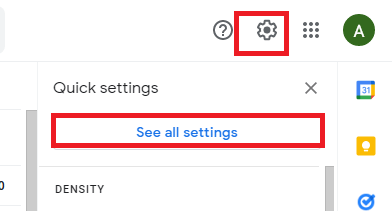
Step 2. Click the gear icon >> See All Settings.
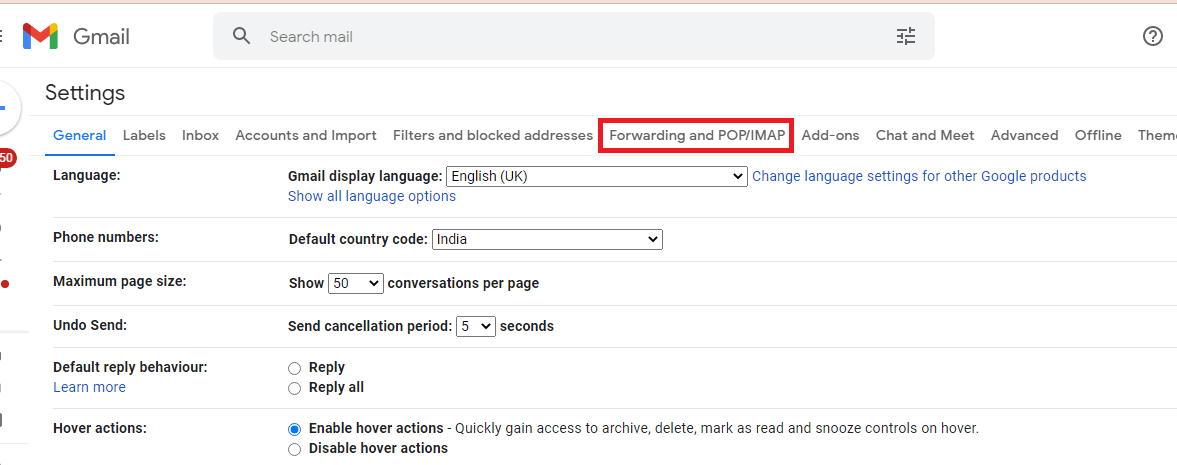
Step 3. Open the Forwarding and POP/IMAP tab.
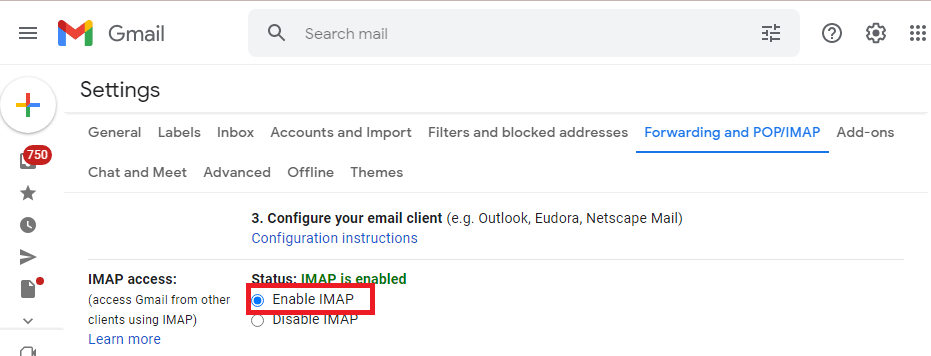
Step 4. Under “IMAP Access,” click Enable IMAP.
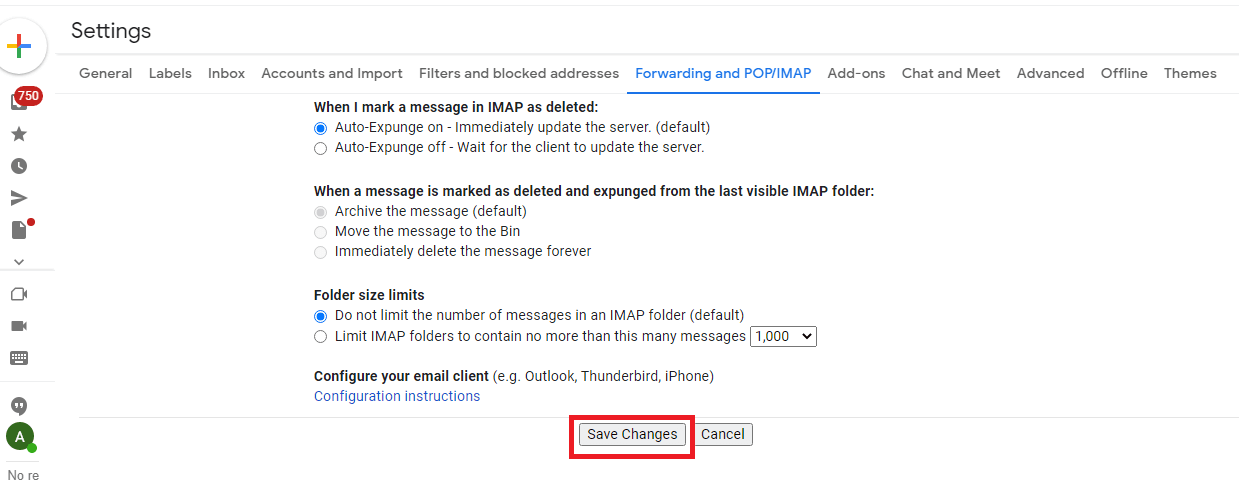
Step 5. Save the changes.
Step 6. Open Outlook.
Step 7. Go to File >> Add Account.
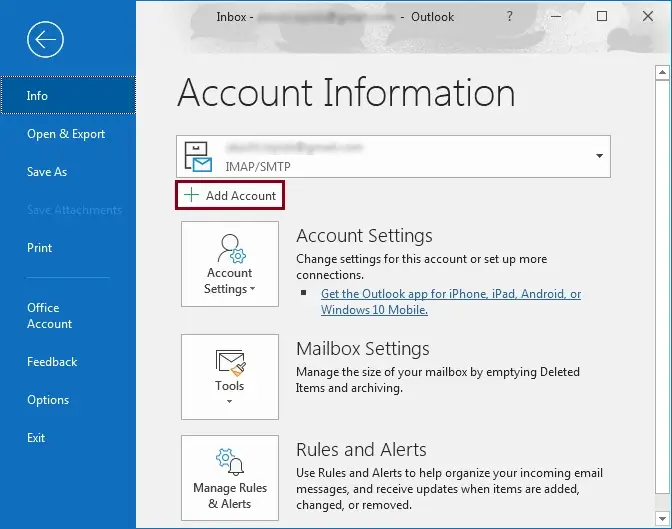
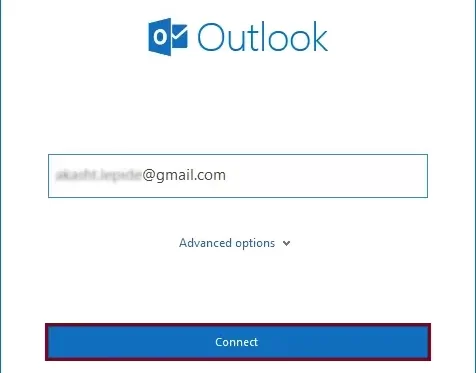
Step 8. Enter your Gmail ID >> Click Connect.
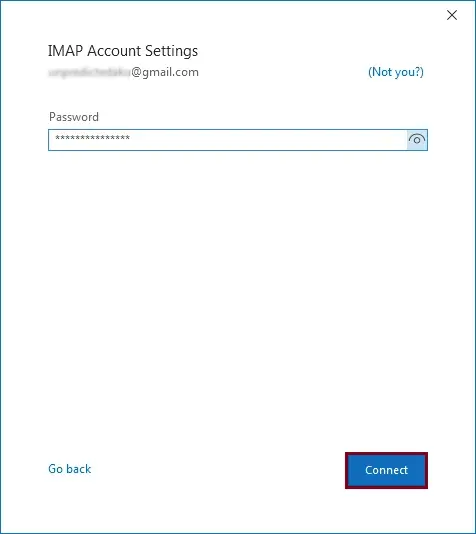
Step 9. Enter your password >> Click Connect again.
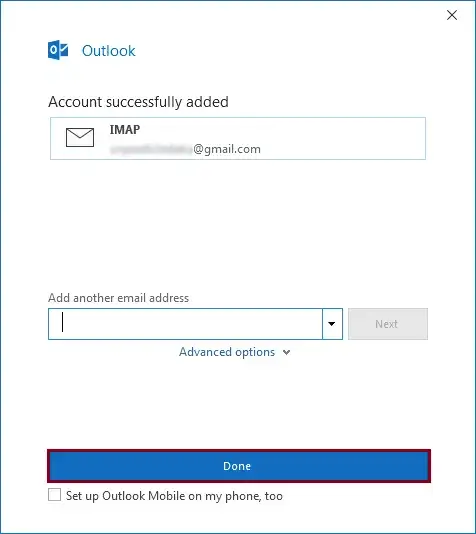
Step 10. Click Done once your account is added.
Step 11. Open File >> Open & Export >> Import/Export.
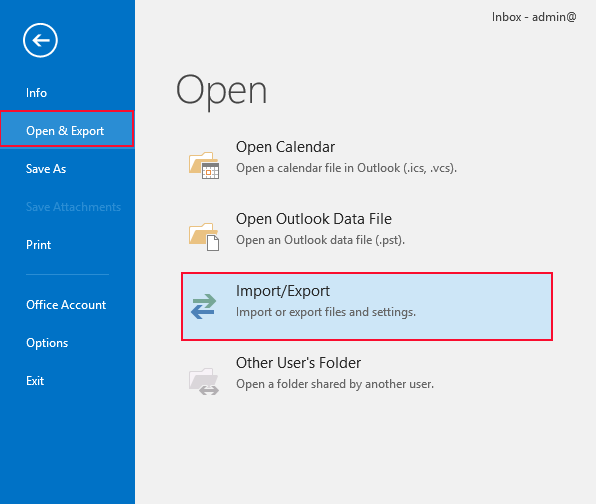
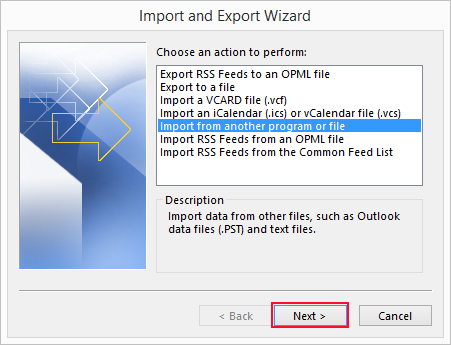
Step 12. Choose Import from another program or file >> Next.
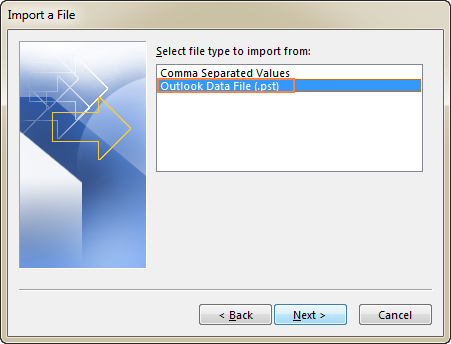
Step 13. Select Outlook Data File (.pst) >> Next.
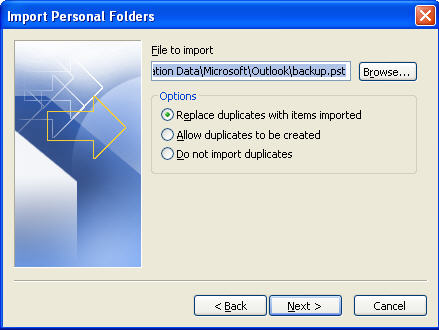
Step 14. Browse and choose your PST file.
Step 15. Select your Gmail mailbox as the destination & click Finish.
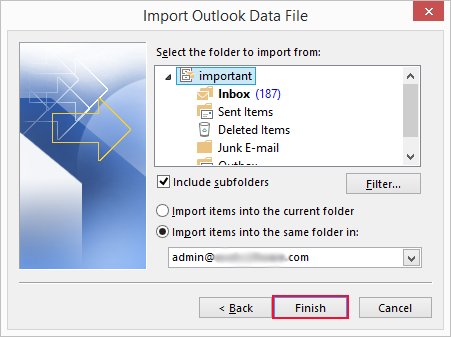
Once done, Outlook will start syncing your PST emails to Gmail. The process may take time depending on the file size.
Limitations of the Manual Method
Before choosing this method, consider its drawbacks:
- Requires Outlook installed
- Slow when importing a large PST (5GB, 10GB, etc.)
- Sync often fails if the internet speed is low
- Folder structure may not copy correctly
- Not suitable for non-technical users
- Errors like “IMAP sync failed” are common
If you face any of these issues, you’ll need an easier and more reliable option.
How to Import Emails from PST to Gmail Automatically?
If you can’t use Outlook or your PST file is too large, a dedicated PST to Gmail migration tool is the easiest option. Xtraxtor PST Converter lets you import PST files to Gmail directly, even if Outlook isn’t installed, while keeping your folders, attachments, and email structure safe. It handles large PST files smoothly and avoids common IMAP errors, making the process much faster and simpler for any user.
Download this software for free and check its complete working process to understand it better.


Steps to Import PST to Gmail without Outlook
- Download and launch the Xtraxtor on your system.
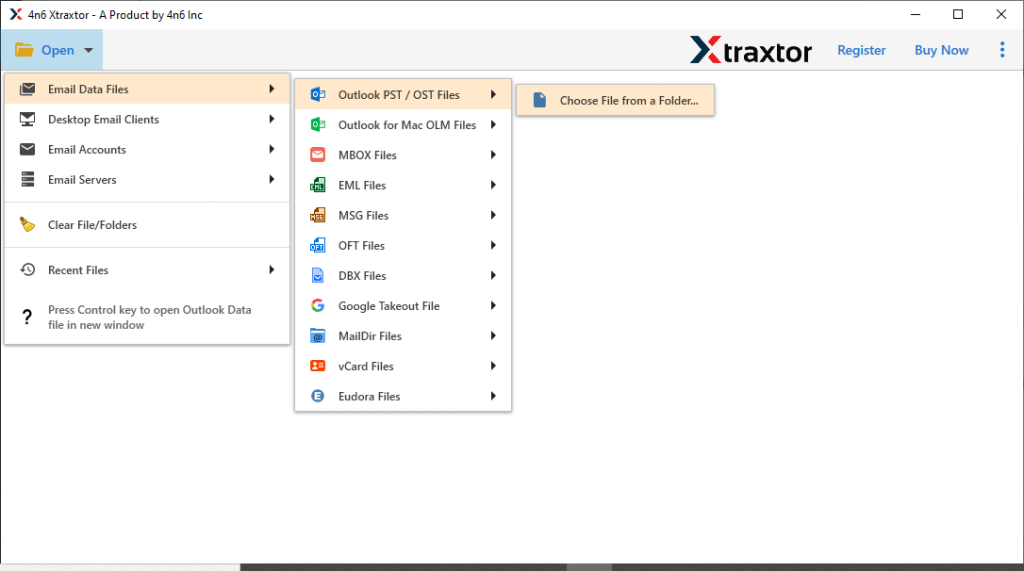
- Now, click Open >> Email Data Files >> Outlook PST Files.
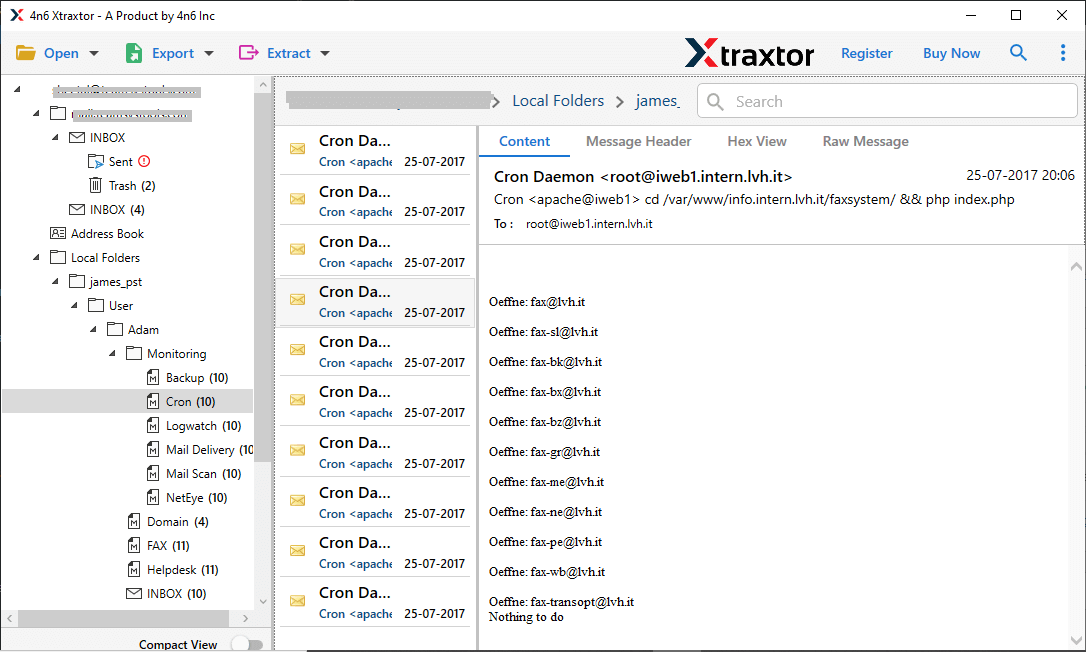
- Preview emails stored inside the PST file.
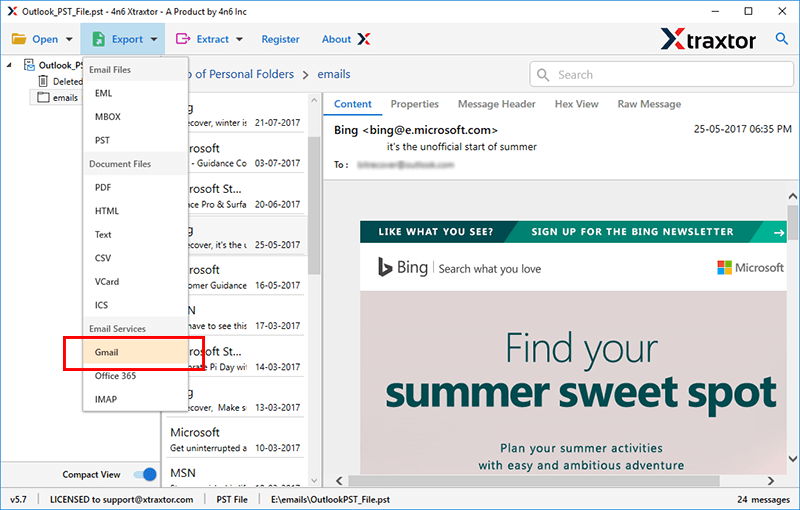
- Click Export >> Select Gmail.
- Enter your Gmail login credentials.
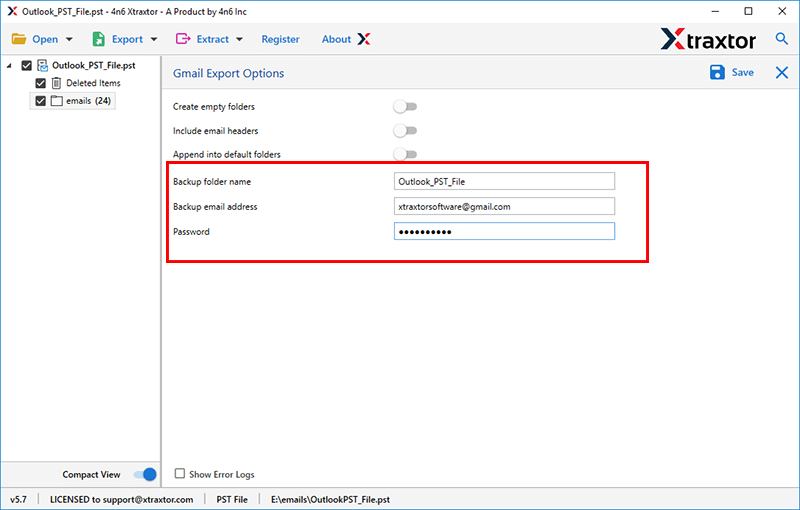
- Click Save to begin the import.
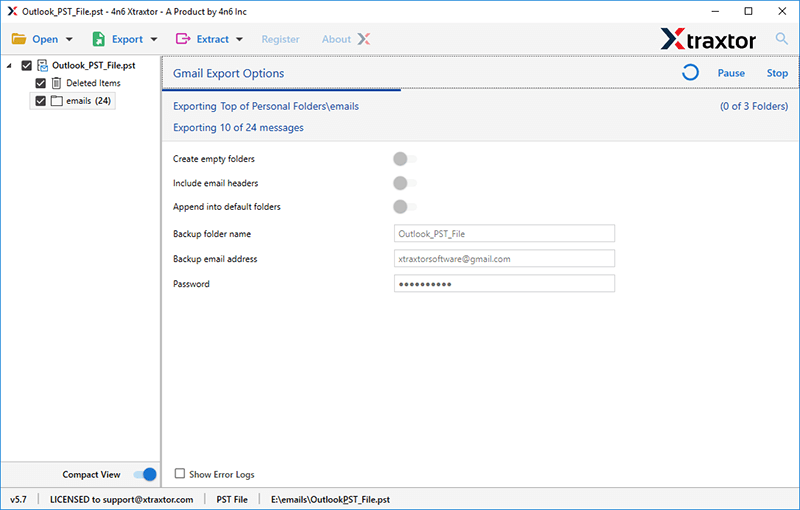
All selected PST emails will appear in your Gmail mailbox shortly.
Now, log in to your Gmail account and check all the transferred PST emails there.
Why Use Xtraxtor PST to Gmail Migration Tool?
Here are the advantages of software that makes it easy for users to easily do the import process:
- It can directly import PST file to Gmail without Outlook or any other applications.
- The software can import selective emails form PST file into Gmail mailbox.
- The tool has various saving options that enable you to convert PST to MBOX, and 10+ formats.
- It can import large-size of PST data files without showing any limitation bar.
- It maintains data integrity and folder hierarchy throughout the process.
- Allows to select email folders and import the selected one only.
- Due to simplified user interface, any novice user can easily import PST to Gmail.
- It is operable on Windows 11, 10, Windows 8.1, Windows 8, Windows 7, and so on.
- With this utility, you can also import PST to Yahoo Mail, Zoho Mail, and many more email accounts.
- Advanced option to import selected emails from PST file to Gmail account.
- A free demo version of the software also available to analyses its working process.
Final Words
In this article, we have shared with you both manual and automated methods to import PST to Gmail. The manual process works but requires Outlook and can be slow or confusing for non-technical users; especially with large PST files. If you want a simpler, faster, and Outlook-free way to upload PST emails to Gmail, using a dedicated PST to Gmail migration tool is the better option. Choose the method that suits your comfort level and file size.
Frequently Asked Questions
1. Can I import only specific emails from a PST file to Gmail Account?
Ans. Yes, after you choose Gmail as an export option, you can select the email folder you want to import.
2. What should I do if the PST file is corrupt or inaccessible?
Ans. Don’t worry, this tool can also transfer a corrupted or damaged PST file into Gmail without any hassle.
3. How can I transfer a 10 GB PST file into a Gmail account?
Ans. Although manually it is a complex task to import a large PST file. However, the mentioned software can effortlessly import large PST file into Gmail account without any hassle.
4. Can I use this GWMMO without Outlook’s assistance to transfer PST to Gmail?
Ans. No, with GWMMO, you can’t import PST to Gmail without Outlook installation on your system.
5. Does this tool work on Windows 10 OS?
Ans. Yes, the tool works on Windows 11, 10, 7, Vista, XP, and all other older versions.