Gmail is widely used for personal and professional communication, but its limited free storage often becomes a concern over time. When your inbox grows with important emails, attachments, and records, deleting data is not always an option. This is why many users look for reliable ways to save all Gmail emails to flash drive for backup, archiving, or offline access.
In this guide, you’ll learn why exporting Gmail emails is useful, manual ways to copy Gmail emails to a USB drive, and a faster professional solution to download your entire Gmail mailbox without data loss.
Why Do Users Want to Save Gmail Emails to Flash Drive?
Users searching for this solution usually face one or more of the following problems:
- Gmail Storage Is Full: Once Google storage reaches its limit, new emails stop arriving. Moving emails to a flash drive helps free up space without deleting data.
- Long-Term Email Backup: A USB drive acts as an offline backup in case of hacking, accidental deletion, or account suspension.
- Offline Email Access: Saved emails can be accessed anytime, even without an internet connection.
- Email Migration or Account Switching: If you plan to move away from Gmail, having emails stored locally makes migration easier.
- Compliance & Record Keeping: Businesses often archive emails for legal, tax, or audit purposes.
Ways to Export Emails from Gmail to Flash Drive
There are multiple methods to export emails from Gmail to an external hard drive. Here, we will discuss three different ways of saving Gmail emails to flash drive. One is an automated solution, and the others are manual ways to transfer Gmail emails to a USB drive.
#1. Using Google Takeout
#2. Using Outlook Email Client
#3. Direct Solution to Download Complete Gmail mailbox to Flash Drive.
Now, let’s proceed with each technique one by one.
Manual Ways to Transfer Gmail Emails to Thumb Drive
In this write-up, we will discuss two manual solutions to save multiple Gmail emails to a flash drive. One is Google Takeout which is provided by Google to backup Gmail inbox folder. And, in the second method, we use the Outlook email client to save all Gmail emails to Flash Drive.
#1. How to Copy Emails from Gmail to Flash Drive using Google Takeout
Follow the below-given steps for saving Gmail emails-
Step 1. Open Google Takeout using https://takeout.google.com/.
Step 2. Now, Open your Gmail account with credentials.
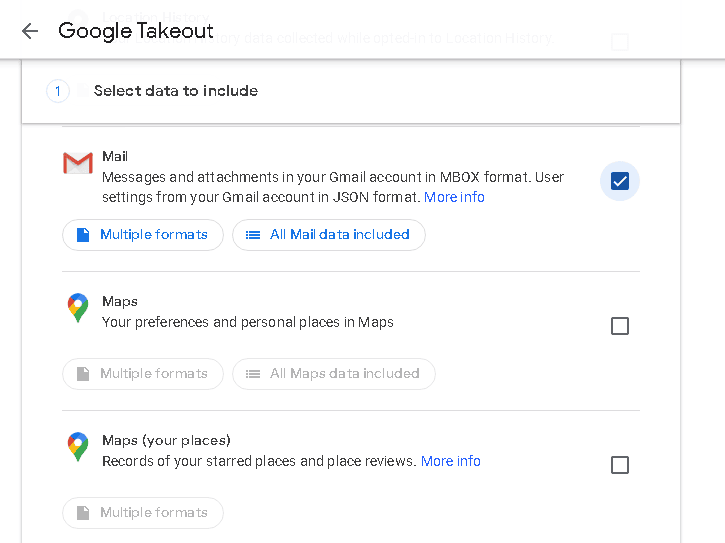
Step 3. After that, Deselect all and select only Mail option and then press Next Step.
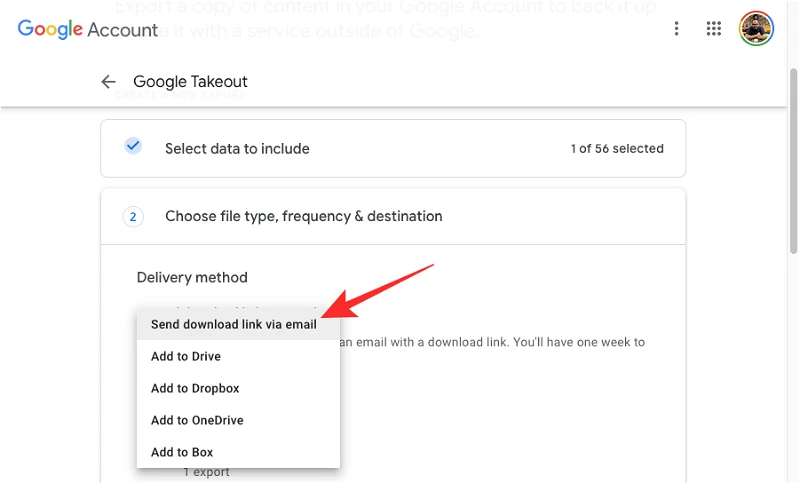
Step 4. Choose Destination Send download link via email and select one-time Export.
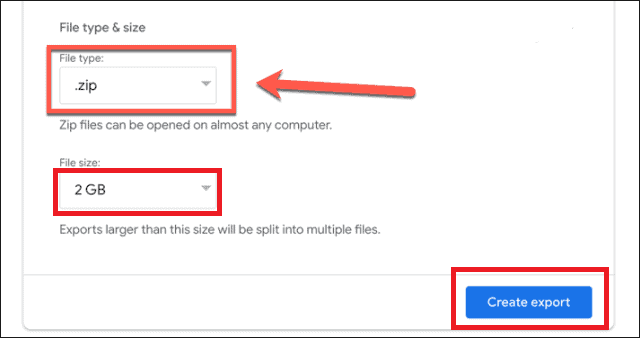
Step 5. Select the file type as ZIP and file size of 2GB. After that click on Create Export.
It takes some time that depends on the size of your inbox folder. After completion the exporting process, you will get a link on your email account and open it and transfer its data on external hard drive.
Limitations:
- With this method, you can save only the inbox folder.
- It is so time-consuming process. Sometimes it may several hours or days to complete the process.
- You cannot export only required emails.
#2. How to Export Gmail Emails to USB Drive using Outlook Email Client
Follow the below-given steps to save all Gmail emails to Flash Drive-
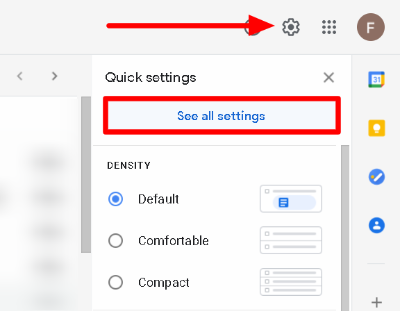
Step 1. Firstly, Open your Gmail account. Go to Gear Icon and click on See all Settings.
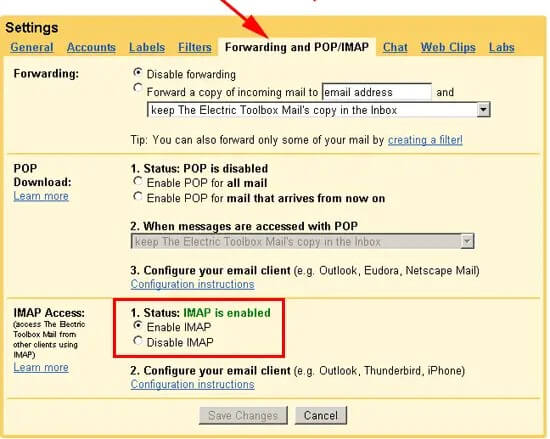
Step 2. Now, Click on Forwarding POP/IMAP option and tick on Enable IMAP.
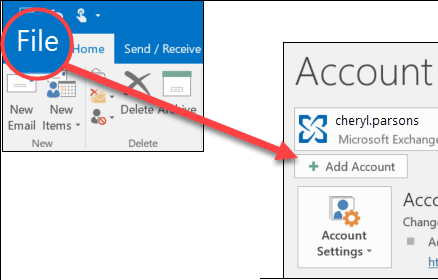
Step 3. After that, Launch MS Outlook and click on File >> Add Account.
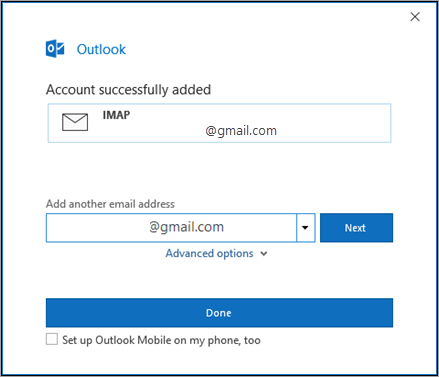
Step 4. Enter your Gmail email address and pree Connect button.
Step 5. Type your Gmail account Password and click on Finish to add properly Gmail account in Outlook.
Step 6. Now, you are able to view your Gmail account on the left side of the Outlook interface.
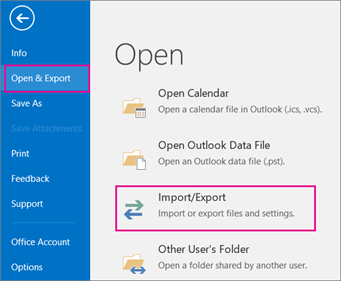
Step 7. Click on File >> Open & Export >> Import/Export option.
Step 8. After that, select Export to a File and click on the Next button.
Step 9. Choose Outlook Data File (.pst) and hit on Next.
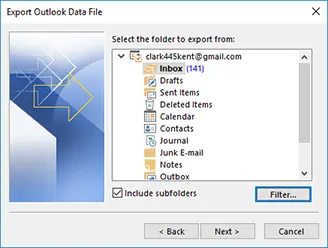
Step 10. Select the Inbox Folder and press the Next button.
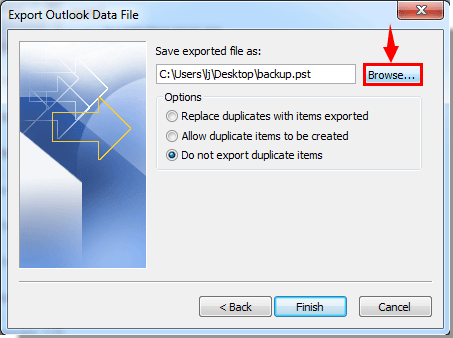
Step 11. Browse the destination location to save emails and then click on the Finish button.
Step 12. Now, your Gmail emails are saved in PST format at the specified location.
Step 13. At last, Connect USB flash drive to transfer Gmail emails to flash drive in .pst format.
Drawbacks
- It is so lengthy and time-consuming process.
- Users must have the in-depth technical knowledge to configure a Gmail account with Outlook.
- Outlook must be installed on your system. In case, the import-export option greyed out in Outlook then you can not copy emails from Gmail to Flash drive.
How to Save All Gmail Emails to Flash Drive Instantly?
Try Xtraxtor Gmail Backup Tool to directly export Gmail emails to USB drive in a few simple clicks. In this application, you do not need to install any external application for saving Gmail emails to Flash drive. With the manual solution, you can save Gmail emails only in one particular format while the software allows you to export Gmail emails to MBOX, EML, PST, HTML, PDF, TXT, and 10+file formats. The tool is able to save multiple Gmail emails to a flash drive at once without losing any single bit of data. There are various filter options to copy only selected emails from Gmail to the external hard drive.
In addition, the tool not only transfer Gmail emails to Flash Drive but also export emails from Gmail to Office 365 admin account. The interface of this utility is very simple and easy to use. Any novice user can easily save all Gmail emails to Flash Dive without any assistance.
You can download its free demo version to check its work efficiency and accuracy. The trial version allowed you to transfer the first 25 emails from Gmail to a USB drive.
Steps to Save Gmail Emails to Flash Drive with Attachments
Step 1. Download and run Xtraxtor Email Backup Tool on your Windows PC.
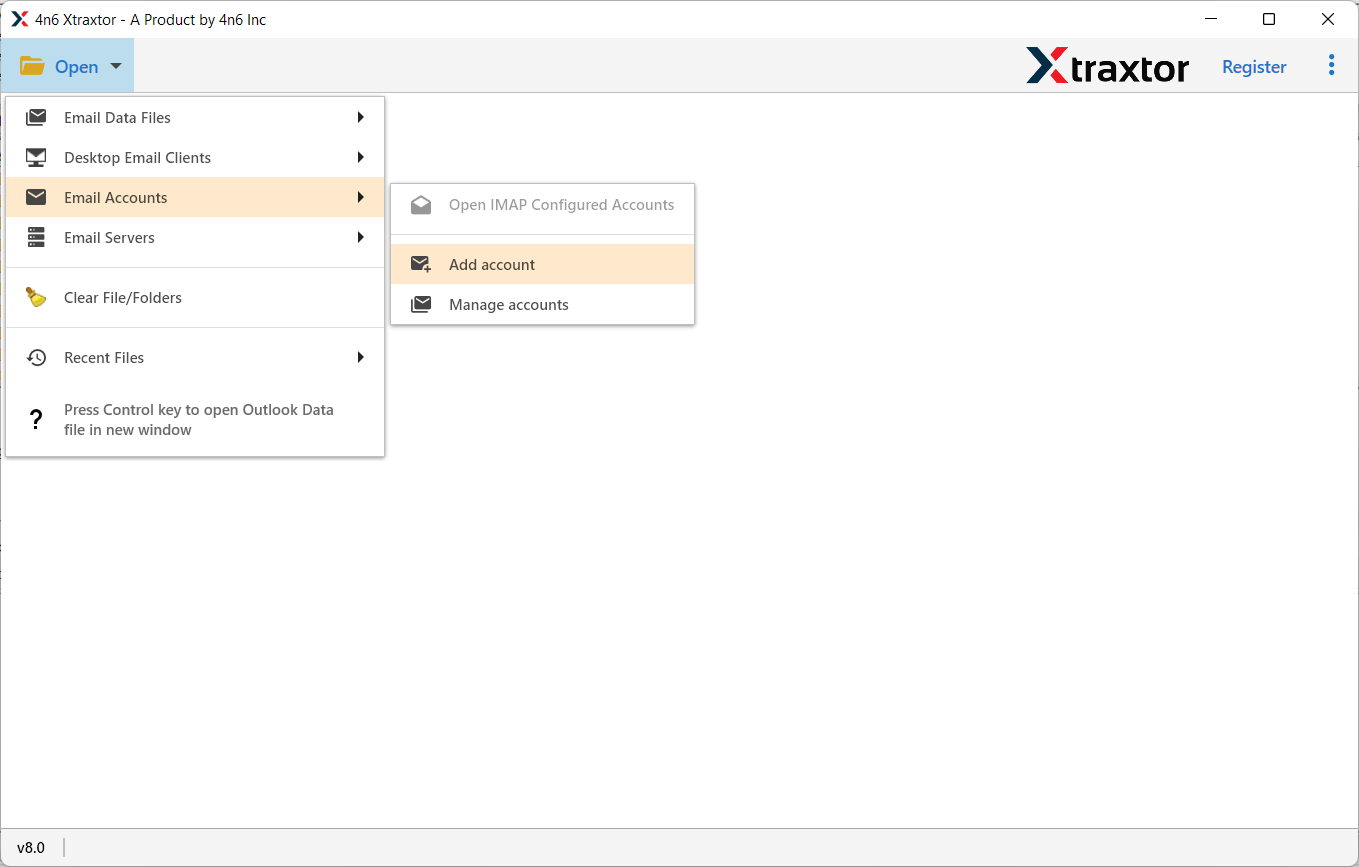
Step 2. Now, click on Open >> Email Accounts >> Add Account.
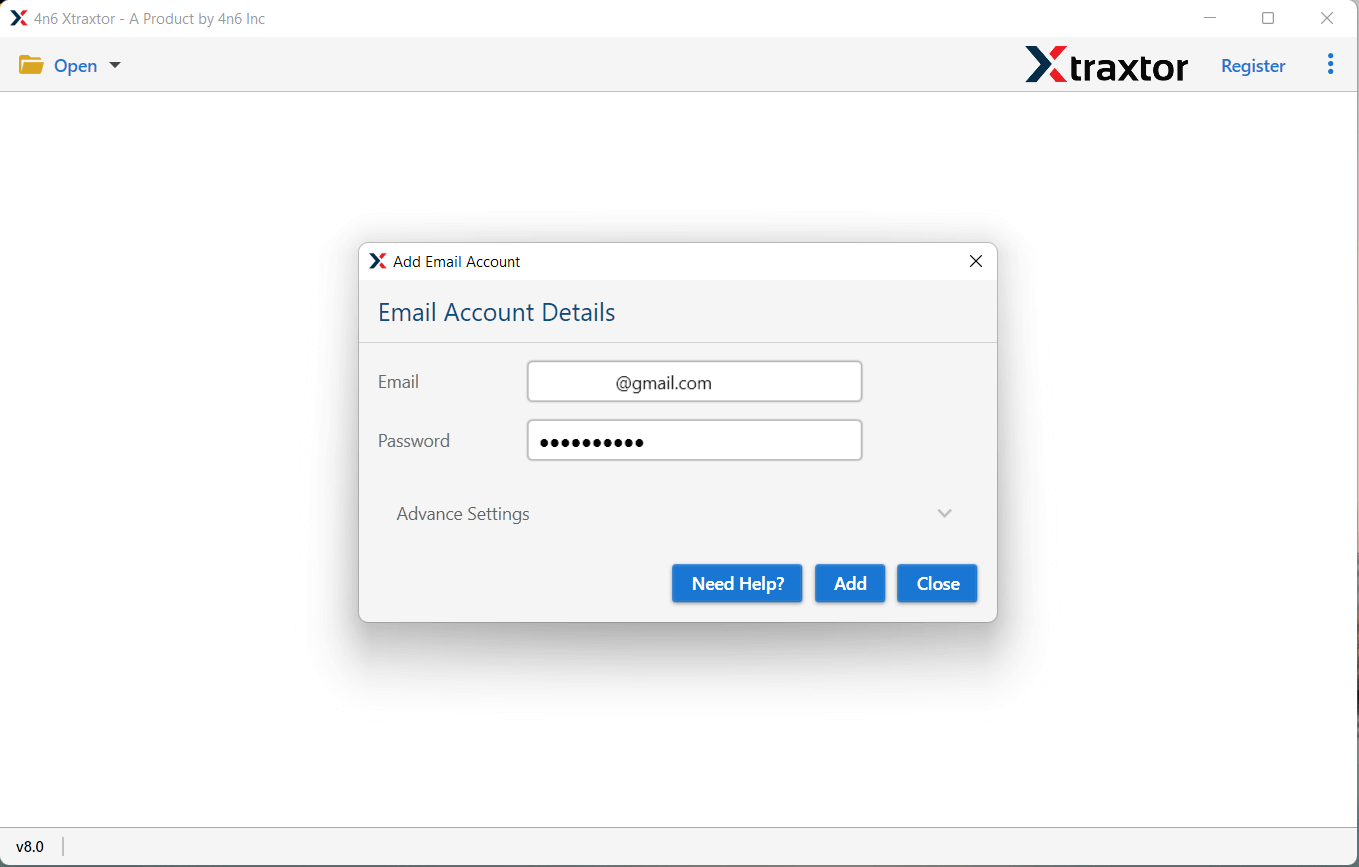
Step 3. Enter your Gmail Email Id and Password, and then press the Add button.
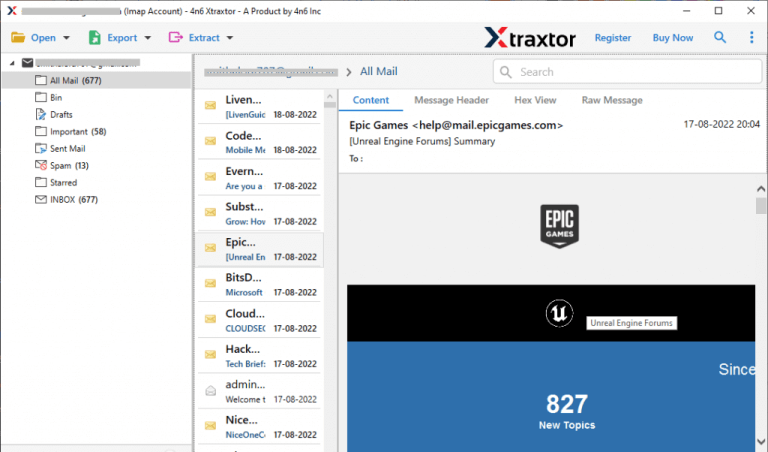
Step 4. Here, you can view Gmail emails before copying them to the external hard drive.
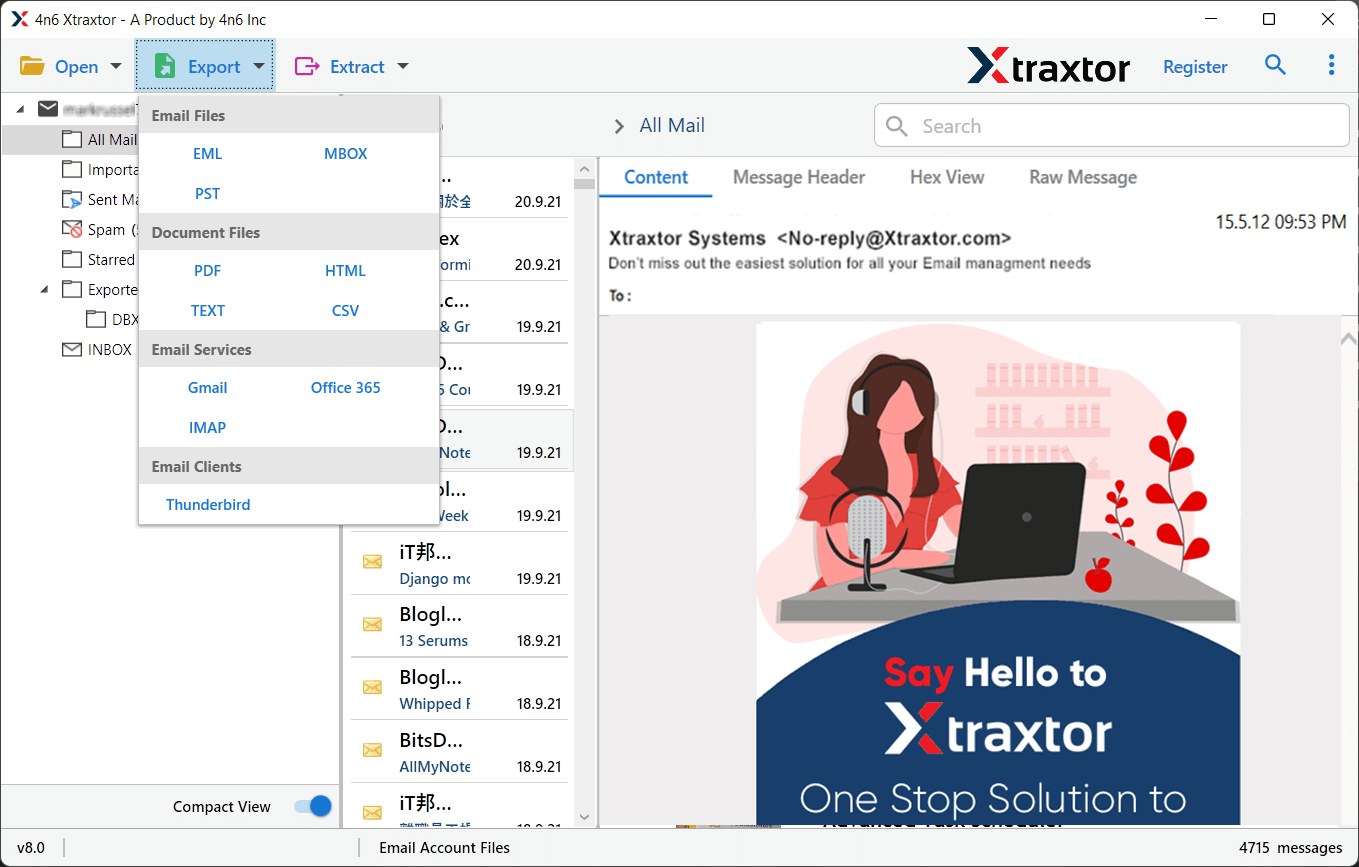
Step 5. After that, go to Export and select any file format in which you want to save your emails.
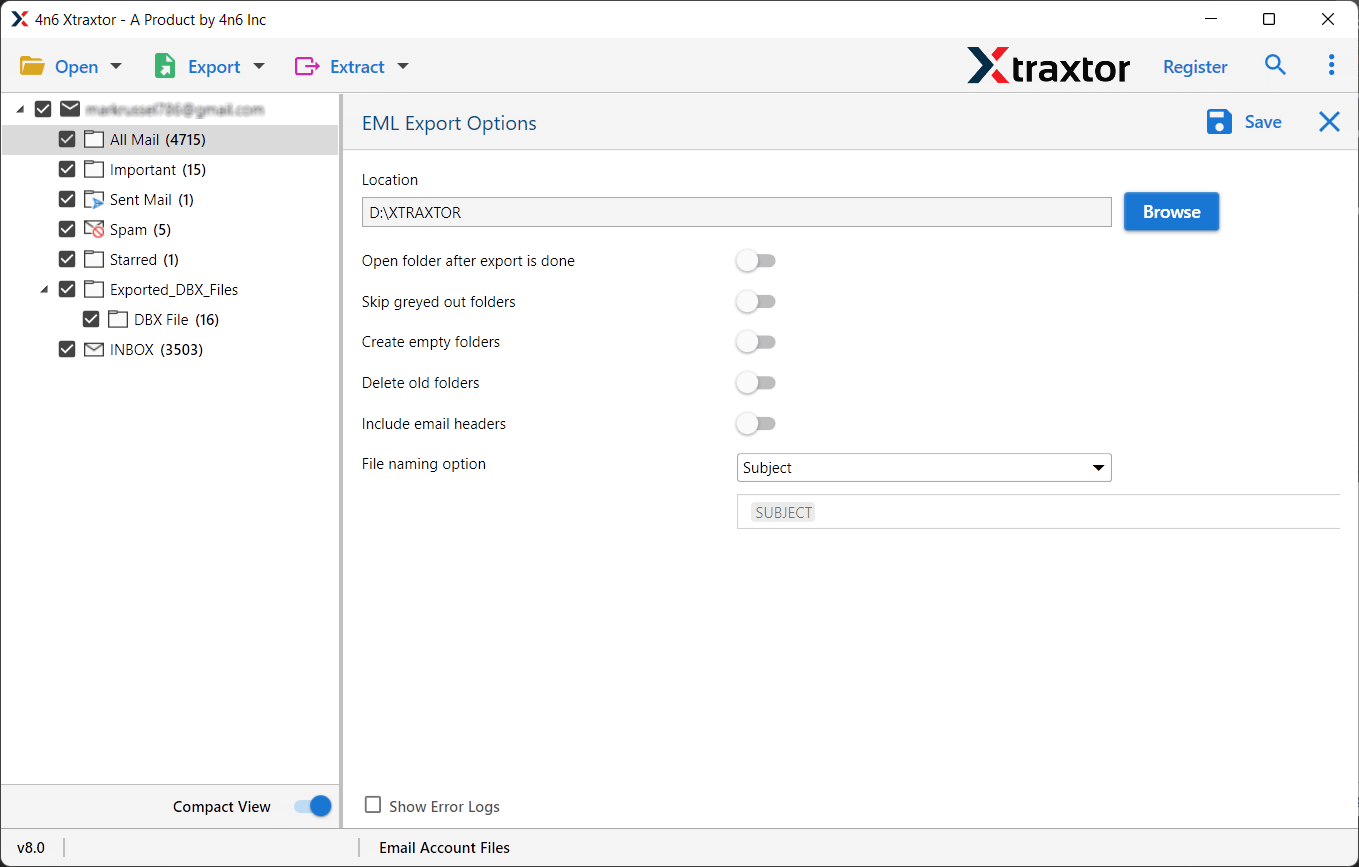
Step 6. Click on Browse to set the destination location and then press the Save button.
Step 7. Connect the Flash drive and transfer Gmail emails to Flash drive. Go to the specified location where you have saved them.
Incredible Features of Xtraxtor Gmail Backup Tool
It is powerful software to back up and transfer Gmail emails to USB flash drive or save them at any other location. Some key features of Xtraxtor Gmail Backup Tool include:
- Batch Mode: The software allows you to save the complete mailbox of your Gmail account, including emails, attachments, contacts, and calendars at once. With this application, you can save Gmail emails in bulk with complete accuracy.
- Multiple Export Formats: The tool supports various export formats, such as PST, EML, MSG, MBOX, and PDF. It gives you flexibility in choosing the format that best suits your needs. You can easily export Gmail emails to PDF, PST, MBOX, EML, TXT, and many other file formats.
- Advanced Search and Filter: With its advanced search and filter options, you can easily locate specific emails based on criteria like sender, recipient, date range, subject, or keywords. This feature helps you efficiently manage and find the desired emails during the exporting process.
- Preserves Data Integrity: The tool preserves 100% data integrity during the process. It save Gmail emails to Flash Drive with all metadata properties and key attributes.
- Maintains Email Structure: With this application, you do not worry about the structure of your emails. It copy emails from Gmail to Flash drive in their original format without changing it.
- User-Friendly Interface: The tool is designed with a user-friendly interface that makes it easy to navigate and perform operations. You don’t need to possess technical expertise to use the tool effectively.
- Data Security: It prioritizes data security and offers features like password protection and encryption to safeguard your emails and sensitive information.
- Compatibility: The tool is compatible with various Windows operating systems, ensuring broad accessibility and usability.

Conclusion
In this post, we have discussed how to save all Gmail emails to Flash Drive. Here, two manual and one automated solution have been discussed in detail to copy emails from Gmail to an external hard drive. You can choose any method that is best suited for you. However, experts recommend using the automated solution to directly transfer Gmail emails to Flash Drive without any hassle. The above-suggested tool is a secure and efficient solution for saving Gmail emails to Thumb Drive in a few simple clicks.