How to Import Google Takeout to Office 365 Account?

If you have downloaded your emails and data using Google Takeout and now want to move everything into Office 365, you are not alone. Many users switch to Microsoft 365 for better security, centralized management, and long-term business use. However, Google Takeout exports data in formats like MBOX, which Office 365 does not support directly. This often creates confusion and leads to failed or incomplete migrations.
This guide explains:
- What Google Takeout is
- Why users move Google Takeout data to Office 365
- Manual and professional ways to import Google Takeout to Office 365
- Which method is best based on your data size and skill level
Google Takeout is a free Google service that lets you download your data from services such as:
- Gmail (emails in MBOX format)
- Google Contacts
- Google Calendar
- Drive and other Google services
All exported data is downloaded as a ZIP file, which must be extracted before migration. For email data, Google Takeout creates .mbox files, which cannot be uploaded directly into Office 365.
Ways to Import Google Takeout to Office 365
There are two reliable approaches, depending on your requirements:
- Manual method using Thunderbird (free but limited)
- Automated method using a professional migration tool (recommended)
Let’s understand both.
How to Transfer Emails from Google Takeout to Office 365 Mailbox Manually?
If you want to upload Google Takeout to Office 365 manually, you need to configure your webmail account to an email client that supports MBOX file. Here we will use the Thunderbird desktop email application. You need to extract Google Takeout ZIP file as MBOX file.
Follow the given instructions to import Google Takeout to Office 365 account.
Step 1: Add Office 365 to Thunderbird Profile
1. Open the Thunderbird application on your system and create a new account.
2. In the new Window, click on Skip this and use my existing email button.
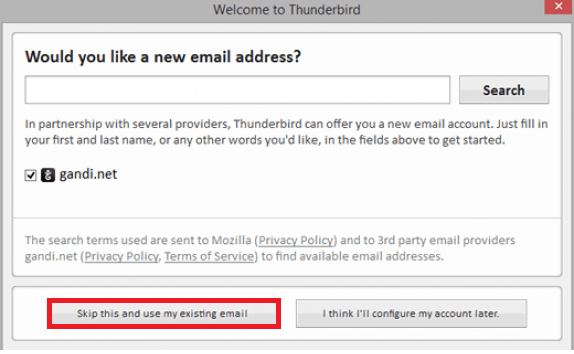
3. Then, enter your name, email address and password and hit on the Continue button.
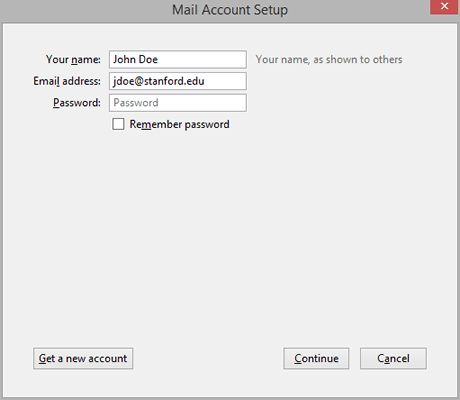
4. After that, enter the IMAP setting, if the automatic setting fails. Then click on the Done button.
Incoming
Server hostname: outlook.office365.com Port: 993
Outgoing
Server hostname: smtp.office365.com Port: 587
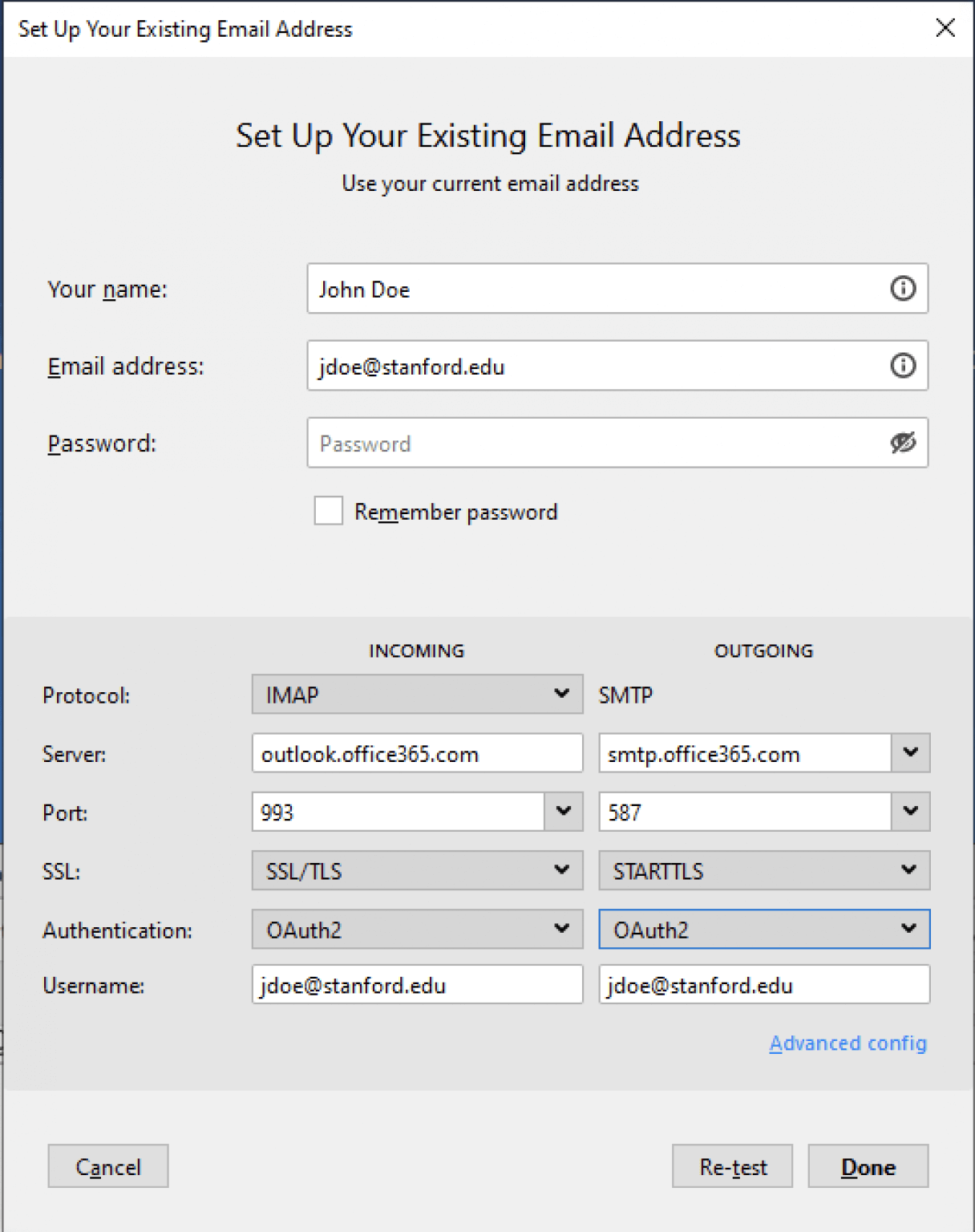
Here, your Office 365 account is configured to Thunderbird successfully.
Step 2: Import Google Takeout to Office 365
1. Reopen your email client and click on Tools >> ImportExportToolNG >> Import MBOX file.
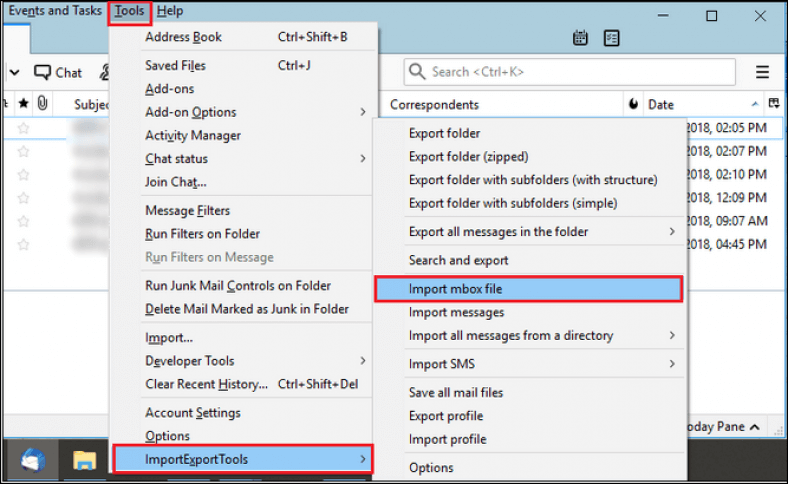
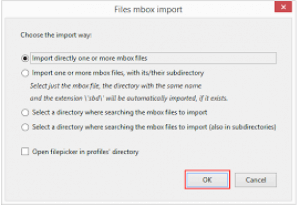
2. Select the option “Import directly one or more .mbox file” in the pop-up screen and hit on the OK button.
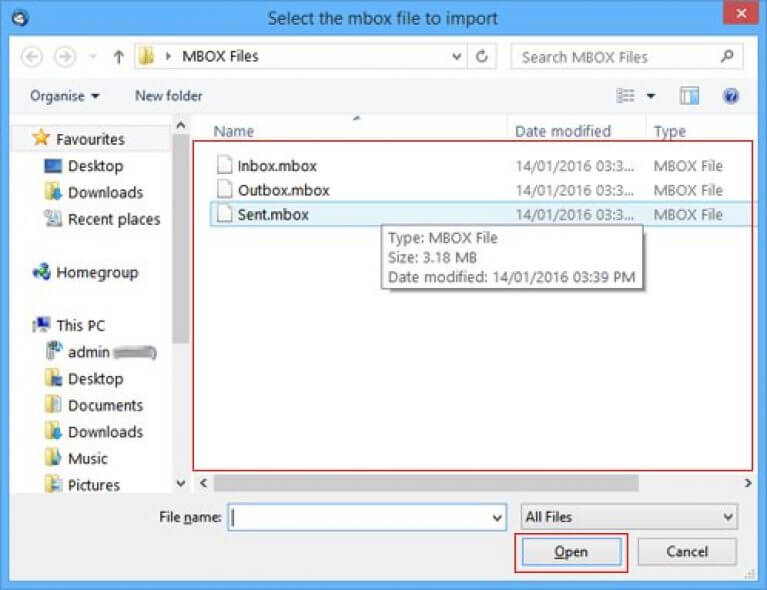
3. Select the Google Takeout .mbox file and click on the Open button.
4. Now drag and drop the imported file under Office 365 email address.
Now, here completes the migration process using the manual solution. However, you can face certain limitations with it.
Loophole With Native Approach
- It is a lengthy process that requires lots of time and effort.
- A single mistake can cause data loss.
- No option to import selective email folders to Office 365 account.
- Require technical knowledge for configuring O365 to Thunderbird application.
How to Import Google Takeout Emails to Office 365 Directly?
Try the Email Converter tool on your Windows and import data from Google Takeout to Office 365 account in a few simple clicks. The software directly transfer Google Takeout file to Office 365. With its advanced filter option, one can migrate selective emails by applying various filters, such as to, from, cc, bcc, name, date, time, etc.
Click on the free download and check its complete working process.

Steps to Import Google Takeout to Office 365 Account
Follow the given instructions and upload Google Takeout to O365 account.
Step 1. Install and launch the Xtraxtor tool on your Windows OS system.
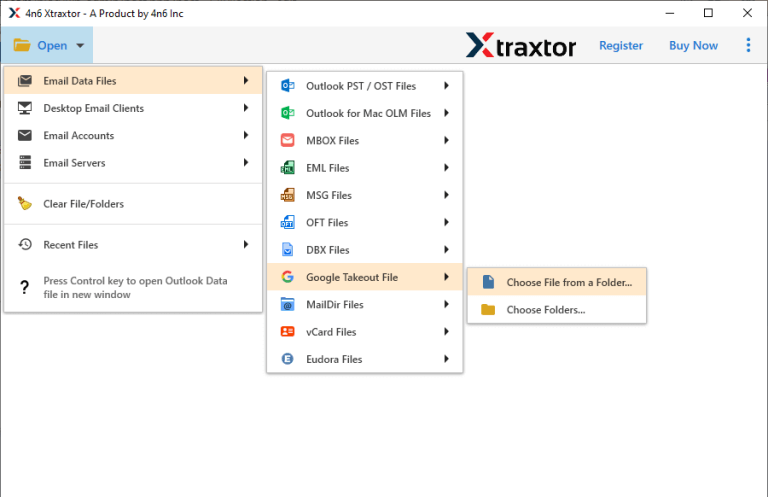
Step 2. Then click on Open>> Email Data File >> Google Takeout file >> Select File or Folders.
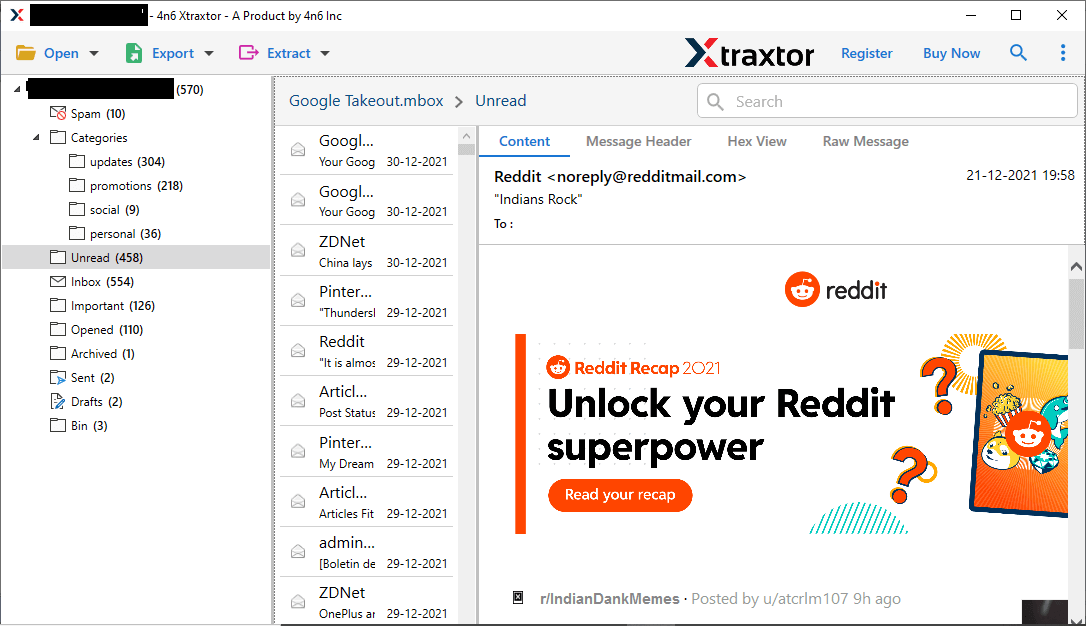
Step 3. Here you can view your emails before exporting them.
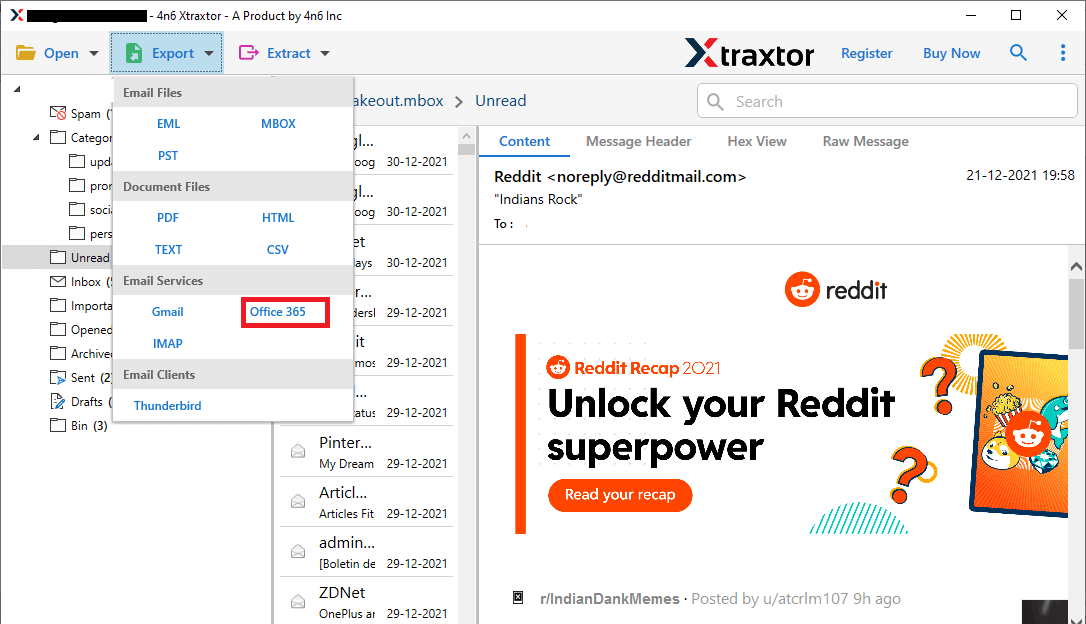
Step 4. After that, click on Export and choose Office 365 option.
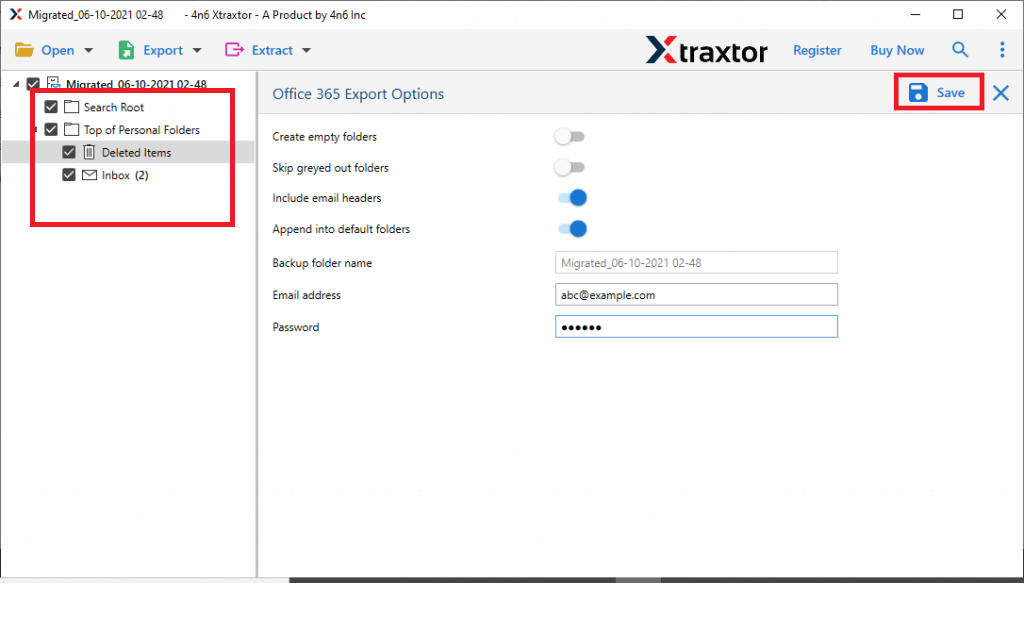
Step 5. Here you can select email folders that you want to export.
Step 6. At last, enter your Office 365 login details and hit on the Save button.
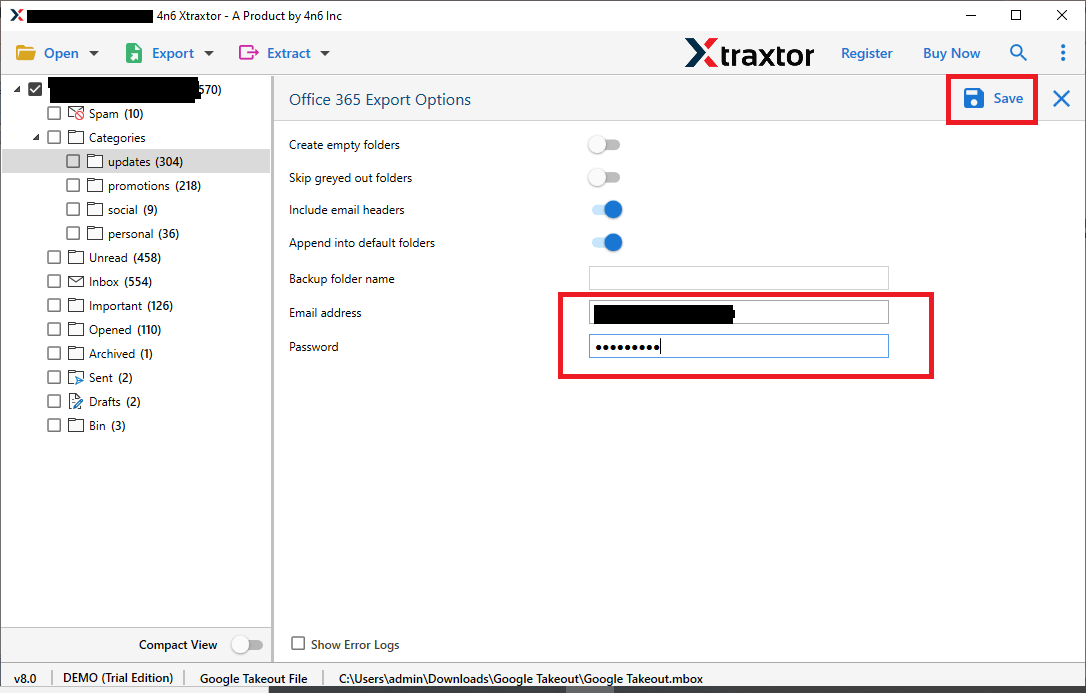
Here complete the import process, now you can access your Google Takeout data in your Office 365 mailbox without any issue.
Why Use Google Takeout to Office 365 Migration Tool
With this software there are various prominent features of this tool, some of them mention here –
- Using this tool one can convert Google Takeout file to MBOX, PST and many other file formats.
- There are various advanced filter options that help in selective email migration.
- Maintain email folder and subfolder hierarchy file importing.
- Directly import Google Takeout to Office 365 mailbox in a few simple steps.
- Allow to import Google Takeout file to Google Workspace, iCloud and many other webmail accounts.
- Support Windows 11, 10, 8, Vista, XP and all other previous version.
Conclusion
In this article, we discuss a secure and efficient way to import Google Takeout to Office 365 account. We mention a manual solution in which, in order to migrate emails, you need to add your Office 365 account to the Thunderbird application. On the other hand, an automated tool directly transfer Google Takeout to Office 365 mailbox in a few simple clicks. Now you can opt for any of the solutions that suit you.
